You can control a light using one or more switches, depending on your needs.
NOTE:
This guide uses HyPanel Lite and HyPanel Pro as examples. The UI and settings paths may differ depending on the model and firmware version of your HyPanel device.
One-Way Switching
In this setup, a light is controlled by a single switch or device.
Configuration Options
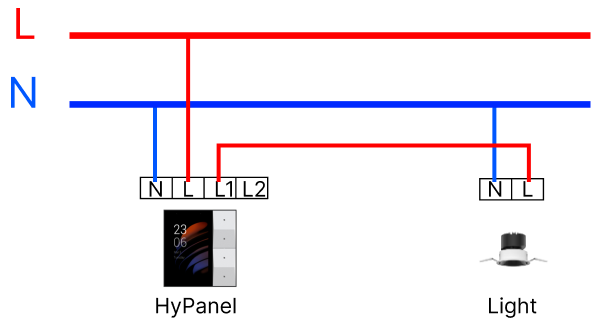
HyPanel Device(Relay version only)+ Light
Connect the HyPanel device to the light according to the wiring guideline.
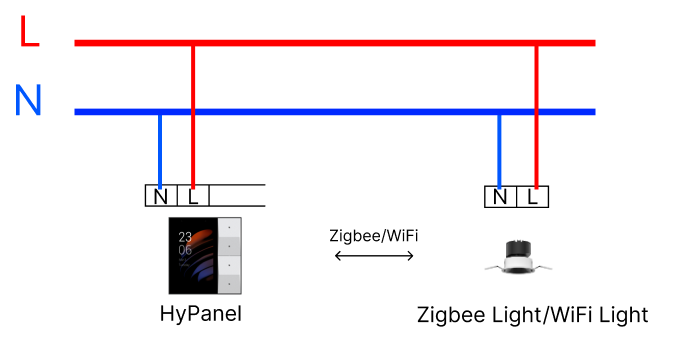
HyPaenl Device + ZigBee Light/WiFi Light
Follow the light manufacturer’s instructions to pair the Zigbee or WiFi light with the HyPanel device.
Multi-way switching
A multi-way configuration typically involves multiple devices, allowing control of the same light from two or more switches from different locations.
NOTE:
Currently, multi-way configurations can only be achieved through software settings, such as automation scenes or the multi-control association feature.
Configuration Options
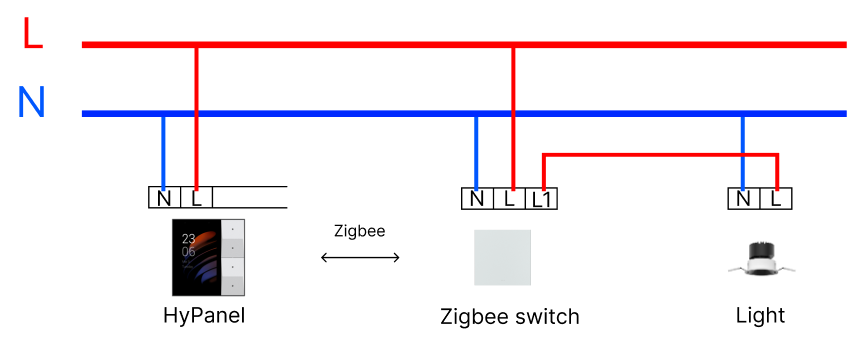
HyPanel Device + ZigBee Switch + Light
Control the light using either the HyPanel device’s physical or quick control buttons.
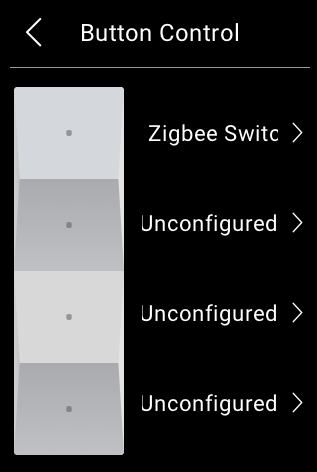
Example with the HyPanel Lite’s physical buttons control:
Go to System Settings > Button Control, and select the light and switch.
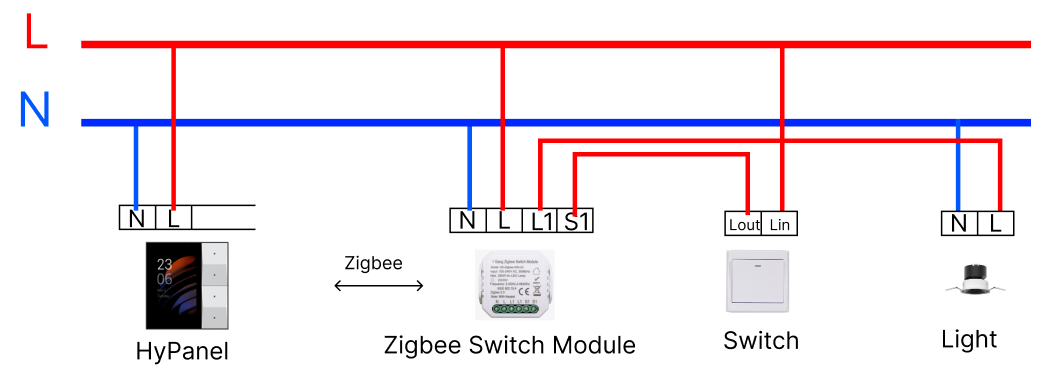
HyPanel Device + ZigBee Switch Module + Switch + Light
This configuration adds a switch module to extend control.
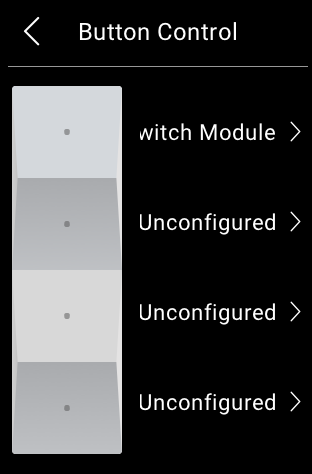
Example with the HyPanel Lite’s physical buttons control:
Go to System Settings > Button Control, and select the switch and light.
HyPanel Device + Two ZigBee switches + Light
In this setup, when one switch (Switch 1) is turned on or off, the second switch (Switch 2) will automatically sync with the status of the first.
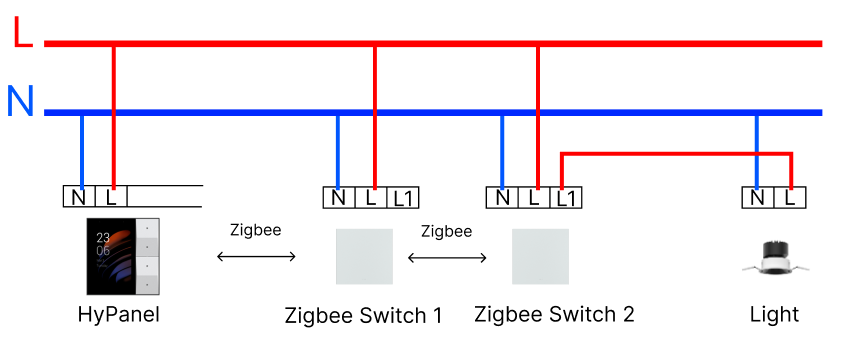
Set this up using the Automation Scene function via either the BelaHome app or the user web portal.
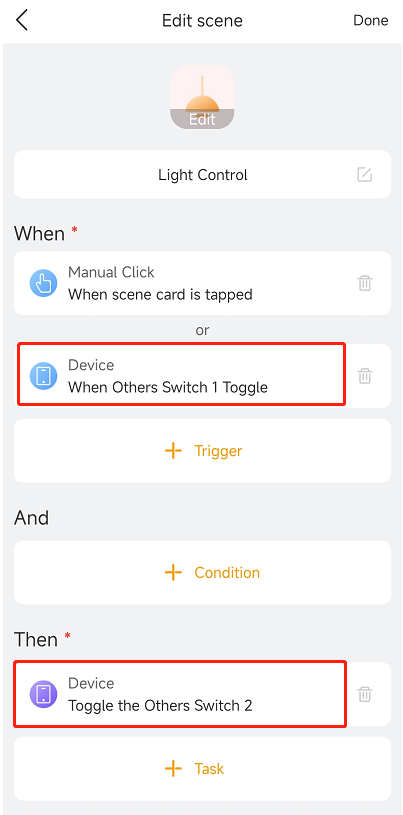
HyPanel Device + Two ZigBee switches + Light
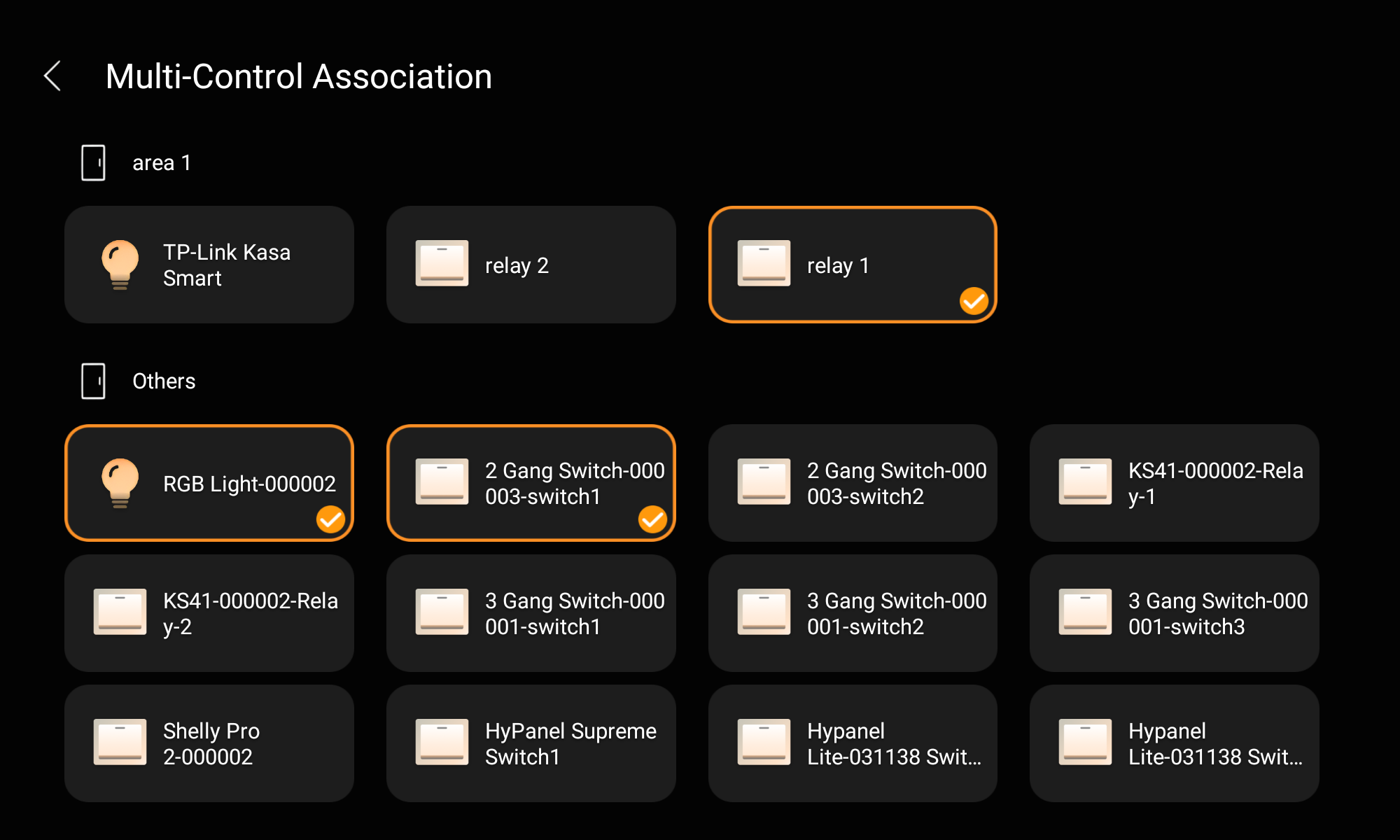
This setup uses the multi-control association function available through the BelaHome app or compatible HyPanel models.
NOTE:
Only specific HyPanel models support the multi-control function:
HyPanel Pro: 71.1.35.30 and later
HyPanel Ultra: 281.1.35.8 and later
HyPanel Supreme: 1001.1.35.8 and later
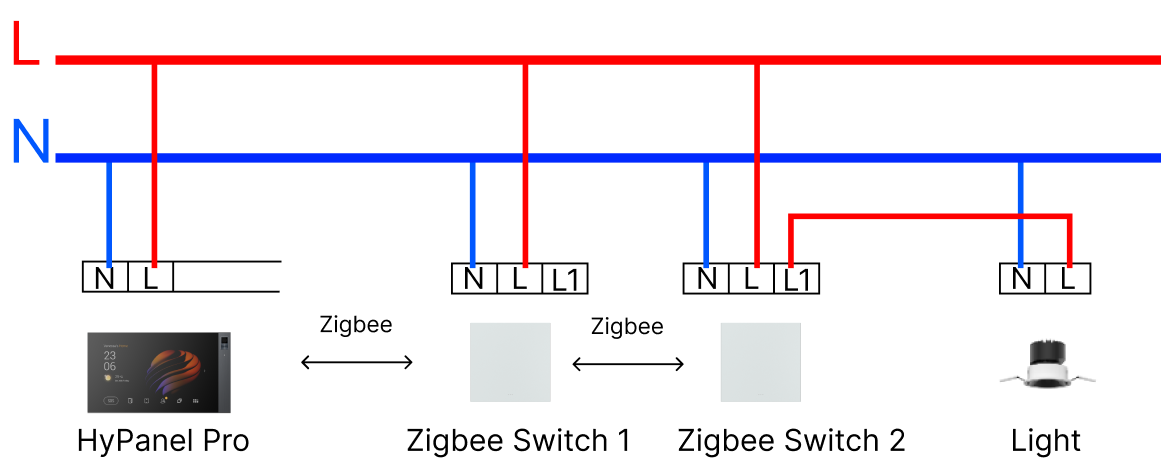
Steps for multi-control association:
Tap one ZigBee switch to go to its control screen, and tap
 to access the Device Setting screen.
Select Multi-Control Association > Sync.
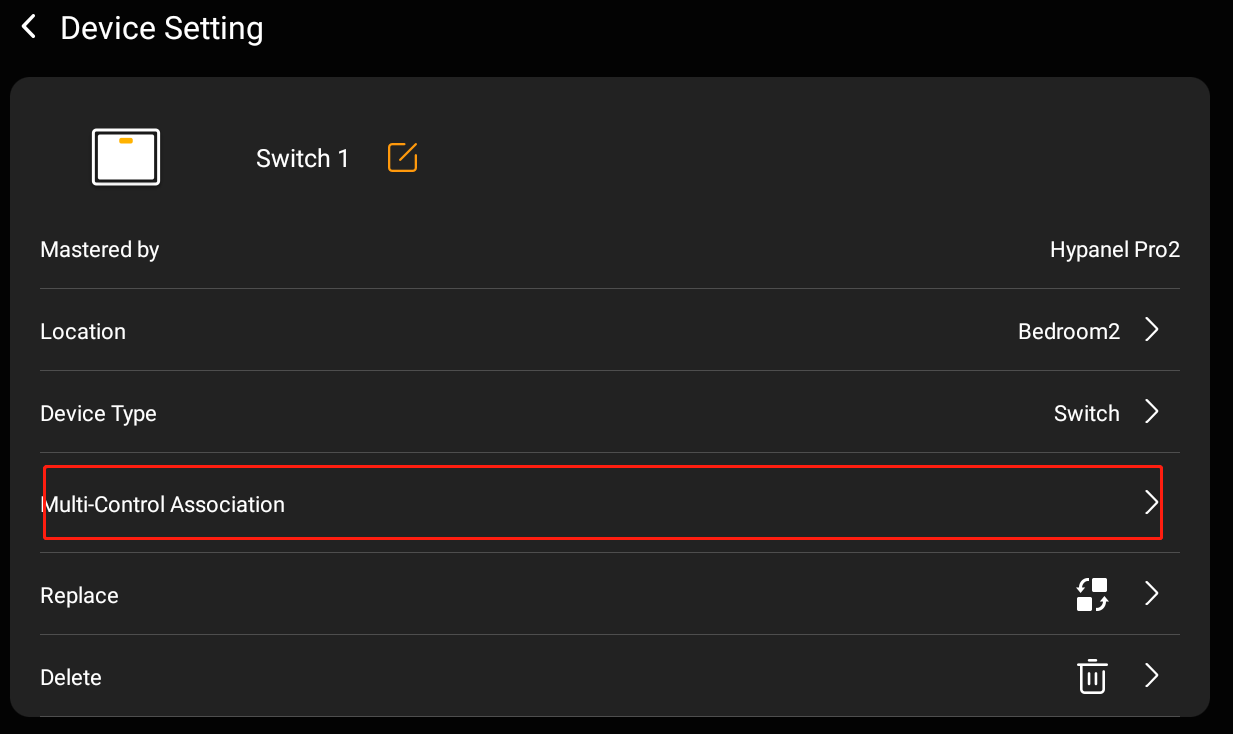
Select the second ZigBee switch and the light to synchronize their control.