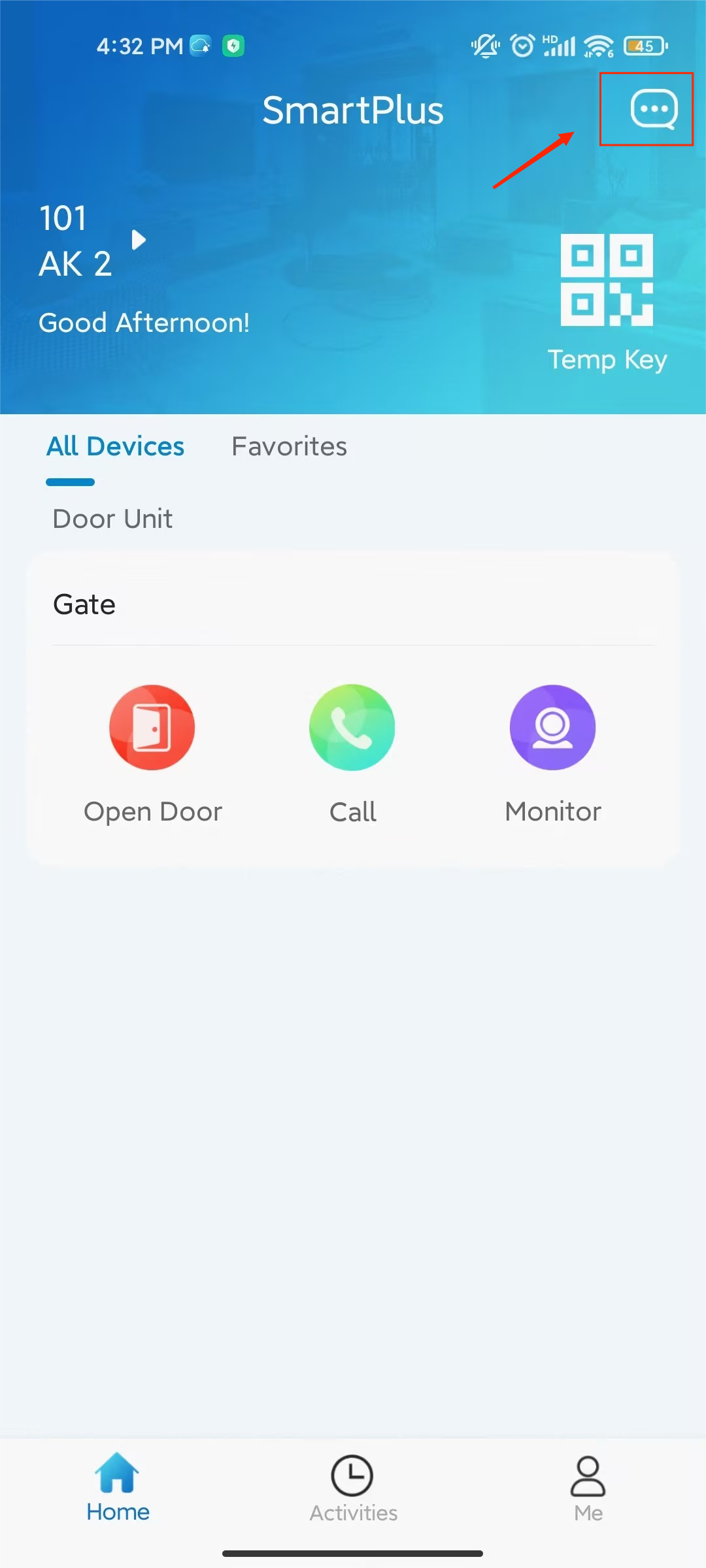
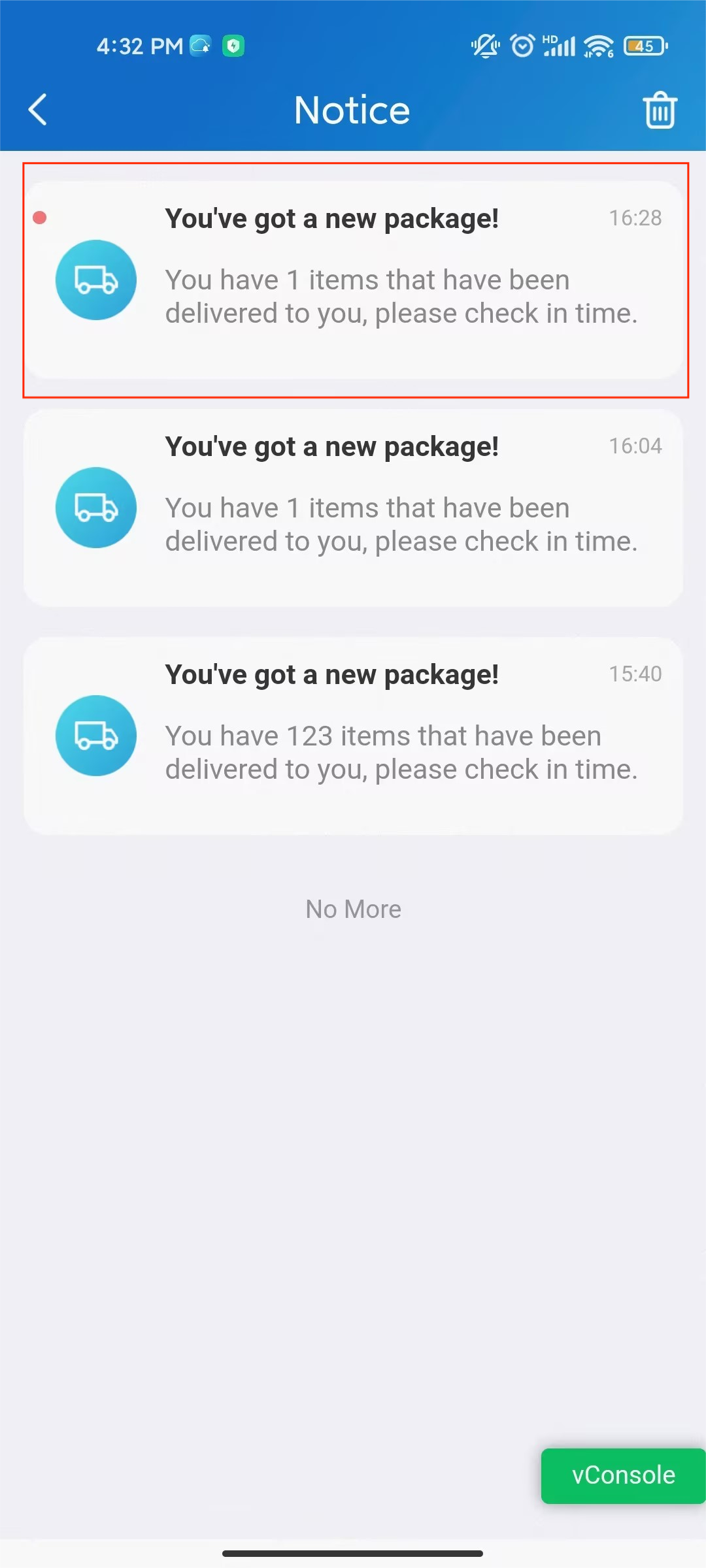
The Package Room feature allows delivery personnel to record package deliveries through the Akuvox R29 door phone. When the device is connected to Akuvox Cloud for community projects, residents receive delivery notifications through the SmartPlus App.
Before You Start
Supported Device
Only R29 supports this feature.
Configuration Permission
The Package Room feature can be configured by both installers and property managers. The available configurations vary depending on the account role.
Role | Permission |
|---|---|
Installer | Enable Package Room in the Feature Plan when creating or managing a community. |
Property Manager | Enable Package Room in Advanced Settings and configure delivery credentials. |
Watch the Video Guide
Prefer a visual walkthrough?
Watch: [PM]Receive Package Room Notification
Part 1: Enable Package Room Feature
Part 1-1: For Installer
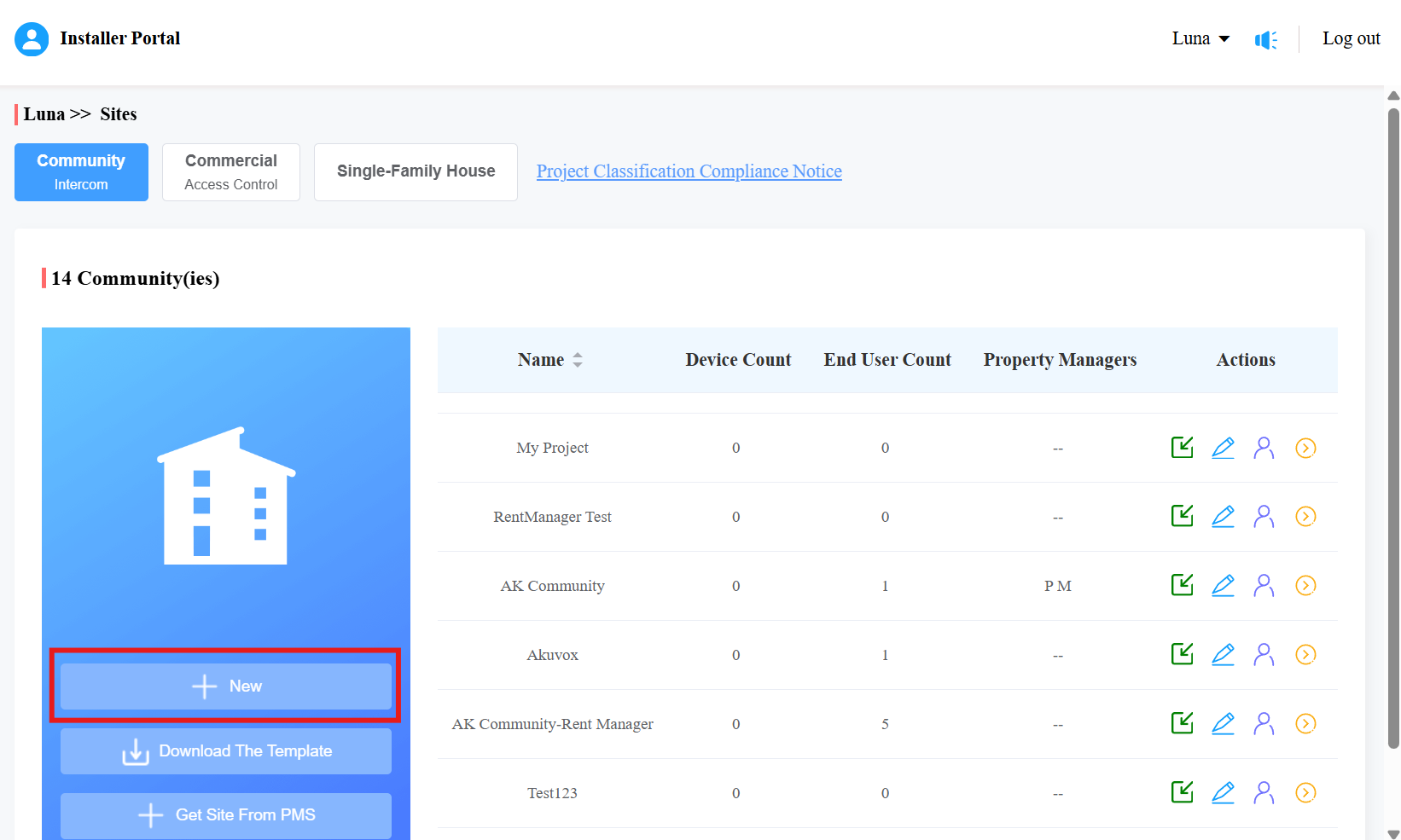
Log in to the cloud portal with your installer account.
Go to Sites.
Click New to add a new community; or, click
 to modify a current one.
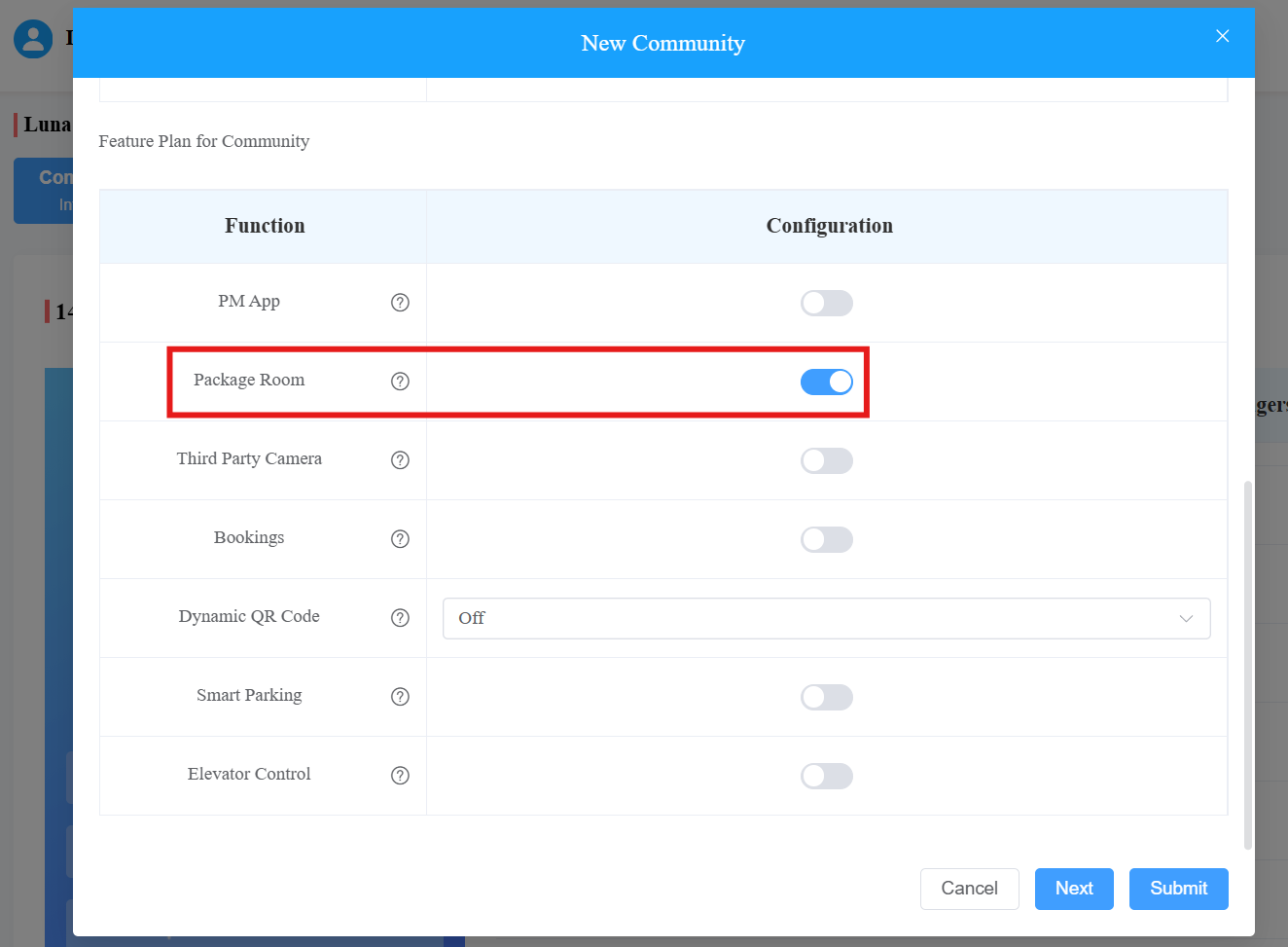
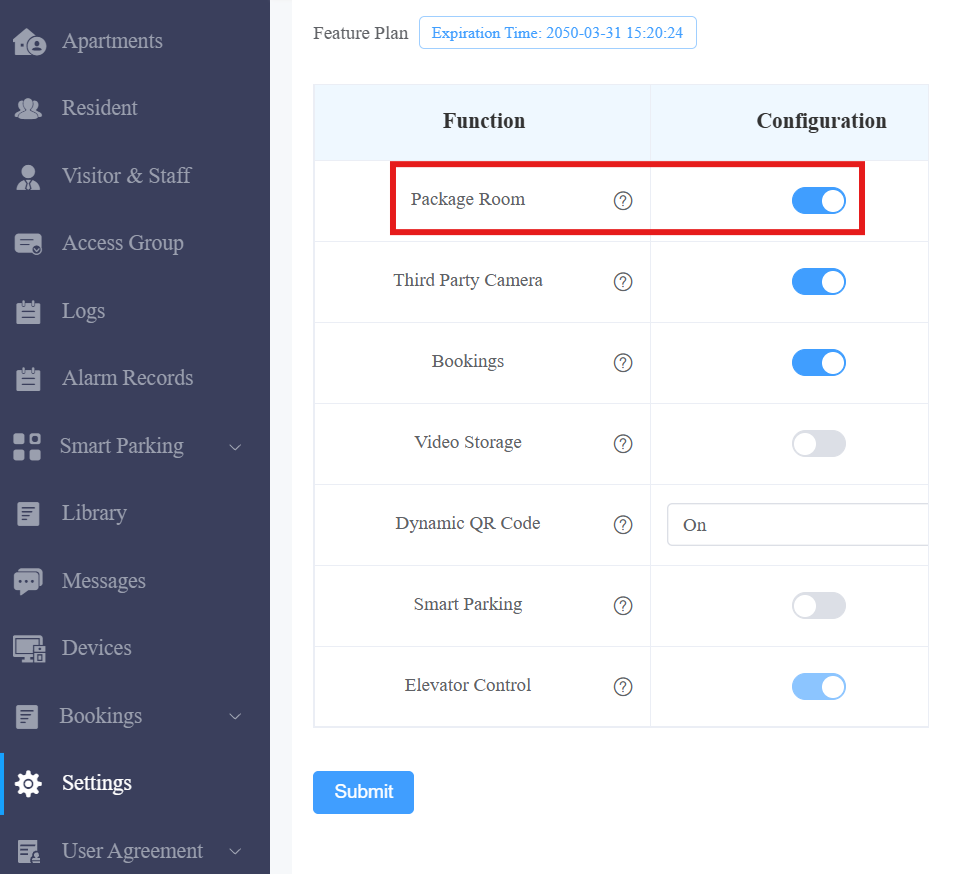
Enable the Package Room feature in the Feature Plan section.
Part 1-2: For Property Manager
Log in to the cloud portal with your PM account.
Go to Settings > Advanced Setting.
Enable Package Room.
Part 2: Create Delivery Credentials
Log in to the cloud portal with your PM account.
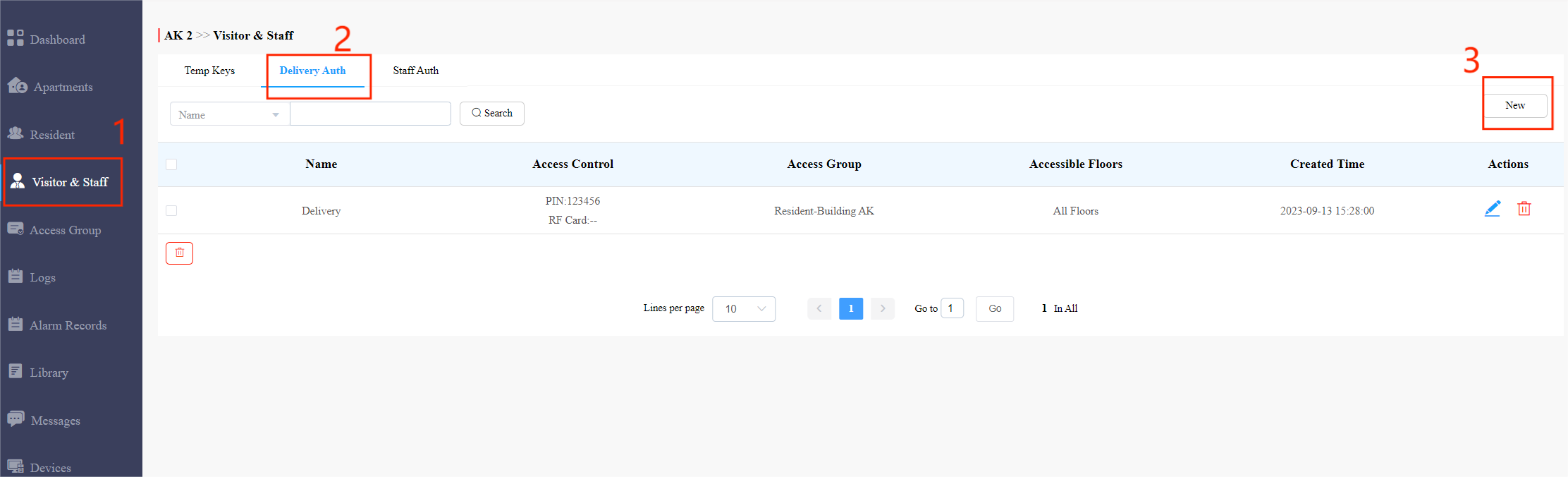
Click Visitor & Staff > Delivery Auth. Click New to create a PIN credential for delivery personnel.
Enter the desired name and PIN code, and select the desired accessible floors.
Select the access group generated by the system automatically or create a new one.
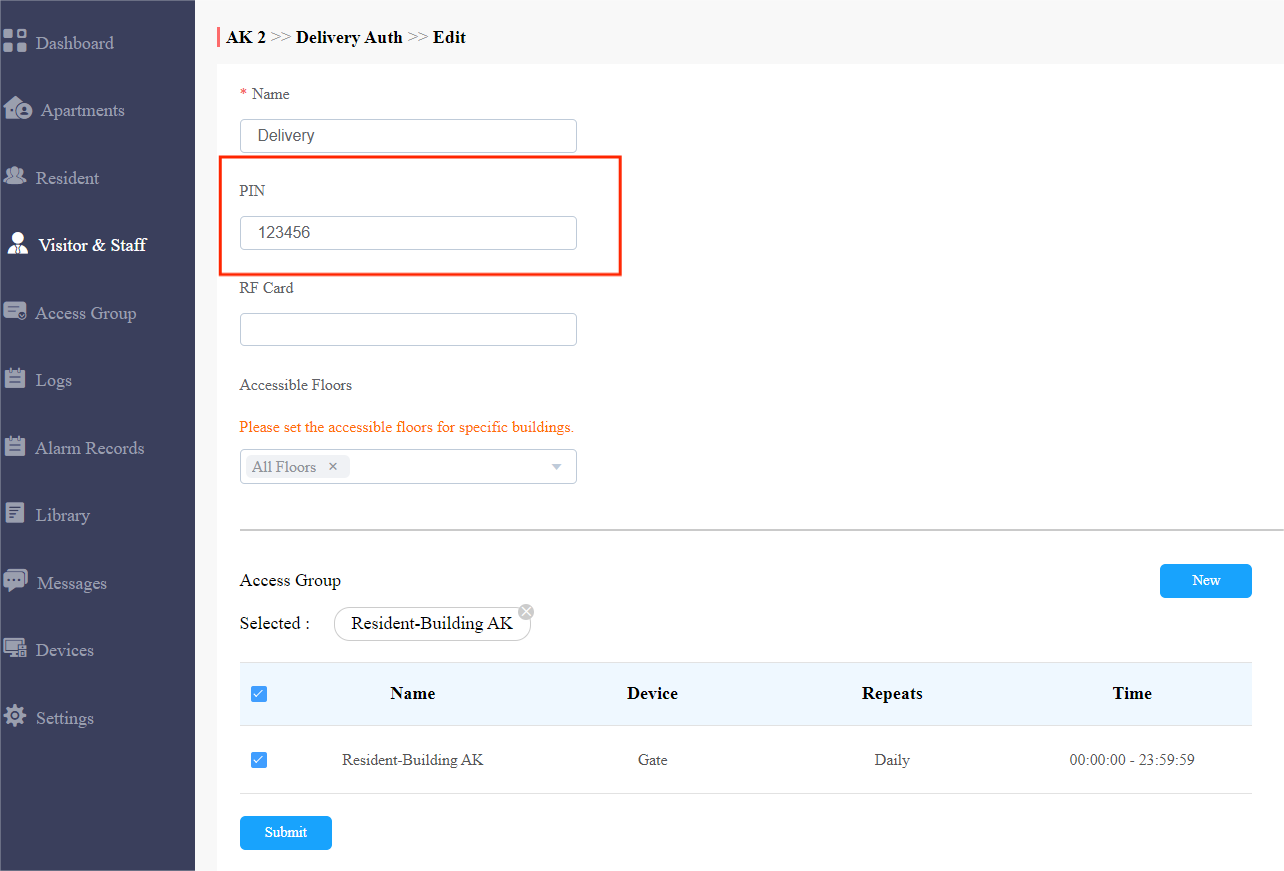
Click Submit to save the configuration.
Part 3: Configure the Device
After the cloud configuration, the package room feature needs to be enabled on the device’s web interface.
Navigate to the device IP in a browser. Log in with the username and password(admin/admin by default).
Navigate to Setting > Key/Display > Delivery Setting of Building Theme. Select Enabled to turn on the feature.

Note
On the Key/Display interface, the following two extra actions need to be done before using the Package Room feature.
Select Building in the Theme box.
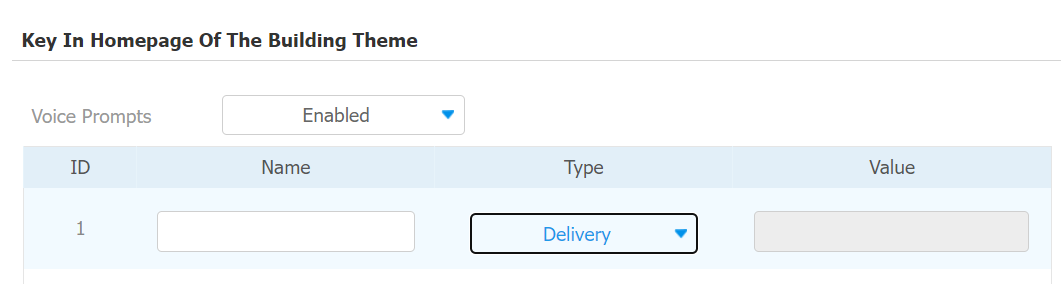
Scroll down to Key in Homepage of The Building Theme, select Delivery in Type box to display the Delivery icon on the device home screen.

Click Submit.
Part 4: Verification
After the above configuration is done, the deliveryman can take the following steps to send a notification.
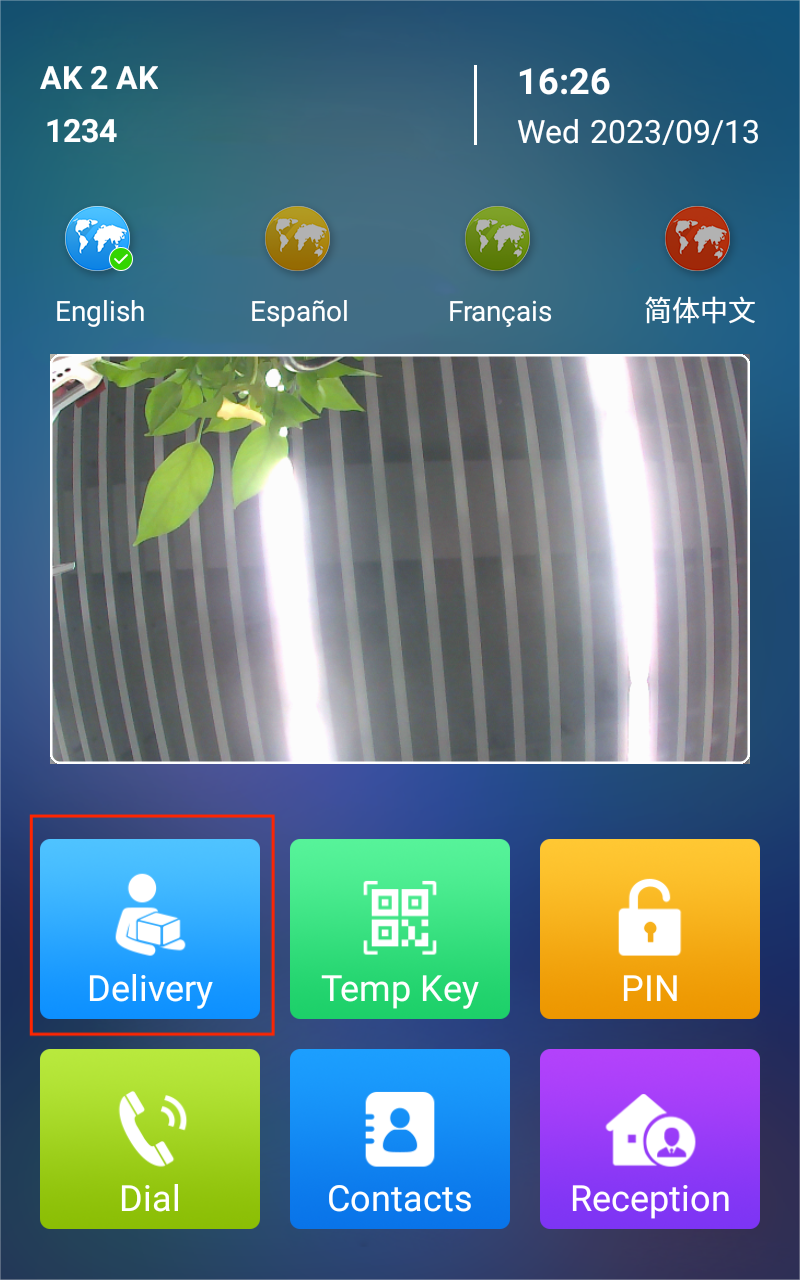
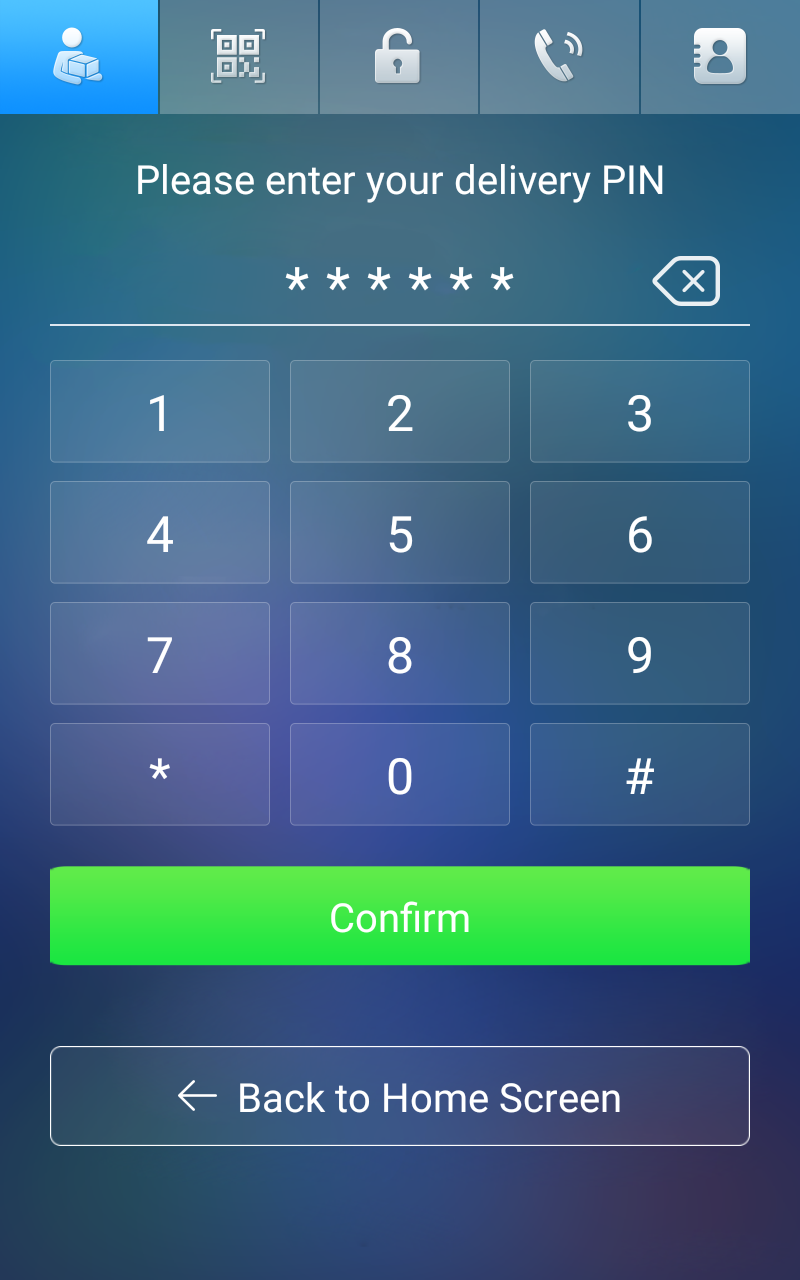
Press Delivery on the device screen. Enter the PIN code we have set up on the property manager cloud platform.
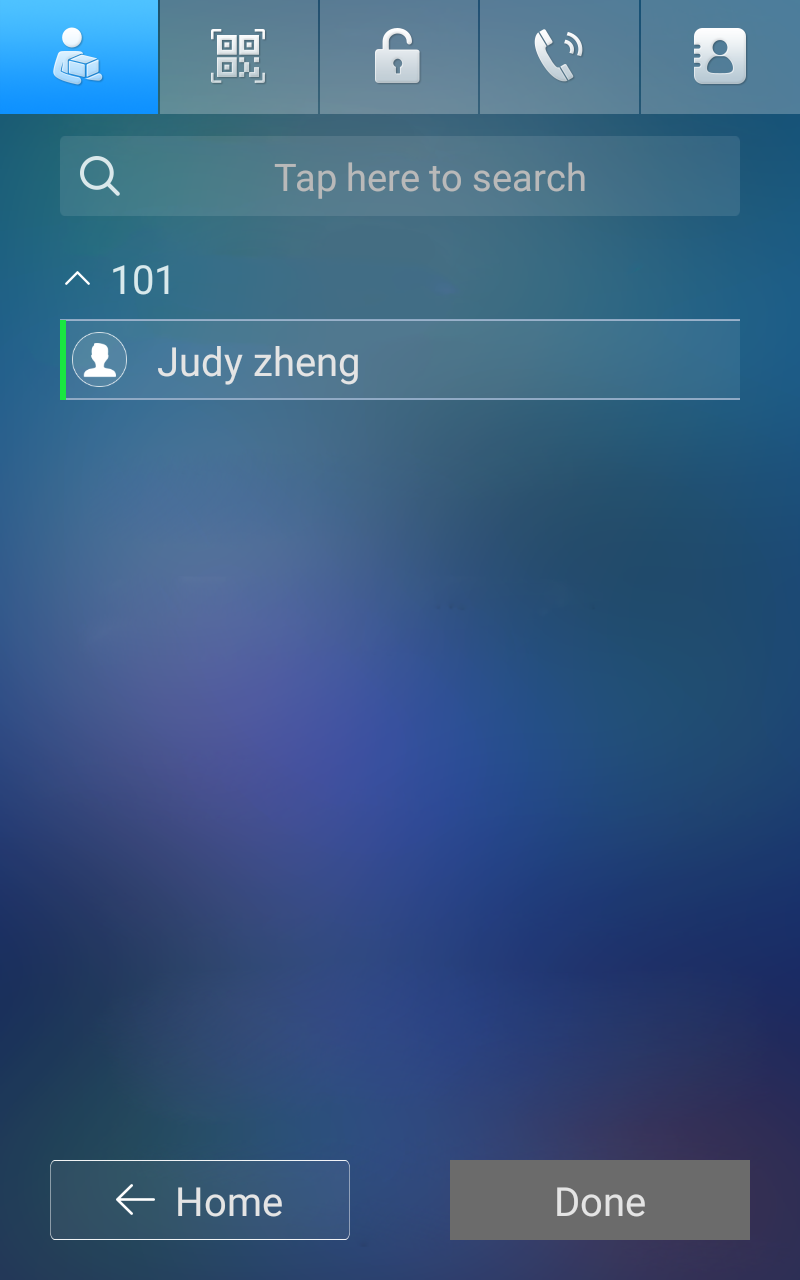
Press the desired apartment and resident.
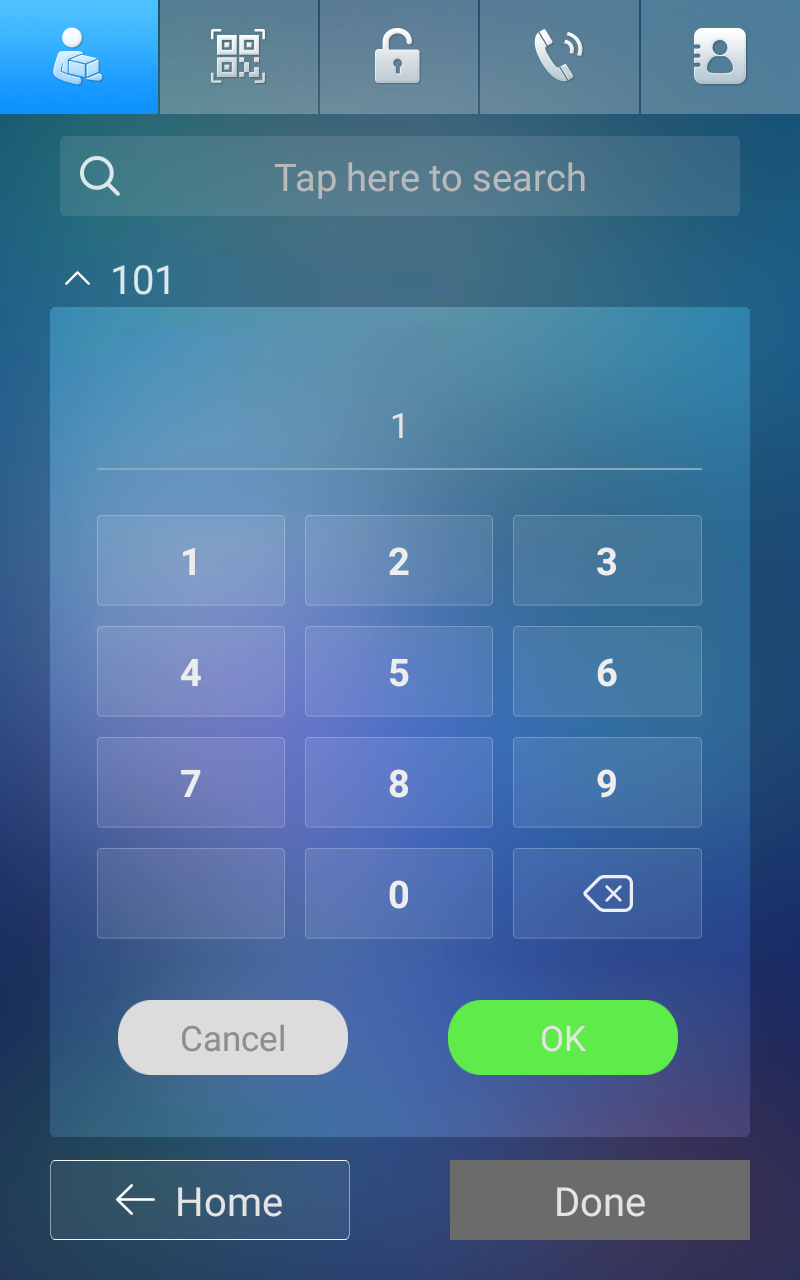
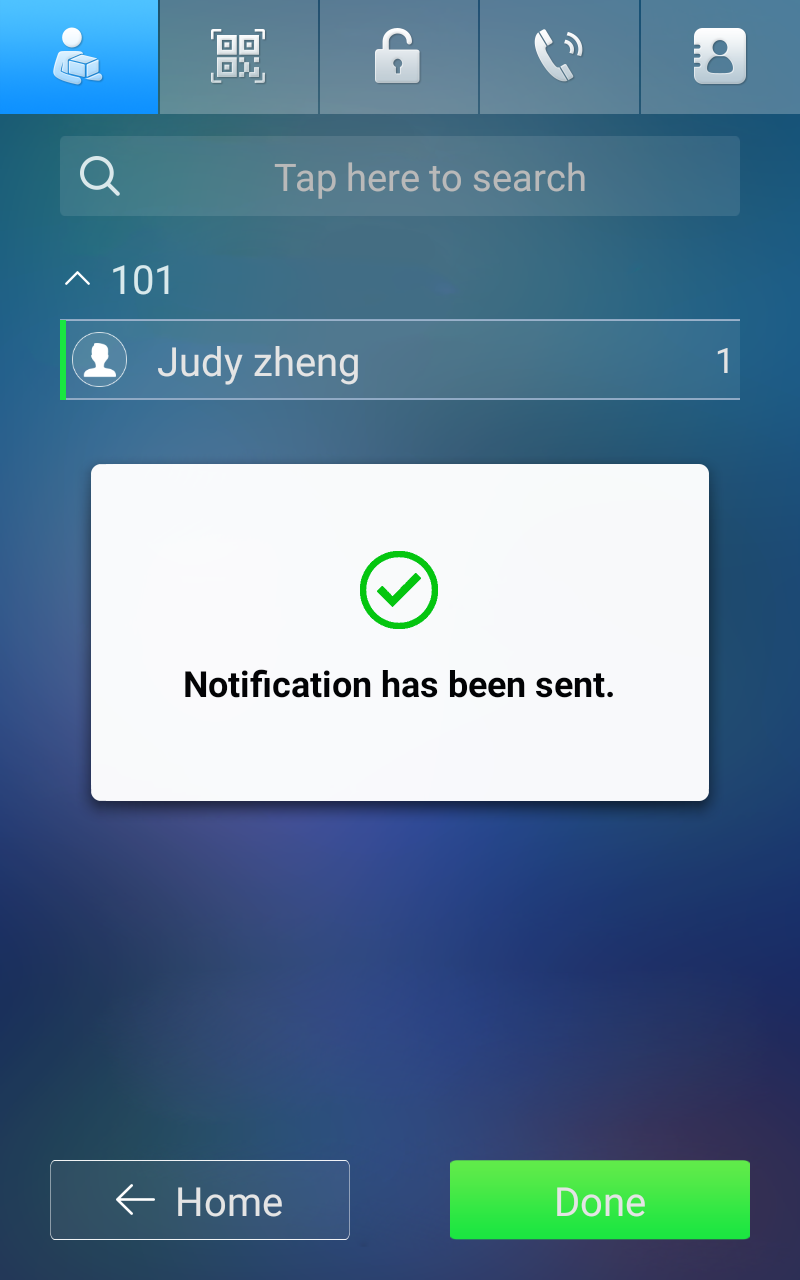
Enter the number of packages and press Done. A "Notification has been sent" message appears on the device, and the door unlocks automatically, allowing delivery personnel to place packages in the package room.
On the Smartplus App, the resident will receive the notification.