This feature allows you to assign different home screen layouts and function permissions to individual family members. When a user unlocks the panel using face recognition, only the functions displayed on their personalized home screen are accessible.
For example, the homeowner can access all functions after unlocking the main interface, while a domestic worker may only be allowed to control limited functions.
What You Should Know
Supported devices and firmware:
Device | Firmware |
HyPanel Pro(PG71) | 71.1.39.465 or later |
HyPanel Supreme(PHX1) | 1001.1.39.465 or later |
Create Different Homepage Templates
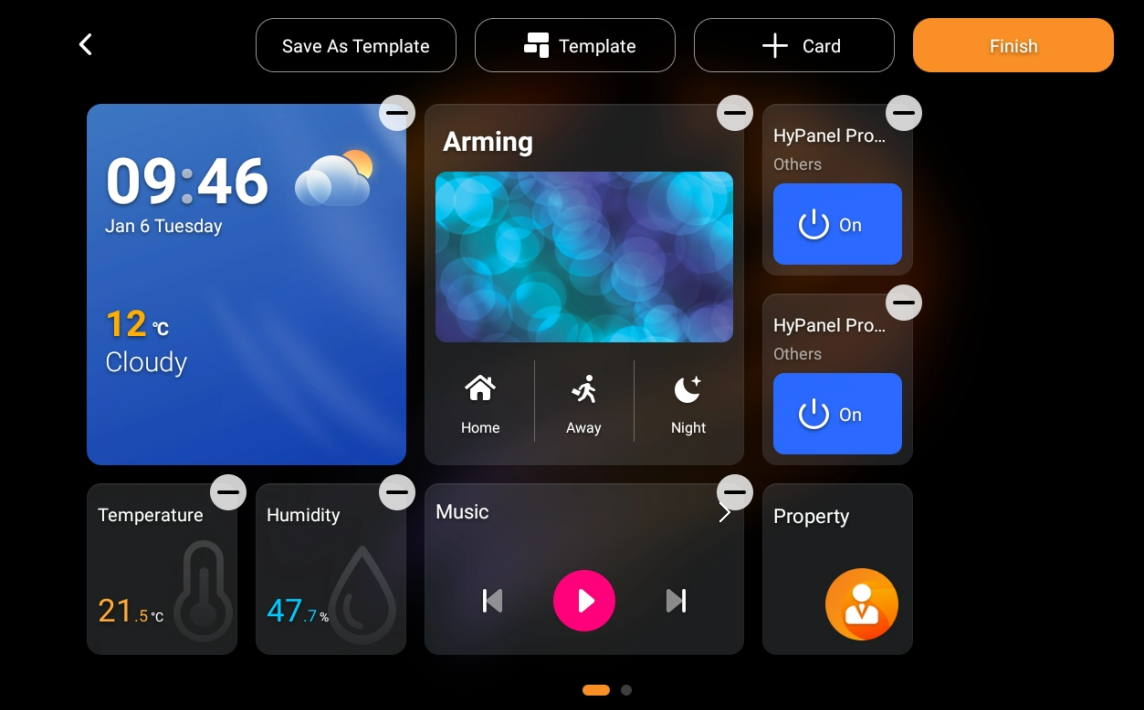
On the Home screen, tap and hold any blank area to enter edit mode. Add or remove functions as needed.
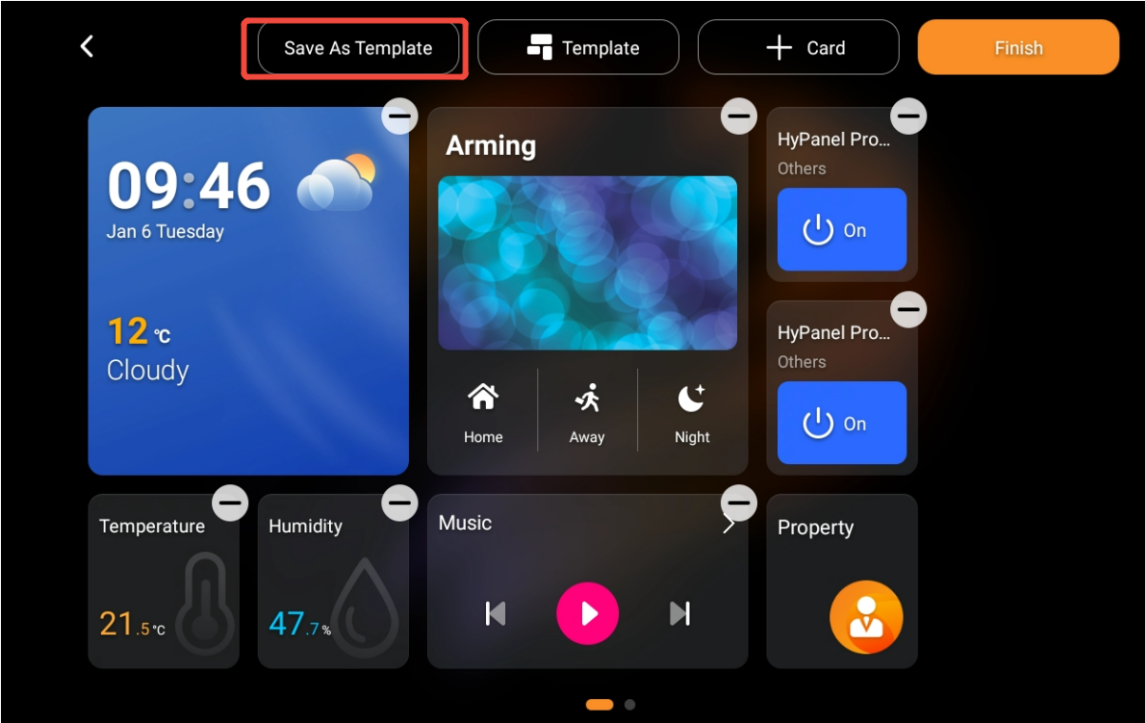
Tap Save As Template and enter a name for the template.
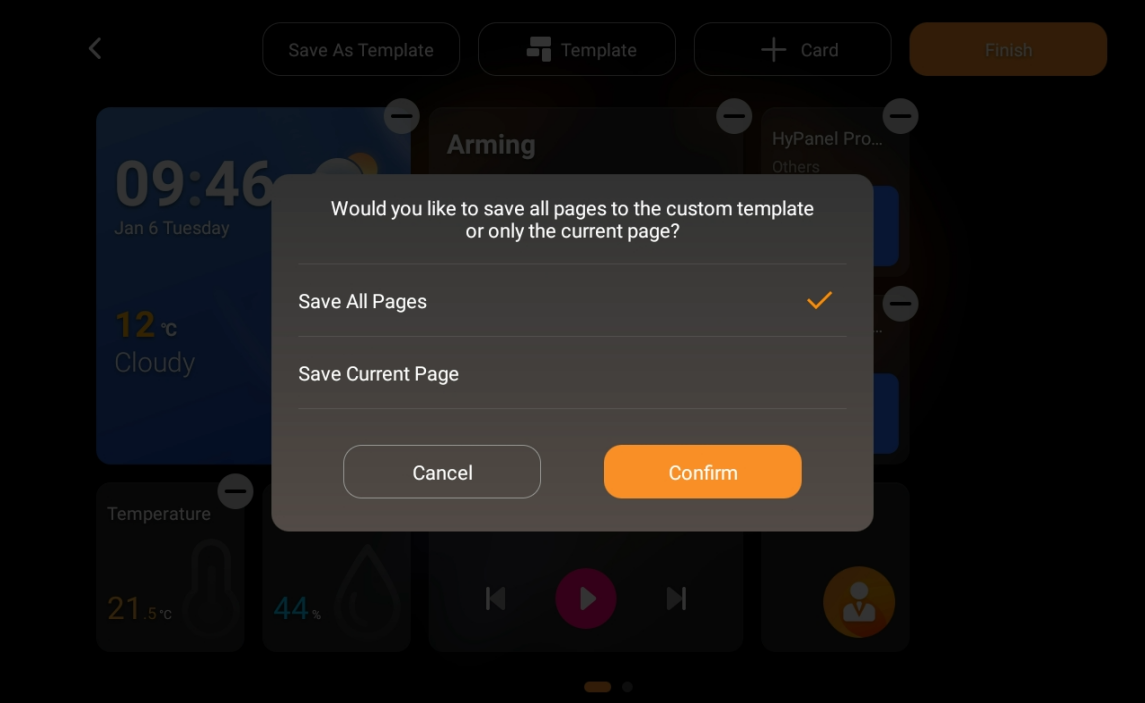
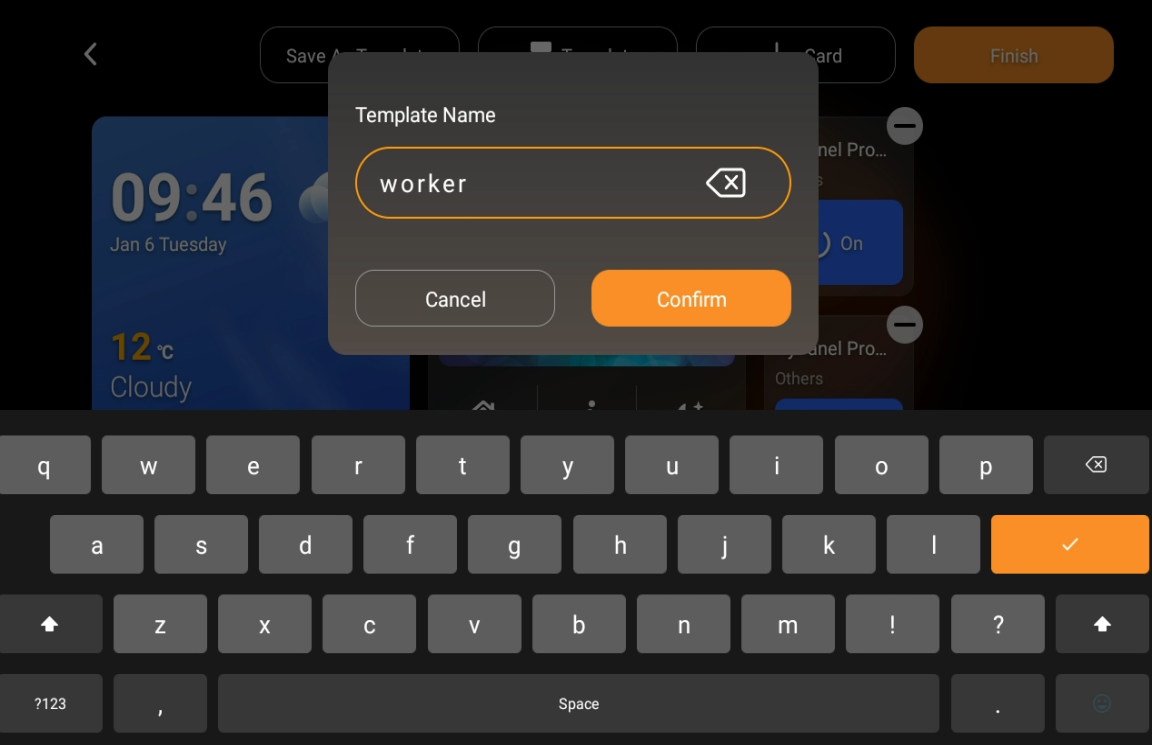
Tap Template to view the saved template under My Custom Pages.
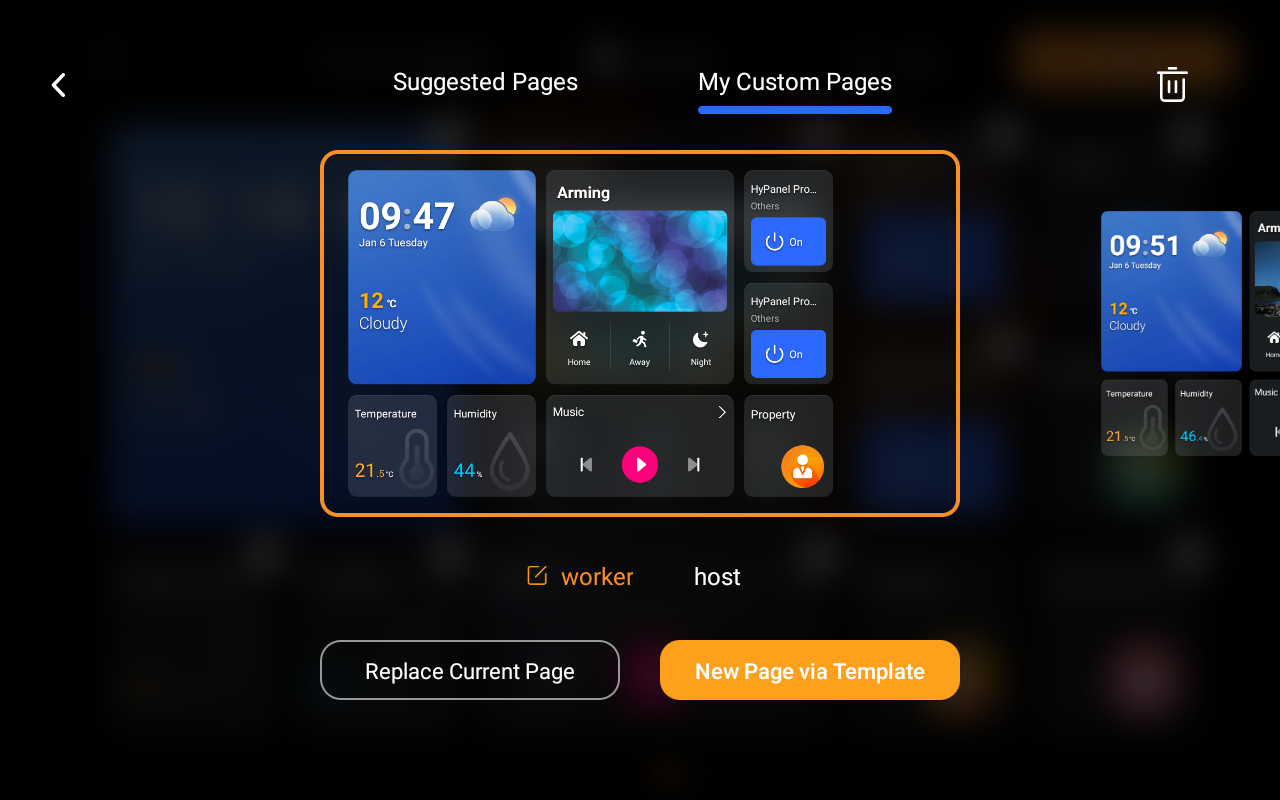
Link Face Recognition to a Homepage Template
Go to Settings > Face Recognition > Add.
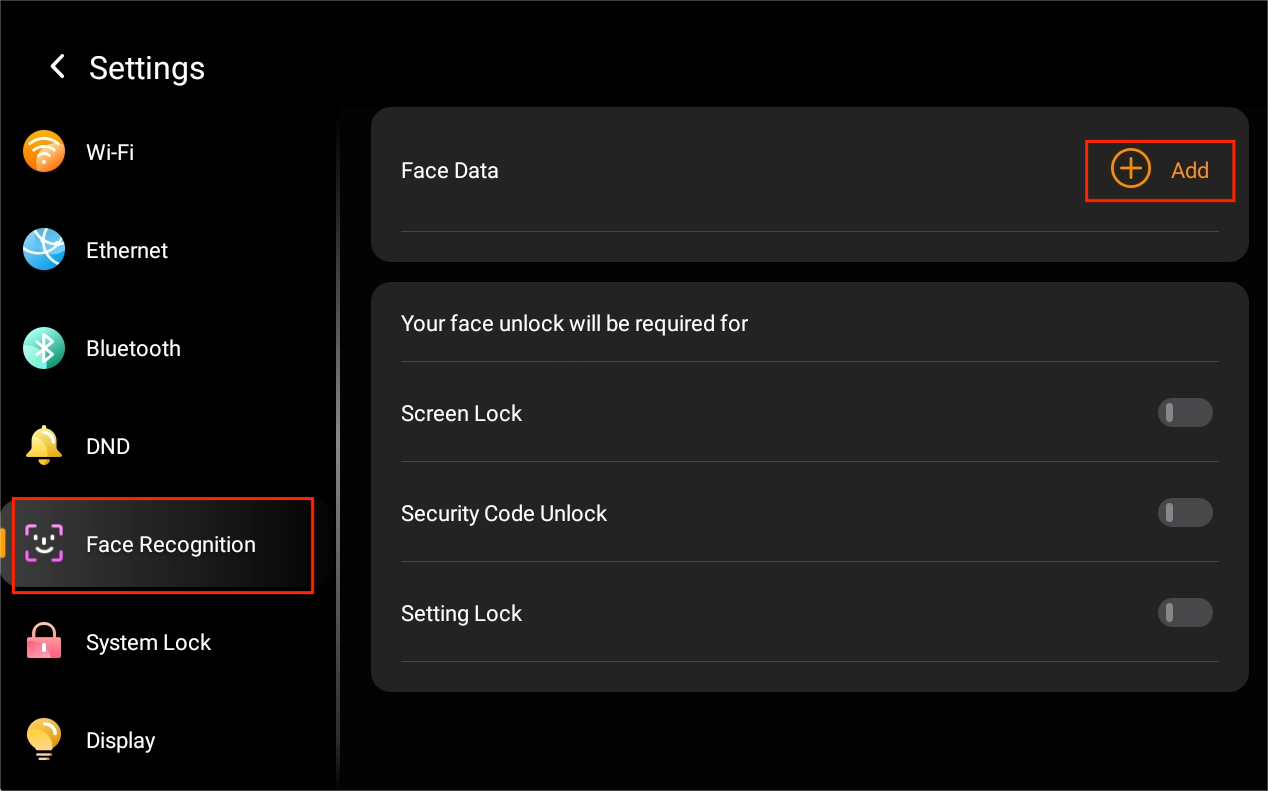
Follow the onscreen instructions and look at the camera to register your face.
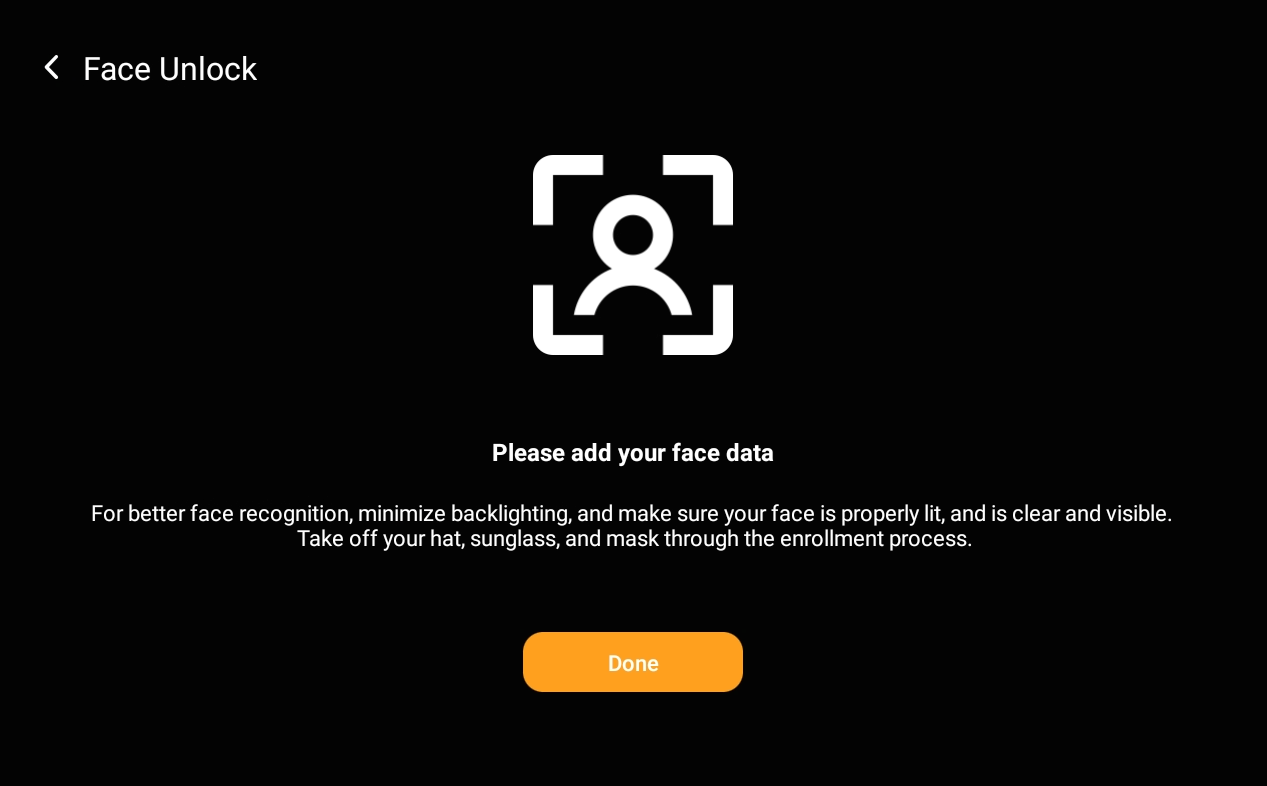
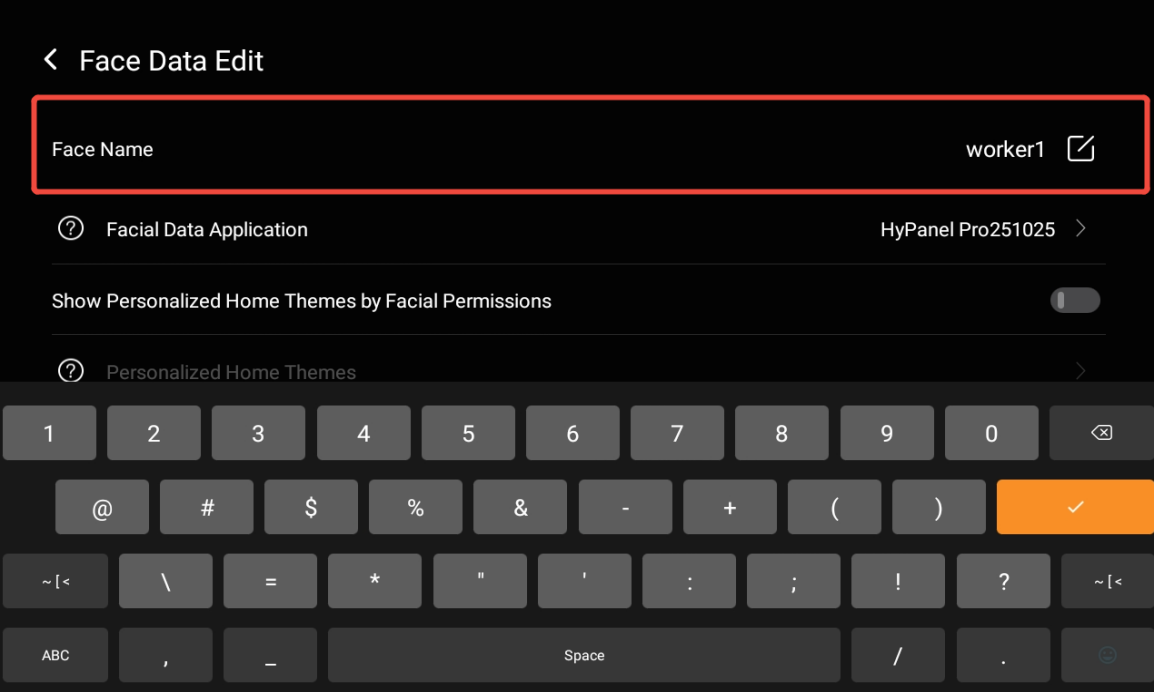
After registration, edit and confirm the face ID name.
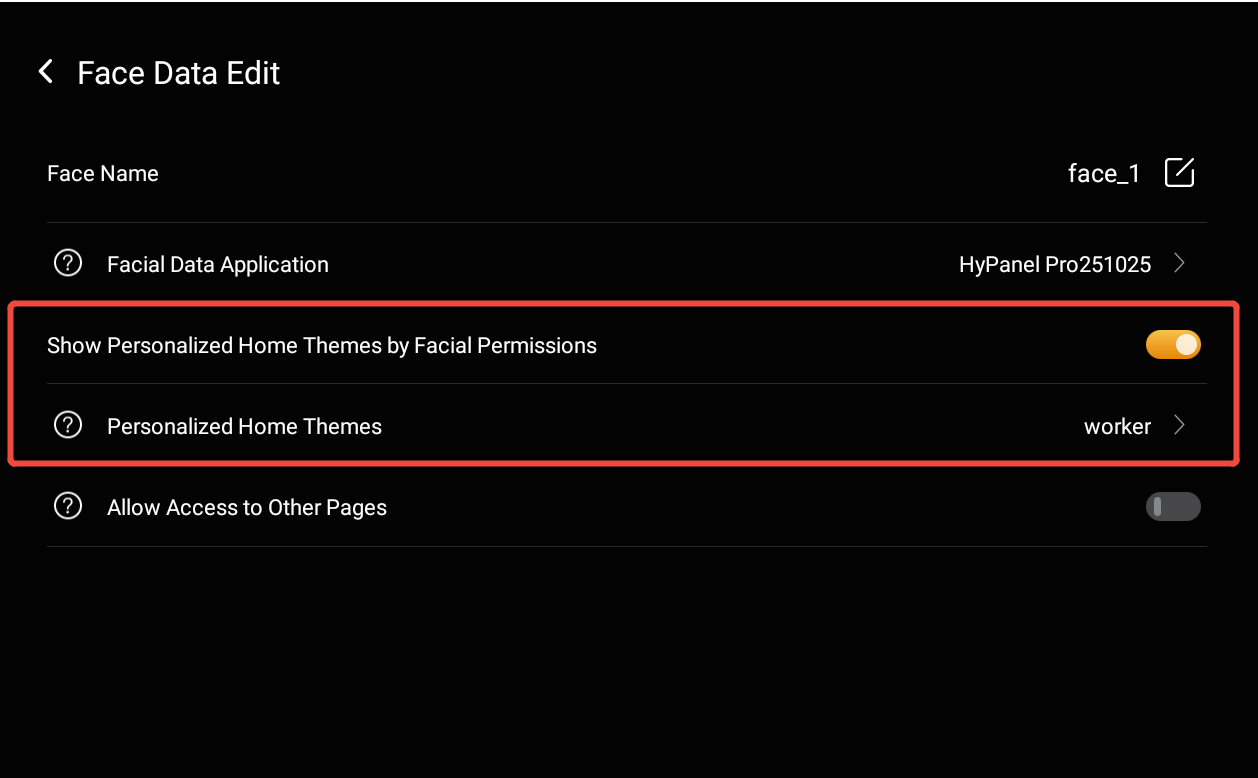
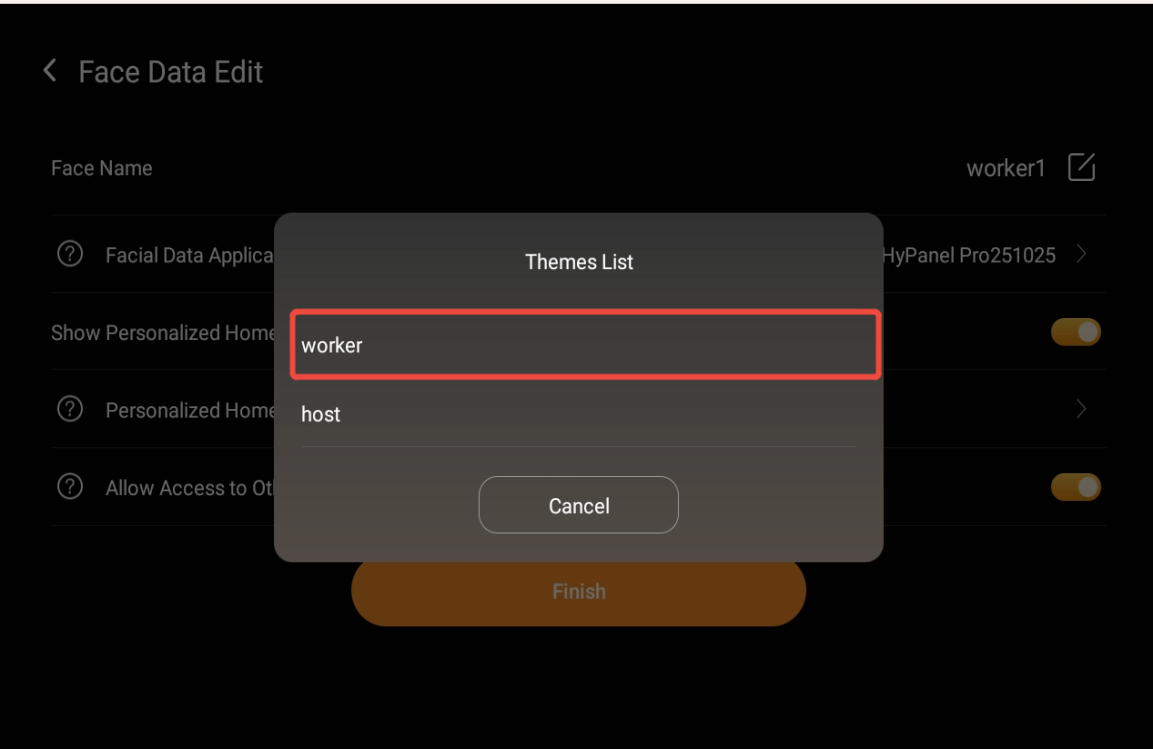
Enable Show Personalized Home Themes by Facial Permissions, then tap Personalized Home Themes and select the homepage template created earlier.
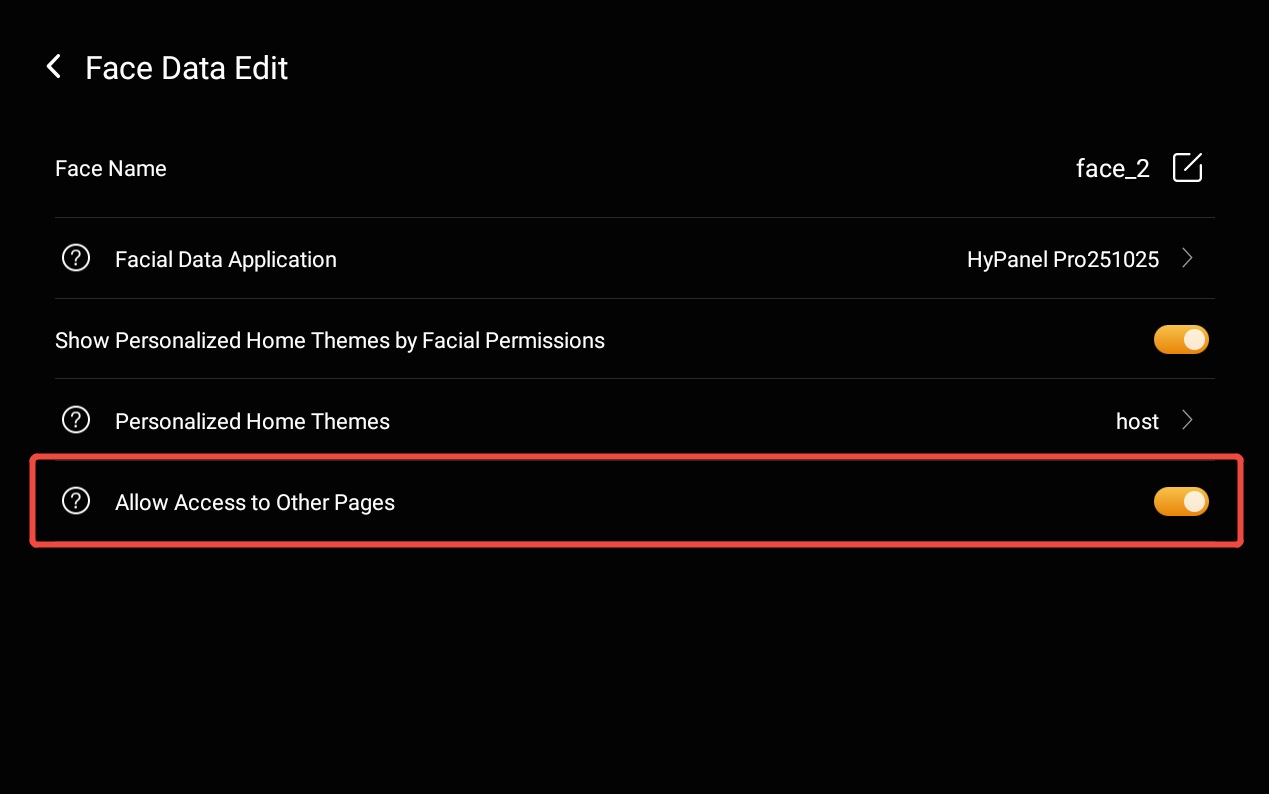
(Optional) Enable Allow Access to Other Pages to allow the user to access functions beyond the home screen.
NOTE:
Make sure at least one user has permission to access other pages. It is recommended to grant this permission to primary family members.
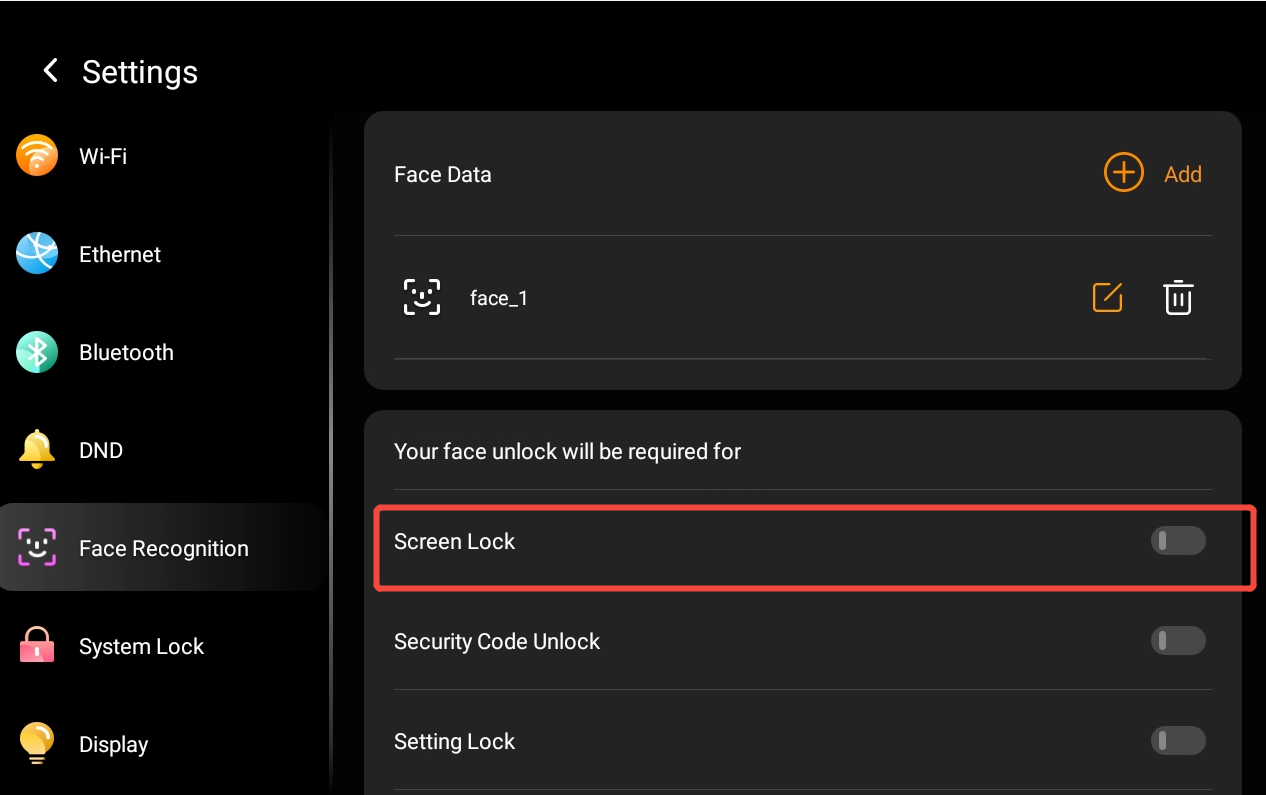
Enable Face Unlock for Screen Lock
Use face recognition to unlock the screen.
NOTE:
Before enabling face unlock, you must first set a digital password or gesture password. For details, refer to Personalize Your System.