The R29 can connect to LED displays through the RS485 interface to provide real-time parking information, including license plate recognition results, access prompts, and available parking spaces.
The LED display content varies depending on the parking scenario. For example, it can display the recognized license plate during vehicle entry/exit, display access result prompts, or show the number of available parking spaces.
Prerequisites
Before configuring the LED display, make sure the following requirements are met:
R29 firmware version 29.30.10.740 or later.
R29 has been added to the SmartPlus Cloud with Smart Parking configured.
The LED display screen is physically connected to the R29 through RS485.
Supported LED display screen brands: Wuxi Opto and SNT.
Configure LED Display Connection
The R29 supports connection to up to five LED displays through RS485. Each LED display must be configured with a unique RS485 address.
Navigate to the device IP address in a browser. Log in with the username and password(admin/admin by default).
Go to Device > RS485.
Select LED Display Screen in the Apply RS485 Setting To dropdown list.
Configure the communication settings.
Baud Rate: Select the baud rate used by the connected LED display. The default value is 115200.
Brand: Select the brand of the connected LED display. The available address settings vary depending on the selected brand.
RS485 Address: Configure a unique address for each LED display.
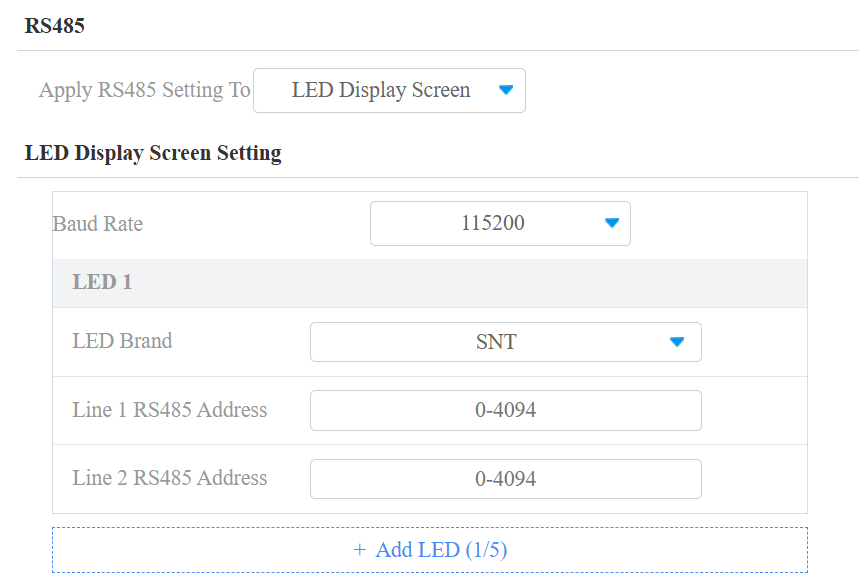
Click +Add LED to add additional LED displays.
Click Submit.
Configure License Plate Display
The R29 can display recognized license plate information on the connected LED display during vehicle access.
Configure Display Duration
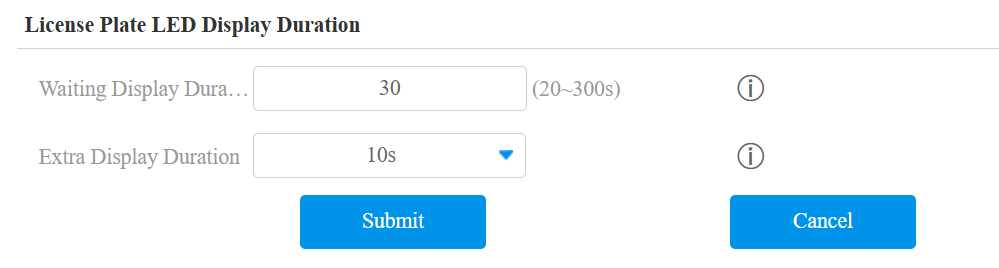
Go to Device > RS485 > License Plate LED Display Duration.
Configure the display duration parameters.
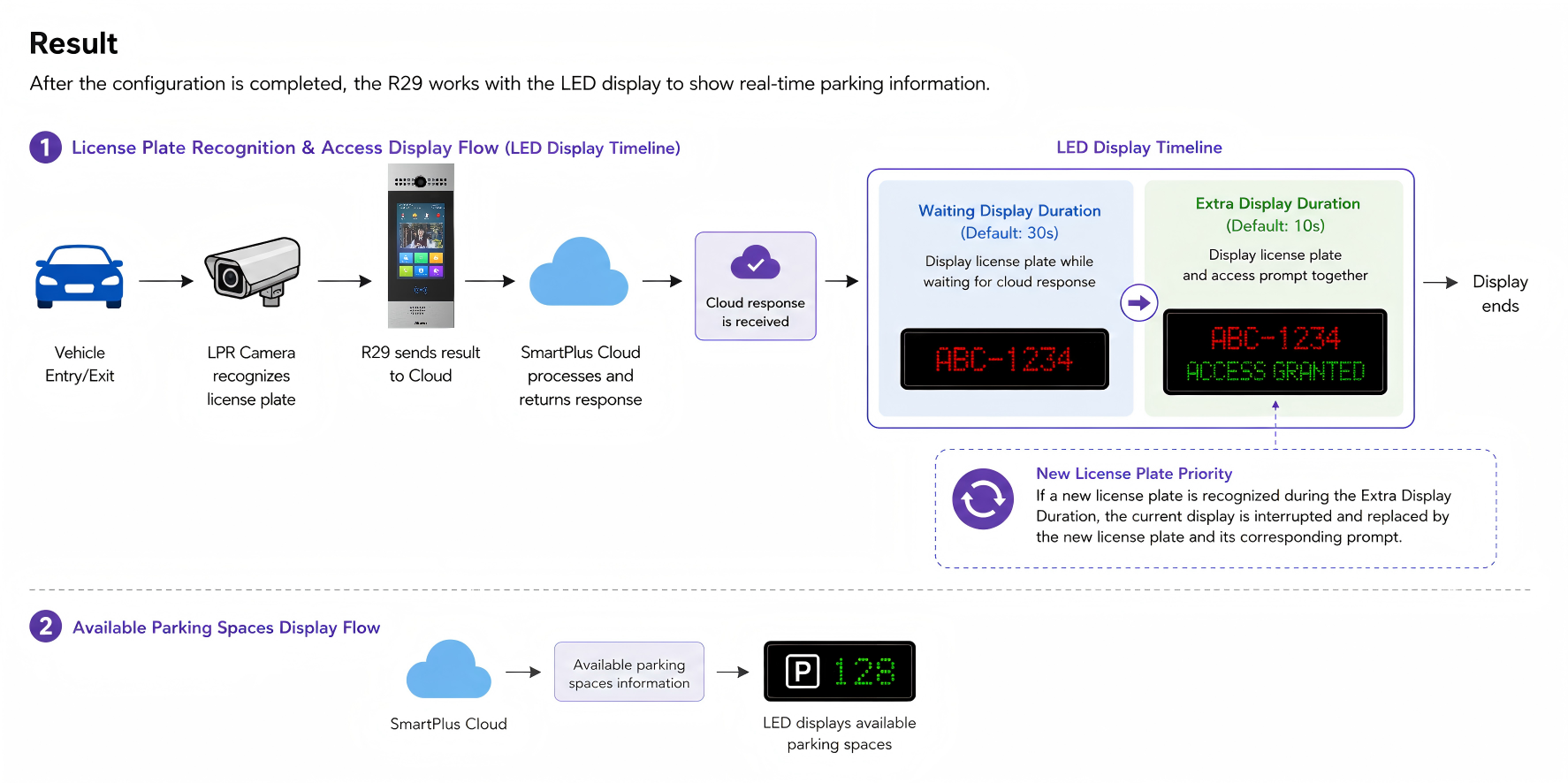
Waiting Display Duration: Defines how long the recognized license plate remains displayed while the R29 is waiting for the cloud response. The default is 30 seconds.
Extra Display Duration: Defines how long the recognized license plate and prompt remain displayed after the cloud response is received. The default is 10 seconds.
Click Submit.
New License Plate Priority
If a new license plate is recognized during the Extra Display Duration, the current display is interrupted and switched to the new license plate and its corresponding prompt.
Link LED Display with LPR Camera
To display the license plate recognition result from an LPR camera, associate the LED display with the corresponding camera.
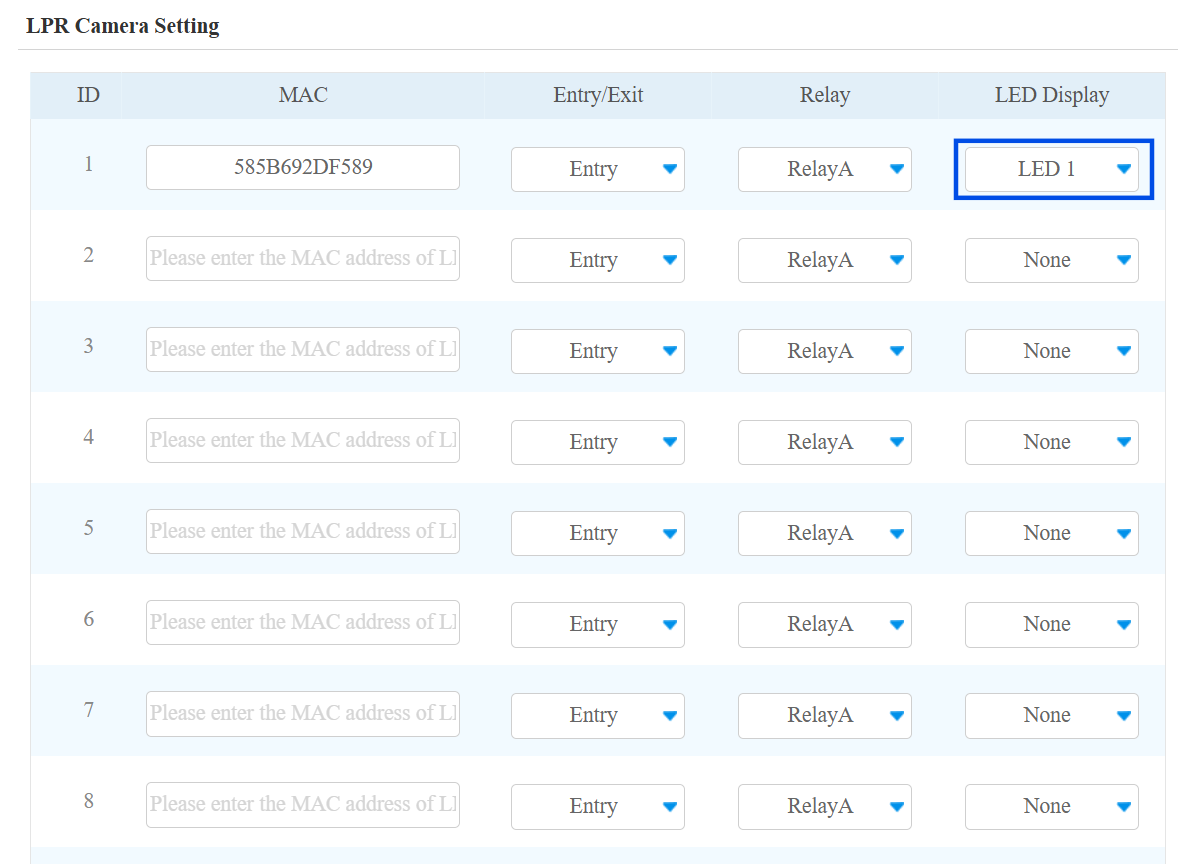
Go to Setting > Key/Display.
Scroll down to the LPR Camera Setting section.
Select the configured LED number for the target LPR camera in the LED Display dropdown list.
Click Submit.
Configure Prompt Text Display
The R29 allows you to customize prompt messages displayed on the LED display for different parking scenarios.
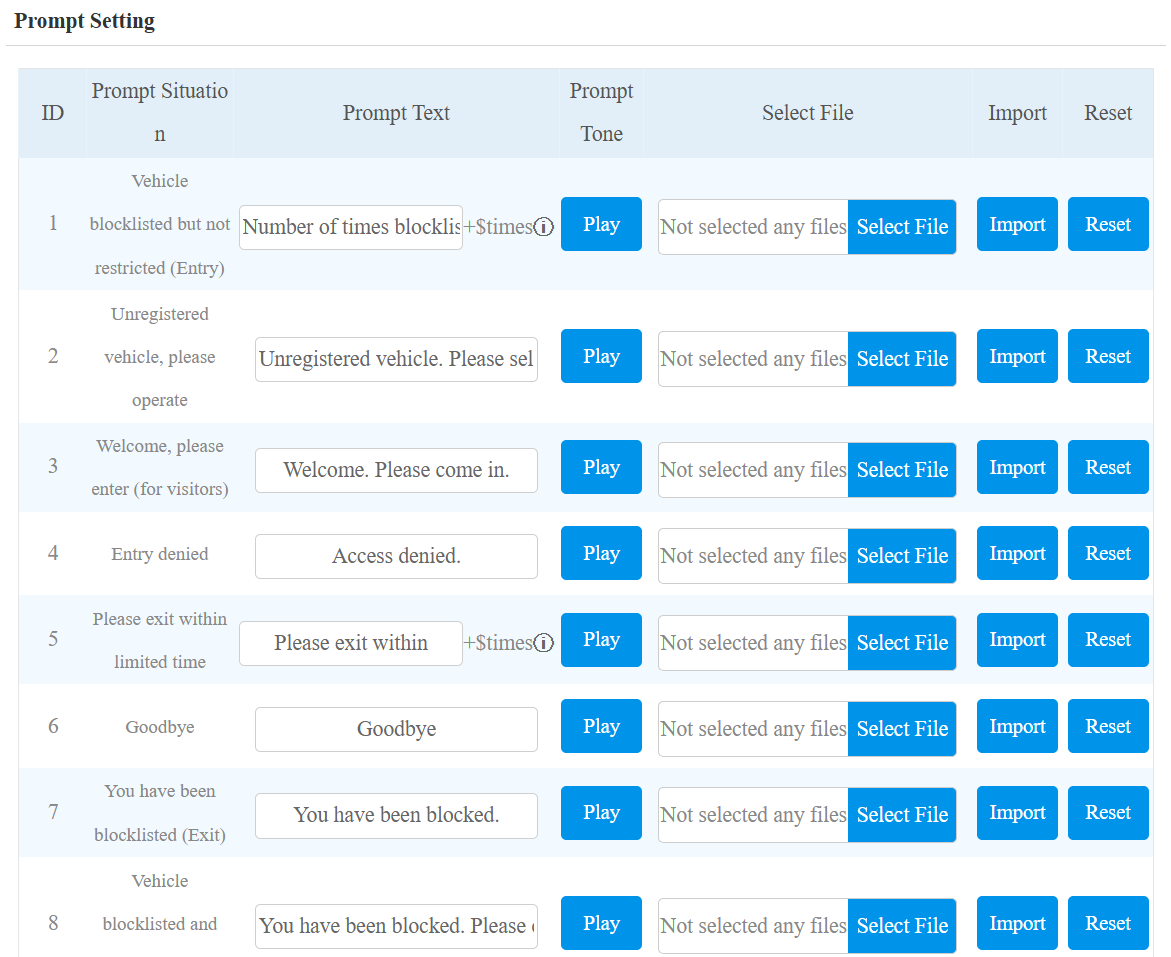
Go to Setting > Key/Display > Prompt Setting.
You can customize prompt texts for various parking scenarios. The display time follows the Extra Display Duration in the Configure License Plate Display section.
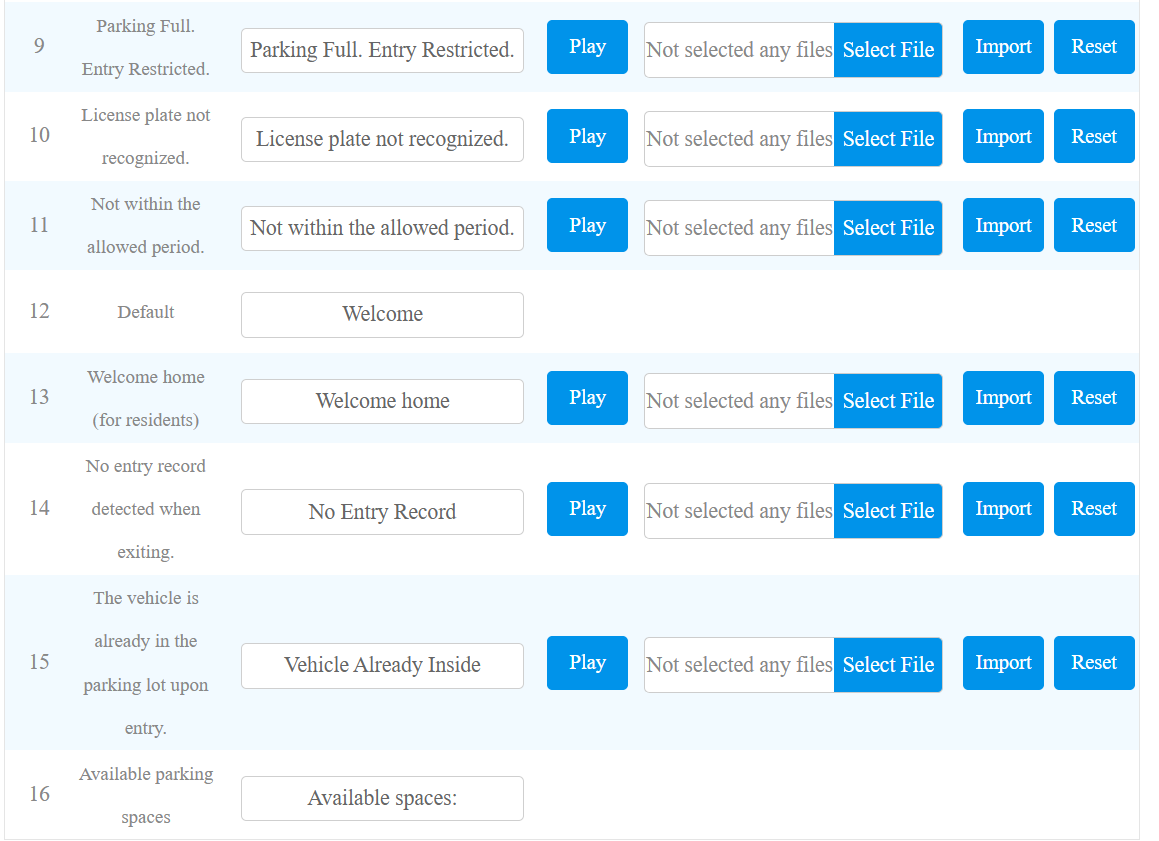
Click Submit.
Result
Configure Parking Space Display
The R29 can receive the available parking space information from SmartPlus Cloud and display it on the connected LED display.
Configure the parking space capacity in SmartPlus Cloud > Smart Parking > Parking Lot.
See Module 1: Create a Parking Lot chapter in “Smart Parking in Community Projects” for details.
Configuration Relationship
The following table summarizes the purpose of each configuration:
Configuration | Purpose |
|---|---|
Smart Parking configuration on SmartPlus Cloud. | Required for R29 deployment and LPR-related parking functions. |
LED display RS485 configuration. | Enables communication between R29 and LED displays. |
License Plate Display Duration. | Controls how long license plate information remains displayed. |
LPR Camera and LED Display linking. | Determines which LED display shows the camera recognition result. |
Prompt Message configuration. | Customizes parking scenario messages. |
Parking Lot capacity configuration. | Provides available parking space information for the LED display. |