The MR01 radar sensor supports fall detection and bed-exit detection.
When an alarm event occurs, the device can report it to other system components, such as:
Indoor Monitors
Guard Phones
SDMC
SmartPlus Cloud
Third-Party Systems
This allows caregivers or administrators to receive alerts and respond quickly.
Example scenario: An elderly resident falls in the bedroom →MR01 detects the fall → Alarm notification appears on the R49 guard phone.
Prerequisites
Before configuration, ensure the following:
MR01 is installed and powered on.
The device is connected to a network.
The installation position (ceiling or wall) has been determined.
Configure Basic Fall Detection
This configuration is suitable for scenarios where basic fall detection is required, such as:
Bedrooms
Living rooms
Care environments
After configuration:
MR01 monitors the defined space
Fall events are automatically detected
Step 1: Configure the Detection Space
The detection space defines the area where fall detection is active.
Long-press the physical button on MR01’s top until it announces its IP address.
Use the device IP to log in to its web interface. The initial username and password are admin.
Go to Fall Settings > General Settings.
Select Top Mount or Side Mount based on the installation type.
Define the detection area based on the room size by setting the xMin, xMax, yMin, and yMax.
Define the Maximum Detection Height.
Set the Installation Height based on the actual scenario.
Enter the device Installation Location name.
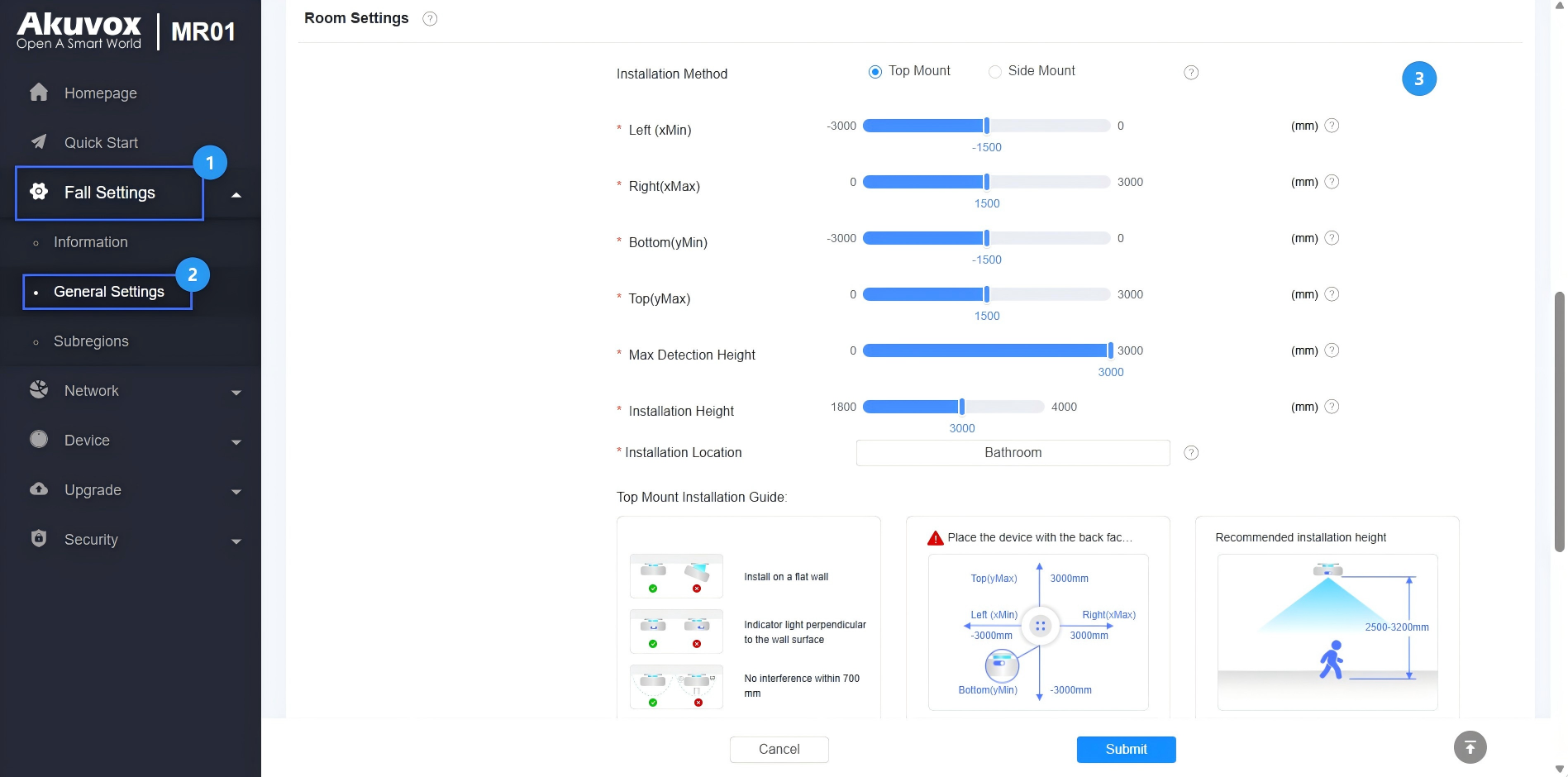
Submit the setting.
Recommendation:
Ensure the configured detection area covers the actual activity area while avoiding unnecessary empty space.
Step 2: Configure Subregions
Subregions allow precise control of detection behavior within specific areas.
Go to Fall Settings > Sub-regions.
Click +Add to create a sub-region.
Customize the Region Name.
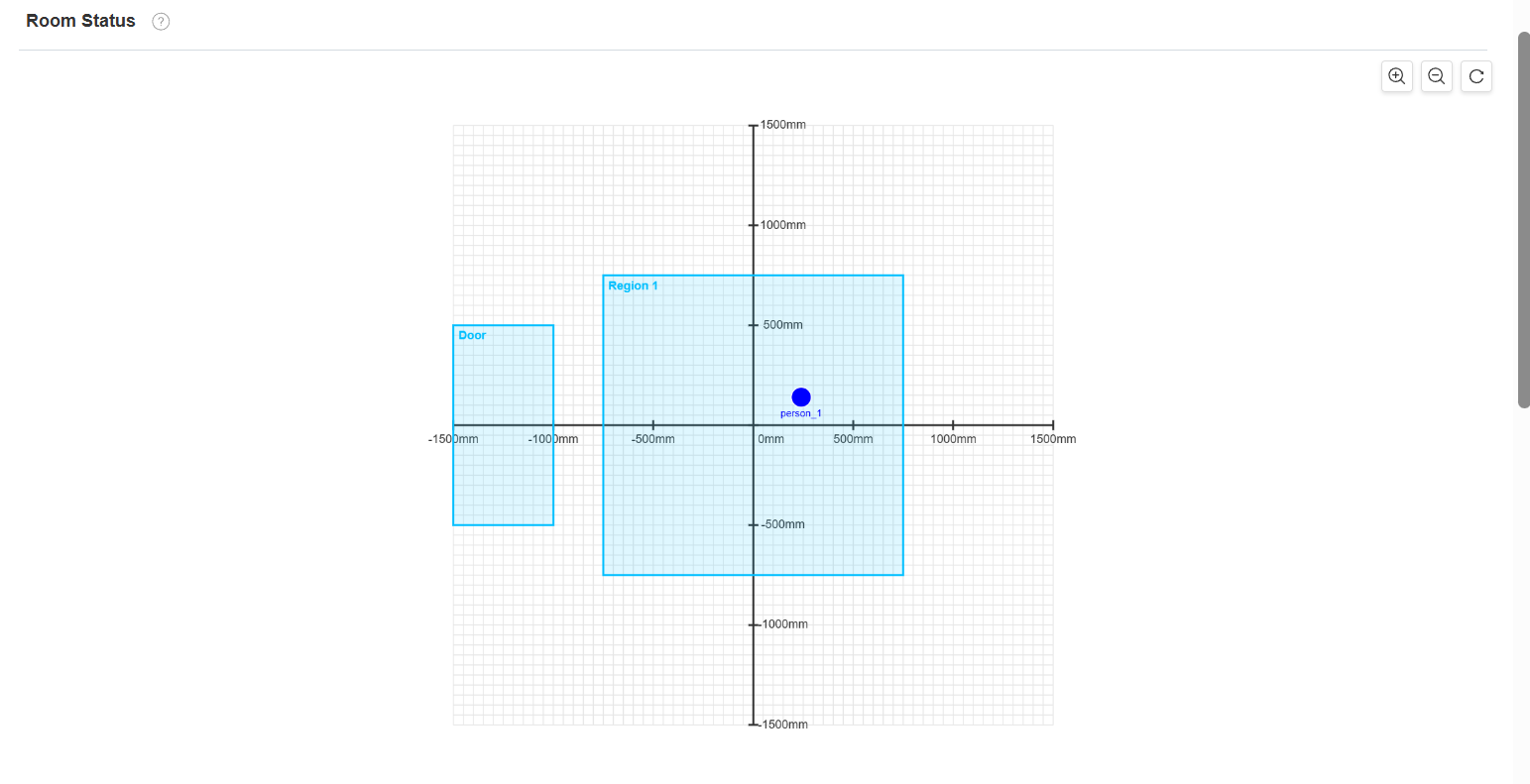
Select the Region Type. Here, we create 2 sub-regions. One type is Custom, and another is Door.
Custom: General detection area.
Door: Entrance area.
Define the sub-region size and position by setting xMin, xMax, yMin, and yMax.
Enable Fall Detection.
Enable Occupancy Detection if needed. It detects whether individuals are occupying the area.
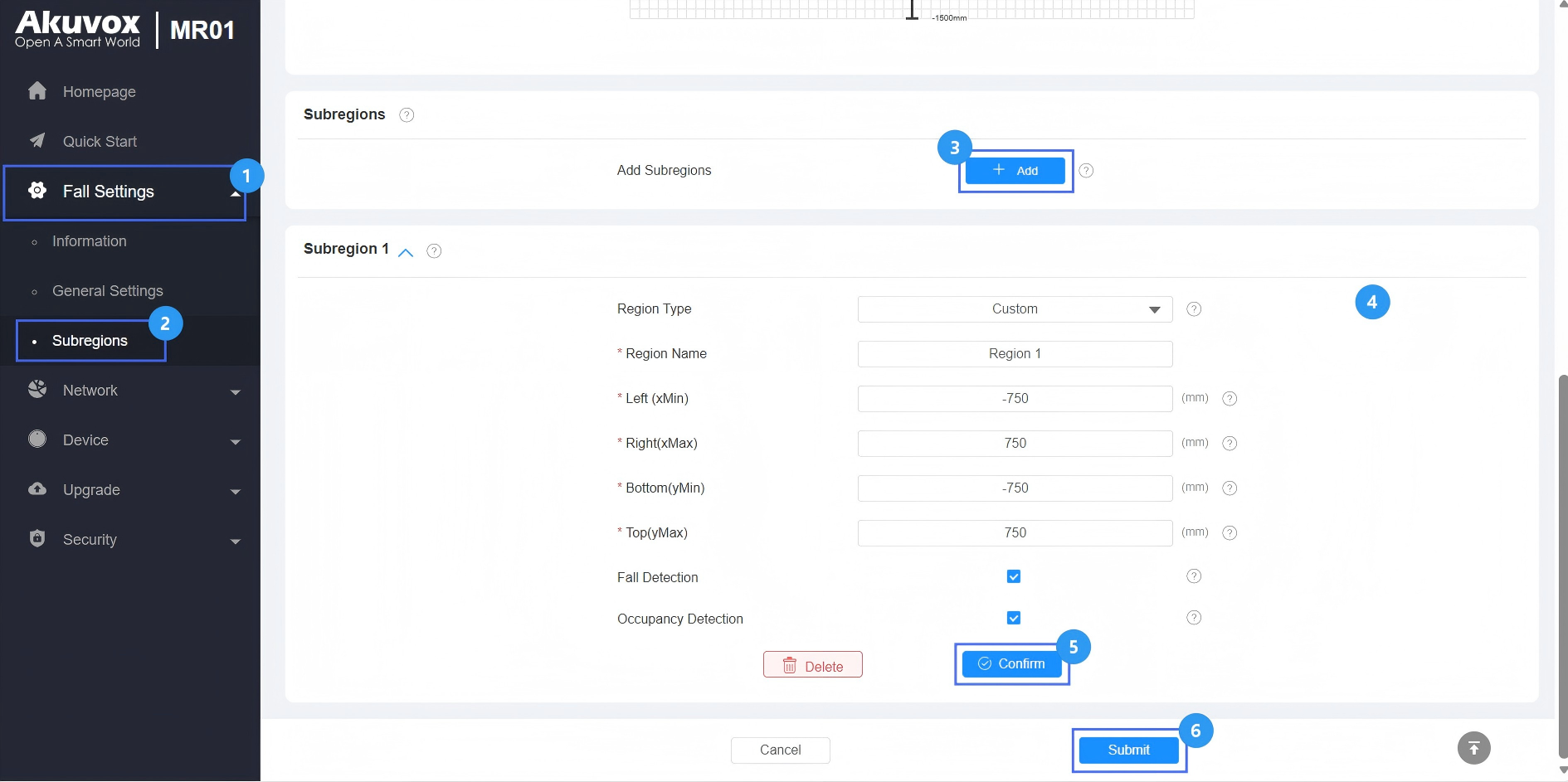
Confirm the setting and submit.
After the configuration, the Room Status section displays real-time detection results, including personnel status and region status.
[Optional]Step 3: Configure Fall Detection Settings
Go to Fall Settings > General Settings > Fall Detection Settings.
Set the Fall Confirmation Time. When the duration of the fall event reaches this value, it will be considered a fall event, triggering an alarm.
Set the Fall Delay Reporting Time. When the duration of the fall event reaches this value, it will be reported to the SDMC, indoor monitor, guard phone, or third-party system.

Submit the setting.
Configure Bed-exit Detection
Step 1: Configure the Detection Space
The detection space defines the area where the detection is active.
Long-press the physical button on MR01’s top until it announces its IP address.
Use the device IP to log in to its web interface. The initial username and password are admin.
Go to Fall Settings > General Settings.
Select Top Mount or Side Mount based on the installation type.
Define the detection area based on the room size by setting the xMin, xMax, yMin, and yMax.
Define the Maximum Detection Height.
Set the Installation Height based on the actual scenario.
Enter the device Installation Location name.
Submit the setting.
Recommendation:
Ensure the configured detection area covers the actual activity area while avoiding unnecessary empty space.
Step 2: Configure Subregions
Subregions allow precise control of detection behavior within specific areas.
Go to Fall Settings > Sub-regions.
Click +Add to create a sub-region.
Select the Bed region type.
Customize the Region Name.
Define the sub-region size and position by setting xMin, xMax, yMin, and yMax.
Enable In-bed Detection.
Set the Bed-exit Time Threshold. If the target leaves the bed for longer than the set time, an alarm will be triggered and reported.
Set the Detection Start Time and End Time if Schedule is enabled.
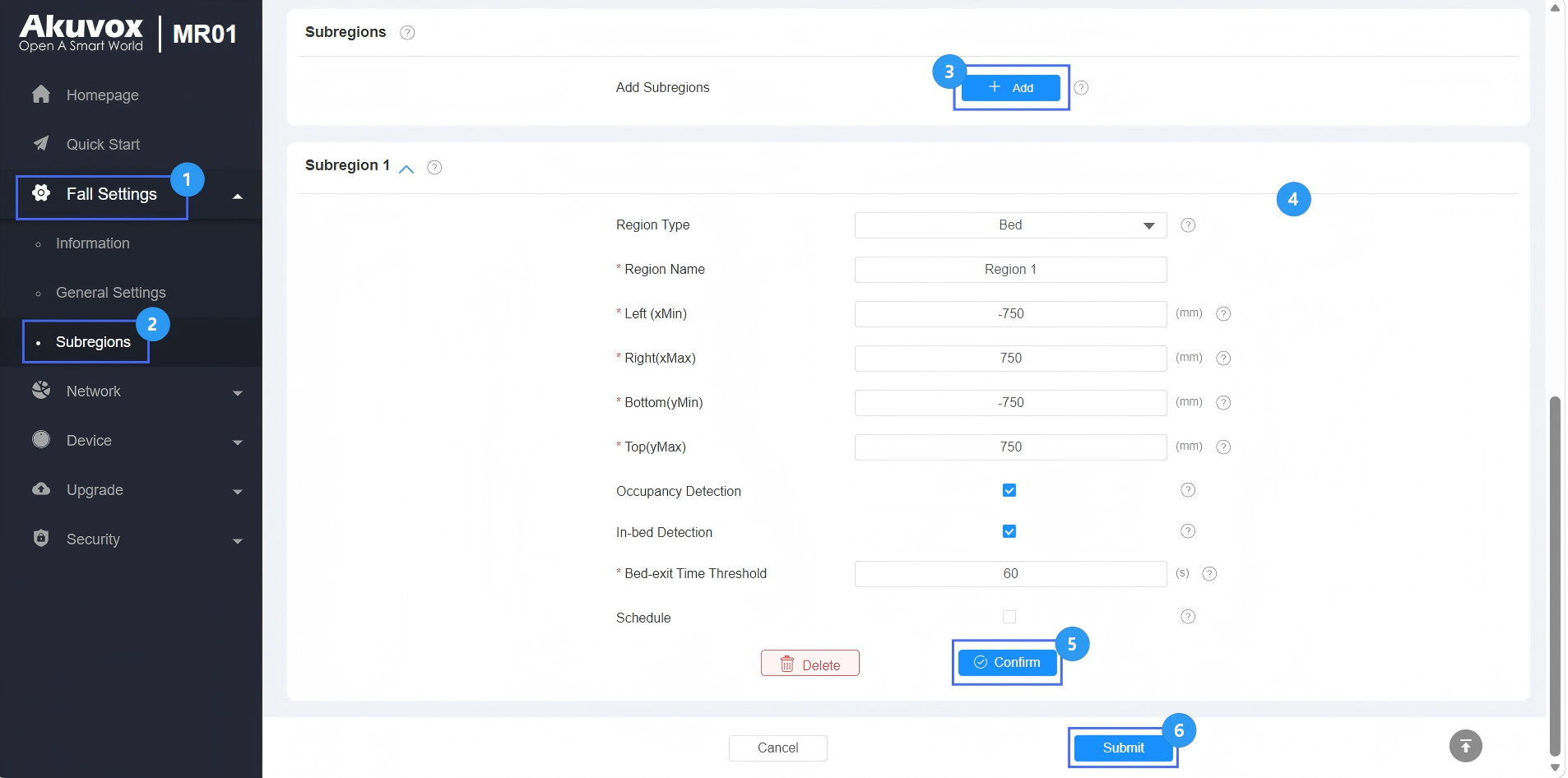
Confirm the setting and submit.
After configuration, when fall events or bed-exit events occur, MR01 will sound an alarm and flash a red indicator light quickly.
Alarm Reporting
To receive alarm reporting,
Devices should share the same Device Address in the on-premise projects.
Devices should be added to the same room when they are connected to the SmartPlus Cloud.
Devices should be added under the same node when they are connected to the Akuvox SDMC software.
Receive Alarm on the SmartPlus Cloud
Before receiving alarms, ensure that the installer has added the MR01 to the SmartPlus Cloud. For configuration steps, refer to the guide Add MR01 Sensor to the SmartPlus Cloud.
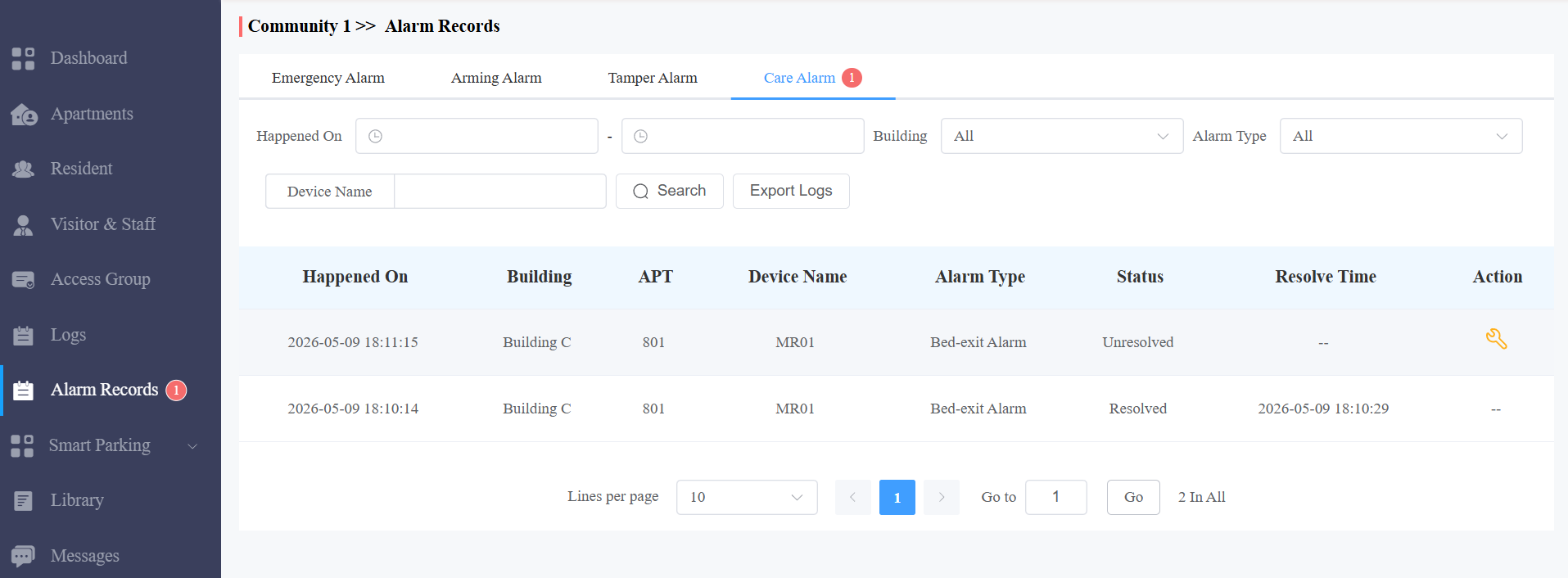
Once set up, property managers can monitor and manage alarms from the Alarm Records > Care Alarm interface.
To resolve an alarm, click the resolve icon  to mark it as handled.
Receive Alarm on the SDMC
When the MR01 is added to the SDMC, residents can receive the alarm from their indoor monitor or guard phone under the same node as the MR01.
Note
SDMC’s version should be 6.0.0.75 or higher.
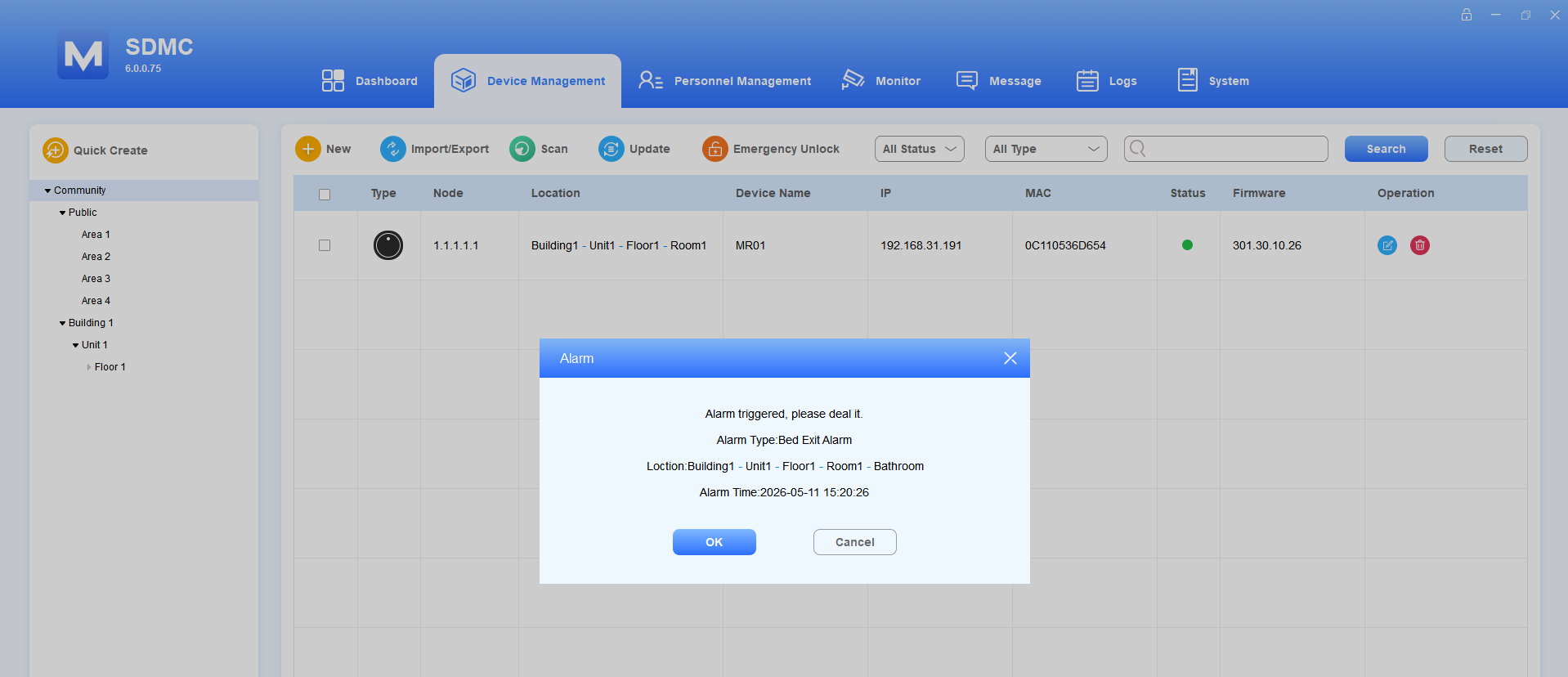
The SDMC will display the notification pop-up.
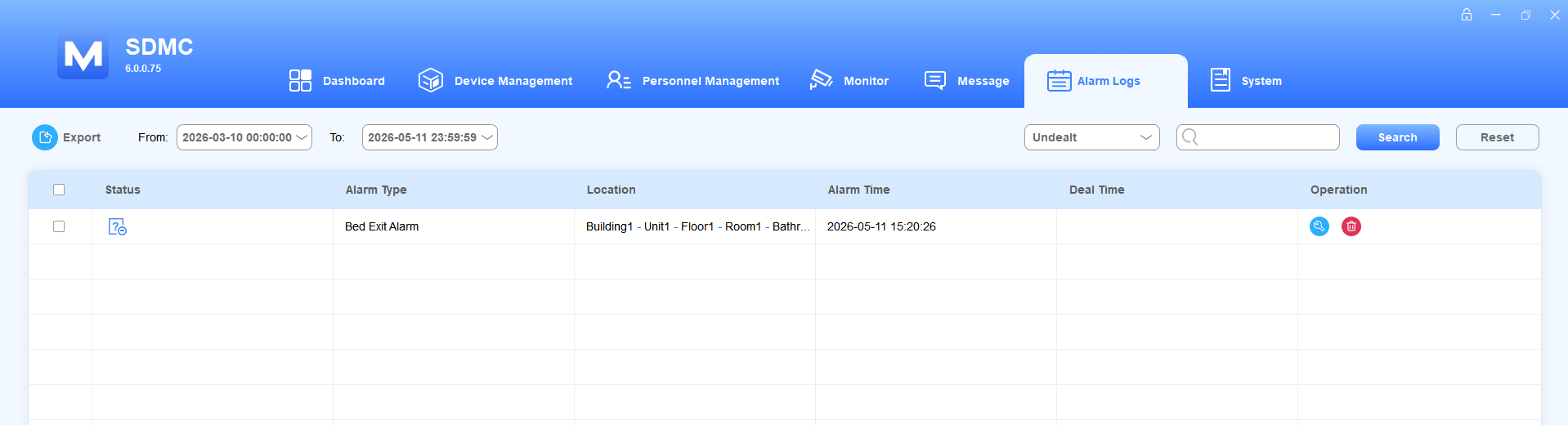
You can later resolve the alarm by navigating to Logs > Alarm Logs and clicking  .
.
Receive Alarm on the Guard Phone
Compatible model and version(or higher)
R49G: 49.30.10.85
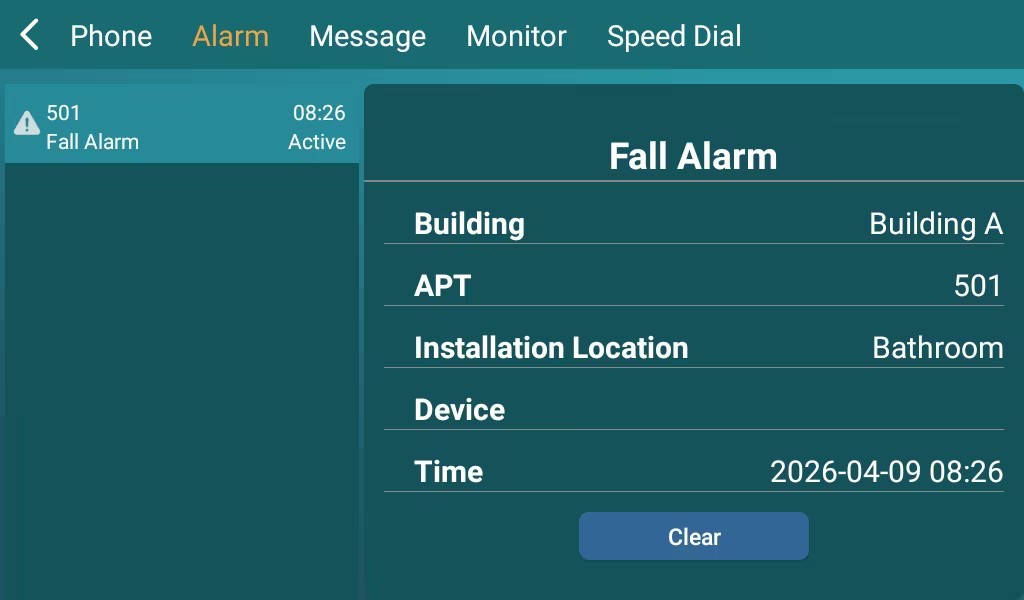
Check the alarm record on the R49G’s Message > Alarm screen.
Receive Alarm on the Indoor Monitor
Compatible model and version(or higher)
S567: 567.30.114.953
S565: 565.30.15.417
S563: 563.30.14.952
C316: 316.30.14.951
C313V3: 313.30.16.203
C313V2-2: 212.30.16.21
X937: 937.30.14.953
The indoor monitor will sound an alarm and display the notification.
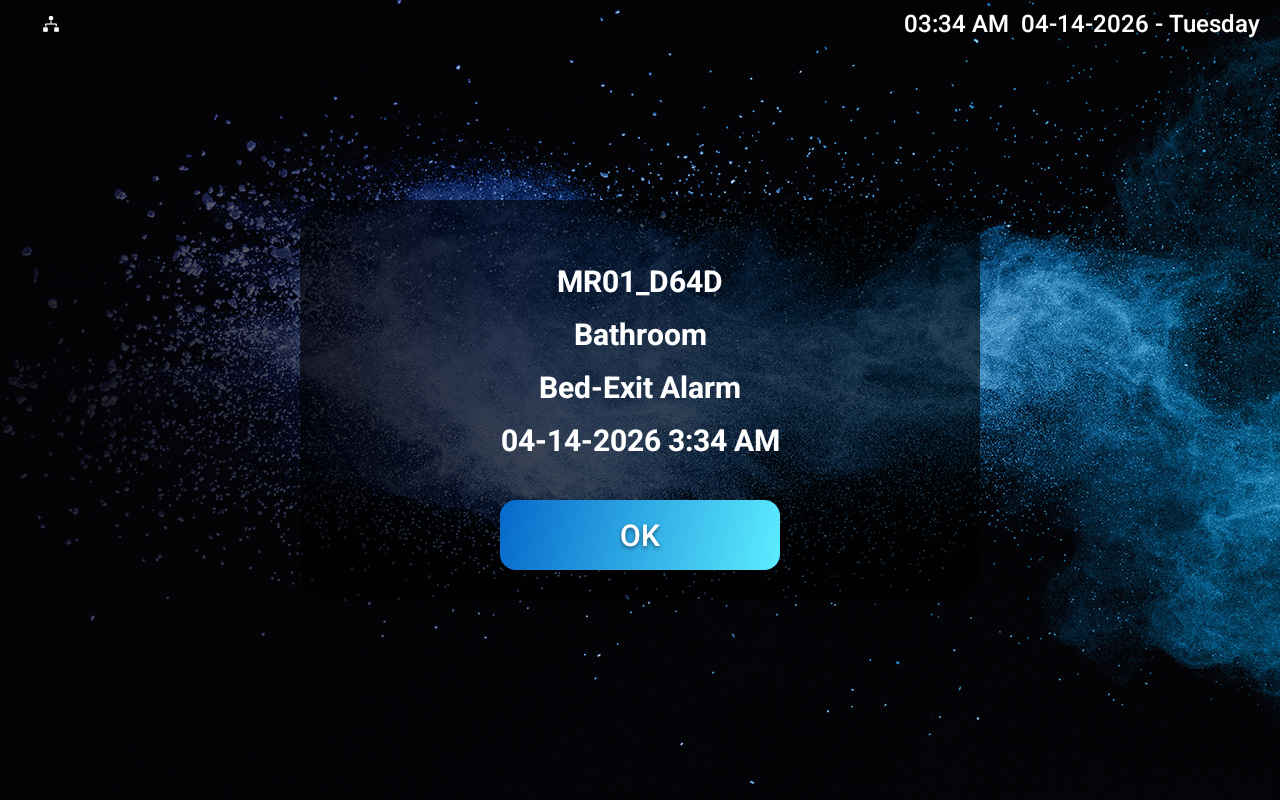
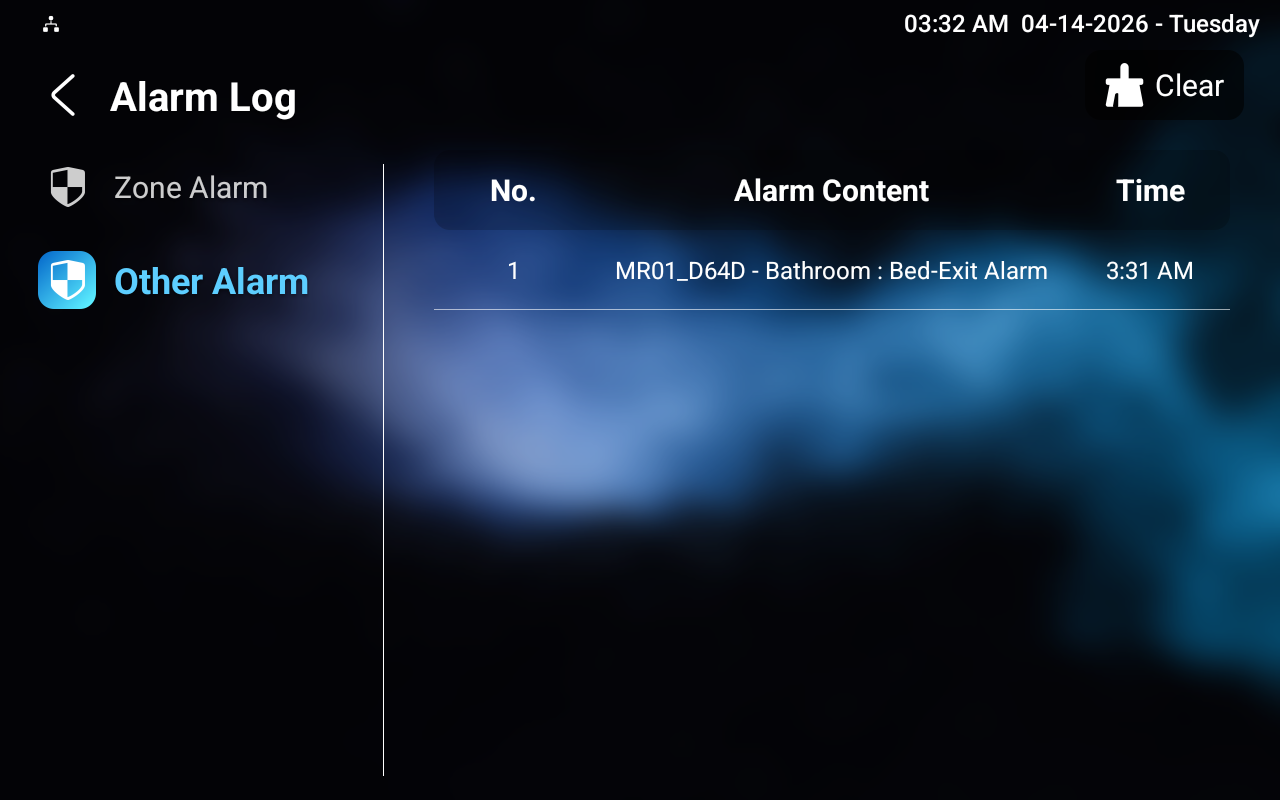
The alarm is recorded on the Arming > Alarm Log > Other Alarm screen.