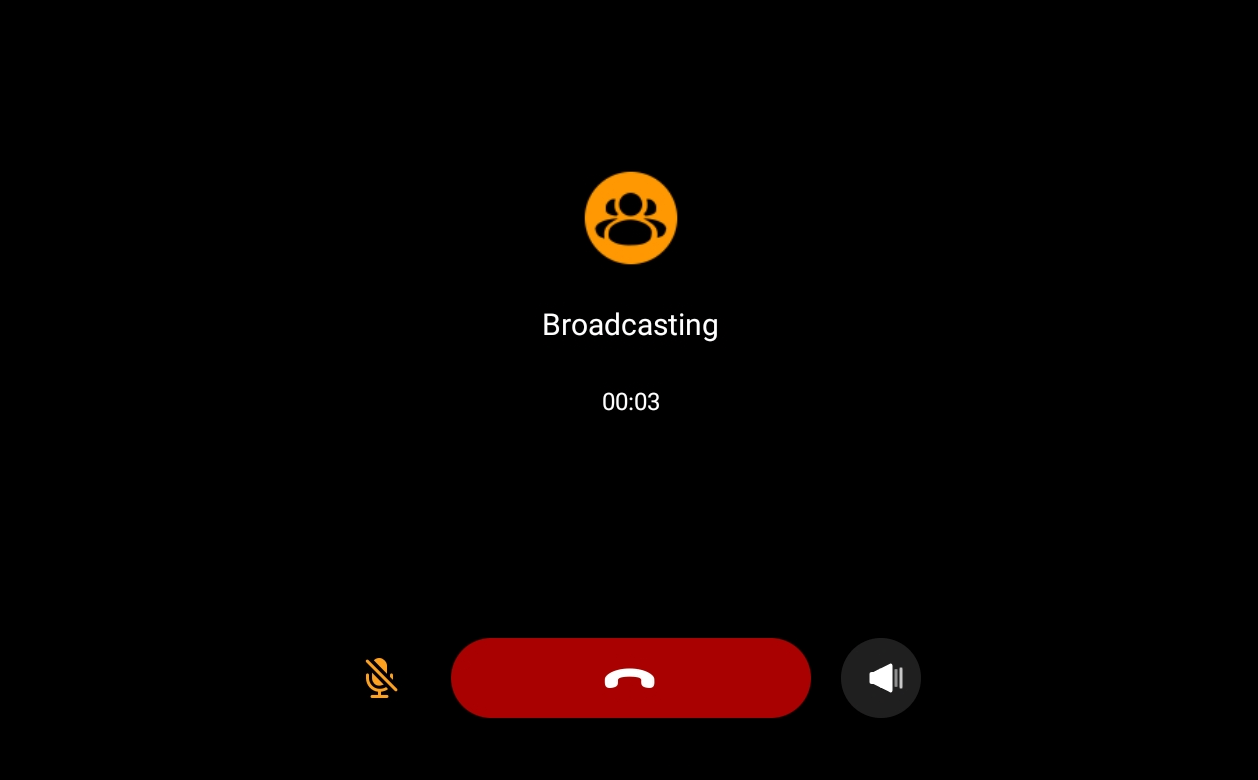
The Multicast function enables one-to-many audio broadcasting, allowing HyPanels to send or receive messages across selected rooms. For example, a HyPanel in the kitchen can broadcast announcements to specific panels.
Before Getting Started
Ensure your HyPanel is running the required firmware for multicast support:
Device | Required Firmware |
HyPanel Supreme (PHX1) | 1001.1.38.313 and later |
HyPanel Ultra (PH81) | 281.1.38.317 andd later |
HyPanel Pro (PG71) | 71.1.39.126 and later |
HyPanel Elite 10 (PH59) | 159.1.39.137 and later |
SmartPanel Elite 10 (PH58) | 119.1.38.311 and later |
HyPanel Elite 7 (PG42) | 42.1.37.47 and later |
HyPanel Lux Piano (RT61) | 61.1.30.65 and later |
HyPanel KeyPlus (KS53) | 53.1.36.307 and later |
HyPanel Plus (PS52) | 52.1.36.307 and later |
HyPanel (PS51(V2)) | 251.1.36.306 and later |
HyPanel (PS51) | 51.1.36.314 and later |
HyPanel Lite (KS41) | 41.1.36.25 and later |
The multicast address and port you entered must be within the valid range:
Address range: 224.0.0.1-239.255.255.255
Port: 0-65535
NOTE:
The sending address and port must match the receiving panel’s listening configuration.
Configuration
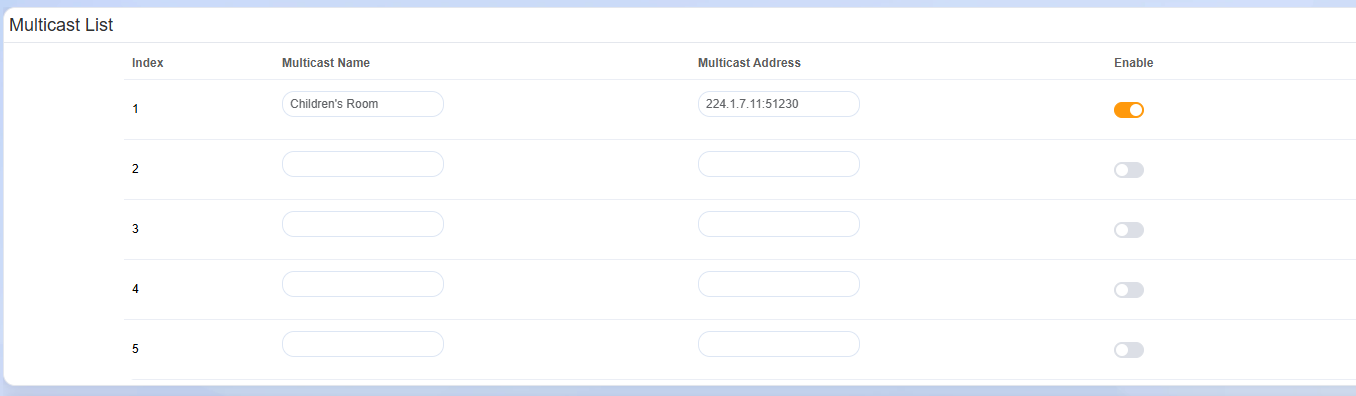
Set Up a Multicast List
The Multicast List specifies the groups a panel can send messages to. To make a multicast call, the panel must have the group(s) included in its Multicast List.
Toggle on the Enable button for the list.
Add a multicast group by specifying its address, port and group name.
TIP:
Use any address and port within the valid range: 224.0.0.1 ~ 239.255.255.255 and 0 ~ 65535.
Save the configuration.
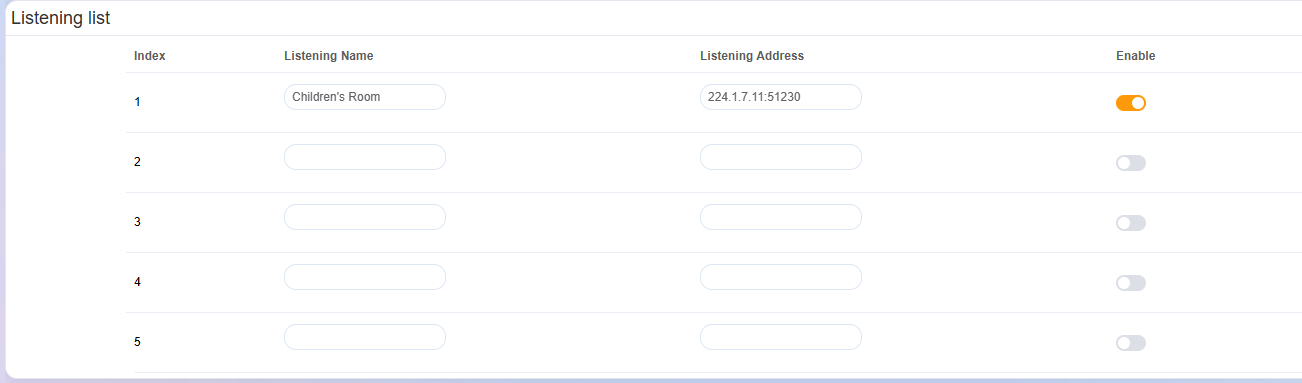
Set Up a Listening List
The Listening List specifies the groups from which a panel can receive messages. To receive messages, the panel must have the group(s) added to its Listening List.
On receiving panels, toggle on the Enable button for the list.
Add the same group name, address, and port as set in the Multicast List.
Save the configuration.
Add Multicast Groups to the Home Screen
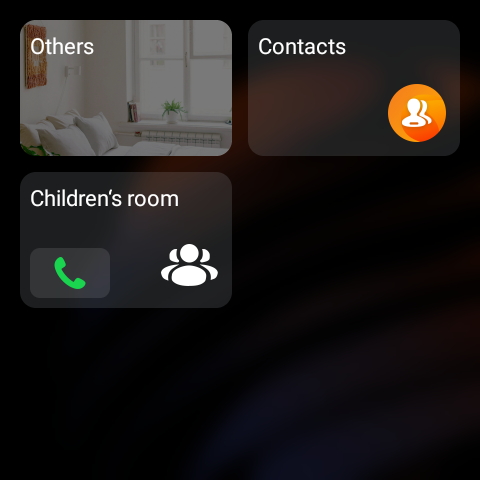
For small-screen panels, you can add frequently used multicast groups to the Home screen for quick access:
Tap and hold the blank area on the Home screen, then tap
 .
.
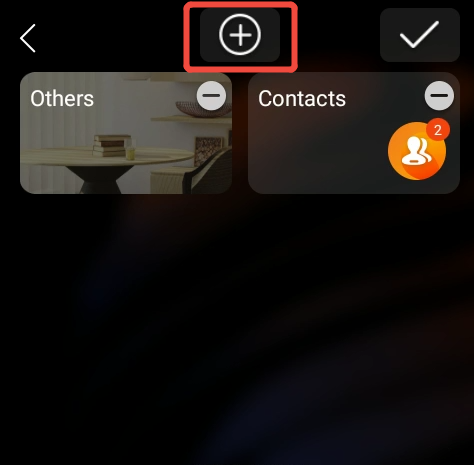
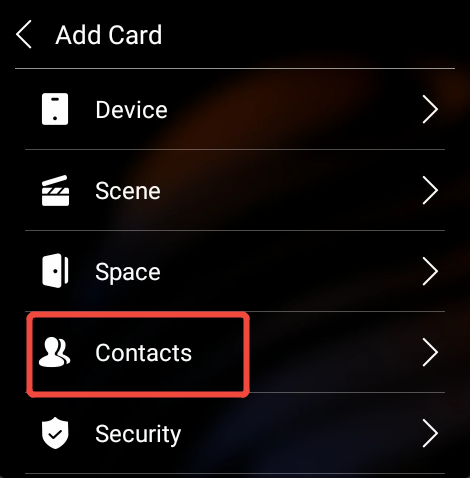
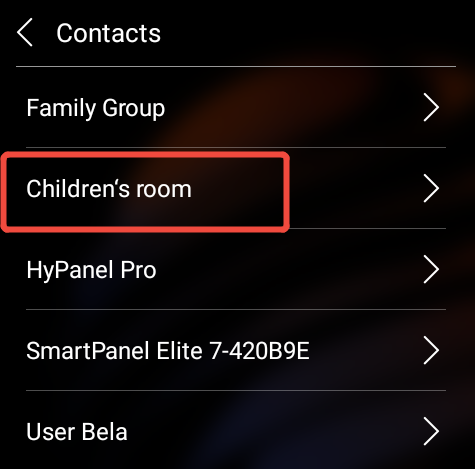
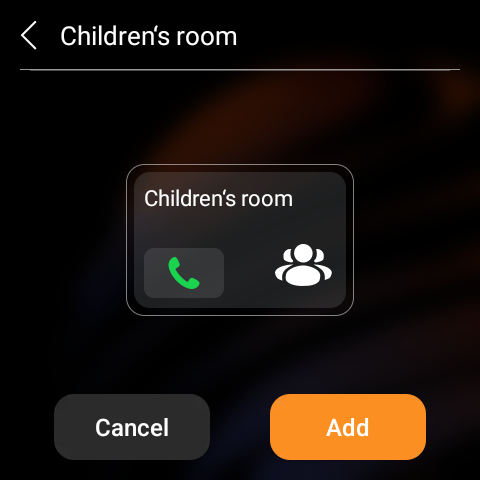
Tap Contacts and select the multicast group to add.
Send or Receive a Multicast Call
Send a Multicast Call
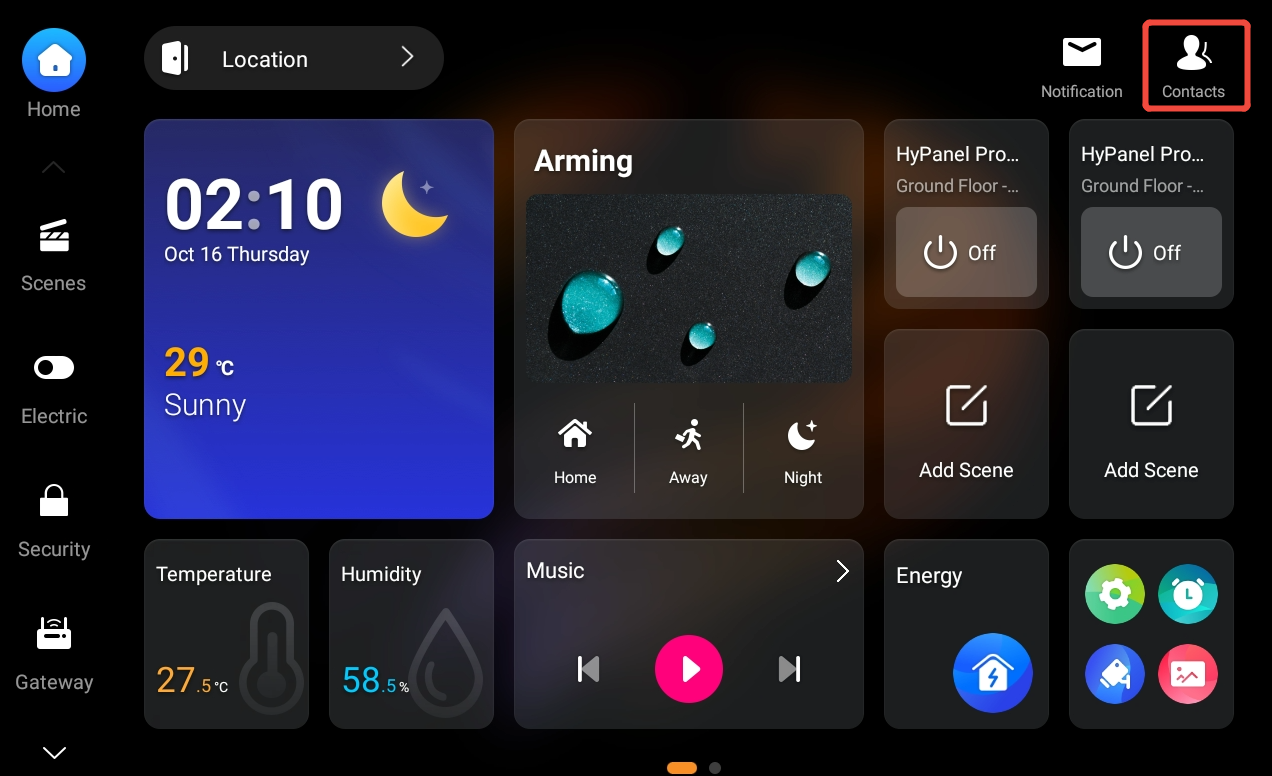
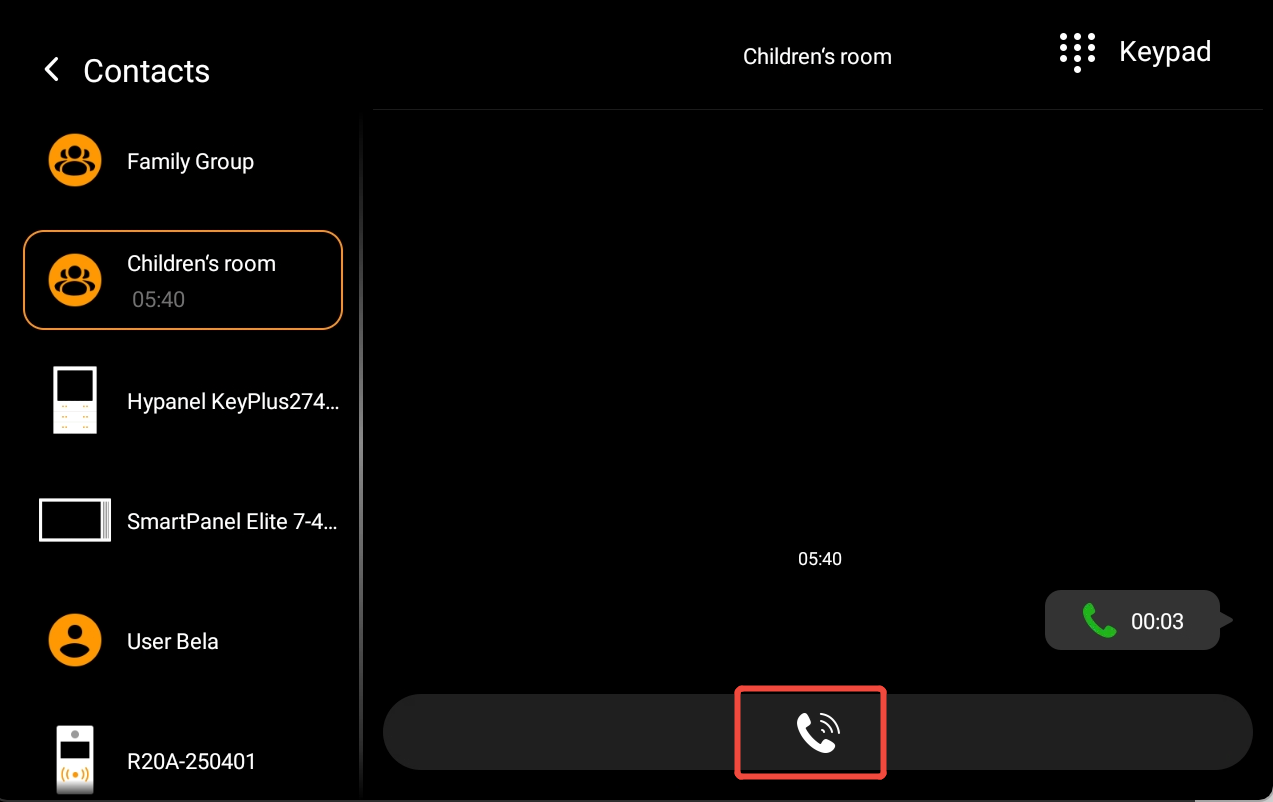
Tap Contacts and select the multicast group to send a message.
NOTE:
Only panels with the group in their Multicast List will display it.
Receive a Multicast Call
Panels with the group in their Listening List will automatically receive and answer the call.