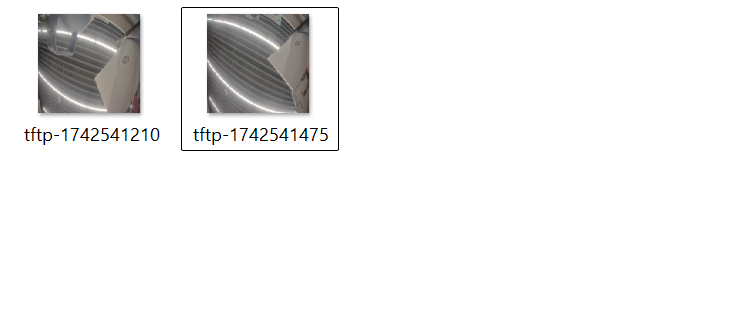
Akuvox devices can send screenshots to the designated TFTP server when specific events happen. This helps you track what happened to the device.
Note
S539, S538, R29, X916, X915V2, E18, E16V2/V3, and A05V2 support sending screenshots to the TFTP server.
This article takes X915V2 as an example.
Set up the TFTP Notification
Use the device IP to log into its web interface. The initial username and password are admin.
Click Setting > Action. Find the TFTP Notification part.
Fill in the TFTP server address. Please use the IP address instead of the domain name the device may fail to resolve.

Click Submit.
Enable TFTP Action
Then, specify which event will trigger the TFTP action.
For example, X915V2 supports the TFTP action when detecting motion and triggering inputs.
Here takes the motion detection event as an example.
Click Surveillance > Motion.
Select the desired motion detection type.
Check TFTP as the action to execute.
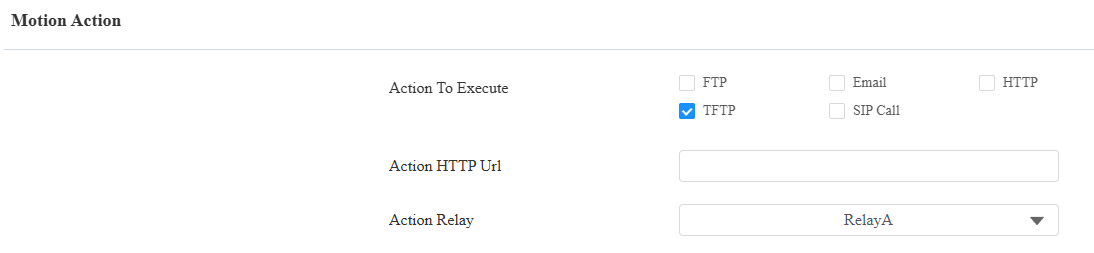
Click Submit.
When the device detects motion, a screenshot will be sent to the TFTP server.