Users can control smart home devices using the Hypanel Ultra(PH81-POE-ST) when paired with Zigbee sensors and Lutron smart home devices.
Additionally, by integrating with SmartPlus Cloud, users can manage their devices through the SmartPlus App.
Note
The Hypanel Ultra’s version should be 581.30.14.506 or higher.
The SmartPlus App’s version should be 7.15.0002(Android)/7.15.3(iOS) or higher.
Only SmartPlus community and single-family house projects support this feature.
For Installers
Add Smart Home Devices
Take the pairing of akubela Zigbee switch as an example.
On the Web Interface
Use the device IP to log in to its web interface. The default username and password are admin.
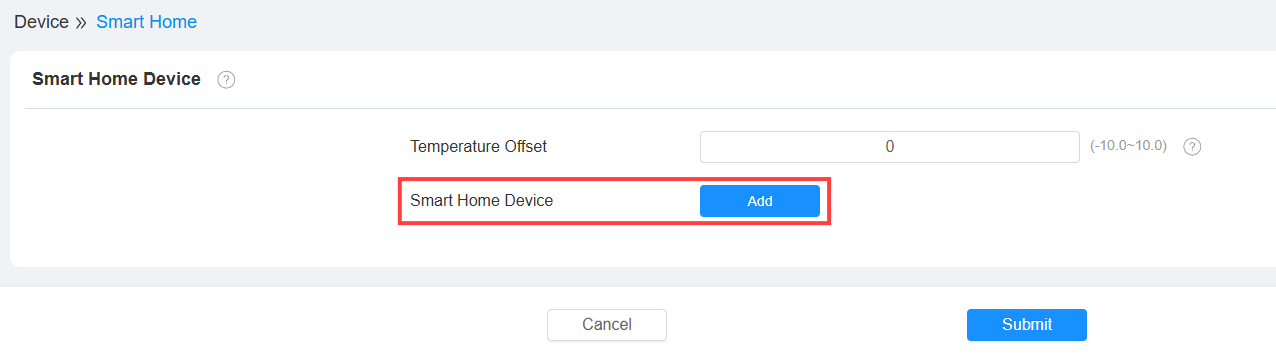
Go to Device > Smart Home interface and click Add to start scanning devices.
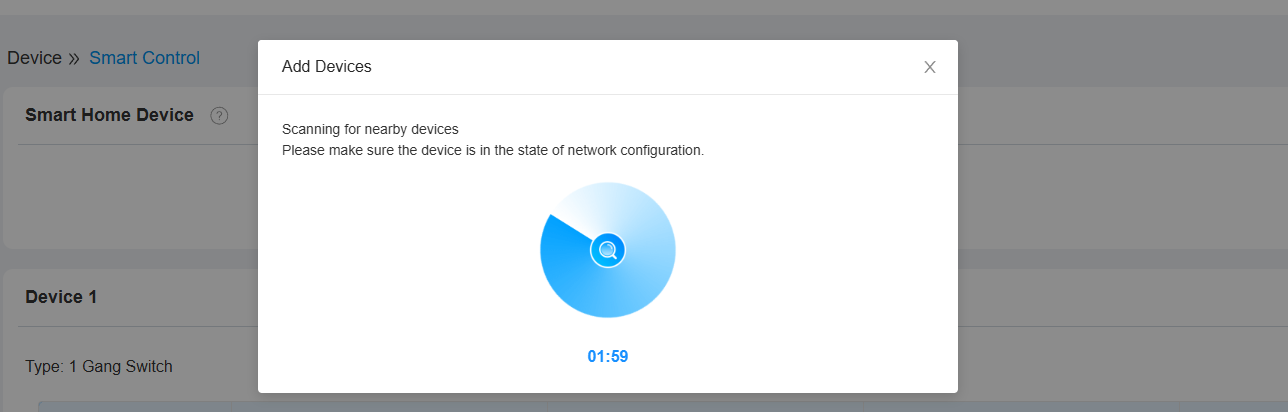
Press the button on the Zigbee switch for about 5 seconds until it flashes a blue light quickly.
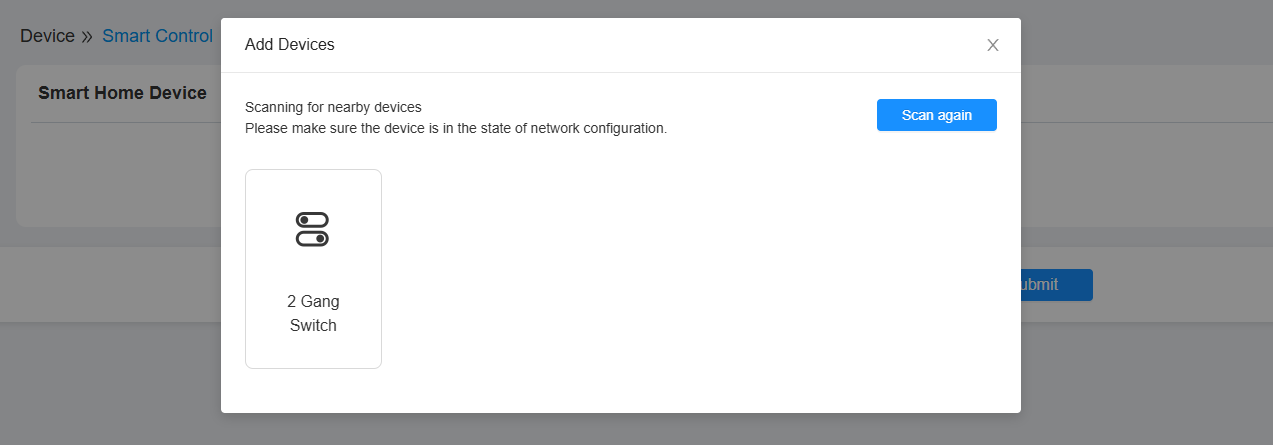
When it is detected by the Hypanel Ultra, its name will be displayed.
Click the device to add it.
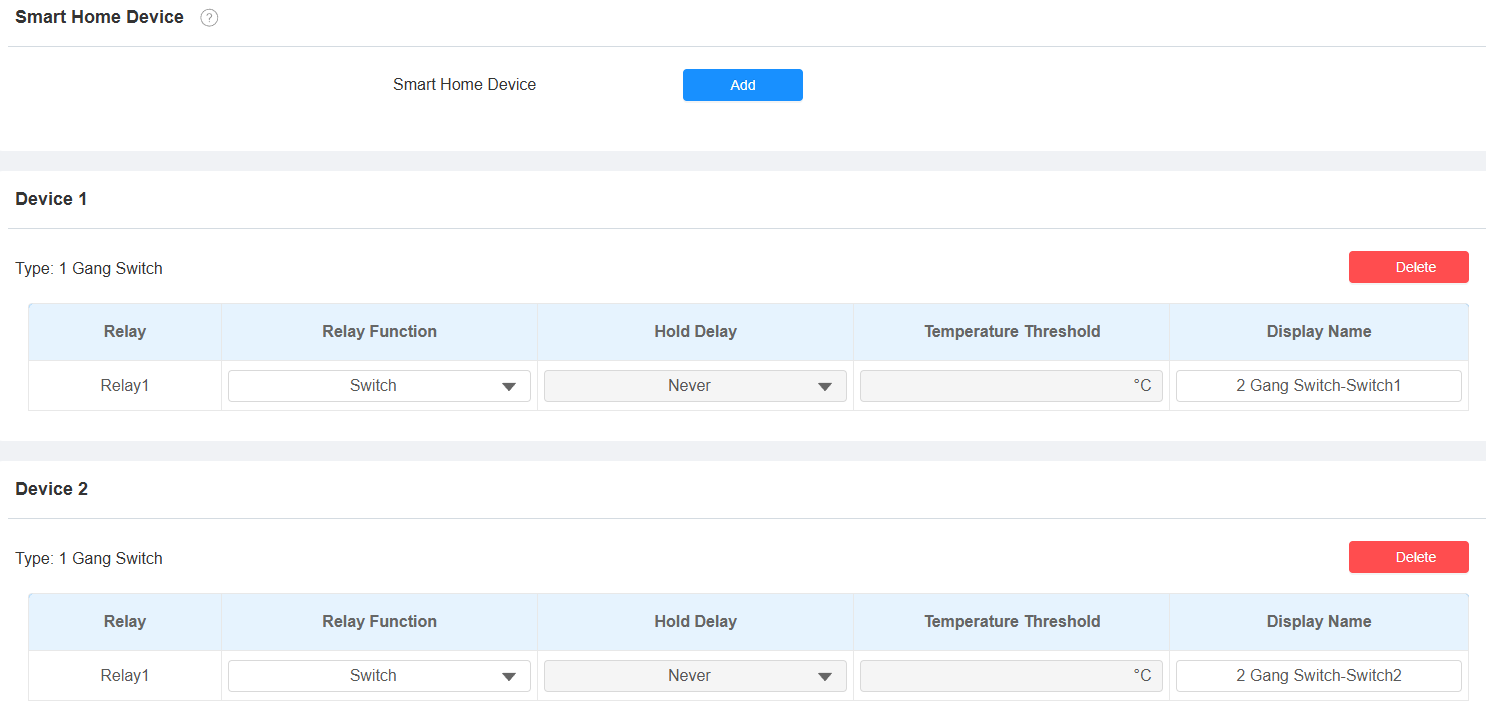
After adding the device, you can:
Select its function: Switch, Light, Heating, etc.
Set the Hold Delay. It is available when the function is Shade Open or Shade Close. It determines how long the relay keeps activated.
Set the temperature threshold when the function is Cooling or Heating.
Note
One Hypanel Ultra can add up to 128 devices.
On the Device
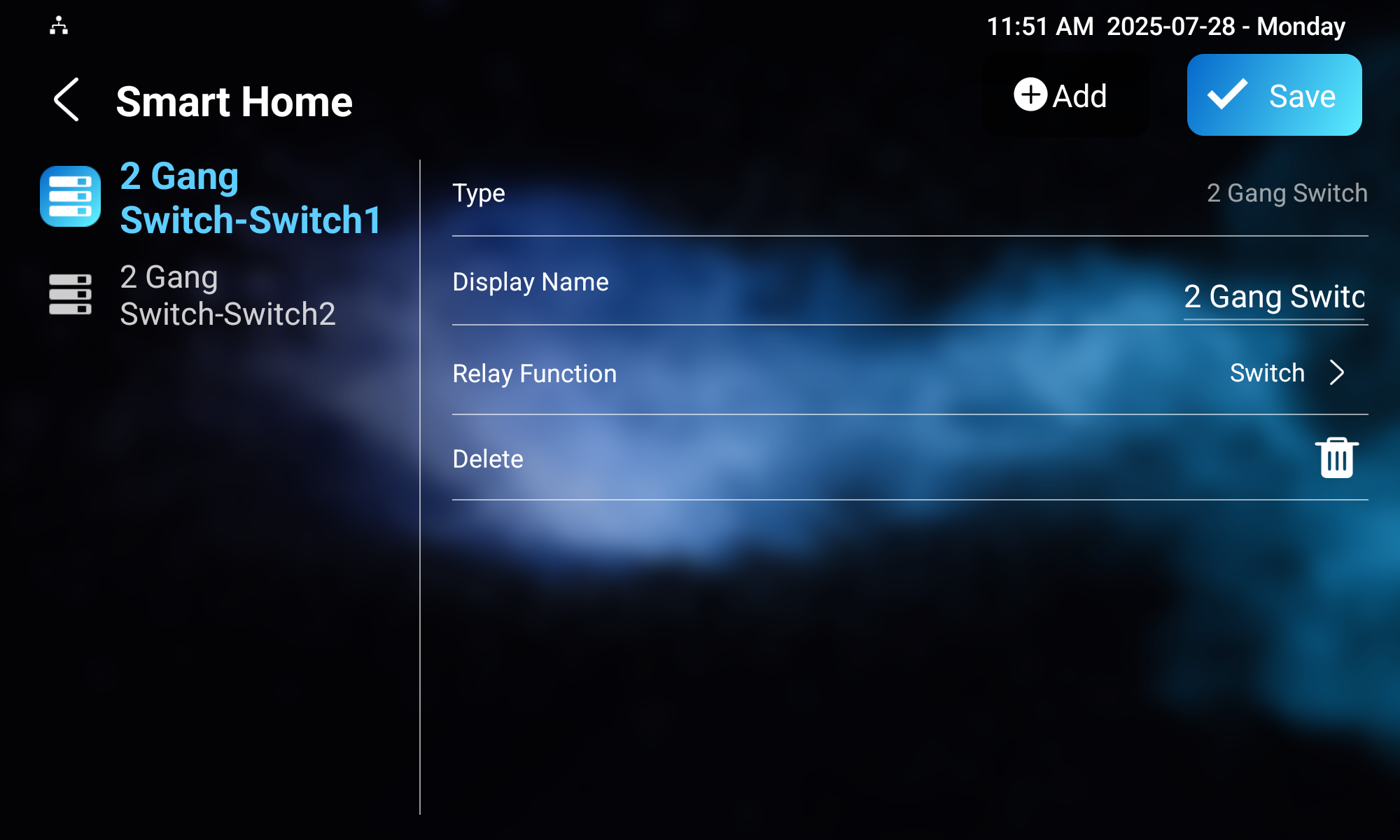
You can also carry out the pairing on the device screen.
Tap Settings > Advance > Smart Home. The default password to access the advanced settings is 123456.
Tap +Add, and the device will start scanning.
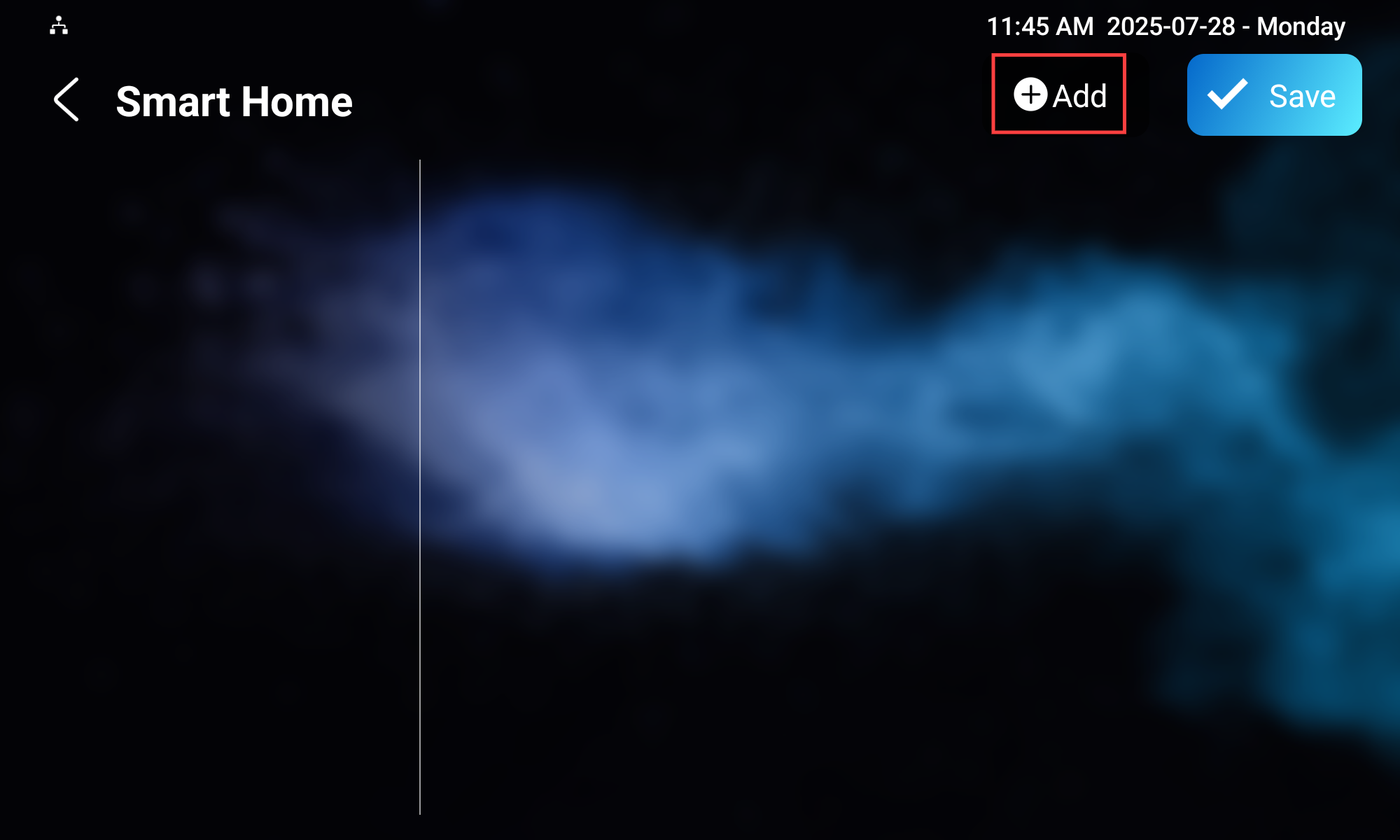
You can also choose to add devices by their type: Zigbee Sensor or Gateway.
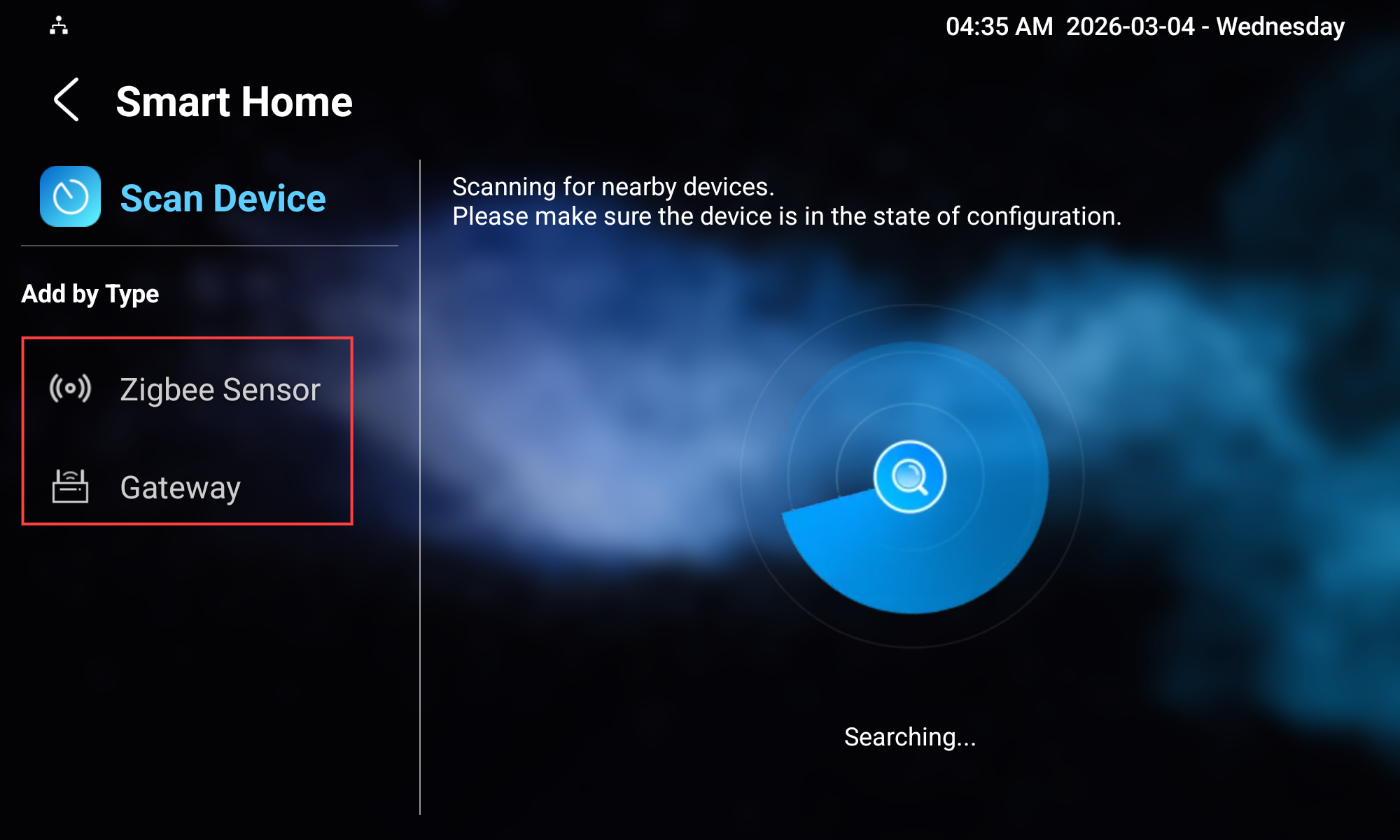
Press the button on the Zigbee switch for about 5 seconds until it flashes a blue light quickly.
When it is detected by the Hypanel Ultra, its name will be displayed.
Tap to add it.
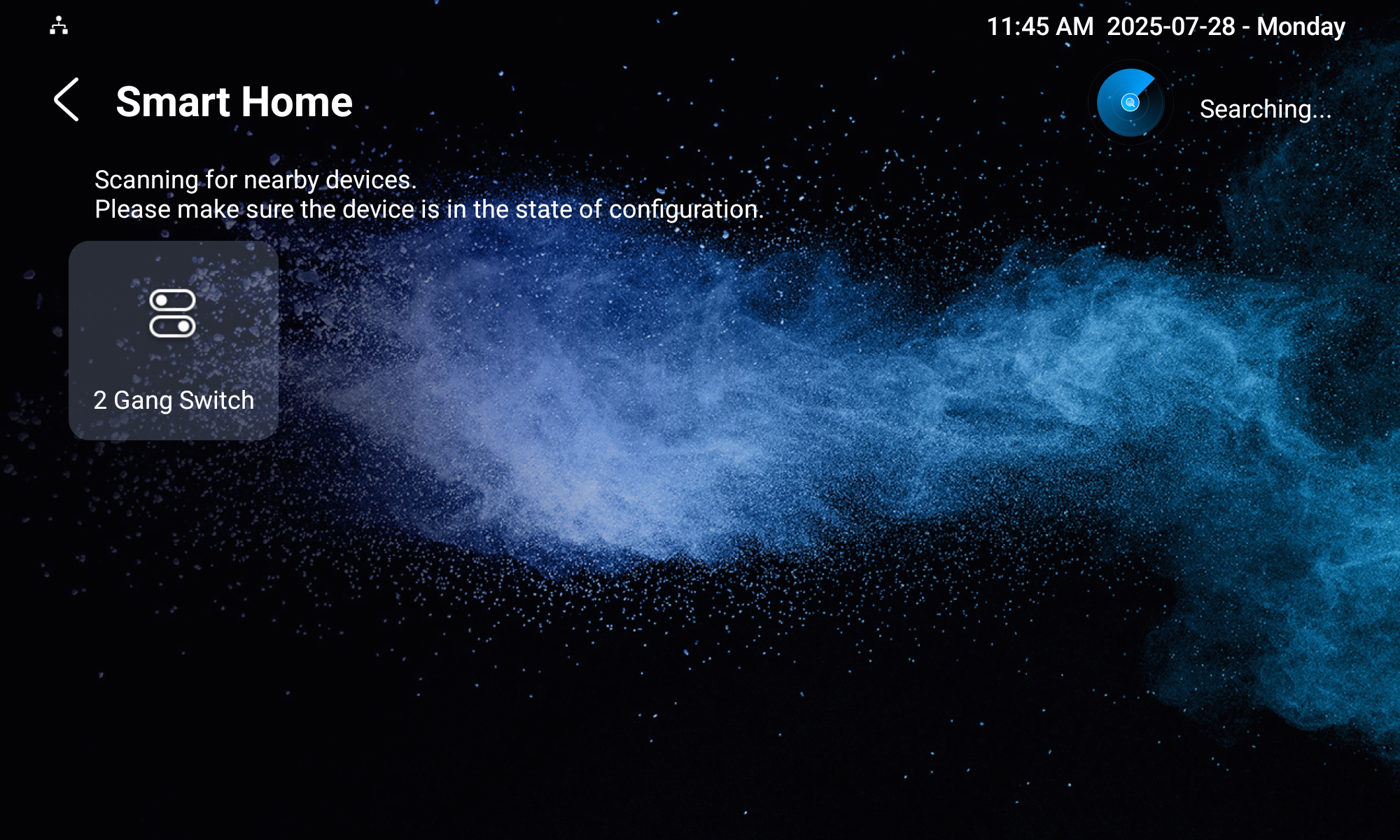
After adding the device, you can change its name and select its function.
Display Smart Home Icon
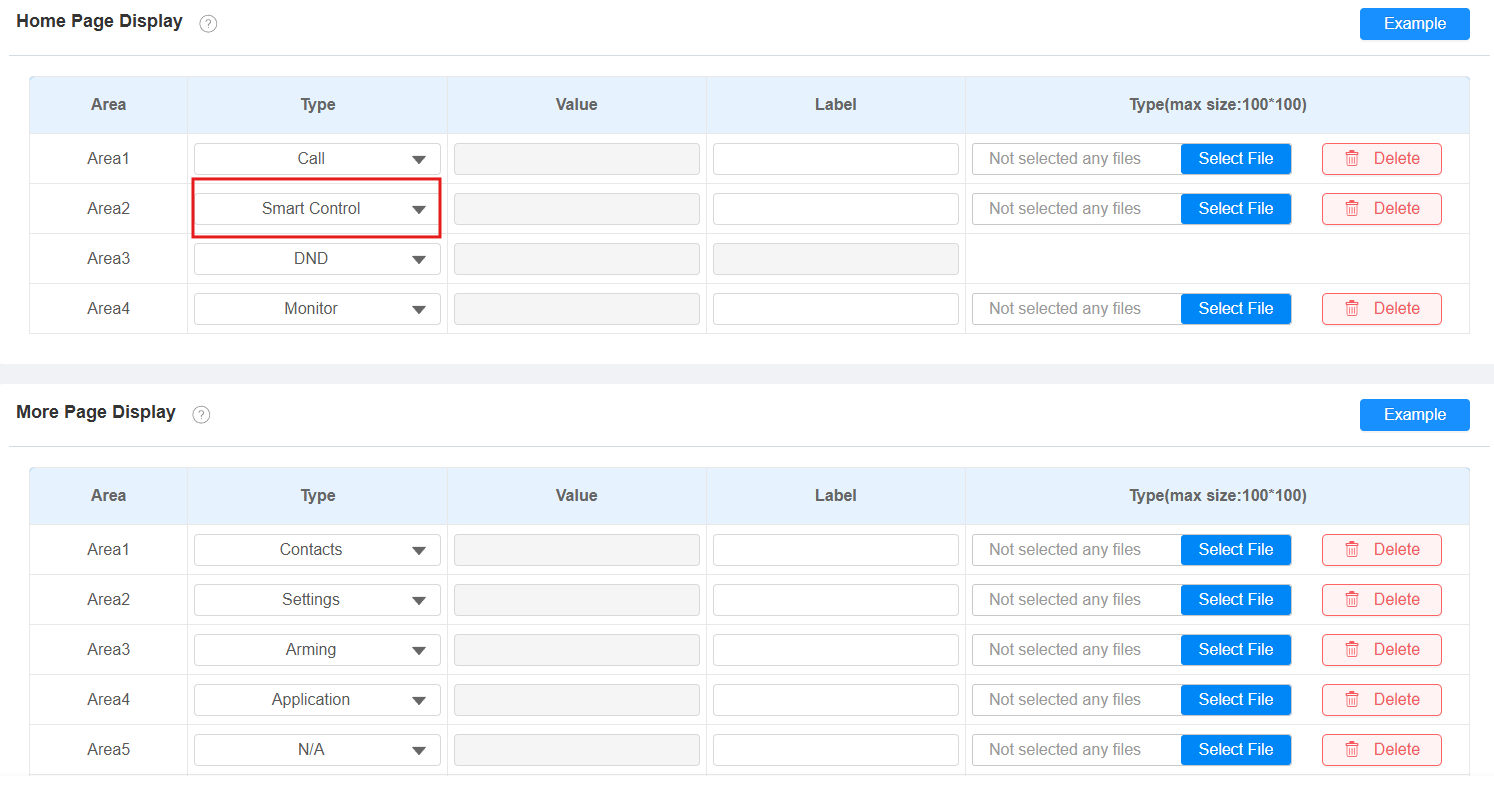
Display the smart home icon in the desired area for quick control.
Go to the Device > Display Setting interface.
Set the desired area’s type to Smart Control.
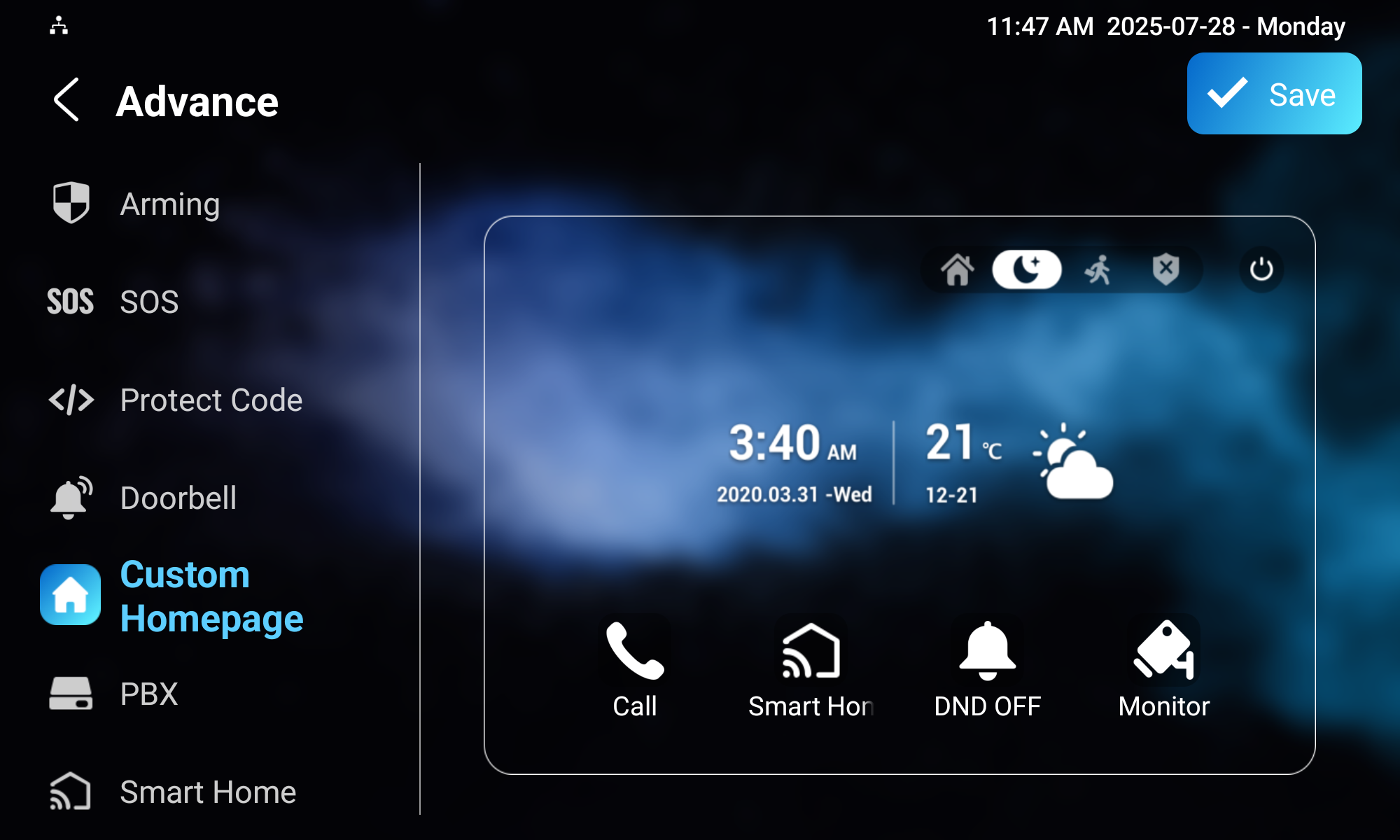
You can also set it up on the Settings > Advance > Custom Homepage screen.
Tap the desired area and choose the application type.
Add the Hypanel Ultra to the SmartPlus Cloud
Users can control smart home devices with their SmartPlus Apps when the Hypanel Ultra is connected to the SmartPlus Cloud.
Log in to the SmartPlus Cloud platform with your account.
Navigate to the target community or single-family site project. Take a community project as an example.
Based on where the device is used, select the building and click
 of the target apartment.
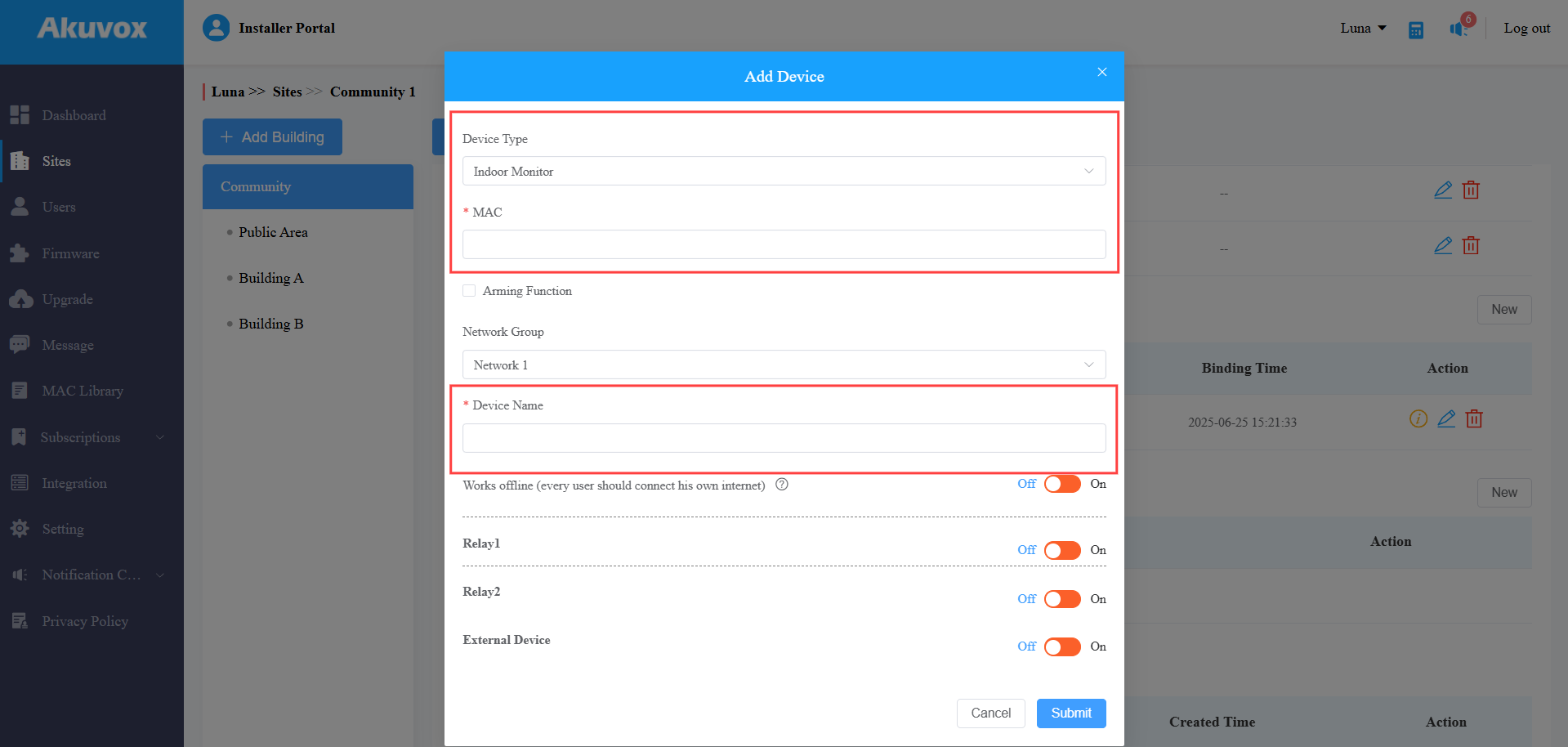
Scroll to the Intercom Devices section and click New.
Set the Device Type to Indoor Monitor and fill in the device’s MAC address and name. Keep other options default.
After the device is added, you can click  to check the information of the Zigbee devices connected to it.
For End Users
Control Smart Home Devices on the Hypanel Ultra
Tap the Smart Home icon.
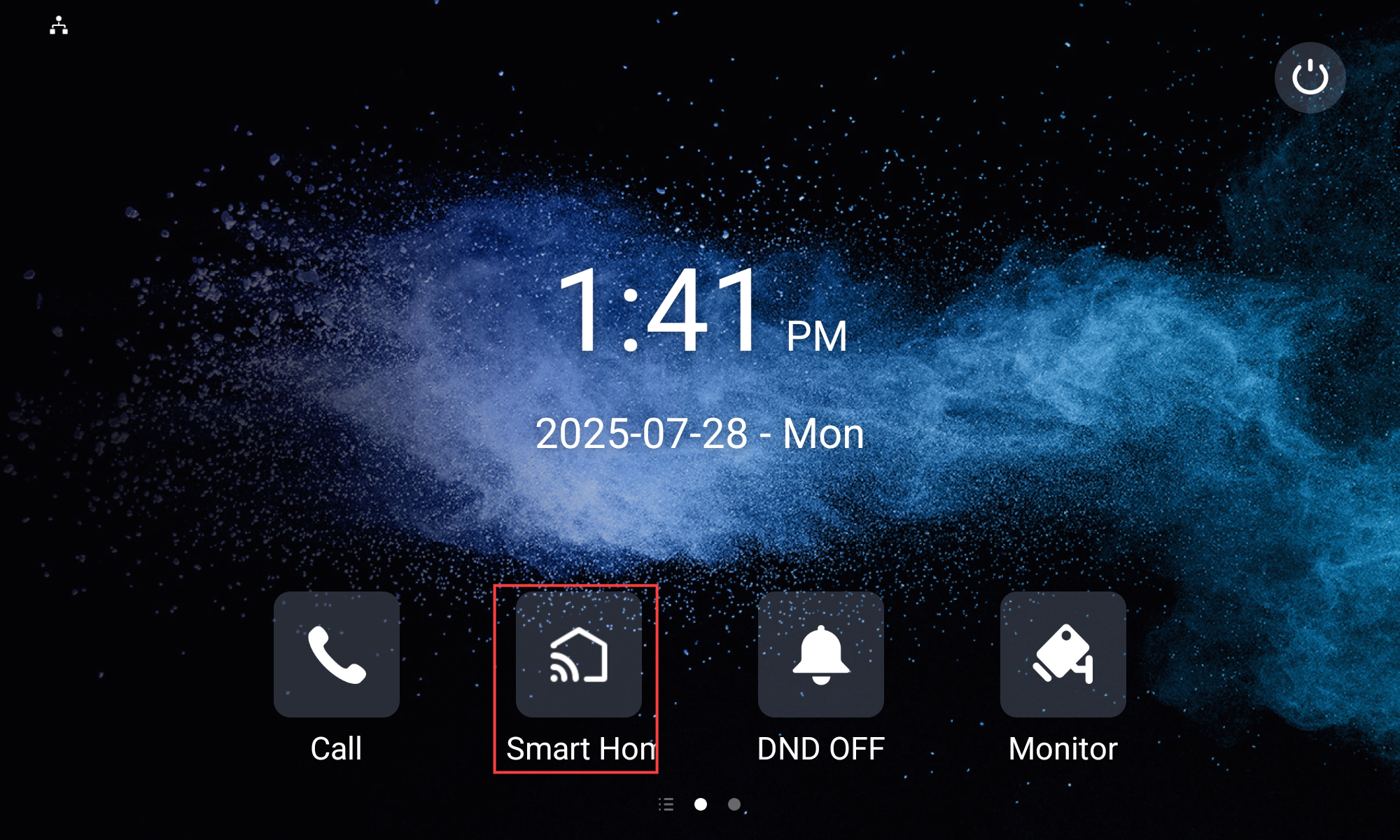
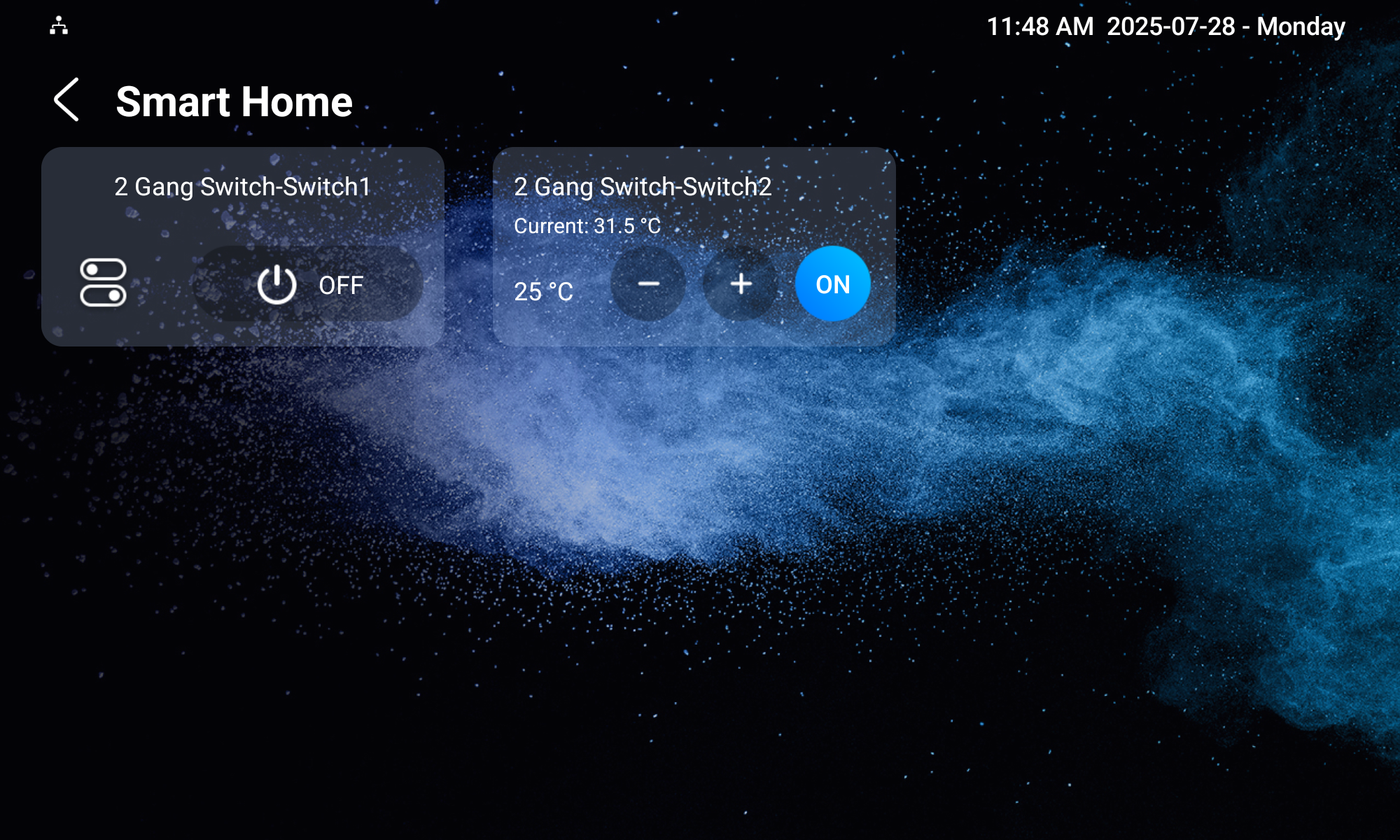
Tap the switch to turn on/off lights, control temperature, open/close shade, etc.
Control Smart Home Devices on the SmartPlus App
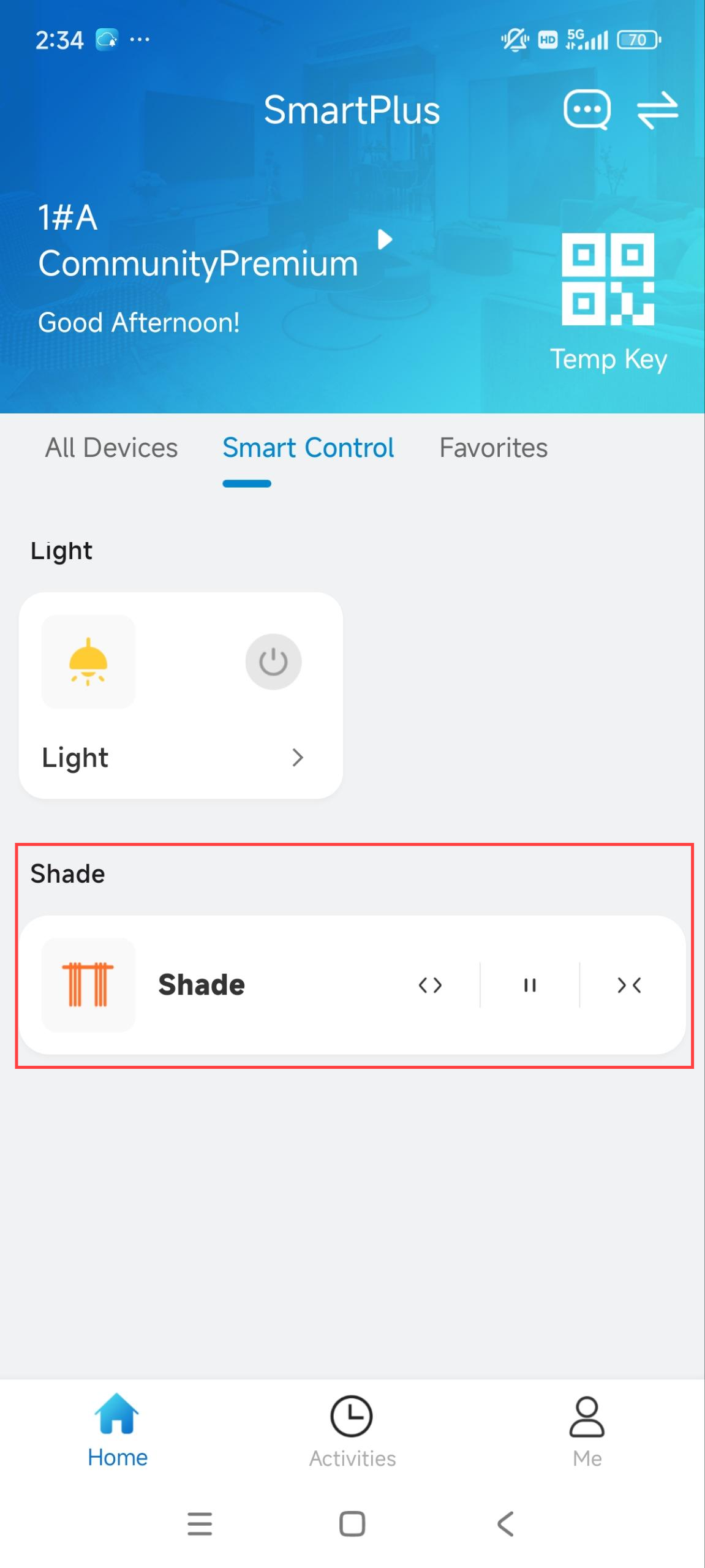
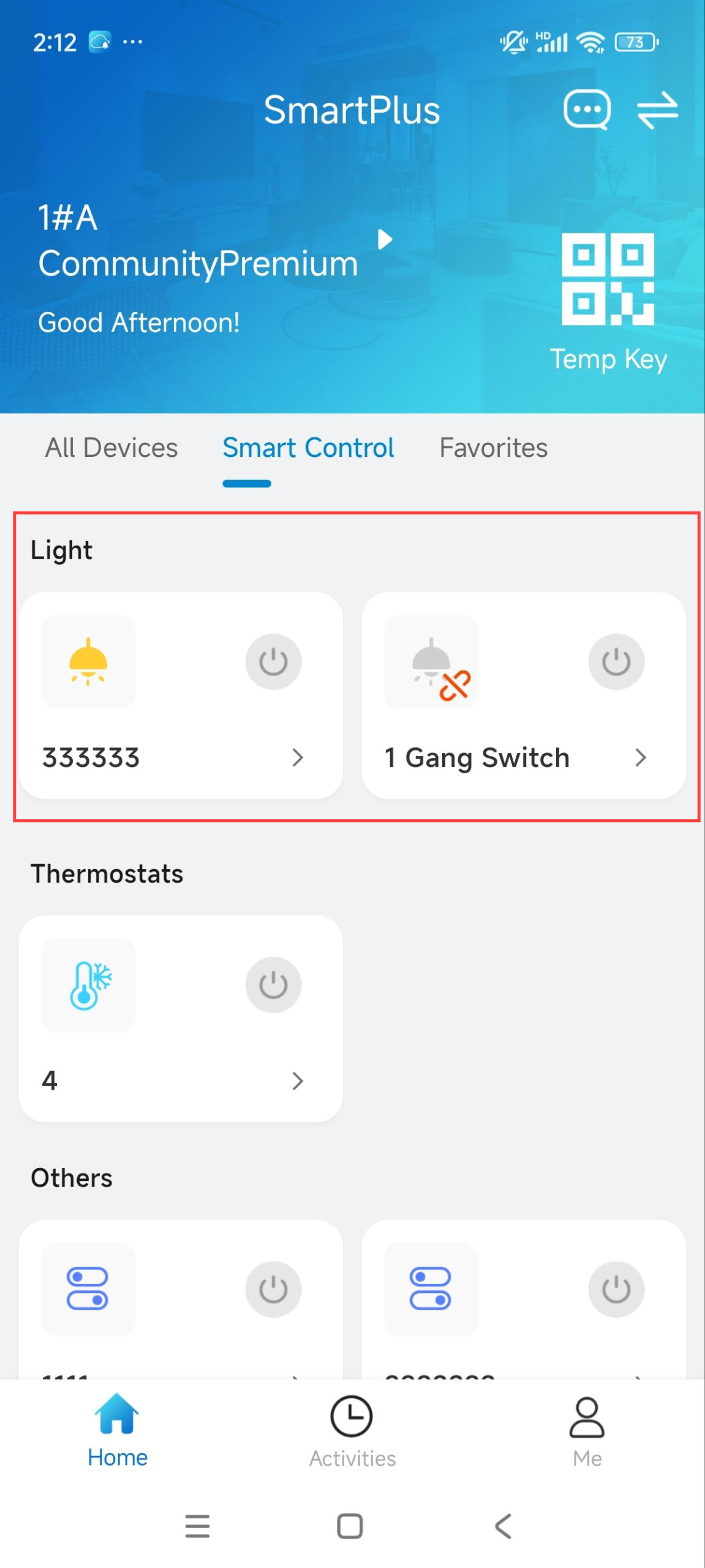
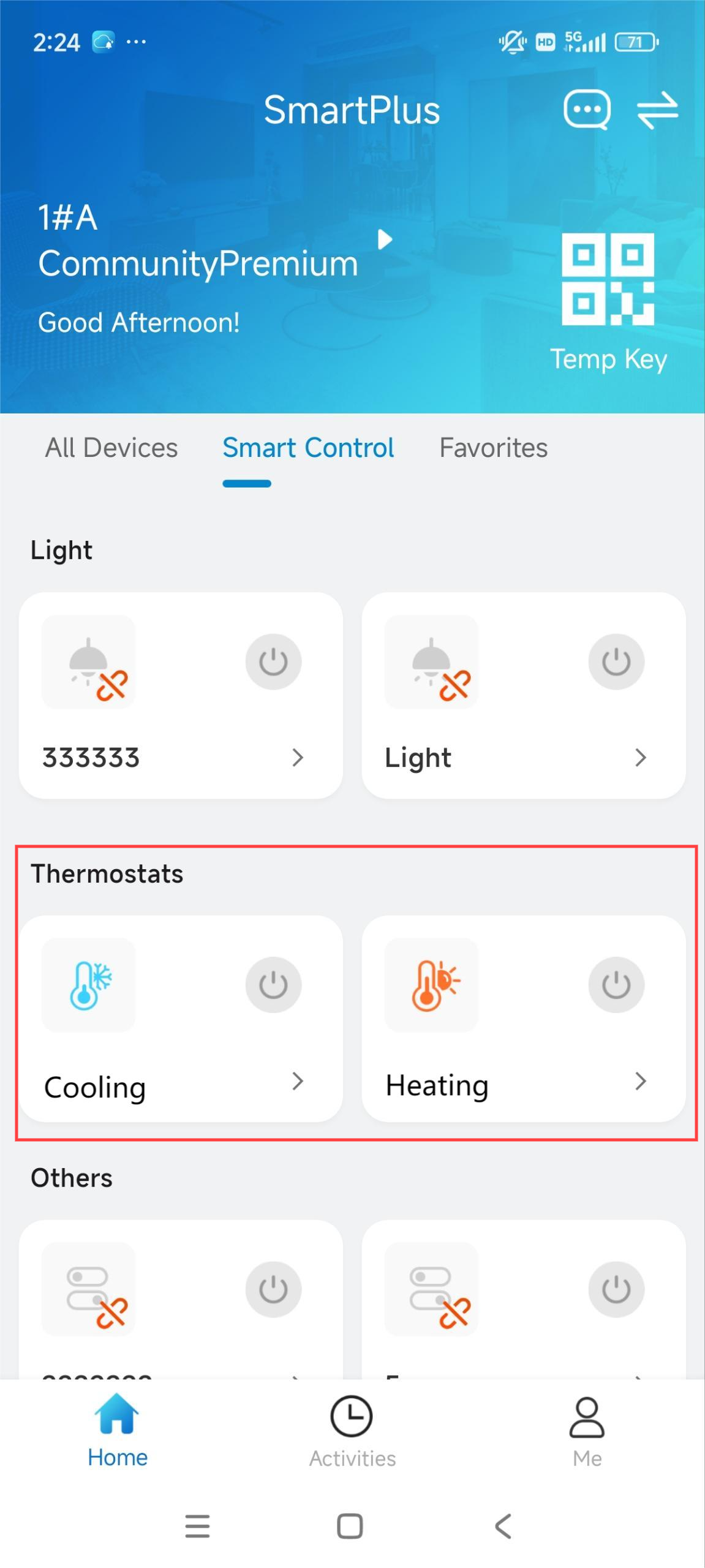
Tap Smart Control on the SmartPlus App’s homepage.
 indicates the device is offline and cannot be controlled.
Devices that are not light, shade, or thermostats are categorized into Others.
.jpg)
Light Control
Tap
 to turn on/off the light.
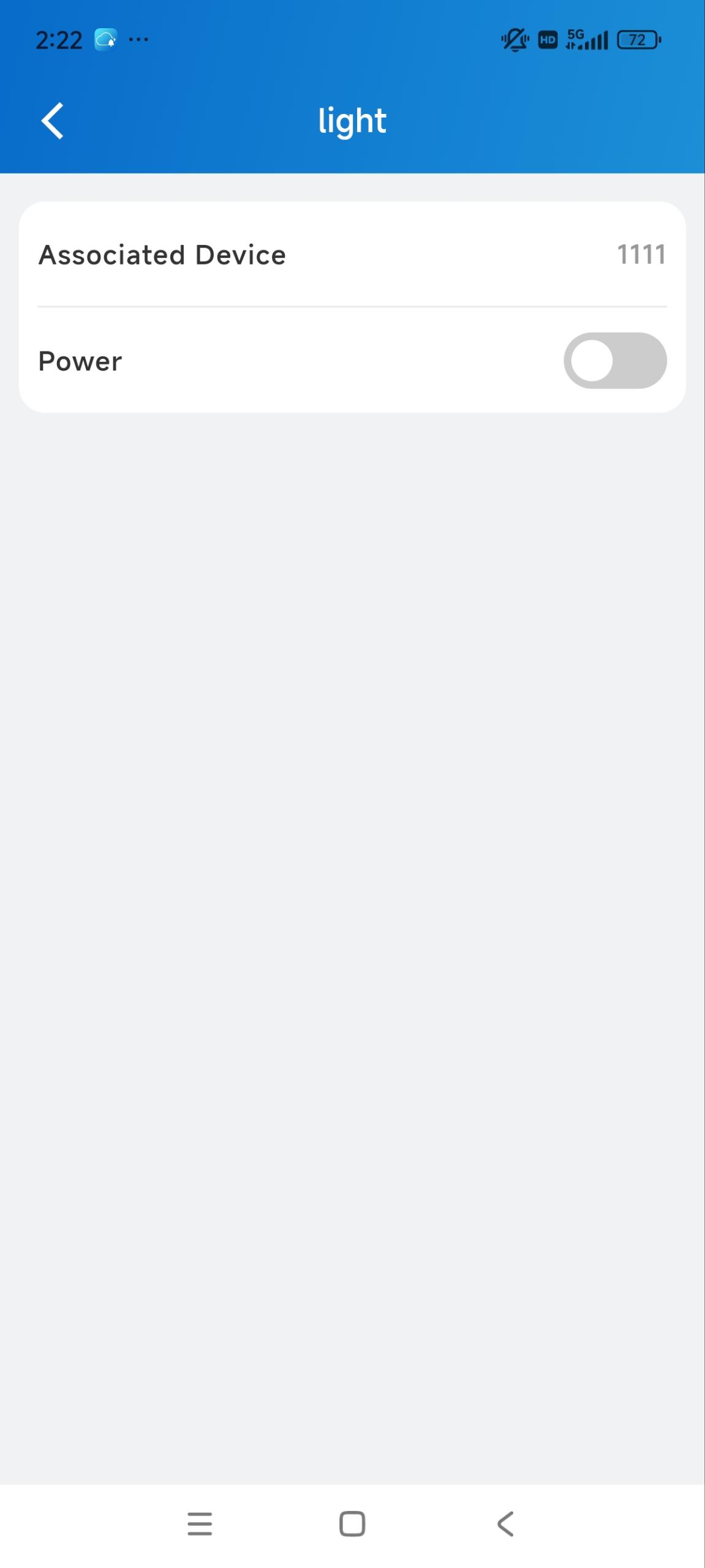
Tap the card to enter the Info page, where you can:
Check the name of the Hypanel Ultra.
Turn on/off the light by tapping the Power tab.
Temperature Control
Tap
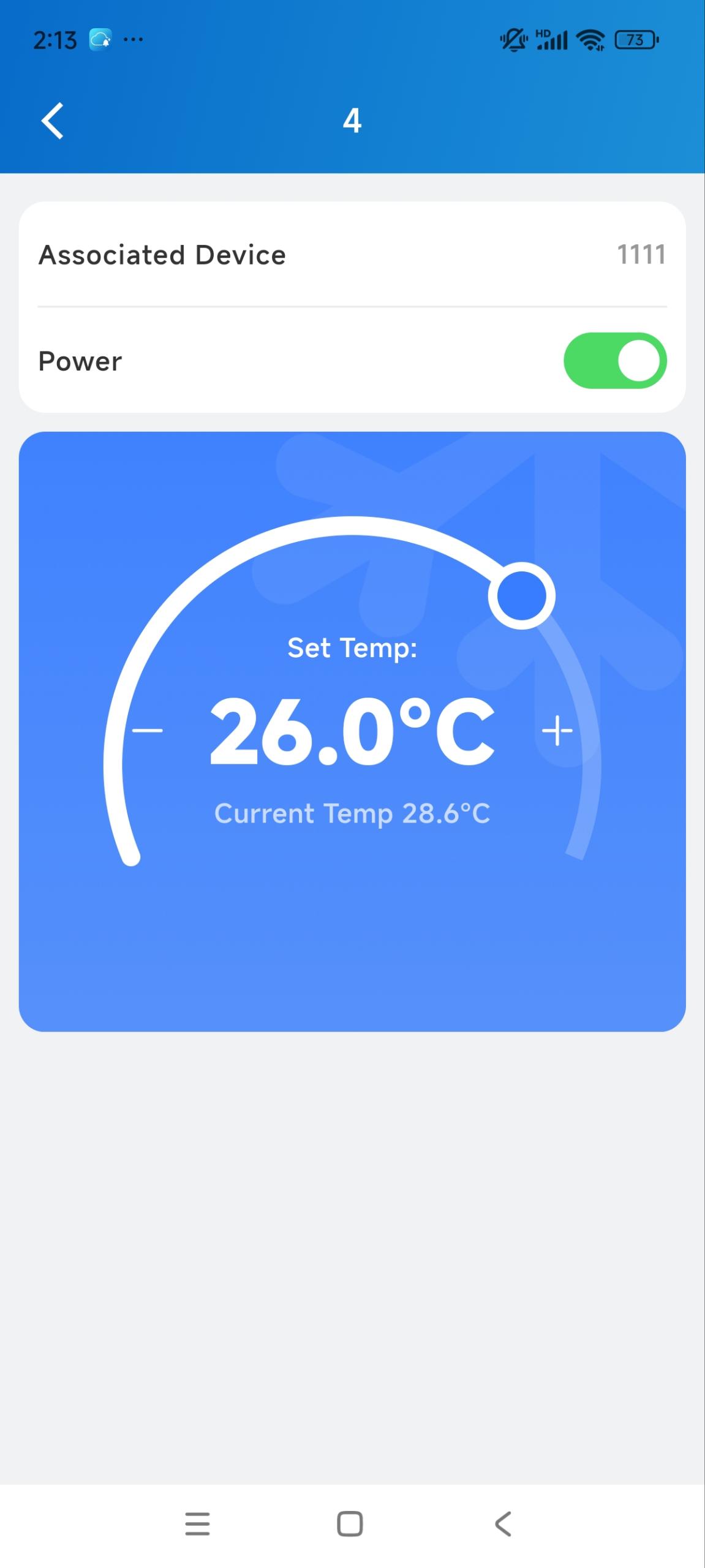
to turn on/off cooling or heating.Tap the card to enter the Info page, where you can:
Check the name of the Hypanel Ultra.
Turn on/off the cooling or heating.
Tap + - to adjust the temperature.
Drag the dial to adjust the temperature.
Shade Control
Tap  to open, stop, and close the shade.