Some distributors operate through secondary agents — sub-distributors — who manage their own group of installers. Sub-distributors have authority over the installers assigned to them, but remain under the control of their parent distributor.
A distributor creates sub-distributor accounts through the SmartPlus Cloud portal. Once an account is created, the sub-distributor can log in to their own portal and create accounts for installers. The distributor can also associate existing installer accounts with a sub-distributor at any time.
Before You Begin
Contact your service provider to have sub-distributor account creation authority granted to your account before proceeding.
Add a Sub-Distributor Account
Log in to the cloud platform with your distributor account.
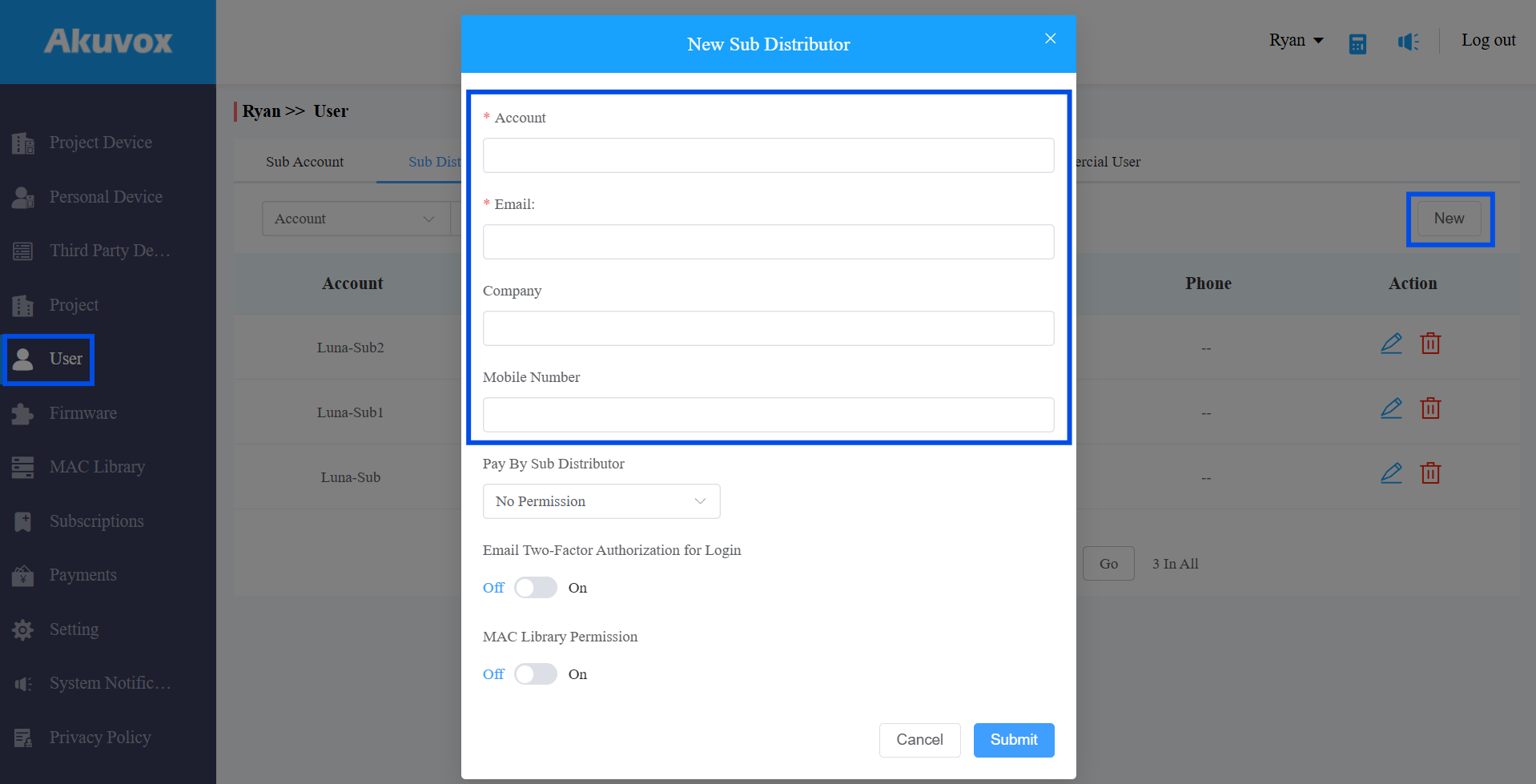
Go to User > Sub Distributor.
Click New on the right.
Enter the sub-distributor's Account name. This field is required.
Enter the sub-distributor's Email address.
Expiration notification emails for the sub-distributor's users will be sent to this address. If left blank, these emails will be sent to the distributor's email address instead.
Enter the sub-distributor's Company name.
Enter the sub-distributor's Mobile Number.
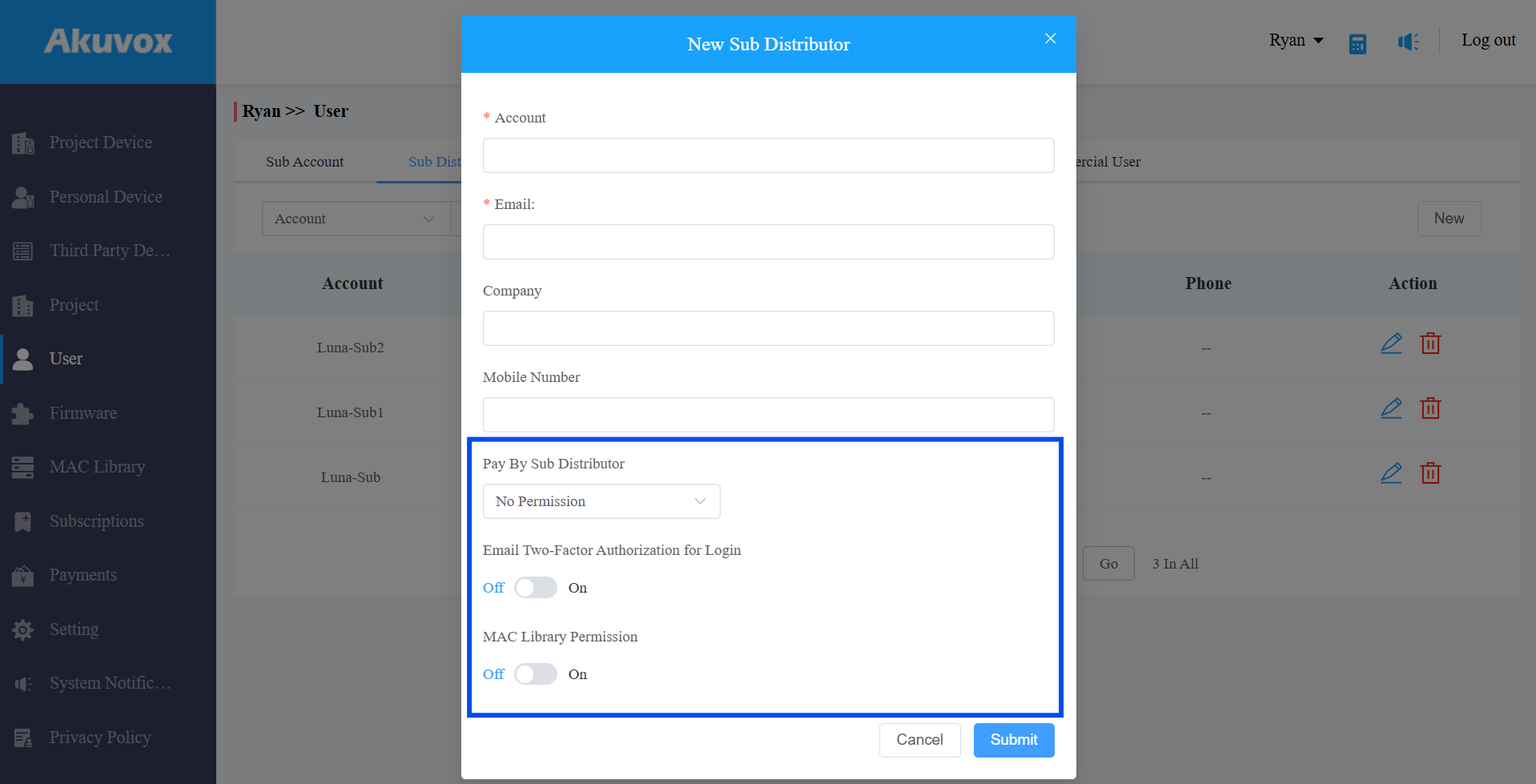
Configure the Pay by Sub Distributor setting:
No Permission: The sub-distributor cannot pay for SmartPlus services.
Stripe / PayPal / Coupon: The sub-distributor can pay for services and will see the Subscription and Payments modules in their portal.
Credit: The sub-distributor can pay using Credit. Applies to commercial projects created after June 1, 2025.
Enable Email Two-Factor Authorization for Login if required. When enabled, the sub-distributor must enter a verification code each time they log in.
Enable MAC Library Permission if required. When enabled, the sub-distributor can add device MAC addresses to the MAC Library. This setting is disabled by default.
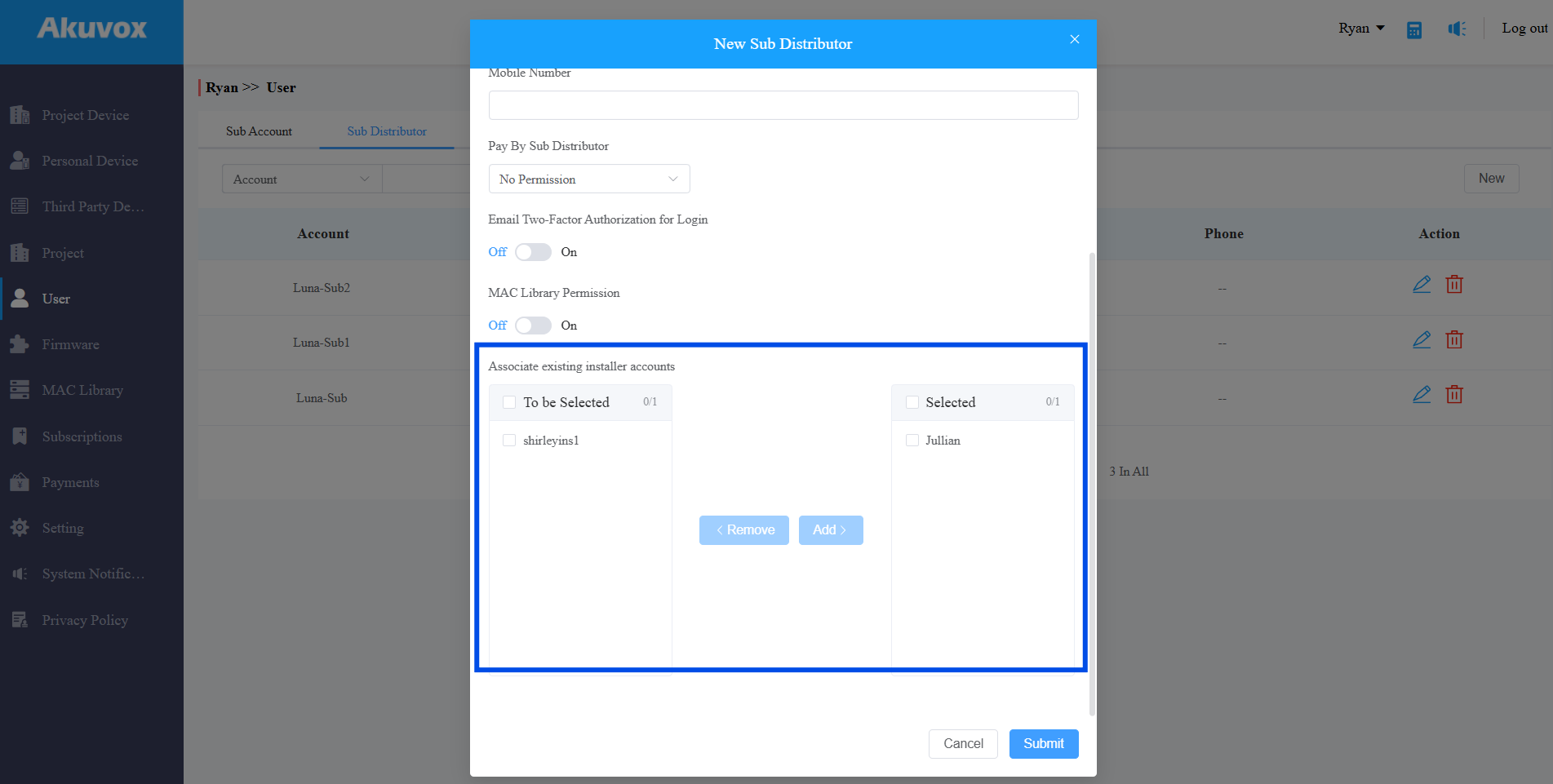
Under Associate Existing Installer Accounts, select any installer accounts to place under this sub-distributor's management.
Submit the settings.
Edit/Delete a Sub-Distributor Account
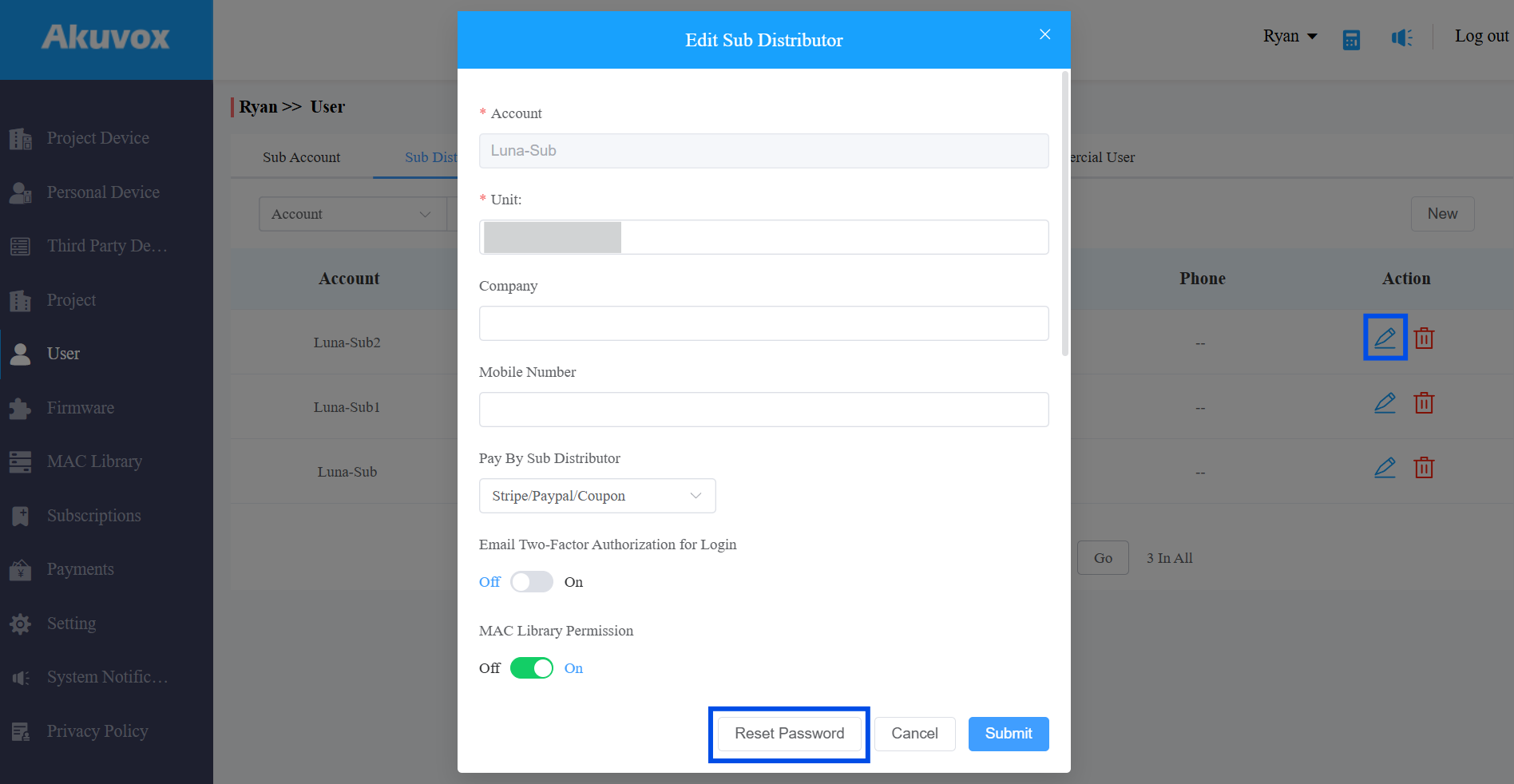
Navigate to User > Sub Distributor.
Locate the target sub-distributor account.
Click
 to update account settings or reset the password.
Click
 to delete the account. Remove all associated installer accounts from the sub-distributor before it can be deleted.
Note
Sub-distributors have the same level of authority as the distributor over their assigned installers, including the ability to manage installer accounts, devices, projects, and end users.
Sub-distributors do not have permission for home automation. Installer accounts created by sub-distributors will also lack this permission.
The distributor cannot view or track payments made by sub-distributors when a payment method is enabled.