Monitor Settings
You can use RTSP to watch a live video stream from other intercom devices on the device.
Tap Monitor on the home screen and tap +New Monitor.
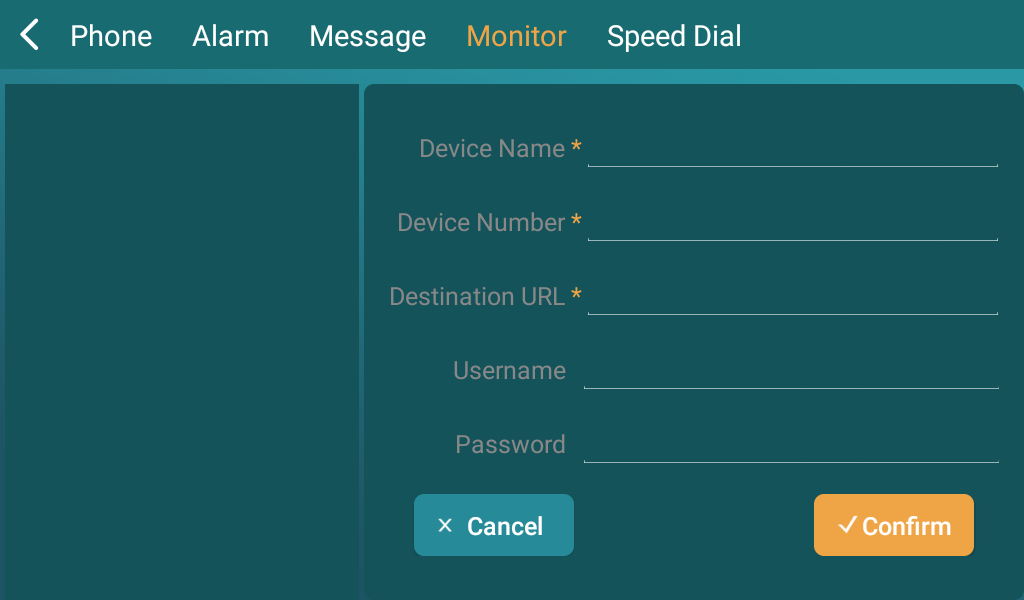
Device Number: The device's SIP/IP number for identification.
Device Name: The device name for identification.
Destination Address: The RTSP address of the monitoring device. RSTP format: rtsp://Device IP address/live/ch00_0.
Username: The username of the monitoring device for authentication.
Password: The password of the monitoring device for authentication.
Alarm
You can check, clear, and deal with the alarms triggered by the device.
Tap Alarm on the device home screen.
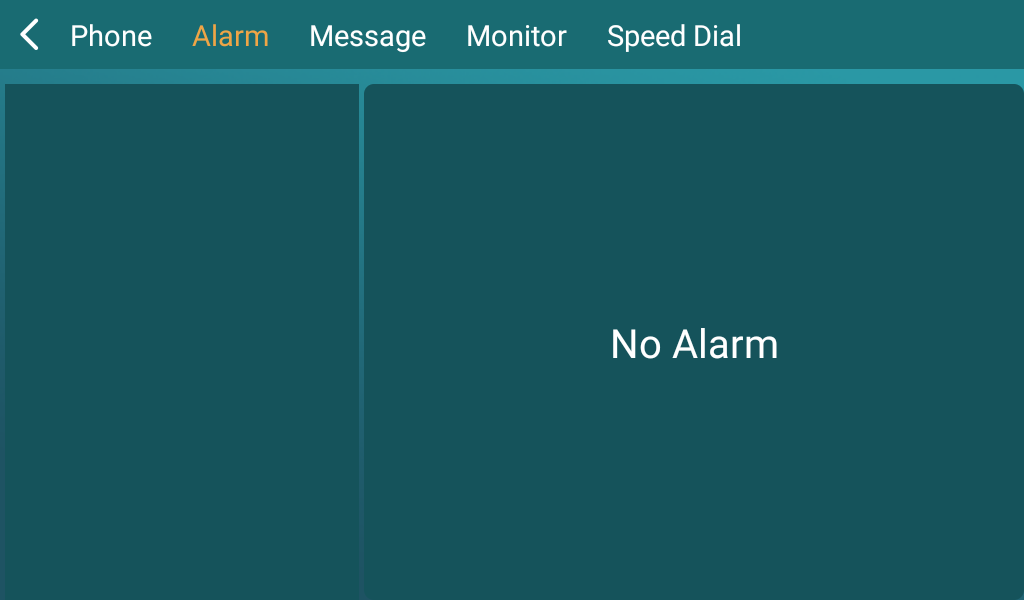
If you do not want to receive alarms on the device, you can disable the alarm feature on the Phone > Preference > Alarm Settings interface.

Receive Alarm: It is enabled by default.
Alarm Notification
The device supports sending alarm and SOS notifications in HTTP URL format to a third-party property management system.
Set it up on the Phone > Preference interface.

Alarm Notification: Turn on/off the feature.
IP Server: The designated third-party server address. The HTTP message contains the information: device name, triggered zone, alarm type, area, and alarm time.
IP Server Port: The third-party server’s port number.
Voice Encryption
The encryption function provides three encryption methods to protect voice signals from eavesdropping during a call.
Set it up on the web Account > Advanced > Encryption interface.

Disabled: The call will not be encrypted.
SRTP(Compulsory): All audio signals (technically speaking, it is RTP streams) will be encrypted to improve security.
SRTP(Optional): The voice is encrypted from the caller. If the caller also enables SRTP, the voice signals will also be encrypted.
ZRTP(Optional): The protocol that the two parties use to negotiate the SRTP session key.
Disable HDMI/USB Interfaces
You can disable the HDMI and USB interfaces to enhance security by preventing unauthorized access to external devices or peripheral equipment.
Set it up on the Settings > Basic interface.

Client Certificate Setting
Certificates ensure communication integrity and privacy. To use the SSL protocol, you need to upload the right certificates for verification.
Client Certificate
This certificate verifies the server to the device when they want to connect using SSL. The device verifies the server's certificate against its client certificate list.
Set it up on the Security > Advanced interface.

Web Server Certificate
It is a certificate sent to the client for authentication when the client requests an SSL connection with the Akuvox device. Please upload the certificates in accepted formats.
Set it up on the Security > Advanced interface.

Web Interface Automatic Log-out
You can set up the web interface's automatic log-out timing, requiring re-login by entering the user name and the passwords for security purposes or for the convenience of operation.
Set it up on the Security > Basic > Session Time Out interface.

High Security Mode
High security mode is designed to enhance the security. It employs encryption across various facets, including the communication process, door opening commands, password storage methods, and more.
Enable/disable it on the Security > Basic > High Security Mode interface.

Important Notes
1. The High Security mode is off by default when you upgrade the device from a version without the mode to one with it. But if you reset the device to its factory settings, the mode is on by default.
2. This mode makes the old version tools incompatible. You need to upgrade them to the following versions or higher to use them.
·PC Manager: 1.2.0.0
·IP Scanner: 2.2.0.0
·Upgrade Tool: 4.1.0.0
·SDMC: 6.0.0.34
3. The supported HTTP format for relay triggering varies depending on whether high secure mode is enabled or disabled.
If the mode is on, the device only accepts the new HTTP formats below for door opening.
l http://username:password@deviceIP/fcgi/OpenDoor?action=OpenDoor&DoorNum=1
l http://deviceIP/fcgi/OpenDoor?action=OpenDoor&DoorNum=1
If the mode is off, the device can use both the new formats above and the old format below:
l http://deviceIP/fcgi/do?action=OpenDoor&UserName=username&Password=password&DoorNum=1
4. It is not allowed to import/export configuration files in tgz. format between a device with the high security mode and another one without it. For assistance with file transfer, please contact Akuvox technical support.