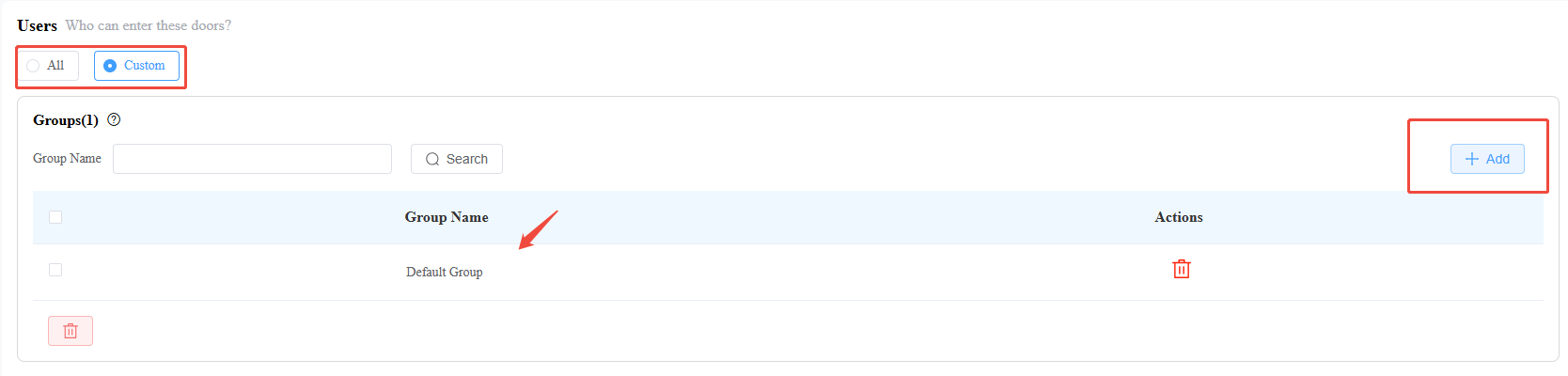
Possible Reason 1: Door Not Assigned to the Company
Cause
If a door is not assigned to a company, the company’s staff will not be included in that door phone’s contact list—this is because door assignment is a prerequisite for linking company users to the door’s access-related features (including contact list visibility).
Solution
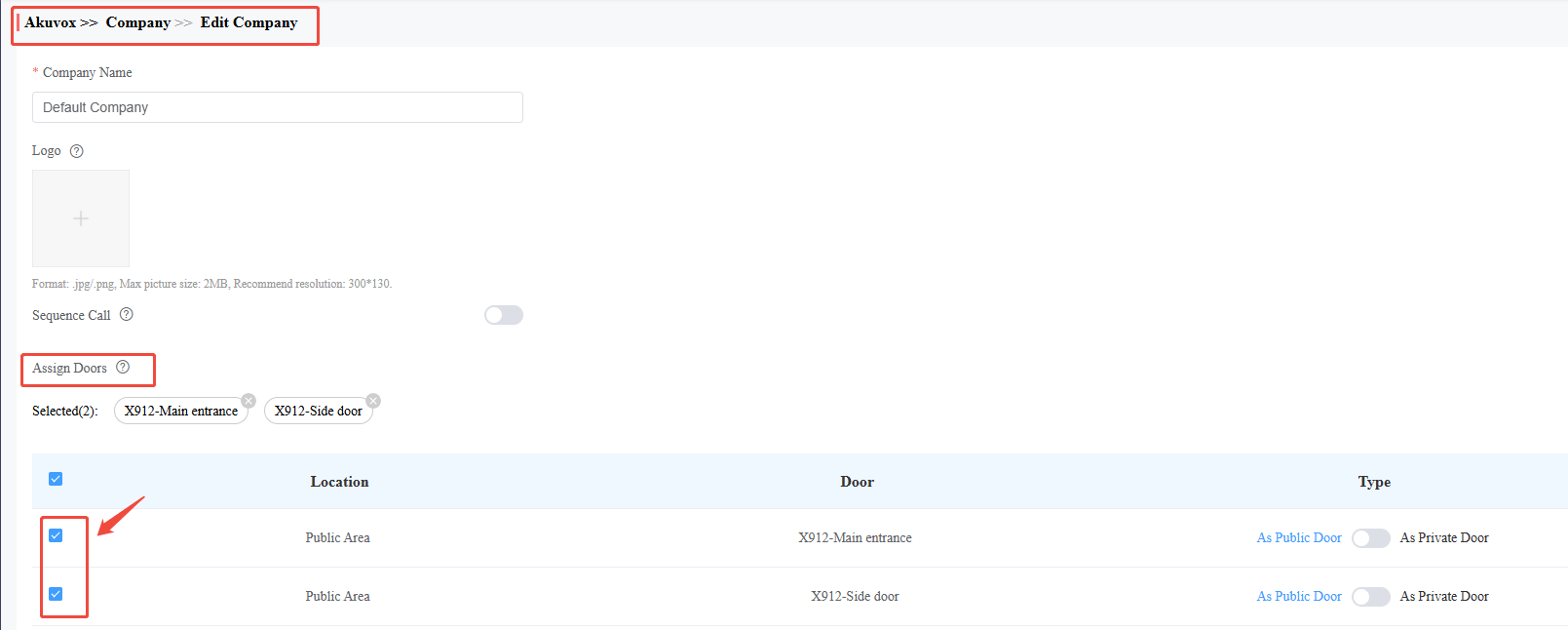
1. Navigate to Company > Assign Doors.
2. Select the target company (e.g., "Default Company") that needs its users to appear in the door phone’s contact list.
3. In the "Door List" section, check the box next to each door whose contact list should include the company’s users (e.g., X912-Main Entrance, X912-Side Door).
Possible Reason 2: Group’s Door Station Contact List Display Mode Not Configured
Cause
The group associated with the user has no defined display mode for the door phone contact list.
Solution
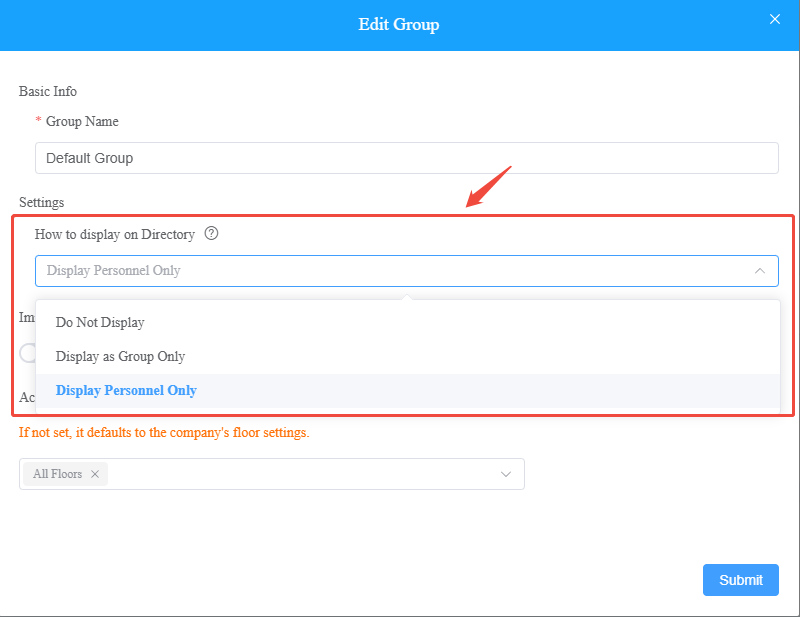
1. Go to Groups > Edit Group (select the group linked to the missing users, e.g., "Default Group").
2. Under the "Settings" tab, locate the How to display on Directory option.
3. Select one of the following display modes:
● Display as Groups Only (shows the group name, not individual users)
● Display Users Only (shows individual users in the group, not the group name)
Possible Reason 3: User's SmartPlus Intercom Feature Disabled
Cause
Individual users will not appear in the door phone contact list if their personal "SmartPlus Intercom Feature" option is turned off.
Solution
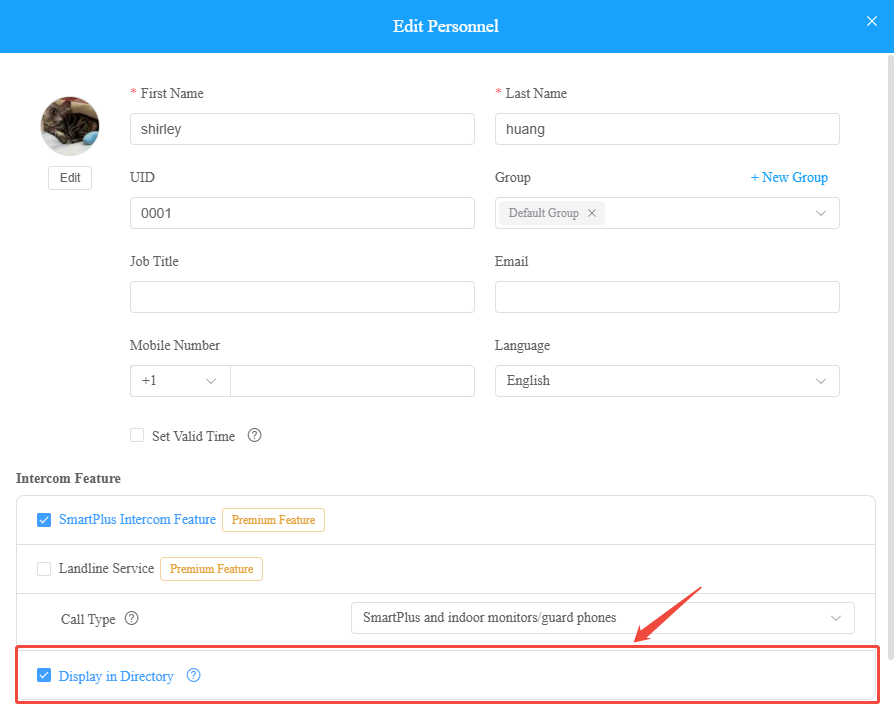
1. Navigate to Personnel > Edit Personnel (select the user who is missing from the contact list).
2. Scroll to the Intercom Feature section.
3. Enable SmartPlus Intercom Feature.
4. Enable the Display in Directory Option.
Possible Reason 4: User Lacks Permission to Access the Door
Cause
Users without access permission to a specific door are automatically excluded from that door phone’s contact list—permission is required for both access and contact list visibility.
Solution
1. Go to Access Control > Access Group.
2. Select the Access Group associated with the missing user (or create a new group if needed).
3. To grant permission:
● Option 1: Select All to allow all users in the system to access the door and appear in its contact list.
● Option 2: Click + Add to select specific groups/users and assign them access.