Apple Wallet Access allows users to use their iPhone or Apple Watch as a contactless credential to unlock authorized doors.
This guide explains how to enable Apple Wallet access for users from the property manager SmartPlus Cloud portal.
Note
Apple Wallet Access is unavailable in Mainland China, Nepal, and Vietnam.
It is a paid feature. Activate the subscription before users can add their access credentials to Apple Wallet. If you cannot pay for this feature, contact your installer for activation.
Model Compatibility
Supported SmartPlus App version: 7.50.0003(Android)/7.50.3(iOS) or later.
Supported OS Versions: iPhone: iOS 17 or later; Apple Watch: watchOS 8.0 or later.
The following models with specific versions or higher support Apple Wallet Access.
Model | Minimum Version | Model | Minimum Version |
|---|---|---|---|
X915V2 | 2915.30.10.811 | A095 | 95.30.11.104 |
S539 | 539.30.10.613 | R20V5 | 320.30.12.103 |
A01/A02 | 101.30.11.204 | A03 | 103.30.11.204 |
A08 | 108.30.12.6 | S535 | 535.30.11.32 |
A05V2 | 205.30.11.127 | E16V3 | 416.30.12.104 |
X916 | 916.30.10.604 | R28V2 | 228.30.11.108 |
E18 | 18.30.11.202 | X912 | 912.30.13.3 |
R29 | 29.30.10.743 | S532 | 532.30.10.404 |
E16V2 | 216.30.12.103 | X910 | 2910.30.11.111 |
R25 | 25.30.11.3 |
Note
For A095, Apple Wallet Access is supported when an Apple Wallet-compatible external reader is connected through the Wiegand or OSDP interface. The reader transmits the credential information to A095 for access verification.
Configuration
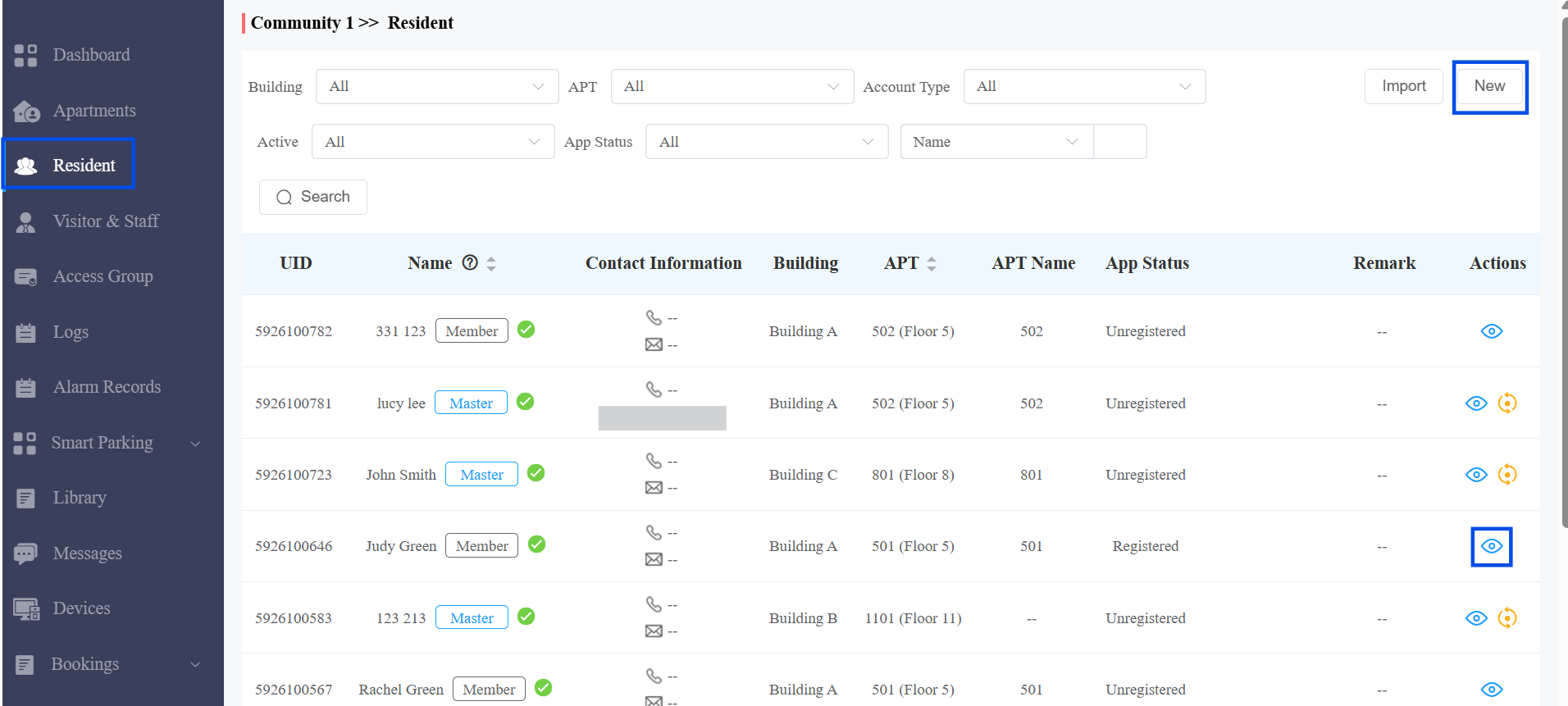
Log in to the cloud portal with your PM account.
Go to Resident.
Click New to add a new resident. To modify a current resident, click
 .
.
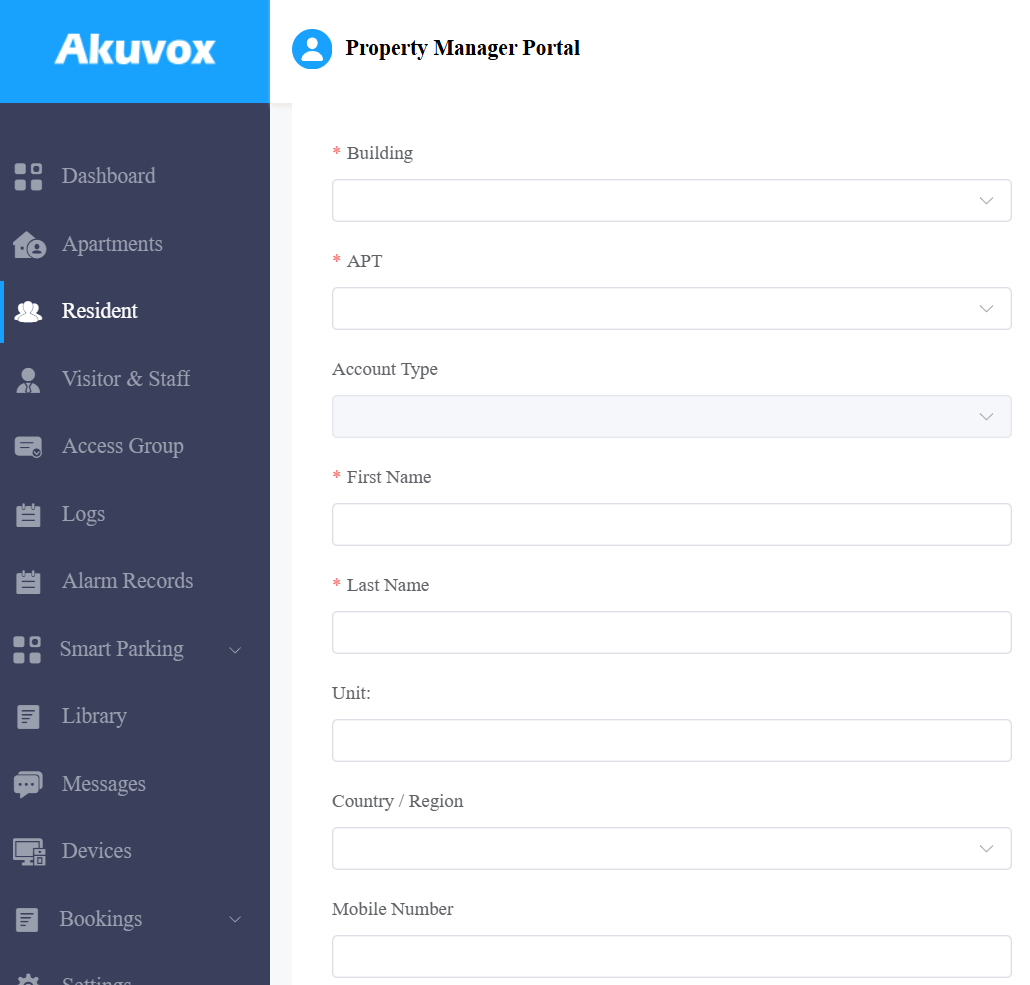
Complete all required fields in the Basic Info section.
Click Submit and Next. The system creates the account immediately at this point.
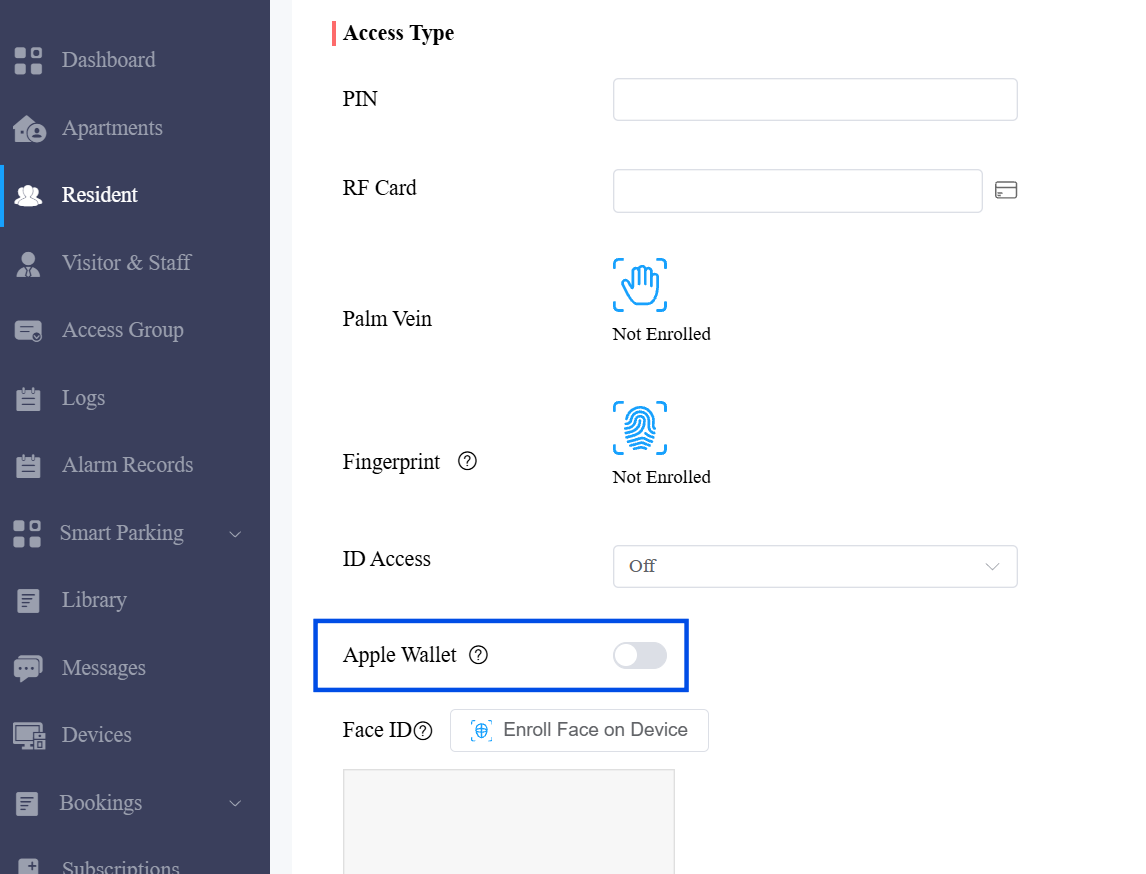
Enable Apple Wallet access.
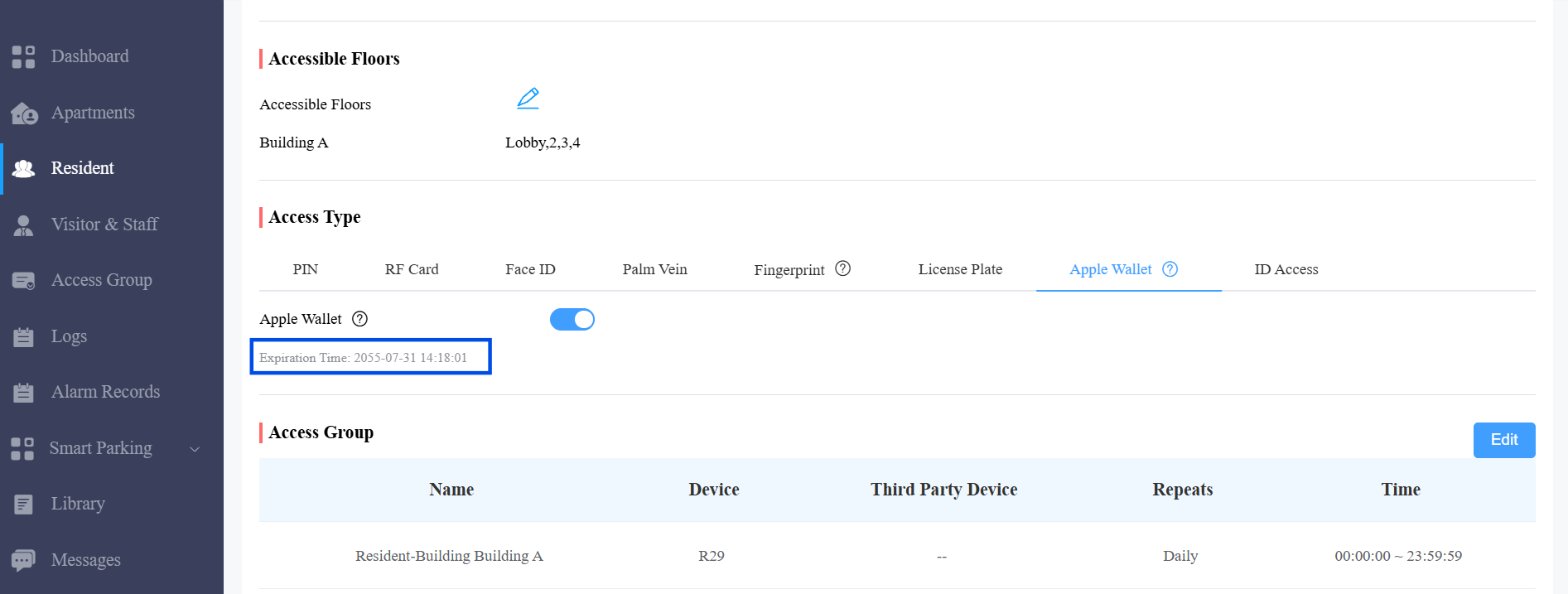
Select access group(s).
Click Submit.
After the feature is activated, the expiration time will display. If not, it will display Unsubscribed.
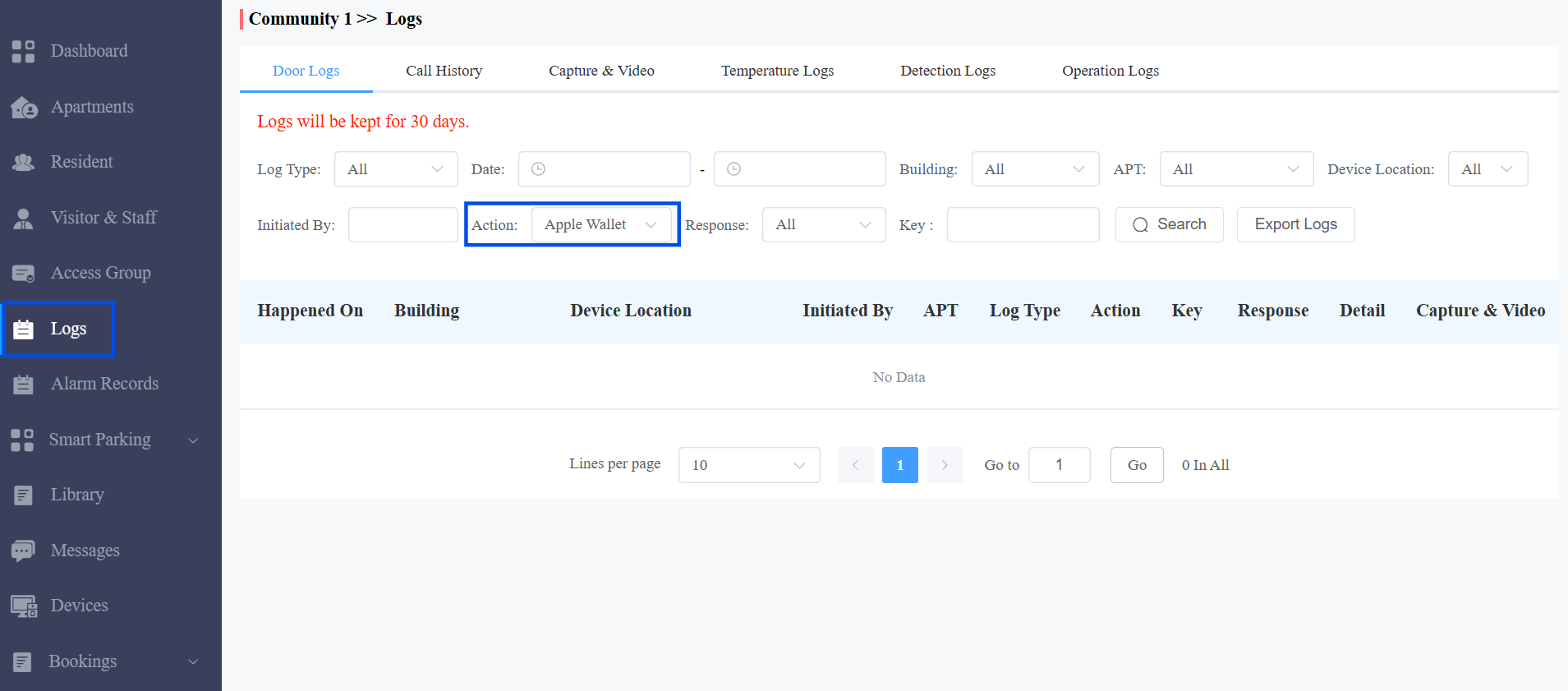
View Apple Wallet Access Records
Navigate to Logs > Door Logs.
Apply the filter for action type Apple Wallet.
Review the listed events.
Troubleshooting
Issue | Possible Cause | Solution |
|---|---|---|
User cannot add the card in the app. | Feature not enabled or not yet paid. | Confirm the Apple Wallet option is enabled, and payment is completed on the account. |
Card still appears in Apple Wallet after being removed from the app. | Removal is not synced to Apple Wallet. | This is expected. Inform the user that the card can no longer be used to open the door, even though it still appears in Wallet. |