This chapter introduces the key functions used to configure and monitor fall detection within a room.
Room Space Definition
Defines the overall detection area of the MR01 using a coordinate system centered on the device. It determines the spatial range in which all detection activities take place.
Sub-region Configuration
Allows the room space to be divided into multiple functional areas (such as bed, door, or shielded zones), enabling different detection behaviors in different parts of the room.
Fall Detection
Detects when a person falls within the defined subregions, based on configurable time thresholds for confirmation and reporting.
Occupancy Detection
Identifies whether a person is present within a specific region, supporting real-time monitoring of room activity.
Bed-exit Detection
Monitors whether a person leaves the bed within a defined time period, typically used for nighttime or care scenarios.
Room Status Visualization
Provides a real-time view of the room, including personnel positions, detection results, and subregion statuses.
Room Setting
You can define the overall detection area and installation parameters of the device, which determine the spatial scope for all detection functions.
Set it up on the Fall Settings > General Settings interface.
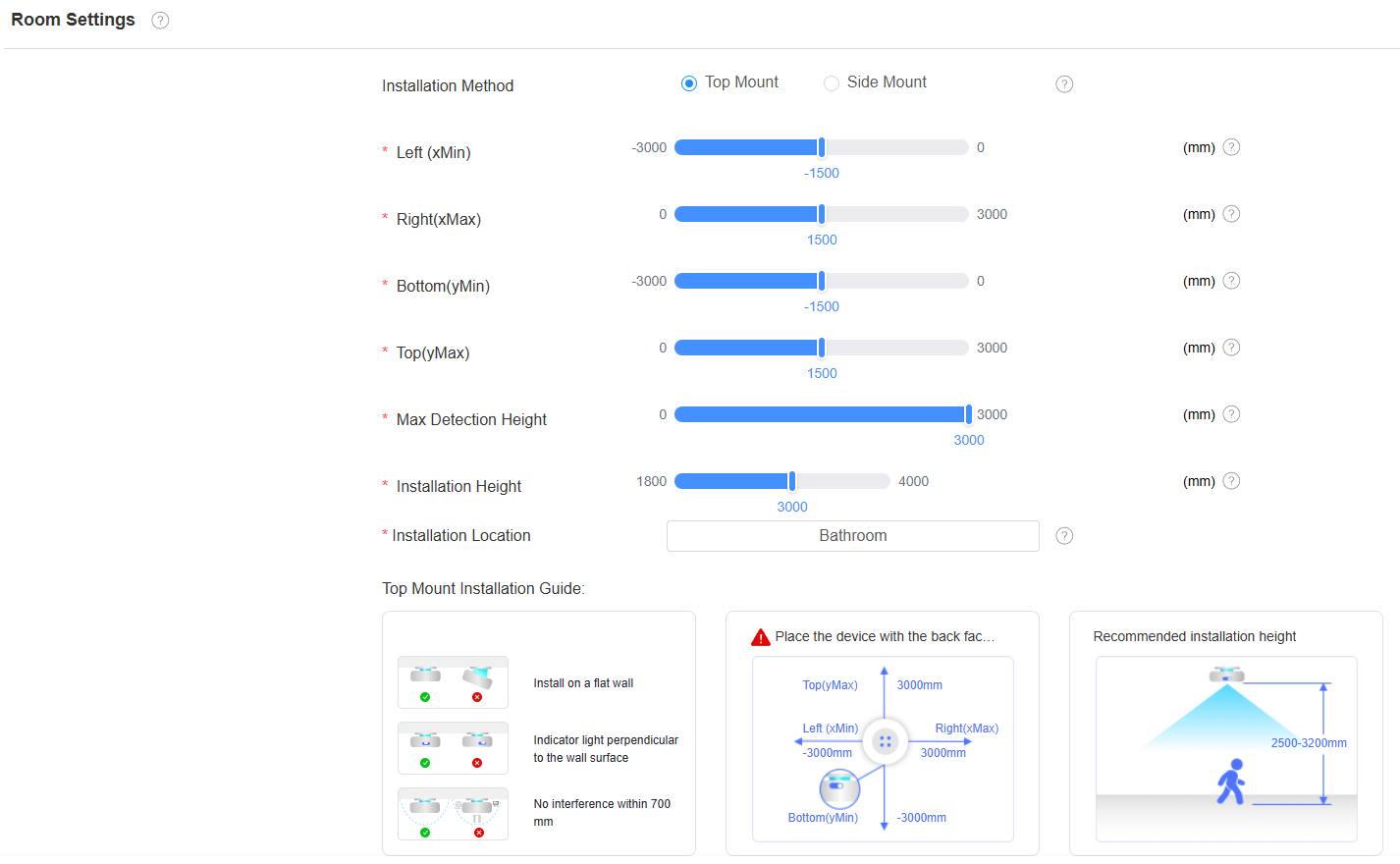
Installation Method: Specify how the device is mounted, which affects coordinate ranges and height constraints.
Top Mount: The device is mounted on the ceiling.
Side Mount: The device is mounted on a wall.
Coordinate System: Define the reference coordinate system used to describe the detection space, with the device as the center point.
Left(xMin): The minimum x-coordinate centered around MR01(-3000 to 0). The default value is -1500.
Right(xMax): The maximum x-coordinate centered around MR01(0 to 3000). The default value is 1500.
Bottom(yMin): The minimum y-coordinate centered around MR01. The default value is -1500.
When selecting top-mounted, the value range is from -3000 to 0.
When selecting side-mounted, the value range is from -5000 to 0.
Top(yMax): The maximum y-coordinate centered around MR01(0 to 3000). The default value is 1500.
Max Detection Height: The height of the detection space. The default value is 3000.
Installation Height: The installation height of MR01.
When top-mounted, the installation height is the distance from the floor to the device plane. The default value is 3000, and the value range is from 1800 to 4000.
When side-mounted, the installation height is the distance from the floor to the center of the device. The default value is 3000, and the value range is from 1800 to 3200.
Installation Location: The installation location of MR01.
Parameter Relationships
xMin < xMax
yMin < yMax
Step size for all coordinates: 50 mm
Height Rules:
Top Mount: Installation Height ≥ Max Detection Height
Side Mount: No restriction between Installation Height and Max Detection Height
Sub-region Setting
You can divide the room space into multiple functional regions to enable different detection behaviors within each area.
Add sub-regions on the Fall Settings > Sub-regions interface.
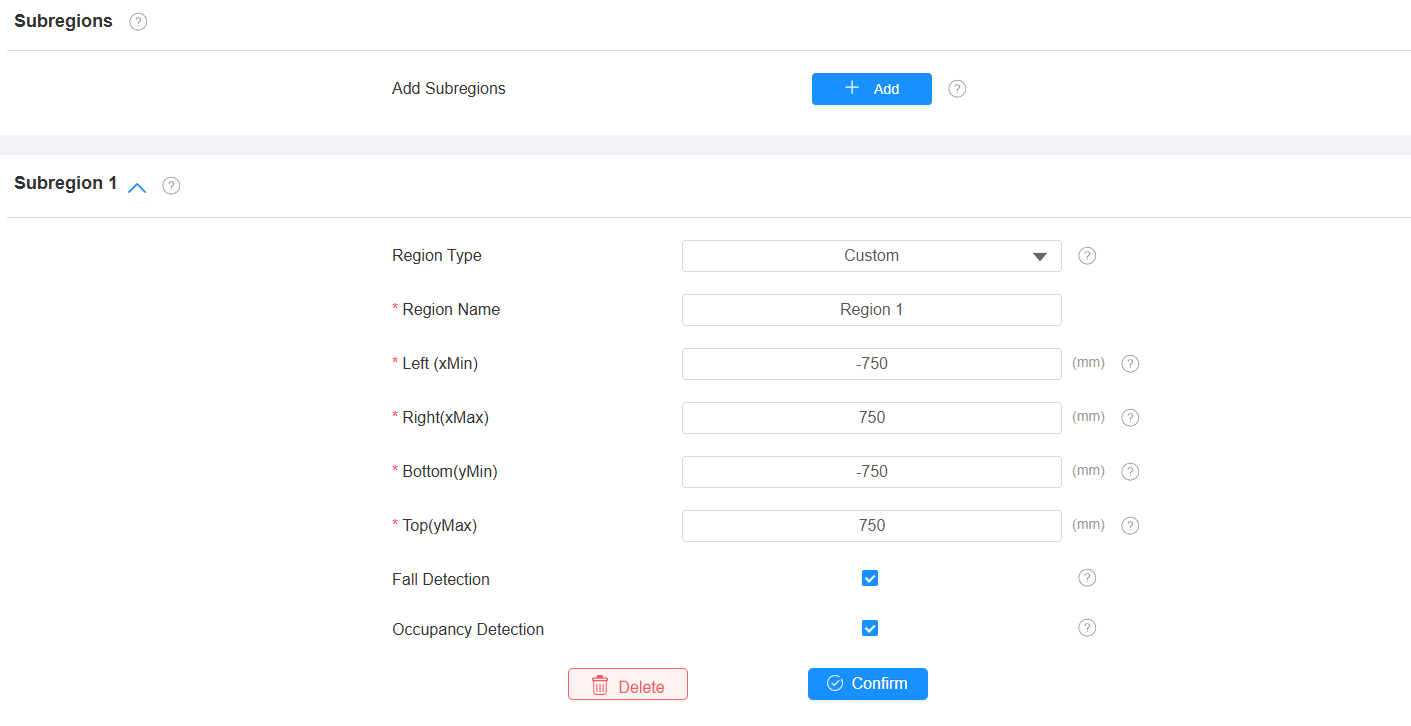
Add Sub-regions: Click +Add to add a sub-region, and a default sub-region will be created on the spatial coordinate above.
You can adjust the size of the subregion by dragging the edges and vertices of the quadrilateral, and the corresponding coordinates will change accordingly.
A maximum of 6 subregions can be added.
Region Type: The default is Custom.
Custom: General-purpose region. Support fall & occupancy detection.
Door: Entrance area. Support fall & occupancy detection.
Bed: Bed area. Support bed-exit & occupancy detection.
Shield: Excluded area. No fall detection.
Region Name: Set the region name, which will display on the Room Status spatial coordinate.
Subregion Coordinates: Specify the spatial boundaries of each subregion using the same coordinate system as the room.
Left(xMin): The minimum x-coordinate of the subregion.
The default value is half of the minimum x-coordinate of the space, and the input range is from the minimum x-coordinate to the maximum x-coordinate of the space.
For example, if the minimum x-coordinate of the space is -1500 and the maximum x-coordinate is 1500, the default value will be -750, and the input range will be -1500 to 1500.
xMin must be less than xMax.
Right(xMax): The maximum x-coordinate of the subregion.
The default value is half of the maximum x-coordinate of the space, and the input range is from the minimum x-coordinate to the maximum x-coordinate of the space.
For example, if the minimum x-coordinate of the space is -1500 and the maximum x-coordinate is 1500, the default value will be 750, and the input range will be -1500 to 1500.
Max must be greater than xMin.
Bottom(yMin): The minimum y-coordinate of the subregion.
The default value is half of the minimum y-coordinate of the space, and the input range is from the minimum y-coordinate to the maximum y-coordinate of the space.
For example, if the minimum y-coordinate of the space is -2000 and the maximum y-coordinate is 2000, the default value will be -1000, and the input range will be -2000 to 2000.
yMin must be less than yMax.
Top(yMax): The maximum y-coordinate of the subregion.
The default value is half of the maximum y-coordinate of the space, and the input range is from the minimum y-coordinate to the maximum y-coordinate of the space.
For example, if the minimum y-coordinate of the space is -2000 and the maximum y-coordinate is 2000, the default value will be 1000, and the input range will be -2000 to 2000.
yMax must be greater than yMin.
Fall Detection: Available when the Custom or Door region type is selected. Enabled by default, and falls will be detected within this subregion.
Occupancy Detection: Available when Custom, Door, or Bed region type is selected. Enabled by default, and it detects whether there are individuals occupying this subregion.
When selecting the Bed region type, further configure the following options.
In-bed Detection: An alarm will only be triggered if the individual leaves the bed after the Bed-exit Time Threshold after confirming they are in bed; if they return to the bed within 2 seconds, the bed-exit status will be cleared.
Bed-exit Time Threshold: The time threshold for bed-exit detection. The default is 60 seconds; if the target leaves the bed for longer than the set time, an alarm will be triggered and reported. The input range is from 1 to 900 seconds.
Schedule: Enable it to set the In-Bed Detection Start Time and In-Bed Detection End Time.
Room Status
The Room Status section displays real-time detection results, including personnel status, region status, and system state.
The spatial coordinates show the size of the space based on the set XY coordinates, with the center being the installation position of MR01.
You can click the - and + icons to zoom, and clicking the reset icon will restore the initial scale.
You can move the region up, down, left, or right by holding the left mouse button.
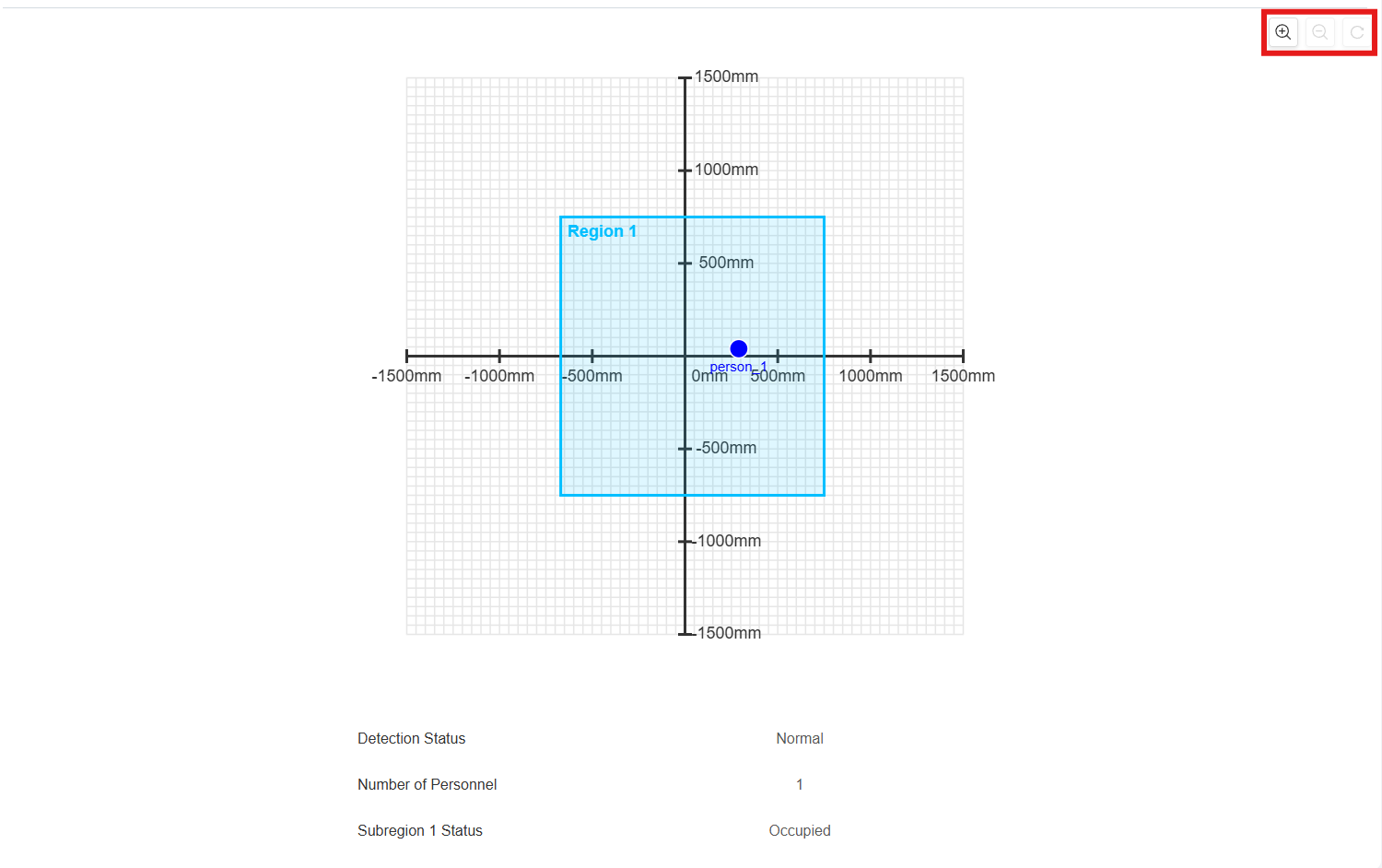
Status of Individuals in the Space:
Normal individuals: Blue dots.
If a fall or bed-exit alarm occurs, individuals in the space will be displayed as red dots.
The bed region will be highlighted in red during the bed-exit alarm.
Detection Status: Display the current detection status of the space. The statuses include Normal, Fall, and Bed-exit.
Number of Personnel: The number of individuals detected in the space.
Subregion x Status: The status of the subregion. The statuses include Normal, Fall, Bed-exit, Occupied, and Unoccupied.
Note
A subregion will display Occupied or Unoccupied only if Occupancy Detection is enabled.
Subregion x will change according to the Region Name set for the subregion.
A subregion will detect Fall and Bed-exit statuses only if Fall Detection and In-bed Detection are enabled.
Fall Detection Setting
You can configure the timing parameters used to confirm and report fall events.
Set them up on the Fall Settings > General Settings > Fall Detection Settings interface.

Fall Confirmation Time: The time threshold for confirming a fall. When the duration of the fall event reaches this value, it will be considered a fall event, triggering an alarm.
The default value is 10 seconds, and the input range is from 0 to 30.
Fall Delay Reporting Time: When the duration of the fall event reaches this value, it will be reported to the cloud, SDMC, indoor monitor, guard phone, or third-party system.
The default value is 10 seconds, and the input range is from 0 to 30.