Check Network Information
Check the device network status on the Device > Status interface.
Device Network Configuration
To ensure normal functioning, make sure that the device has its IP address set correctly or obtained automatically from the DHCP server.
Set it up on the Network > Basic interface.
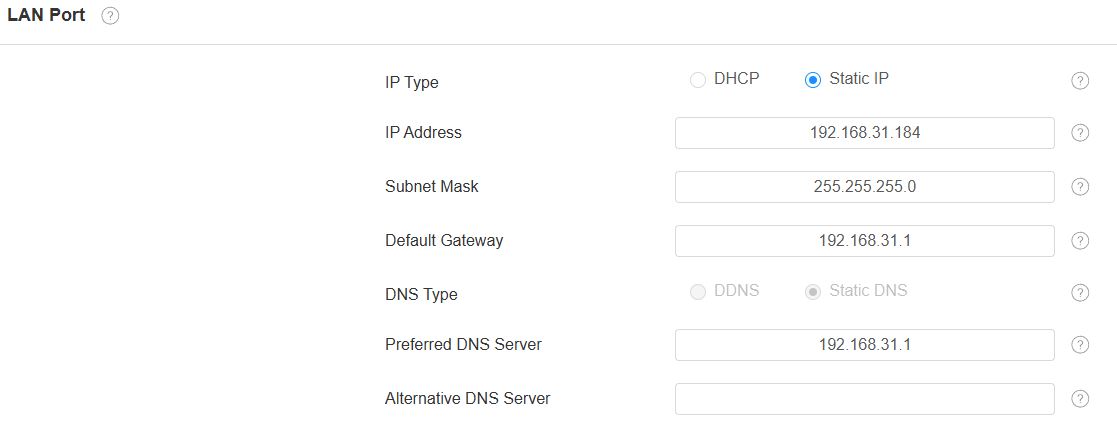
IP Type: DHCP mode is the default network connection. The device will be assigned by the DHCP server with an IP address, subnet mask, default gateway, and DNS server address automatically. In static IP mode, the IP address, subnet mask, default gateway, and DNS server address have to be manually configured according to the actual network environment.
IP Address: Set up the IP address when the static IP mode is selected. To access the device’s web settings, your computer should be on the same local network as the device.
Subnet Mask: A subnet mask tells your device which IP addresses are part of your local network and which ones are not. For example, if the subnet mask is 255.255.255.0, it means that devices with similar starting IPs (like 192.168.1.x) are in the same network.
Default Gateway: The gateway is like a bridge between your device and other networks, such as the internet. Usually, it’s the IP address of your router.
DNS Type: Domain Name System(DNS) is the overall system or network that handles the translation of domain names (like www.example.com) into IP addresses (like 192.0.2.1), which computers use to identify each other on a network.
DDNS: Dynamic DNS. It is obtained automatically through the DHCP server.
Static DNS: When selected, you need to enter the DNS manually.
Preferred & Alternative DNS Server: The preferred and alternative Domain Name Server(DNS). The device will connect to the backup server when the primary server is unavailable.
Wi-Fi Connection
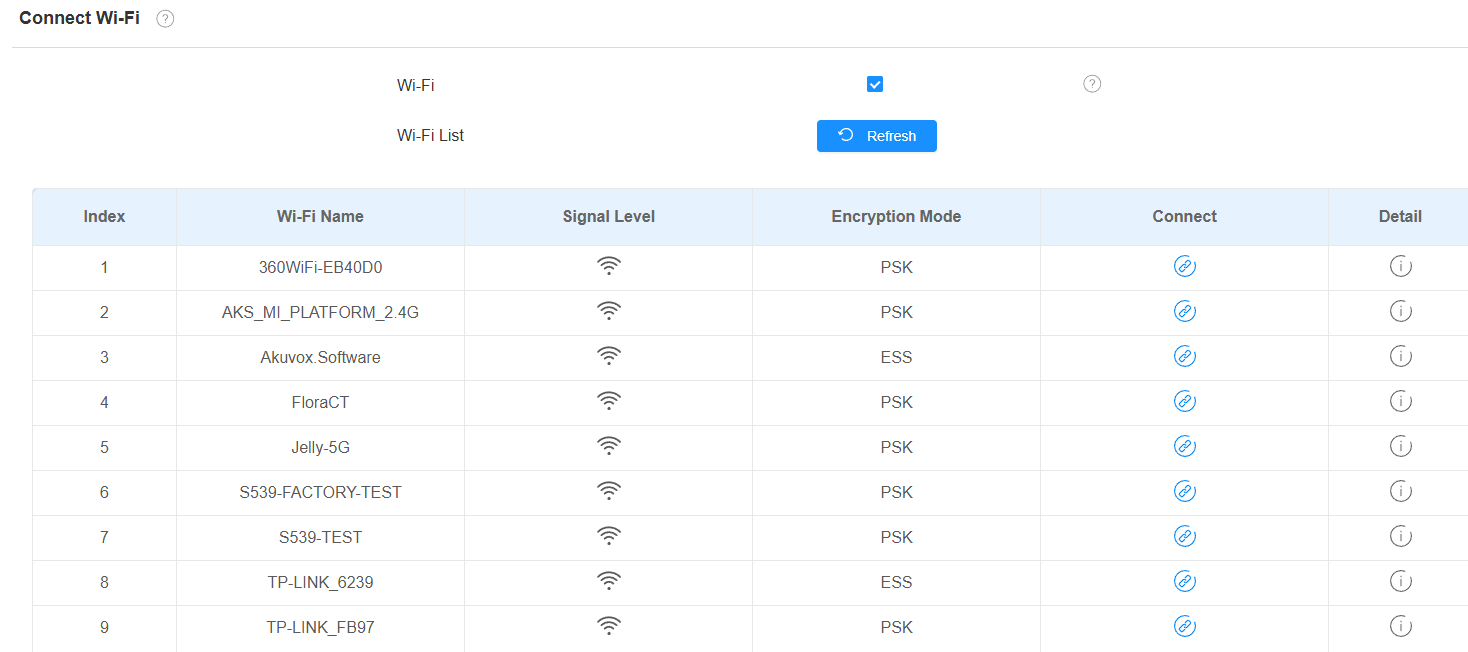
Connect the device to a Wi-Fi on the Network > Basic interface.
The available Wi-Fi will display after Wi-Fi connection is enabled. Connect to the desired Wi-Fi by clicking its Connect icon and entering the password.
Wi-Fi AP Setting
The device supports AP mode, allowing it to function as a Wi-Fi hotspot for other devices to connect for configuration or network access.
Set it up on the Network > Basic interface.
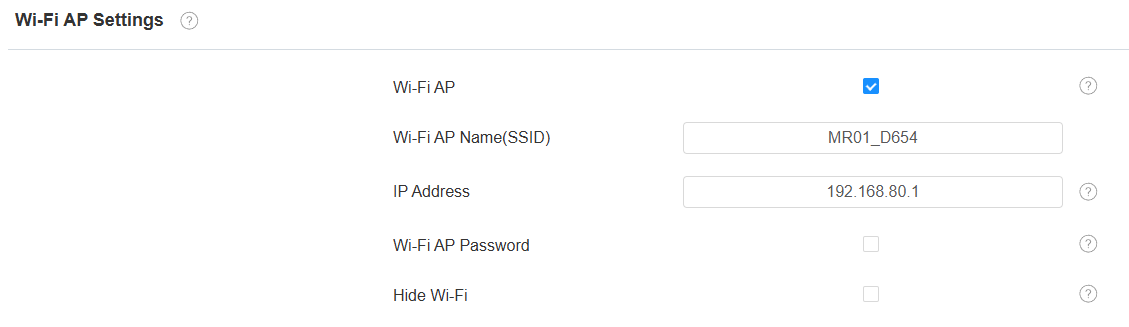
Wi-Fi AP: Enable/disable the feature.
Wi-Fi AP Name(SSID): The device’s Wi-Fi name.
IP Address: The management IP address of the device when AP mode is enabled. After connecting to the device Wi-Fi hotspot, enter this IP address in a web browser to access the configuration page.
Wi-Fi AP Password: Set the Wi-Fi password if needed.
Hide Wi-Fi: If enabled, this Wi-Fi will not be scanned by other devices.
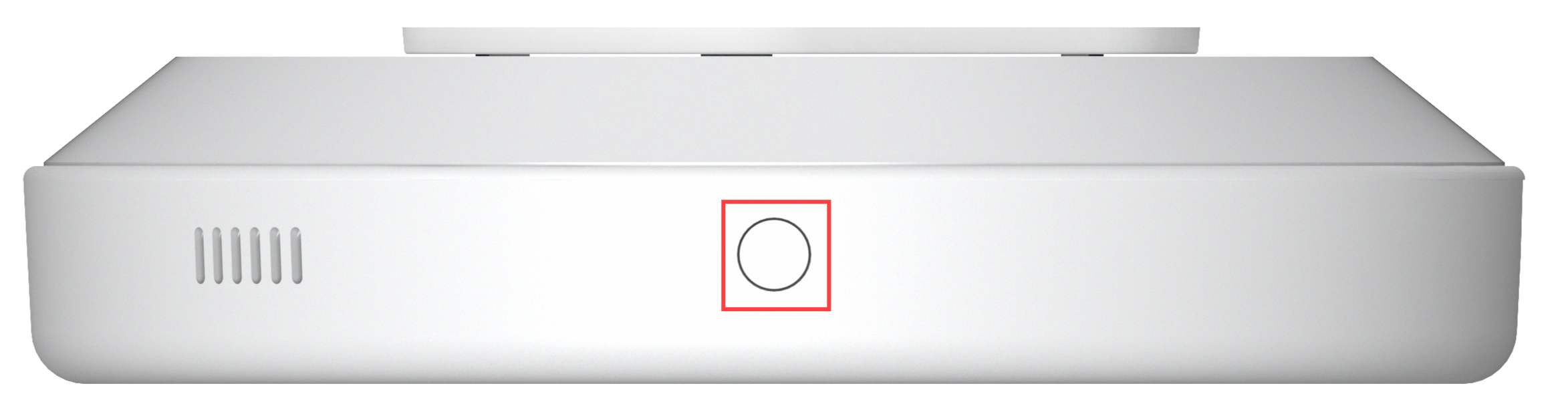
You can also enable the device’s AP mode by holding its physical button for 3 seconds.
Holding it for 3 seconds again to turn the mode off.
Device Deployment in Network
To facilitate device control and management, configure Akuvox intercom devices with details such as location, operation mode, address, and extension numbers.
Deploy the device in the network on the web Network > Advanced > Connect Setting interface.
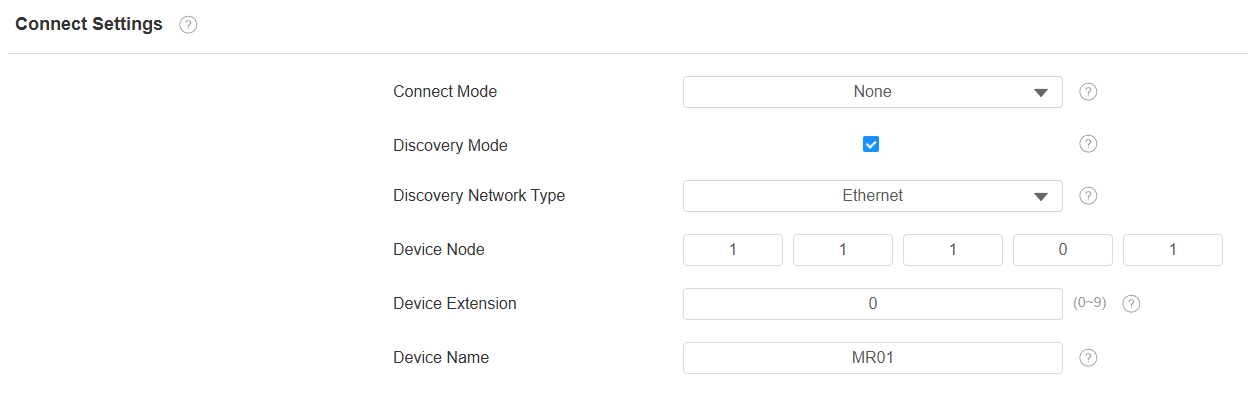
Connect Mode: It is automatically set up according to the actual device connection with a specific server in the network, such as SDMC, Cloud, or None.
None: None is the default factory setting, indicating the device is not in any server type. Devices connect directly to each other or within a local area network (LAN) without relying on external servers.
Cloud: The device is connected to the SmartPlus Cloud, a cloud-based system simplifying property access management. The Cloud mode allows devices to interact intelligently with one another and the mobile SmartPlus App, backing up data daily and on different hosts. It suits projects requiring smart, flexible, and secure deployment and management.
SDMC: The device is connected to the SDMC, a management platform designed for on-premise projects. The SDMC mode manages and backs up data remotely on a local network. It also boasts many features suitable for projects requiring high privacy, lower cost, and centralized management.
Discovery Mode: Enabled by default. Available for None server mode. The device can be discovered by other devices in the network. When disabled, the device will be concealed and not be discovered by other devices.
Device Network Type: Specify the preferred network connection, WLAN or Ethernet. It is Ethernet by default. When Ethernet is unavailable, the device will automatically switch to a WLAN connection and vice versa.
Device Node: Available for None server mode. Uneditable in Cloud and SDMC mode. It can be used to call the device. Specify the device address by entering device location information from left to right: Community, Building, Unit, Floor, and Room in sequence.
Device Extension: Available for None server mode. Uneditable in Cloud and SDMC mode. The device extension number ranges from 0 to 10.
Device Location: The location in which the device is installed and used. Available for None server mode. Uneditable in Cloud and SDMC mode.
Device Local RTP Configuration
Real-time Transport Protocol(RTP) lets devices stream audio and video data over a network in real time.
To use RTP, devices need a range of ports. A port is like a channel for data on a network. By setting up RTP ports on your device and router, you can avoid network interference and improve audio and video quality.
Set it up on the Network > Advanced interface.

Starting RTP Port: Set the port value to establish the start point for the exclusive data transmission range.
Max RTP Port: Set the port value to establish the endpoint for the exclusive data transmission range.
Device Web HTTP Setting
This function manages device website access. This device supports the HTTPS remote access method.
Set it up on the Network > Advanced interface.

HTTPS Port: Specify the web server port for accessing the device web interface via HTTPS.
SNMP Setting
Simple Network Management Protocol(SNMP) is a protocol for managing IP network devices. It allows network administrators to monitor devices and receive alerts for attention-worthy conditions. SNMP provides variables describing system configuration, organized in hierarchies and described by Management Information Bases (MIBs).
Set it up on the Network > Advanced interface.

SNMP Port: Set a specific port for the data transmission from 1024 to 65535.
Trusted IP: Enter the third-party IP address.