Administrators and Managers can manage family members.
The Administrator can add and manage both Managers and General Members.
Managers can add and manage General Members only.
Add New Members
The process depends on whether the system is connected to the cloud.
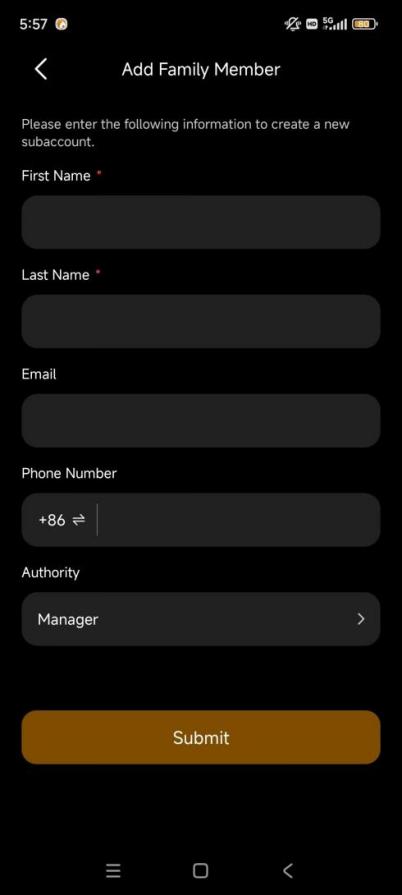
Add Manually (Cloud Mode)
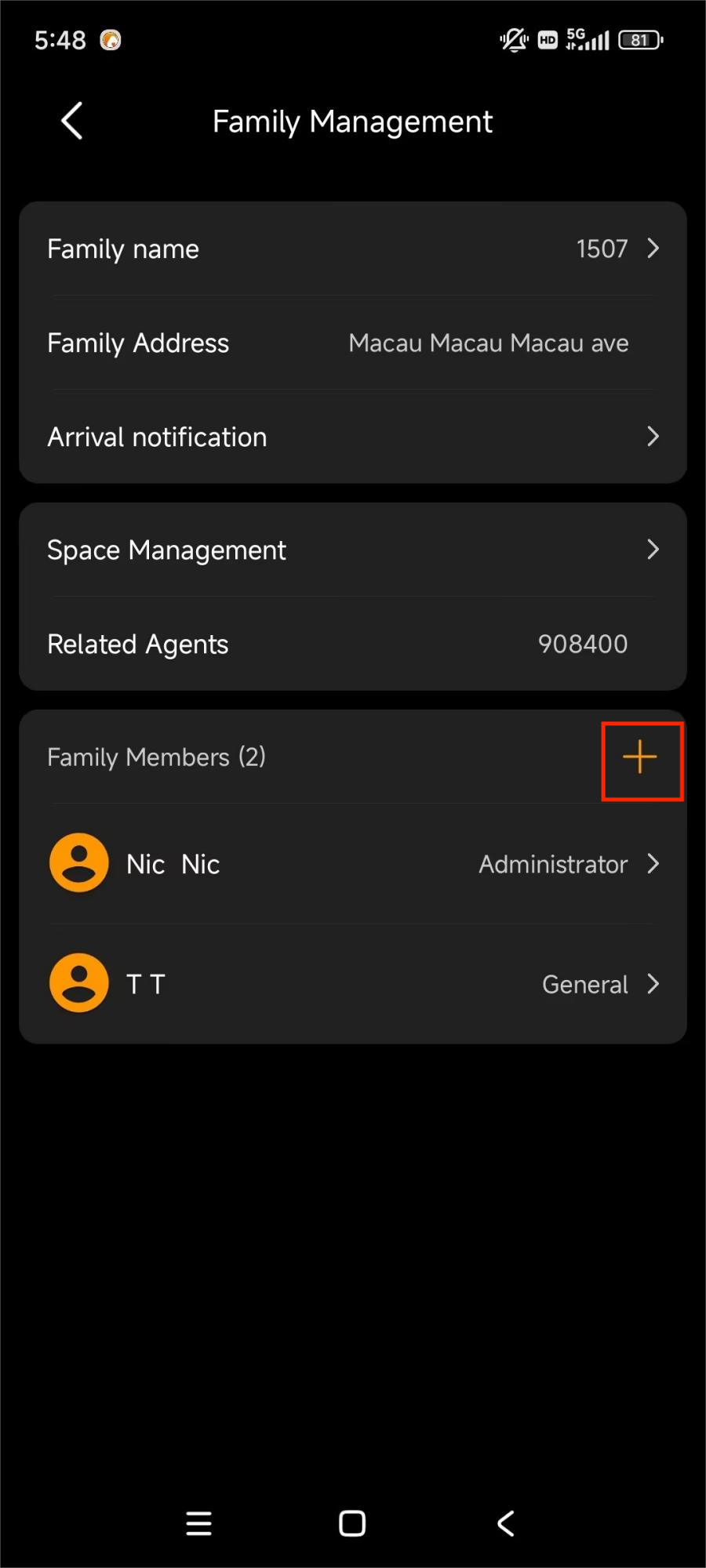
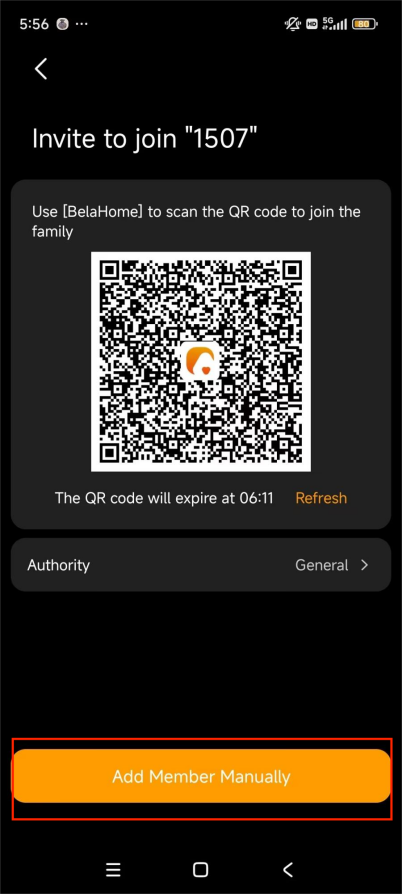
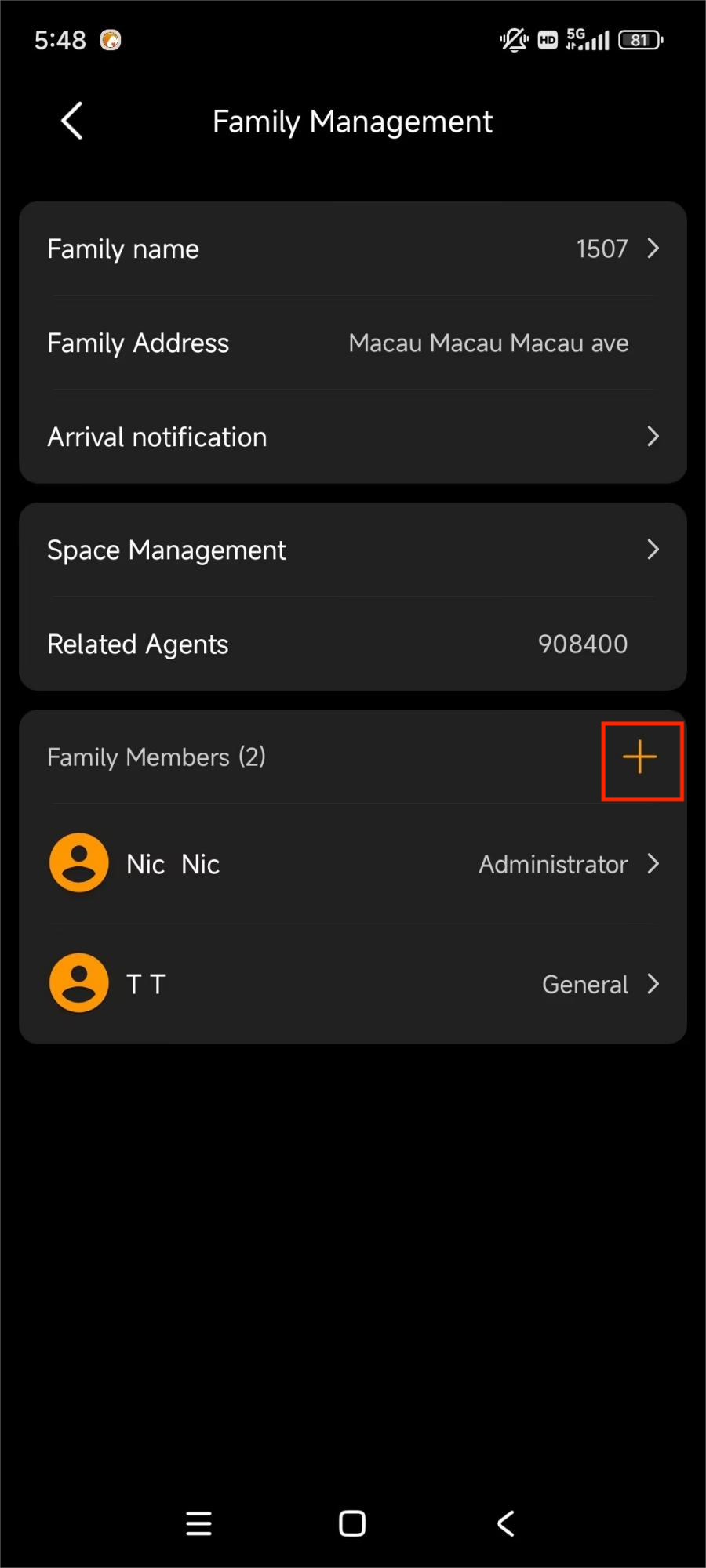
Go to Me > Family Management > + > Add Member Manually.
Enter the member’s name and a valid email address.
Assign their role (Manager or General Member).
Once added, the member will receive an email with their login credentials.
Add Manually (Local Mode)
NOTE:
Accounts created in Local Mode can only be used within the same local network as the home center.
Go to Me > Family Management > +.
Enter the member’s name and assign their role.
Once added, the system will display the account credentials (username and password).
Invite via QR Code
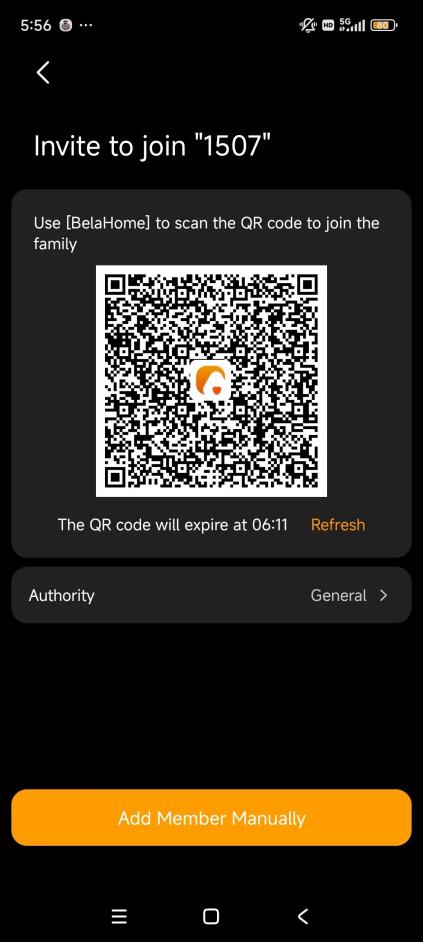
You can invite members by sharing a family QR code..
Go to
 > Family Management > + to display the invitation code.
Share the code with the invited user.
The new member scans this code using their BelaHome app.
NOTE:
The QR code is valid for 5 minutes only.
Member Permissions
Change a Member’s Role
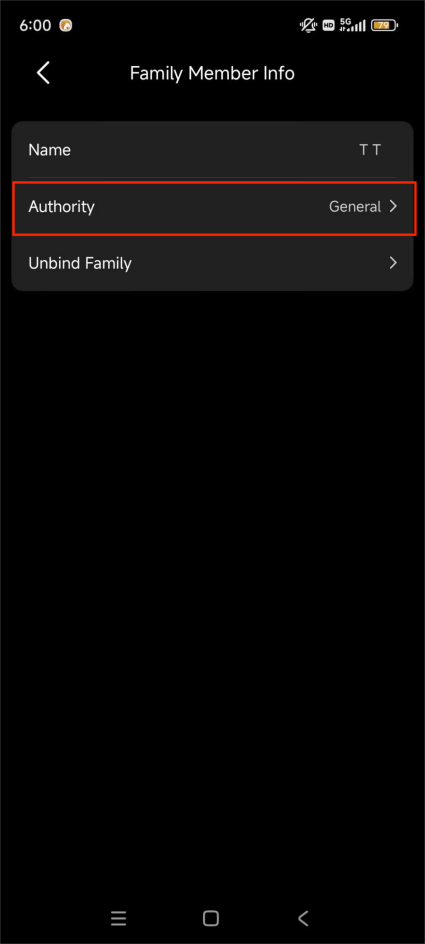
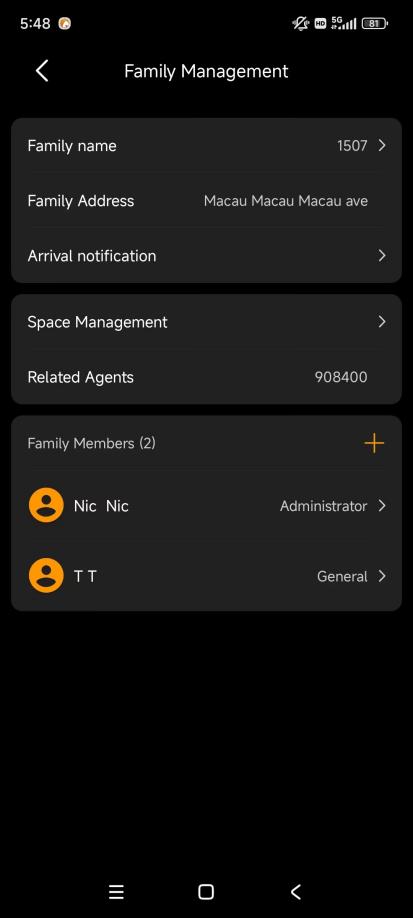
Go to Me > Family Management.
Select the specific member.
Tap Authority and choose a new role.
Manage Arrival Notifications
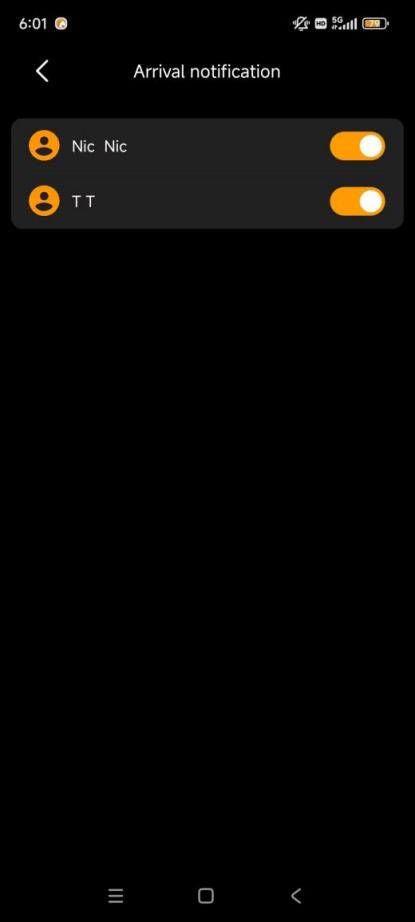
By default, the system sends an arrival notification" to the family when a member unlocks a door (e.g., via Face ID or PIN).
The Administrator can manage this setting for all members. Other users can only toggle their own arrival status sharing.
To edit, go to Me > Family Management > Arrival notification.
Unbind Member Accounts
Administrators and Managers can unbind their own or other member accounts.
NOTE:
Unbinding is not available when the family is running without the cloud connection.
After unbinding, the user loses all access and chat data for this family but retains their BelaHome account.
Remove a Specific Member
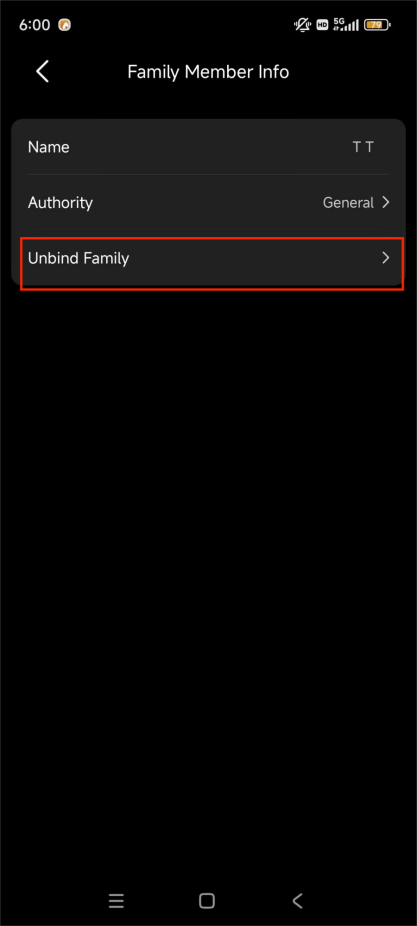
Go to Me > Family Management.
Select the desired member account.
Tap Unbind Family, and follow the onscreen instructions.
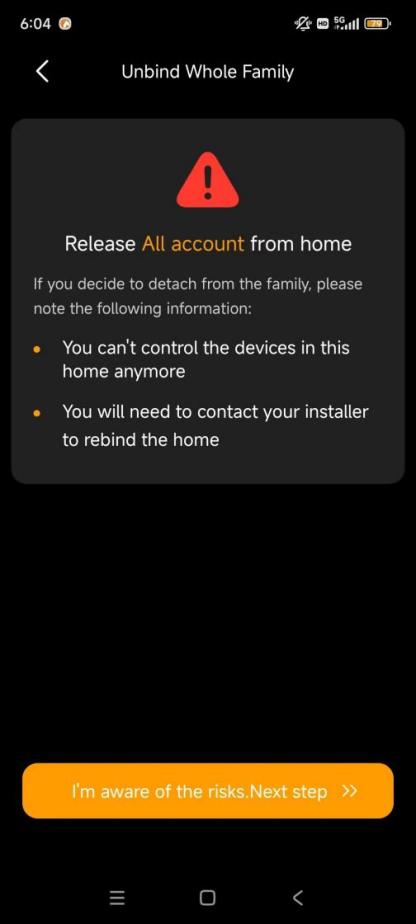
Remove All Accounts
Only the Administrator can unbind all accounts in the family.
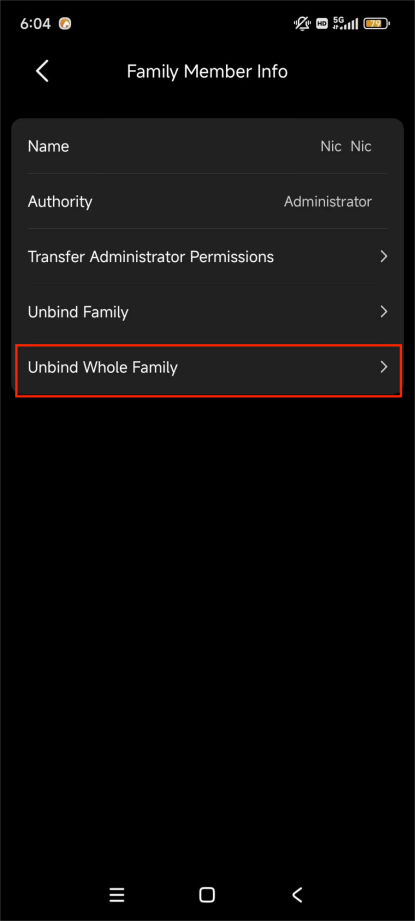
Go to Me > Family Management.
Select the administrator account.
Tap Unbind Whole Family.
NOTE:
To restore access after unbinding the whole family, you must contact your service provider.
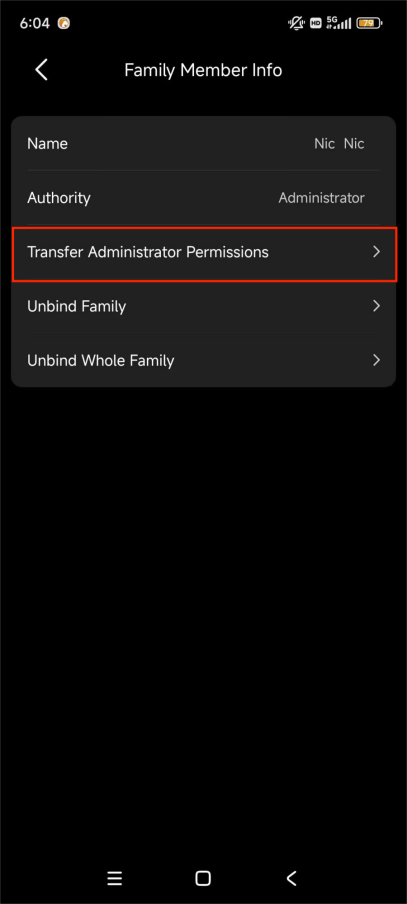
Transfer Administrator Role
The administrator can transfer their role to another member.
Go to Me > Family Management.
Select the administrator account.
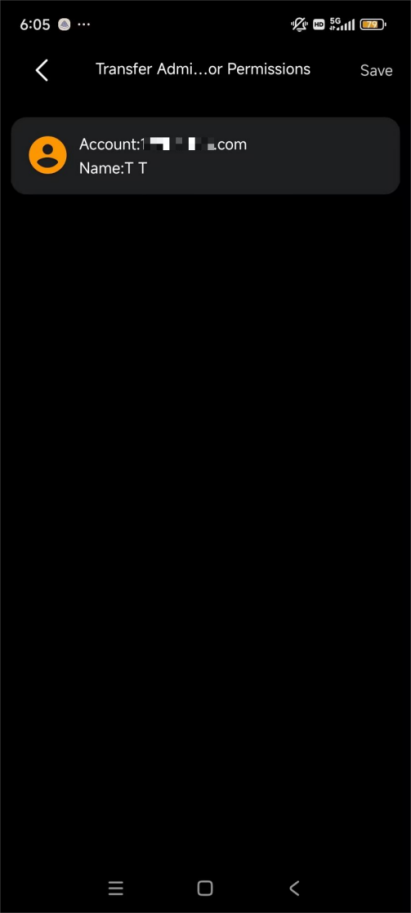
Tap Transfer Administrator Permissions.
Select a member and follow the onscreen instructions.
After the transfer, the previous Administrator is automatically downgraded to a General member.