Administrators and Managers can add, delete, reorder rooms, and customize room background images.
Access Room Management Screen
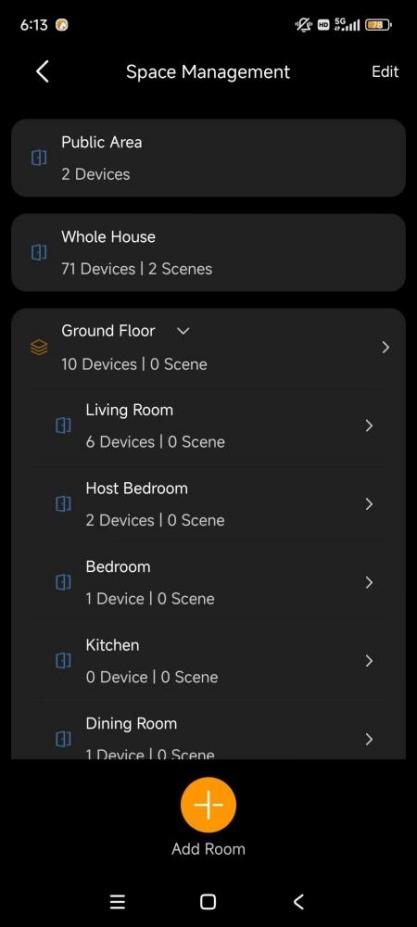
The Room Management screen displays all rooms in your family and shows how many devices are assigned to each.
You can access this screen in two ways:
Tap Room > [any room] >
 > Room Management.
Tap Me > Family Management > Space Management.
Organizing Rooms
Add a Room
Open the Room Management screen.
Tap Add Room at the bottom.
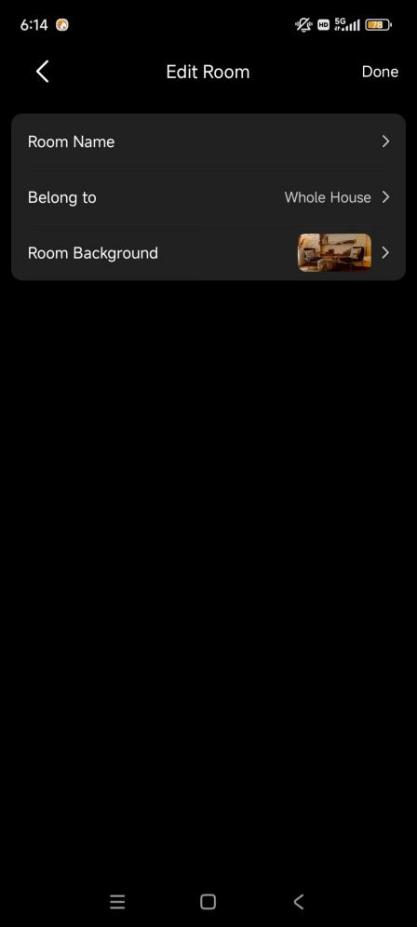
Enter the room name, select the space it belongs to, and choose a background image.
Tap Done.
Rearrange Rooms
Change the order in which rooms appear on your dashboard for quicker access.
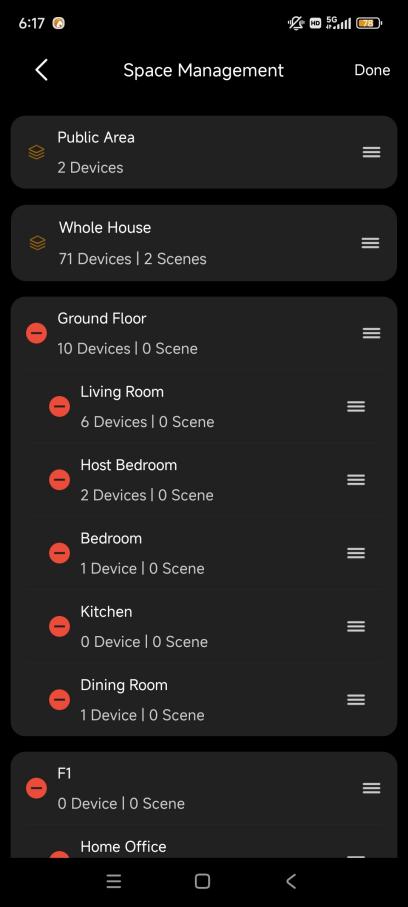
Open the Space Management screen.
Tap Edit in the upper right corner.
Tap and hold the icon
 next to the room.
Drag the room to your preferred position, then tap Done.
Delete a Room
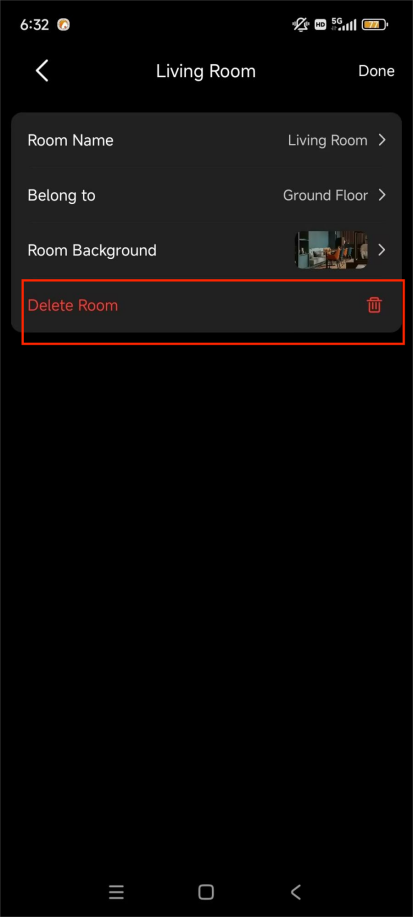
Option 1: Open the Space Management screen, select the specific room from the list and tap Delete.
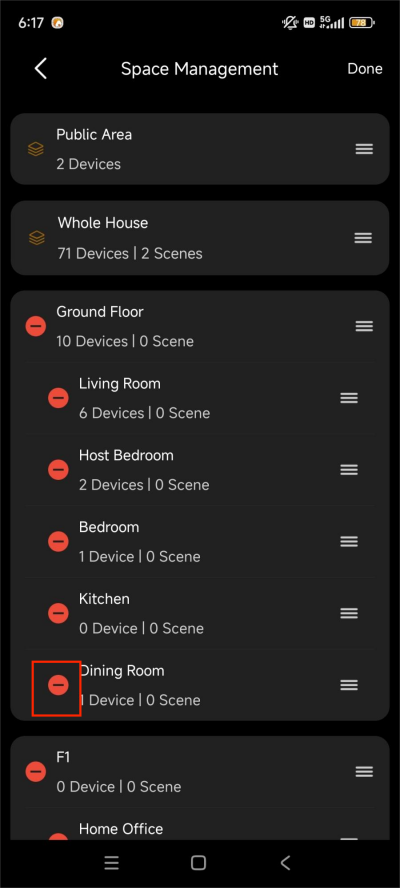
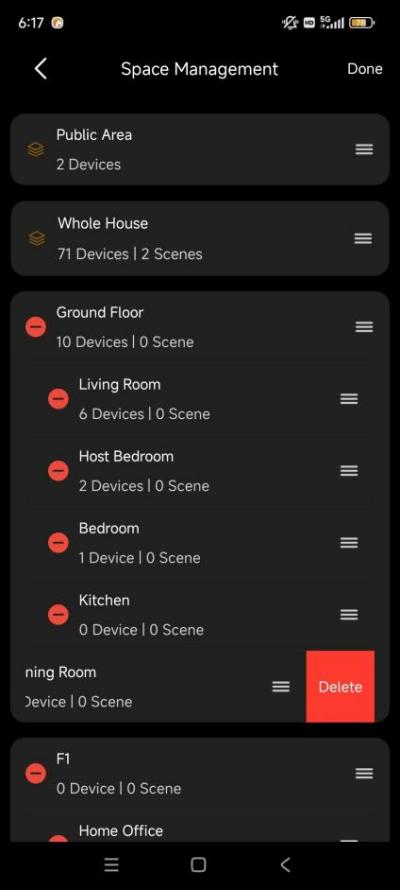
Option 2: Open the Space Management screen, tap Edit, tap
 next to the room you wish to remove, and tap Delete.
Change Room Background Image
NOTE:
This feature is supported only when the home center is running version 4.0.1 or higher.
Only the Administrator and Managers can modify room backgrounds; changes will be automatically synchronized across all panels and family member apps.
Open the Space Management screen.
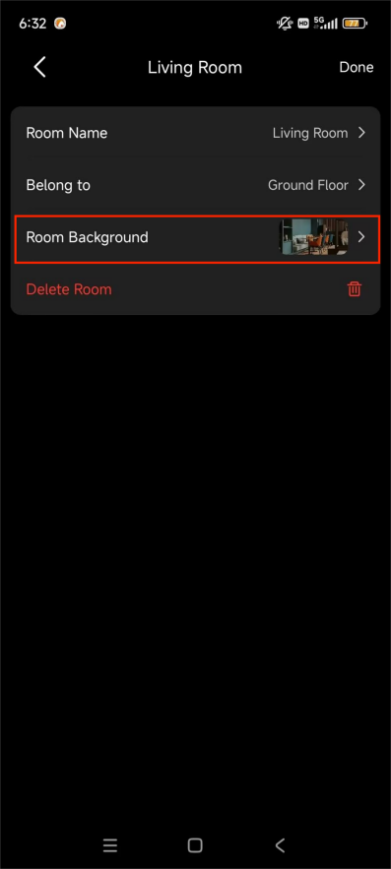
Select the desired room and tap Room Background.
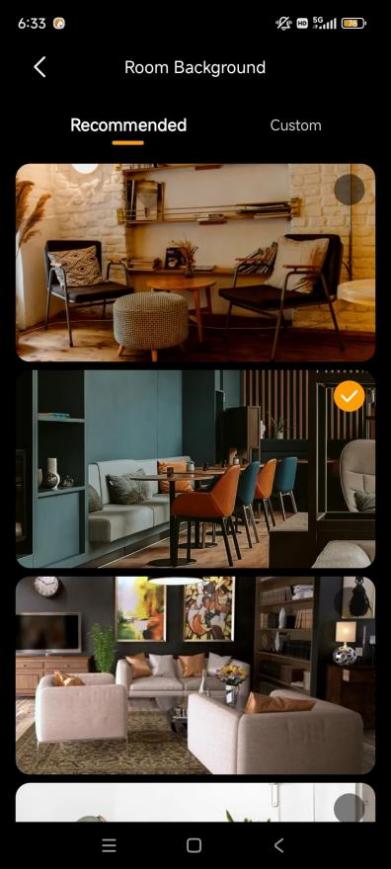
Choose a default image or tap Custom to upload a new one.