MJPEG et RTSP sont les principaux types de flux de surveillance abordés dans ce chapitre.
MJPEG, ou Motion JPEG, est un format de compression vidéo qui utilise des images JPEG pour chaque image vidéo. Les appareils Akuvox affichent les flux en direct sur l’interface web et capturent des captures d’écran de surveillance au format MJPEG. Les paramètres liés à MJPEG déterminent la qualité vidéo et le statut on/off de la fonction de diffusion en direct.
RTSP signifie Real Time Streaming Protocol (Protocole de Streaming en Temps Réel). Il peut être utilisé pour diffuser la vidéo et l’audio des caméras tierces vers l’appareil. Vous pouvez ajouter le flux d’une caméra en ajoutant son URL. Le format URL des appareils Akuvox est rtsp:// D evice’s IP/live/ch00_0
ONVIF est un forum d’interface vidéo en réseau ouvert. Il permet à l’appareil de scanner et de découvrir des caméras ou des interphones avec des fonctions ONVIF activées. Les flux en direct obtenus via ONVIF sont essentiellement au format RTSP.
RTSP Stream Monitoring
La fonction RTSP permet aux moniteurs intérieurs Akuvox, ou aux appareils tiers, d’obtenir le flux en direct depuis le téléphone portier.
Vous pouvez configurer les identifiants d’authentification RTSP et les paramètres vidéo.
RTSP Basic Setting
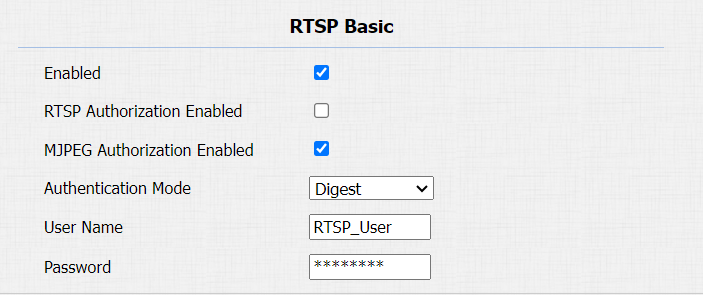
You are required to set up the RTSP function on the device web Intercom > RTSP > RTSP Basic interface in terms of RTSP authorization, authentication, and password, etc. before you are able to use the function.
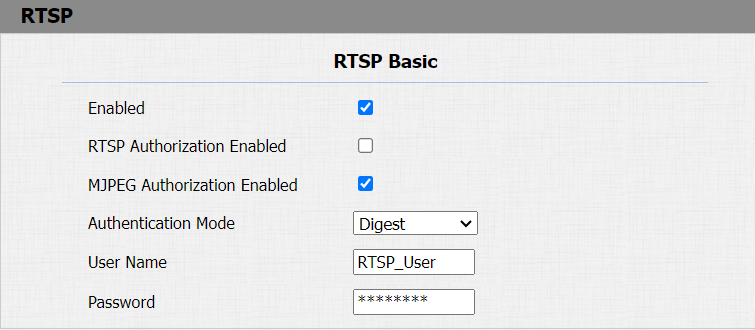
Parameter Set-up:
- RTSP Authorization Enabled: enable or disable the RTSP authorization. If you enable the RTSP Authorization, you are required to enter RTSP Authentication Type, RTSP Username, and RTSP Password on the intercom device such as an indoor monitor for authorization.
- Authentication Mode: select RTSP authentication type between Basic and Digest. Basic is the default authentication type.
RTSP OSD Setting
This feature is used to add a watermark to the RTSP video or picture. To protect the owner of the video or image. To do this configuration on the web Intercom > RTSP > RTSP OSD Setting interface.

Parameter Set-up:
- RTSP OSD Color: there are five color options - White, Black, Red, Green, and Blue for RTSP watermark text.
- RTSP OSD Text: enter the customized text you want to show for the watermark.
RTSP Stream Setting
Le flux RTSP peut utiliser soit H.264, soit Mjpeg comme codec vidéo. Si vous choisissez H.264, vous pouvez aussi ajuster la résolution vidéo, le débit binaire et d’autres réglages.
Go to Intercom > RTSP > RTSP Stream interface.
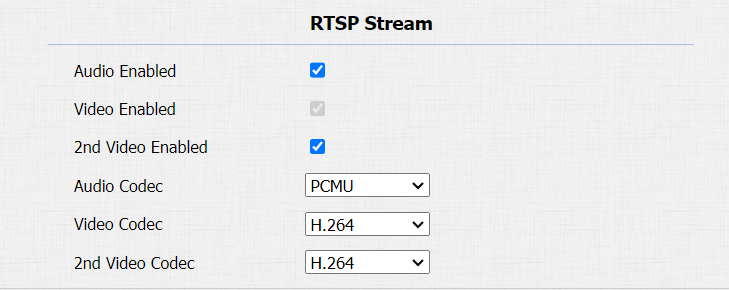
Parameter Set-up:
- Audio Enabled: tick to enable RTSP audio which means, the door phone can also send audio information to the monitor by RTSP.
- Video Enabled: the door phone can send video information to the monitor. After enabling the RTSP feature, the video RTSP is enabled by default and cannot be modified.
- 2nd Video2 Enabled: Akuvox door phones support 2 RTSP streams, you can enable the second one.
- Audio Codec: choose a suitable audio codec for RTSP audio.
- Video/2nd Video Codec: choose a suitable video codec for RTSP video.
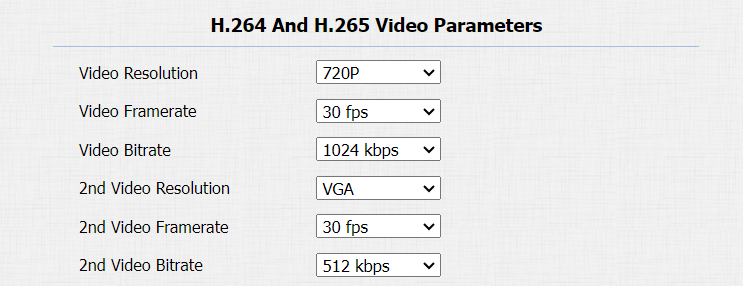
Parameter Set-up:
- Video Resolution: select video resolutions among six options: QCIF, QVGA, CIF, VGA, 4CIF, and 720P. The default video resolution is 4CIF. and the video from the door phone might not be able to be shown on the indoor monitor if the resolution is set higher than 4CIF.
- Video Framerate: 30fps is the video frame rate by default.
- Video Bitrate: select video bit-rate among six options: 128 kbps, 256kbps, 512 kbps, 1024 kbps, 2048 kbps, and 4096 kbps according to your network environment. The default video bit rate is 2048 kpbs.
- 2nd Video Resolution: select video resolution for the second video stream channel. While the default video solution is VGA.
- 2nd Video Framerate: select the video framerate for the second video stream channel. 25fps is the video frame rate by default for the second video stream channel.
- 2nd Video Bitrate: select the video bit rate for the second video stream channel. While the second video stream channel is 512 kbps by default.
MJPEG Image Capturing
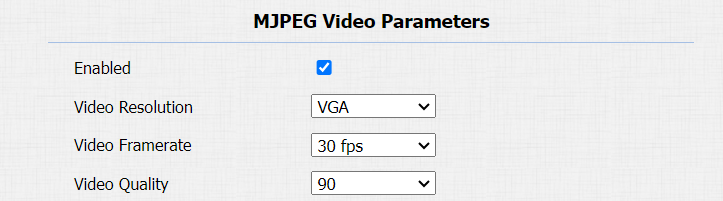
Vous pouvez prendre une image de monitoring au format Mjpeg avec l’appareil. Pour cela, il faut activer la fonction Mjpeg et choisir la qualité d’image.
Go to Intercom > RTSP > RTSP Basic and Intercom > RTSP > MJPEG Video Parameters interface.
Parameter Set-up:
- MJPEG Authorization: tick it to access device video or real-time screenshots through a browser (http address such as: http://device IP:8080/video.cgi (dynamic video), http://device IP:8080/jpeg.cgi (static screenshot) ).
- Video Resolution: select video resolutions among six options: QCIF, QVGA, CIF, VGA, 4CIF, and 720P. The default video resolution is 4CIF. And the video from the door phone might not be able to be shown on the indoor monitor if the resolution is set higher than 4CIF.
- Video Framerate: 30fps is the video frame rate by default.
- Video Quality: the video bit rate is from 50 to 90.
NACK
L’accusé de réception négatif (NACK) indique une défaillance ou une erreur dans la transmission ou le traitement des données. Il est utilisé pour demander la retransmission ou signaler la défaillance à l’émetteur afin d’assurer l’intégrité des données.
To enable NACK, navigate to Phone > Call Feature > Others.

Parameter Set-up:
- NACK Enabled: enable the NACK. It can be used to prevent losing data packets in the weak network environment when discontinued and mosaic video images occurred.
ONVIF
Vous pouvez accéder à la vidéo en temps réel depuis la caméra de l’appareil en utilisant le moniteur intérieur Akuvox ou d’autres appareils tiers comme le Network Video Recorder (NVR). Activer et configurer la fonction ONVIF sur l’appareil permettra à sa vidéo d’être visible sur d’autres appareils.
Cliquez ici pour voir un exemple d’utilisation de la fonctionnalité ONVIF : l’intégration avec le système NVR Uniview.
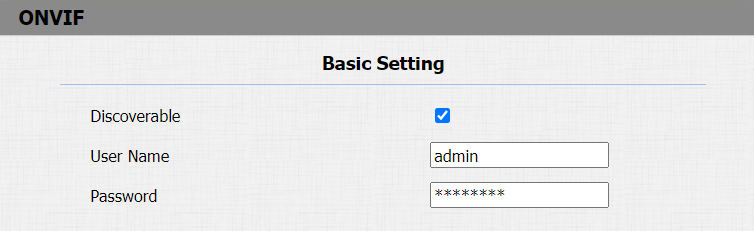
Navigate to Intercom > ONVIF interface.
Parameter Set-up:
- Discoverable: tick the check box to enable the Discoverable ONVIF mode. If you select Discoverable then the video from the door phone camera can be searched by other devices.
- User Name: enter the user name. It is admin by default.
- Password: enter the password. It is admin by default.
After the setting is complete, you can enter the ONVIF URL on the third-party device to view the video stream.
For example: http://IP address:80/onvif/device_service
- Fill in the specific IP address of the door phone in the URL.
Live Stream
Il existe deux façons de vérifier la vidéo en temps réel depuis l’appareil. L’un d’eux est d’aller sur l’interface web de l’appareil et de visualiser la vidéo là-bas. L’autre est d’entrer la bonne URL dans le navigateur web et d’accéder directement à la vidéo.
Navigate to Intercom > Live Stream interface.