Un planning d’accès aux portes vous permet de décider qui peut ouvrir la porte et quand. Elle s’applique aussi bien aux individus qu’aux groupes, garantissant que les utilisateurs inscrits dans le planning ne peuvent ouvrir la porte qu’en utilisant la méthode autorisée pendant des périodes horaires désignées.
Create a Door Access Schedule
Vous pouvez créer le planning d’accès à la porte quotidiennement ou mensuellement, et vous pouvez aussi créer un planning qui vous permet de planifier sur une période plus longue en plus de gérer le calendrier d’accès à la porte quotidiennement ou mensuellement.
To configure the schedule, navigate to the web Intercom > Schedule interface. You can add 100 schedules.
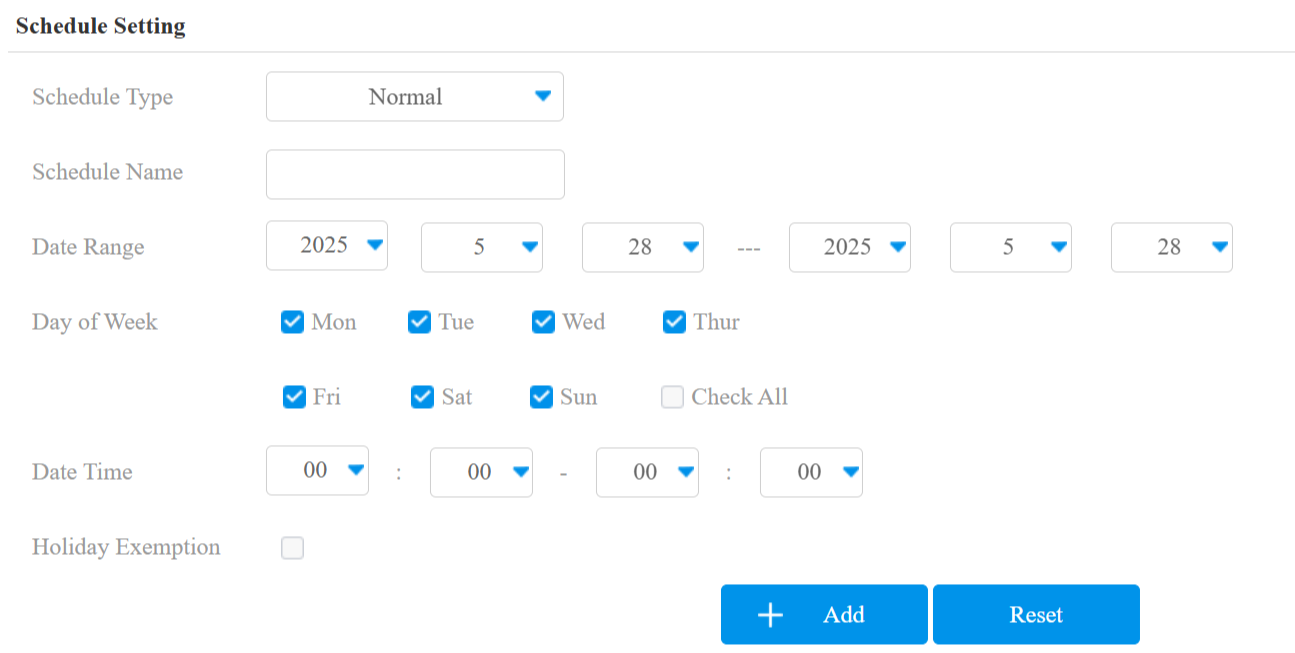
Schedule Type:
Normal: Set the schedule based on the month, week, and day. It is used for a long-term schedule.
Weekly: Set the schedule based on the week.
Daily: Set the schedule based on 24 hours a day.
Schedule Name: Name the schedule.
Holiday Exemption: The holiday schedule has higher priority over the access schedule, which limits users from opening doors. If users want to open doors during holidays within the access schedule, you need to check this option.
Note
The access control schedule synchronized from the SmartPlus cannot be edited or deleted.
With the firmware version 916.30.10.337 or higher, the device support 150 local schedules.
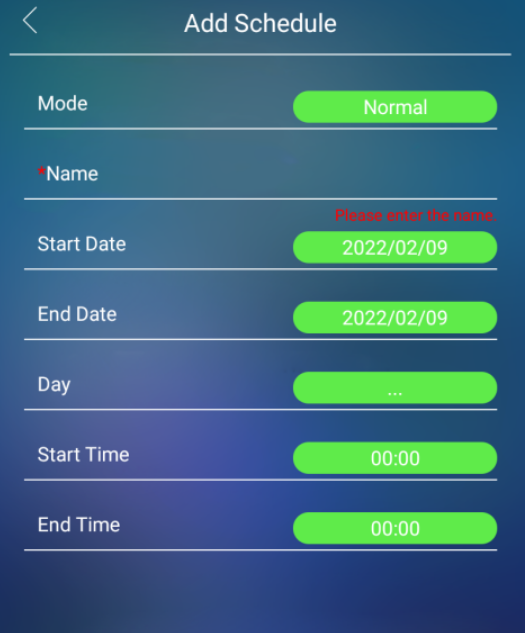
You can also set up schedules on the Setting > Schedule screen.
Import and Export Door Access Schedule
Vous pouvez créer des plannings d’accès aux portes un par un ou en bloc. Vous pouvez exporter le fichier de planning actuel, le modifier ou ajouter d’autres schedules selon le format, et importer le nouveau fichier sur les appareils souhaités. Cela vous aide à gérer facilement vos horaires d’accès aux portes.
Set it up on the Intercom > Schedule interface. The import/export file is in .xml format.

Holiday Schedule
Vous pouvez définir les jours fériés où les utilisateurs ne peuvent pas ouvrir les portes pour renforcer la sécurité du contrôle d’accès. Vous pouvez également définir les horaires de travail pour permettre aux utilisateurs autorisés d’ouvrir des portes.
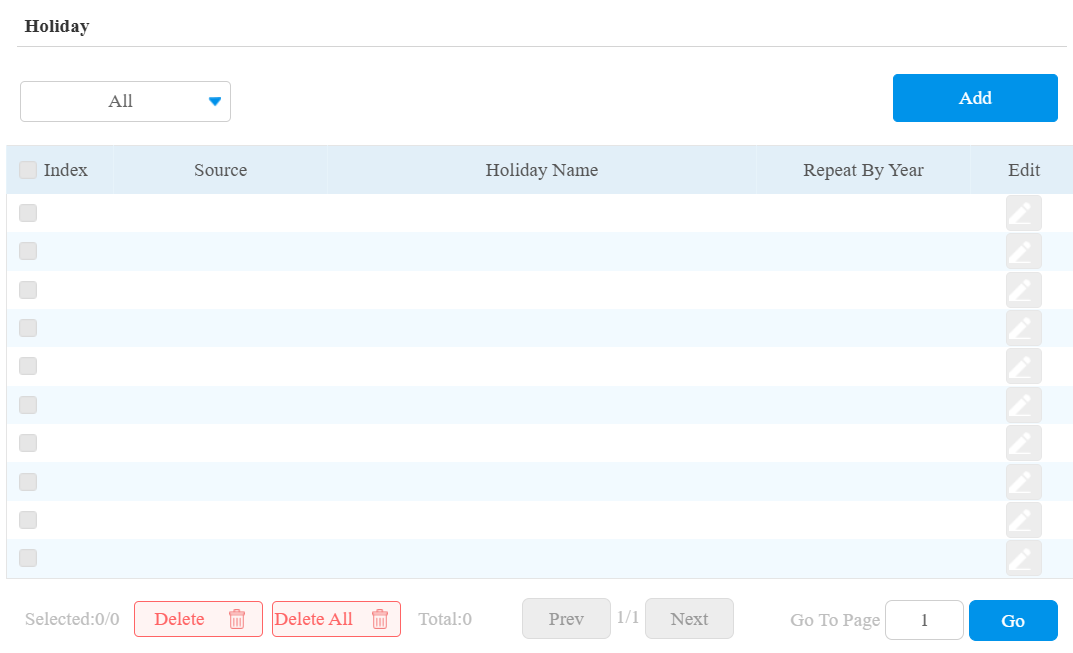
Set it up on the Intercom > Holiday interface. Click +Add.
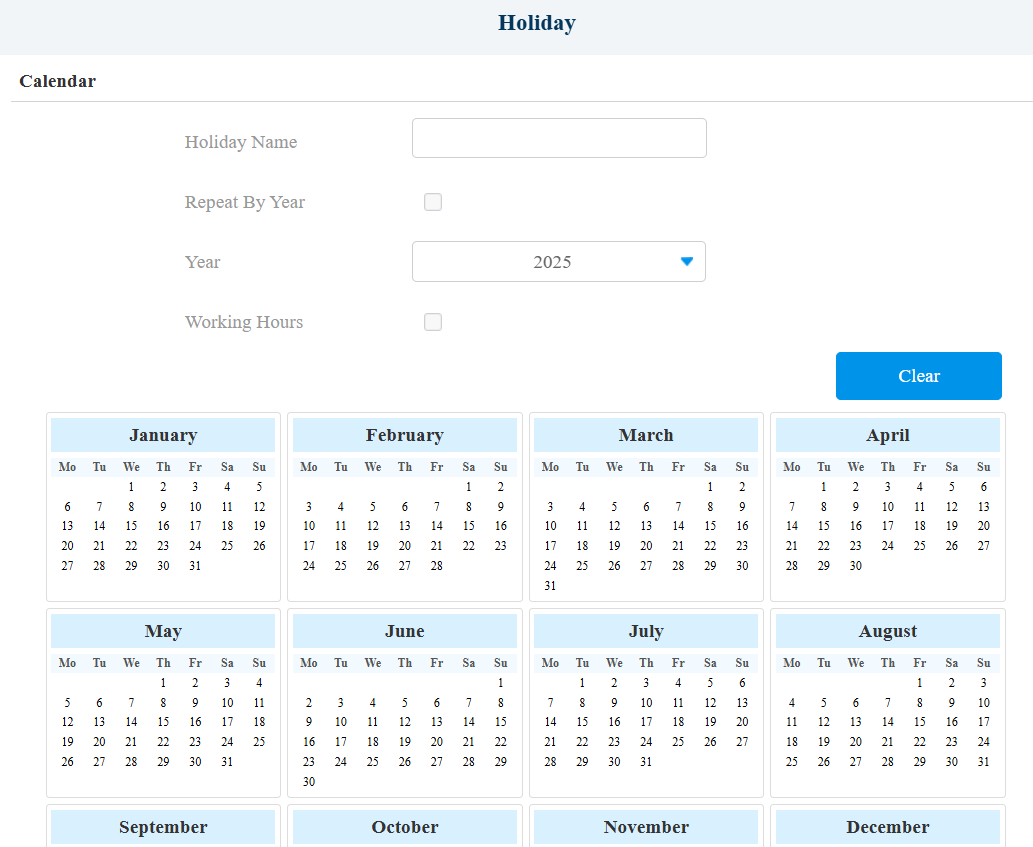
Holiday Name: Enter the holiday name.
Repeat By Year: Repeat the schedule every year.
Year: Set the year and date of the holiday.
Working Hours: When enabled, specify the time when authorized users can open doors.
Holiday Schedule Import/Export
You can import or export holiday schedules for quick setup on the Intercom > Holiday > Import/Export Holiday interface.
The import/export file format is XML.

Relay Schedule
Le planning des relais permet de régler un relais spécifique pour qu’il s’ouvre toujours à une certaine heure. C’est utile pour des situations comme garder la porte ouverte après l’école ou la porte ouverte pendant les heures de travail.
Navigate to the web Intercom > Relay > Relay Schedule interface.
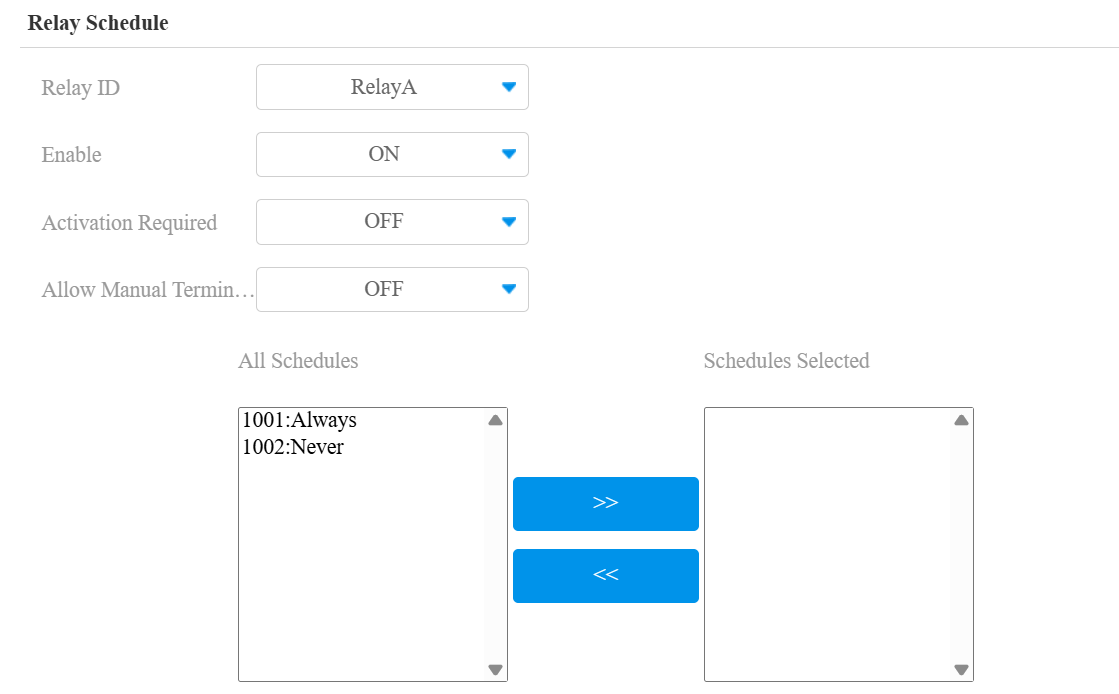
Relay ID: Specify the relay that adopts the schedule.
Enable: When you turn this feature on, specify the time when the relay keeps open.
Activation Required: It means that only after the relay is triggered successfully for the first time can it be triggered by device-supported access methods later.
Allow Manual Termination: Disabled by default. When enabled, users can close doors with the device-supported access methods within the schedule.
Schedules: Apply schedules by moving them from the left to the right box.
Note
Click here to view the details of the Activation Required feature.
For instructions on creating schedules, kindly consult the Create a Door Access Schedule section.