Déverrouiller par code PIN public
Il existe deux types de codes PIN pour l’accès aux portes : public et privé. Un code PIN privé est unique à chaque utilisateur, tandis que le code public est partagé par les résidents du même bâtiment ou complexe. Vous pouvez créer et modifier à la fois les codes PIN publics et privés.
Pour configurer le code PIN public, allez dans Interphone > Paramètres PIN > interface PIN public .
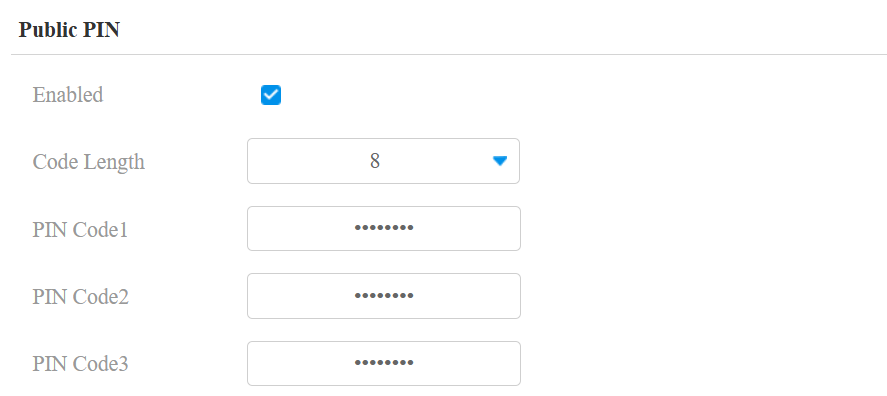
Longueur du code : Définissez la longueur du code allant de 4 à 8.
Code PIN 1/2/3 : Réglez le code PIN souhaité pour ouvrir la porte. Par défaut, c'est 33333333, 66666666 et 88888888 pour le code 1/2/3.
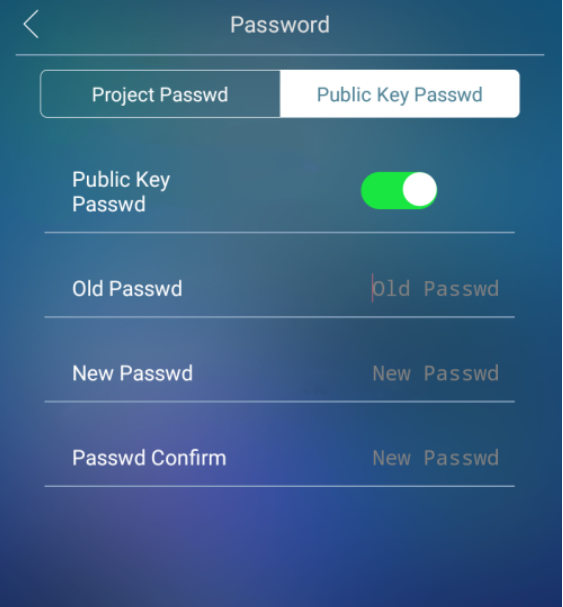
Vous pouvez aussi configurer le code PIN public sur l' écran de Paramètres > Mot de passe > Mot de passe à clé publique.
Méthodes d'accès spécifiques à l'utilisateur
Le code PIN privé, la carte RF, Bkey et les paramètres de reconnaissance faciale doivent être attribués à un utilisateur particulier pour l'ouverture de la porte.
Lors de l'ajout d'un utilisateur, vous pouvez aussi personnaliser des paramètres comme définir le calendrier d'accès à la porte pour déterminer quand le code est valide et spécifier quel relais ouvrir.
Pour ajouter un utilisateur, allez dans Annuaire > Interface utilisateur et cliquez sur +Ajouter. Vous pouvez aussi configurer un utilisateur sur l' écran Paramètres > Utilisateur de l'appareil.
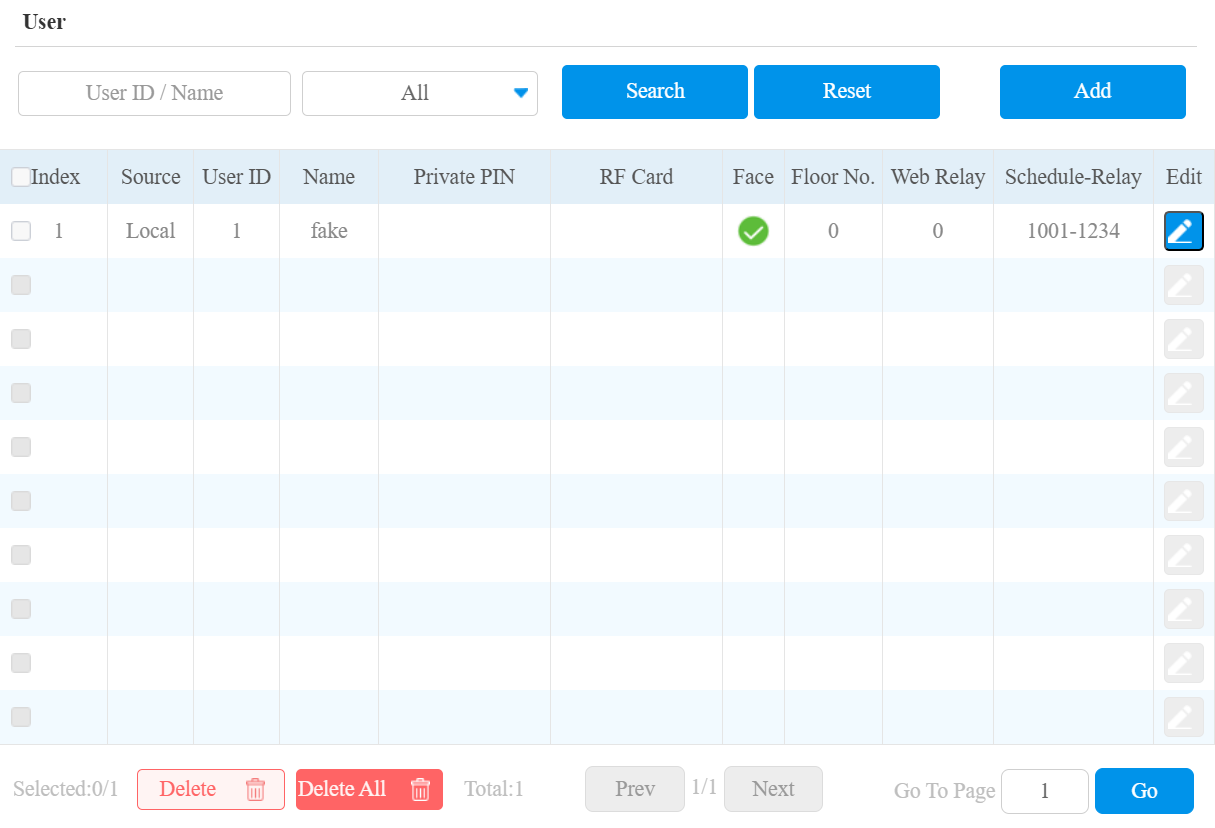

ID utilisateur : Le numéro d'identification unique attribué à l'utilisateur.
Nom : Le nom de cet utilisateur.
Déverrouiller par code PIN privé
Dans l' interface Annuaire > > utilisateur +Ajouter , trouvez la section PIN privé .

Code : Définir un code PIN de 2 à 8 chiffres uniquement pour l'usage de cet utilisateur. Chaque utilisateur ne peut se voir attribuer qu'un seul code PIN.
Vous pouvez définir le mode PIN sur l' Interphone > Réglage PIN > interface PIN privée .

PIN d'autorisation :
PIN : Entrez uniquement le code PIN pour l'accès à la porte.
APT#+PIN : Saisissez d'abord le numéro de l'appartement avant de saisir le code PIN pour l'accès à la porte. Le numéro d'appartement ne peut être applicable que lorsque l'appareil est connecté au cloud Akuvox SmartPlus.
Déverrouillage par carte RF/Bkey
Dans l' interface Annuaire > > Utilisateur +Ajouter , trouvez la section Carte RF & Bkey .
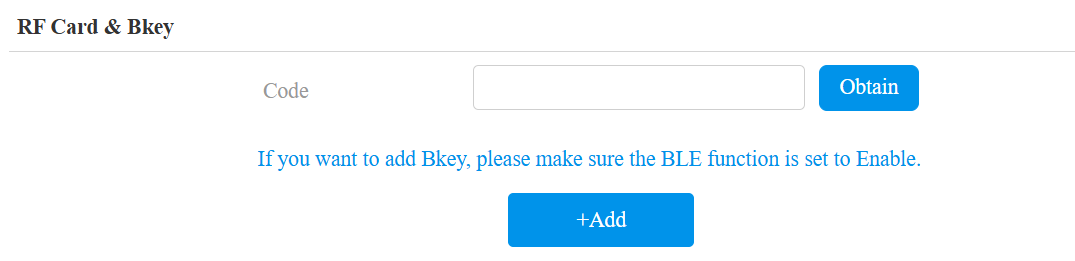
Code : Le code carte ou code Bkey que lit l'appareil.
Note
Cliquez ici pour voir les étapes détaillées de la configuration de Bkey.
Les cartes RF fonctionnant à 13,56 MHz et 125 KHz sont compatibles avec l'appareil pour l'access.
Chaque utilisateur peut avoir un maximum de 5 cartes ajoutées.
L'appareil permet d'ajouter 20 000 utilisateurs.
Format de code de carte RF
Pour intégrer l’accès à la porte de la carte RF avec le système d’interphone tiers, il faut faire correspondre le format de code de la carte RF à celui utilisé par le système tiers.
Pour le configurer, allez dans Contrôle d'accès > Paramètres de carte > interface RFID .

Mode d'affichage RFID : Définissez le format de la carte IC à partir des options fournies. Le défaut est 8HN.
Mode d'affichage de la carte d'identité : Définissez le format de la carte d'identité parmi les options proposées. Le défaut est 8HN.
Octets de lecture des cartes d'identité : Spécifiez les octets de carte à lire : 3 octets ou 4 octets.
Déverrouillage par plaque d'immatriculation
Akuvox propose deux moyens principaux d’identifier les véhicules et d’ouvrir les portails.
Utilisez une caméra LPR (Reconnaissance des plaques d’immatriculation) tierce pour reconnaître la plaque d’immatriculation du véhicule.
Utilisez le lecteur de cartes longue portée Akuvox ACR-CPR12 pour reconnaître la carte UHF fixée au pare-brise du véhicule.
Pour attribuer la plaque d'immatriculation à un utilisateur, trouvez la partie Plaque d'immatriculation dans l' annuaire > Utilisateur > interface +Ajouter .

Ajouter : Un utilisateur peut avoir jusqu'à 5 plaques d'immatriculation.
Durée : Activer/désactiver le véhicule à long terme. Il est activé par défaut. En cas de désactivation, précisez quand le véhicule peut entrer ou sortir du parking.
Déverrouillage par reconnaissance faciale
Dans l' interface > Utilisateur > +Ajouter , trouvez la section Visages .

Statut : Indiquez si la photo du visage de l'utilisateur a été téléchargée avec succès.
Photo : Téléchargez une photo conforme aux exigences suivantes :
La photo doit être au format JPG ou PNG.
La photo doit mesurer au moins 250 x 250 pixels et ne pas dépasser 2 Mo.
La photo doit être claire et non floue.
La photo doit montrer un visage complet avec une vue de face et les yeux ouverts.
Évitez les ombres sur le visage ou en arrière-plan sur la photo.
Paramètres de reconnaissance faciale
Le téléphone de porte vous permet d’ajuster la précision de la reconnaissance faciale, les intervalles de reconnaissance, et plus encore pour améliorer l’expérience utilisateur.
Configurez-le sur l'interface Interphone > Paramètres faciaux .
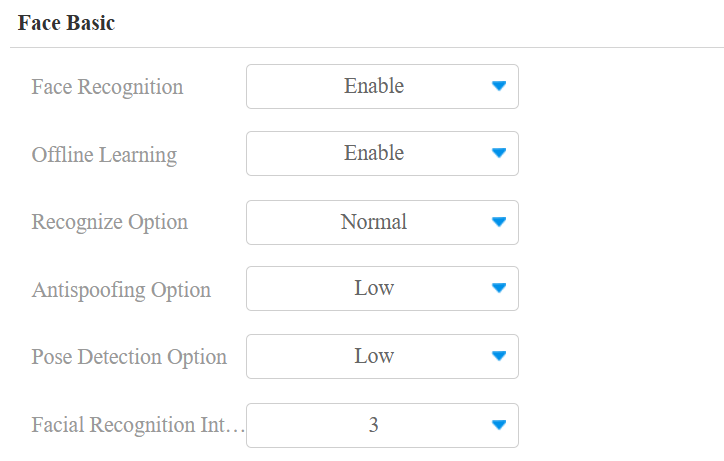
Reconnaissance faciale : Activer/désactiver la fonction de reconnaissance faciale.
Apprentissage hors ligne : La précision de la reconnaissance faciale s'améliore à mesure que le nombre de personnes augmente.
Option de reconnaissance : Déterminez la rigueur du système de reconnaissance faciale dans la comparaison du visage d'une personne avec les données faciales téléchargées. Chaque niveau permet un degré différent de différence ou de couverture faciale (à l'exception de la zone de la bouche) pour passer la reconnaissance.
Faible : Permettre de légères différences par rapport aux données faciales téléchargées, avec peu de couverture faciale.
Le plus élevé : Exigez que le visage soit identique à celui téléchargé, avec peu ou pas de recouvrement.
Les deux autres niveaux sont entre les deux.
Option anti-usurpation : Définir la rigueur du système pour empêcher les faux visages.
Fermer : désactiver la fonction anti-usurpation faciale. La vérification faciale peut être effectuée à l'aide de substituts non vivants pour le visage d'une personne autorisée, comme une photo.
Le plus haut : Le système ne peut être trompé par aucun substitut non vivant pour le visage d'une personne autorisée.
Les trois autres niveaux se situent entre les deux.
Option de détection de pose : Réglez le niveau de détection de pose de Proche, Bas, Normal et Élevé. Plus le niveau est élevé, plus la détection est précise. Les utilisateurs seront invités à « faire face directement à la caméra » lorsqu'ils ne font pas face à la caméra.
Intervalle de reconnaissance faciale : Ajustez l'intervalle de temps entre chaque tentative de reconnaissance faciale, allant de 1 à 8 secondes.
Cadre d'accès
Vous pouvez personnaliser les paramètres d'accès, comme définir le planning d'accès à la porte pour déterminer quand le code est valide et spécifier quel relais ouvrir.
Dans l' interface du répertoire > > utilisateur +Ajouter , faites défiler jusqu'à la section Paramètres d'accès .
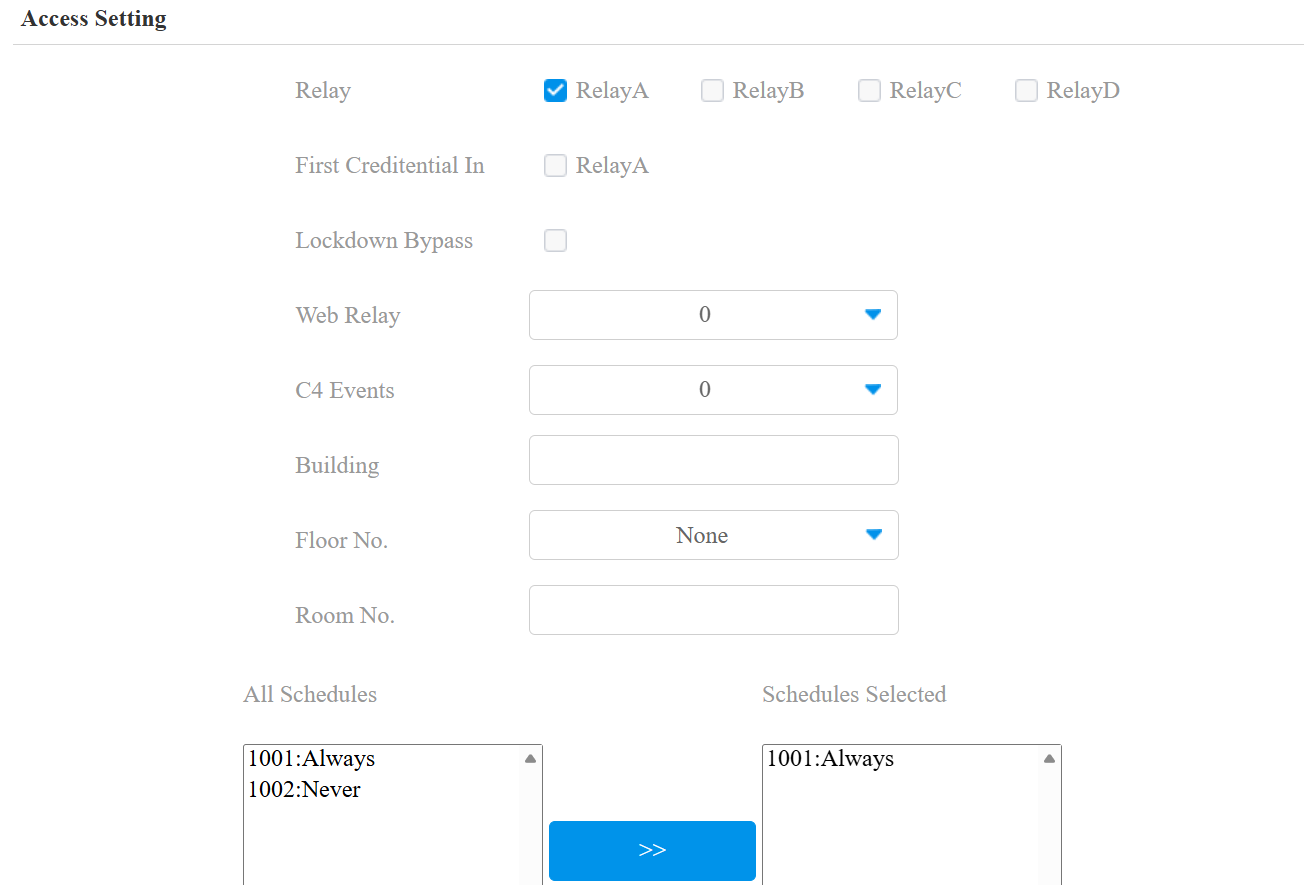
Relais : Spécifiez le relais qui peut être déverrouillé par les identifiants de l'utilisateur.
Première certification en : Cela détermine si l'utilisateur peut laisser la porte ouverte pendant le temps prévu après son activation.
Contournement de confinement : Cela détermine si l'utilisateur peut ouvrir la porte lorsque celle-ci est verrouillée pendant l' heure prévue.
Web Relay : Spécifiez l'ID des commandes d'action du web relay que vous avez configurées sur l'interface Web Relay . Une valeur par défaut de 0 indique que le relais web ne sera pas déclenché.
Événements C4 : Lorsque l'appareil s'intègre aux appareils C4, sélectionnez l(s) événement(s) C4. Lorsque les utilisateurs utilisent leurs identifiants, les événements sont déclenchés. Vous pouvez consulter le manuel Akuvox Integration with Control4 pour apprendre les étapes d'intégration.
Bâtiment : Spécifiez le bâtiment où vit l'utilisateur.
Étage n° : Spécifiez le(s) étage(s) accessible(s) à l'utilisateur via l'ascenseur.
Chambre n° : Saisissez le numéro de chambre de l'utilisateur.
Horaire : Accordez à l'utilisateur l'accès à l'ouverture des portes désignées pendant les périodes prédéfinies en déplaçant le(s) calendrier(s) souhaité(s) de la boîte de gauche vers la boîte de droite. En plus des plannings personnalisés, il y a 2 options par défaut :
Toujours : Permet l'ouverture de porte sans limitation du nombre d'ouvertures pendant la période valide.
Jamais : Interdit l'ouverture des portes.
Importer/Exporter des données utilisateur
Le téléphone de porte prend en charge le partage des données utilisateur du contrôle d’accès entre les téléphones Akuvox via importation et exportation, tandis que vous pouvez également exporter les données faciales du téléphone de porte puis les importer sur un appareil tiers.
Cliquez ici pour voir comment importer et exporter les données utilisateur entre les téléphones portes Akuvos.
Vous pouvez importer et exporter des données utilisateur pour une configuration rapide via le répertoire > l 'interface utilisateur.
Le format de fichier import/export peut être .XML ou . CSV.

Chiffrement des cartes Mifare
L’appareil peut lire les cartes Mifare chiffrées pour une plus grande sécurité. Lorsque cette fonction est activée, elle lit les données dans les secteurs et blocs désignés des cartes, et non l’UID.
Cliquez ici pour voir les détails du chiffrement et de la lecture des cartes Mifare.
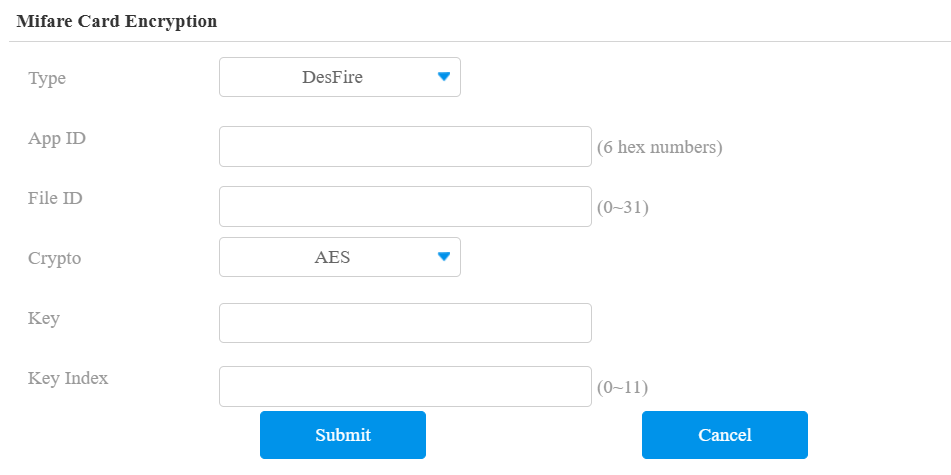
Pour configurer la carte Mifare, accédez à l'interface interphone web > à la carte Réglage .
Classique :
Secteur/Bloc : Spécifiez l'emplacement où les données de carte chiffrées sont stockées. Une carte Mifare comporte 16 secteurs (numérotés de 0 à 15), et chaque secteur comporte 4 blocs (numérotés de 0 à 3).
Clé de bloc : Définir un mot de passe pour accéder aux données stockées dans le secteur/bloc prédéfini.
En plus : vous pouvez configurer trois choix. Cela signifie que vous pouvez utiliser trois types de cartes Mifare Plus. Lors du passage d'une carte, tant qu'un des choix correspond à sa clé SL, le code de carte dans le bloc que vous avez spécifié sera sorti.
Bloc : Spécifiez le(s) bloc(s) à lire.
SL3 : Le chiffre clé dans les 32 bits.
DESFire :
ID d'application : un nombre hexadécimal à 6 chiffres
ID du fichier : L'identifiant du fichier chiffré de l'application, qui peut être un chiffre de 0 à 31.
Crypto : La méthode de chiffrement, soit AES soit DES.
Clé : La clé du dossier.
Index clé : Le numéro d'index de la clé, qui peut être un nombre de 0 à 11.
Déverrouiller par commande HTTP
L’appareil prend en compte le déverrouillage à distance de la porte via une commande HTTP. Il suffit d’activer cette fonctionnalité et d’entrer la commande HTTP (URL) pour l’appareil. Cela déclenchera le relais et ouvrira la porte, même si les utilisateurs sont loin de l’appareil.
Configurez-le sur l' Interphone > Relay > Open Relay via l 'interface HTTP.

Vérification de session : Une fois activé, le déverrouillage HTTP nécessite de se connecter à l'interface web de l'appareil. Ou bien, l'ouverture de la porte peut échouer.
Nom d'utilisateur : Définir un nom d'utilisateur pour l'authentification dans les URL de commande HTTP.
Mot de passe : Définissez un mot de passe pour l'authentification dans les URL de commandes HTTP.
Conseil
Voici un exemple d'URL de commande HTTP :

Note
Le format HTTP pour le déclenchement par relais varie selon que le mode de sécurité élevée du téléphone porte est activé ou non. Veuillez consulter ce guide pratique Ouvrir la porte via la commande HTTP pour plus d'informations.
Déverrouillage par code DTMF
La signalisation multifréquence à double ton (DTMF) est un moyen d’envoyer des signaux sur des lignes téléphoniques en utilisant différentes bandes de fréquences vocaux. Les utilisateurs peuvent utiliser la fonction DTMF pour déverrouiller la porte aux visiteurs pendant un appel en tapant soit le code DTMF sur le clavier logiciel, soit en tapotant l’onglet de déverrouillage avec le code DTMF à l’écran.
Configurez-le sur l'interface Interphone > Relay .
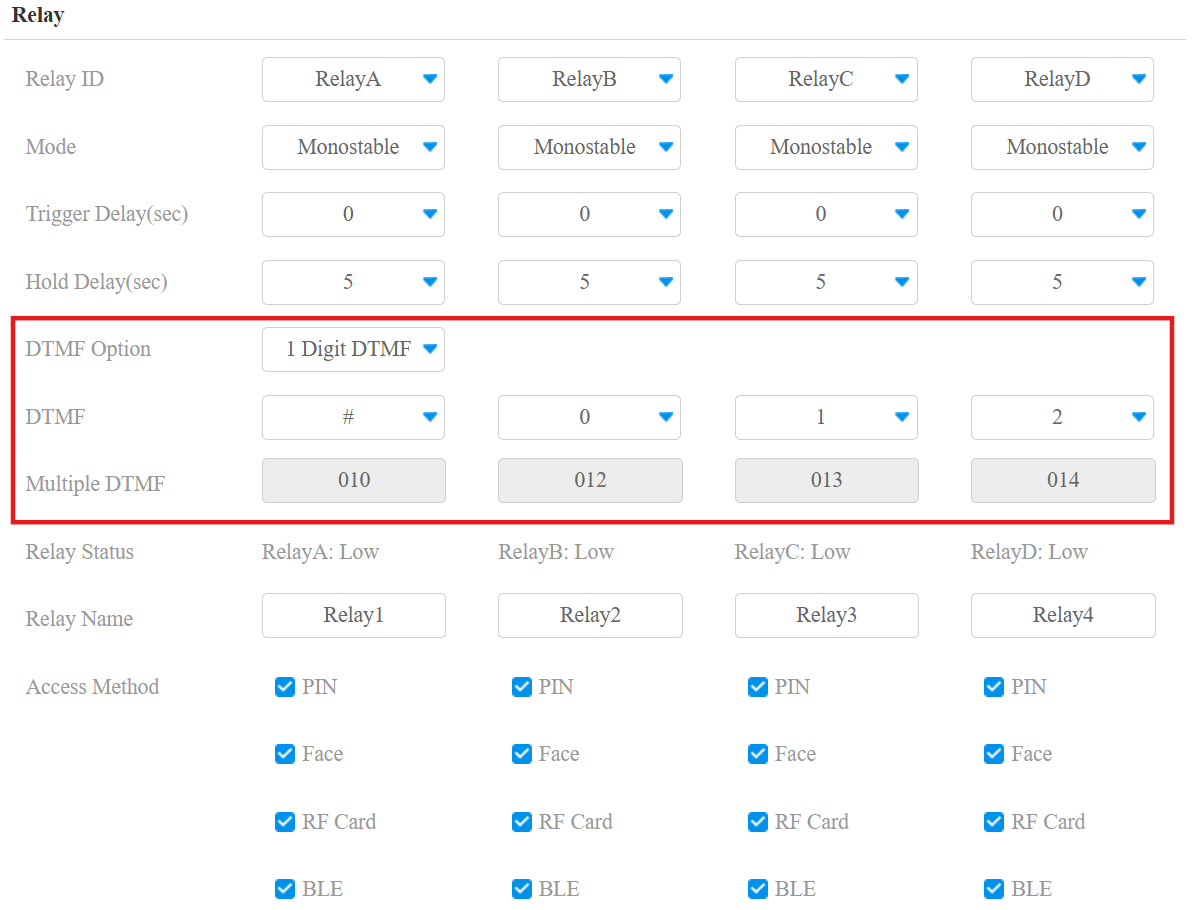
Option DTMF : Définir le nombre de chiffres pour le code DTMF.
DTMF à 1 chiffre : Définir le code DTMF à 1 chiffre dans la plage (0-9 et *,#) lorsque le mode DTMF est réglé à 1 chiffre.
Multiples DTMF : Définissez le code DTMF en fonction du nombre de chiffres sélectionnés dans le mode DTMF.
Transmission de données DTMF
Pour accéder à la porte via le code DTMF ou d’autres applications, vous devez configurer correctement le DTMF afin d’établir une transmission de données basée sur DTMF entre l’appareil et d’autres dispositifs d’interphone.
Différences de type DTMF :
Inband | Les signaux DTMF sont transmis dans le même canal audio que les données vocales. Implémentation simple mais une distorsion du signal peut survenir avec des codecs très compressés (par exemple, G.729). |
RFC2833 | Transmet DTMF sous forme de paquets d’événements spéciaux via RTP (Real-Time Transport Protocol), appelé transmission hors bande. Fiable et non affecté par les codecs. |
Info | Envoie des signaux DTMF via le canal de signalisation SIP (Session Initiation Protocol). Séparé de la transmission vocale, garantissant la qualité audio. |
Info+Inband | Combine les méthodes Info et Inband. |
Info+RFC2833 | Combine à la fois les méthodes d’information et RFC2833. |
Info+Inband+RFC2833 | Les trois méthodes sont utilisées simultanément. |
Configurez-le sur l'interface Account > Advanced > DTMF .

Type : Sélectionnez parmi les options disponibles en fonction du type de transmission DTMF spécifique de l'appareil tiers à associer en tant que partie pour recevoir les données du signal.
Comment notifier DTMF : Sélectionnez Désactivé, DTMF, DTMF-Relais ou Événement Téléphonique selon le type spécifique adopté par l'appareil tiers. Vous devez le configurer uniquement lorsque l'appareil tiers à associer adopte le mode Info.
Charge utile DTMF : Définissez la charge utile selon la charge utile spécifique de transmission de données convenue entre l'émetteur et le récepteur lors de la transmission.
Note
Pour ouvrir la porte avec DTMF, les interphones qui envoient et reçoivent la commande de déverrouillage doivent utiliser le même mode et code. Sinon, le déverrouillage DTMF peut échouer. Voir ici les étapes détaillées de configuration DTMF.
Liste blanche DTMF
Pour sécuriser l'accès à la porte via les codes DTMF, vous pouvez configurer la liste blanche DTMF sur le relais web de l'interphone > > Open Relay via l'interface DTMF , de sorte que seuls les numéros d'appelant désignés dans le téléphone de porte puissent utiliser le code DTMF pour accéder à la porte.

Accès aux numéros de téléphone : Spécifiez les contacts autorisés à ouvrir des portes via DTMF :
Aucun : aucun chiffre ne peut ouvrir les portes avec DTMF.
Numéros de l'annuaire téléphonique : Seuls les numéros ajoutés à la liste de contacts du téléphone de porte peuvent se déverrouiller via DTMF.
Tous les numéros : N'importe quel nombre peut être déverrouillé via DTMF.
Déverrouiller par le bouton de sortie
Lorsque les utilisateurs doivent ouvrir la porte de l’intérieur en appuyant sur le bouton Sortir, il faut configurer le terminal d’entrée correspondant au bouton Sortie pour activer le relais d’accès à la porte.
Cliquez ici pour regarder la vidéo d’instructions.
Configurez-le sur l'interface Interphone > Entrée .
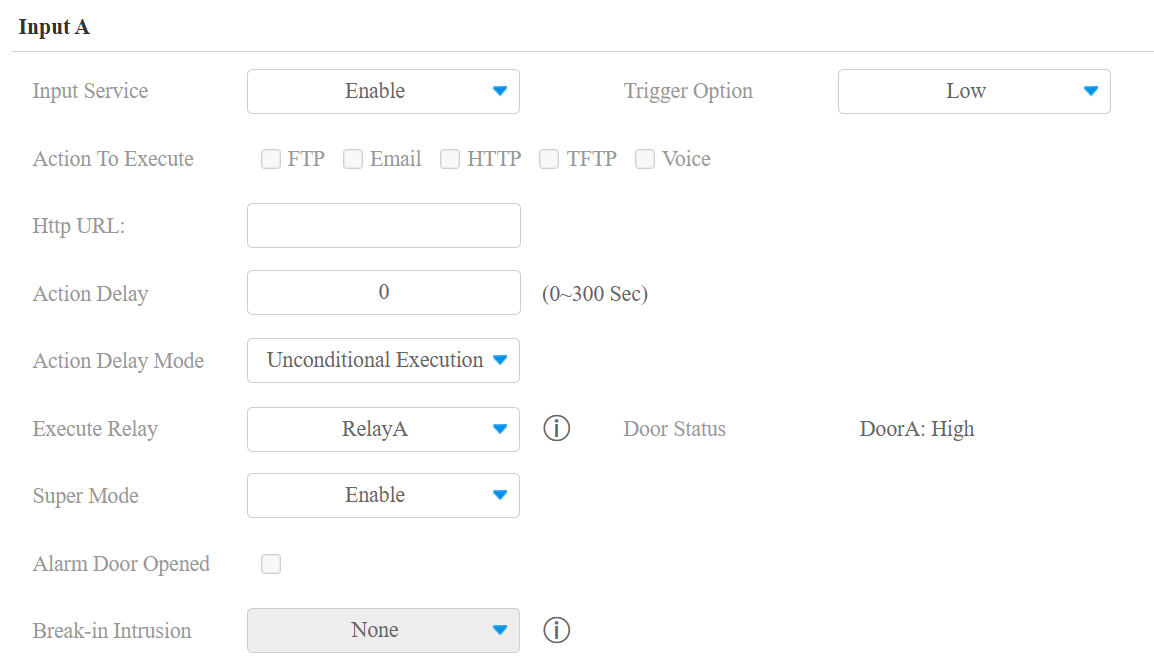
Service d'entrée : Utiliser une interface d'entrée spécifique.
Option de déclenchement : Réglez l'interface d'entrée pour qu'elle se déclenche à un niveau électrique bas ou élevé.
Action à exécuter : Définir les actions souhaitées qui se produisent lorsque l'interface d'entrée spécifique est déclenchée.
FTP : Envoyez une capture d'écran au serveur FTP préconfiguré.
Email : Envoyez une capture d'écran à l' adresse email préconfigurée.
HTTP : Lorsqu'il est déclenché, le message HTTP peut être capturé et affiché dans les paquets correspondants. Pour utiliser cette fonctionnalité, activez le serveur HTTP et saisissez le contenu du message dans la case désignée ci-dessous.
TFTP : Envoyez une capture d'écran au serveur TFTP préconfiguré.
Voix : Lorsqu'il est déclenché, le téléphone de porte affiche l'invite personnalisée au lieu de celle par défaut.
ASTUCE :
Pour activer la invite audio personnalisée, téléchargez le fichier audio sur Device>Import/Export>Upload Tone.
URL HTTP : Saisissez le message HTTP si vous sélectionnez HTTP comme action à exécuter. Le format correspond au contenu IP/Message http://HTTP serveur.
Délai d'action : Spécifiez combien de secondes retarder l'exécution des actions préconfigurées.
Mode de délai d'action :
Exécution inconditionnelle : L'action sera effectuée lorsque l'entrée est déclenchée.
Exécuter si l'entrée est toujours déclenchée : L'action sera effectuée lorsque l'entrée reste déclenchée. Par exemple, si la porte reste ouverte après avoir déclenché une saisie, une action telle qu'un e-mail sera envoyée pour avertir le destinataire.
Exécuter le relais : Spécifiez le relais à déclencher par les actions.
Super Mode : Une fois activé, l'administrateur pourra ouvrir la porte à l'aide d'une carte RF même lorsque le téléphone tombe en panne ou ne fonctionne pas.
Porte d'alarme ouverte : Si activée, une alarme se déclenche lorsque le temps d'ouverture de la porte dépasse une limite.
Temps d'arrêt pour ouverture de porte : La limite de temps pour ouvrir la porte.
Intrusion par effraction : Activez une alarme lorsque la porte est ouverte de force ou illégalement. Une fois déclenchée, l'alarme ne peut être désactivée qu'en cochant cette option. Cliquez ici pour en savoir plus sur cette rubrique. Il est incompatible avec la fonction Exécuter le relais.
Statut de la porte : afficher l'état du signal d'entrée.
Déverrouiller par QR Code
Vous pouvez utiliser un code QR pour déverrouiller la porte avec le téléphone portier. Cette méthode nécessite le service cloud Akuvox SmartPlus. Vous devez activer cette fonctionnalité avant de l’utiliser.
Configurez-le sur l' interphone > Relay > Open Relay via l'interface QR Code.

Note
La fonction devrait fonctionner avec le cloud Akuvox SmartPlus. Veuillez cliquer ici pour consulter les détails de configuration.
Déverrouiller par onglet Réception
Le bouton Réception est un onglet sur l’écran d’accueil qui permet aux résidents et visiteurs de contacter la réceptionniste ou le gardien de sécurité du bâtiment. Ils peuvent appuyer sur ce bouton pour demander de l’aide ou accéder à la porte.
Pour configurer un onglet de réception, allez dans Interphone > Clé/Affichage > Action de réception dans l'interface Intercom.
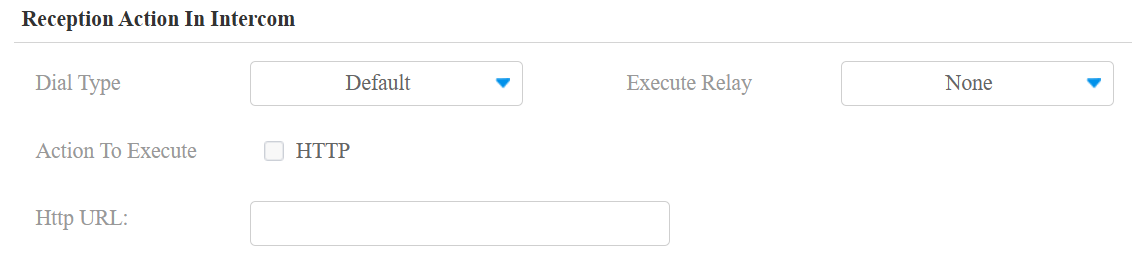
Type de composition : Sélectionnez le compte SIP enregistré pour passer des appels avec les réceptionnistes ou les agents de sécurité. Sélectionner par défaut utilisera le compte 1 pour les appels.
Exécuter le relais : Spécifiez le(s) relais à déclencher par l'onglet Réception.
Action à exécuter : Une fois coché et que l'URL HTTP est saisie dans la case ci-dessous, appuyez sur l'onglet Réception qui déclenche l'action souhaitée.
URL HTTP : Saisissez l'URL de la commande HTTP. Voici un exemple de déclenchement par relais :

Note
Le format HTTP pour le déclenchement par relais varie selon que le mode de sécurité élevée du téléphone porte est activé ou non. Veuillez consulter ce guide pratique Ouvrir la porte via la commande HTTP pour plus d'informations.
Déverrouillage par Bluetooth
L’application SmartPlus compatible Bluetooth permet aux utilisateurs d’entrer sans toucher l’appareil. Ils peuvent ouvrir la porte avec l’application dans leur poche ou agiter leur téléphone vers le téléphone à mesure qu’ils s’approchent.
Cette fonctionnalité nécessite que l’appareil soit connecté au SmartPlus Cloud.
Configurez-le sur l'interface web Interphone > BLE .
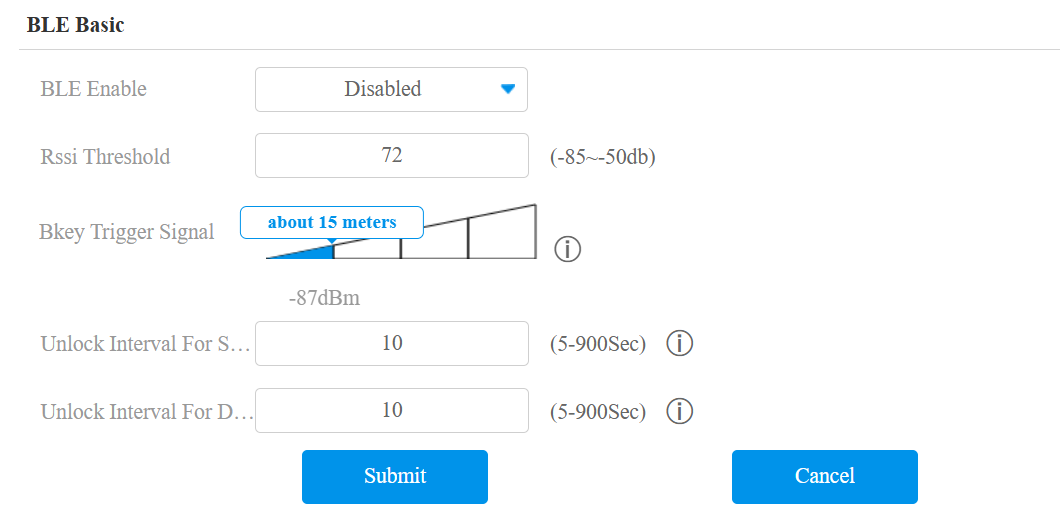
Seuil RSSI : Définissez la force du signal reçu. Des valeurs plus élevées indiquent une force de signal plus forte, ce qui facilite la réception du signal Bluetooth.
Signal de déclenchement Bkey : Il existe quatre distances qui déterminent la distance de déclenchement Bkey de 1 à 15 mètres.
Intervalle de déverrouillage pour le même utilisateur(s) : Définissez l'intervalle de temps entre les tentatives consécutives d'accès à la porte Bluetooth pour le même utilisateur.
Intervalle de déverrouillage pour différents utilisateurs (Sec) : Définissez l'intervalle de temps entre les tentatives consécutives d'accès Bluetooth à la porte pour différents utilisateurs.
Note
Pour découvrir les étapes de configuration détaillées des différentes méthodes d'accès Bluetooth, vous pouvez cliquer sur les articles suivants.