Your HyPanel Lite
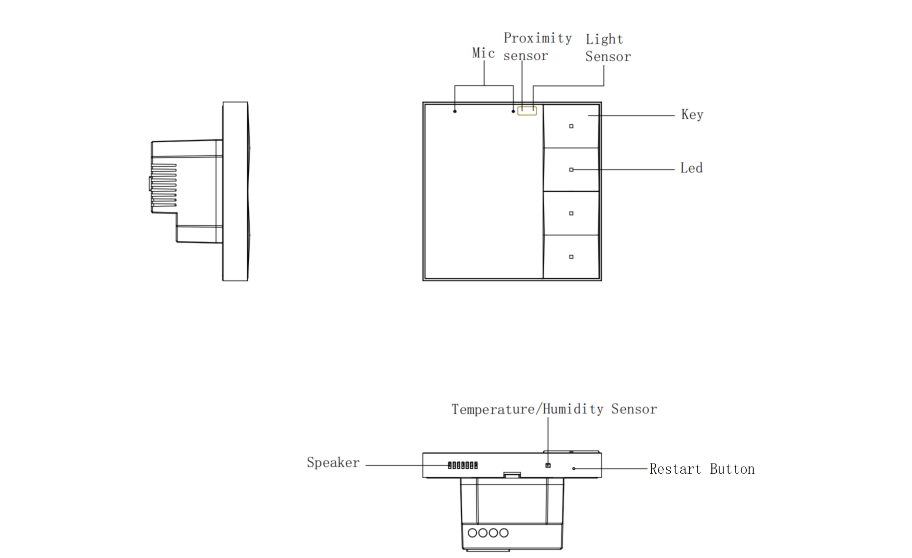
Physical buttons
The four physical buttons enable control of desired devices connected to the HyPanel Lite and activation of scenes with manual conditions. Their functions are displayed on the screen upon waking the device.
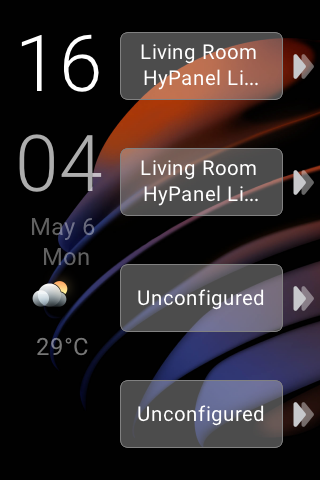
For unconfigured buttons, simply press them to quickly access the key control screen.
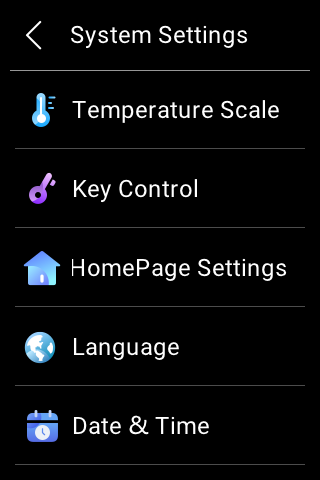
To customize or change the function of each button, swipe down from the top edge of any screen, tap  > System Settings > Key Control, select the desired button.

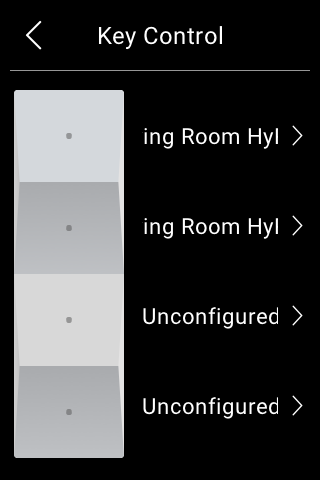
The indicator light of the physical buttons can also be turned on or off based on your preference. To do so, go to > Display > Indicator Light.
Quick control
The buttons on the Quick Control screen, similar to the physical buttons, allow for quick control of desired devices and scenes. Up to 16 buttons can be configured for this purpose.
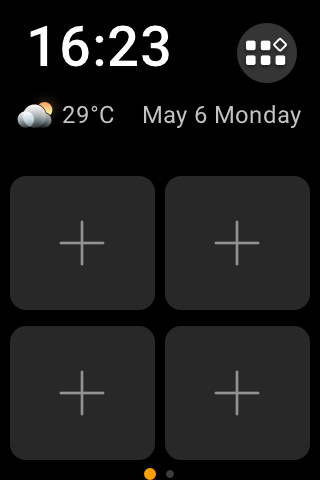
You can tap each unconfigure icon  to quickly access its setting screen.
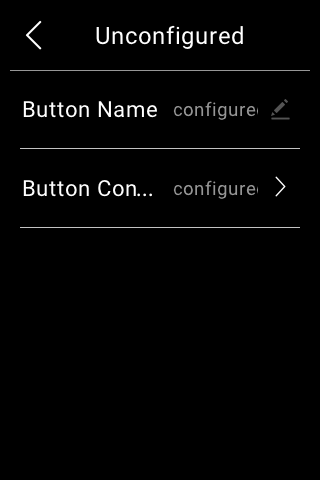
Or, go to > System Settings > HomePage Settings to configure multiple buttons.
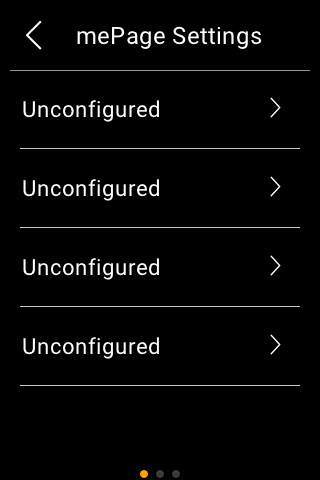
In the Homepage Settings screen, you can add two additional pages with up to 12 buttons each. To do so, swipe left and tap the icon  .
.
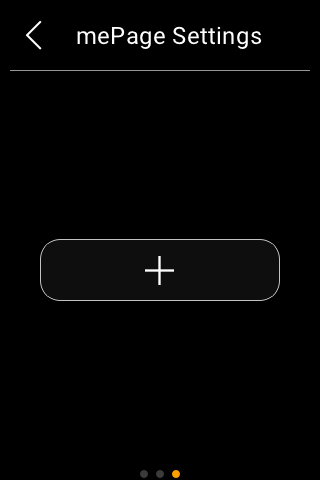
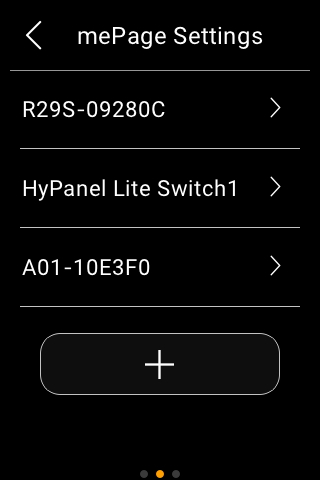
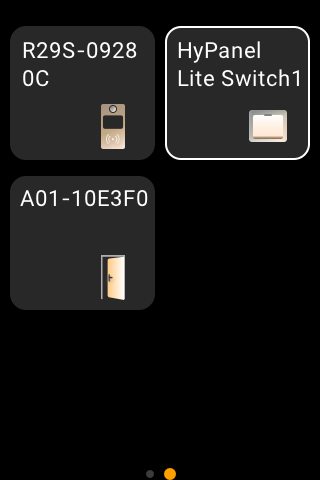
Once added, the buttons will appear on the quick control screen when you swipe left.
Functions screen
By default, feature tabs are displayed on the Functions screen. When an application or a new type of device is added, a corresponding category appears. Here are some examples:
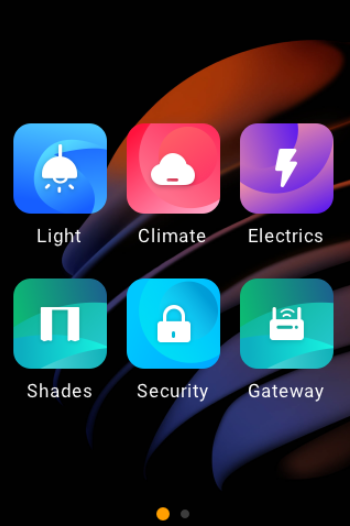
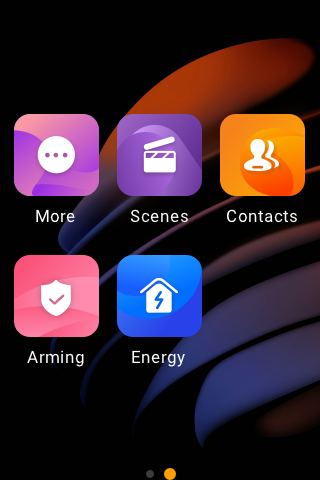
Light: Lighting devices.
Climate: Air quality monitors, air conditioners, thermostats, cooling/heating system, and more.
Shades: Shades, curtains, blinds, and more.
Electrics: Switches, relays, and more.
Security: Sensors such as motion sensors, door phones, locks, cameras, and more.
Media: Speakers, TV, and more.
Gateway: akubela panels.
When the HyPanel Lite serves as a gateway device, you can easily customize the displayed feature tabs by accessing the user web portal.
Control center
To turn pages or move among options, slide on the touch screen.
To open the Control Center, swipe down from the top edge of any screens.
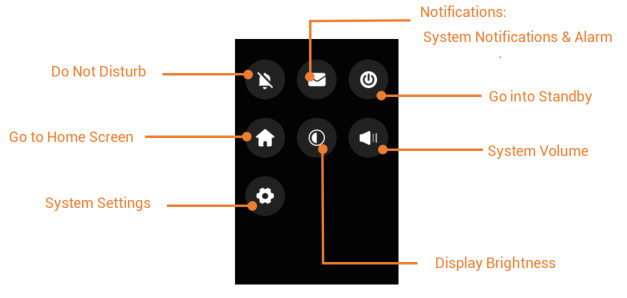
TIP :
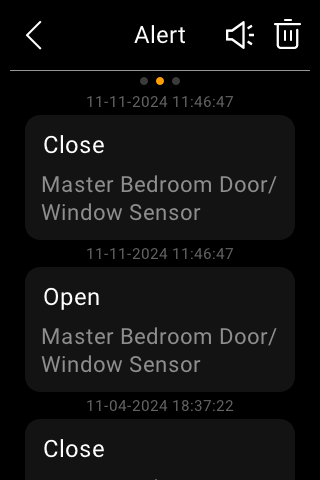
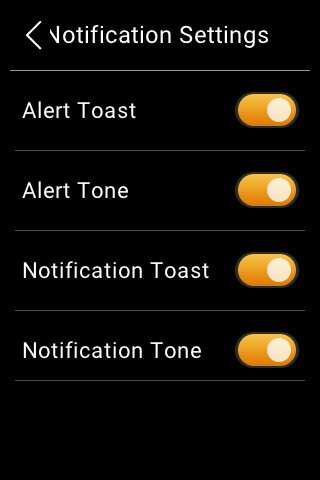
To mute notification sounds and prevent pop-ups, simply tap
>
.
Learn the server status
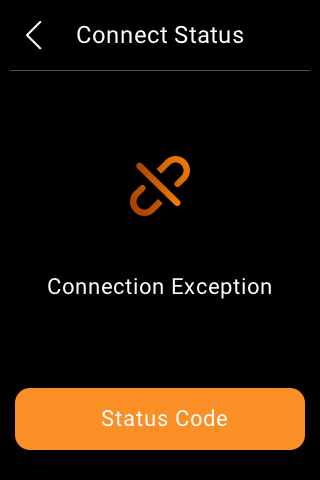
If some features of your HyPanel Lite do not work, you can firstly check if the server connection is normal.
Swipe down from the top edge of any screen, and tap
> System Settings > Connect Status.The status of your server connection displays.
The screen that displays the icon
 indicates that your device is connected to the server already.
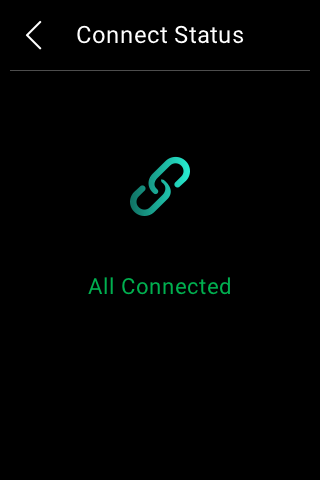
If it shows connection error, contact your service provider or akubela technical team for help.