Connect to the Internet
Typically, the network is configured by your service provider during installation. You can modify the Wi-Fi network or connect the device to a local area network (LAN) anytime, be aware that it may affect certain functions. To ensure continued proper operation, please check with your service provider before making any network changes.
NOTE:
All panels within the family should be in the same local network to ensure the proper communication. If you need to use SIP call and BelaHome app’s remote control function, panels must be connected to the cloud and Internet.
Change your Wi-Fi network
Swipe down from the top edge of any screen to open Control Center, and tap
 > Wi-Fi.
 Choose the network you want to join.
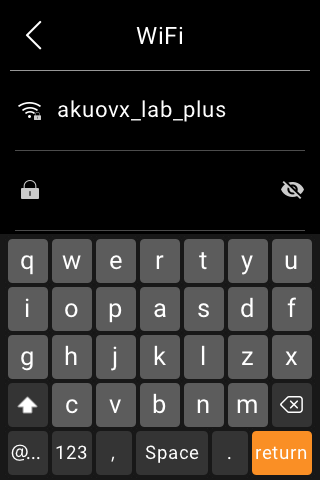
Enter the password if required, and tap return > Connect.
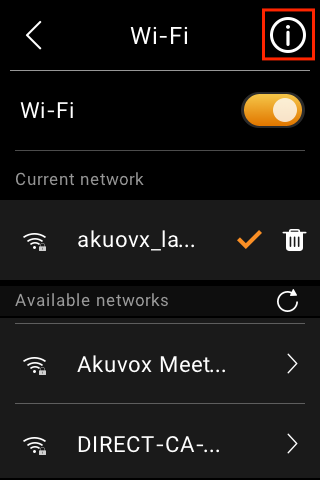
To see the connected network IP address, tap the icon  in the upper right corner.
Configure LAN network
You can configure a LAN network if needed.
Swipe down from the top edge of any screen to open Control Center, and tap
> Ethernet.On the Ethernet view, do any of the following:
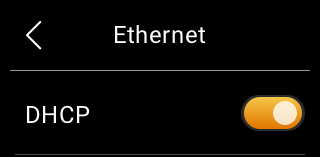
Toggle on DHCP feature, and the device will be assigned IP address automatically.
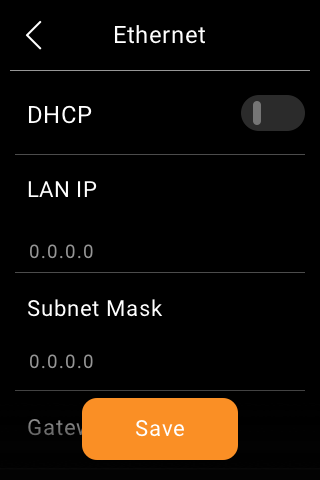
Toggle off DHCP feature, and enter IP Address, Subnet Mask, Gateway, Preferred DNS Server, and Alternate DNS Server manually.
Put HyPanel Lite in standby mode
To put HyPanel Lite in the standby mode quickly, swipe down from the top edge of any screen to open Control Center, then tap  .
.
You can customize how long the device takes to enter the standby mode by going to > Display > Screen Saver > Go into Standby. For example, if you choose 1 min, then HyPanel Lite will enter standby mode in 1 minute of inactivity.
Change screen saver settings
In Display Settings, you can turn the screen saver on or off, and choose the screen saver style.
Swipe down from the top edge of any screen, then tap
> Display > Screen Saver. Do any of the following:
Turn on or off the toggle next to Screen Saver On.
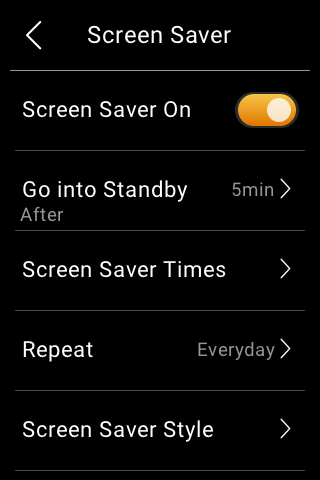
When it is enabled, HyPanel Lite in the standby mode will display photos and images; when disabled, the display just stays off.
Schedule the screensaver to turn on automatically by setting Screen Saver Times and Repeat options.
Choose a Screen Saver Style. Select Photo Wall from the pull-down menu if you want to play images.
To add your preferred photos, see here.
Schedule the screensaver to turn on automatically by selecting Screen Saver Times.
Set up Do Not Disturb
If you do not want to be disturbed by calls, messages, or notifications, you can turn on the Do Not Disturb (DND) feature.
Quickly Turn DND on or off
You can manually turn the DND feature on by swiping down from the top edge of any screen, and tapping  . The icon will turn to
  when the DND is on. Tap the icon again to turn the DND off.
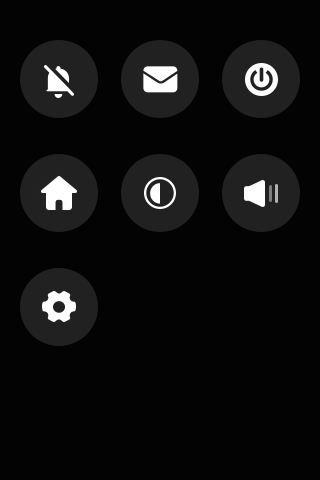
This feature can also be set up by going to > DND.
Schedule the DND to turn on automatically
To schedule a DND to turn on automatically at certain times, do as the following:
Swipe down from the top edge of any screen, and tap
> DND.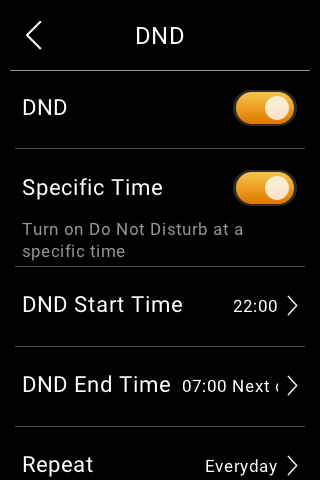
Toggle on DND.
Toggle on Specific Time.
Set the start time and end time. DND will be activated automatically during the designated period and deactivated outside these hours.
Specify the number of times the DND schedule will be repeated. The default setting is Everyday.
Once you set the times, all the calls and notifications will be silenced during this period,while the alarm still rings.
Protect your HyPanel Lite
For better security, use screen lock or settings lock to prevent unintended access to your device or the settings screen.
Set up screen lock
Swipe down from the top edge of any screen to open Control Center, and tap
> System Lock.Do any of the following:
Tap PIN or/and Pattern and follow the onscreen instructions to set a screen lock directly.
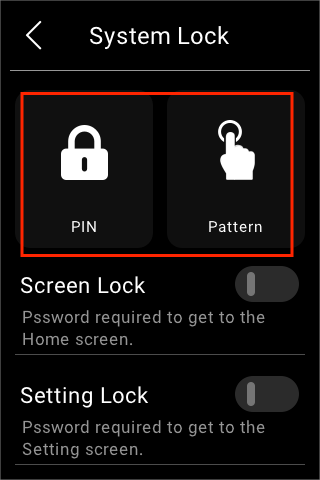
Toggle on Screen Lock to set a password to unlock the screen when you wake it, and follow the onscreen instructions.
Toggle on Setting Lock to prevent unwanted access to the Settings screen, and follow the onscreen instructions.
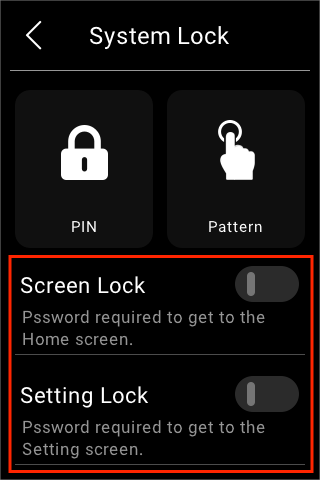

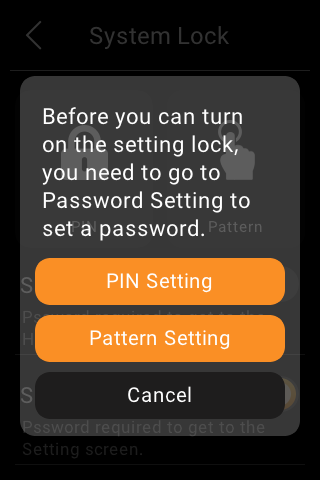
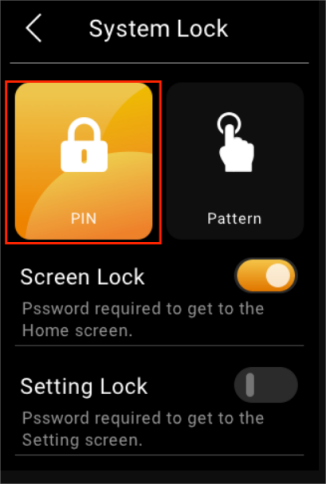
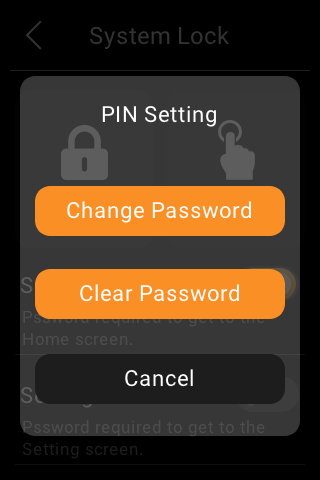
To change or clear existing passwords, tap the highlighted password type, and select Change or Clear.
NOTE:
The Screen Lock and the Setting Lock share the same password. When both locks are enabled, you only need to enter the PIN or draw the pattern password once to access the device and the Settings screen.
Forgot screen lock
To clear the forgotten current password, tap Forgot Password on the password required screen and follow the onscreen instructions. Two resetting options are provided based on your cloud connection status.
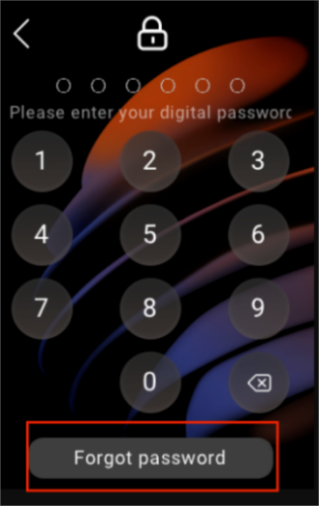
Via reset email
If you’ve registered the administrator account and ensure that the devices are connected to the Internet, a password reset email will be sent to the family’s administrator email address once you tap Forgot Password. Follow the instructions included to clear the password.
On the user web portal
Visit the user web portal, find the specific HyPanel, and click  > Reset > Reset Panel screen lock password.