Scenes let you control your smart devices based on an action, an event, a schedule, or sometimes with a simple tap. For example, automatically turn off the light when you leave, and play music when you’re back home.
NOTE:
Before you can automate your home devices using Scene feature, you need to create scenes on either user web portal or BelaHome app.
Activate your scenes
Automation scene types
The following are three types of automation scene:
A scene only with auto condition(s) is a scene set to be activated based on a schedule or an event.
NOTE:
This type of scenes are not displayed on the HyPanel screen. You can see them on user web portal or BelaHome app.
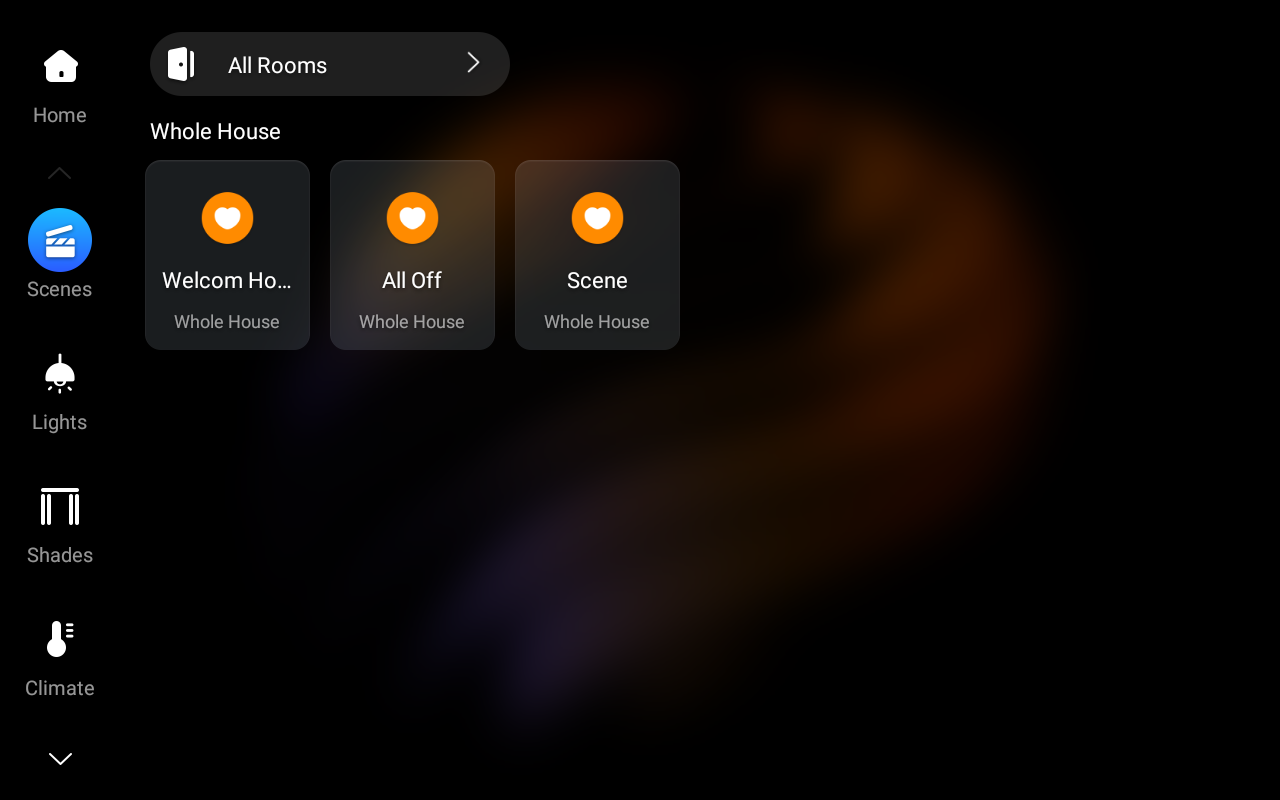
A scene with the manual condition is a scene set to be activated based on a tap or click on the scene image.
A scene with both auto and manual conditions is a scene based on a schedule, an event, and a tap or click. When any of the conditions is met, the scene will be activated.
Run a scene with manual activation conditions
On the Scenes screen, to activate a scene with a manual trigger condition, just tap its card. Its background will be highlighted and then back to be dimmed to show that the scene is activated.
Run a scene with time or action conditions
Scenes that do not include a manual trigger will not appear on the HyPanel screen. You don’t need to tap anything to run these scenes—once the preset time or action conditions are met, the scene will run automatically.
See scene logs
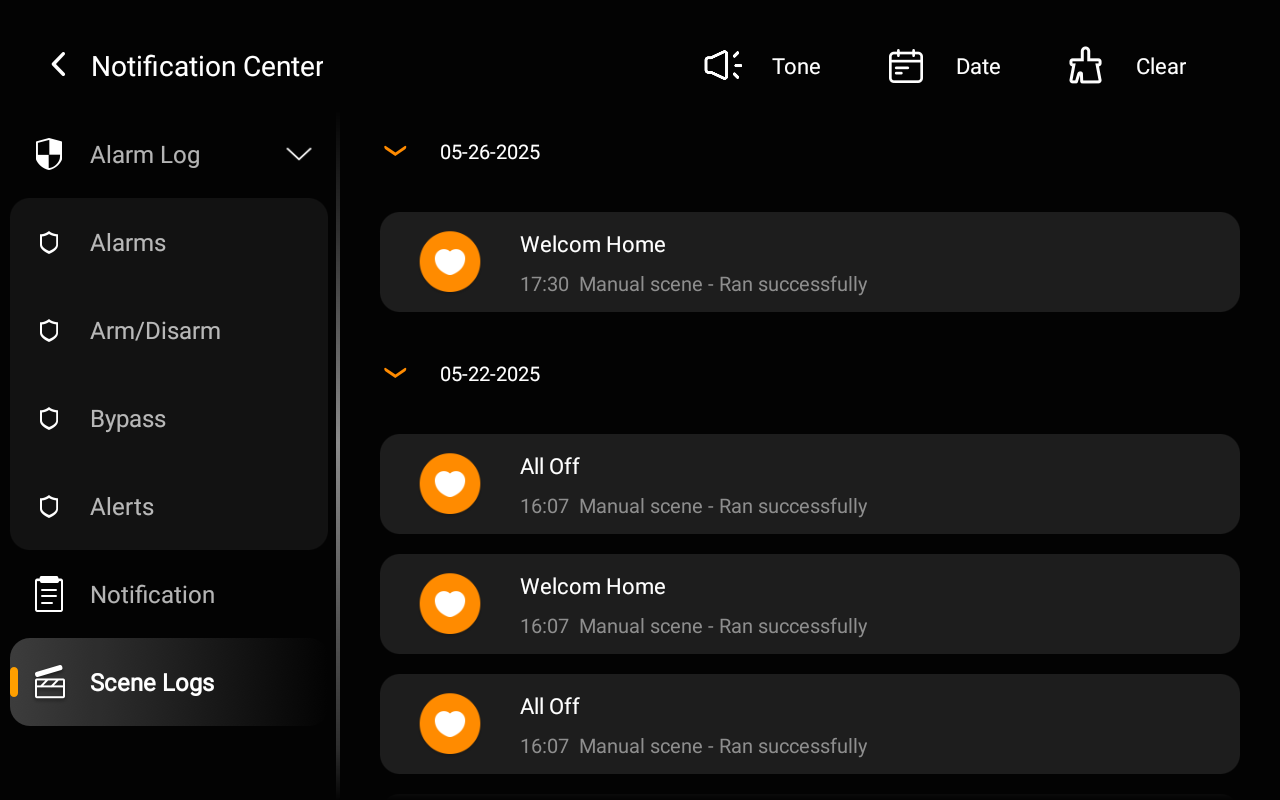
To see all scenes running logs, swipe down from top of any screen, tap  or directly tap
  at the upper right of the Home screen to enter the Notification Center, and select Scene Logs.
Batch import scenes
You can reuse custom automation scenes across homes using a scene template.
Before importing, ensure you’ve completed the setup steps by following this guide.
Swipe down from the top edge of any screen, and tap
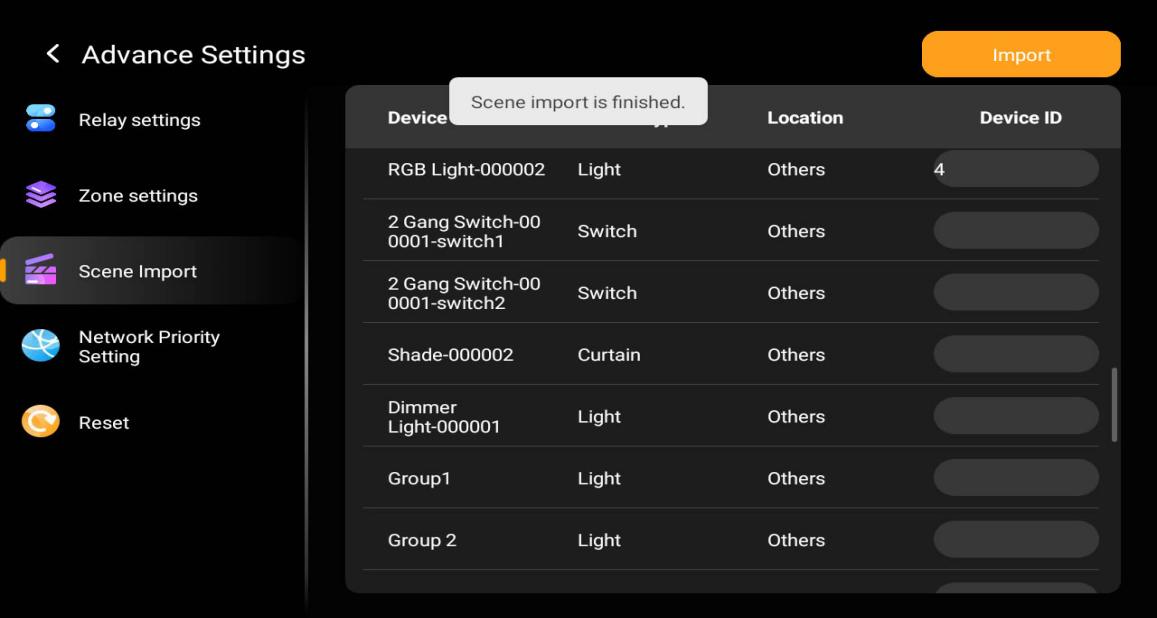
 > Advanced Settings > Scene Import.
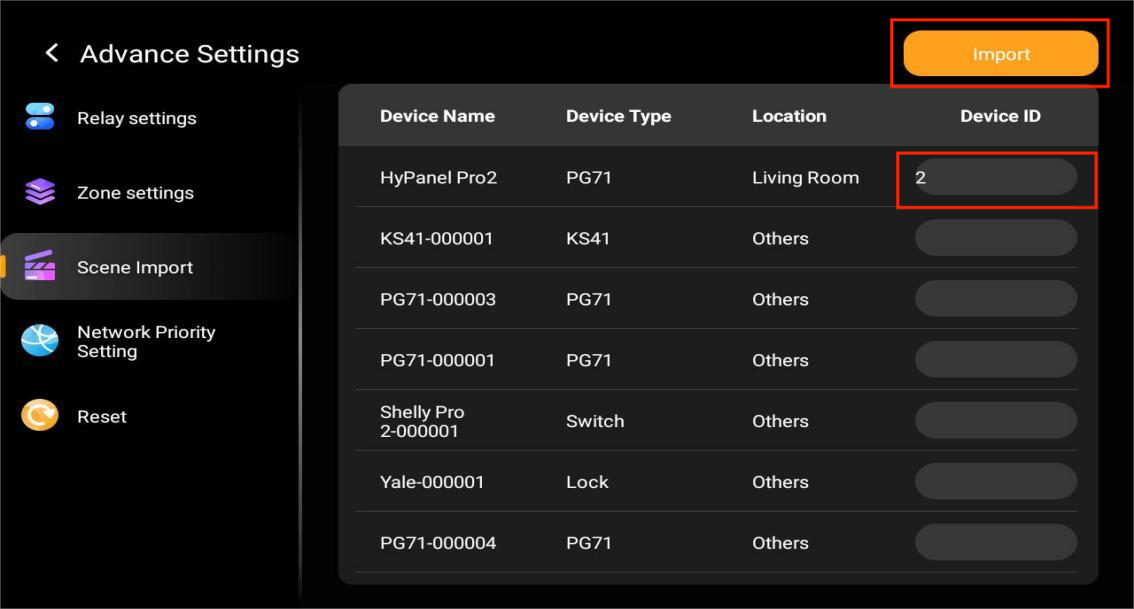
Enter all Device IDs exactly as listed in the DeviceIDList file, then tap Import.
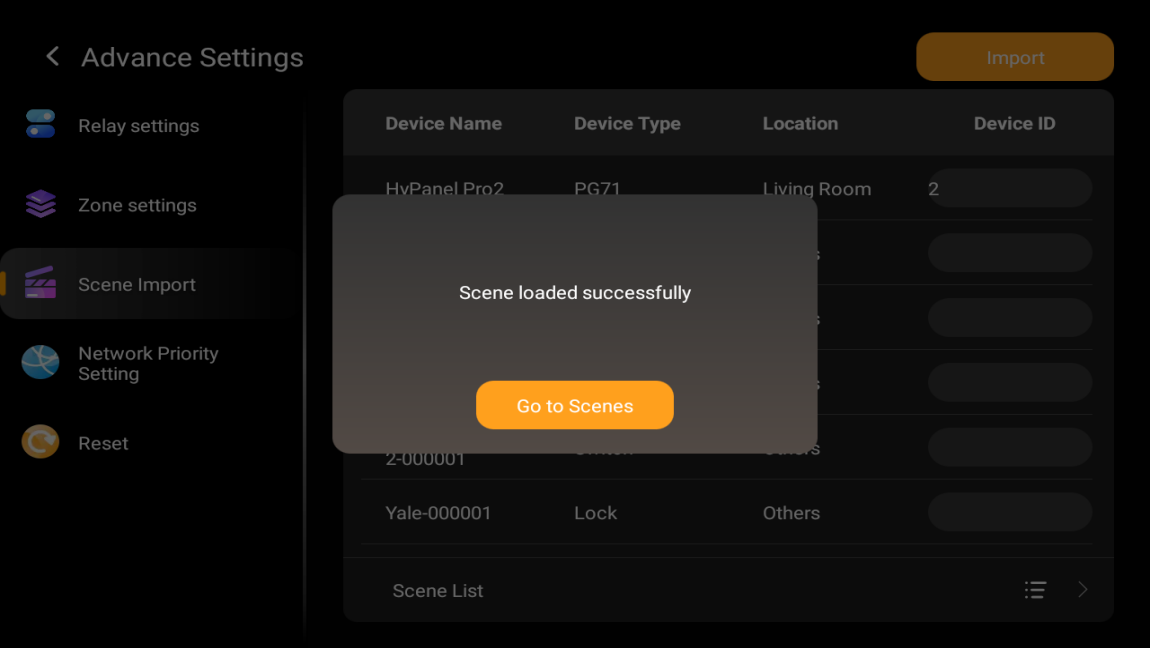
Tap Go to Scenes to view the results.
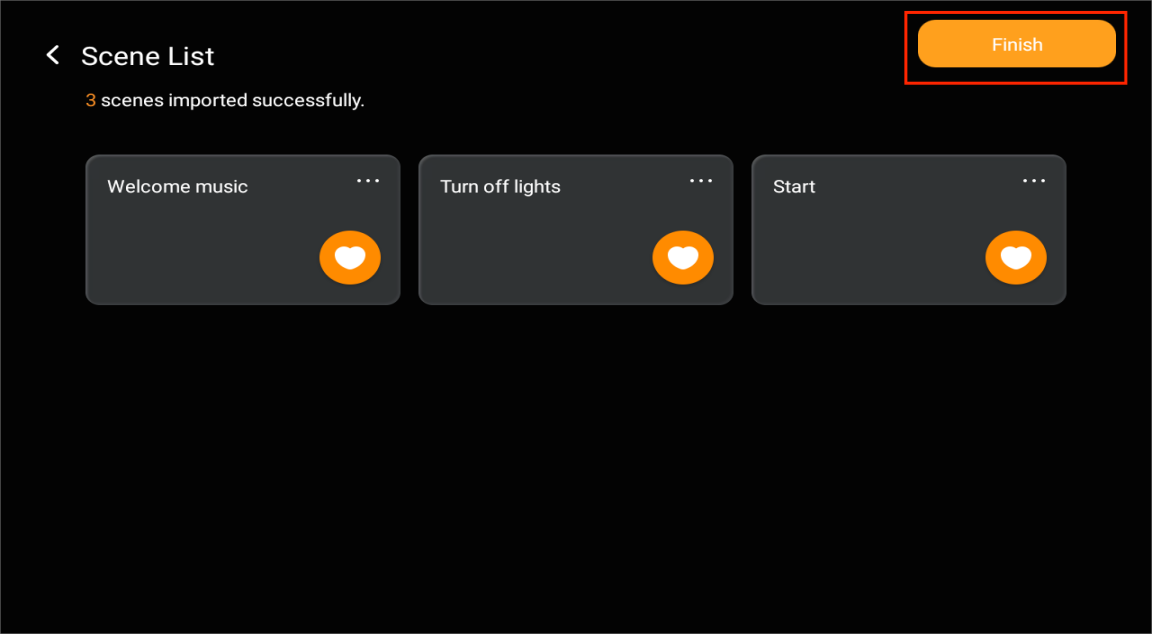
Do any of the following:
If all scenes are imported successfully, tap Finish.
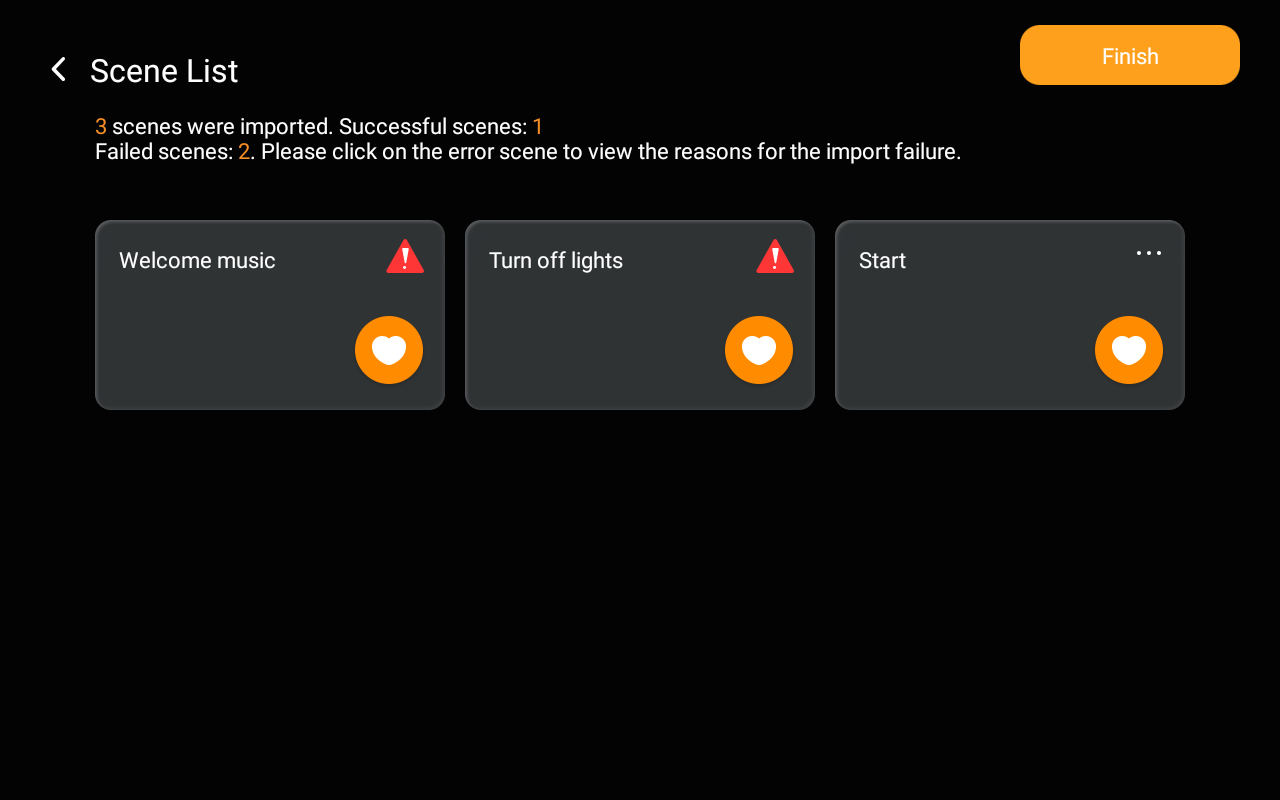
If some scenes failed:
Tap the failed scene card.
b. Tap  > Association to manually match devices.
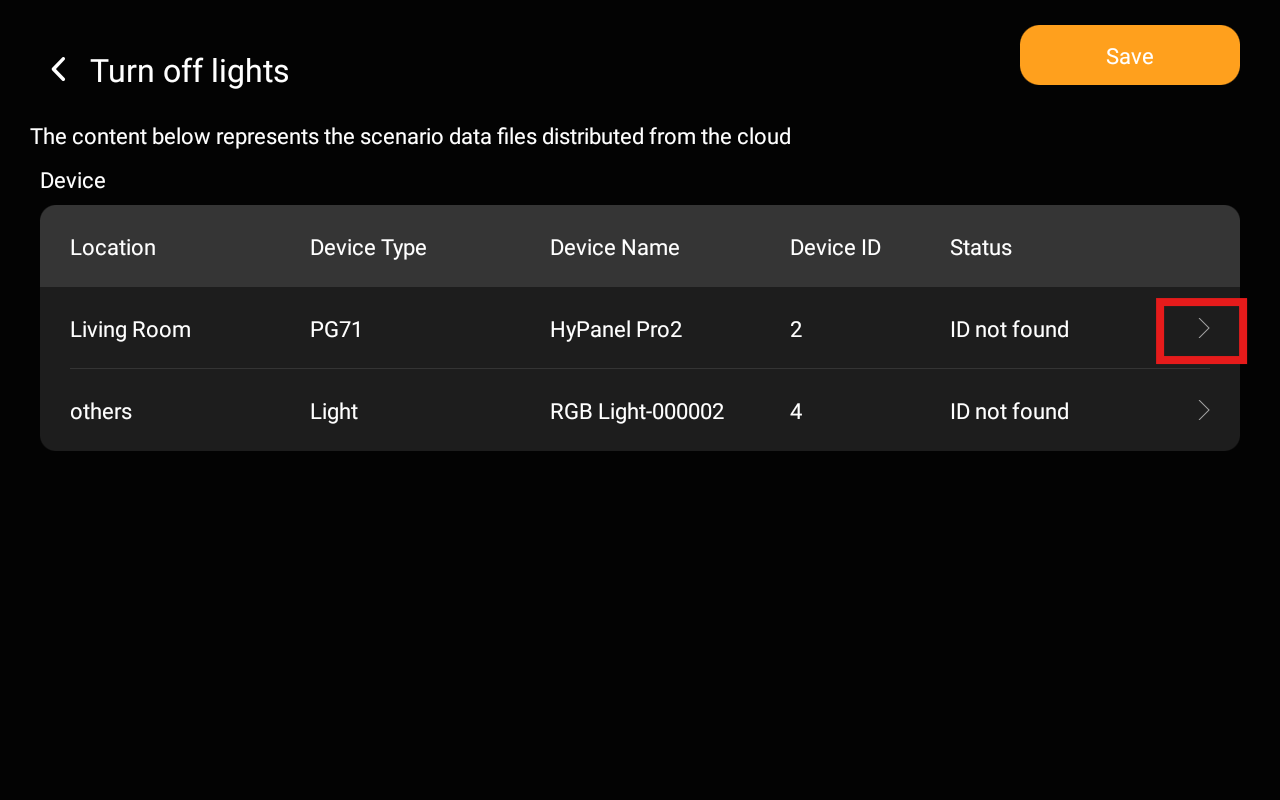
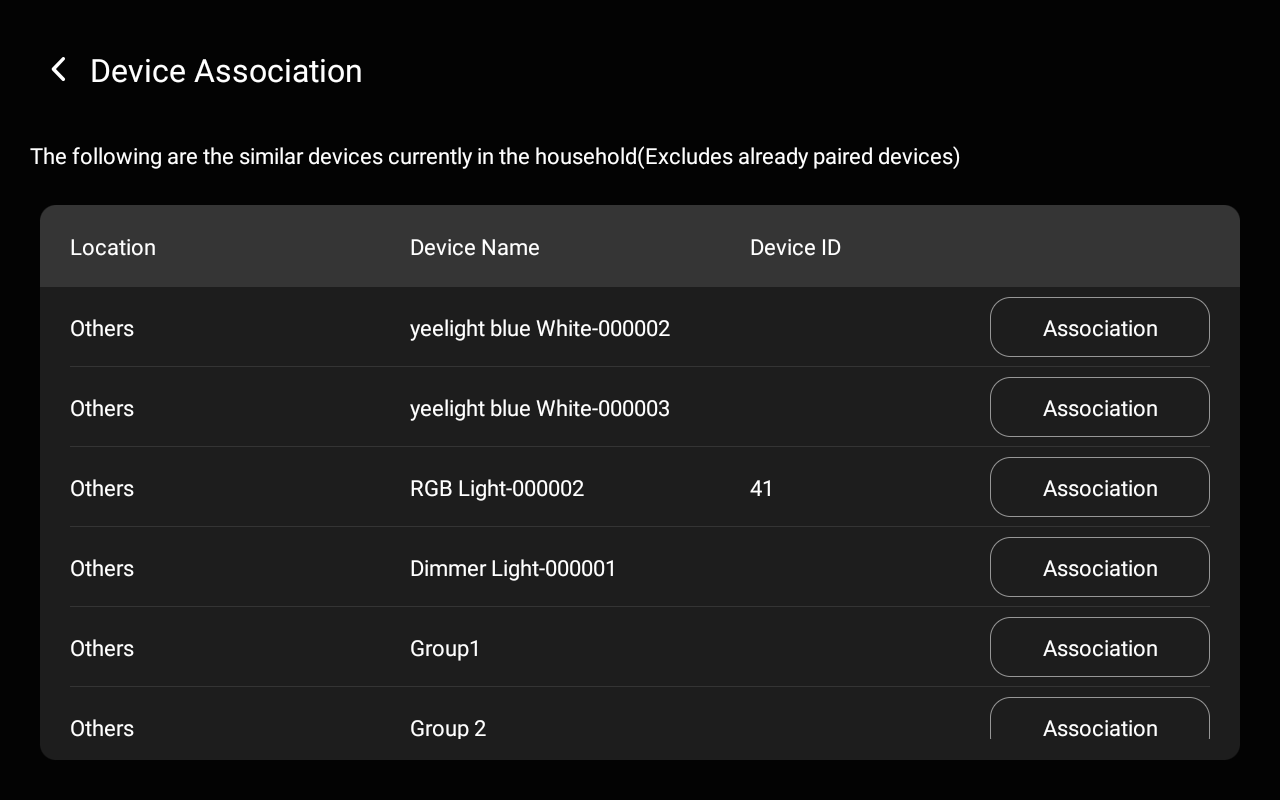
c. Tap Save > Finish to complete import process.