HyPanel Pro can integrate with Amazon Alexa, Apple HomeKit and Spotify, providing effortless and convenient home control.
Amazon Alexa
By integrating with Alexa, you can voice-control all your Amazon devices using Alexa.
Swipe down from the top edge of any screen, then tap
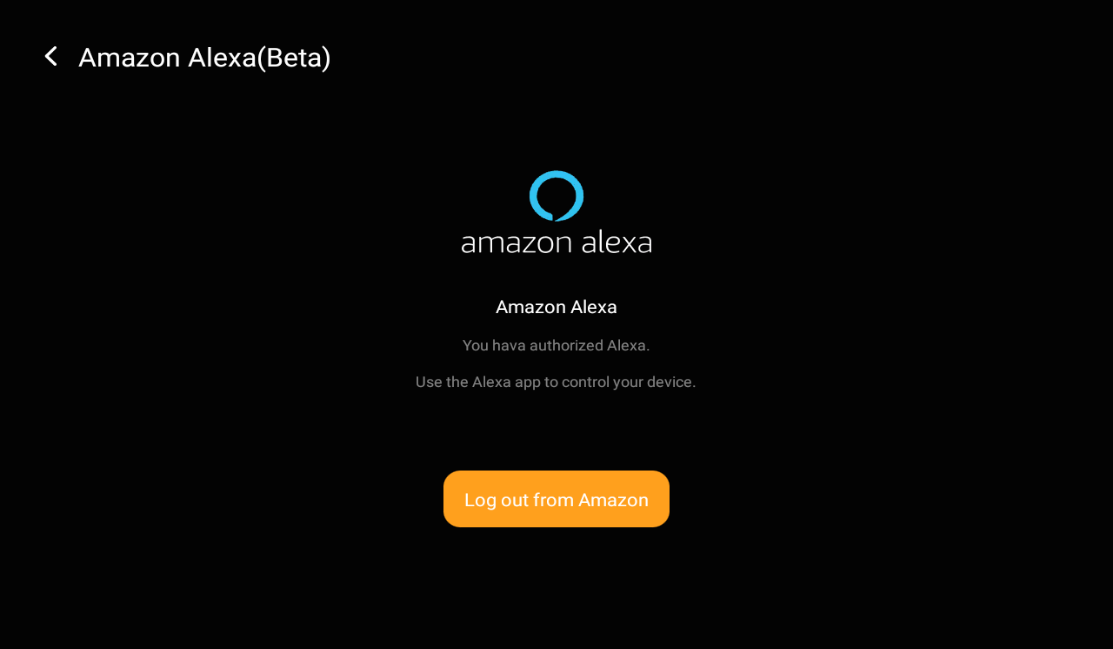
 > Integration > Amazon Alexa(Beta) > Log in to Amazon.
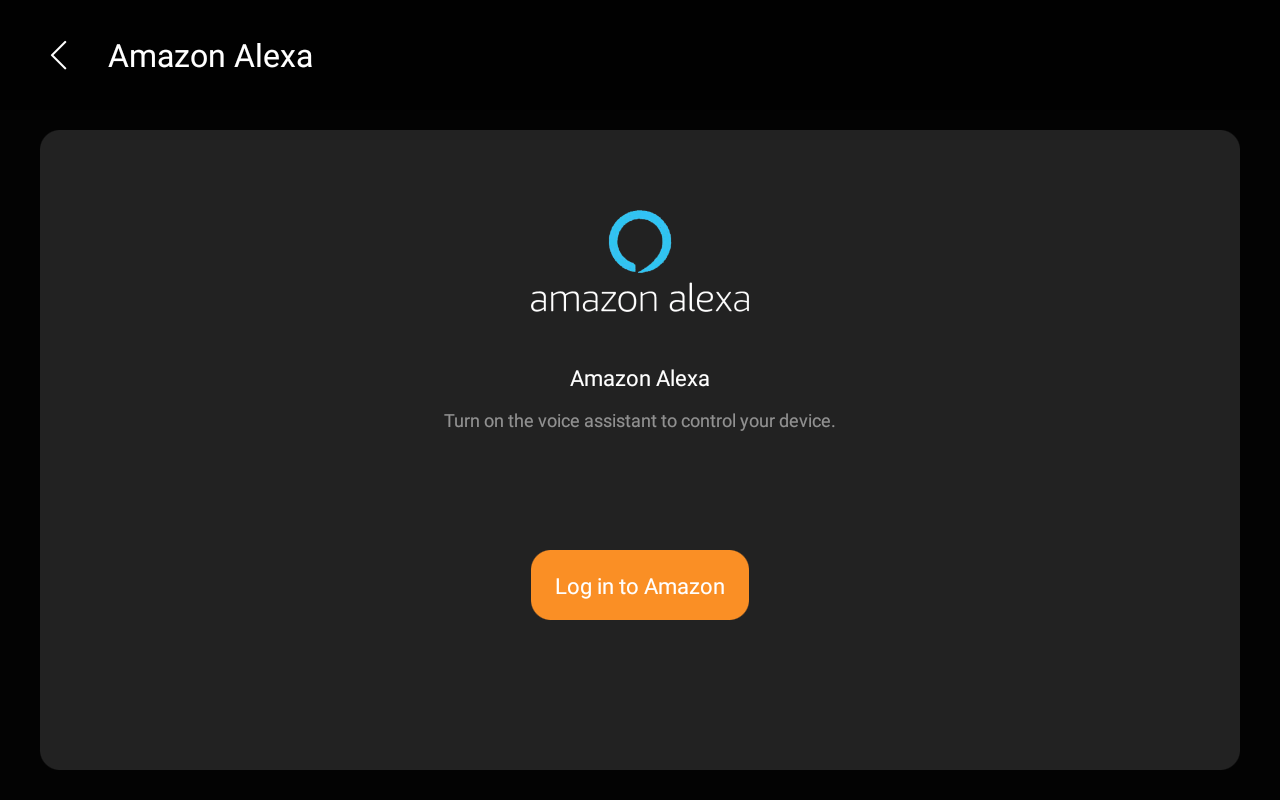
Log in to your Amazon account, and then click Allow to authorize.
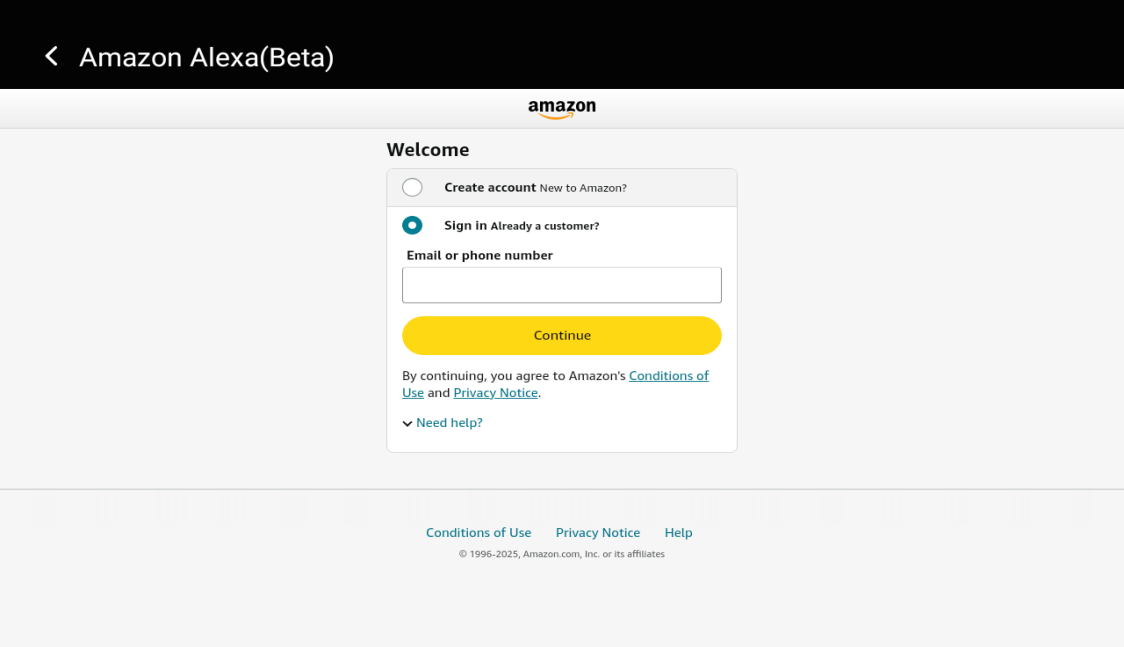
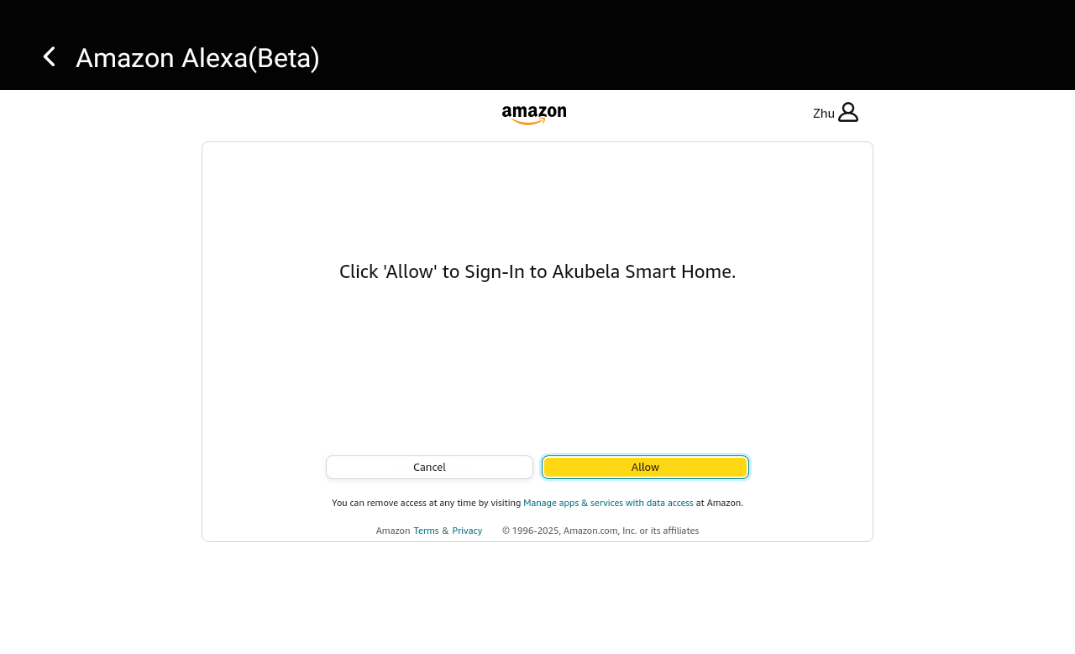
Follow the onscreen instructions to complete the integration. Once finished, you can control akubela devices and scenes directly through the Alexa app.
Apple HomeKit
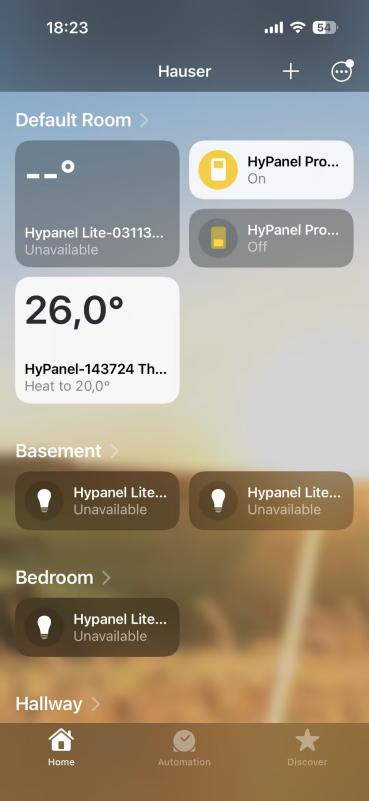
After integration, you can effectively control all devices connected to HyPanel devices using Apple's Home app.
Make sure your Apple device is on the same network with the HyPanel.
Swipe down from the top edge of any screen, then tap
 > Integration > Apple HomeKit(Beta). The following screen displays.
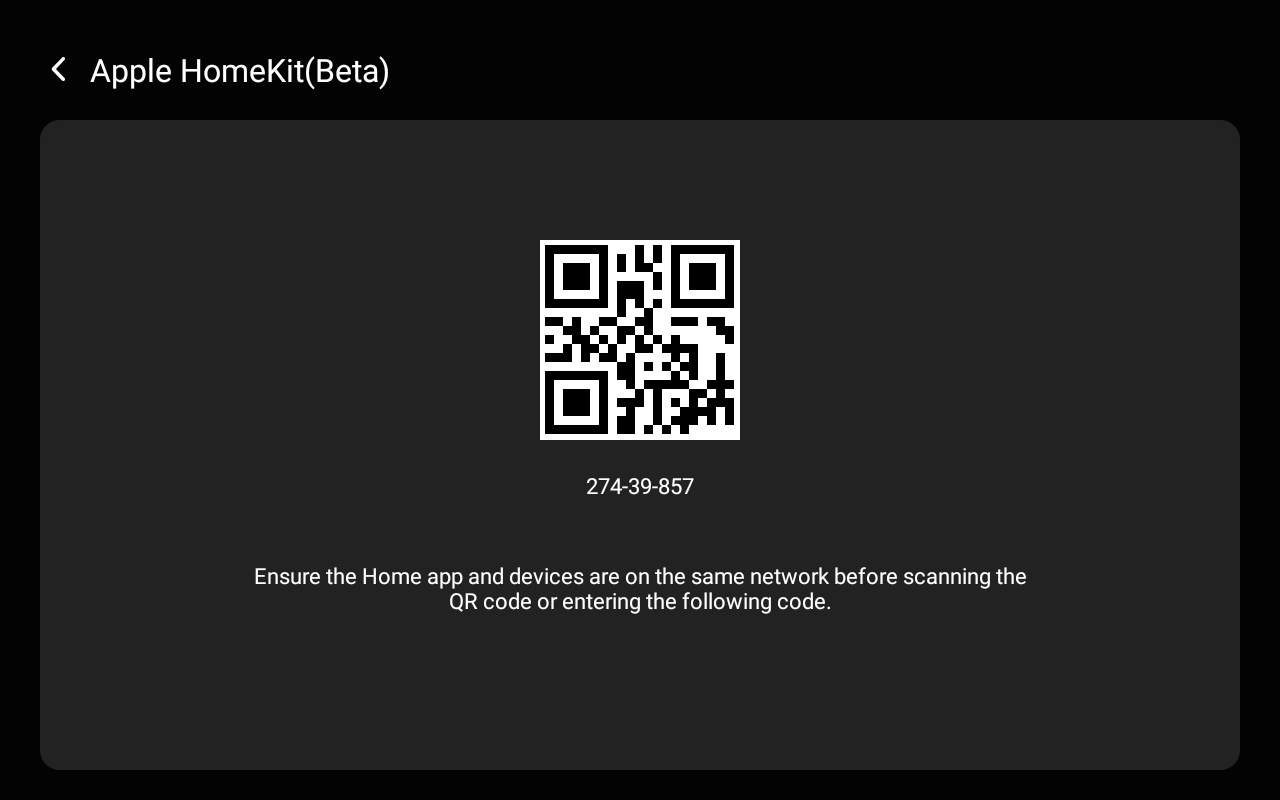
Open the Home app on your Apple device, log in with your iCloud account and continue to tap Add or Scan Accessory.
Scan the QR code.
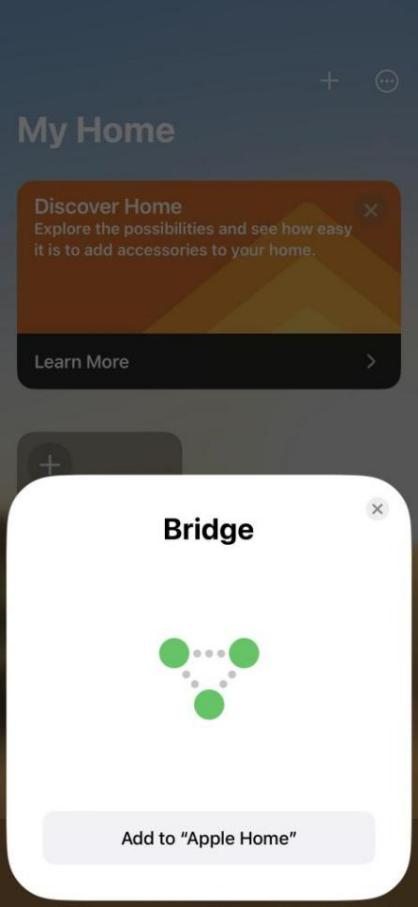
Tap on Add to “Apple Home”. Follow the onscreen instructions to add all your devices and set them up.
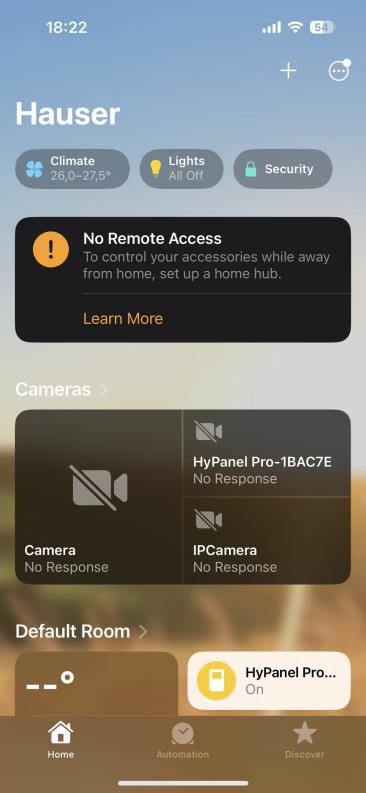
Once completed, added devices (door phones and ACs excluded) are accessible within the app. Additionally, a successful confirmation screen is displayed on the HyPanel Pro.
You can control added devices directly on the Home app or via Siri. Refer to this page for common Siri commands.
Spotify
By integrating with Spotify, you can log in to your Spotify account and play music and podcasts through Hypanel Pro.
Swipe down from the top edge of any screen, then tap
 > Integration > Spotify > Log in to Spotify.

Log into your Spotify account and follow the onscreen instructions to complete the integration.
Third-party applications
HyPanel Pro supports the installation of third-party apps via its device web portal. For detailed instructions, please refer to this guide.
Once installed, the app will appear on the Home screen.
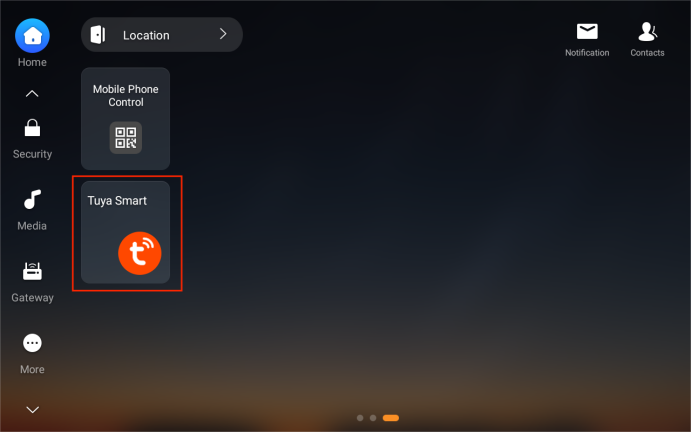
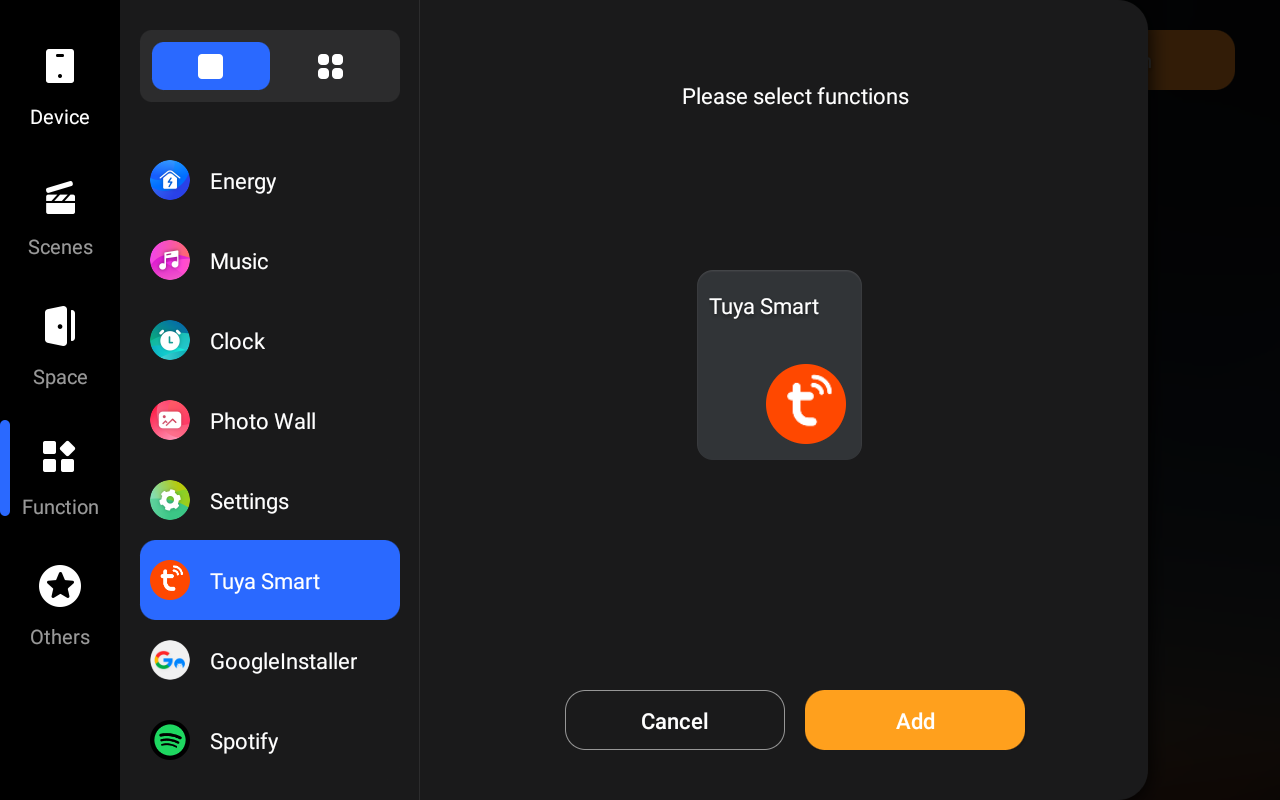
If it doesn't appear automatically, you can manually add it for quick access:
Tap and hold the blank area of the Home screen.
Select
 > Function > [Installed app] > Add > Finish.
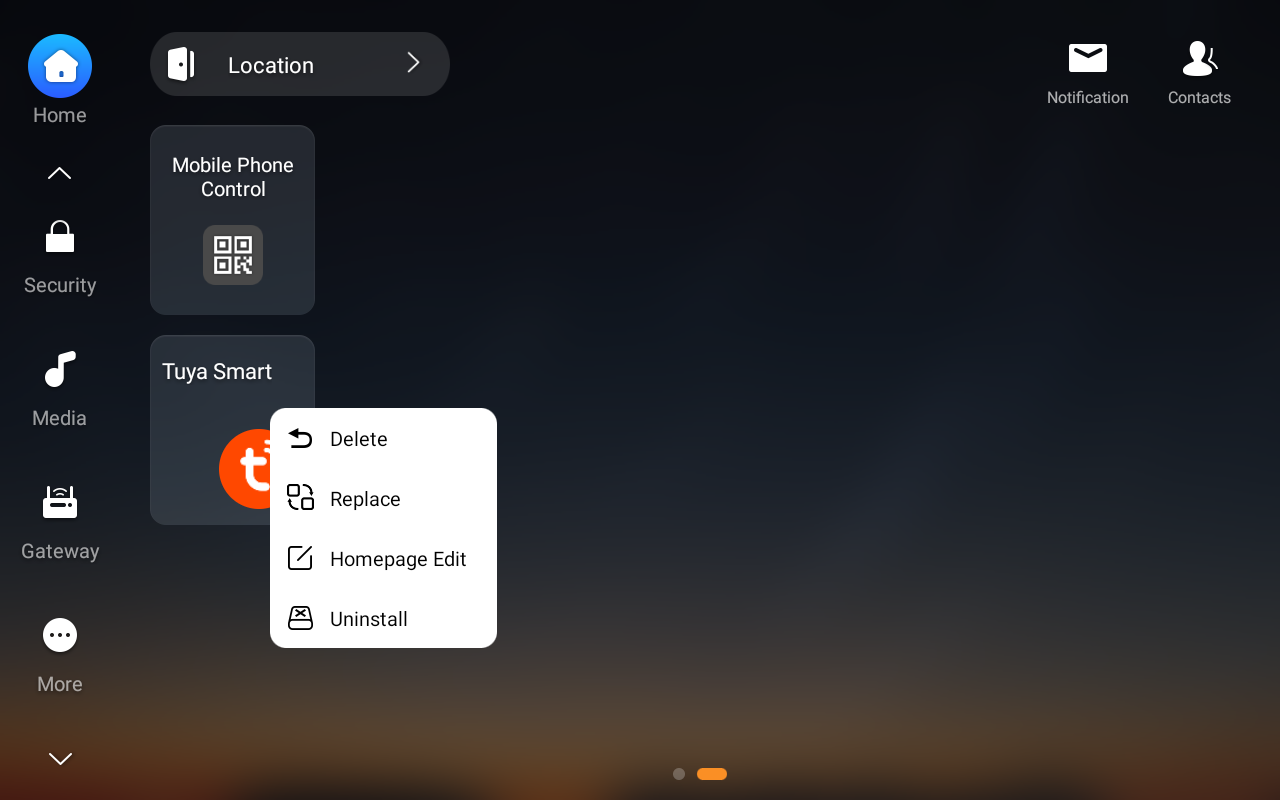
To uninstall the app, simply long-press its card, and then select Uninstall.