Scenes lets you control your smart devices based on an action, an event, a schedule, or with a simple tap. You can run a scene on the panel, BelaHome app, and the user web portal.
NOTE:
The Scenes feature is only available when HyPanel Lite is a home center device and connected to the cloud.
Before you can automate your home devices using Scene feature, you need to create scenes on either the user web portal or BelaHome app.
Activate your scene
Automation scene types
The following are three types of automation scene and their symbols shown on user web portal and BelaHome app:
A scene only with auto condition(s): it can be activated based on a schedule or an event.
NOTE:
This type of scenes are not displayed on the HyPanel Lite screen. You can see them on user web portal or BelaHome app.
A scene with the manual condition: a scene set to be activated based on a tap or click on the scene image.
A scene with both auto and manual conditions: a scene based on a schedule, an event, and a tap or click. When any of the conditions is met, the scene will be activated.
Run a scene with manual activation conditions
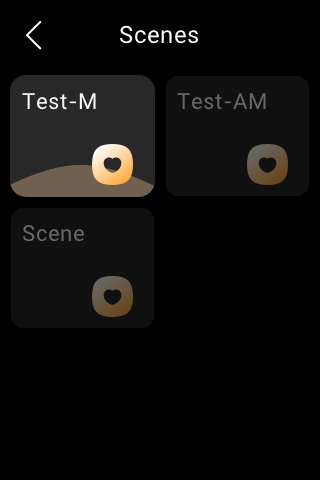
On the Scenes screen, to activate a scene with manual conditions, just tap it. Its background will be highlighted and then back to be dimmed to show that the scene is activated.
Run a scene with time or action conditions
You do not have to do anything to run an auto scene. Once the preset conditions are met, the scene is activated automatically. You can log into the user web portal or BelaHome app to see auto scenes without a manual trigger condition.