Login
Open a browser and enter the device’s IP address to log into the device’s web interface. The default username and password are admin.
Note
The routes to obtain the IP address vary by model, you may refer to https://knowledge.akuvox.com/docs/before-entering-device-web-interface.
Also, you can use IP scanner to scan IP address(es) of all devices within the same LAN.
Google Chrome browser is strongly recommended.
Set up Network
To connect the indoor monitor to the C4 composer, the C4 mode should be enabled and discovery mode should be disabled in the indoor monitor.
For linux indoor monitors
S565 and S562.
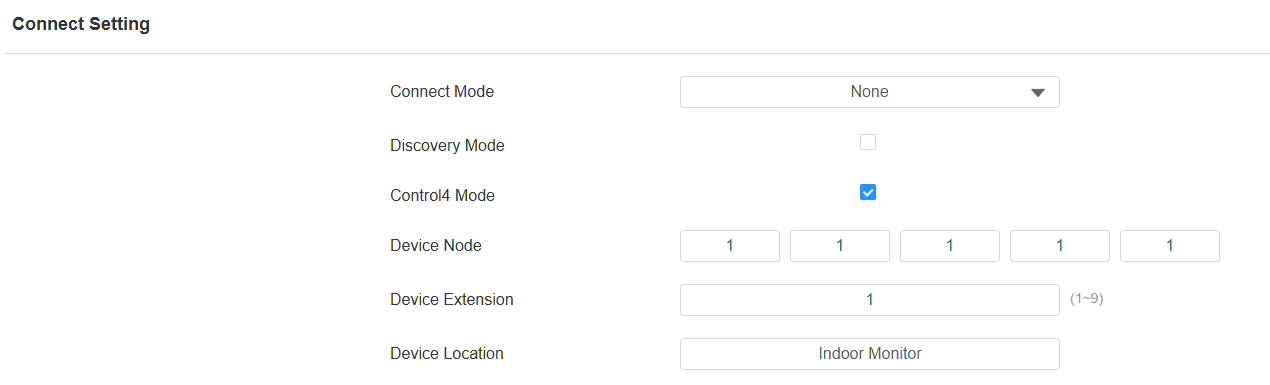
Go to Network > Advanced > Connect Setting.
Set Connect Mode to None and disable Discovery Mode.
Enable Control4 Mode. The device will reboot after you turn the switch on.
For Android indoor monitors
S567, S563, C319, C316, X933, and IT88.
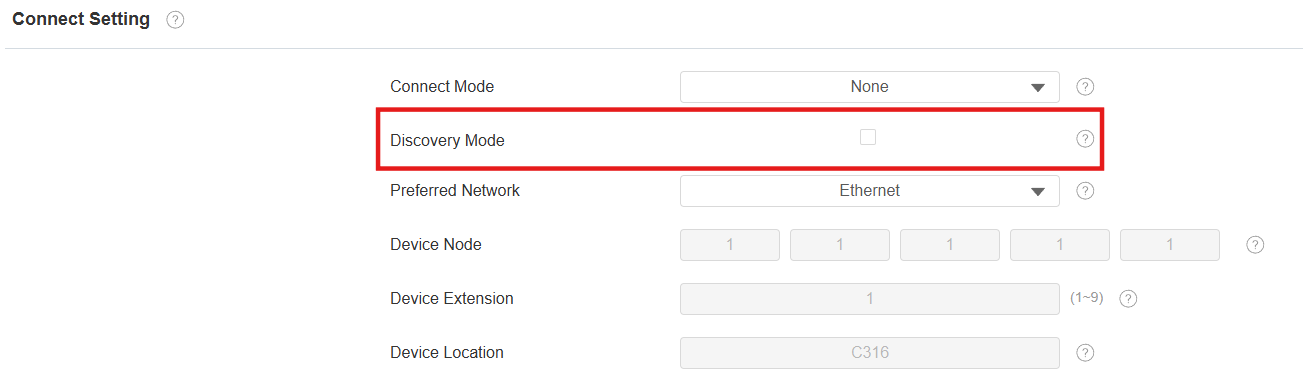
Go to Network > Advanced > Connect Setting.
Set Connect Mode to None and disable Discovery Mode. For S567 with the version 567.30.14.102 or higher, enable Discovery mode for connection with Control4.
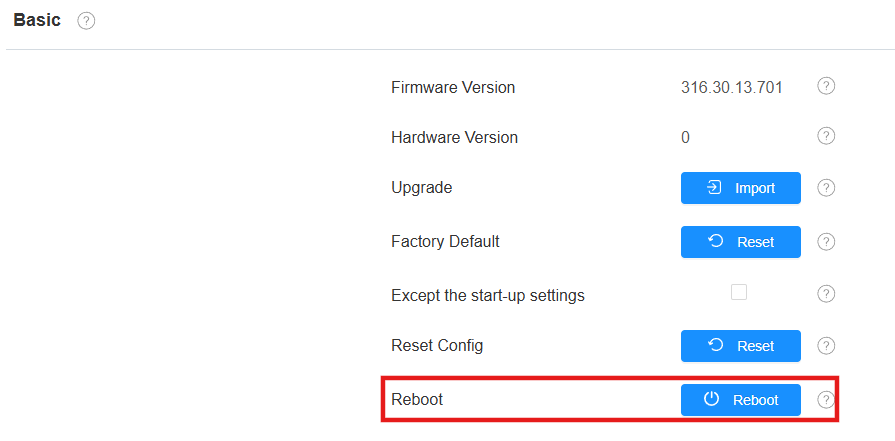
Go to Upgrade > Basic. Click Reboot to restart the device.
Features Configuration
Make Calls
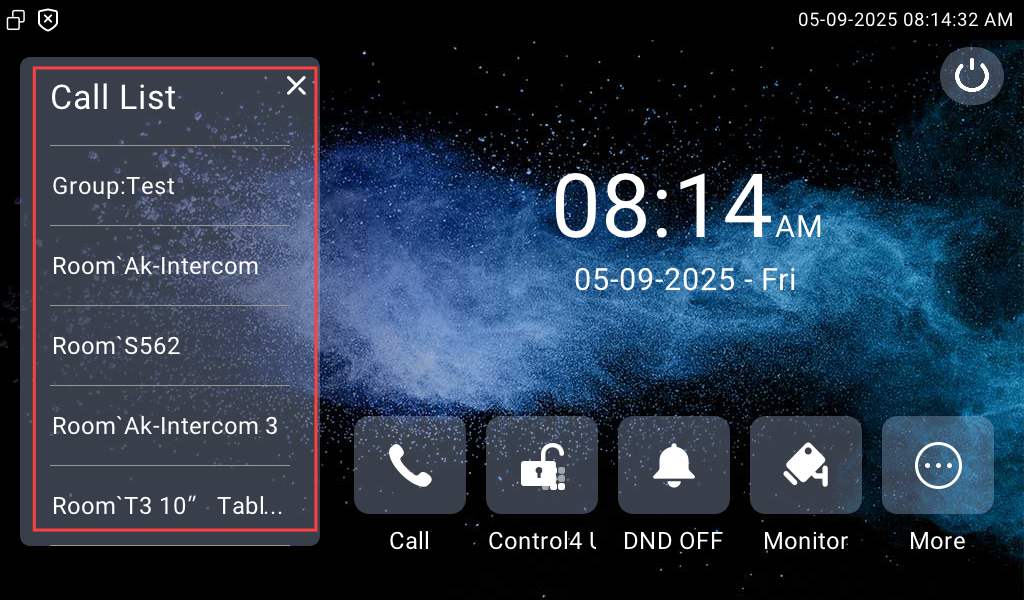
After connecting the indoor monitor to the C4 composer, C4 panel, Akuvox door phone, and groups will display in the contacts list.
Users can tap to call the desired device.
Unlock
Users can tap Unlock button to open the door phone’s relay after it is properly configured on the C4 composer.
Go to Device > Display Setting.
Select the desired area to display the Control4 Unlock button.
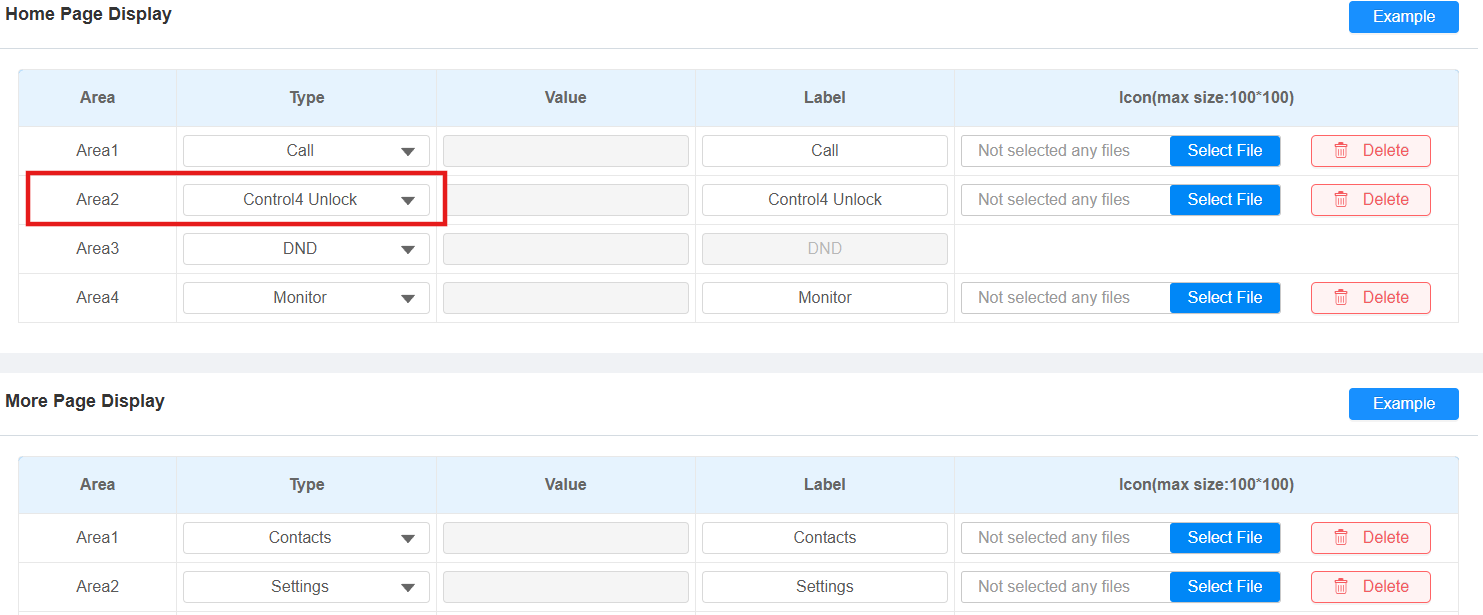
Click Submit.
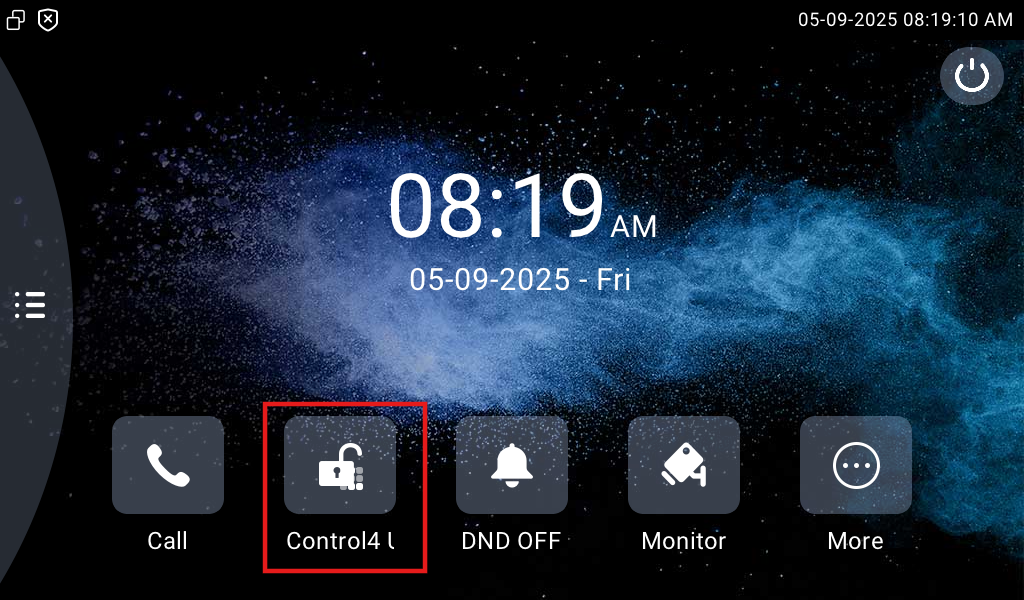
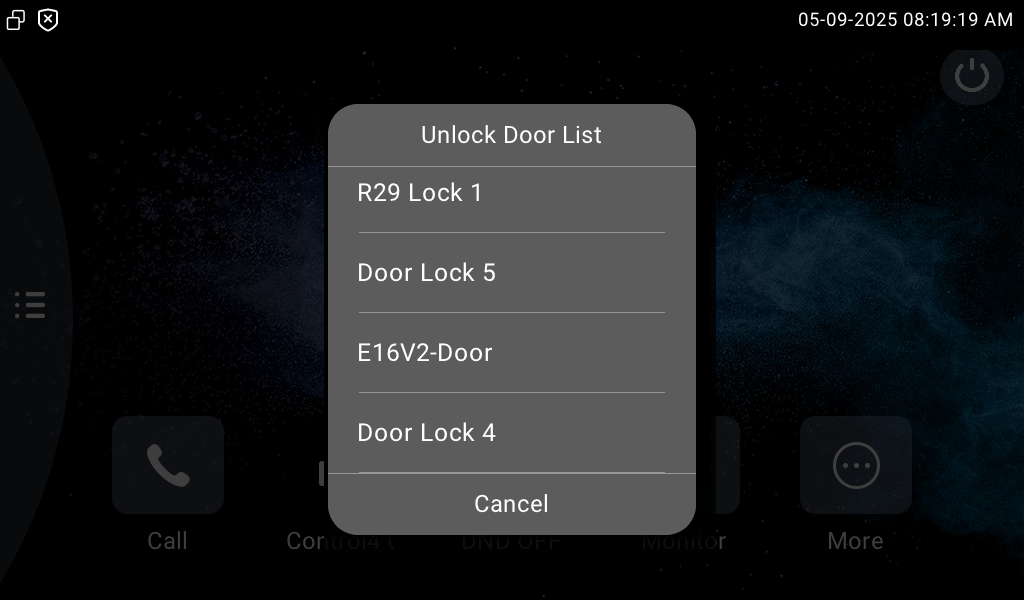
Select the desired lock to be opened.
Monitor
Users can view the live stream from the door phone after it is properly configured on the C4 composer.
Tap Monitor on the home screen and select the door phone’s camera. The camera name is the same as that on the C4 composer.