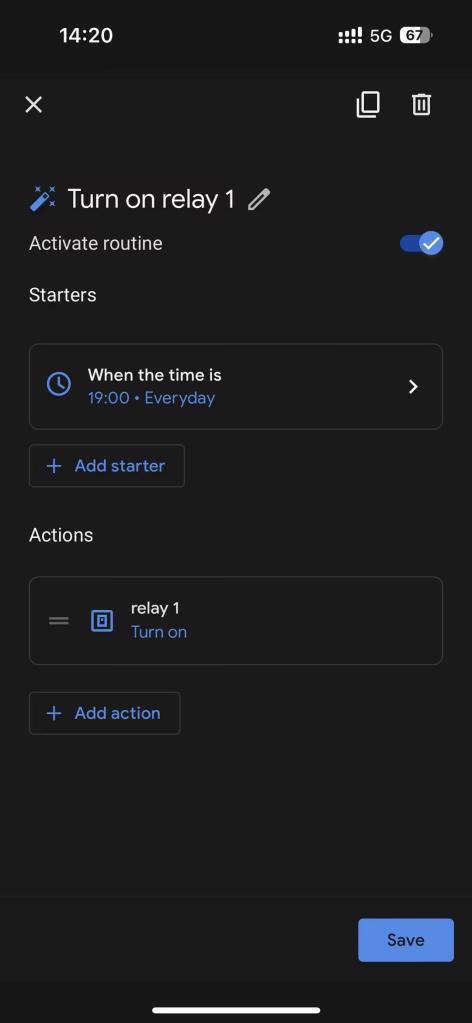
By linking your akubela account to the Google Home app, you can sync and control up to 150 akubela devices remotely using the app or voice commands with Google Assistant.
Before Getting Started
The following panels with specific firmware versions support integration with Google Home. We recommend updating the panels to the latest versions for best experience.
Device | Required Version | Remark |
HyPanel | 51.1.30.61 and later | |
HyPanel Lite | 41.1.31.13 and later | Supports integration only when used as a gateway |
HyPanel Plus | 52.1.31.37 and later | |
HyPanel KeyPlus | 53.1.34.14 and later | |
HyPanel Lux Piano(RT61) | 61.1.30.53 and later | |
HyPanel Lux Ring (CT61) | 161.1.30.76 and later | Supports integration only when used as a gateway |
HyPanel Pro | 71.1.30.63 and later | |
HyPanel Ultra | 281.1.31.18 and later | |
HyPanel Supreme | 1001.1.31.37 and later | |
SmartPanel | 933.1.35.16 and later | |
SmartPanel Elite 10 | 119.1.35.15 and later |
Ensure proper network and cloud connection:
Both your smartphone and HyPanel devices must be connected to the Internet.
Your panels must be cloud-connected (not operating in Local Mode).
TIP: If the panel shows weather information, it’s connected to the cloud. You can also verify this by going to
> System Settings > Connect Status > Smart Home Cloud.
Use a valid akubela administrator or manager account.
To register an account after the cloud connection:
On HyPanel: Tap Account Registration on the home screen.
Ask your service provider to create an account for you.
Manager accounts can only be created by the administrator.
Know device limitations:
Max supported devices: 150 per home.
Devices cannot be synced to the Google Home: IR-based TVs, door bells, access controls, and local intercoms added through the device web portal.
Sync Devices from akubela
Log in to the Google Home app.
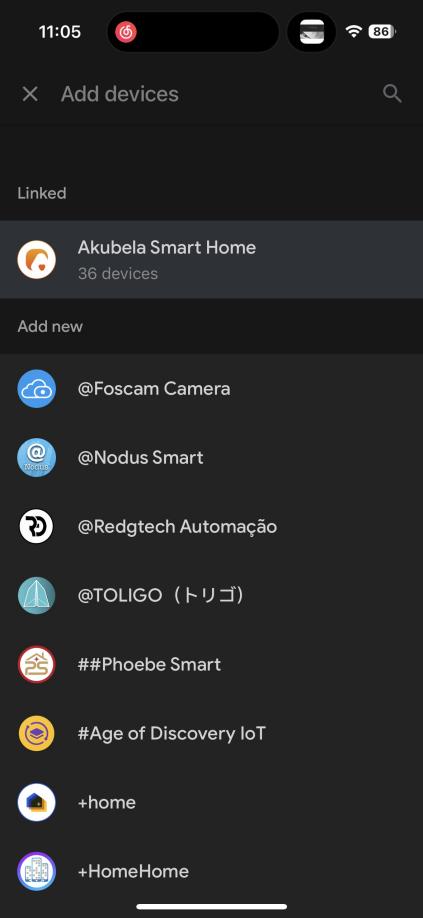
Go to Settings > Works with Google.
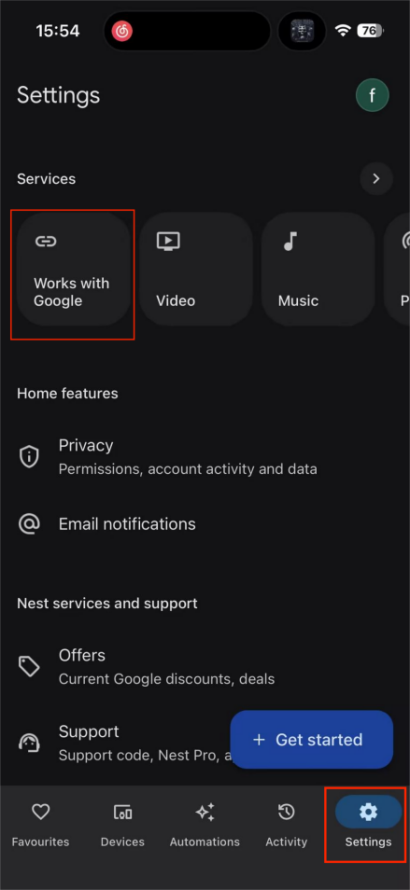
Tap
 and search for “akubela”. Select the result.

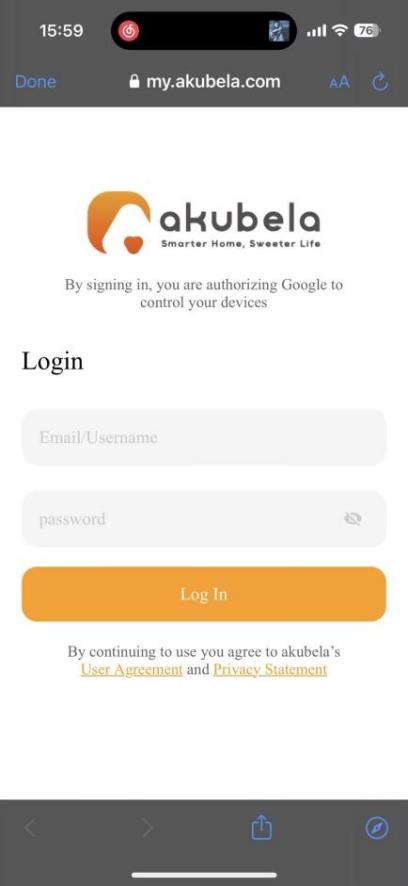
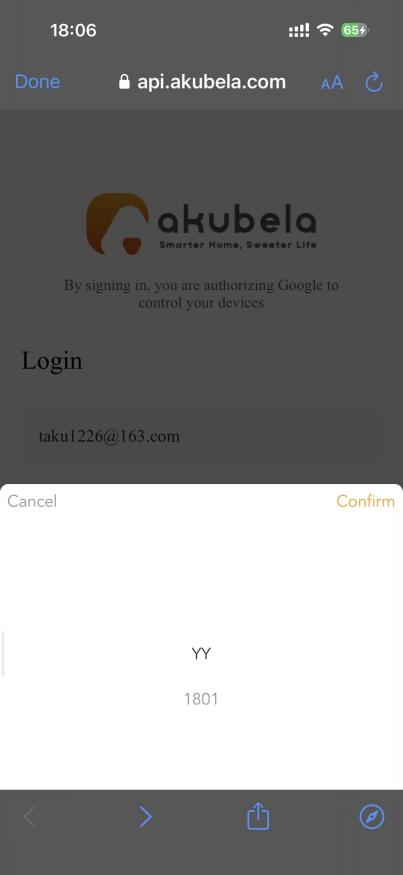
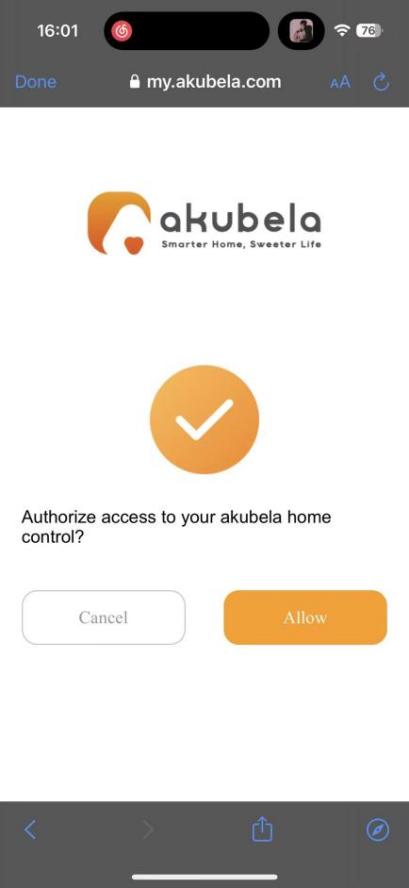
log in with your akubela account. If your account is linked to multiple families, select one to authorize.
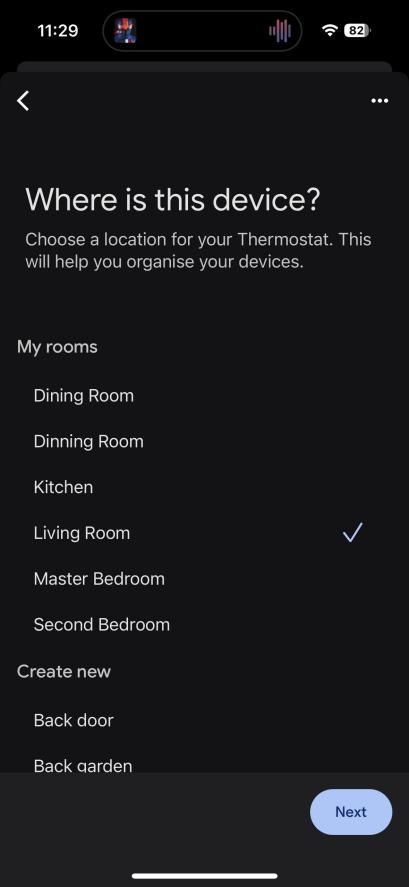
Assign devices to rooms if they were not automatically grouped by room.
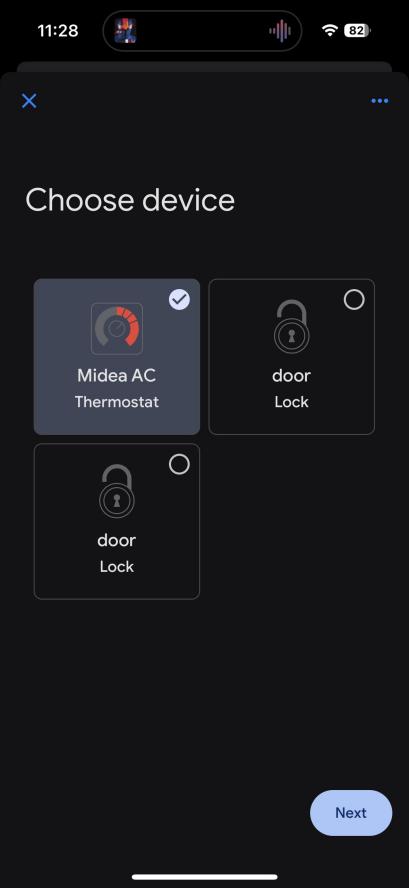
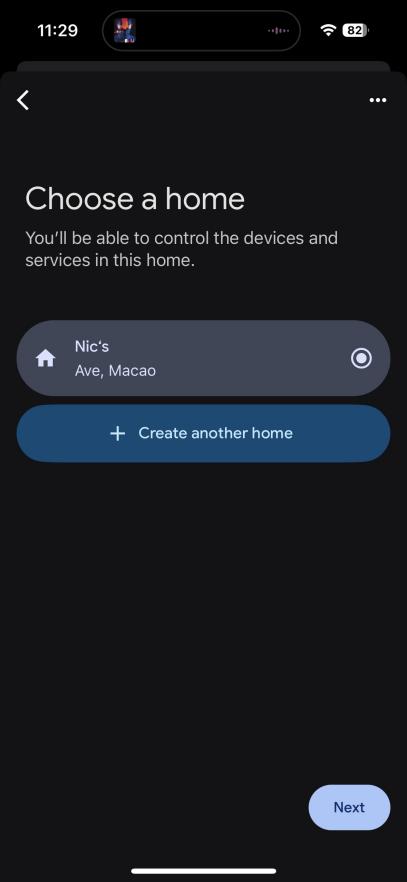
Once linked, your akubela devices will appear on the Devices screen.
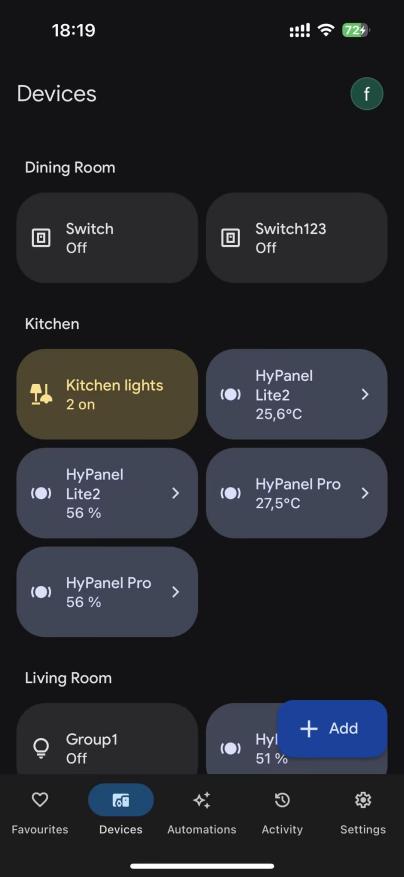
NOTE:
To sync newly added devices or update device names, refresh the Devices screen in the Google Home app.
Changes made in Google Home will not sync back to your akubela panels.
Unlink akubela from Google Home
To remove the integration, you can do either of the following:
Go to the Devices screen, tap and hold any device, then select
 > Unlink Akubela Smart Home.
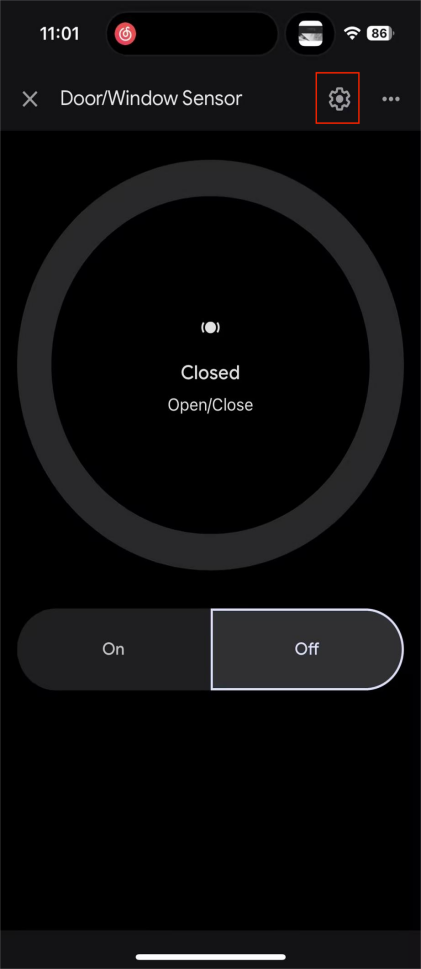
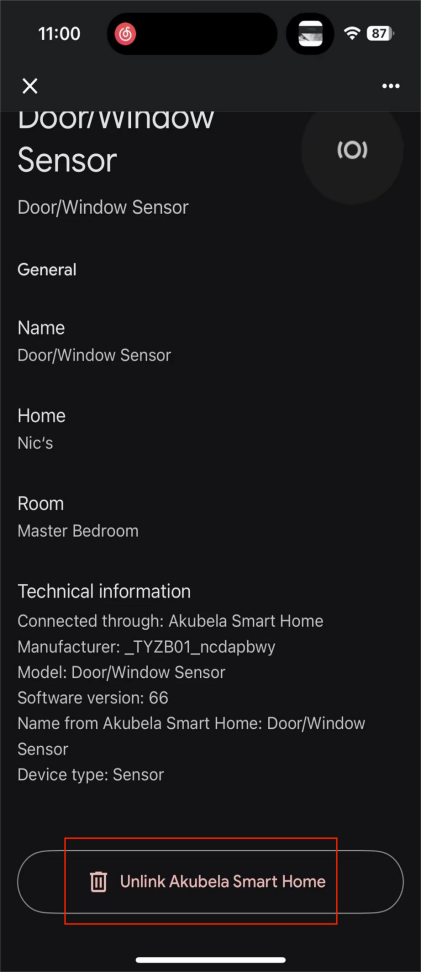
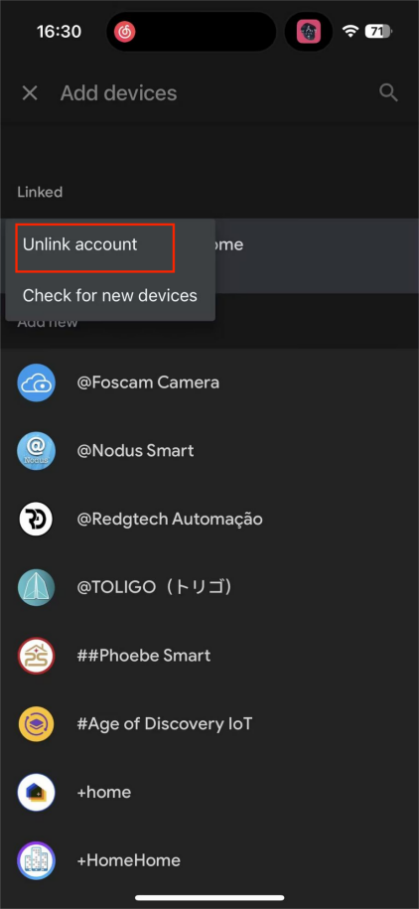
Go to Settings > Works with Google, tap and hold Akubela Smart Home, and then select Unlink account.
Control Devices on Google Home App
Using Manual Operations
Launch the app.
Go to the Devices screen.
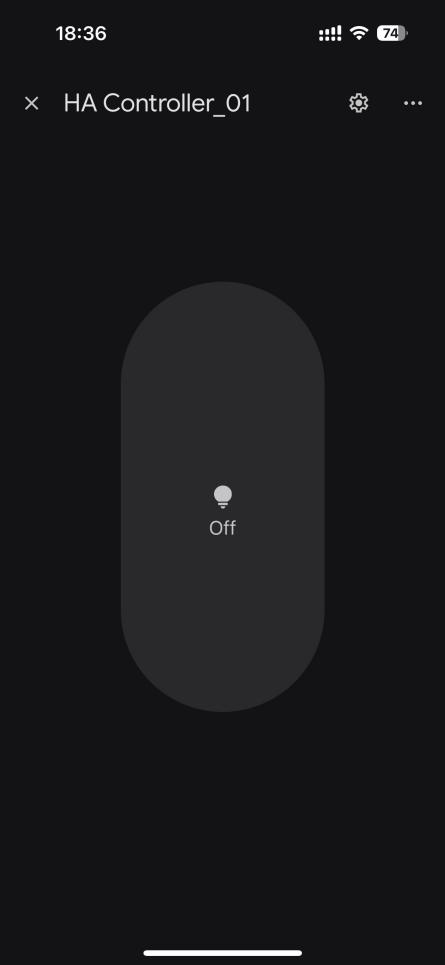
Tap a device to turn it on or off, or tap and hold to open the control screen for more options.
Automate With Routines
In the Google Home app, go to Automations > Create.
Choose the routine type: Household or Personal.
Set the following:
Name
Starter (e.g. a voice command, specific time, or device event)
Actions (e.g. turn on a device, adjust a light)
Activate the routine and tap Save.