Installers and distributors can upgrade panels to the latest or a specific firmware version either locally through the device web portal or remotely via the akubela Cloud.
Local Upgrade
Installers and distributors can update devices to the latest or a specified firmware version via the device web portal, with or without cloud connectivity.
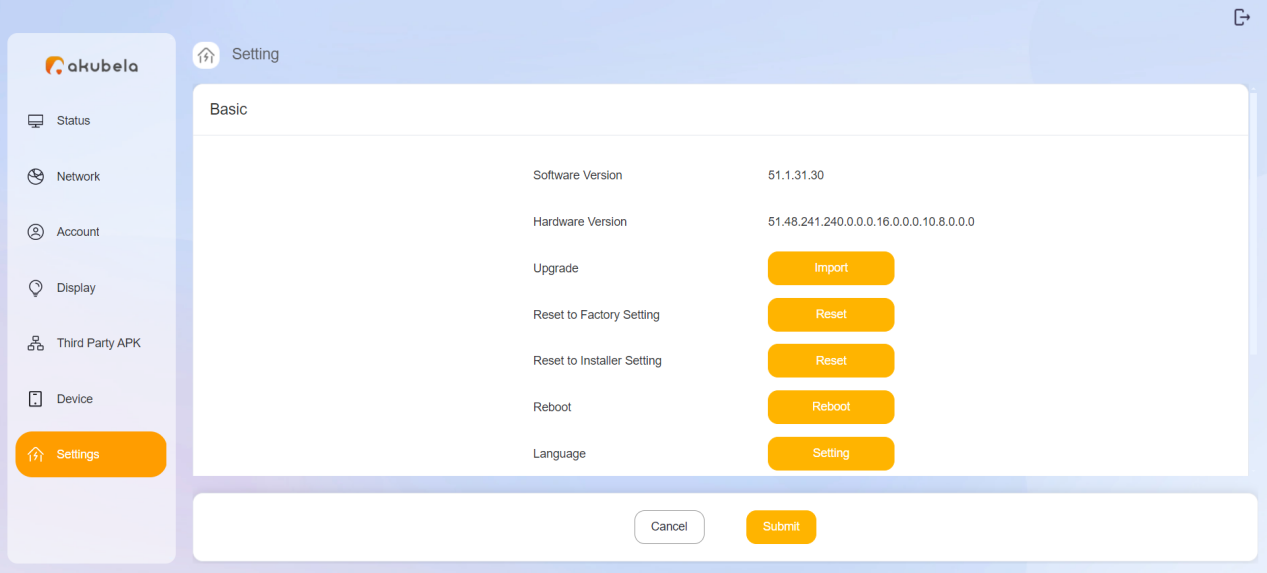
Open a browser and enter the device’s IP address and log in to the device web portal The default username and password are both admin.
TIP:
For detailed login instructions, please refer to this guide.
Go to Settings > Upgrade.
Click Import to upload the firmware file.
TIP:
The latest firmwares are available on the Akuvox Knowledge Base. For other specific versions, please contact akubela technical support.
Wait for the device to complete the upgrade.
Cloud-Based Upgrade
When devices are cloud-connected, distributors and authorized installers can upgrade them via the akubela Cloud platform.
NOTE:
Installers do not have the upgrade permission by default.
Distributors can assign upgrade permissions by going to Device > Update > Update Permission on the akubela Cloud platform.
Two upgrade options are available:
Common Upgrade:
Allows upgrading one panel model across up to 5 projects at a time.
Available to both distributors and authorized installers.
Batch Upgrade:
Allows upgrading multiple panel models across up to 5 projects.
Available to authorized installers only.
Start Upgrade Tasks
In this example, we’ll use an authorized installer account.
Common Upgrade
Log in to the cloud website. Please Refer to the appropriate login link based on your region:
Click on the akubela image on the right.
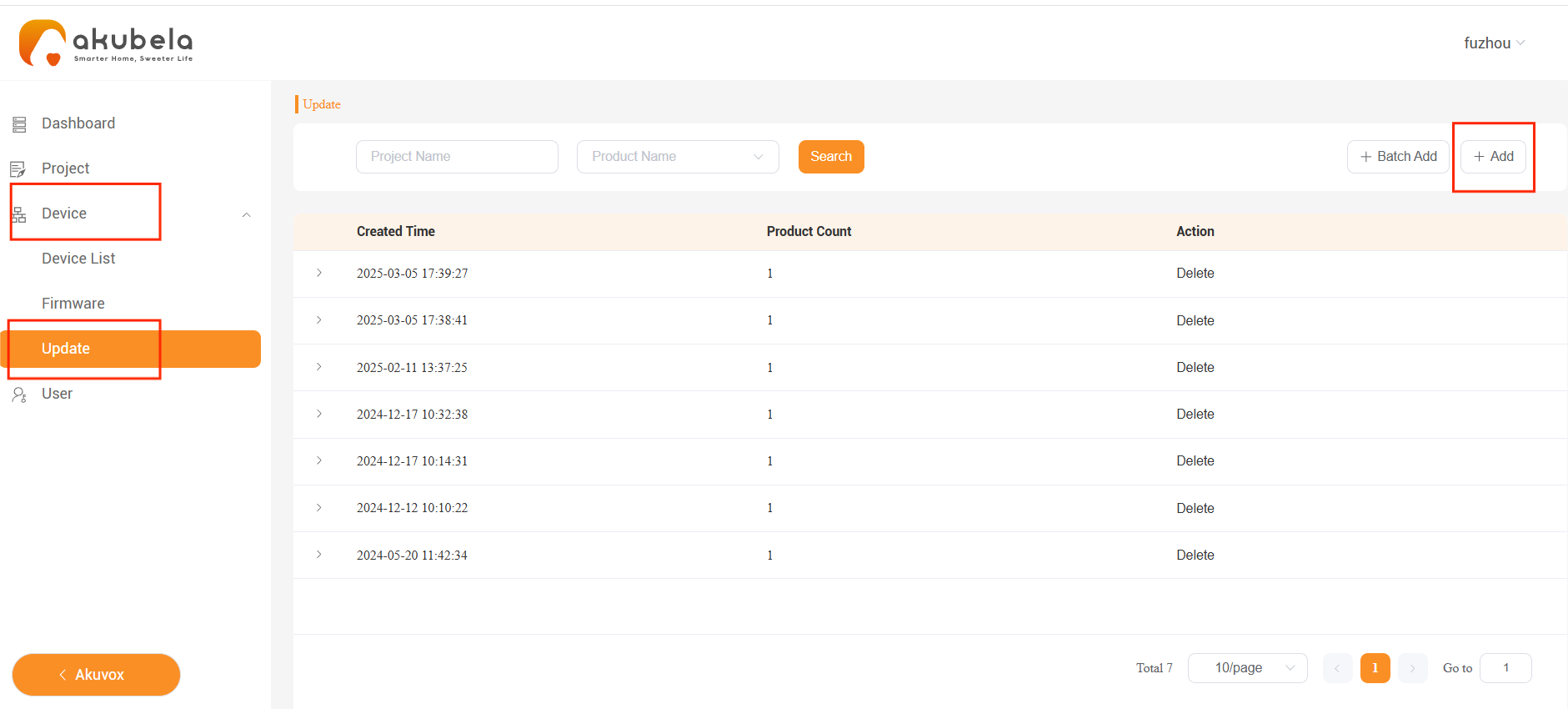
Go to Device > Update > Add.
On the pop-up window, do as the following:
a. Select the desired project(s) on the left, and click
 to move them to the right.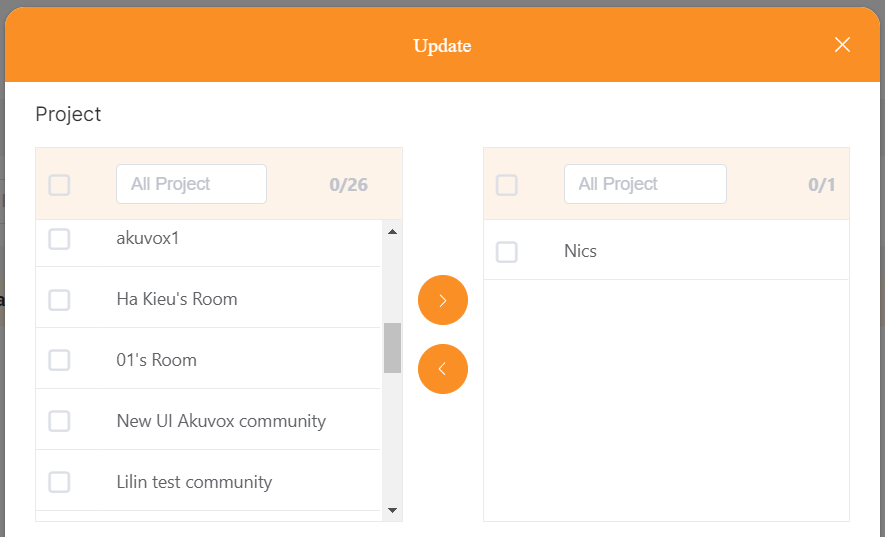
b. Choose the panel’s model and the version to update.
c. Check the the device(s) to perform the update.
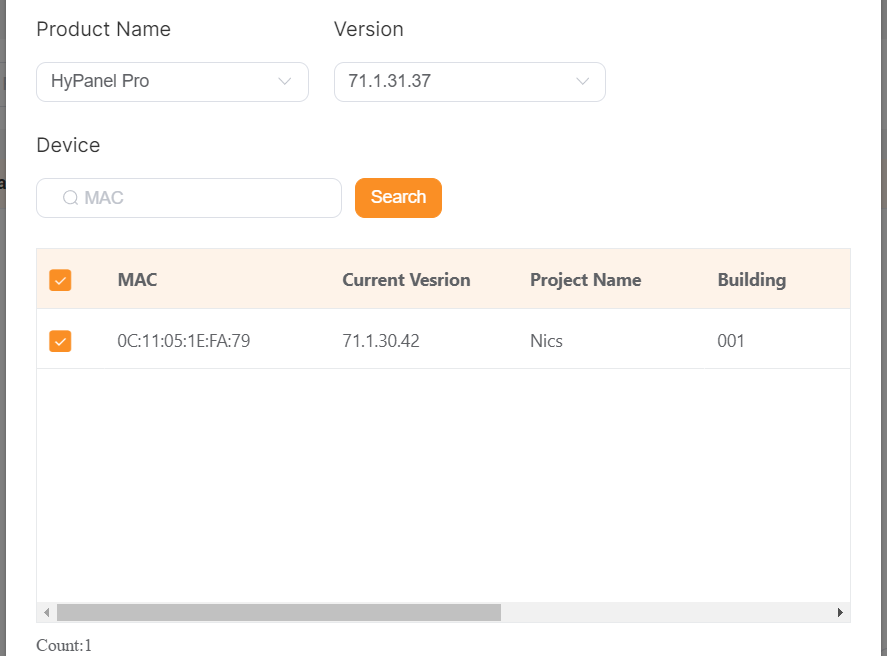
d. Choose whether the update requires user confirmation, then click Submit.
Forced update immediately: Devices will upgrade right away unless they're in a call or alarm. The update begins once the event ends.
Update after user confirmed: Users must approve the update on their panels before it starts.

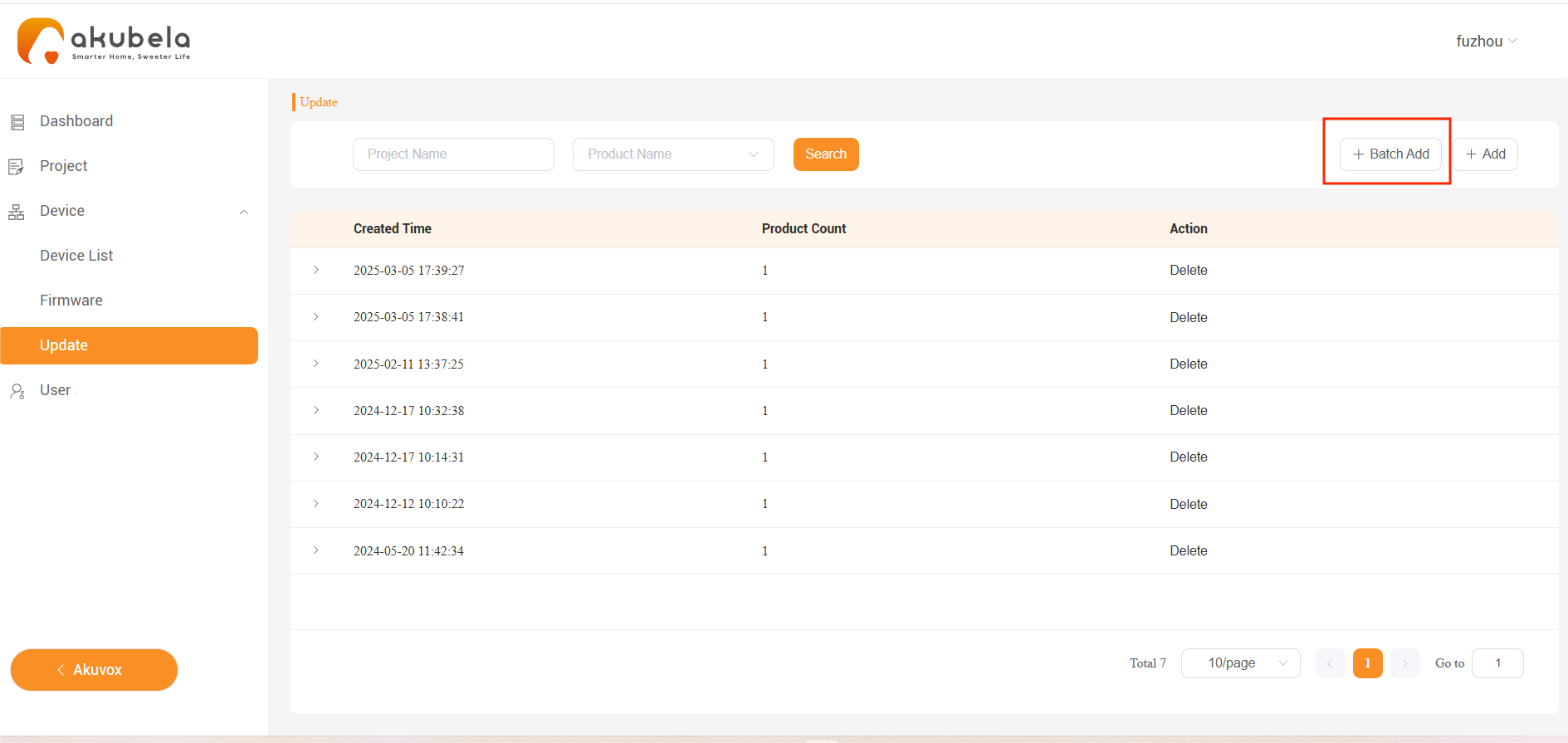
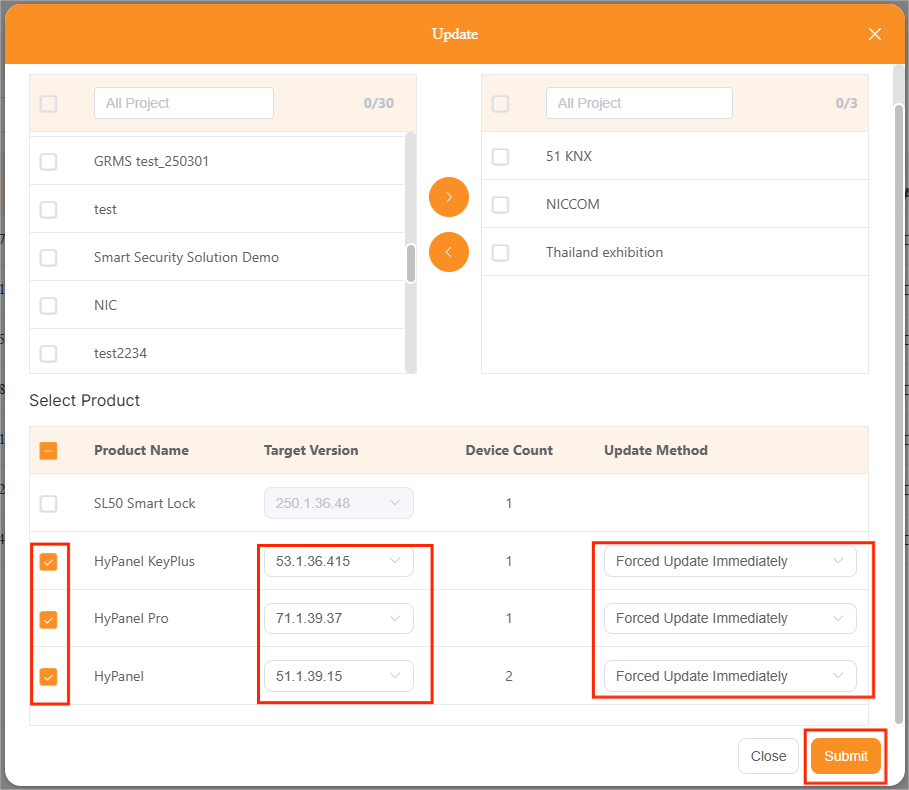
Batch Upgrade
Go to Device > Update > Batch Add.
Select the desired project(s) on the left, then click
 to move them to the right.
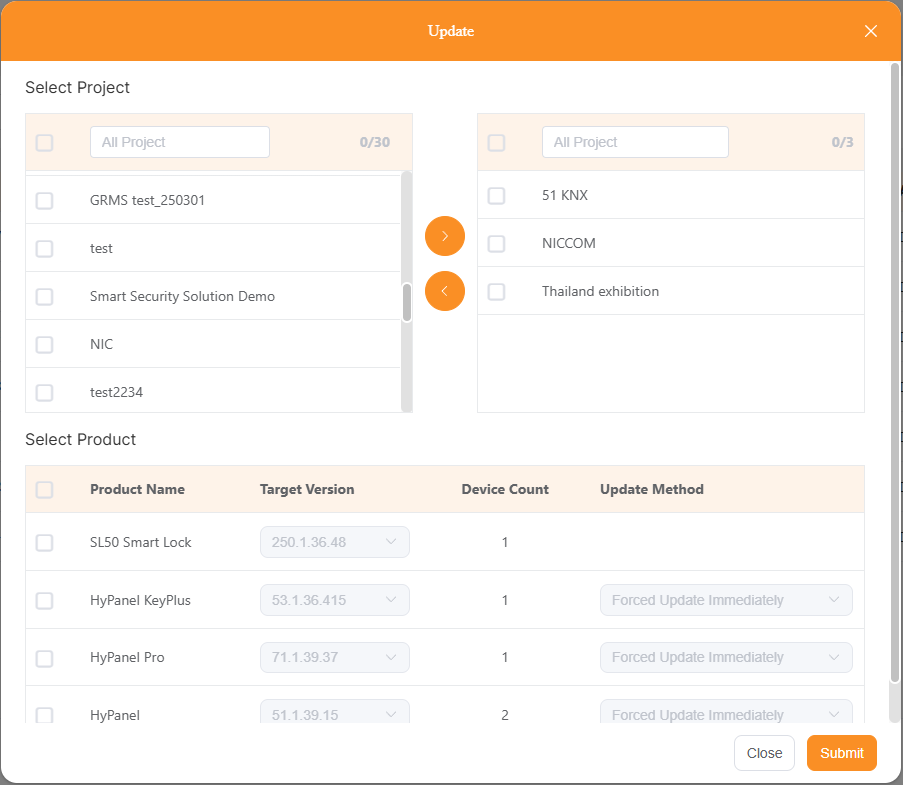
Select the desired panel model, firmware version, and whether user confirmation is required. Then click Submit.
Confirm updates on panels
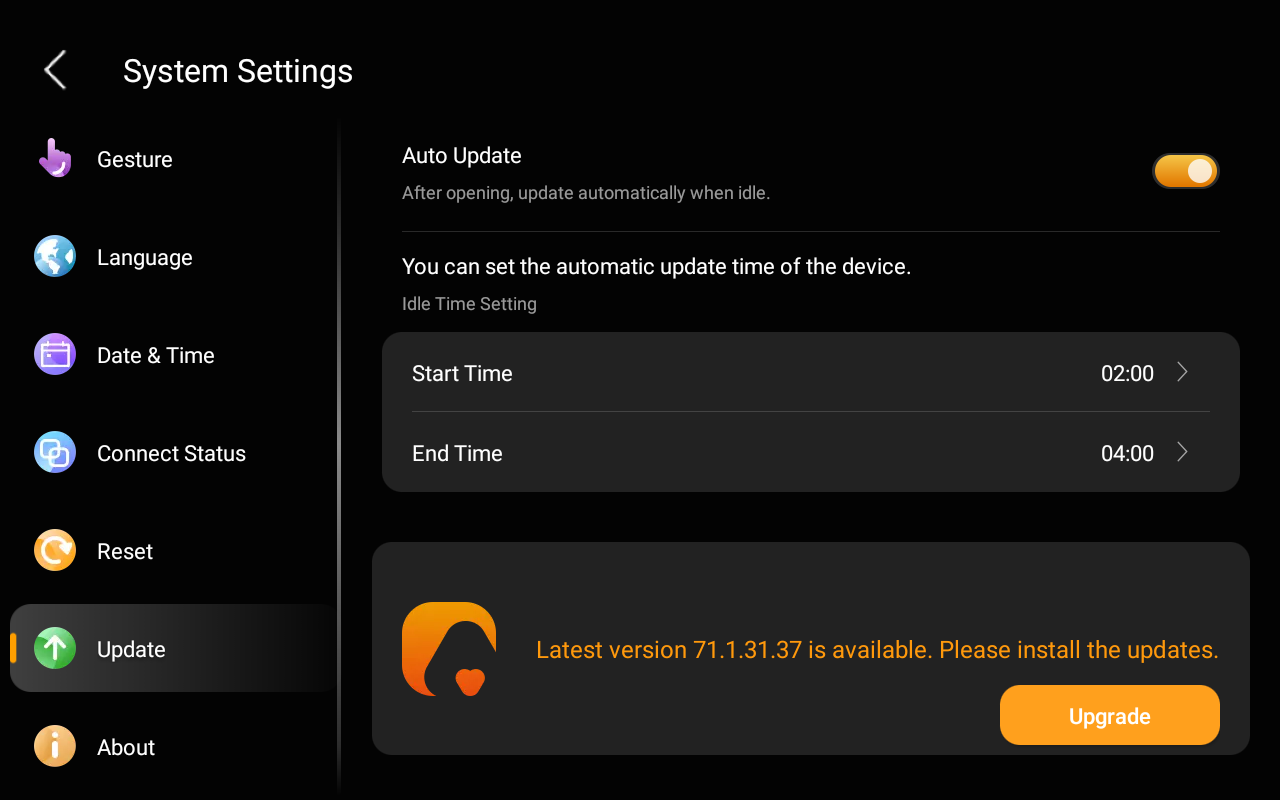
If “Update after user confirmed” is selected, an Upgrade button will appear on the panel’s  > System Settings > Update screen.
When Auto Update is enabled, the panel will automatically update during the scheduled idle time.
NOTE:
To perform the update, both conditions must be met:
The panel has been in standby mode for the past hour.
There are no alarms or countdowns set for the next hour.
When Auto Update is disabled, users must tap the Upgrade button manually to start the update.