IP Call & IP Call Configuration
An IP call is a direct call between two intercom devices using their IP addresses, without a server or a PBX. IP calls work when the devices are on the same network.

Parameters Set-up:
- Enabled: click "Enable" or "Disable" to turn the direct IP call on or off. For example, if you do not allow direct IP call to be made on the device, you can click "Disable" to terminate the function.
- Port: set up the IP direct call port, 5060 is the default port.
SIP Call & SIP Call Configuration
Session Initiation Protocol(SIP) is a signaling transmission protocol used for initiating, maintaining, and terminating calls.
A SIP call uses SIP to send and receive data between SIP devices, and can use the internet or a local network to offer high-quality and secure communication. Initiating a SIP call requires a SIP account, a SIP address for each device, and configuring SIP settings on the devices.
To perform the SIP account setting on the Web Account > Basic > SIP Account Interface.
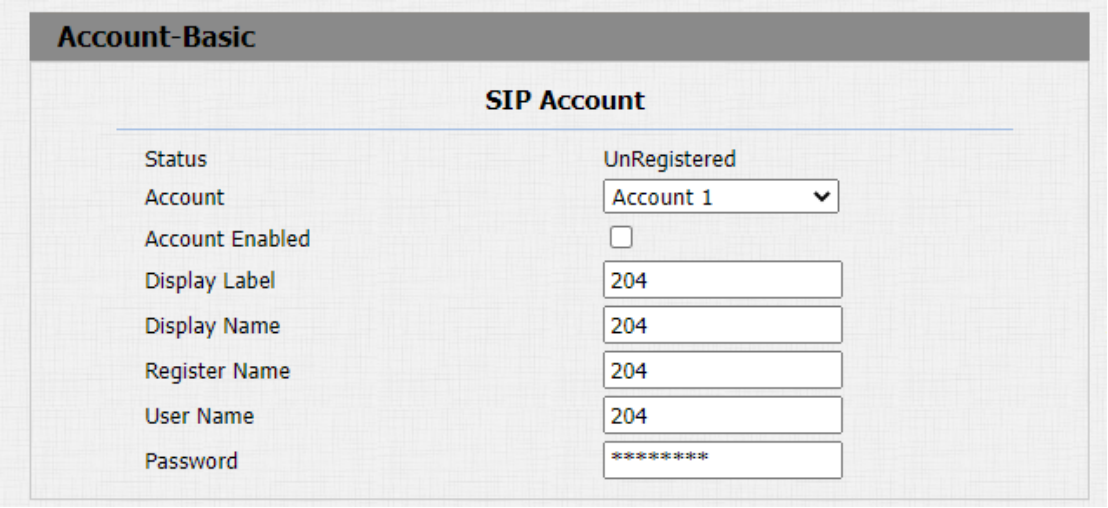
Parameter Set-up:
- Status: check to see if the SIP account is registered or not.
- Account: select the exact account (Account 1&2) to be configured.
- Account Enabled: click Enable or Disable to activate or deactivate the registered SIP account.
- Display Label: configure the device label to be shown on the device screen.
- Display Name: configure the name, for example, the device’s name to be shown on the device being called to.
- Register Name: enter the SIP account register Name obtained from the SIP account administrator.
- User Name: enter the user name obtained from SIP account administrator.
- Password: enter the password obtained from the SIP account administrator.
SIP Server Configuration
SIP servers enable devices to establish and manage call sessions with other intercom devices using the SIP protocol. They can be third-party servers or built-in PBX in Akuvox indoor monitor.
To do this configuration also on web Account > Basic > SIP Server interface.
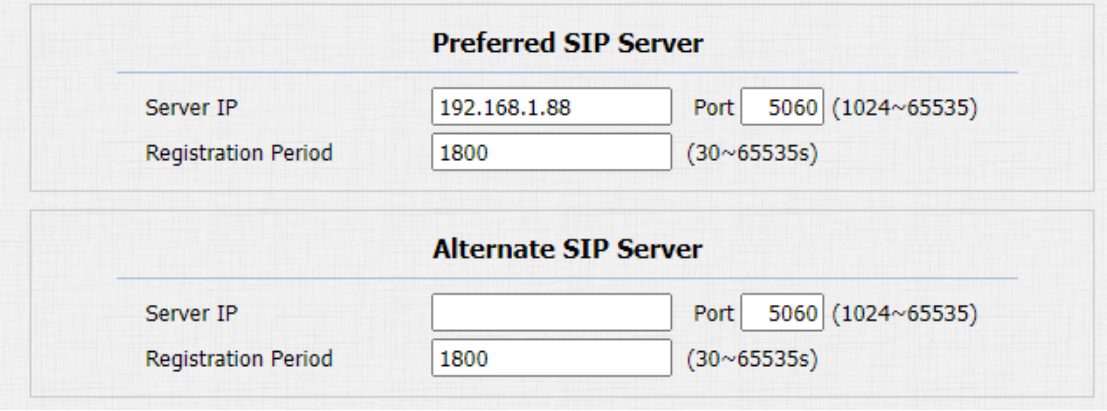
Parameter Set-up:
-
Preferred SIP Server: enter the primary server IP address number or its URL.
-
Alternate SIP Server: enter the backup SIP server IP address or its URL.
-
Port: set up SIP server port for data transmission.
-
Registration Period: set up SIP account registration time span. SIP re-registration will start automatically if the account registration fails during the registration time span. The default registration period is "1800", ranging from 30-65535s.
Configure Outbound Proxy Server
An outbound proxy server is used to receive all initiating request messages and route them to the designated SIP server in order to establish a call session via port-based data transmission.
To set it up on the device web Account > Basic > Outbound Proxy Server Interface.
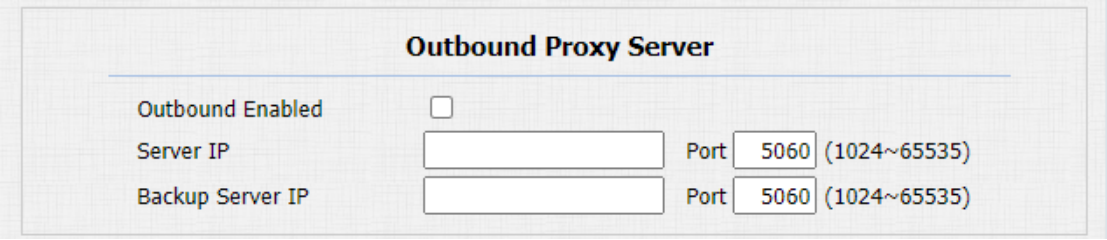
Parameter Set-up:
-
Outbound Enabled: click "Enable" and "Disable" to turn on or turn off the outbound proxy server.
-
Server IP: enter the SIP address of the primary outbound proxy server.
-
Port: enter the Port number for establishing call session via the primary outbound proxy server
-
Backup Server IP: set up Backup Server IP for the backup outbound proxy server.
-
Port: enter the port number for establishing call session via the backup outbound proxy server.
Configure Data Transmission Type
SIP messages can be transmitted using three data transmission protocols: UDP (User Datagram Protocol), TCP (Transmission Control Protocol), and TLS (Transport Layer Security). In the meantime, you can also identify the server from which the data comes.
To do this configuration on web Account > Basic > Transport Type interface.

Parameter Set-up:
-
UDP: select "UDP" for unreliable but very efficient transport layer protocol. UDP is the default transport protocol.
-
TCP: select "TCP" for Reliable but less-efficient transport layer protocol.
-
TLS: select "TLS" for Secured and Reliable transport layer protocol.
-
DNS-SRV: select "DNS-SRV" to obtain DNS record for specifying the location of servers. And SRV not only records the server address but also the server port. Moreover, SRV can also be used to configure the priority and the weight of the server address.
Configure Calling Feature
DND
DND ( Do not disturb) setting allows you not to be disturbed by any unwanted incoming SIP calls. You can set up DND related parameters properly on the device web Phone > Call Feature interface to block SIP calls you do not intend to answer. In the meantime, you can also define the code to be sent to the SIP server when you want to reject the call.
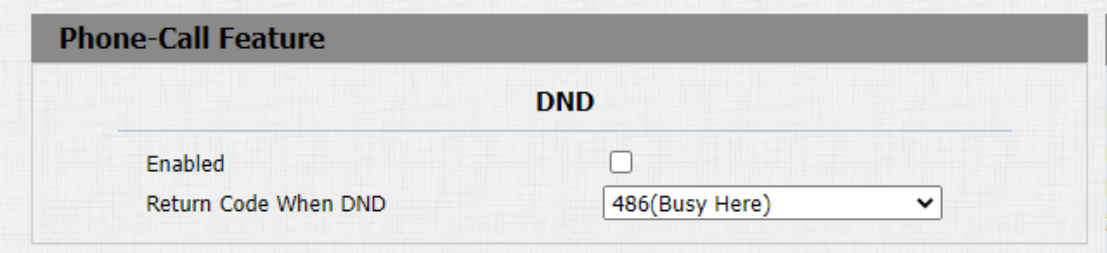
Parameter Set-up:
-
Enabled: enable or disable the DND function. DND function is disabled by default.
-
Return Code When Refuse: select code to be sent to the caller side via SIP server when you rejected the incoming call.
Manager Dial Call
Manger dial call consist of Robin call and group call. Manager Dial is used to quickly initiate the pre-configured numbers by pressing the Management key on door phone. You can create up 10 numbers. To do the configuration on the web Intercom > Basic > Manager Dial interface.
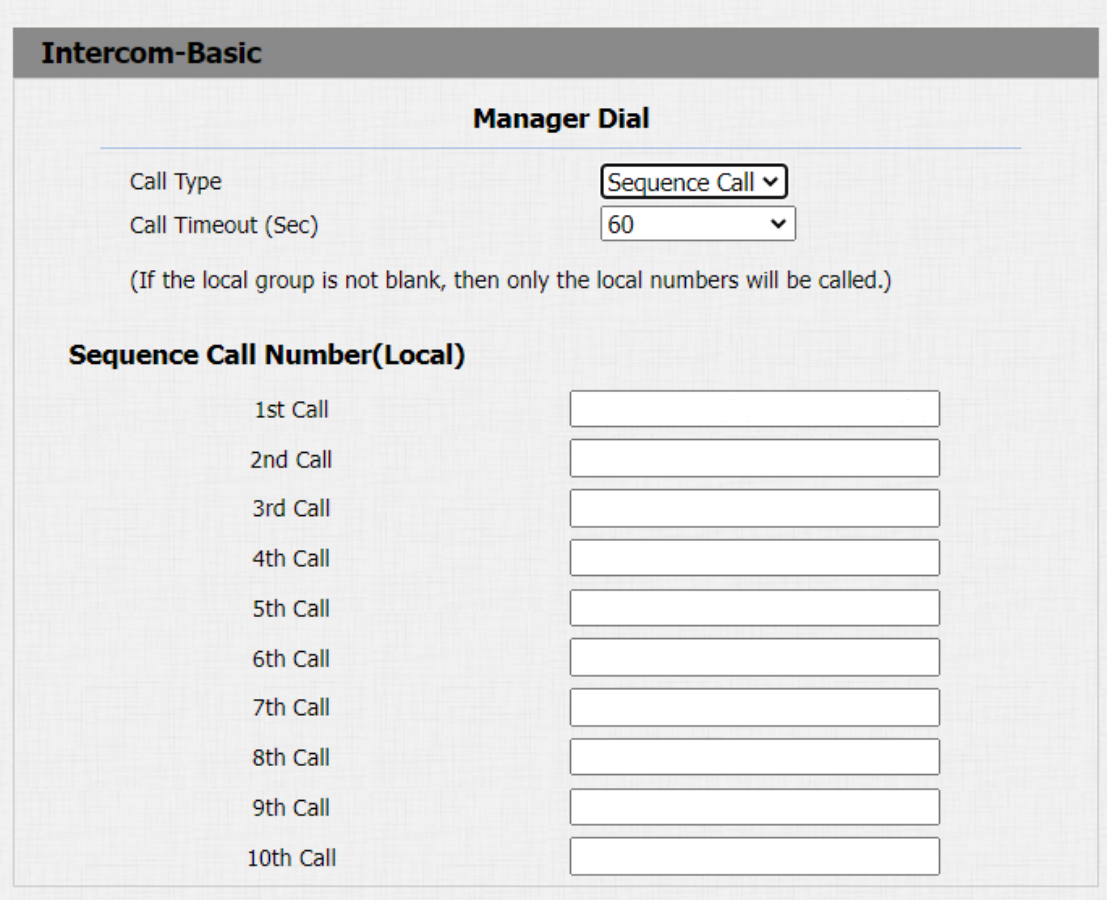
Parameter Set-up:
-
Call Type: select the group call or sequence call (Robin call) for the manager dial call.
-
Sequence Call: sequence call is used to initiate multiple numbers when your press the manager dial button. If the previous callee does not answer within the robin call timeout, the call will be transferred to the next one. If the call is answered by one of the callee, the call will not be transferred anymore.
-
Group Call: group call is used to initiate calls to multiple numbers at the same when you press the manager dial button.
-
Sequence Call Number(Local): enter the sequence call number. You can enter five sequence call number maximum in each line.
After the manager dial is set up, you can set up relays to be triggered by the manager dial if needed.

Call Hang-up
You can hang up the call on the door phone by pressing the push button if needed. To enable the push-button cal hang-up, navigate to intercom > Basic.

Web Call
The web call feature allows for making calls via the device’s web interface, commonly used for remote call testing purposes.
You can navigate to Intercom > Basic > Web Call.

Parameters Set-up:
Web Call (Ready): enter the IP/SIP number to dial out.
Auto Answer
You can define how quickly the door phone should respond in answering the incoming SIP/IP call automatically by setting up the time related parameters.
To enable this feature on web Account > Advanced > Call interface, you can set up the related parameters on web Phone > Call Feature > Auto Answer.
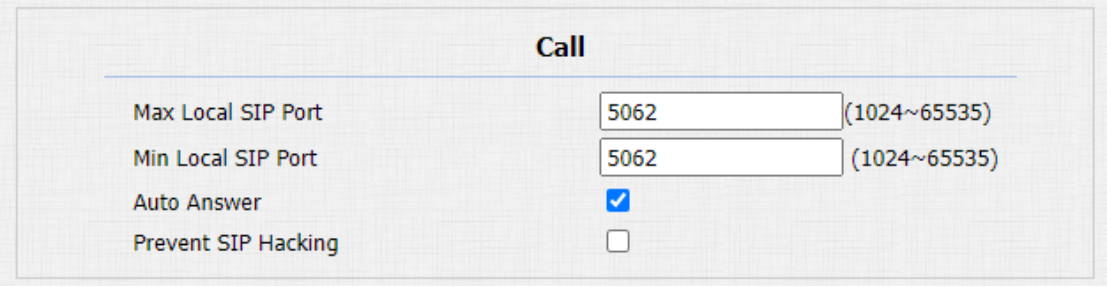

Parameters Set-up:
-
Auto Answer: turn on the Auto Answer function by clicking "Enable".
-
Auto Answer Delay: set up the delay time (from 0-5 sec.) before the call can be answered automatically. For example, if you set the delay time as 1 second, then the call will be answered in 1 second automatically.
-
Mode: set up the video or audio mode you preferred for answering the call automatically.
Multicast
Multicast uses one-to-many mode to communicate in a range. Door phone can be a listener and receive the audio from the listened part.
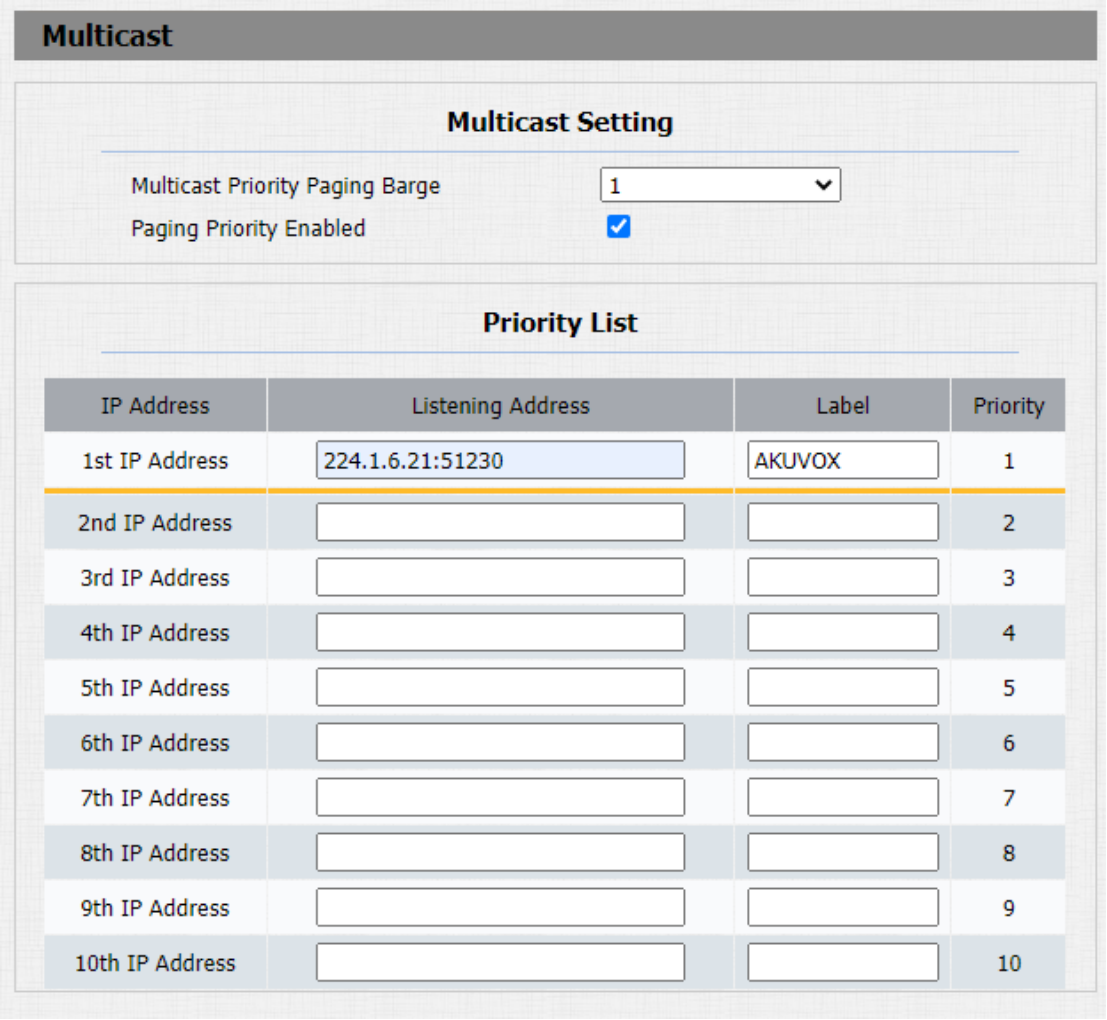
Parameters Set-up:
-
Multicast Priority Paging Barge: multicast or how many multicast calls are higher priority than SIP call, if you disable Paging Priority Active, SIP call will have high priority.
-
Paging Priority enabled: multicast calls are called in order of priority or not.
-
Listening Address: enter the multicast IP address you want to listen. The multicast IP address needs to be the same as the listened part and the multicast port can not be the same for each IP address. Multicast IP address is from 224.0.0.0 to 239.255.255.255.
-
Label: enter the label for each listening address.
Configure Maximum Call Duration
Door phone allows you to set up the call time duration in receiving the call from the calling device as the caller side might forget to hang up the intercom device. When the call time duration is reached, the door phone will terminate the calling automatically. You can navigate Intercom > Basic > Max Call Time.

Parameters Set-up:
- Max Call Time: enter the call time duration according to your need (Ranging from 0-120 min). The default call time duration is 5 min.
- Max call time of the device is also related with max call time of SIP server. If using SIP account to make a call, please pay attention to the max call time of SIP server. If the max call time of SIP server is shorter than the max call time of device, the shorter one is available.
Maximum Dial Duration
Maximum Dial Duration is the time limit for incoming and/or outgoing calls on the device. If configured, the device will automatically terminate the call if no one answers the call within the preset time, whether it is incoming or outgoing.
You can navigate to Intercom > Basic > Max Dial Time.
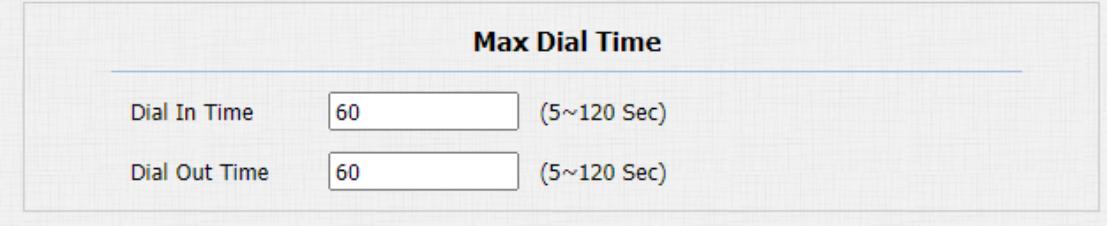
Parameters Set-up:
-
Dial in Time: enter the dial in time duration for your door phone (ranging from 30-120 sec.) for example, if you set the dial in time duration is 60 seconds in your door phone, then the door phone will hang up the incoming call automatically if the call is not answered by the door phone in 60 seconds. 60 seconds is the dial in time duration by default.
-
Dial out Time: enter the dial in time duration for your door phone (ranging from 5-120 sec.) for example, if you set the dial out time duration is 60 seconds in your door phone, then the door phone will hang up the call it dialed out automatically if the call is not answered by the device being called.
- Max dial time of device is also related with max dial time of SIP server. If using SIP account to make a call, please pay attention to the max dial time of SIP server. If the max dial time of SIP server is shorter than the max dial time of device, the shorter one is available.
Hang Up After Open Door
This feature automatically ends the call once the door is released, allowing for the seamless reception of subsequent calls.

Parameter Set-up:
-
Type: select the open door type. Door can be unlocked via "DTMF", "HTTP" command, "DTMF Or HTTP", and "DTMF, HTTP or Input".
-
Timeout: the time out value can be set up from 1 second to 15seconds. 5 seconds is default. The call will be automatically hang up within this value after the door is opened.