Answer Calls
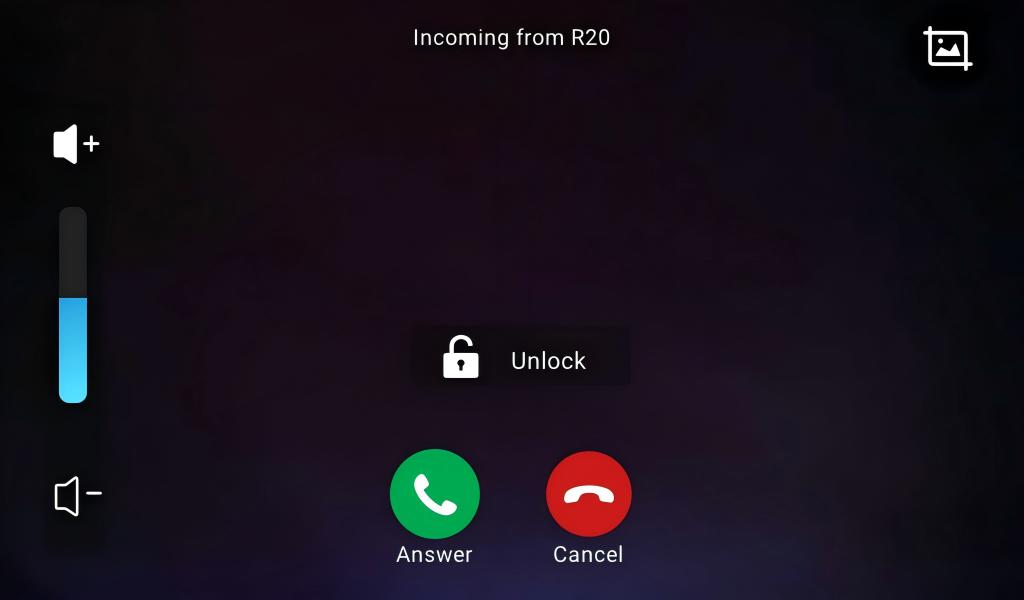
When receiving a call, the indoor monitor will ring its doorbell.
During the call preview, you can tap:
Unlock to open the door for the visitor.
 to take a screenshot.
Answer to answer the call.
Cancel to hang up the call.
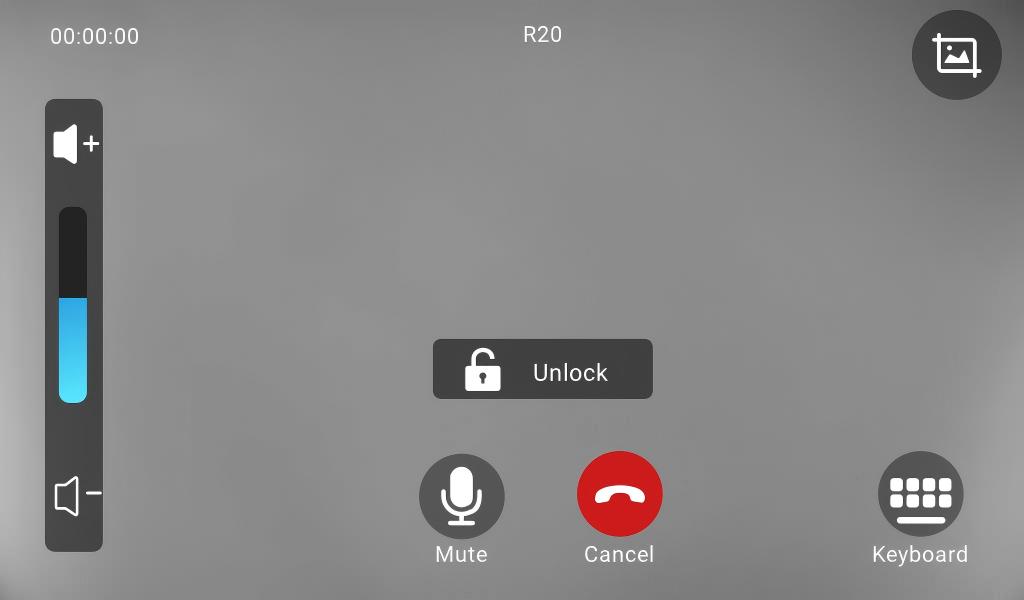
After answering the call, you can tap:
Unlock to open the door.
- to take a screenshot.
Cancel to hang up the call.
Mute to silence the call.
Keyboard to open the keyboard. You can also open the door by entering the DTMF code that is preconfigured by your administrator.
Adjust the call volume.
Call a Number
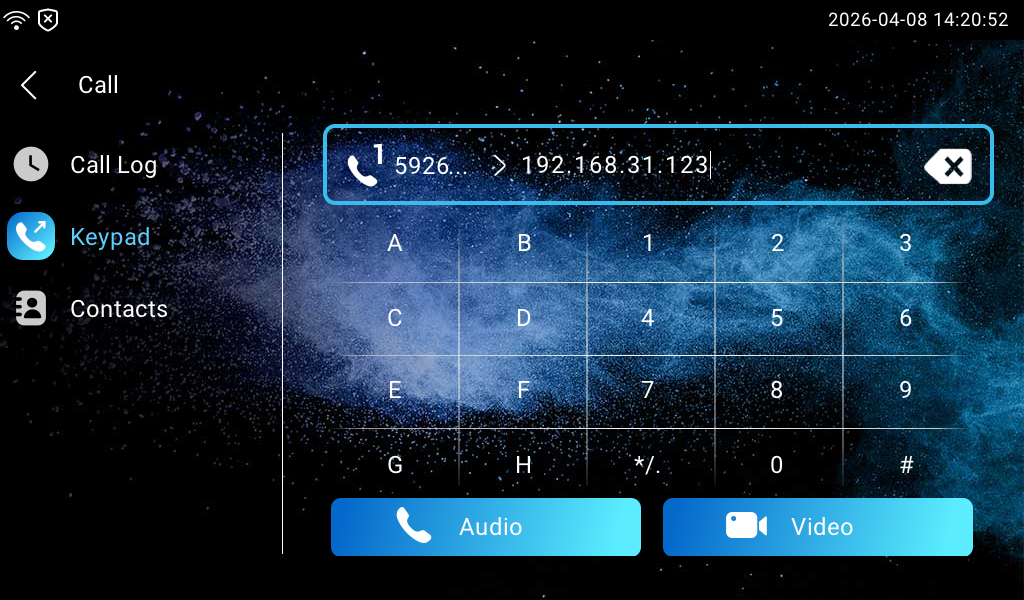
You can enter a number on the Call > Keypad screen and press the Audio or Video to call out.
Call a Contact
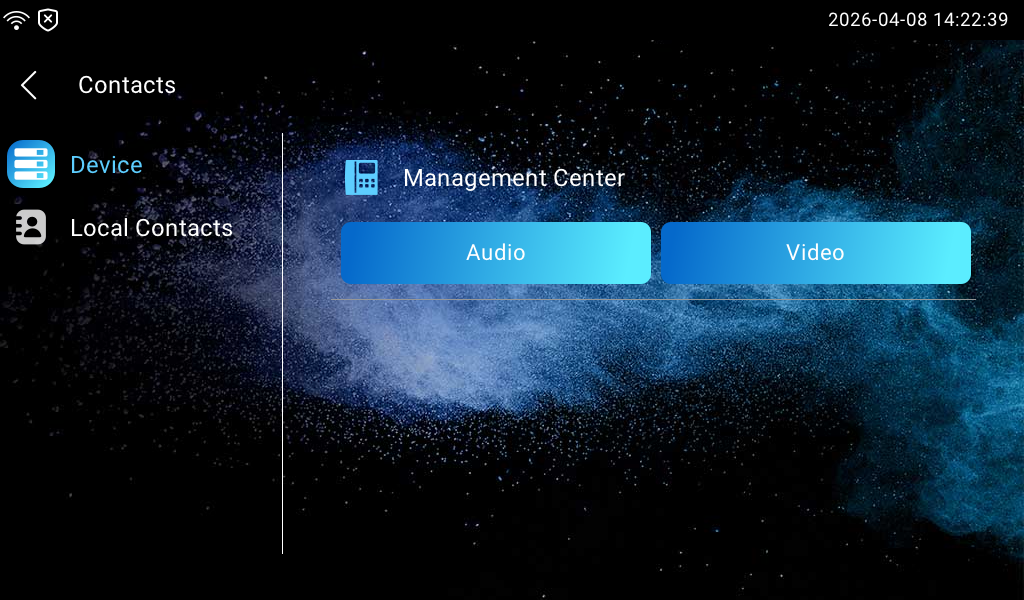
Directly tap the contact in the Call List on the home screen, or go to More > Contacts.
Select the desired device or local contact, then tap Audio or Video to call.
Call DND
The Do Not Disturb(DND) feature prevents unwanted incoming calls, ensuring uninterrupted focus.
Set it up on the More > Settings > DND screen. After configuring DND, tap DND ON/OFF on the home screen to turn it on/off.
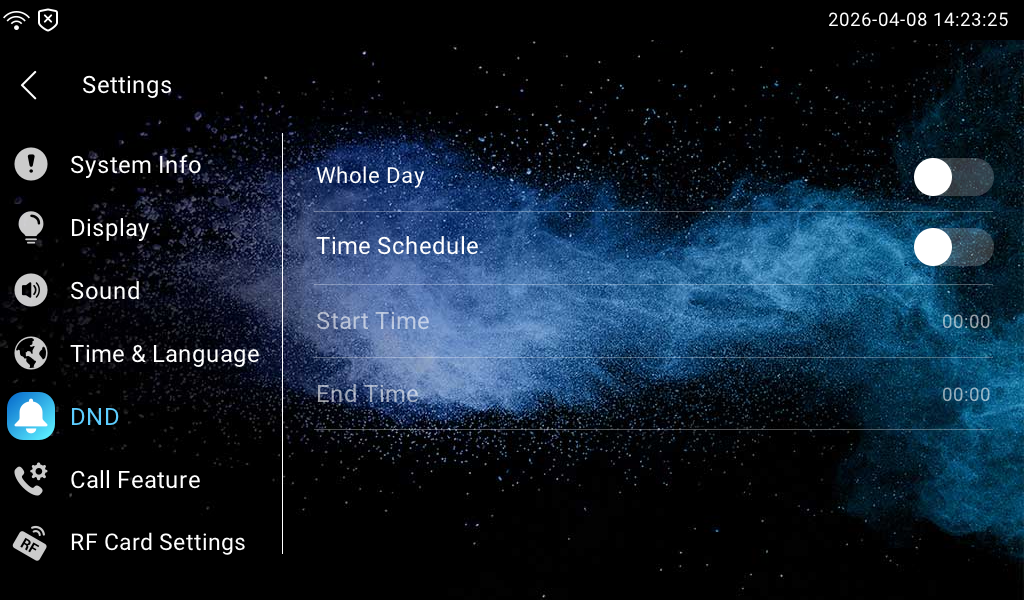
DND: Enable Whole Day or Time Schedule to enable the DND function. The DND function is disabled by default.
Time Schedule: Determine the DND period by selecting DND Start Time and DND End Time.
Forward a Call
The device can transfer incoming calls to another number. You can set up call forwarding according to different situations, such as always forwarding calls, forwarding calls when the indoor monitor is busy, or forwarding calls when it doesn’t pick up the call.
Set it up on the More > Settings > Call Feature screen.
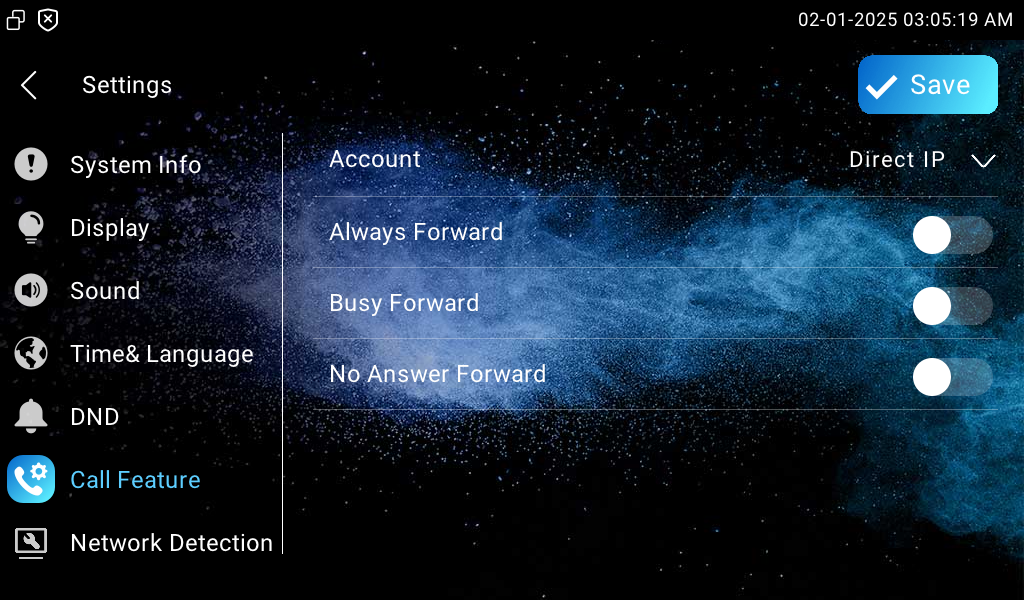
Account: Select the SIP account or Direct IP to implement the call forwarding feature.
Always Forward: All incoming calls will be automatically forwarded to a specific number.
Busy Forward: Incoming calls will be forwarded to a specific number if the device is busy.
No Answer Forward: Incoming calls will be forwarded to a specific number if the call is not picked up within the no-answer ring time.
Target Number: Specify the forward number when Always Forward, Busy Forward, or No Answer Forward is enabled.
No Answer Ring Time(Sec): The time ranges from 0 to 120 seconds. This option appears when No Answer Forward is enabled.