Infrared LED Setting
Infrared LED is mainly designed to reinforce the light at night or in a dark environment.
Set it up on the web Device > Light > LED interface.
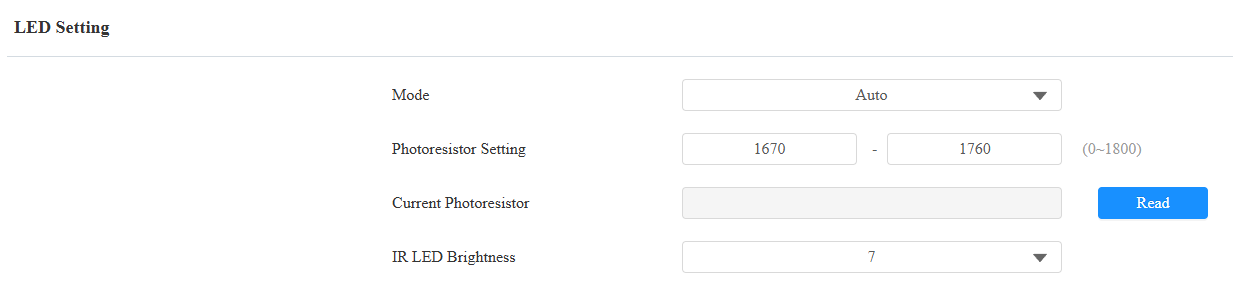
Mode:
Auto: Turn on the infrared LED automatically based on the minimum and maximum photoresistor value.
Always On: Enable the infrared LED.
Always Off: Disable the infrared LED.
Schedule: Turn on the infrared LED based on the schedule. Specify the Start Time and End Time when this option is selected.
Photoresistor Setting: Set the minimum and maximum photoresistor values to automatically control the ON-OFF of the infrared LED light. If the photoresistor value is less than the minimum threshold, turn it off. If the photoresistor value is greater than the maximum threshold, turn it on.
Current Photoresistor: The current light intensity indicated by the photoresistor value. Click Read to display the value. The photoresistor values inversely relate to light intensity: higher values indicate lower light, and lower values indicate higher light.
IR LED Brightness: Adjust the IR LED brightness from level 0 to 10. The default is 10. The higher the level is, the brighter it is.
Card Reader LED Control
You can enable or disable the LED lighting on the card reader area. You can also set a specific time to turn on the light.
To set it up, navigate to the web Device > Light > LED Of Swiping Card Area interface.

Start Time-End Time (H): Enter the time for the LED lighting to be valid, e.g., if the time is set from 8-0 (Start time- End time), it means the LED light will stay on during the time from 8:00 am to 12:00 pm during one day (24 hours).
LED White Light
White light LED is mainly used to reinforce the lighting for the QR code access and for the greater visibility of the visitors when seeing their images from indoors in a dark environment.
Set it up on the web Device > Light > White Light interface.

Mode: Select Auto or OFF. If you select Auto, the white light will turn on for 5 minutes for facial recognition and QR code scanning.
White Light Value: Set the white light value from 1 to 10. The default is 3. The higher the value, the brighter the light.
LCD Screen Brightness
You can set up the backlight brightness so that users can better see the screen in an environment with high or low light intensity.
On the Web
Set it up on the web Device > LCD interface.
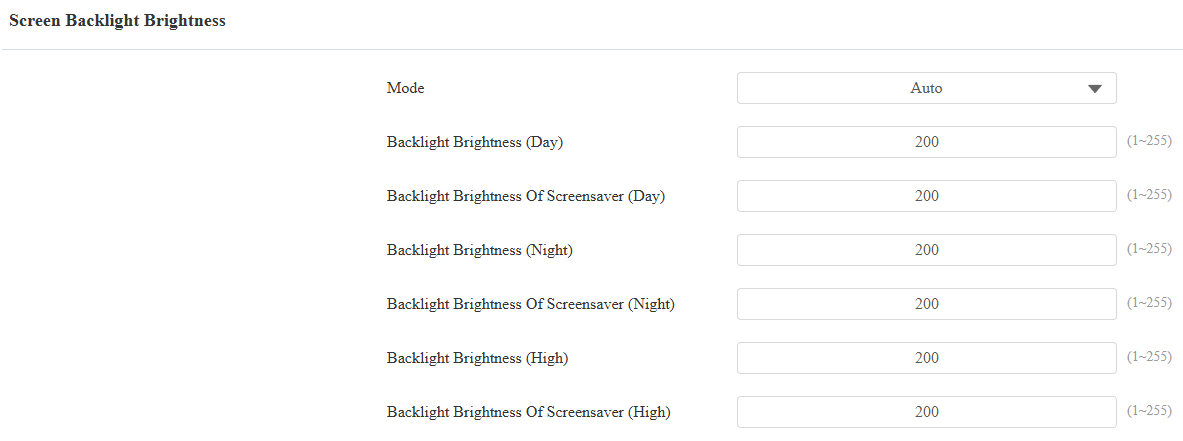
Mode:
Manual: Set the backlight brightness value manually.
Auto: The screen backlight brightness will be adjusted automatically.
Note
The Day and Night backlight modes are determined by the photoresistor.
If the current value is between the minimum and maximum photoresistor values, the device is in Day mode.
If the current value is higher than the maximum photoresistor value, the device is in Night mode.
Backlight Brightness (Day): Select the brightness value from 1-255. The larger the value, the brighter the screen.
Backlight Brightness Of Screensaver (Day): Adjust the backlight for the screensaver in the daytime with the value ranging from 1-255.
Backlight Brightness (Night): Select the brightness value from 1-255. The larger the value, the brighter the screen.
Backlight Brightness Of Screensaver (Night): Adjust the backlight for the screensaver at night with the value ranging from 1-255.
Backlight Brightness (High): Select the brightness value from 1-255 in an environment with strong light. The larger the value, the brighter the screen.
Backlight Brightness Of Screensaver (High): Adjust the backlight for the screensaver in an environment with strong light. The value ranges from 1-255.
On the Device
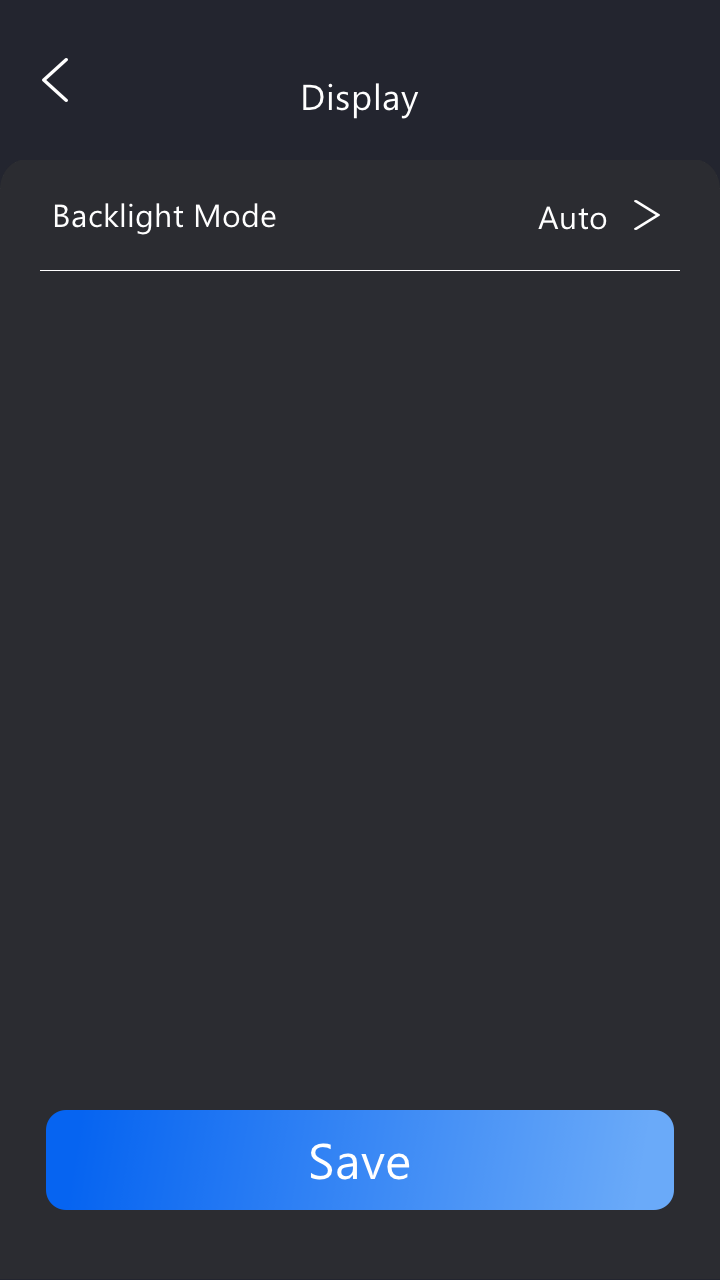
You can set the backlight mode on the device Setting > Basic Setting > Display screen.
LCD Heat Control
To ensure the normal operation of the door phone in low-temperature environments, you can heat up the device’s LCD screen according to your heat control setting.
Navigate to Intercom > Basic interface.

Enabled: This function cannot be used in Low Power Mode. Use a 12V DC power adapter to ensure sufficient power supply.
Heat Threshold: When the device temperature reaches the threshold, the device will start heating up.
Current Temperature: Click Read to acquire the device's current temperature.