Call Logs
To check calls—including dial-out, received, and missed calls—within a specific period, you can view the call log on the device's web interface. If needed, you can also export the call log from the device.
Check call logs on the web Status > Call Log interface. The device supports 2,000 call logs, which can be exported in a CSV file by clicking Export.
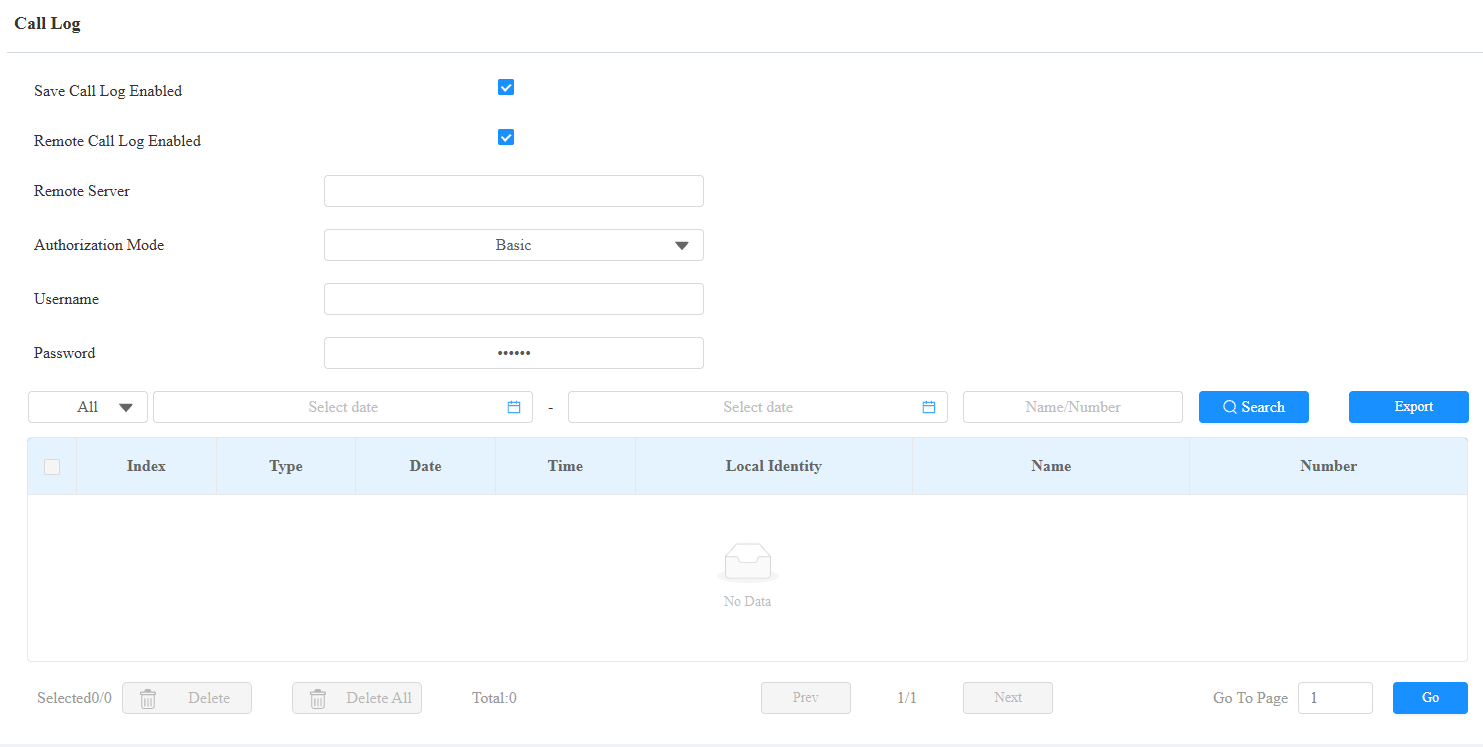
Remote Call Log Enabled: Disabled by default. When enabled, the device can send call records in real time to the designated remote server.
Remote Server: The URL or IP address of the server. URLs must begin with
http://,https://, orftp://. The following characters are not permitted:&,%,',=,!,$,?, Chinese characters, or consecutive special characters such as--or@@.Authorization Mode: Specify the authentication method used when connecting to the remote server.
None: No authentication. The connection is unencrypted. Username and Password fields are hidden.
Basic(default): HTTP Basic authentication. Username and Password fields are displayed and required.
Digest: HTTP Digest authentication. Username and Password fields are displayed and required.
Username: The username credential used for authentication. Applies when Authentication Mode is set to Basic or Digest.
Password: The password credential used for authentication. Applies when Authentication Mode is set to Basic or Digest.
Call History: There are four specific types of call logs: All, Dialed, Received, and Missed.
Start Time - End Time: Search the desired call log by entering a certain period.
Name/Number: Search the desired call log by entering the name and number.
Door Logs
To search and review various types of door access history, simply check the door logs on the device's web interface.
Check door logs on the Status > Access Log interface. The device supports 50,000 door logs, which can be exported in a CSV or XML file by clicking Export.
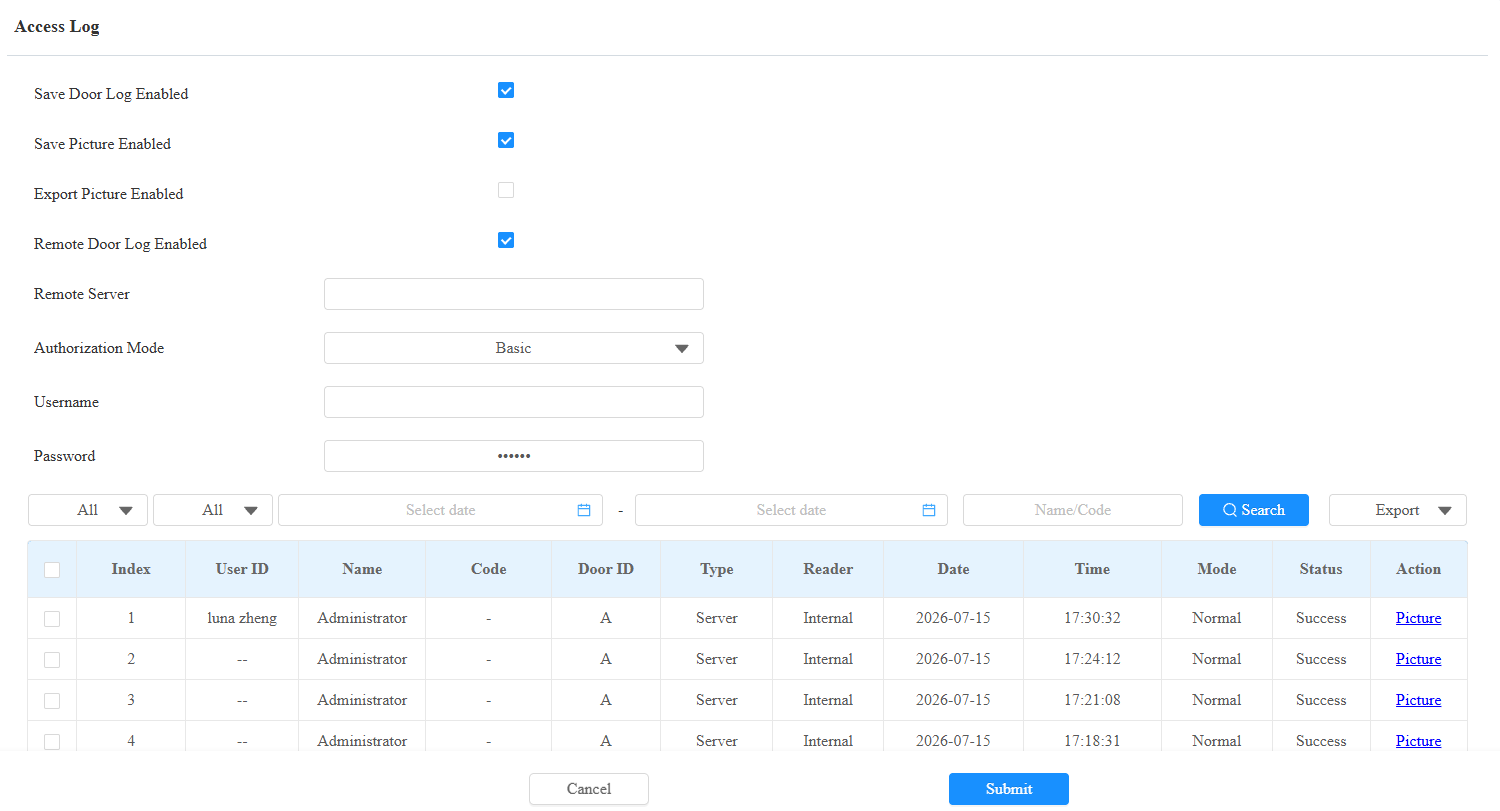
Save Picture Enabled: When enabled, the device will capture pictures of the door opening, and you can click Picture in the Action column to view the screenshot.
Export Picture Enabled: Set whether to export the captured images when exporting the door logs.
Remote Door Log Enabled: Disabled by default. When enabled, the device can send access records in real time to the designated remote server.
Remote Server: The URL or IP address of the server. URLs must begin with
http://,https://, orftp://. The following characters are not permitted:&,%,',=,!,$,?, Chinese characters, or consecutive special characters such as--or@@.Authorization Mode: Specify the authentication method used when connecting to the remote server.
None: No authentication. The connection is unencrypted. Username and Password fields are hidden.
Basic(default): HTTP Basic authentication. Username and Password fields are displayed and required.
Digest: HTTP Digest authentication. Username and Password fields are displayed and required.
Username: The username credential used for authentication. Applies when Authentication Mode is set to Basic or Digest.
Password: The password credential used for authentication. Applies when Authentication Mode is set to Basic or Digest.
Status: Display Successful and Failed door-opening records.
Start Time - End Time: Search the desired call log by entering a certain period.
Name: Display the username. If it is an unknown key or card, it will display Unknown.
Code: If the door is opened by RF cards, the card code will be displayed. If the door is opened by an HTTP command, it will be empty.
Type: Display the access methods.
Temperature Logs
To check the temperature log, go to Status > Temperature Log. The device supports 50,000 temperature logs, which can be exported in a CSV or XML file by clicking Export.
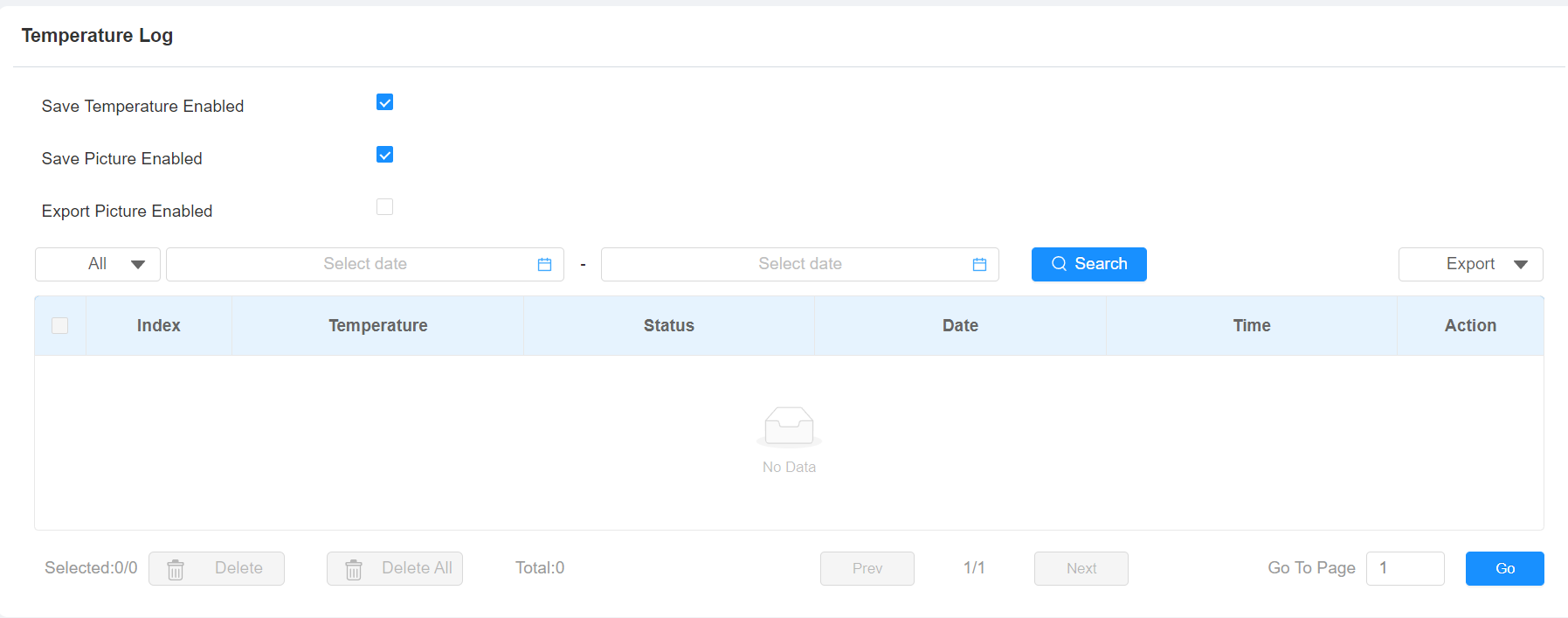
Save Picture Enabled: When enabled, the device will capture pictures of the temperature detection, and you can click Picture in the Action column to view the screenshot.
Export Picture Enabled: Set whether to export the captured images when exporting the temperature logs.
Event Logs
The event logs record the key events such as the status change of input, relay, tamper alarm, etc. This helps track the status and changes of the device.
Check event logs on the Status > Event Log interface. The device supports up to 100,000 logs, which can be exported in CSV format.
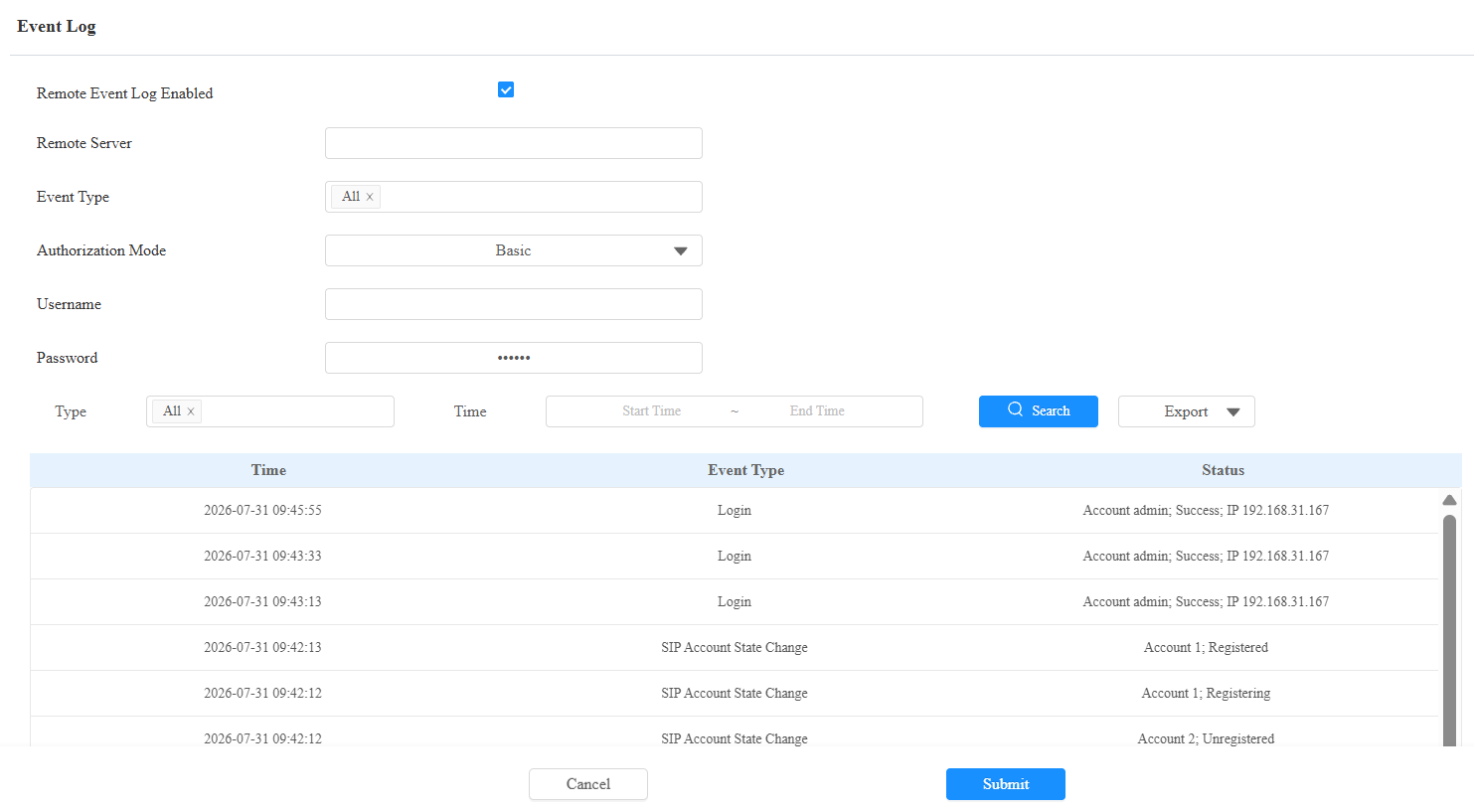
Remote Event Log Enabled: Disabled by default. When enabled, the device can send access records in real time to the designated remote server.
Remote Server: The URL or IP address of the server. URLs must begin with
http://,https://, orftp://. The following characters are not permitted:&,%,',=,!,$,?, Chinese characters, or consecutive special characters such as--or@@.Event Type: Select the event types to report to the remote server.
Authorization Mode: Specify the authentication method used when connecting to the remote server.
None: No authentication. The connection is unencrypted. Username and Password fields are hidden.
Basic(default): HTTP Basic authentication. Username and Password fields are displayed and required.
Digest: HTTP Digest authentication. Username and Password fields are displayed and required.
Username: The username credential used for authentication. Applies when Authentication Mode is set to Basic or Digest.
Password: The password credential used for authentication. Applies when Authentication Mode is set to Basic or Digest.