Add third-party smart home devices
Third-party smart home devices, such as Philips Hue, Ring Video Doorbell, Ecobee thermostat, Lutron Caseta, TP-Link kasa, Sonos, and more, can be added or removed on user web portal, or via BelaHome App.
To add a device, refer to any of the instructions:
See trigger histories of sensors
To see trigger histories of sensors, go to the Security screen, select the desired sensor, and tap the logs.
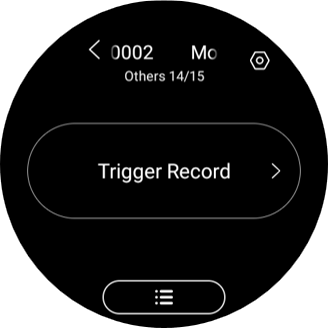
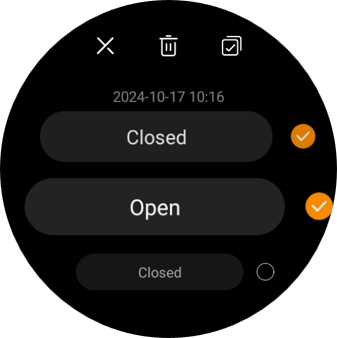
To delete records, simply tap the icon  in the upper right corner, select the logs, and tap
 .
Modify and delete devices
You can delete sensors and third-party devices like lights directly on the panel. For door phones and other panels, use the app or user web portal.
NOTE:
Deleting any relay on a device will result in the entire device being removed.
Go to the corresponding function screen and tap
 .
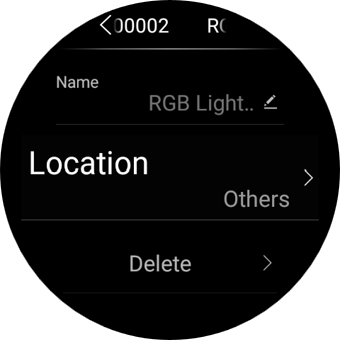
Using BelaHome app: Tap the desired device card on the Home screen, and then tap
 > Delete.
Go to the user web portal: Go to the Devices interface, click on the desired device card, then click
 > Delete > Confirm.
Control devices
NOTE:
HyPanel Lux Vase cannot add Zigbee devices directly, but it can control any Zigbee devices that are synced from the home center.
Relays
To open a relay, go to its corresponding type screen. Tap its button, and its background turns to be highlighted, indicating that the relay is opened.
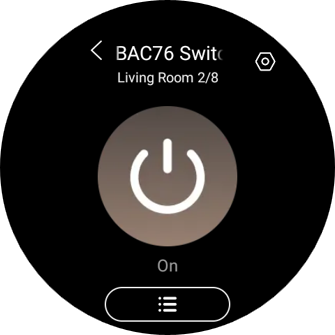
To close the relay, tap it again, and its background dims.
Switch, plug, and socket
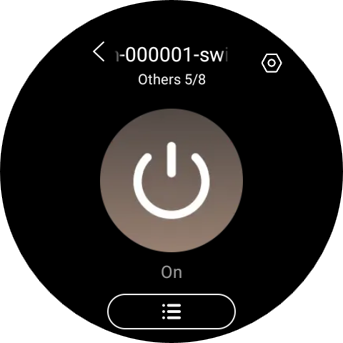
To turn on your switch, socket, or a plug, go to the Electrics  screen, and tap the On/Off button.
Lighting devices
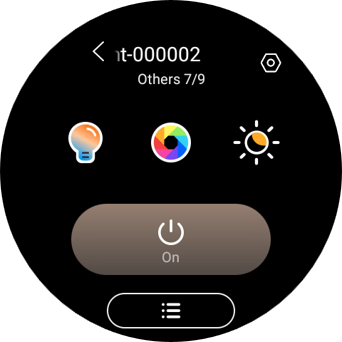
Some lights can only be turned on or off with a single tap, while others like RGB lights, offer more features such as color adjustment, brightness control, and so on.
To control a RGB light, do the following:
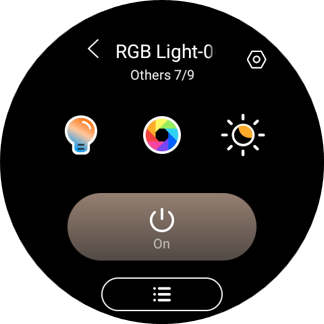
Go to the Light
 screen.
Swipe through the screen to find the desired device, or tap
 to select from the list.
To turn the light on or off, tap
 .
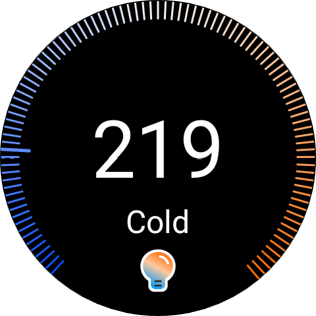
To change the color temperature, tap
 , and rotate the knob to adjust the slider.
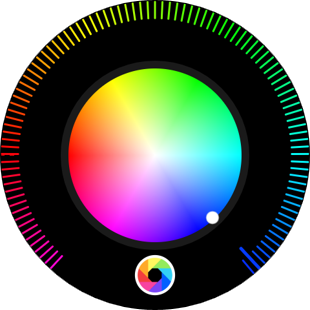
To change the light color, tap
 , and rotate the knob to pick the desired color from the palette.
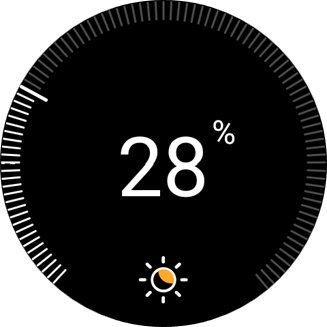
To adjust its brightness, tap
 , then rotate the knob to adjust the brightness.
Heating, cooling, and thermostat
Heating and cooling
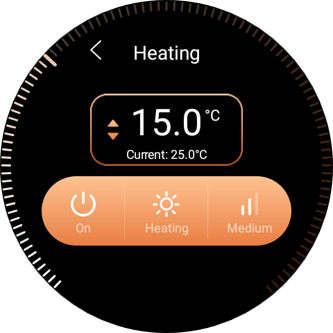
Go to the Climate  screen, swipe through the screen to find the desired device, or tap
 to select from the list. Then do any of the following:
To close/open the device, tap the icon
 .
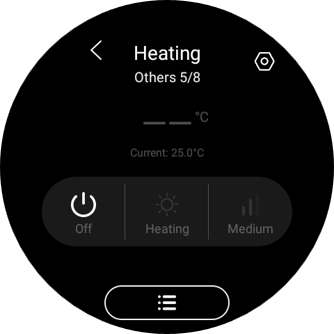
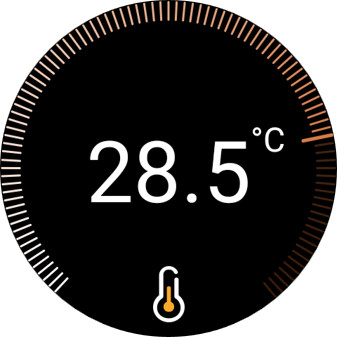
To adjust the target temperature, tap
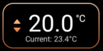 , and rotate the knob to adjust the temperature.
Thermostat
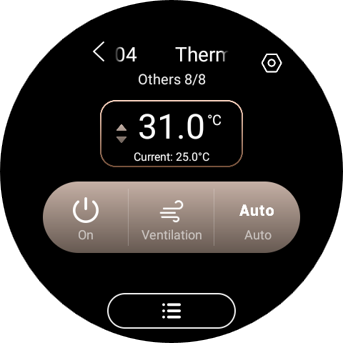
Go to the Climate  screen, swipe through the screen to find the desired device, or tap
 to select from the list. Then do any of the following:
Tap
 to turn the thermostat on or off.
Rotate the knob to set up the desired temperature.
Tap
 to switch modes.
Tap
 to set fan speed.
Shade
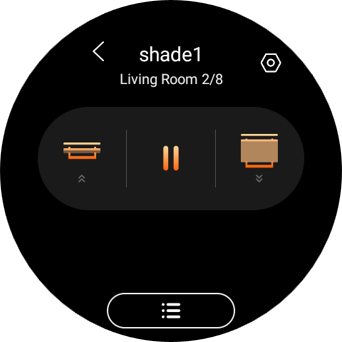
Go to Shade
 , and find the desired shade.
Do any of the following:
Tap
 to open the shade.
Tap
 to close the shade.
Tap
 to stop the shade when it reaches the desired position.
Tap
 for advanced functions.
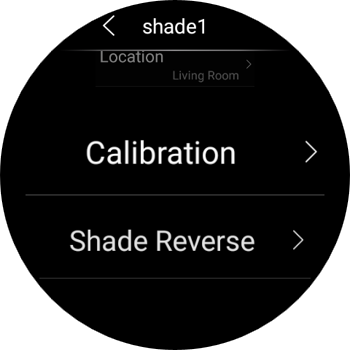
Calibration: Adjust the time it takes for the curtain to fully open and close. To do so, select this option and follow onscreen instructions.
Shade Reverse: Reverse the curtain’s movement direction when the close and open buttons operate contrary to the current direction.
Speaker
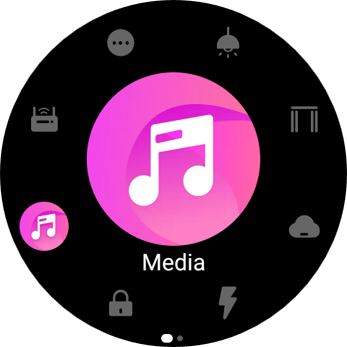
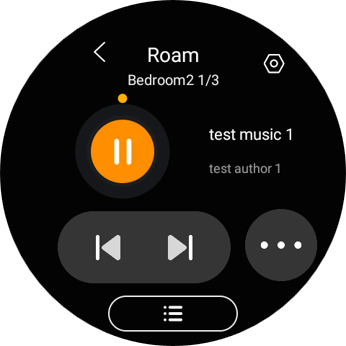
When speakers such as SONOS are added, a Media category will be visible on the Functions screen for quick control of the speakers.
Smart lock
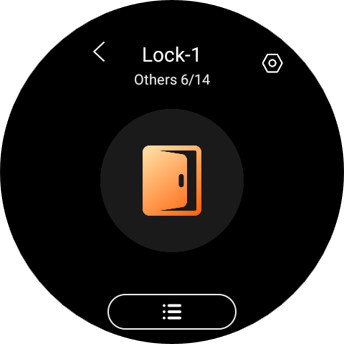
Open door with one tap
Go to the Security  screen, and tap
 .
Receive doorbell notification
When someone rings the doorbell on the smart lock, HyPanel Lux Vase will display a push notification and its light ring will illuminate to alert you.
Unlock with temporary key
You can provide visitors with a temporary PIN for self-door unlocking. To issue such keys, refer to the instructions with BelaHome app.
Upgrade lock’s software
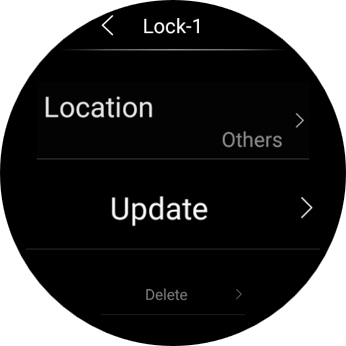
To upgrade the lock’s software, select the desired smart lock, and tap  > Update. This update option only shows up when there is a new version.