MJPEG and RTSP are the primary monitoring stream types discussed in this chapter.
MJPEG, or Motion JPEG, is a video compression format that uses JPEG images for each video frame. Akuvox devices display live streams on the web interface and capture monitoring screenshots in MJPEG format. Settings related to MJPEG determine video quality and the on/off status of the live stream function.
RTSP stands for Real Time Streaming Protocol. It can be used to stream video and audio from the third-party cameras to the device. You can add a camera’s stream by adding its URL. The URL format of Akuvox devices is rtsp://Device’s IP/live/ch00_0
ONVIF is an Open Network Video Interface Forum. It enables the device to scan and discover cameras or intercom devices with activated ONVIF functions. Live streams obtained through ONVIF are essentially in RTSP format.
RTSP Stream Monitoring
The RTSP feature allows Akuvox indoor monitors or third-party devices to obtain the live stream from the device.
You can set up the RTSP authentication credentials and video parameters.
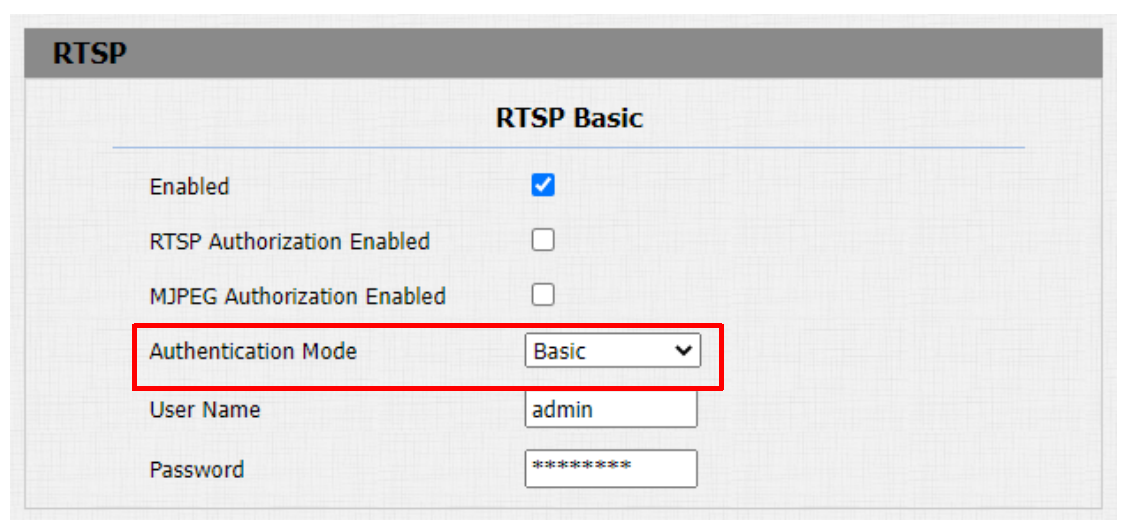
RTSP Basic Setting
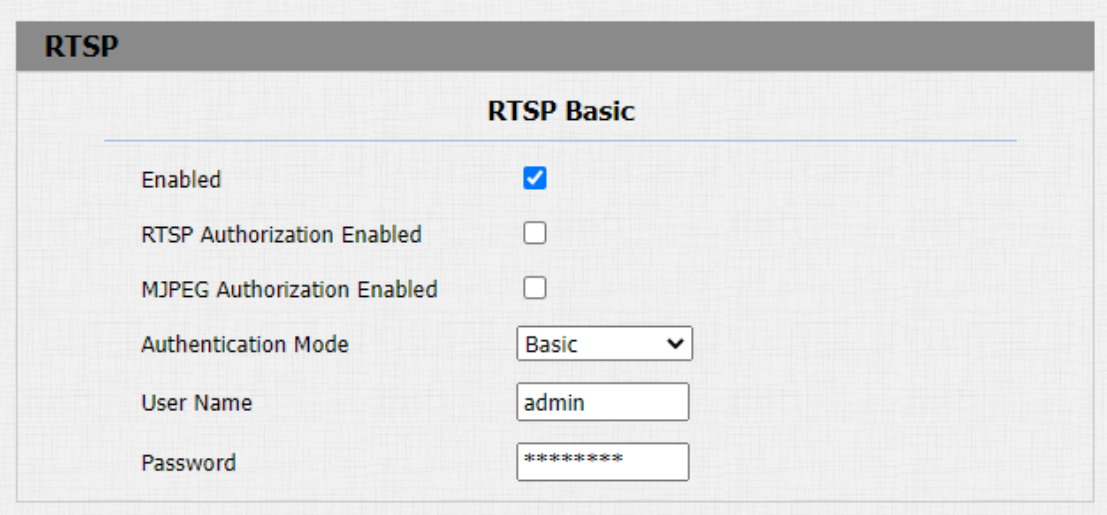
You are required to set up the RTSP function on the device web Intercom > RTSP > RTSP Basic interface in terms of RTSP Authorization, authentication, password, etc before you can use the function.
Parameter Set-up:
RTSP Server Enable: click on Enable and Disable in the RTSP Enable field to turn on or turn off the RTSP function.
RTSP Authorization Enabled: click on Enable and Disable in the RTSP Authorization field to enable or disable the RTSP authorization. If you enable the RTSP Authorization, you are required to enter the RTSP Authentication Type, RTSP Username, and RTSP Password on the intercom device such as an indoor monitor for authorization. The RTSP URL format is
RTSP User Name: enter the name used for RTSP authorization.
RTSP User Password: enter the password for RTSP authorization.
RTSP Authentication Type: select the RTSP authentication type between "Basic" and "Digest". "Basic" is the default authentication type.
RTSP Stream Setting
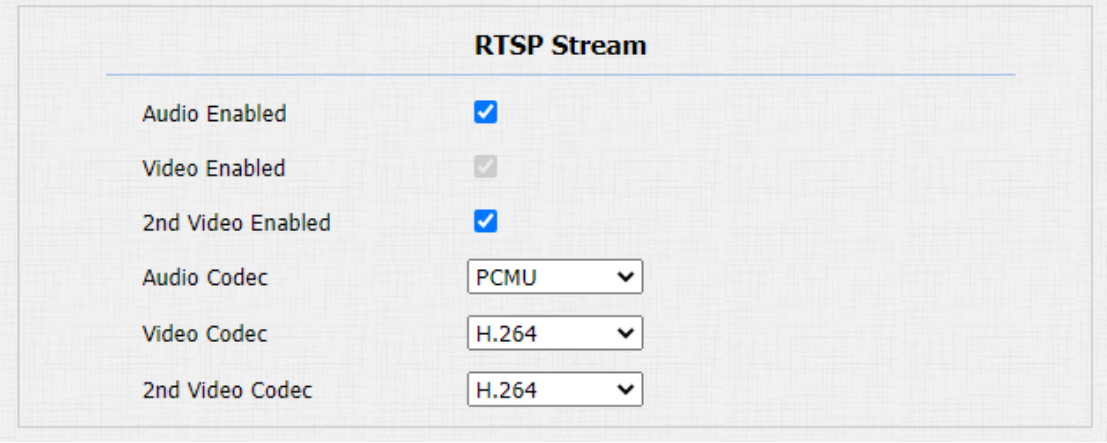
You can select the video codec format for the RTSP stream to monitor and configure video resolution and bit-rate, etc., based on your network environment on the web Intercom > RTSP > RTSP stream interface.
Parameter Set-up:
Audio Enabled: tick to enable RTSP audio which means, the door phone can also send audio information to the monitor by RTSP.
Video Enabled: the door phone can send the video information to the monitor. After enabling the RTSP feature, the video RTSP is enabled by default and can not be modified.
2nd Video Enabled: Akuvox door phones support 2 RTSP streams, you can enable the second one.
Audio Codec: choose a suitable audio codec for RTSP audio.
Video Codec: choose a suitable video codec for RTSP video.
Parameter Set-up:
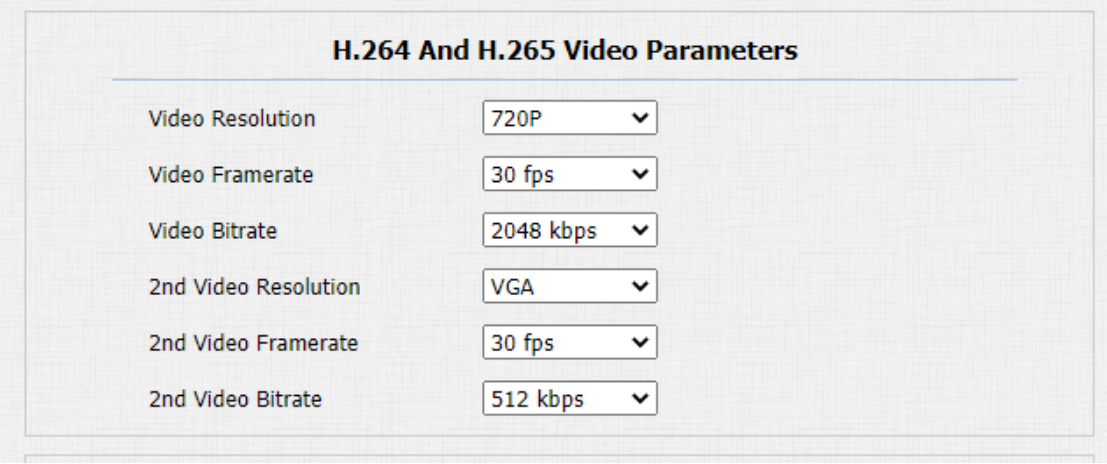
Video Resolution: select video resolutions among seven options: "QCIF", "QVGA", "CIF","VGA","4CIF","720P". The default video resolution is "4CIF". and the video from the door phone might not be able to be shown on the indoor monitor if the resolution is set higher than "4CIF".
Video Framerate: "30fps" is the video frame rate by default.
Video Bitrate: select video bit-rate among six options: "64 kbps", "256 kbps", "512 kbps", "1024 kbps", "2048 kbps" according to your network environment. The default video bit rate is "2048 kbps".
2nd Video Resolution: select the video resolution for the second video stream channel. While the default video solution is "VGA".
2nd Video Framerate: select the video framerate for the second video stream channel. "25fps" is the video frame rate by default for the second video stream channel.
2nd Video Bitrate: select video bitrate among the six options for the second video stream channel. While the second video stream channel is "512 kbps" by default.
NACK
NACK (Negative Acknowledgement) is used to ensure the smooth and continued data transmission for the video call. To enable NACK, navigate to Phone > Call Feature > Others.

Parameter Set-up:
NACK Enabled: enable the NACK. It can be used to prevent losing data packets in the weak network environment when discontinued and mosaic video images occur.
MJPEG Image Capturing
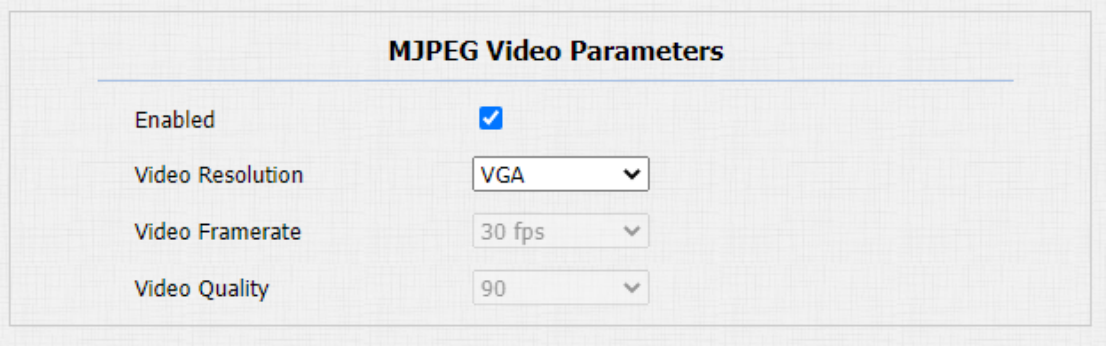
Akuvox door phone allows you to capture the Mjpeg format monitoring image if needed. You can enable the Mjpeg function on Intercom > RTSP > RTSP Basic and set the image quality on the web Intercom > RTSP > MJPEG Video Parameters interface.
Parameter Set-up:
Enabled: tick it to access device video or real-time screenshots through a browser.
After the MJPEG service is enabled, you can capture the image from the door phone using the following three types of URL format:
http:// device ip:8080/picture.cgi
http://deviceip:8080/picture.jpg
http://deviceip:8080/jpeg.cgi
For example, if you want to capture the JPG format image of a door phone with the IP address: 192.168.1.104, you can enter “http://192.168.1.104:8080/picture.jpg” on the web browser.
Video Resolution: select video resolutions among seven options: "QCIF", "QVGA","CIF","VGA","4CIF","720P". The default video resolution is "4CIF". and the video from the door phone might not be able to be shown on the indoor monitor if the resolution is set higher than "4CIF".
Video Framerate: "30fps" is the video frame rate by default.
Video Quality: the video bitrate, from 50 to 90.

ONVIF
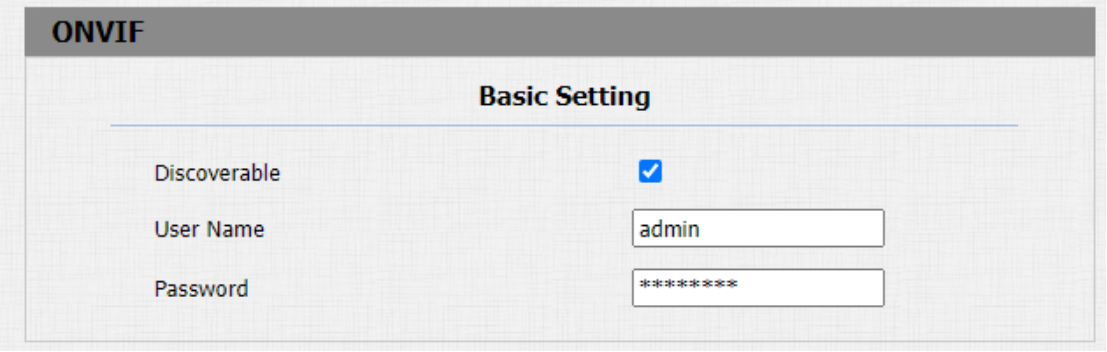
Real-time video from the door phone camera can be searched and obtained by the Akuvox indoor monitor or by third-party devices such as NVR (Network Video Recorder) you can configure the ONVIF function on the web Intercom > ONVIF interface so that other devices will be able to see the video from the door phone.
Parameter Set-up:
Discoverable: tick the check box to enable the Discoverable ONVIF mode. If you select "Discoverable" then the video from the door phone camera can be searched by other devices.
User Name: enter the user name. The user name is "admin" by default.
Password: enter the password. The password is "admin" by default.
After the setting, you can enter the ONVIF URL on the third-party device to view the video stream.
For example: http://IP address:80/onvif/device_service
Note
Fill in the specific IP address of the door phone in the URL.
Live Stream
If you want to check the real-time video from the door phone, you can go to the device web Intercom > Live Stream interface to obtain the real-time video or you can also enter the correct URL on the web browser to obtain it directly.
To check the real-time video using the URL, you can Enter the correct URL (http://IP_address:8080/video.cgi) on the web browser if you want to obtain the real-time video directly instead of going to the web interface.