Security
Tamper Alarm Setting
Tamper alarm function serves as a protection against any unauthorized removal of the devices by triggering off the temper alarm while sending out calls to the designated location. Tamper alarm will be triggered off when the door phone changes its gravity value as opposed to its original gravity value set up when the device is installed. You can navigate to Security > Basic > Temper Alarm.
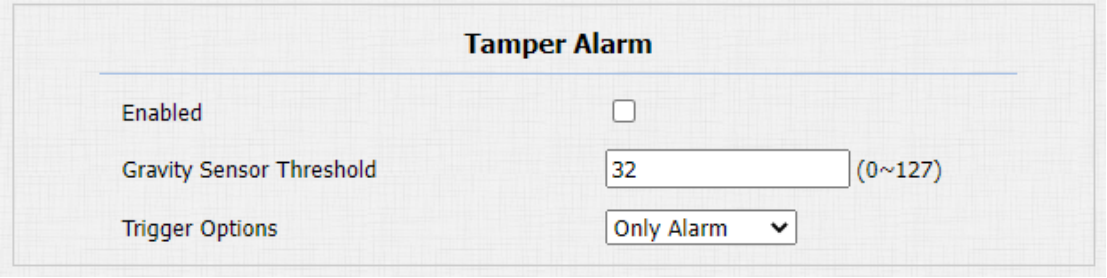
Parameter Set-up:
-
Tamper Alarm: enable the anti-theft alarm function.
-
Gravity sensor Threshold: set the threshold for the gravity sensory sensitivity. The lower the value is, the higher the value will be. The gravity sensor value is 32 by default.
-
Trigger Options: select what can be triggered when the gravity sensor is triggered.
Client Certificate Setting
Certificates ensure communication integrity and privacy. To use the SSL protocol, you need to upload the right certificates for verification.
Web Server Certificate
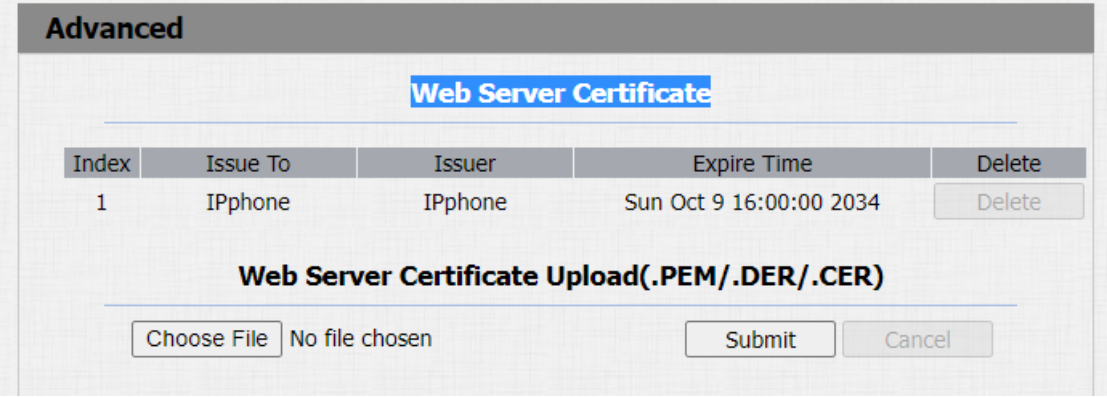
It is a certificate sent to the client for authentication when the client requests an SSL connection with the Akuvox door phone. Please upload the certificates in accepted formats.
To upload Web Server certificate on the device web interface Security > Advanced > Web Server Certificate.
Client Certificate
This certificate verifies the server to the Akuvox door phone when they want to connect using SSL. The door phone verifies the server's certificate against its client certificate list.
To upload and configure client certificate on the same page.
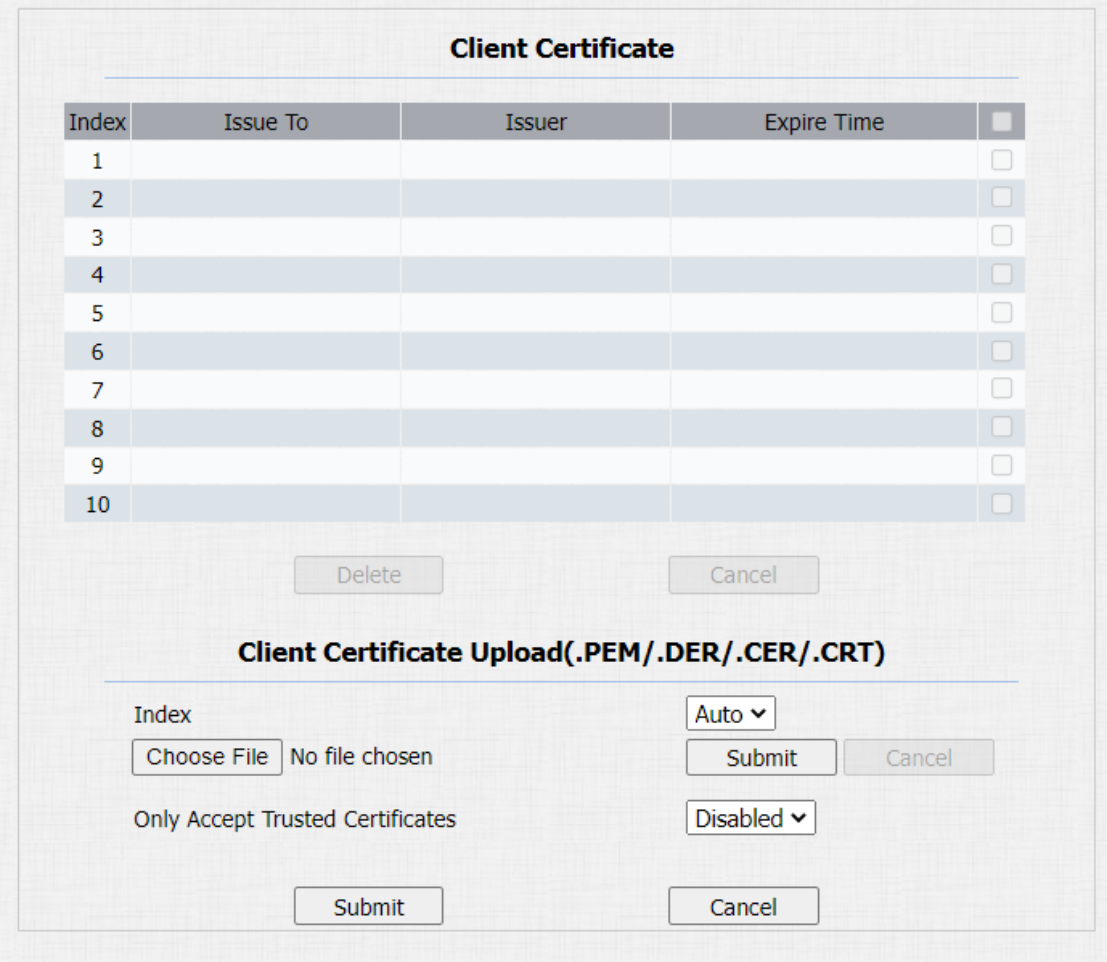
Parameter Set-up:
-
Index: select the desired value from drop-down list of Index. If you select Auto value, the uploaded certificate will be displayed in numeric order. If you select the value from 1 to 10, the uploaded certificate will be displayed according to the value that the user selected.
-
Select File: click Choose file browse local drive, and locate the desired certificate. (*.pem only)
-
Only Accept Trusted certificates: if select Enabled, as long as the authentication success, the phone will verify the server certificate based on the client certificate list. If select Disabled, the phone will not verify the server certificate no matter whether the certificate is valid or not.
Motion Detection
Motion Detection is often used for unattended surveillance video and automatic alarms. The images collected by the camera at different frame rates will be calculated and compared by the CPU according to a certain algorithm. When the picture changes, if someone walks by, the lens is moved, the number obtained by the calculation and comparison result will exceed the threshold and indicate that the system can the corresponding processing is made automatically.
Configure Motion Detection
You can turn on the motion detection and set up the motion detection interval on the device. Path: Intercom > Motion > Motion Detection Options.
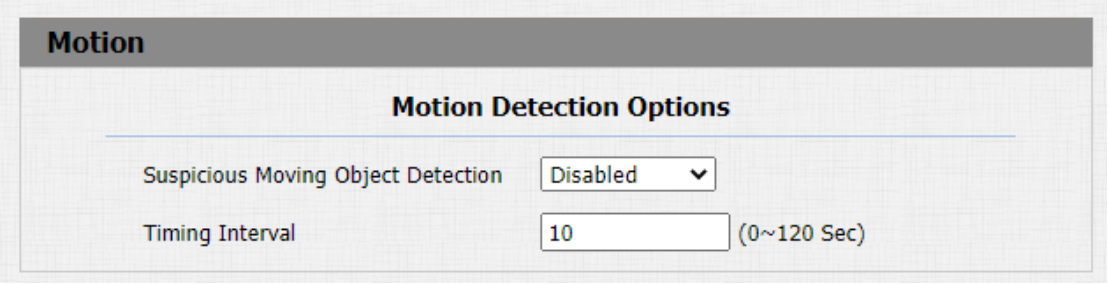
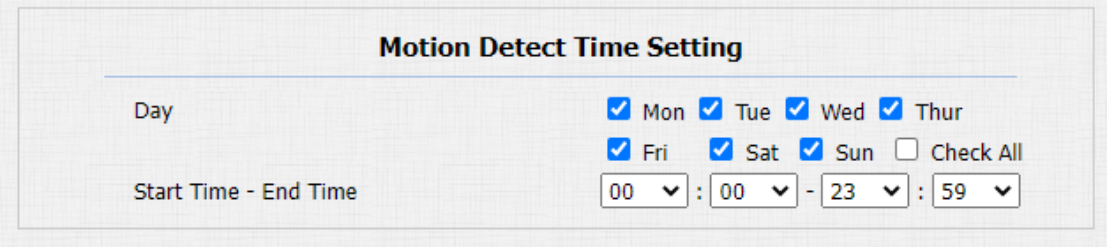
Parameter Set-up:
-
Suspicious Moving Object Detection: select “disable” to disable the motion detection. Select “IR detection” to enable the IR sensor based motion detection for the suspicious moving objects. And select “ Video detection” to enable the video-based motion detection during the monitoring for the suspicious moving object.
-
Time Interval: set the time interval for the motion detection. If you set the default time interval as "10" Sec, then the motion detection time span will be 10 seconds. Assuming that we set the time interval as "10" then, and the first movement captured can be seen as start point of the motion detection, and if the movement continues through 7 seconds of the 10 seconds interval, then the alarm will be triggered at 7 seconds ( the first trigger point) and motion detection action can be triggered (sending out notification) anywhere between 7-10 seconds once the movement is detected. "10" Sec interval is a complete cycle of the motion detection before it starts another cycle of the same time interval. To be more specific, the first trigger point can be calculated as the "Time interval minus three".
-
Day: set up the motion detection schedule.
-
Start Time- End Time: set up the start time and end time on daily basis.
Security Notification Setting
Email Notification Setting
If you want to receive the security notification via email, you can configure the Email notification on the web Intercom > Action > Email Notification interface properly. The email notification will show as the captures.
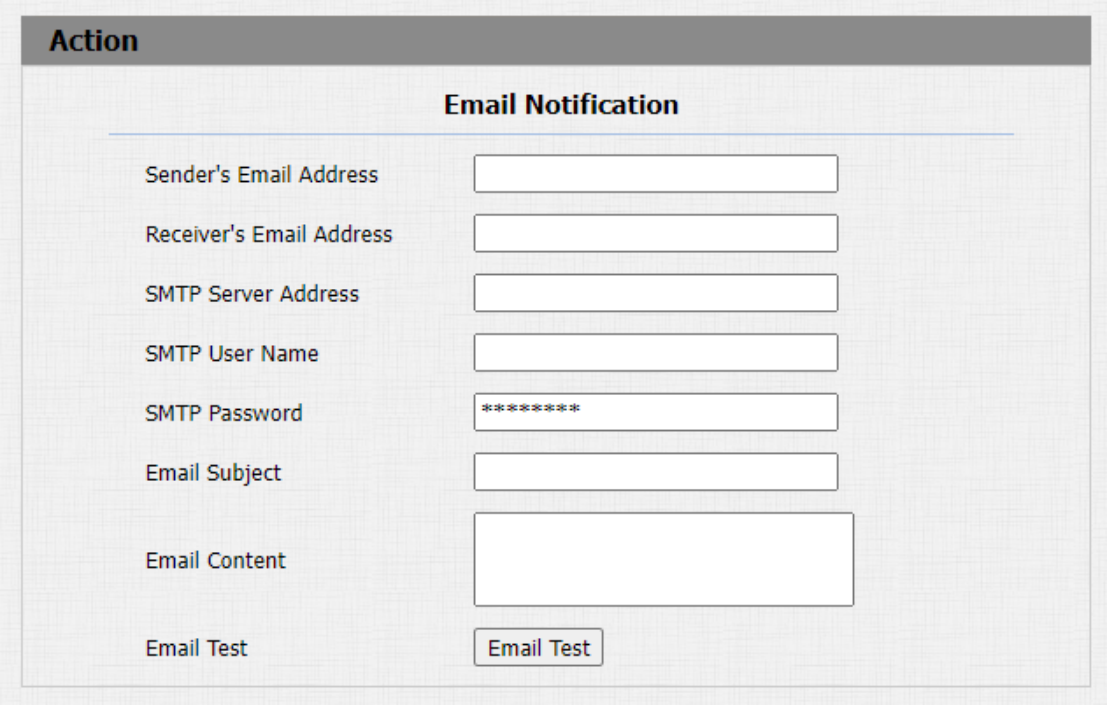
Parameter Set-up:
-
Sender's email address: enter the sender’s email address from which the email notification will be sent out.
-
Receiver's Email Address: enter the receiver’s email address.
-
SMTP Server Address: enter the SMTP server address of the sender.
-
SMTP User Name: enter the SMTP user name, which is usually the same as the sender’s email address.
-
SMTP Password: configure the password of SMTP service, which is the same as the sender’s email address.
-
Email Subject: enter the subject of the email.
-
Email Content: compile the contents of emails according to your need.
-
Email Test: click Email Test to test if you can receive the Email.
FTP Notification Setting
If you want to receive the security notification via FTP, you can configure the FTP notification on the web Intercom > Action > FTP Notification properly.
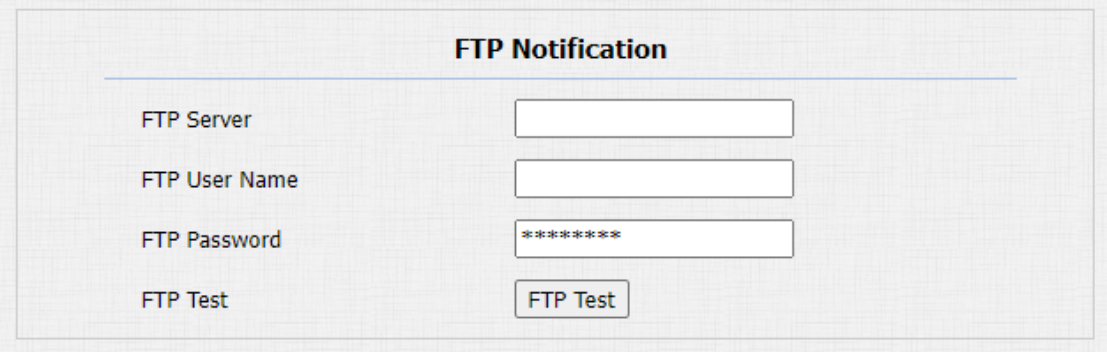
Parameter Set-up:
-
FTP Server: enter the address (URL) of the FTP server for the FTP notification.
-
FTP User Name: enter the FTP server user name.
-
FTP Password: enter the FTP server password.
-
FTP Test: run the test to see if FTP notification can be sent and received by the FTP server.
SIP Call Notification Setting
In addition to FTP and Email notification, the door phone can also make a SIP call when some feature action is triggered. To configure a SIP call notification on web Intercom > Action > SIP Call Notification interface.

Parameter Set-up:
-
SIP Call Number: to configure SIP call number.
-
SIP Call Name: to configure display name of door phone.
HTTP URL Notification Configuration
Akuvox door phone support sending the HTTP notification to the third party when some features are triggered. The URL format: http://http server IP address/any information.Refer to: Intercom > Motion > Action to Execute.
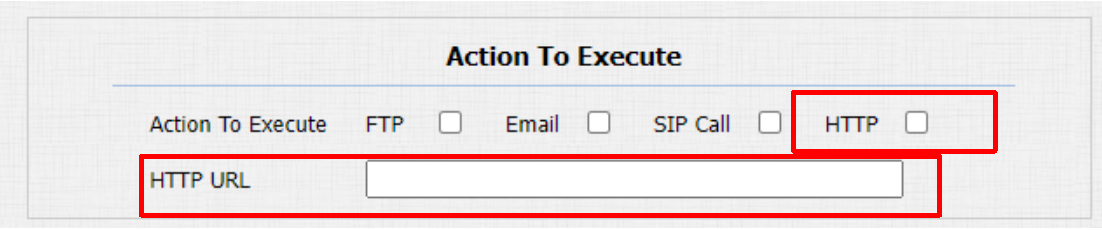
Parameter Set-up:
- HTTP URL: tick the check box to enable HTTP URL notification.
- HTTP URL: if you choose HTTP mode, enter the URL format: http://http server IP address/any information.
Security Action Configuration
Configure Push Button Action
When pressing the push button, the door phone will trigger the preconfigured action type, the notification can be sent out by Email, FTP notification or SIP call. To do this configuration on web Intercom > Basic interface.
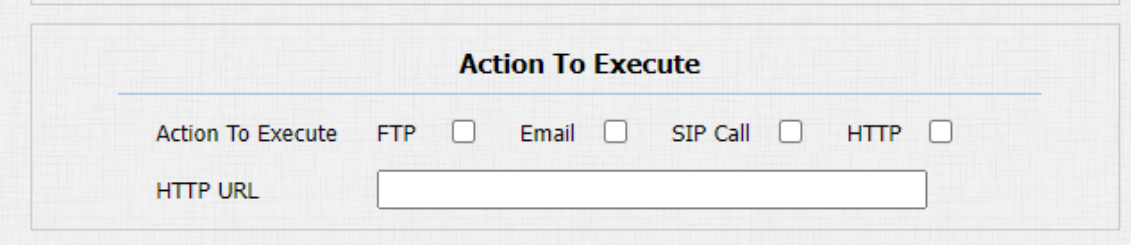
Parameter Set-up:
- Action To Execute: to choose which action to be executed after triggering.
Configure Motion Action
When the Motion Detection feature is working, you can make it trigger an action. To do this configuration on web Intercom > Motion interface.
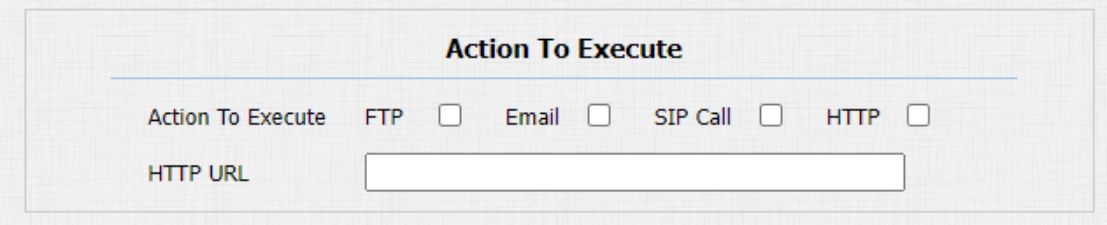
Parameter Set-up:
- Action To Execute: to choose which action to be executed after triggering.
Configure Input Action
When Input interface is working , it can also trigger an action. You can do this configuration on web Intercom > Input interface.
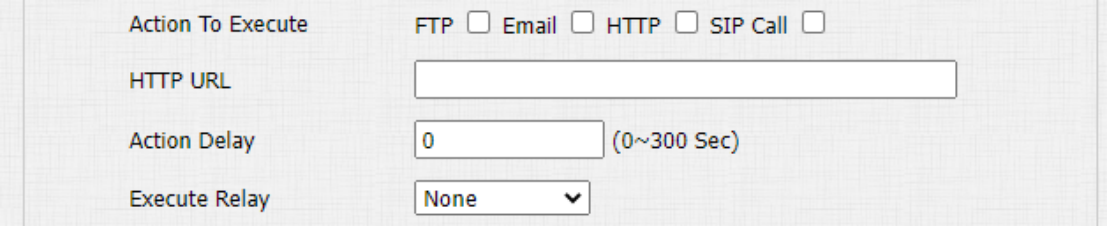
Parameter Set-up:
- Action to execute: to choose which action to execute after triggering.
Call Event Notification
If you want to be notified of the call event (call receiving, answering, etc.) navigate to Intercom > Basic > Call Event.
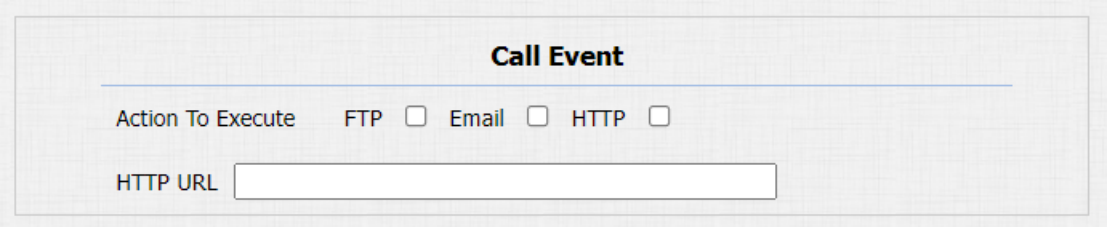
Parameter Set-up:
-
Action To Execute: select the method to carry out the action among four options: FTP, Email, HTTP, TFTP.
-
HTTP URL: enter the URL if you select the HTTP to carry out the action.
Voice Encryption
SRTP (Secure Real-time Transport Protocol) is a protocol defined on the basis of Real-time Transport Protocol. The data of the transmission protocol provides encryption, message authentication, integrity assurance and replay protection. To configure this feature on web Account > Advanced > Encryption interface.

Parameter Set-up:
- Voice Encryption(SRTP): choose Disabled, Optional or Compulsory for SRTP. If it is Optional or Compulsory, the voice during the call is encrypted, and you can grab the RTP packet to view.
User Agent
You can customize user agent field in the SIP message. If user agent is set to a specific value, users can see the information from PCAP. If user agent is blank, by default, users can see the company name “Akuvox”, model number and firmware version from PCAP.
Path: Account > Advanced > User Agent.

Parameter Set-up:
- User Agent: support to enter another specific value, Akuvox is by default.
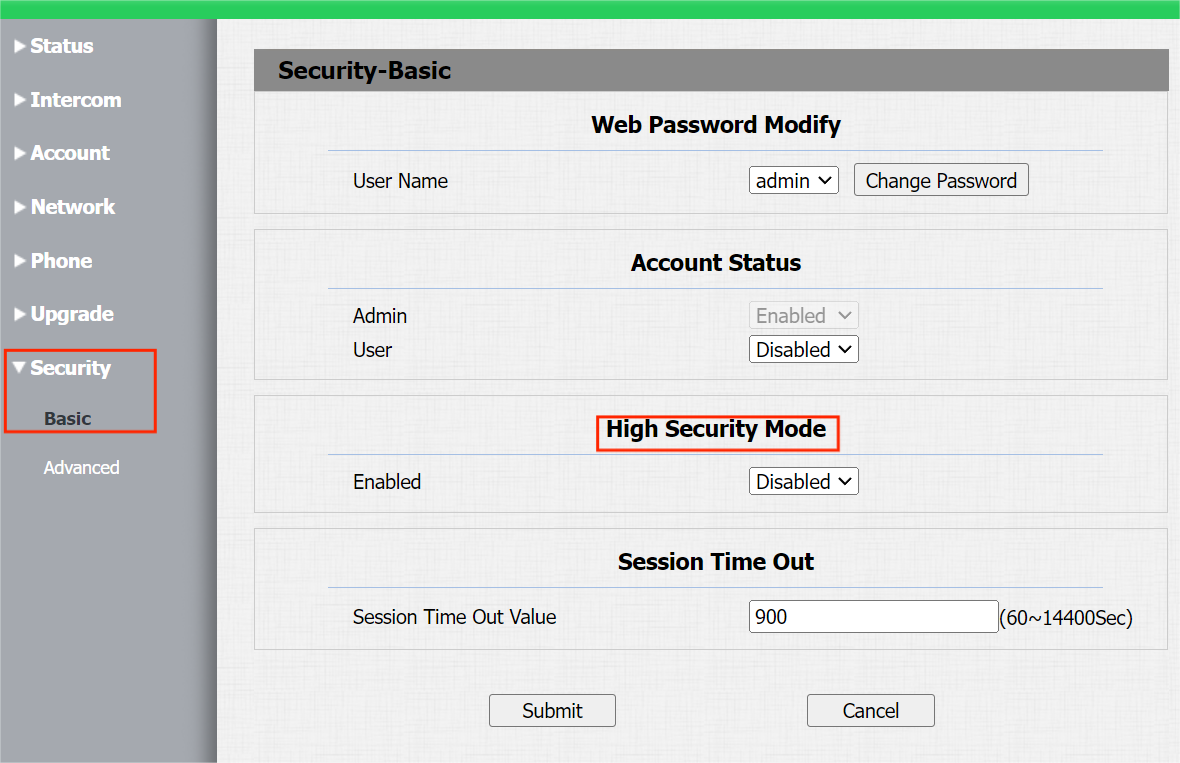
High Security Mode
High security mode is designed to enhance the security. It employs encryption across various facets, including the communication process, door opening commands, password storage methods, and more.
To configure this feature on the web: Security>Basic>High Security Mode
Important Notes
1. The High Security mode is off by default when you upgrade the device from a version without the mode to one with it. But if you reset the device to its factory settings, the mode is on by default.
2. This mode makes the old version tools incompatible. You need to upgrade them to the following versions or higher to use them.
·PC Manager: 1.2.0.0
·IP Scanner: 2.2.0.0
·Upgrade Tool: 4.1.0.0
·SDMC: 6.0.0.34
3. The supported HTTP format for relay triggering varies depending on whether high secure mode is enabled or disabled.
If the mode is on, the device only accepts the new HTTP formats below for door opening.
l http://username:password@deviceIP/fcgi/OpenDoor?action=OpenDoor&DoorNum=1
l http://deviceIP/fcgi/OpenDoor?action=OpenDoor&DoorNum=1
If the mode is off, the device can use both the new formats above and the old format below:
l http://deviceIP/fcgi/do?action=OpenDoor&UserName=username&Password=password&DoorNum=1
4. It is not allowed to import/export configuration files in tgz. format between a device with the high security mode and another one without it. For assistance with file transfer, please contact Akuvox technical support.