To ensure normal functioning, make sure that the device has its IP address set correctly or obtained automatically from the DHCP server.
To set it up, go to Network > Basic interface.
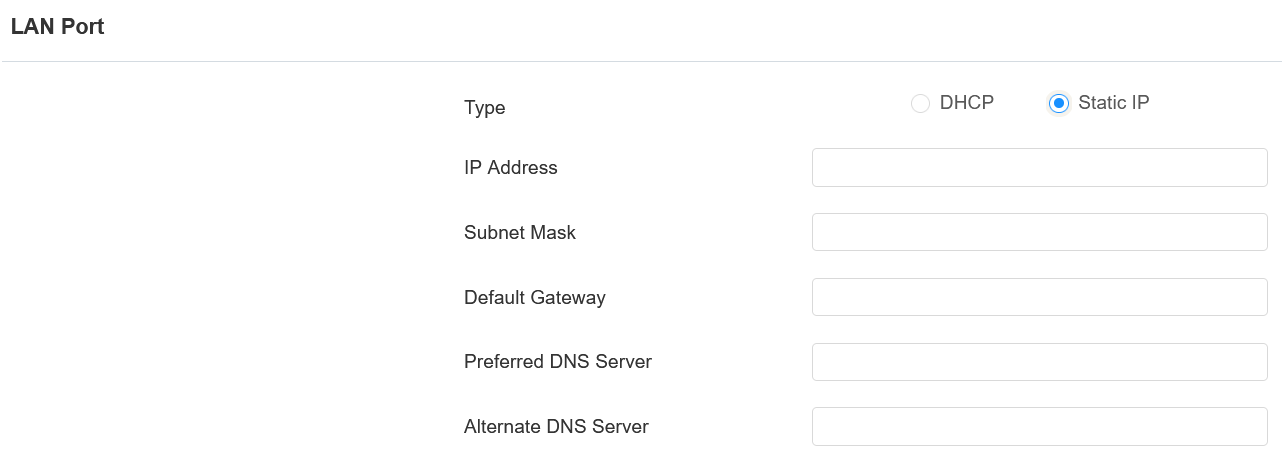
DHCP: DHCP mode is the default network connection. If the DHCP mode is selected, then the device will be assigned by the DHCP server with an IP address, subnet mask, default gateway, and DNS server address automatically.
Static IP: When static IP mode is selected, the IP address, subnet mask, default gateway, and DNS server address have to be manually configured according to the actual network environment.
IP Address: Set up the IP address when the static IP mode is selected. To access the device’s web settings with the IP, your computer should be on the same local network as the device.
Subnet Mask: A subnet mask tells your device which IP addresses are part of your local network and which ones are not. For example, if the subnet mask is 255.255.255.0, it means that devices with similar starting IPs (like 192.168.1.x) are in the same network.
Default Gateway: The gateway is like a bridge between your device and other networks, such as the internet. Usually, it’s the IP address of your router.
Preferred/Alternate DNS Server: Set up the preferred or alternate Domain Name System(DNS) server according to the actual network environment. The preferred DNS server is the primary server, while the alternate DNS server is the secondary one. The secondary server is for backup.
SNMP Setting
Simple Network Management Protocol(SNMP) is a protocol for managing IP network devices. It allows network administrators to monitor devices and receive alerts for attention-worthy conditions. SNMP provides variables describing system configuration, organized in hierarchies and described by Management Information Bases (MIBs).
To set it up, go to Network > Advanced interface.
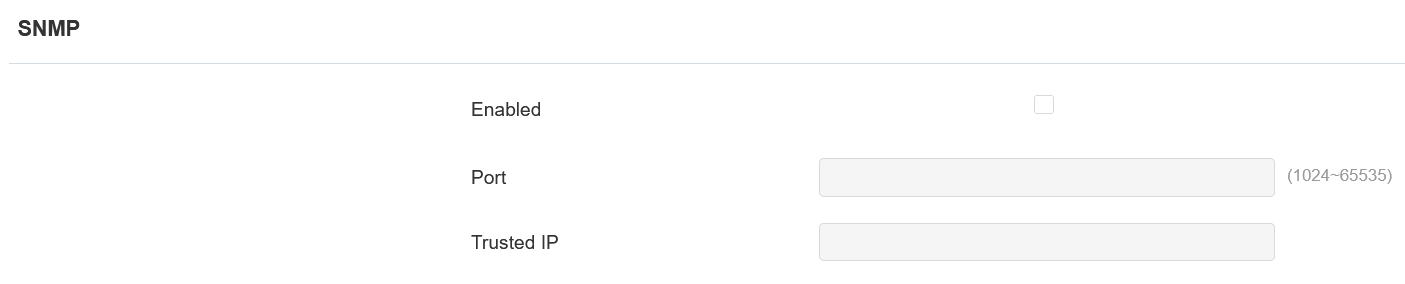
Port: Set a specific port for the data transmission from 1024 to 65535.
Trusted IP: Enter the third-party IP address.
Device Web HTTP Setting
This function manages device website access. The device supports two remote access methods: HTTP and HTTPS (encryption).
Set it up on the Network > Advanced interface.

HTTP Redirect: It is enabled by default, which means all HTTP requests will automatically be redirected to HTTPS. If it is disabled, the device's web interface can be accessed using HTTP directly.