Network Information
To check the current network information, go to Status > Basic > Network Information.
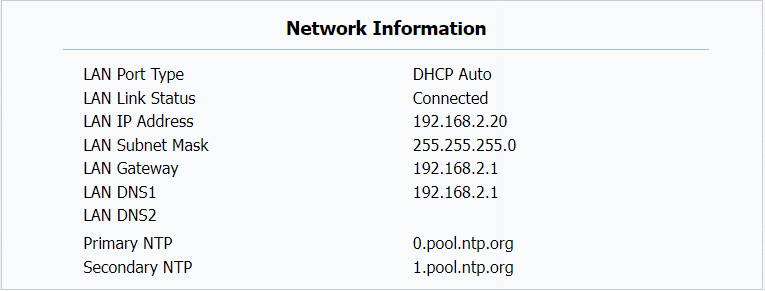
Device Network Configuration
To ensure normal functioning, make sure that the device has its IP address set correctly or obtained automatically from the DHCP server.
Navigate to Network > Basic > LAN Port interface.
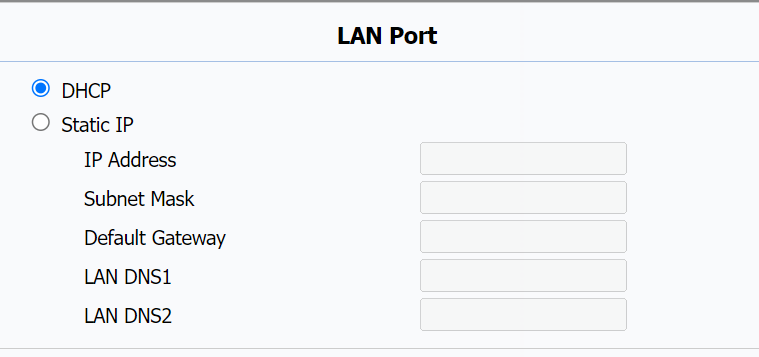
Parameters Set-up:
- DHCP: Click on DHCP to enable this mode. DHCP mode is the default network connection. If the mode is turned on, then the device will be assigned by the DHCP server with IP address, subnet mask, default gateway and DNS server address automatically.
- Static IP: Click on Static IP to enable this mode. If selected, you have to configure the IP address, subnet mask, default gateway, and DNS servers address manually based on the actual network environment.
- IP Address: Enter the IP Address.
- Subnet Mask: Enter the subnet mask according to your actual network environment.
- Default Gateway: Enter the correct gateway default gateway according to the IP address of the default gateway.
- LAN DNS1/DNS 2: Enter preferred or alternate DNS Server (Domain Name Server) according to your actual network environment. DNS1 server is the primary DNS server address while DNS2 is the alternative.
Device Local RTP configuration
Real-time Transport Protocol(RTP) lets devices stream audio and video data over a network in real time.
To use RTP, devices need a range of ports. A port is like a channel for data on a network. By setting up RTP ports on your device and router, you can avoid network interference and improve audio and video quality.
To do so, go to Network > Advanced > Local RTP.

Parameters Set-up:
- Max RTP Port: Set the maximum end port that RTP stream can use. The default port is 12000.
- Starting RTP Port: Set the minimum start port that RTP stream can use. The default port is 11800.
- The max port value must always be 2 greater than the min one.
SNMP Setting
Simple Network Management Protocol(SNMP) is a protocol for managing IP network devices. It allows network administrators to monitor devices and receive alerts for attention-worthy conditions. SNMP provides variables describing system configuration, organized in hierarchies and described by Management Information Bases (MIBs).
To set up SNMP, go to Network > Advanced > SNMP.
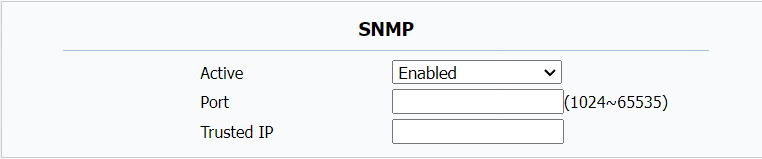
Parameters Set-up:
- Port: To configure SNMP server’s port.
- Trusted IP: The IP address of the computer on which the MIB Browser tool is enabled.
VLAN Setting
A Virtual Local Area Network (VLAN) is a logical group of nodes from the same IP domain, regardless of their physical network segment. It separates the layer 2 broadcast domain via switches or routers, sending tagged packets only to ports with matching VLAN IDs. Utilizing VLANs enhances security by limiting ARP attacks to specific hosts and improves network performance by minimizing unnecessary broadcast frames, thereby conserving bandwidth for increased efficiency.
To set up VLAN, go to Network > Advanced > VLAN > LAN Port.

Parameters Set-up:
- Active: To enable or disable VLAN feature for designated port. The default option is Disable.
- VID: To configure VLAN ID for designated port.
- Priority: To select VLAN priority for designated port.