akubela Hypanel Ultra (PH81) (firmware version 581.30.14.506 or higher) supports flexible Scene Automation, allowing users to automatically control device behavior based on specific triggers.
Scenes can be configured for:
Sabbath (Shabbat) automation – Automatically execute tasks at the beginning or end of Sabbath.
Daily automation – Schedule routine device control based on date & time.
Each scene consists of:
Trigger – When the scene runs
Task(s) – What actions are performed
Configurations can be completed directly on the device or its web portal.
Create a Scene
Use the device IP to log in to its web interface.
Check the IP on the Settings > System Info > Network screen.
Or, scan the IP with IP Scanner on the same local network.
The initial username and password are admin.
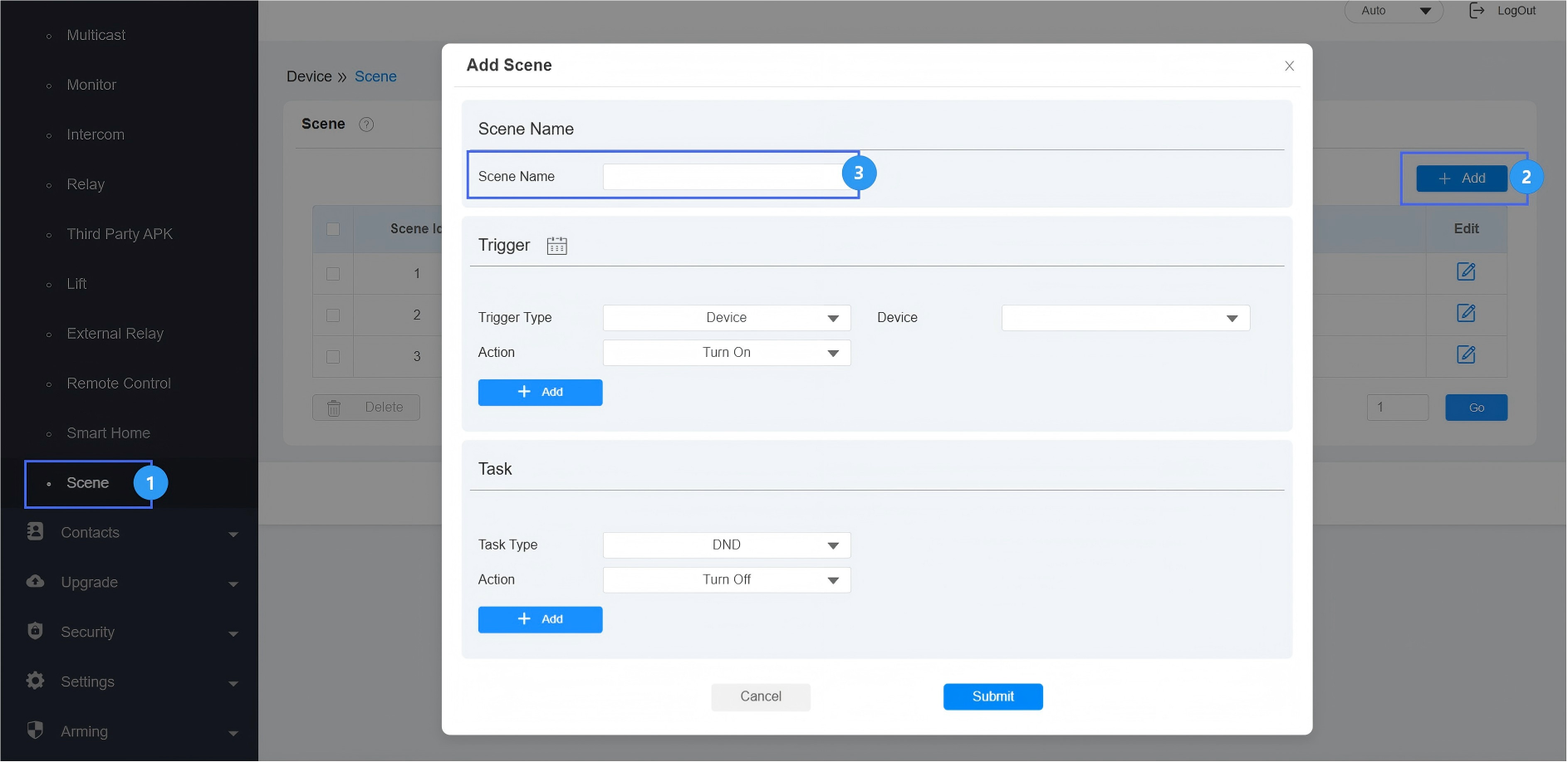
Click Device > Scene.
Click Add in the upper-right corner to add a scene.
Name the scene.
Configure Trigger
Select the desired trigger type. You can click + Add to configure multiple triggers in one scene.
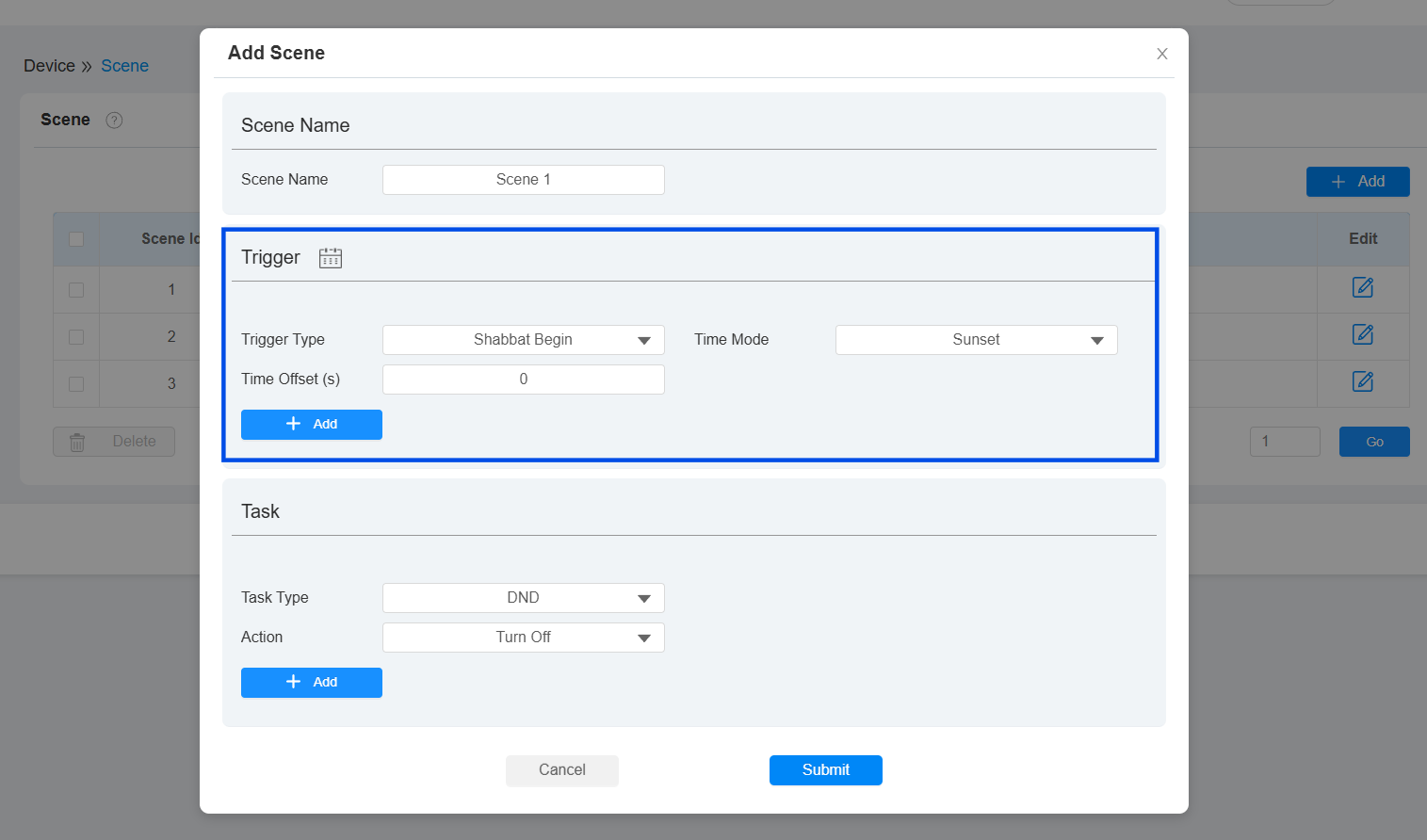
A. Religious Event Trigger
When selecting:
Shabbat Begin/End
Yamim Tovim Begin/End
Yom Kippur Begin/End
Set the Time Mode and Time Offset.
Time Mode: Defines how the trigger time is calculated (e.g., based on the local calculated event time).
Sunset: The system automatically calculates the event time based on the local sunset time.
Custom: Uses a manually specified fixed time instead of the calculated sunset.
Time Offset(-720 ~ 720 mins): Configure this option when Time Mode is Sunset. Adjust the execution time before or after the religious event. Negative = before event; Positive = after event.
B. Date and Time
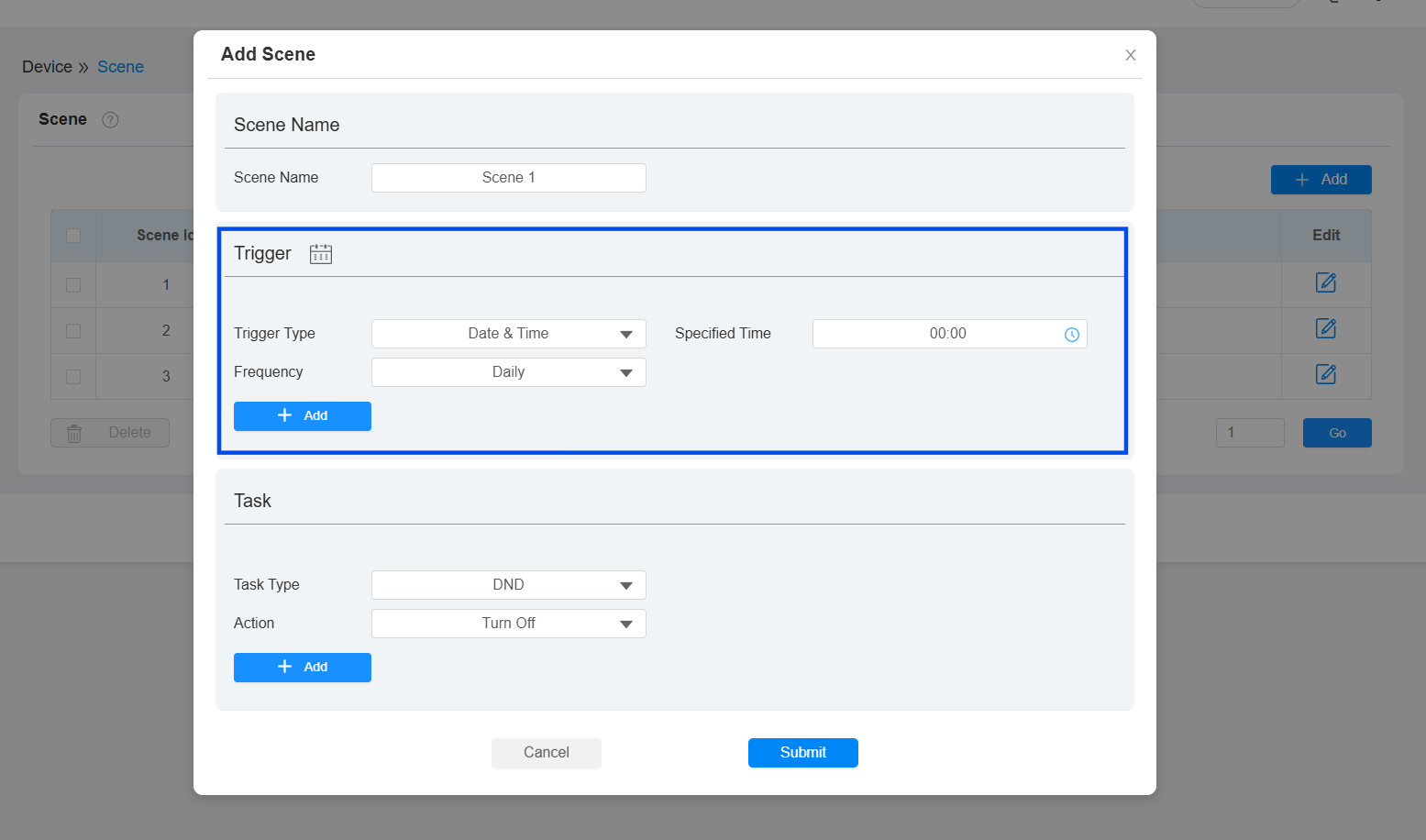
Select Date & Time trigger type.
Specify the time.
Set the Frequency: Daily, Weekly, or Monthly.
C. Device
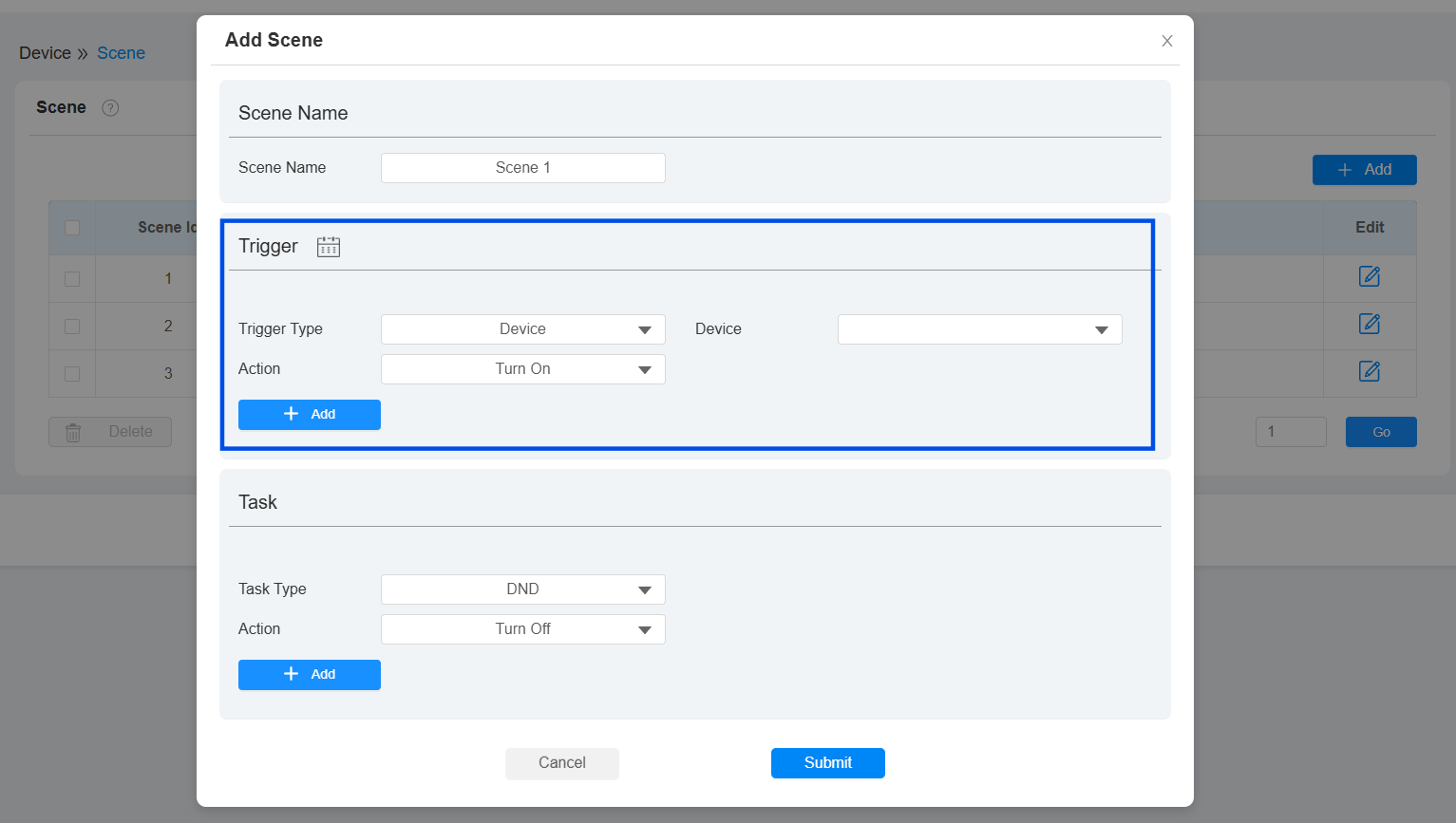
Select Device trigger type.
Select the specific device.
Select the device action: Turn On or Turn Off.
Configure Tasks
Tasks define what happens when the trigger condition is met.
Multiple tasks can be added in one scene.
Select the Task Type and Action.
If Device or Speaker is selected, choose the specific device.
Task Type | Available Actions | Description |
|---|---|---|
DND | Turn On/Turn Off | Enable or disable Do Not Disturb on PH81. |
Device | Turn On/Turn Off | Control selected connected devices. |
Wake-up Mode | Manual/Auto | Configure screen wake behavior. Manual: Wake up the screen by touching it. Auto: Wake up the screen automatically by detecting someone’s approach. |
Speaker | Pause/Play/Previous/Next | Control the speaker connected to PH81. |
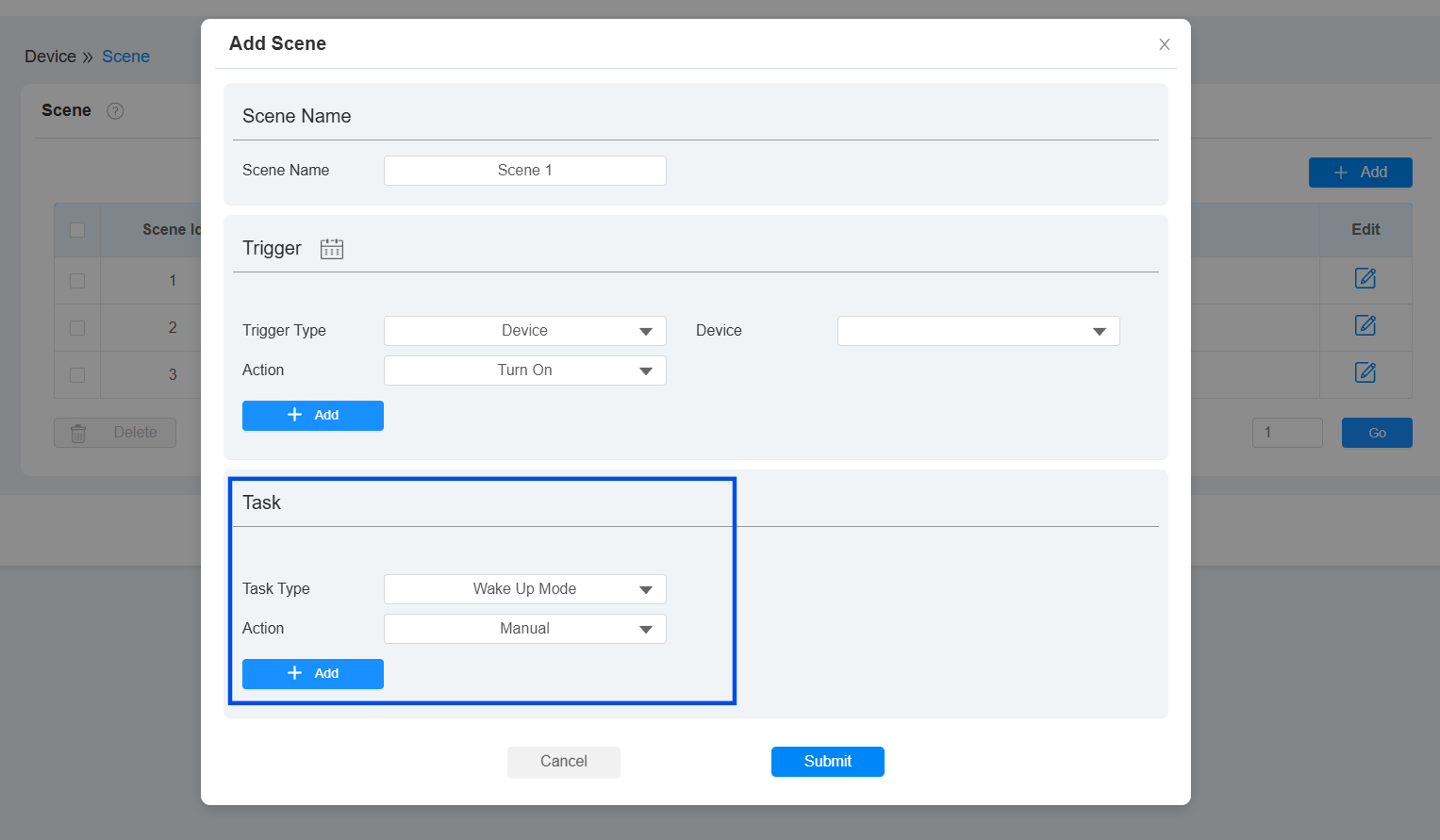
Click Submit.
Configure Scene on the Device
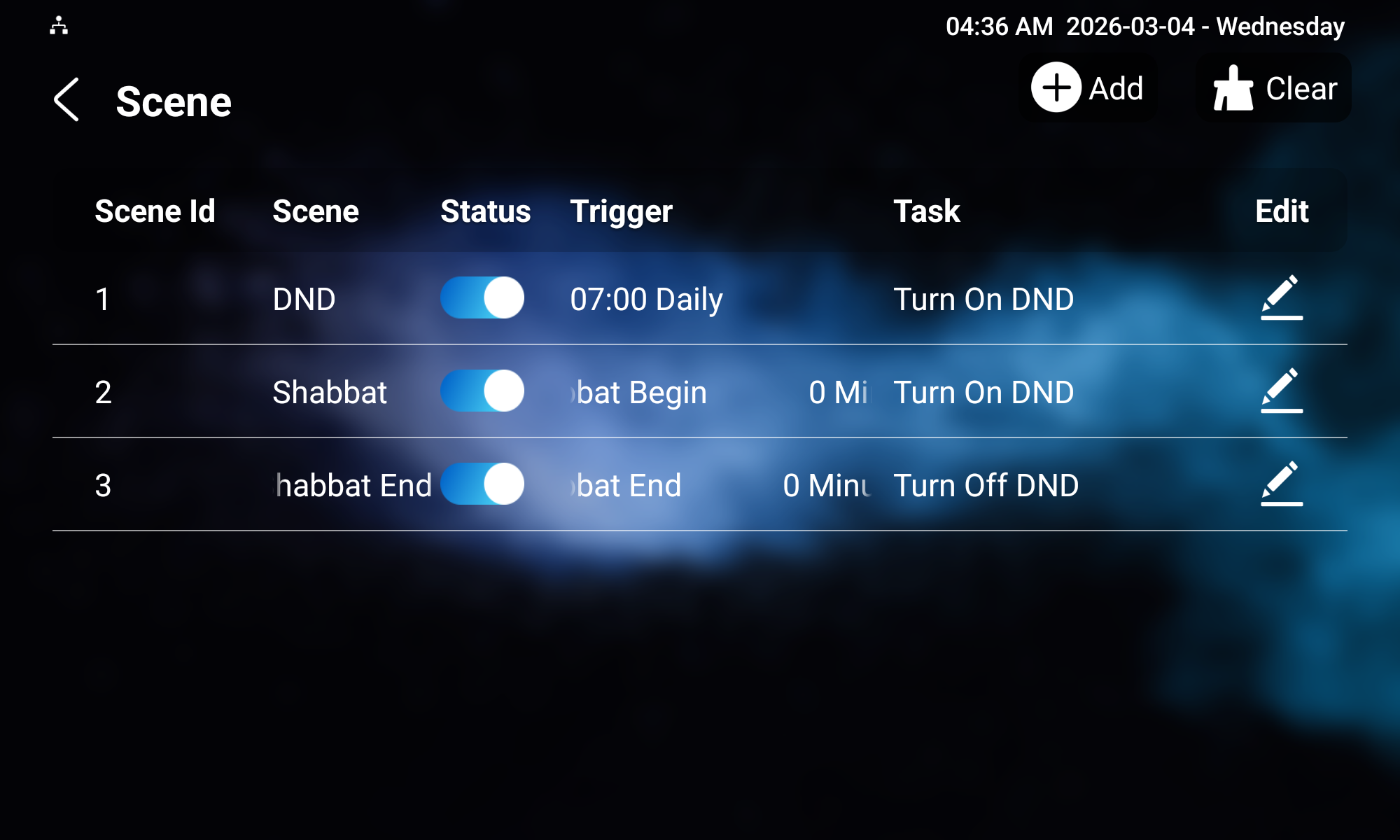
Scenes can also be configured directly on the PH81.
Navigate to Settings > Advance > Scene. The default password to access the advanced settings is 123456.
Click +Add to add a scene.
Name the scene.
Configure the Trigger Type and Task Type.
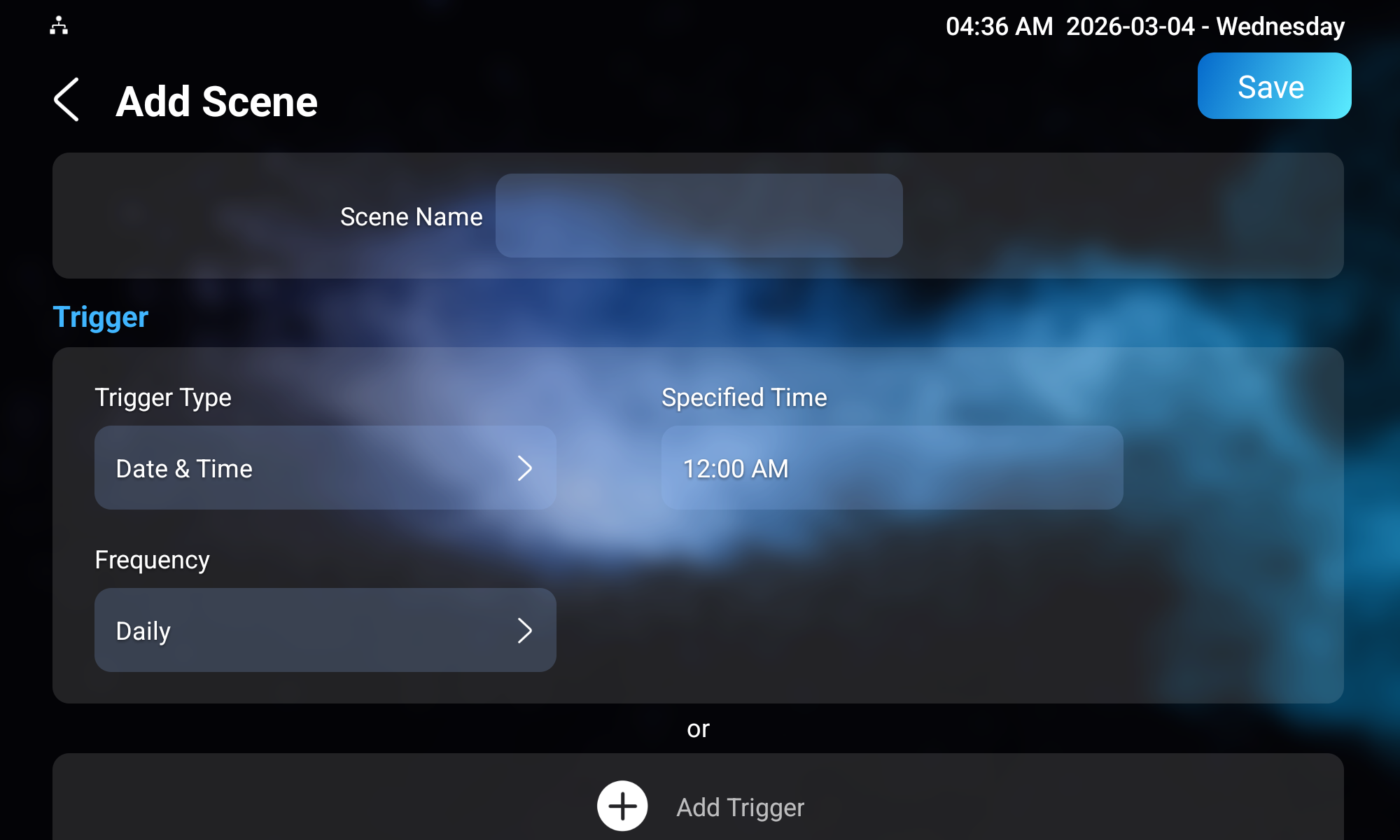
Save the setting.