Akuvox devices’ web passwords are used to access their web settings. You can reset the password using a one-time password generated on the SmartPlus Cloud.
Note
The device should be connected to the SmartPlus Cloud.
The device MAC address should be added to the MAC library of your distributor account.
Compatible Model and Minimum Version
The following models with specific firmware versions or higher support this feature.
E16 V2.0: 216.30.10.109 | E18: 218.30.10.209 |
R29: 29.30.10.137 | R20 V5.0: 320.30.10.226 |
R28 V2.0: 228.30.10.127 | S539: 539.30.10.216 |
X915 V2.0: 2915.30.10.208 | X912: 912.30.11.29 |
C313 V2.0: 213.30.13.113 | X916: 916.30.10.210 |
C316: 316.30.12.802 | C313 V3.0: 313.30.12.114 |
IT88: 88.30.12.701 | C319: 119.30.13.202 |
S562: 562.30.12.15 | S560: 560.30.11.101 |
S565: 565.30.10.71 | S563: 563.30.12.802 |
X933: 933.30.12.802 | S567: 567.30.12.802 |
A03: 103.30.10.111 | A05 V2.0: 205.30.10.104 |
A094: 92.30.10.106 | S532: 532.30.10.117 |
X910: 2910.30.10.240 | S535: 535.30.10.236 |
A095: 95.30.10.110 | E12 V2.0: 312.30.11.12 |
A08: 108.30.10.153 | X937: 937.30.13.122 |
S538: 538.30.10.705 | E16 V3.0: 416.30.11.206 |
A15: 1115.30.10.407 | WR01: 1401.30.11.221 |
Watch the Video Guide
Prefer a visual walkthrough?
Watch: [Distributor]Use One-Time Password to Reset Device Web Password
Configuration
This article takes X915 V2 as an example.
Access the device’s web login interface by entering its IP in a browser.
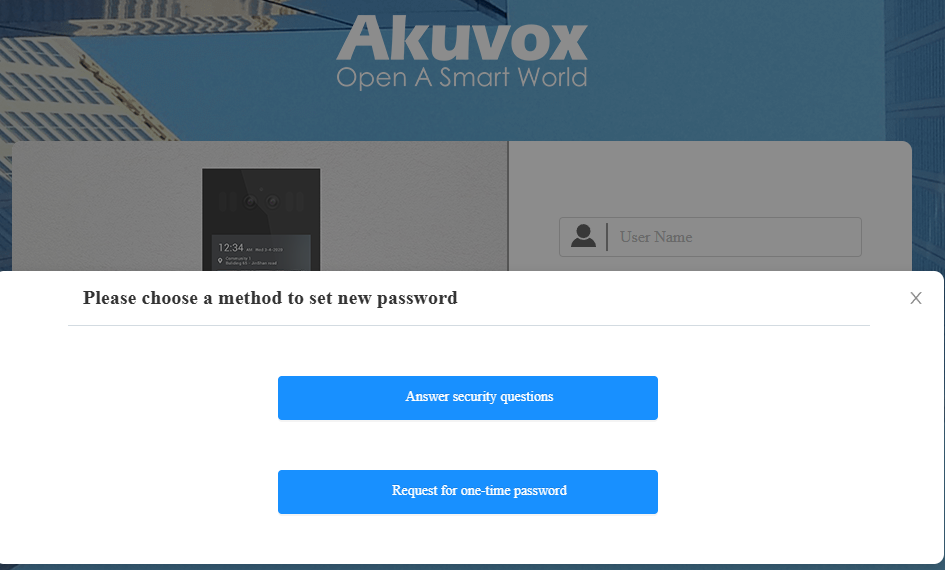
Click Forget Password, then click Request for one-time password.
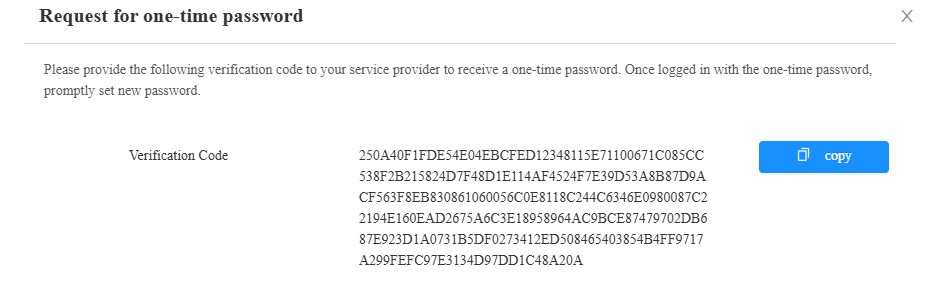
Copy the Verification Code.
Log in to the SmartPlus Cloud platform with a distributor account.
Select Project Device(Communities and Offices) or Personal Device(Single-family projects) on the left column.
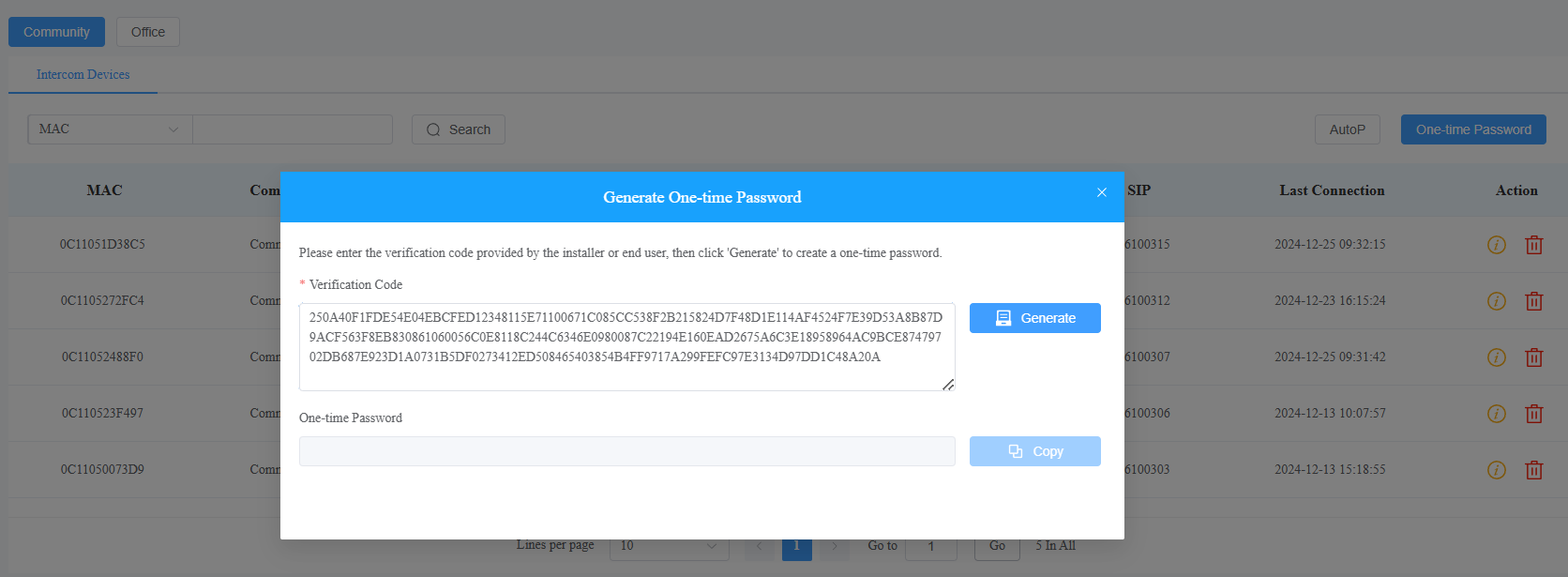
Click One-time Password on the right.

Paste the Verification Code and click Generate.
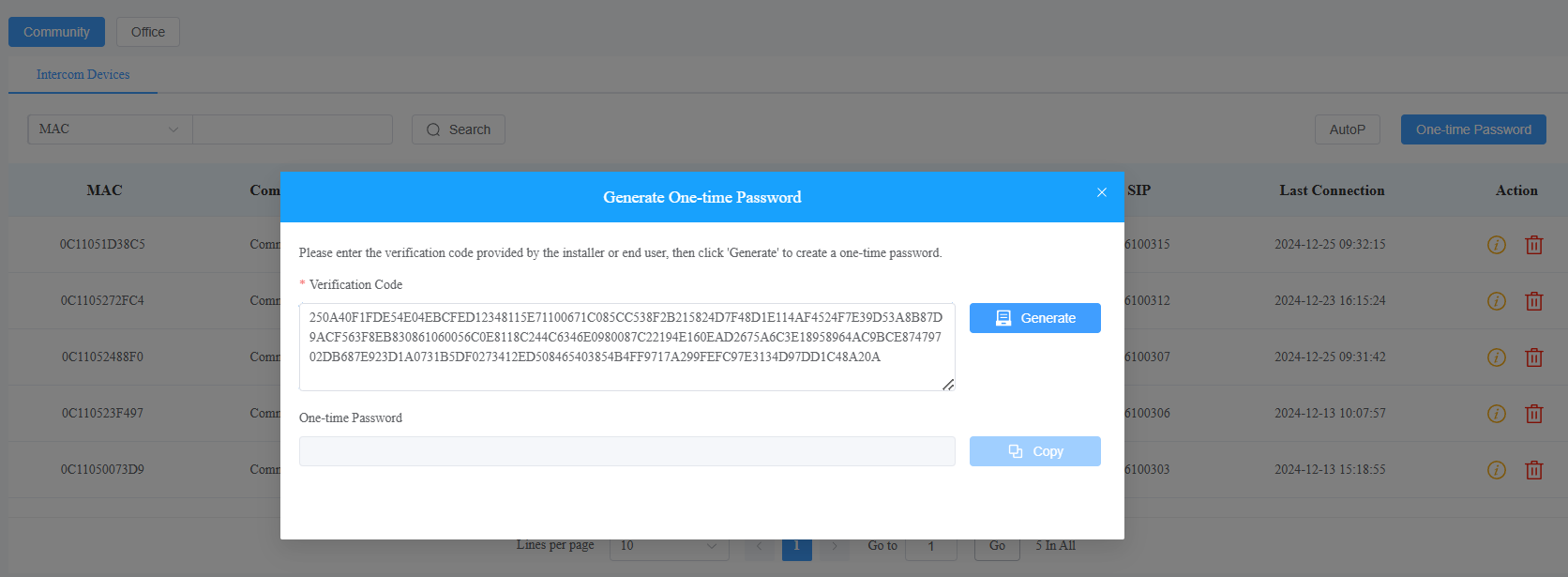
Copy the one-time password.
Enter the username “admin” and paste the one-time password on the device’s login interface.
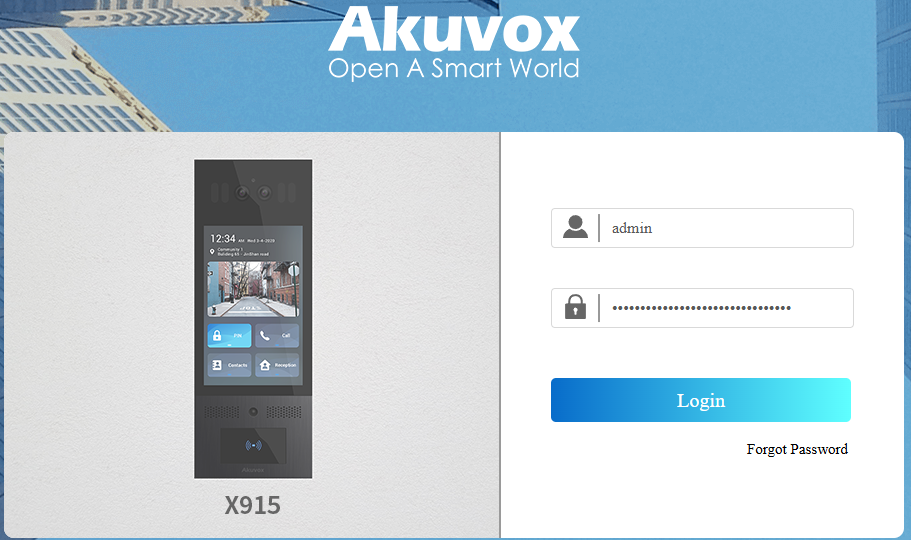
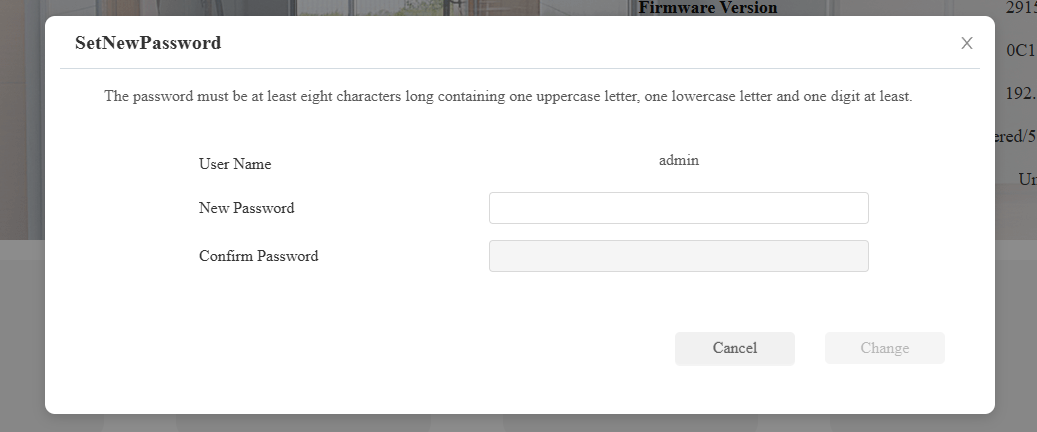
Click Login. The new password setup window will pop up.