Set up Action URL

Prev Next

The action URL can be sent as an HTTP command to a third-party server when specific events are triggered on Akuvox door phones or access control terminals, such as opening the door or making a call. The third-party device can record the status change of Akuvox devices or perform actions.

Configuration

This part takes R20A with firmware version 320.30.11.47 as an example.

  1. Use the device IP(scanned by IP scanner) to log in to its web interface. The initial username and password are admin.

  2. Go to Device Management > Setting > Action URL interface.

  3. Enable the action URL feature.

  4. Enter the username and password when the third-party server requires digest authentication.

Note

If the URL below contains a username and password, the authentication in the URL takes precedence.

  1. Enter the URL in the desired action field, which complies to the format specified by the third-party server. Take sending relayA status as an example.

  • The example format is http://{server ip}/relaytrigger=$relay1status.

  • Optionally, to carry the device information, you can add the following variables($mac, $ip, $model, and $firmware) to the URL. The example format is http://{server IP}/mac=$mac:ip=$ip:model=$model:firmware=$firmware:active_url=$active_url:active_user=$active_user:relay1status=$relay1status

    • server IP: The IP address of the third-party server.

    • relaytrigger: The event triggered. You can customize the event name.

    • $relay1status/$mac/$ip/$model/$firmware: Variables that the device will automatically replace with actual values before sending.
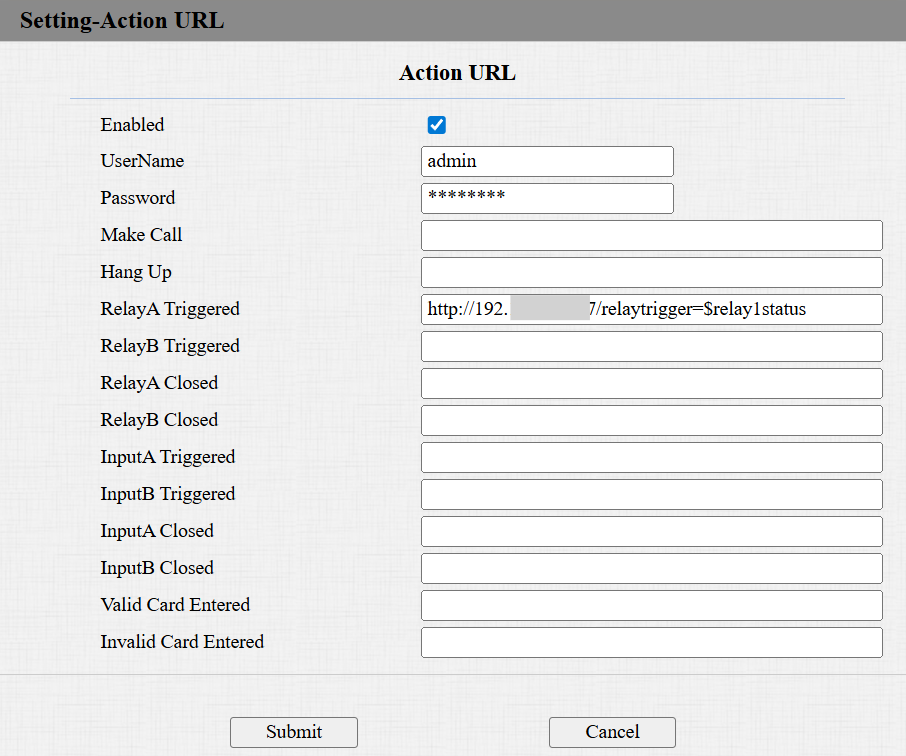
  1. Click Submit.

The third-party server receives an HTTP URL when relayA is triggered(for example, a user swipes his/her card to open the door).

The actual value replaces $relay1status.

  • 0: RelayA is closed.

  • 1: RelayA is open.

The URL carries the device information:

Attachment

The supported action URLs vary by model. The list below lists the action URLs supported by X915V2 based on firmware 2915.30.10.510. You may take it as reference.

To check other models, please see the Google Drive Excel form.

Event List

Variable List

Event

Description

Example Format

Variable

Description

Make Call

The device makes an outgoing call.

Http://server ip/Callnumber=$remote

$remote

The called IP/SIP number.

Hang Up

The device hangs up a call.

Http://server ip/Callnumber=$remote

$remote

The IP/SIP number in the call hung up by the device.

Relay A Triggered

The device's relayA is triggered.

Http://server ip/relaytrigger=$relay1status

$relay1status

The status of the relay. 1:Open; 0:Closed.

Relay B Triggered

The device's relayB is triggered.

Http://server ip/relaytrigger=$relay2status

$relay2status

Relay C Triggered

The device's relayC is triggered.

Http://server ip/relaytrigger=$relay3status

$relay3status

Relay A Closed

The device's relayA is closed.

Http://server ip/relayclose=$relay1status

$relay1status

Relay B Closed

The device's relayB is closed.

Http://server ip/relayclose=$relay2status

$relay2status

Relay C Closed

The device's relayC is closed.

Http://server ip/relayclose=$relay3status

$relay3status

Input A Triggered

The device's input A is triggered.

Http://server ip/inputtrigger=$input1status

$input1status

The status of the input. 1:Open; 0:Closed.

Input B Triggered

The device's input B is triggered.

Http://server ip/inputtrigger=$input2status

$input2status

Input C Triggered

The device's input C is triggered.

Http://server ip/inputtrigger=$input3status

$input3status

Input A Closed

The device's input A is closed.

Http://server ip/inputclose=$input1status

$input1status

Input B Closed

The device's input B is closed.

Http://server ip/inputclose=$input2status

$input2status

Input C Closed

The device's input C is closed.

Http://server ip/inputclose=$input3status

$input3status

Valid Code Entered

Enter a registered PIN code to open the door.

Http://server ip/validcode=$code

$code

The PIN code.

Invalid Code Entered

Enter an unregistered PIN code to open the door.

Http://server ip/invalidcode=$code

$code

Valid Card Entered

Swipe a registered card to open the door.

Http://server ip/validcard=$card_sn

$card_sn

The card code.

Invalid Card Entered

Swipe an unregistered card to open the door.

Http://server ip/invalidcard=$card_sn

$card_sn

Valid Face Recognition

Scan a registered face to open the door.

Http://server ip/unlocktype=$unlocktype

$unlocktype

Face

Invalid Face Recognition

Scan an unregistered face to open the door.

Http://server ip/unlocktype=$unlocktype

$unlocktype

Null.

Valid QR Code Entered

Scan a registered QR code to open the door.

Http://server ip/unlocktype=$unlocktype

$unlocktype

QR Code.

Invalid QR Code Entered

Scan an unregistered QR code to open the door.

Http://server ip/unlocktype=$unlocktype

$unlocktype

Null.

Break-in Alarm A

Break-in alarm is triggered via inputA.

Http://server ip/inputtrigger=$input1status

$input1status

1: The input is triggered; 0: The input is not triggered.

Break-in Alarm B

Break-in alarm is triggered via inputB.

Http://server ip/inputtrigger=$input2status

$input2status

Break-in Alarm C

Break-in alarm is triggered via inputC.

Http://server ip/inputtrigger=$input3status

$input3status

Setup Completed

The device boots up. This URL is not controlled by the Action URL Enable switch. If you do not want to use this action URL, leave the field blank.

Http://server ip/model/$model

$model

The device model.

To retrieve device information, you can add the following fields to the URL. The example format is http://server ip/mac=$mac:ip=$ip:model=$model:firmware=$firmware:active_url=$active_url:active_user=$active_user

For example, to get device information triggered by the inputA event, the example URL is http://server ip/mac=$mac:ip=$ip:model=$model:firmware=$firmware:active_url=$active_url:active_user=$active_user:inputtrigger=$input1status
