The multi-control association feature lets multiple switches control the same lights, keeping their on/off states synchronized. When one device changes state, all associated devices update automatically. For example, you can use the switch near the bed and the switch near the bedroom entrance to turn the bedroom lights on or off.
What You Should Know
Supported devices and firmware:
Supported Device | Required Firmware |
HyPanel Pro (PG71) | 71.1.39.44 and later |
HyPanel Ultra (PH81) | 281.1.39.29 and later |
HyPanel Supreme (PHX1) | 1001.1.39.27 and later |
HyPanel (PS51) | 51.1.39.23 and later |
HyPanel V2 (PS51(V2)) | 251.1.39.7 and later |
HyPanel Plus (PS52) | 52.1.39.11 and later |
HyPanel KeyPlus (KS53) | 53.1.39.10 and later |
Supported devices for linking: Linking is supported only for lights and relay switches (commonly used to connect traditional lights).
This feature manages the on/off state of lights via software through multiple switches, rather than relying on physical wiring.
Configuration
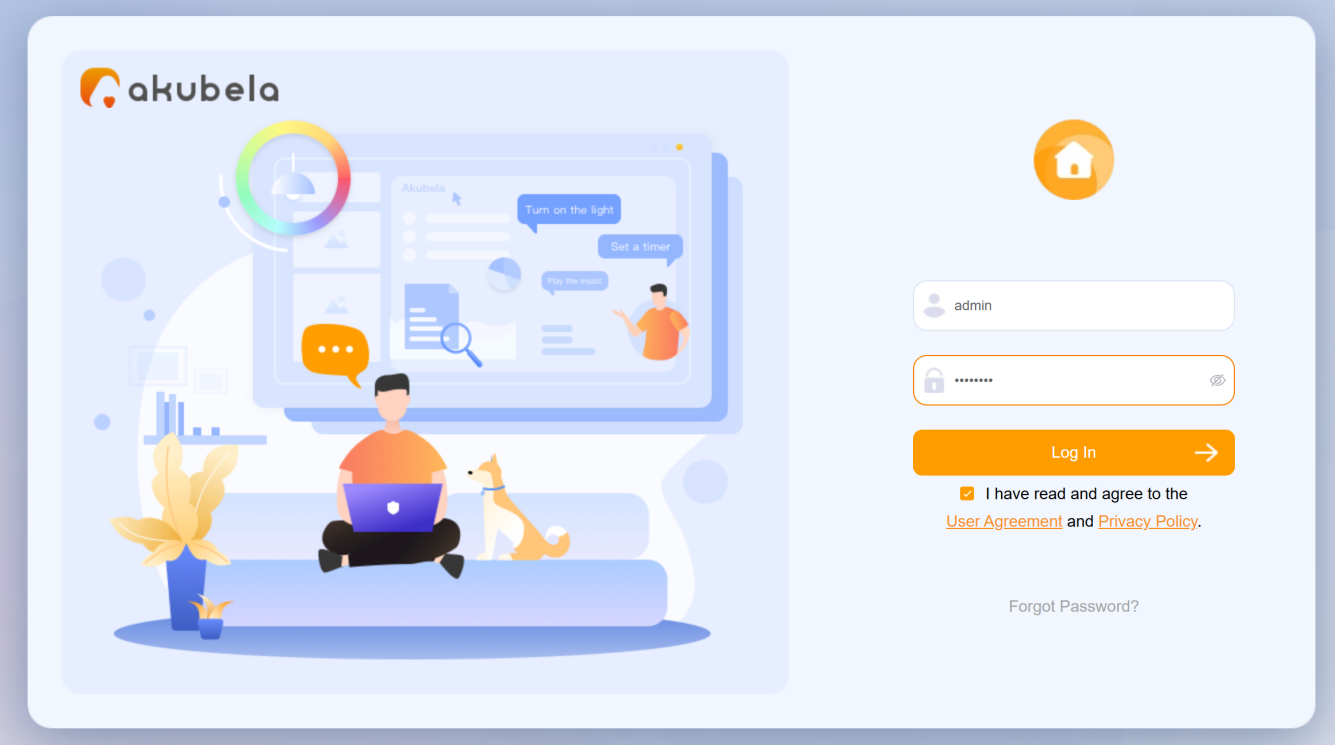
Open a browser, enter the Home Center device’s IP address, and log in using the default credentials (admin/admin).
TIP:
See Check IP Address of akubela Panels and Log into Device Web Portal for detailed instructions.
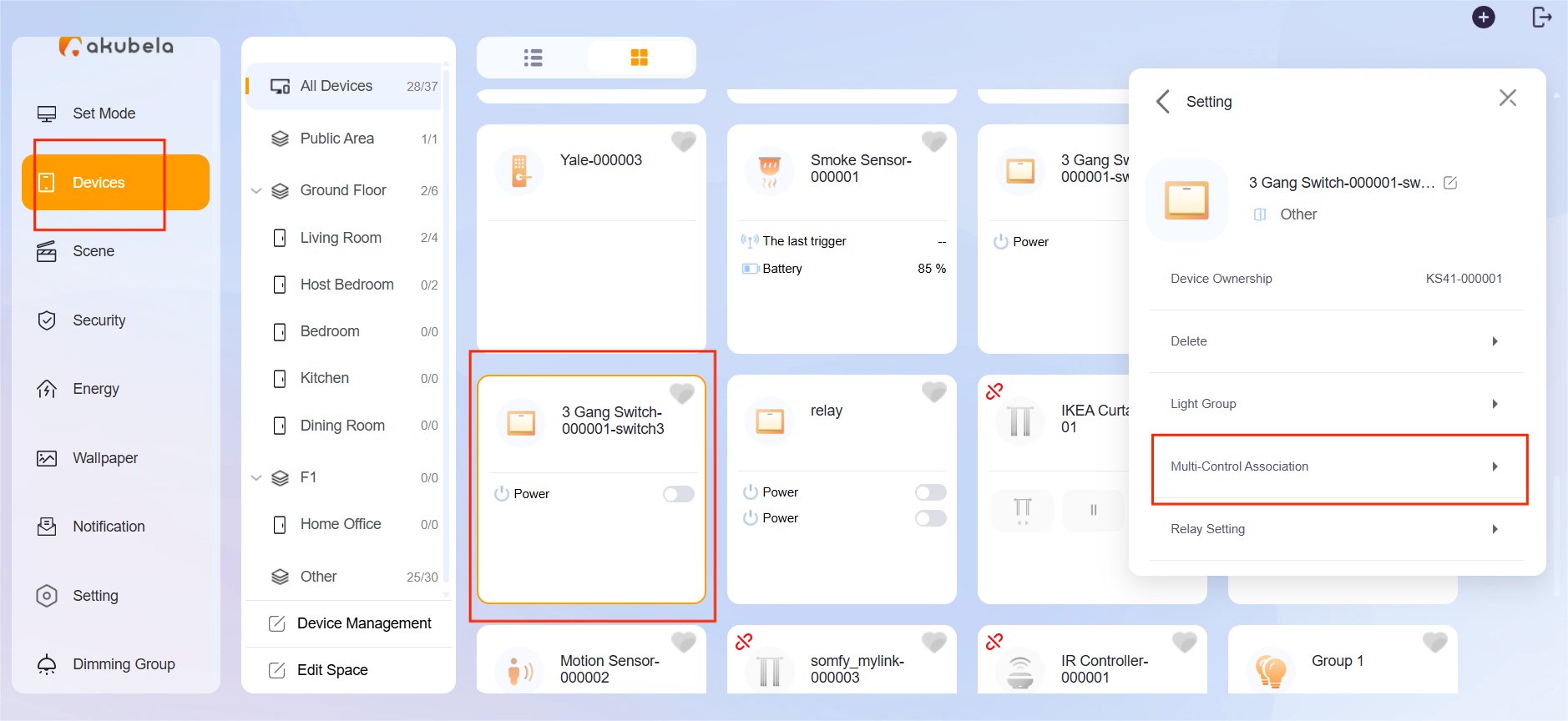
Go to Devices > [Desired device] >
 > Multi-Control Association.
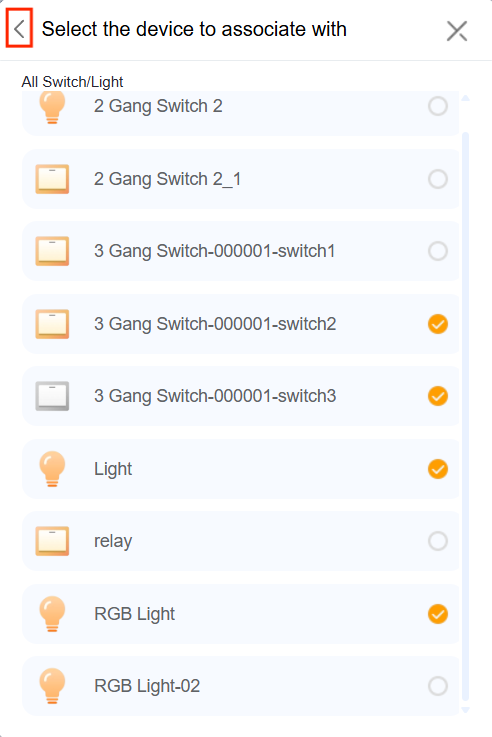
Select the devices you want to associate, then click
 to complete.
The associated devices will appear in the list.
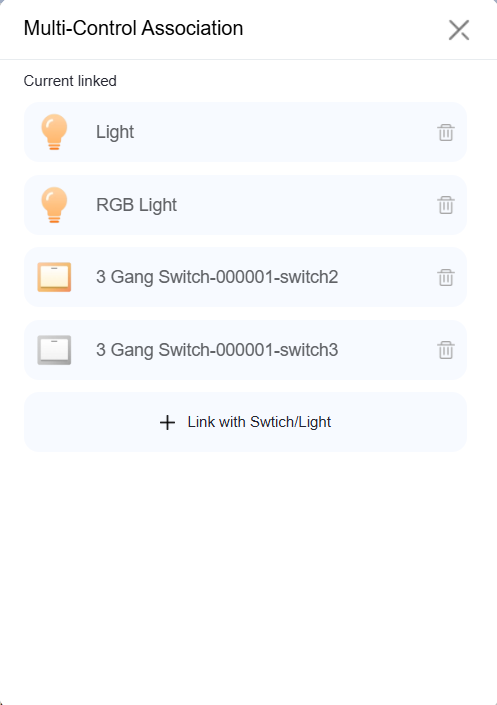
Once configured, all linked switches can turn all selected lights on or off simultaneously, with their status synchronized. For example, if the lights are initially off, pressing any switch will turn all lights on.
TIP:
When using different switches or multiple buttons on one switch, allow a 2-3 second interval for each state change to take effect.