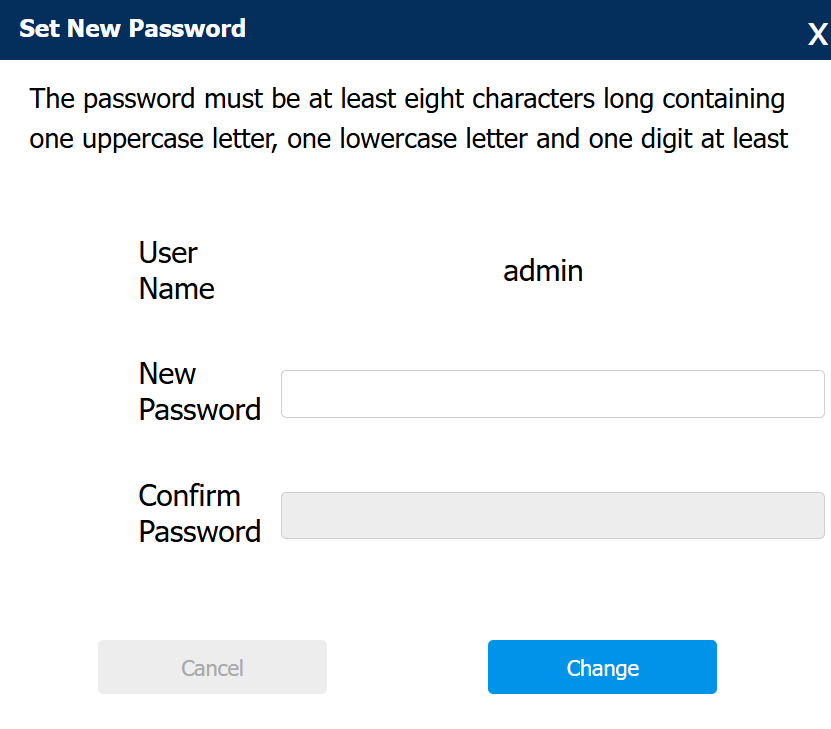
The web password is used to access the device’s web settings, where you can set up features.
The security questions enable you to set a new password when you forget the old password.
Note
The following models with specific firmware versions or higher support setting security questions:
E16 V2.0: 216.30.10.109
E18: 218.30.10.209
R29: 29.30.10.137
R20 V5.0: 320.30.10.133
R28 V2.0: 228.30.10.127
S539: 539.30.10.216
X915 V2.0: 2915.30.10.208
X912: 912.30.11.29
C313 V2.0: 213.30.13.113
X916: 916.30.10.210
C316: 316.30.12.802
C313 V3.0: 313.30.12.114
IT88: 88.30.12.701
C319: 119.30.12.703
S562: 562.30.12.15
S560: 560.30.11.101
S565: 565.30.10.71
S563: 563.30.12.802
X933: 933.30.12.802
S567: 567.30.12.802
A03: 103.30.10.111
A05V2: 205.30.10.104
A094: 92.30.10.106
S532: 532.30.10.117
X910: 2910.30.10.240
S535: 535.30.10.233
A095: 95.30.10.110
E12 V2.0: 312.30.11.12
A08: 108.30.10.153
X937: 937.30.13.122
C319: 119.30.13.202
S538: 538.30.10.705
C313V2-2: 212.30.14.18
S562-2: 5622.30.15.18
E16V3: 416.30.11.206
WR01: 1401.30.11.221
A15: 1115.30.10.407
Take R29S as an example.
You can set up the security questions after you upgrade the device to a specific firmware and log in for the first time.
You can also skip the steps and later set them up on the web.
Log in to the device’s web interface with its IP address. The default username and password are admin.
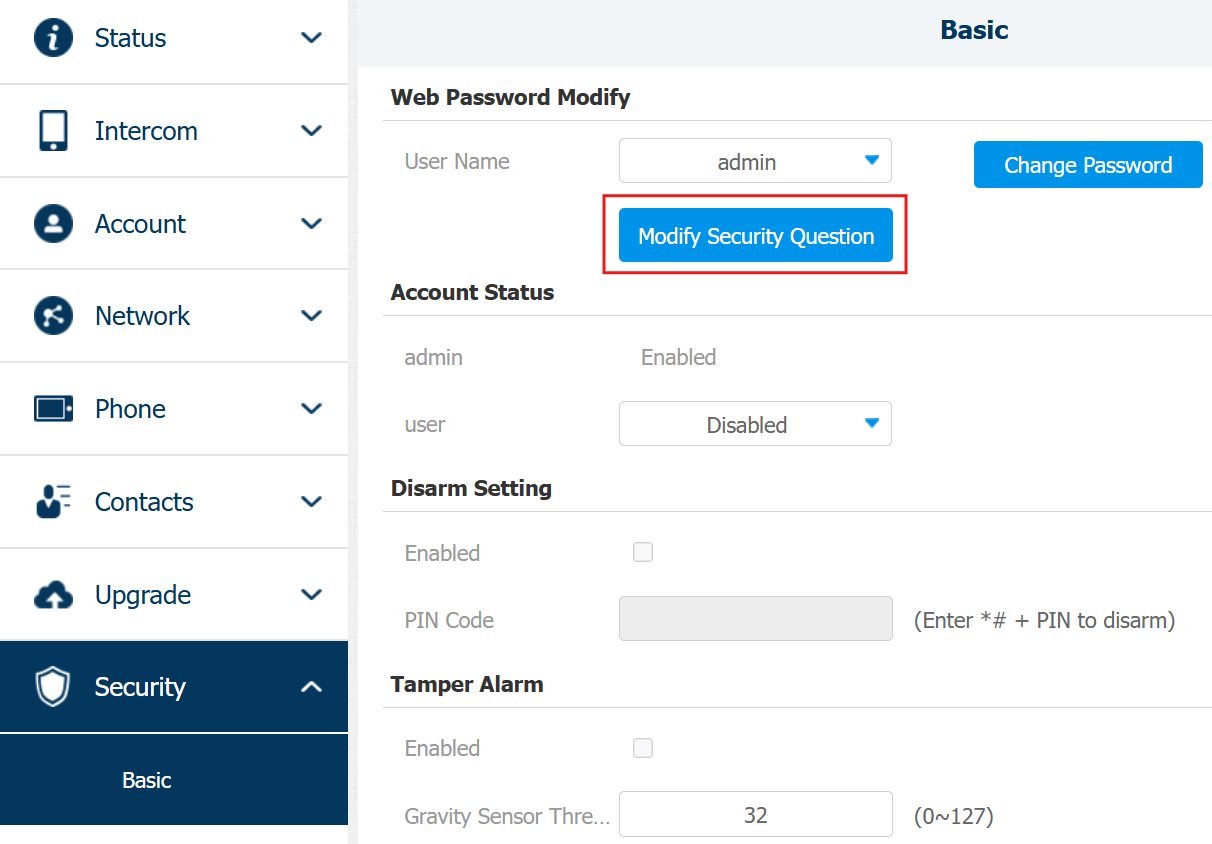
Go to Security > Basic interface.
Click Modify Security Questions.
Select the security questions and enter the answers.
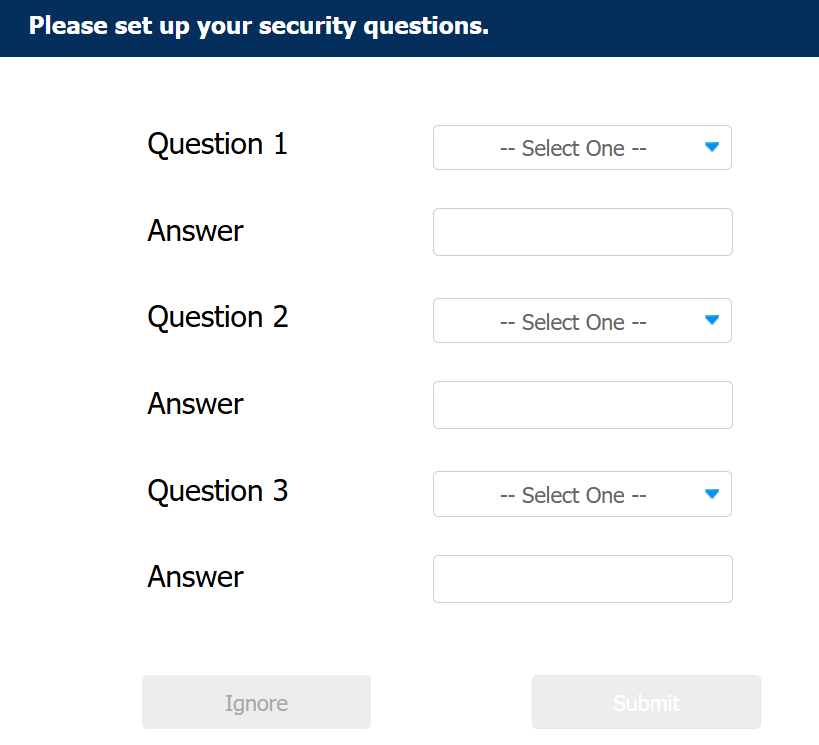
Click Submit to save the settings.
After configuration, you can click Forget Password on the login interface and click Answer security questions.
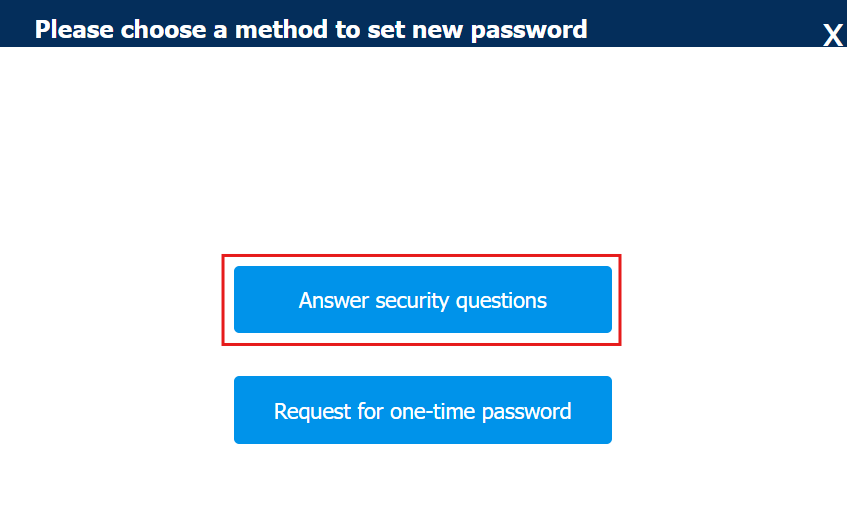
Answer the question(s) and click Submit, only need to answer one question correctly.
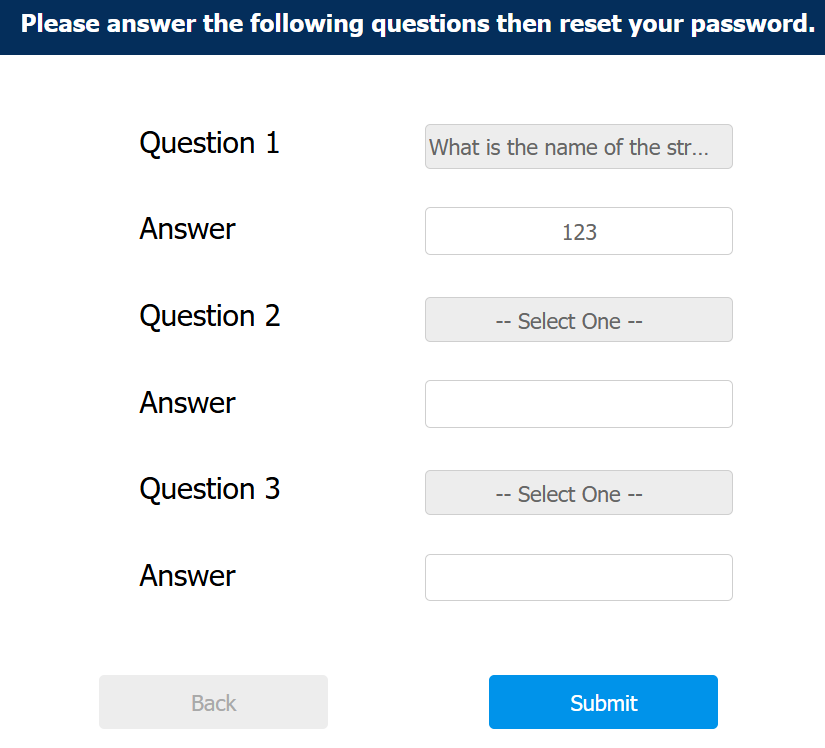
Set the new password to access the device’s web settings.