NOTE:
To efficiently manage rental units, and handle tenant transitions, you must first activate the specialized management module in your settings: Go to Settings > Feature Management and enable Tenancy Management.
Set Homes as Rental Units
Before creating rental orders, you must first designate homes as rental units.
NOTE:
Make sure the home to be set as the rental unit have no registered family administrator account.
To set homes as rental units:
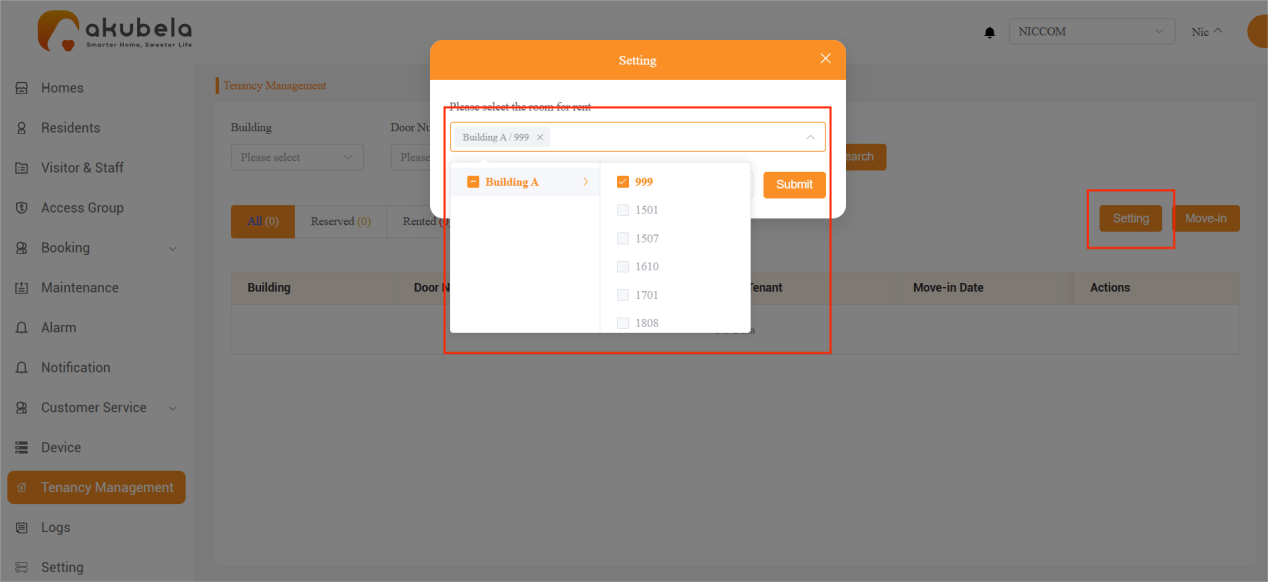
Go to Tenancy Management > Setting.
Select the homes you want to designate as rental units, and click Submit.
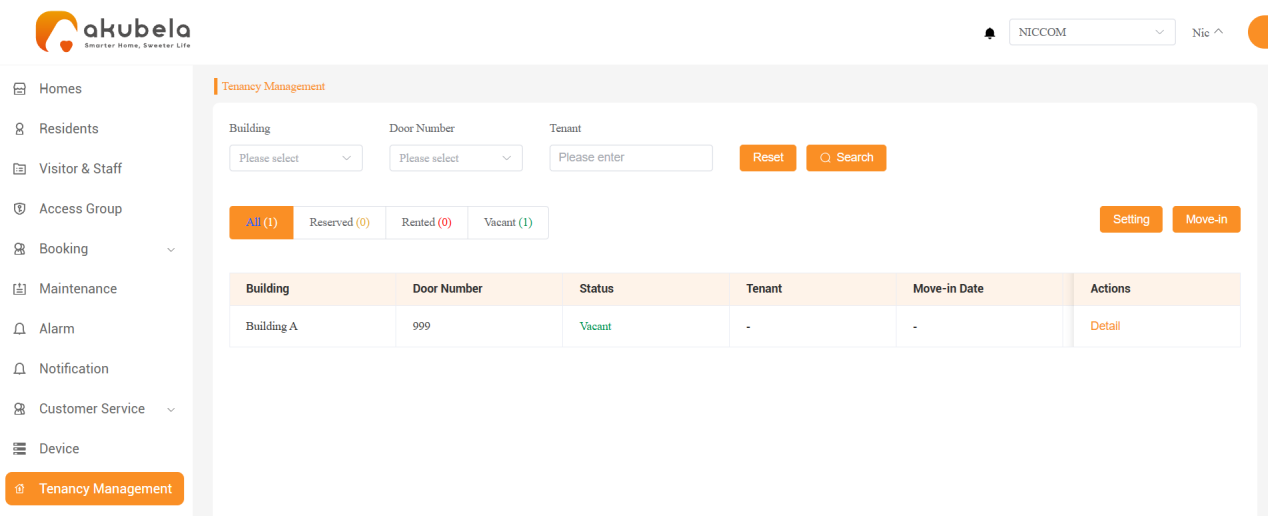
The selected homes will then appear in the list.
Create Rental Orders
You can create one or multiple rental orders for the same unit, as long as their rental periods do not overlap.
Go to Tenancy Management > Move-in.
Enter the rental details:
Select a room
Select the move-in and move-out date and time.
Enter the tenant’s email address or phone number (for family account registration).
Enter the tenant’s ID card or password number.
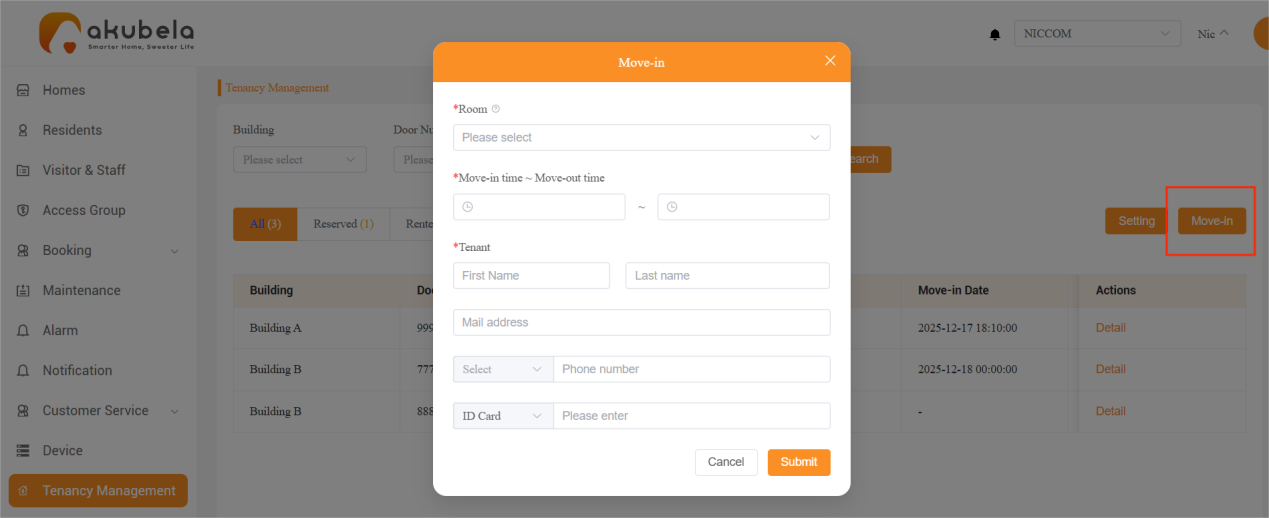
Click Submit.
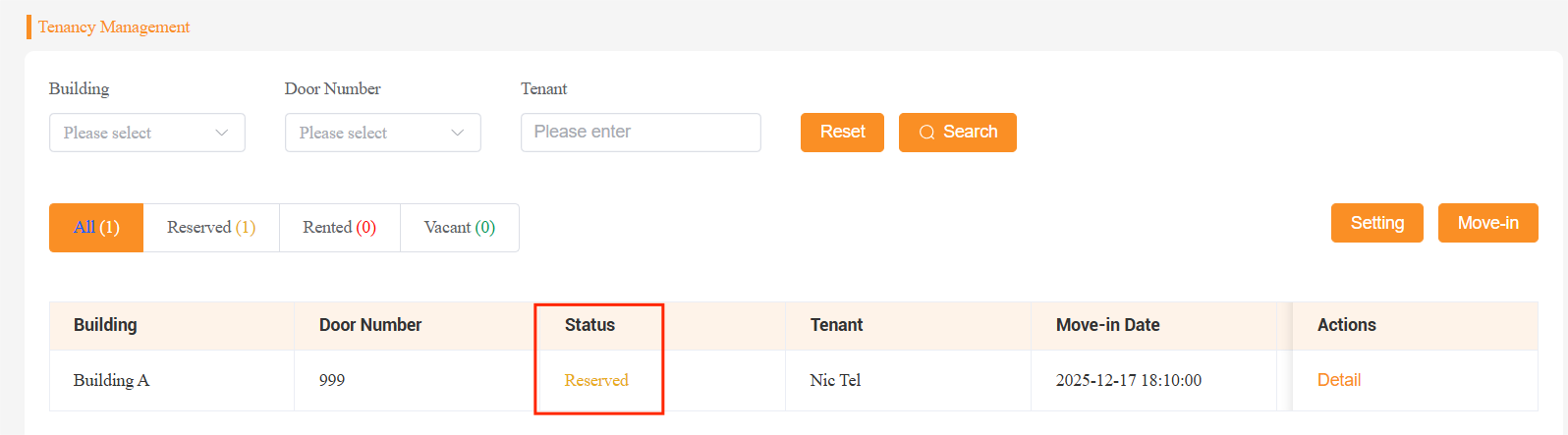
Once created, the unit status will changes to Reserved.
Edit Rental Orders
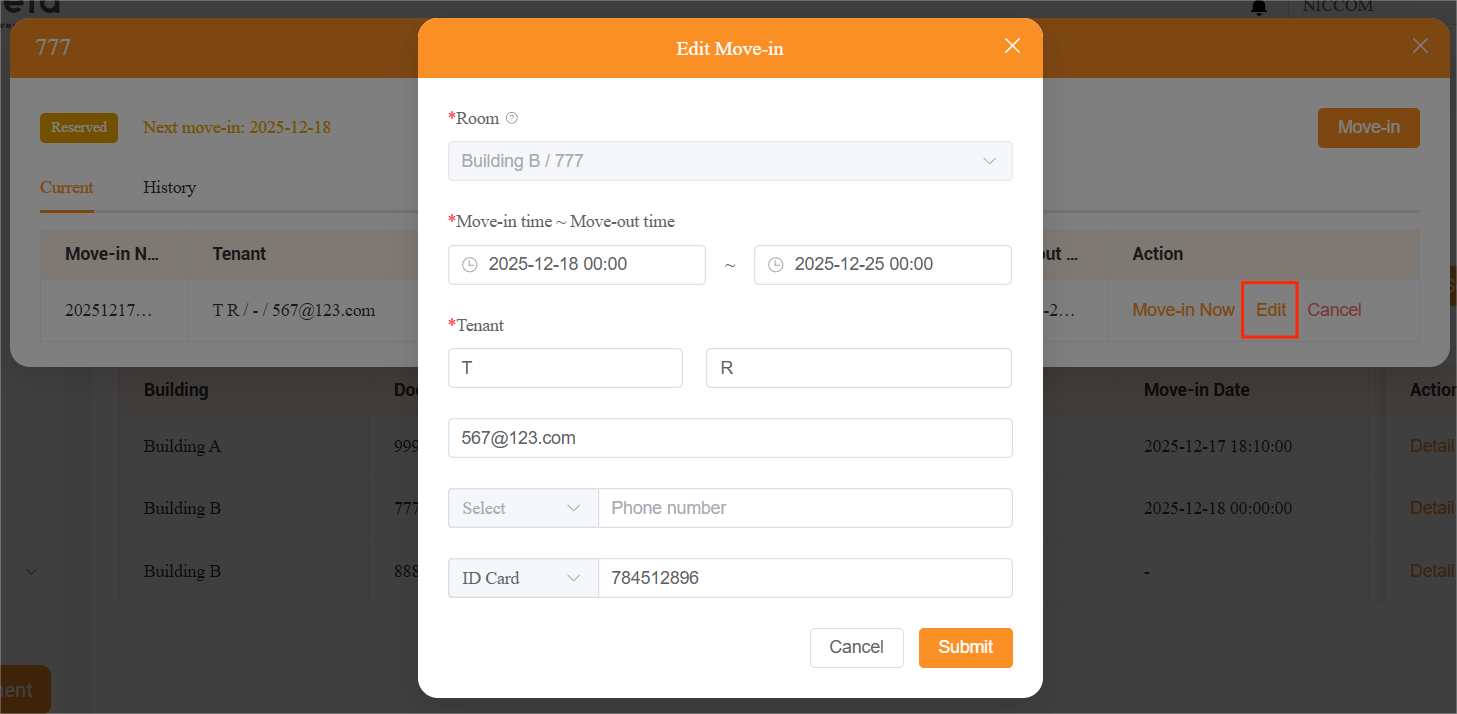
You can edit rental order details (such as tenant information or move-in/move-out time) before the tenant moves in.
To edit a rental order:
Find the unit associated with the order.
Click Detail > Edit, then modify the information.
Click Submit.
Cancel Rental Orders
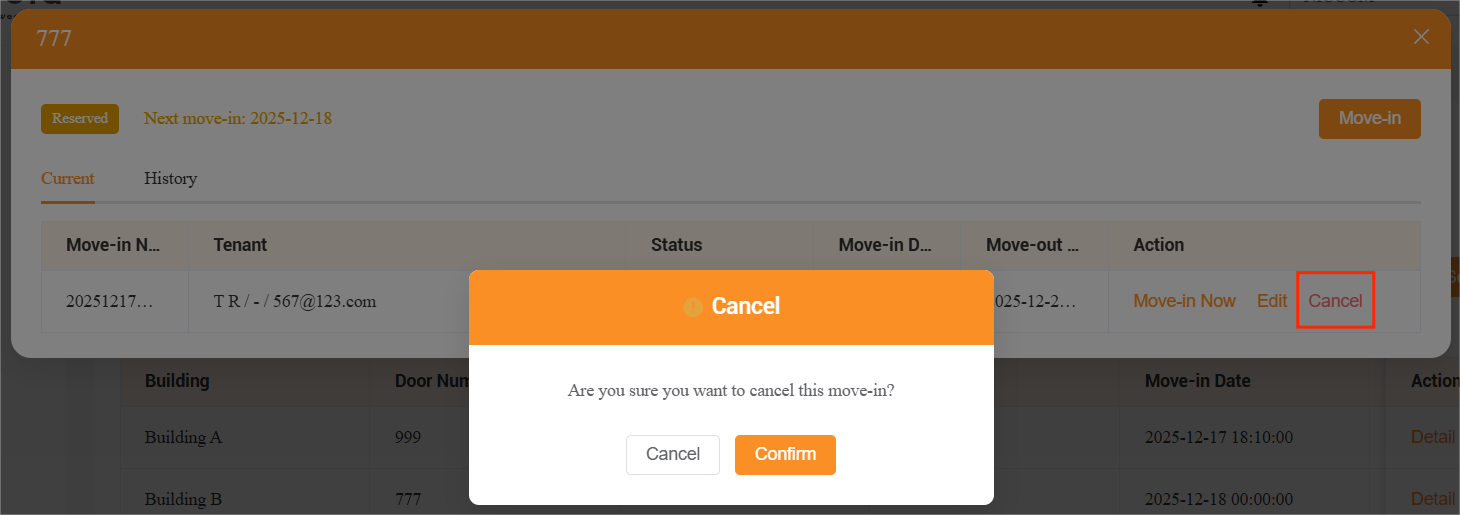
To cancel a rental order for a reserved unit before move-in:
Find the unit, and click Detail > Cancel > Confirm.
Add Tenant Accounts
Add tenant accounts to the unit so tenants can control devices via the BelaHome app and access related services.
To add a tenant account, follow the steps in Add New Residents.
Move in
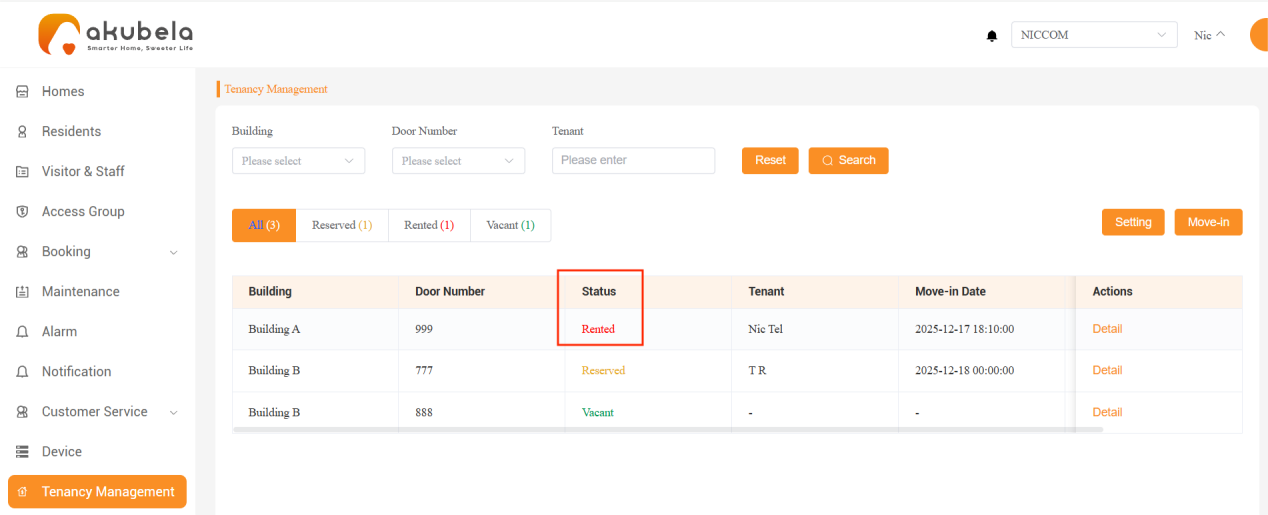
When the preset move-in time is reached, the unit status automatically changes to Rented.
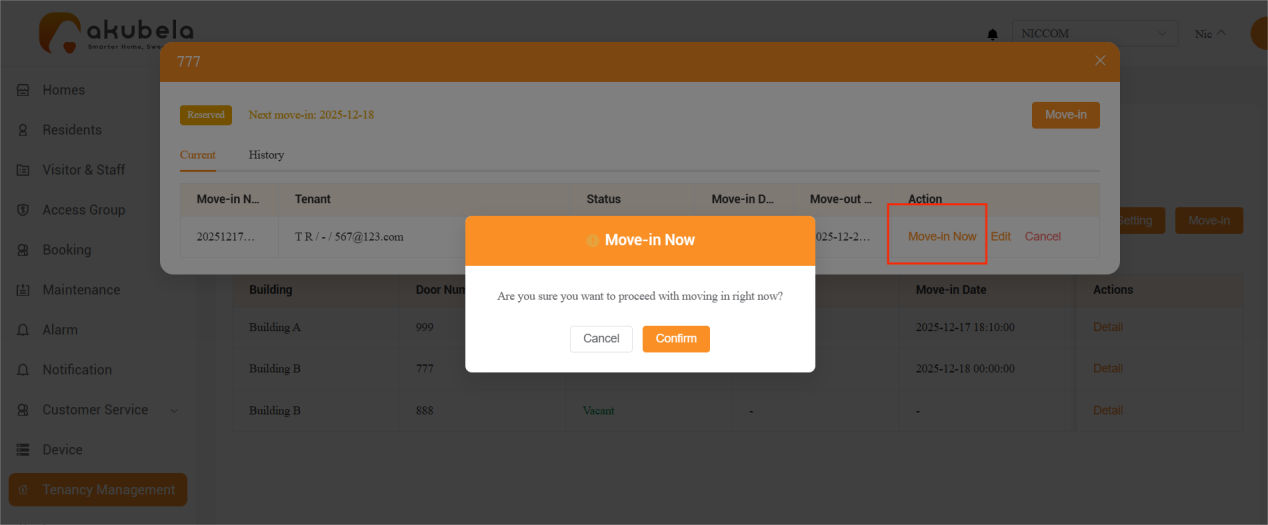
If the tenant arrives earlier than the scheduled move-in time:
Find the unit.
Click Detail > Move-in Now > Confirm.
Extend Rental Time
To extend the rental period for a rented unit:
Find the room and click Detail.
Click Renewal, select a new move-out time, and click Submit.
TIP:
If there are upcoming rental orders, the new move-out date can be the day before the next tenant’s move-in date.
If there are no future orders, the move-out date can be extended by up to one year.
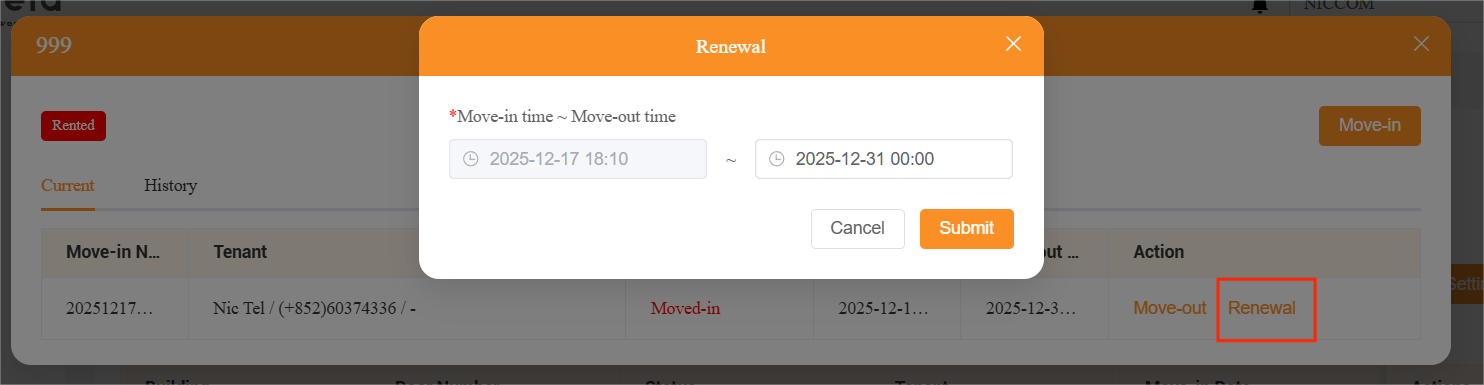
Move out
When the preset move-out time is reached, the unit status automatically changes to Vacant.
If the tenant needs to move out earlier than scheduled:
Find the unit.
Click Detail > Move-out > Confirm.
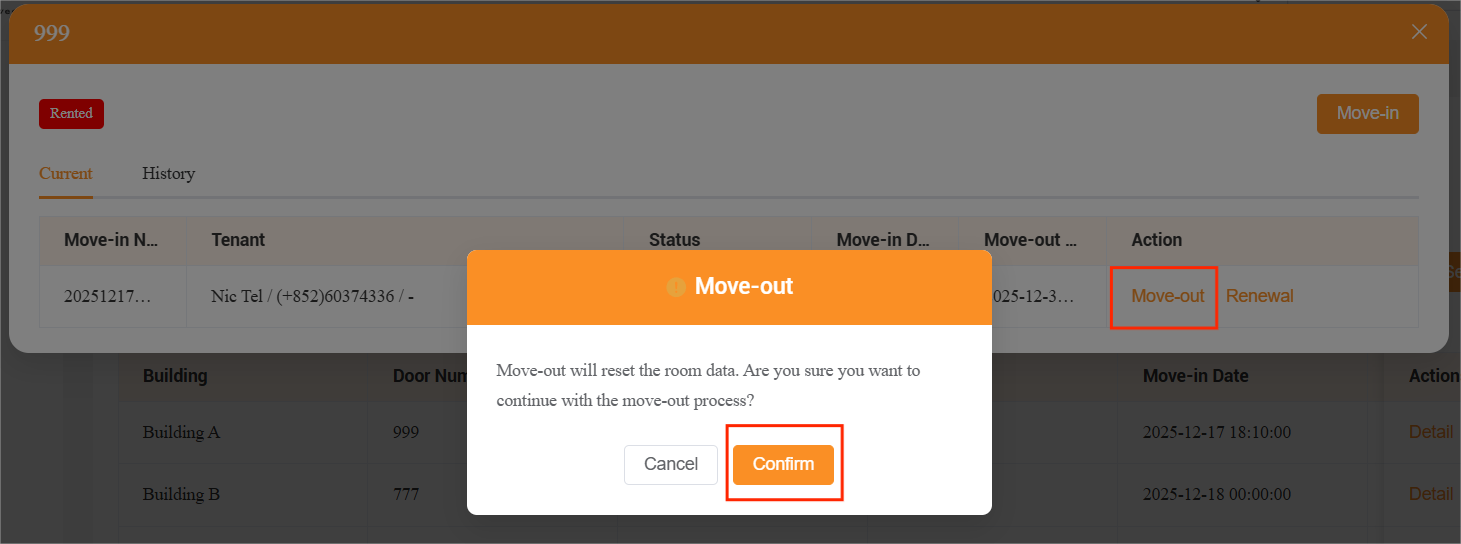
After move-out:
The unit status changes to Vacant.
All unit data is automatically reset.
For SL21 smart locks that support the move-out feature, all regular user credentials and temporary keys are automatically invalidated and deleted.
Maintenance
Use this feature to flag a unit for service and generate a temporary maintenance account for staff.
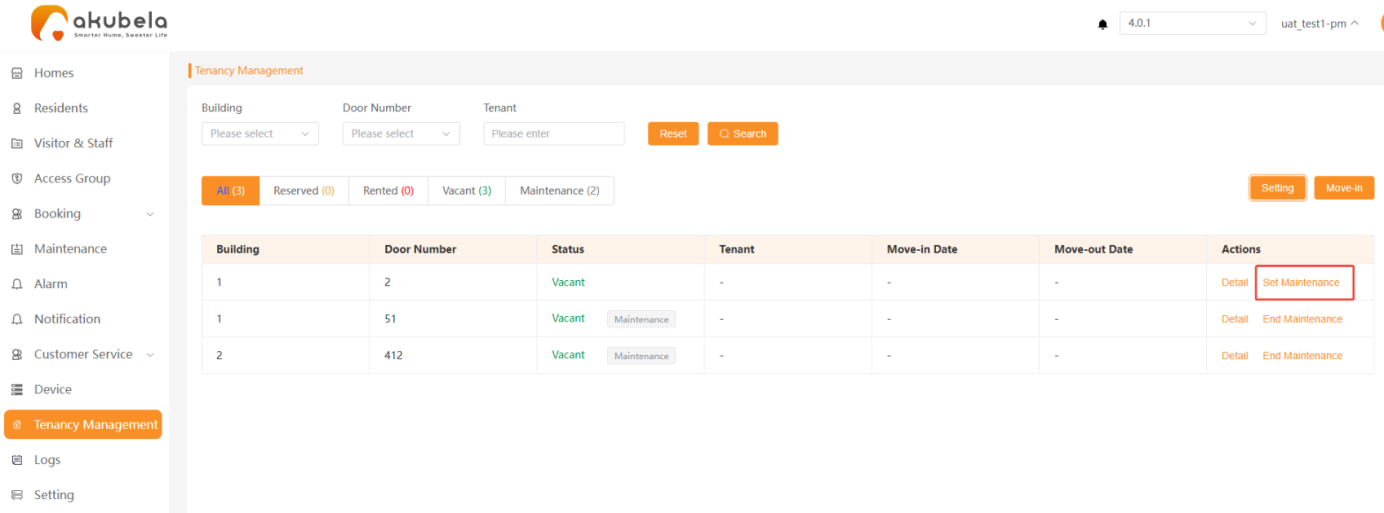
Find the specific unit.
Click Set Maintenance.
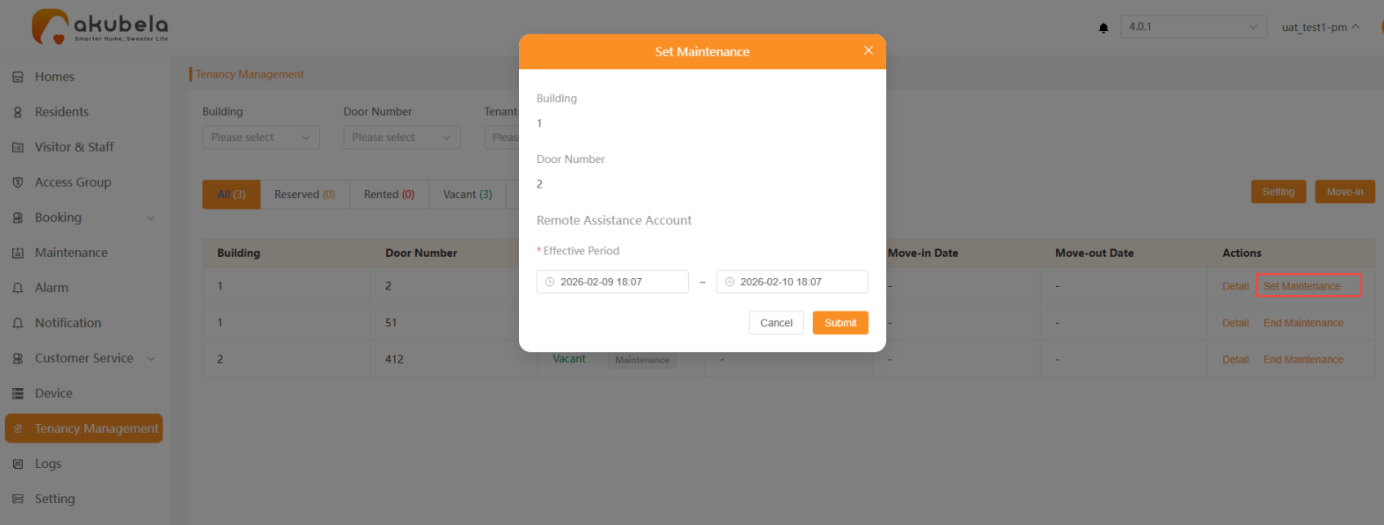
Define the Valid Time (start and end period) for the maintenance window and click Submit.
Click the Maintenance label to view the Maintenance QR Code. You can take a screenshot of this code to send to the staff or update the account details if the schedule changes.
NOTE:
When a technician scans the QR code using the BelaHome app, they are granted administrator-level control over the home’s devices, except for the following:
Family management and family switching
Call and message contacts
Intercom permission management
Temporary PIN codes for smart locks
Member management
Account profile modification
Photo wall
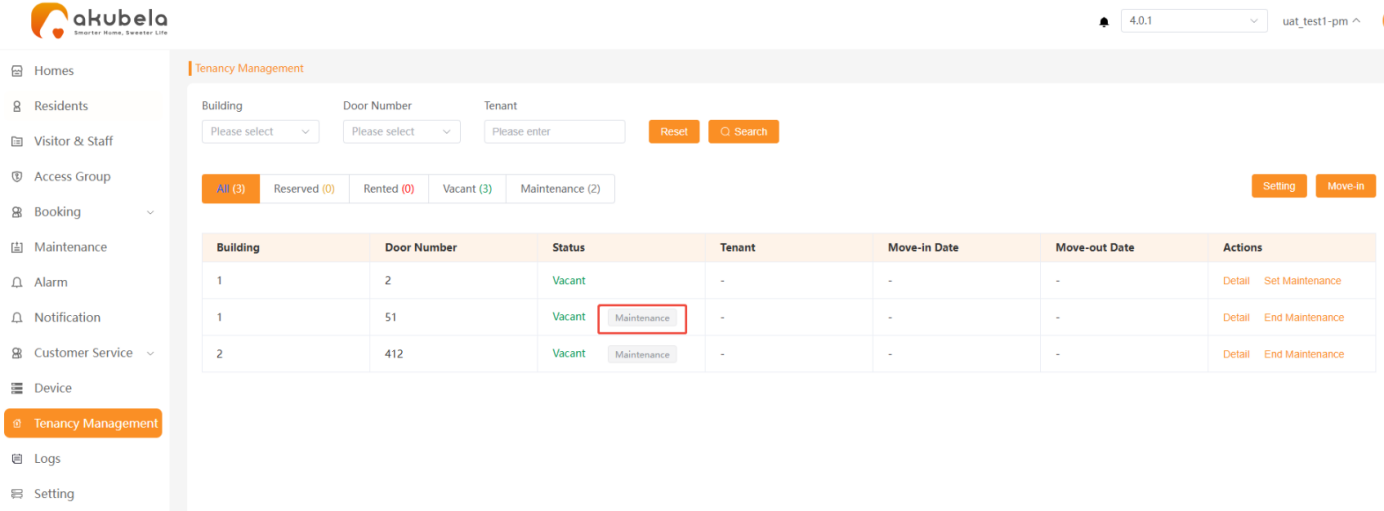
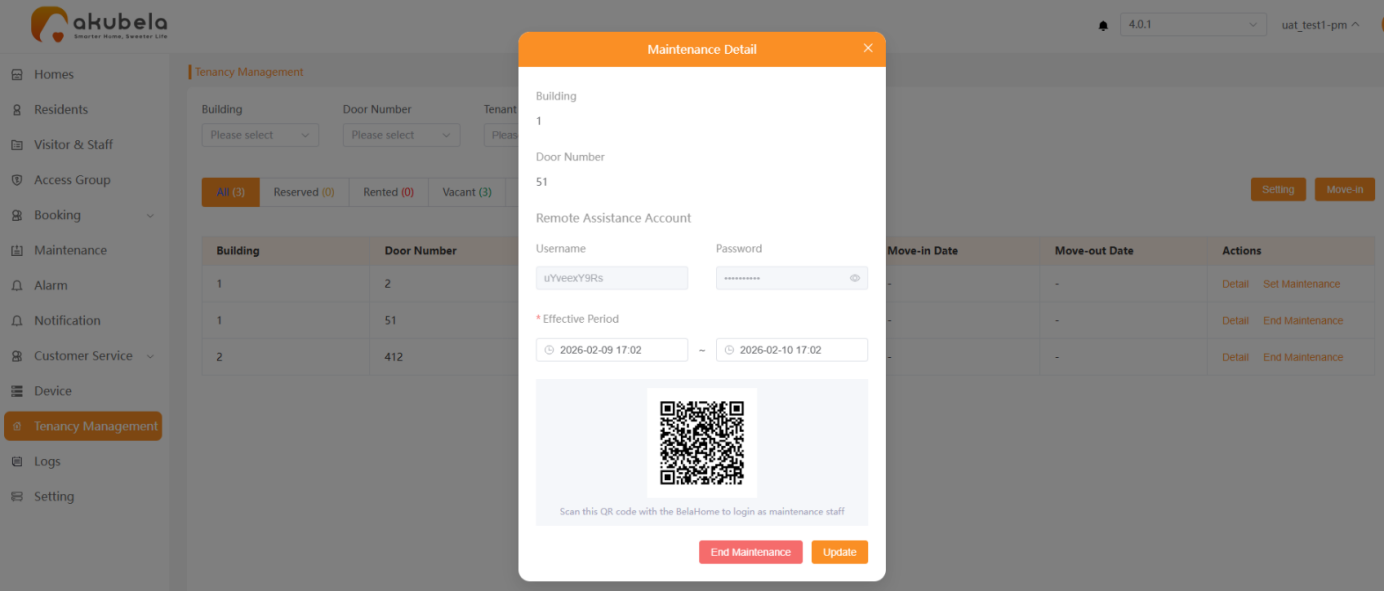
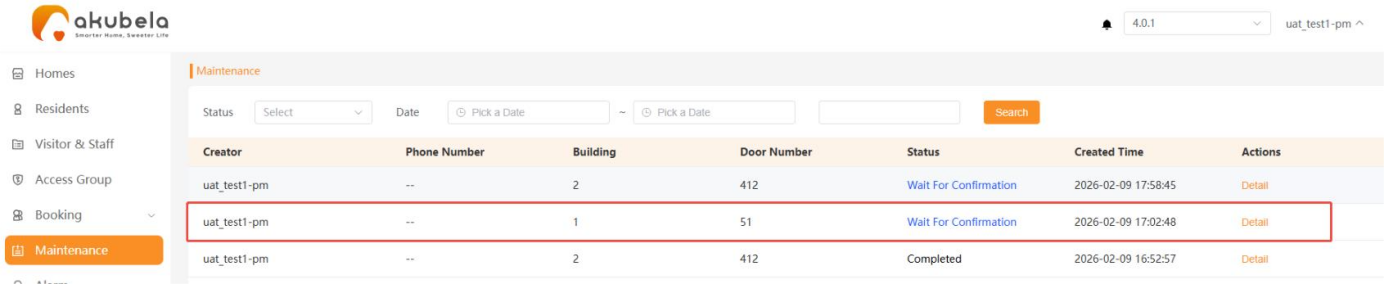
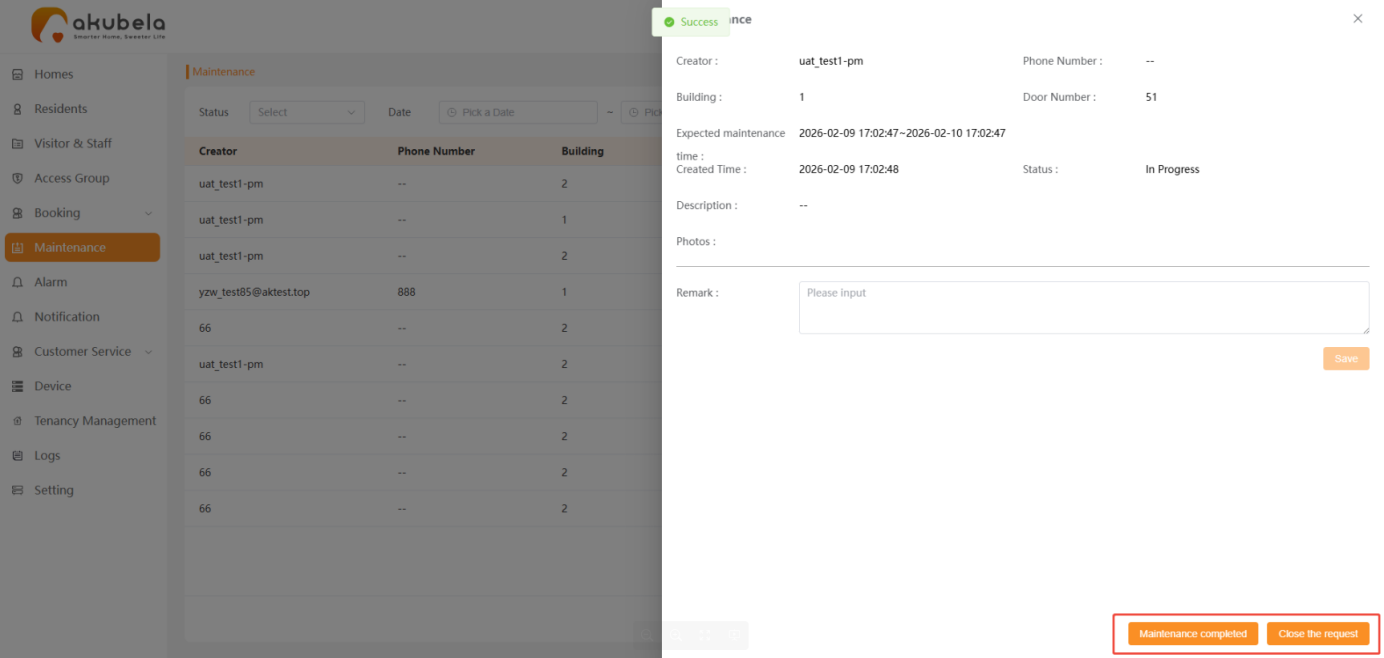
Once repairs are finished, click End Maintenance (or go to Maintenance > Detail) to close the record.
NOTE:
Remote maintenance accounts created on the PM platform are automatically synced to the tenant’s BelaHome app for transparency.
Ending the maintenance status on the PM platform immediately deactivates the technician’s access and closes the account on the BelaHome app.
Enabling "Remote Maintenance" within the BelaHome App does not automatically change the room status to "Maintenance" on the PM platform. Conversely, if the session is closed in the app, the room remains in "Maintenance" status on the PM platform until an administrator manually ends it.