You can upload devices to the SmartPlus Cloud with the AK-Partner installer app after they are properly set up locally and have internet access.
Note
The AK-Partner’s version should be 1.0.6(Android)/1.0.4(iOS) or higher.
The following device with a specific firmware version or higher supports this feature.
C313W-LP-2: 311.30.15.231
C313W V3: 313.30.15.504
S562W: 562.30.15.24
C310: 310.30.15.25
R28 V2: 228.30.10.233
E18: 18.30.11.12
S535: 535.30.11.13
Make sure all devices are added to your distributor’s MAC library before operation.
Upload Indoor Monitors and Door Phones in Apartments
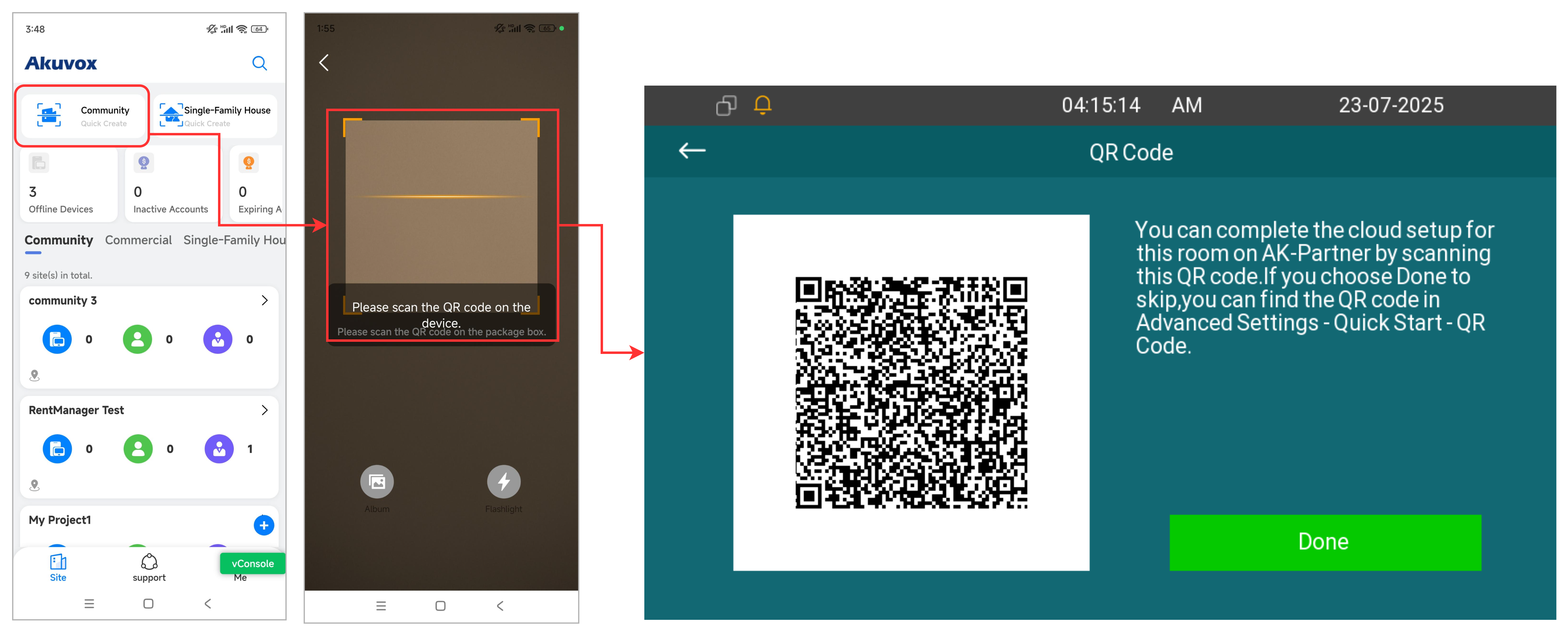
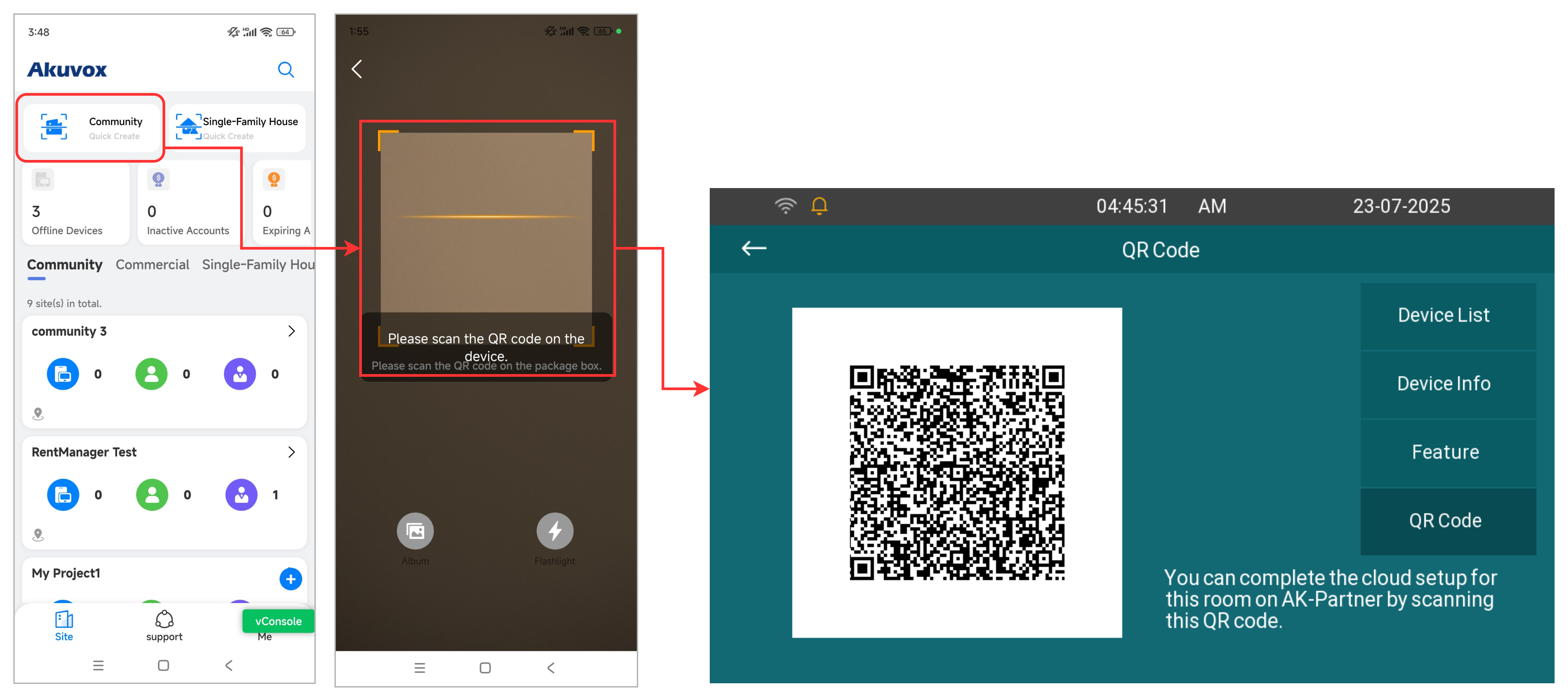
A QR code will display on the indoor monitor after you finish setting it up and it accesses the Internet. Scan the QR code with AK-Partner to add the device. Once the indoor monitor is added to the cloud, all devices paired with it in the room will also be uploaded.
If you skip this step on the initial setup, you can find the QR code on the Advanced Settings > Quick Start > QR Code screen.
On the Initial Setup Screen
Tap Community Quick Create on the AK-Partner App’s homepage.
Scan the QR code on the indoor monitor.
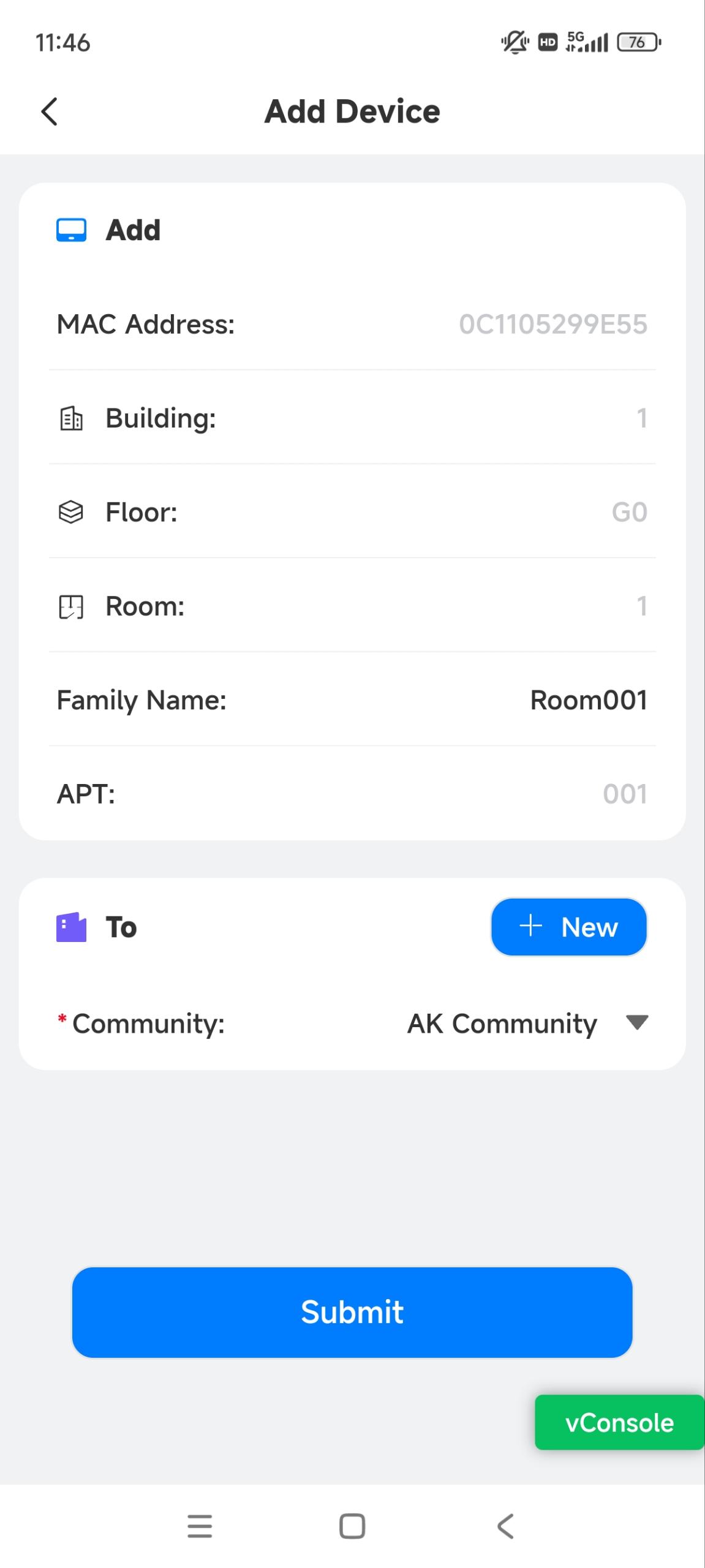
Select the community on the app. You can tap +New to create a new community. Click here to view the instructions on creating a community.
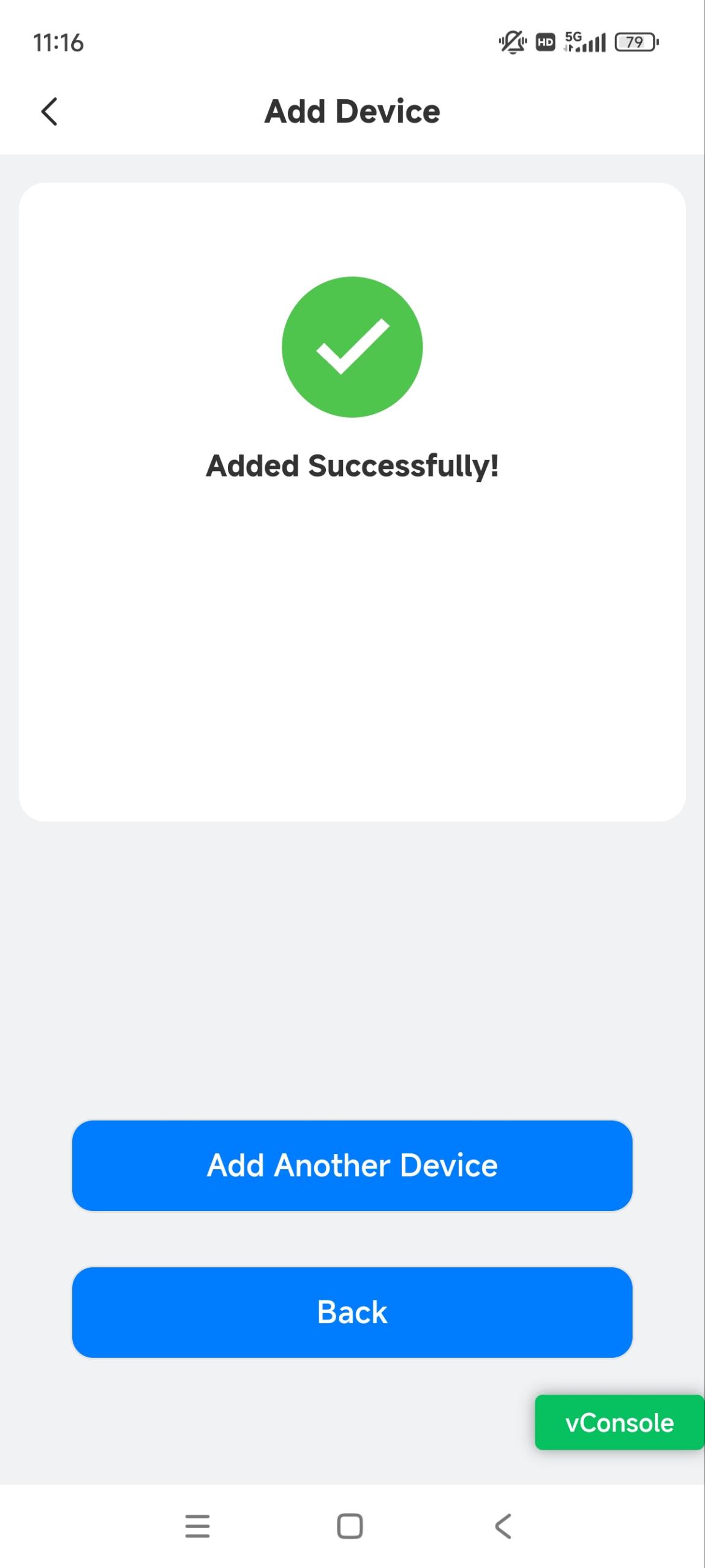
Tap Submit. Added successfully will display. You can tap Add Another Device to keep adding devices to the cloud. Or, tap Back to return to the homepage.
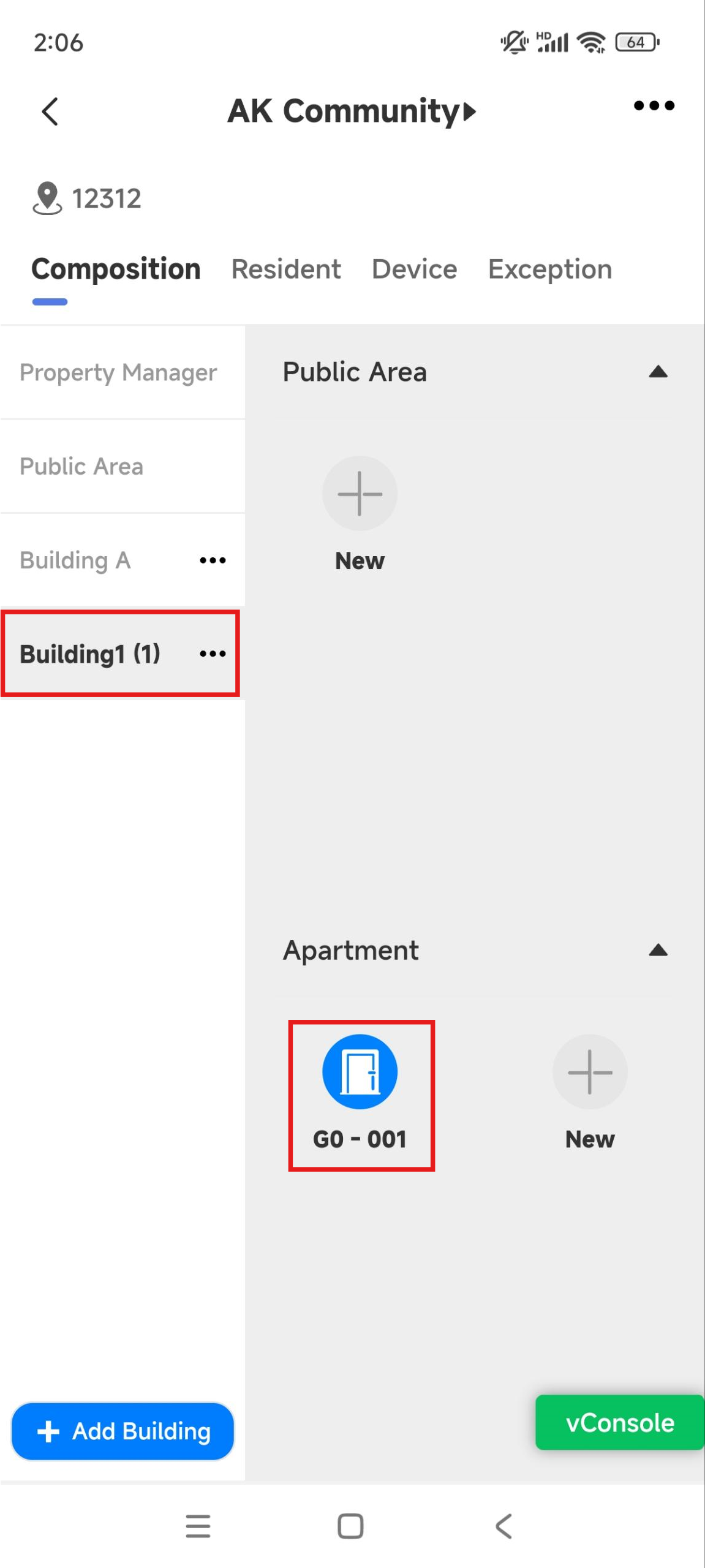
Tap the community name on the homepage. A default building and an apartment are created.
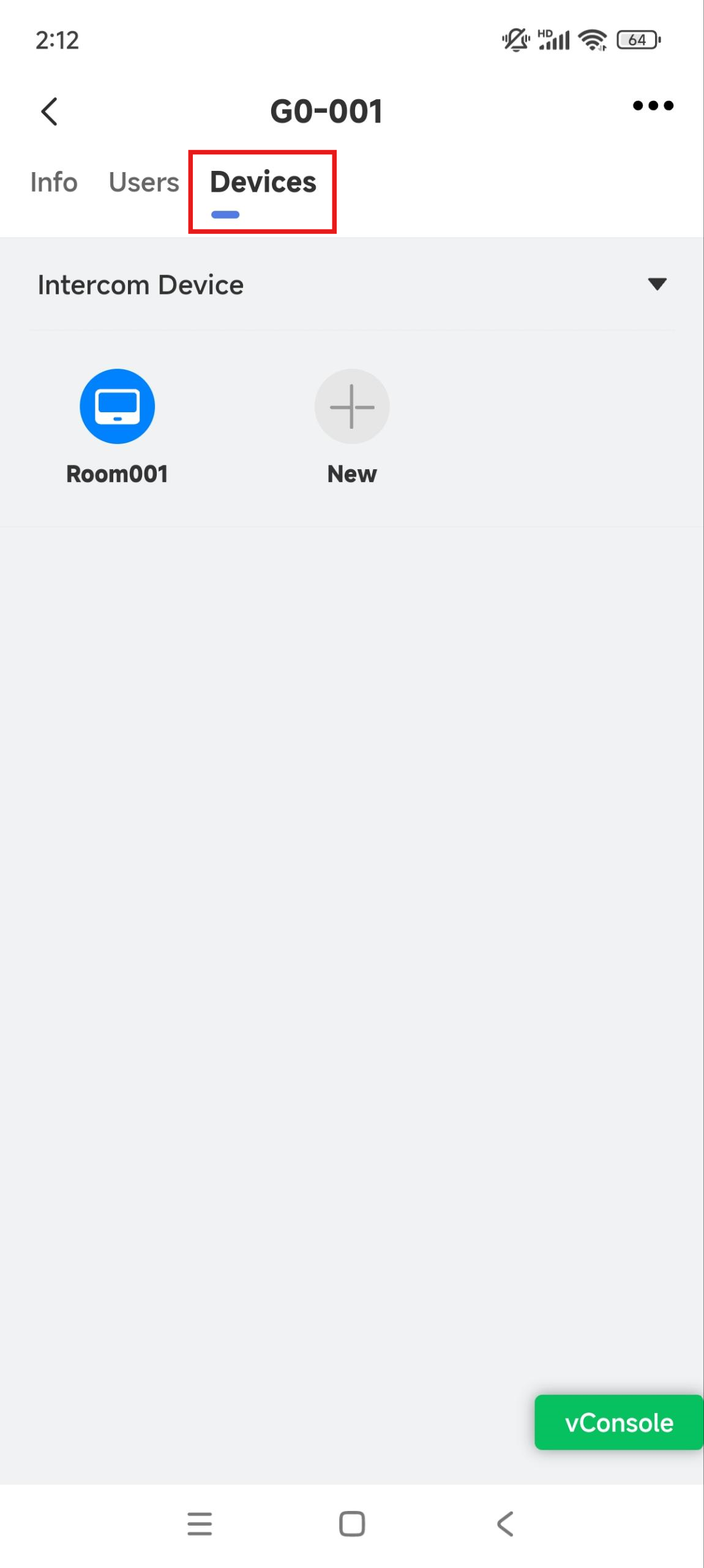
You can tap the apartment to view its information and select Devices to check the device just added.
.jpg)
On the Quick Start Screen
On the Quick Start screen, you can check the device list, device information, discover private door phones, and upload devices to the cloud by scanning a QR code.
Tap More > Settings > Advance. The default password to access advanced settings is 123456.
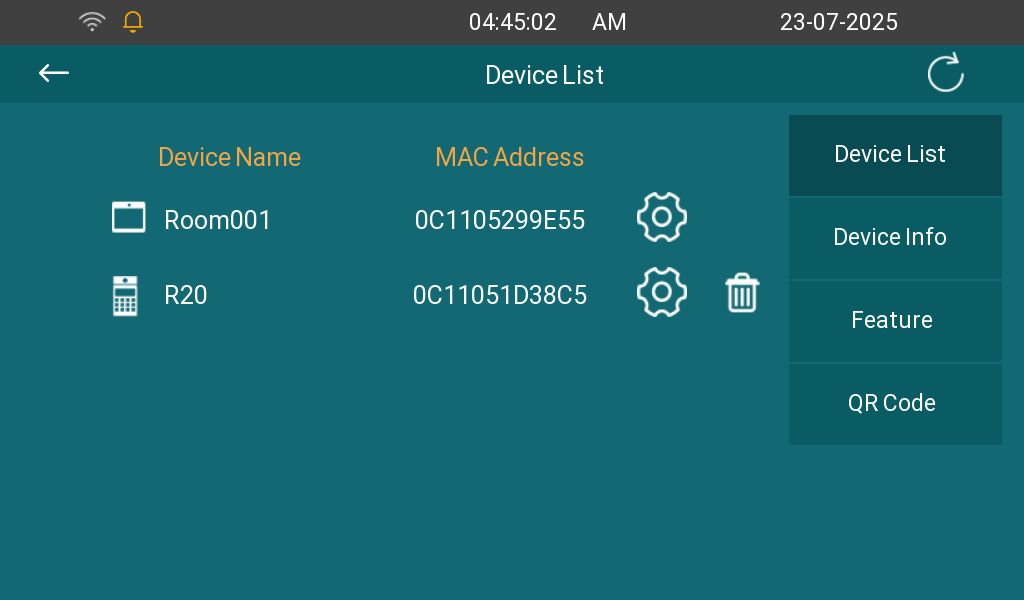
Tap Quick Start. where you can check the device list. Tap
 to modify device settings.
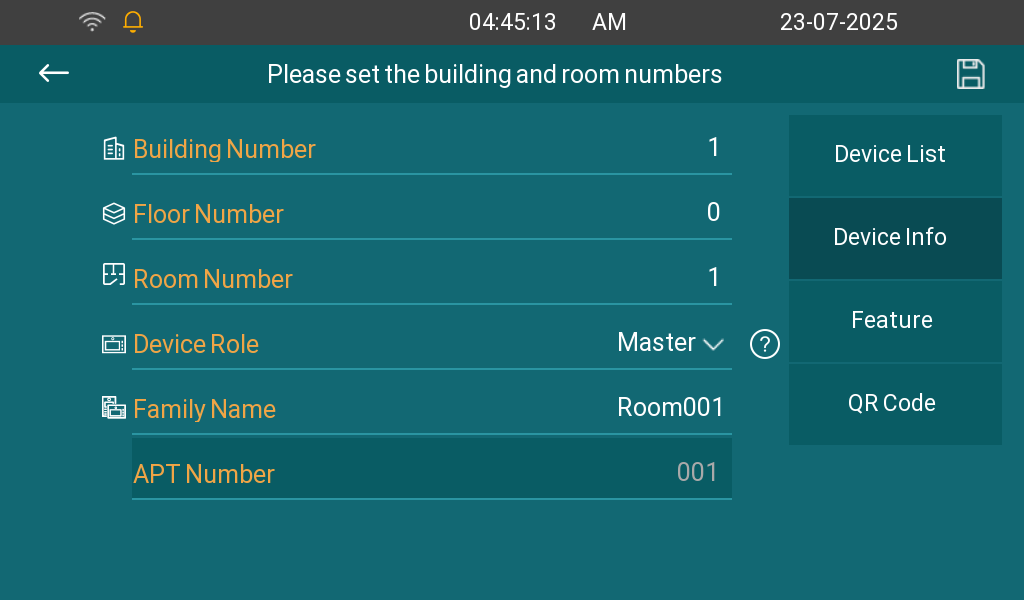
Tap Device Info to modify building and room numbers.
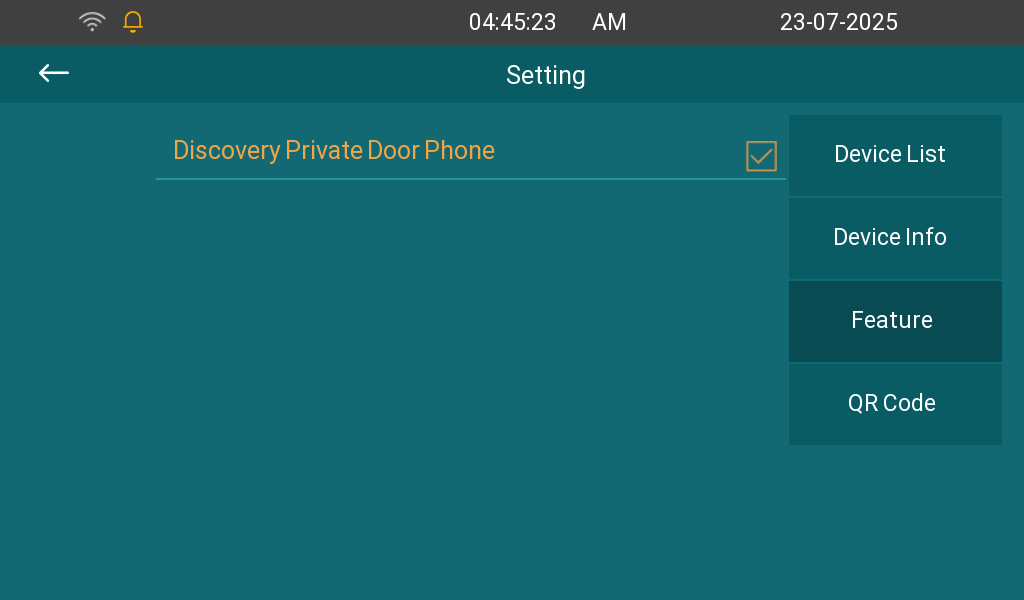
Tap Feature. Check Discovery Private Door Phone to scan and add door phone(s) on the same LAN. One family can have up to 9 private door phones.
Tap QR Code. Scan the QR code with the AK-Partner App to create the apartment on the cloud and add the device.
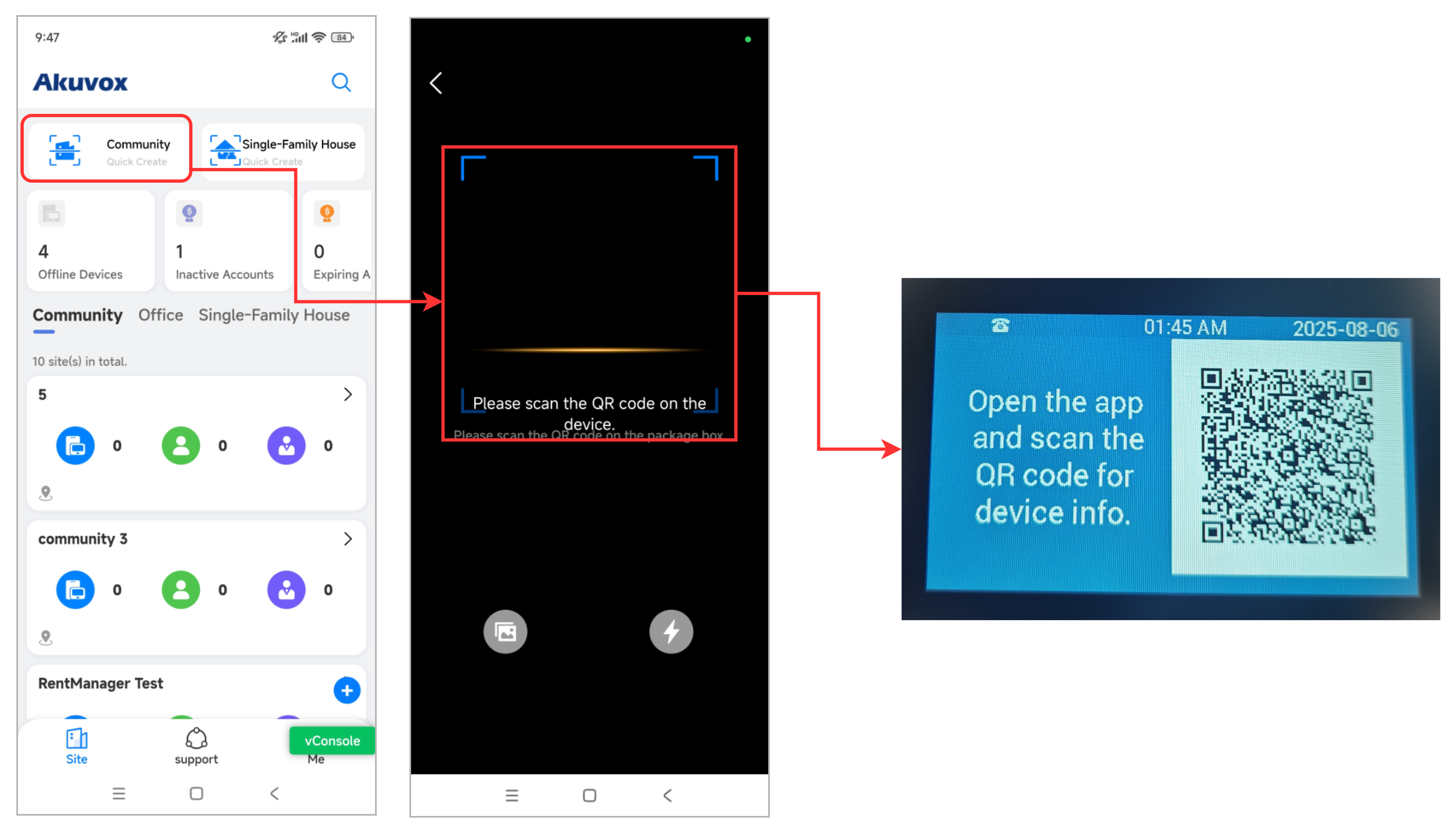
Upload Door Phones in Public Area
Scan the QR code on the door phone with the AK-Partner App.
To display the QR code,
For S535
Press 9999 > the Dial icon > 3888 > Confirm on the Dial screen to access settings.
Press Location Setting.
Press the QR code icon in the upper-right corner.
For R28
Press *2396# on the door phone.
Press 4 to display the QR code.
For E18
Long-press the home screen until the PIN entry screen appears.
Enter the system PIN. The default is “Admin321.”.
Press System Info > The QR code icon in the upper-right corner.
Then, scan the code using the AK-Partner App.
Tap Community Quick Create on the app’s homepage.
Scan the QR code on the door phone.
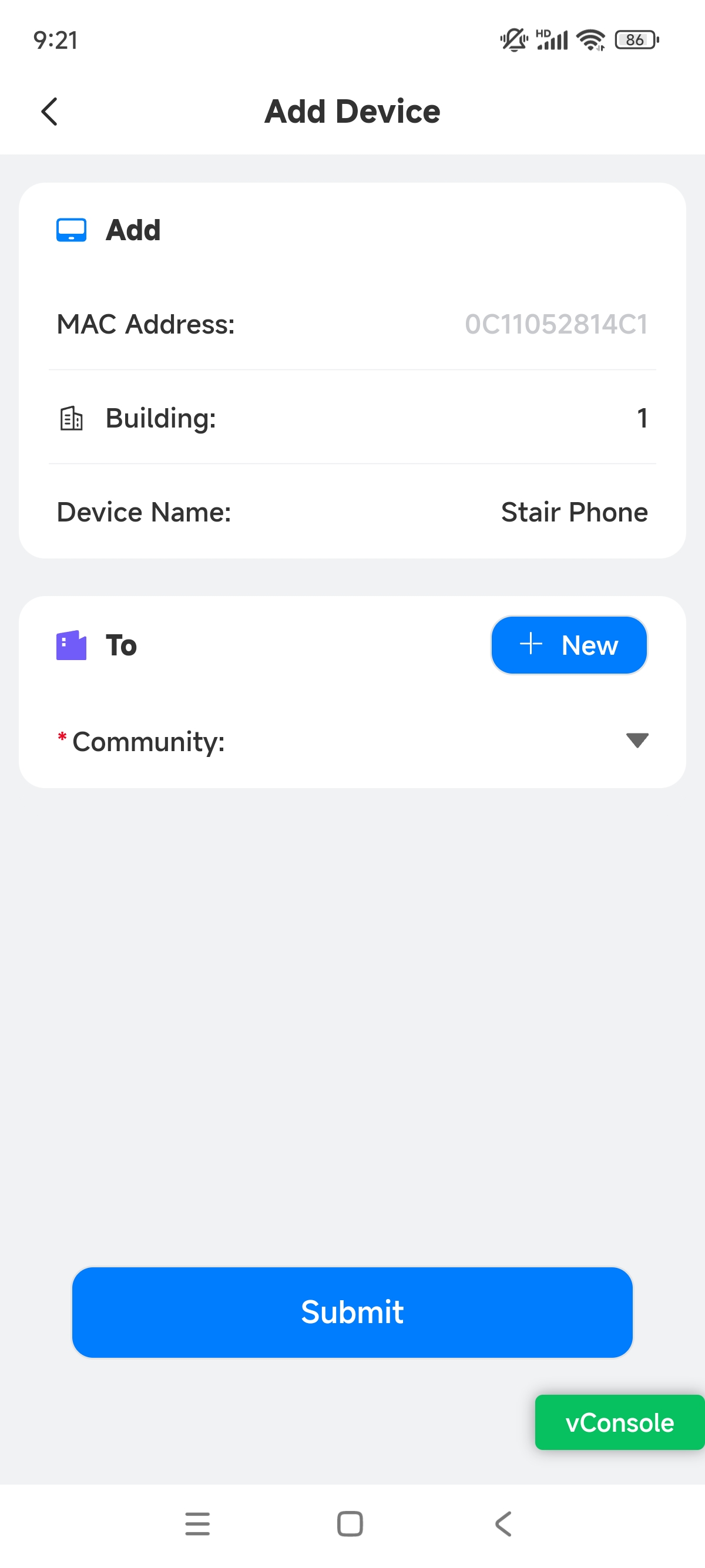
You can change the building number and device name on the app.
Select the community. You can tap +New to create a new community. Click here to view the instructions on creating a community.
Tap Submit. Added successfully will display. You can tap Add Another Device to keep adding devices to the cloud. Or, tap Back to return to the homepage.
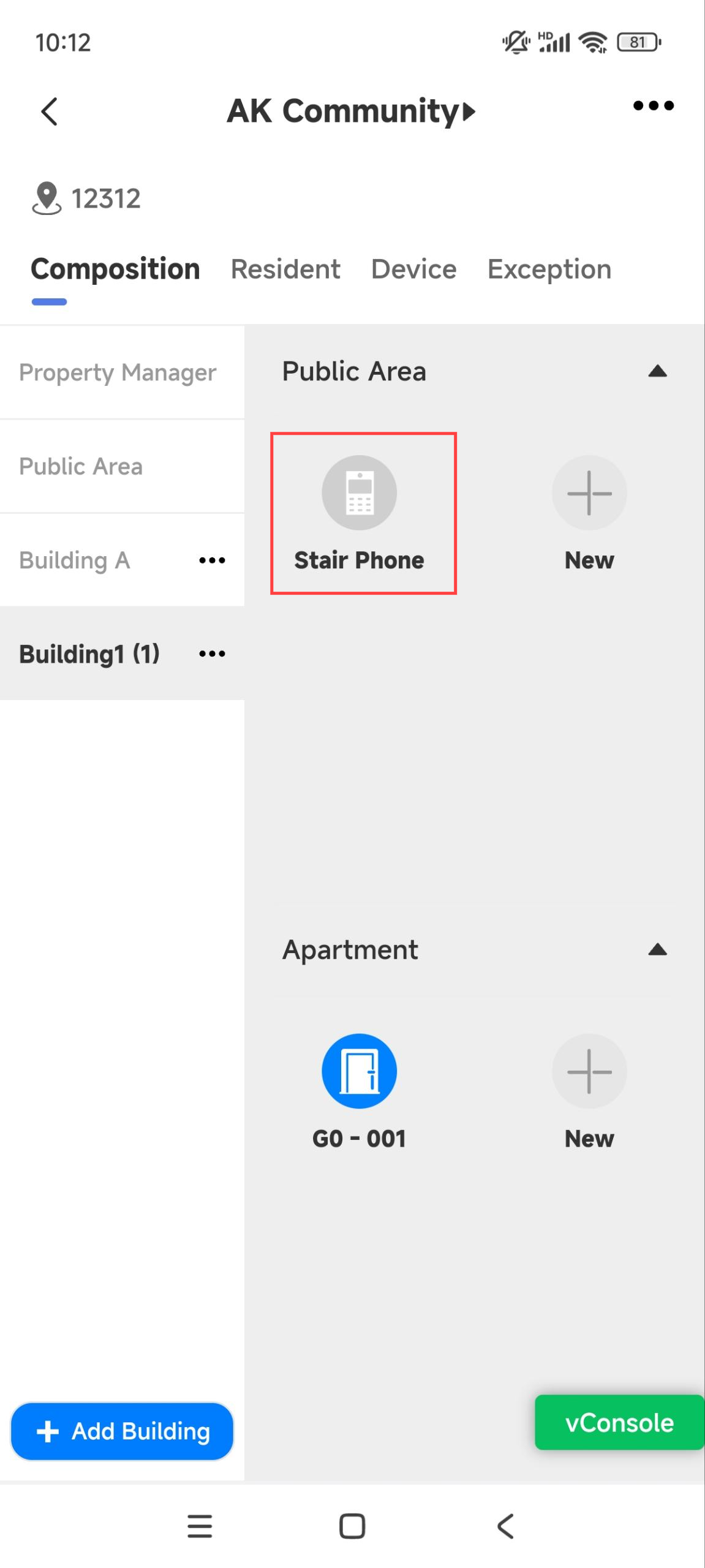
Tap the community name on the homepage and tap the building where the device is installed. You can see that the device is added.
For End Users: Register SmartPlus Accounts
You can register SmartPlus accounts by scanning a QR code on the indoor monitor once it is connected to the SmartPlus Cloud. If you skip this step, you can find the QR code on the More > Settings > SmartPlus Account screen.
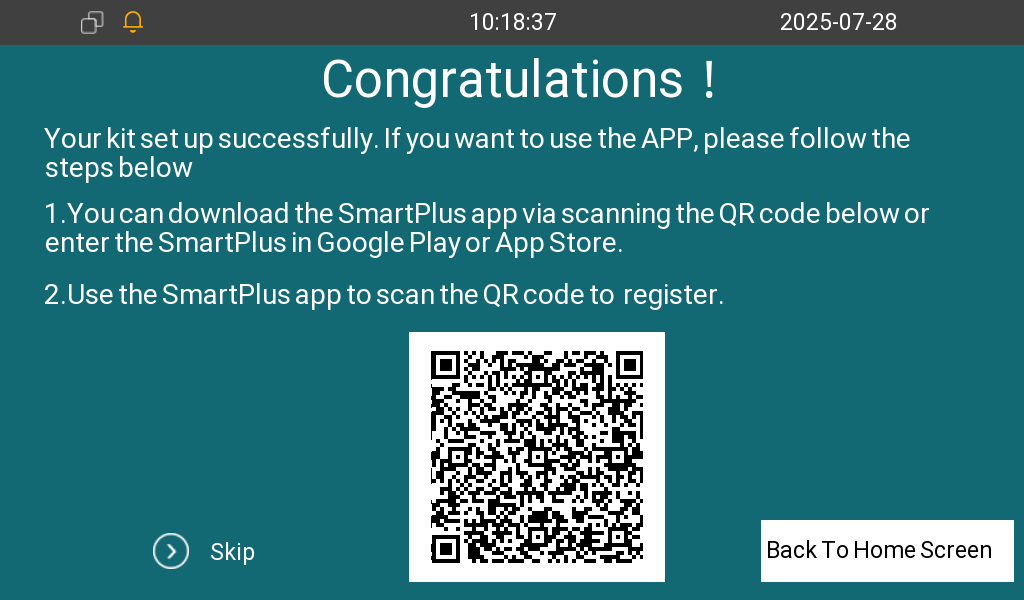
The Initial Setup Screen
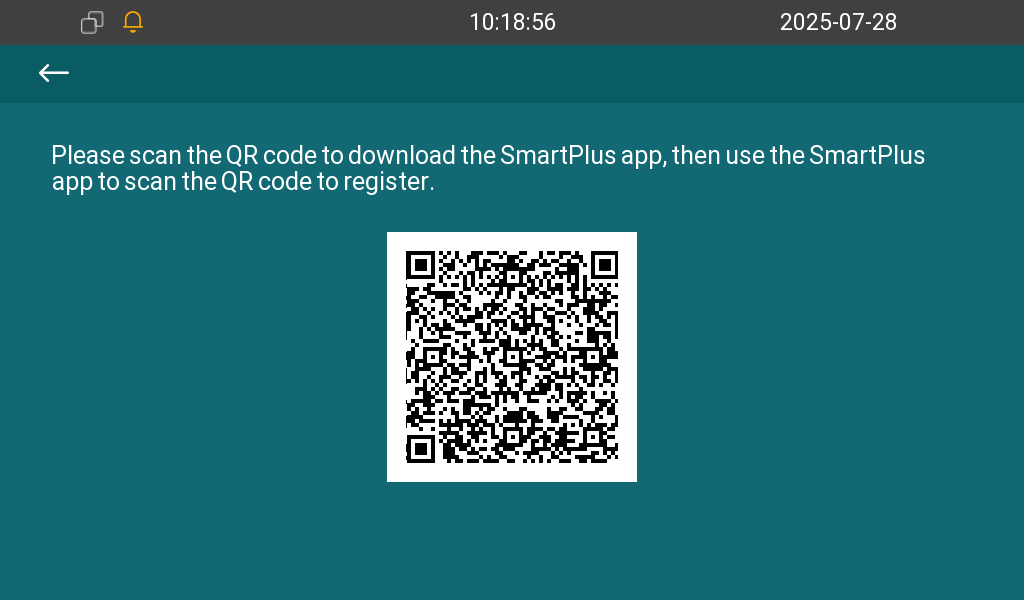
SmartPlus Account Screen
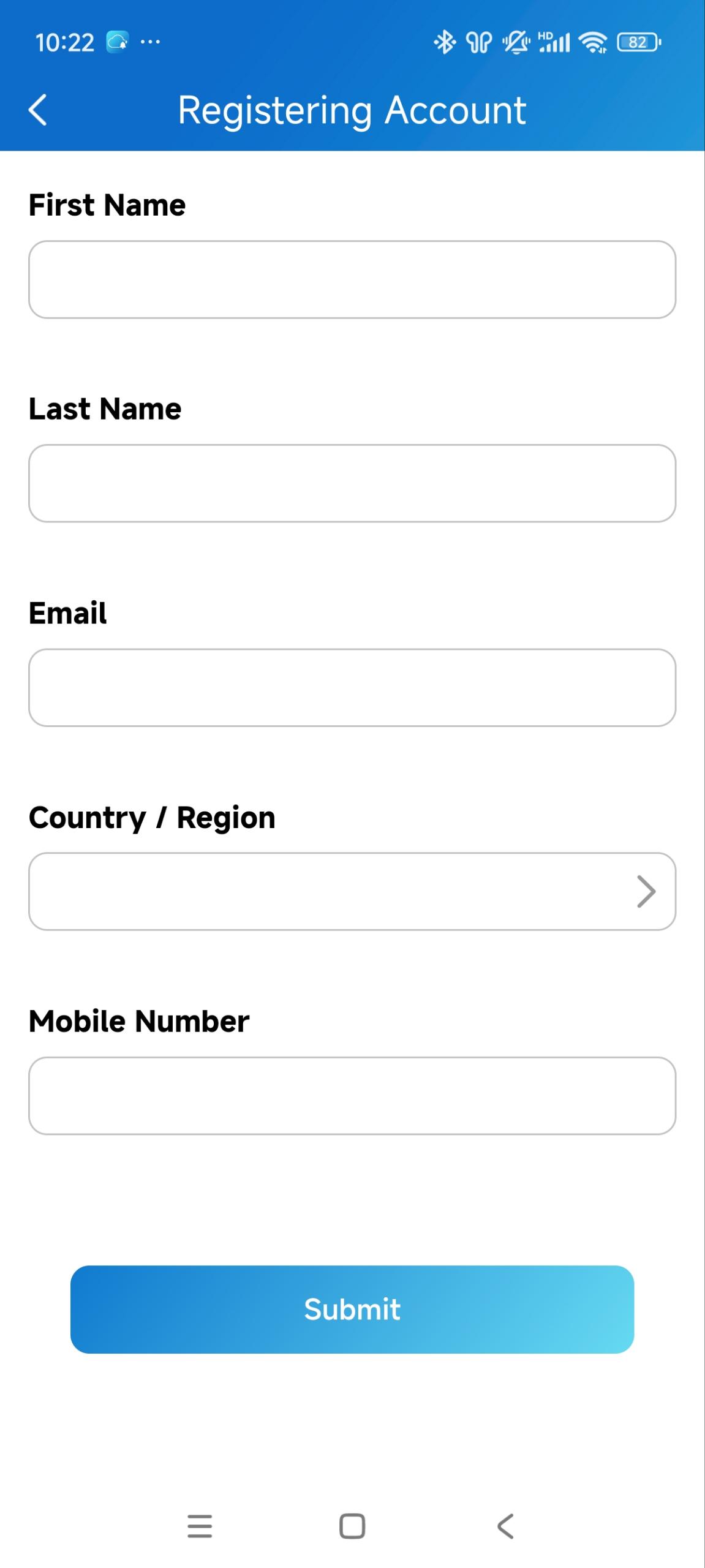
Scan the QR code with your SmartPlus App and fill in the information for registration.