This guide applies to ETS5 and ETS6. It explains how to configure a KNX Fan Coil Module when using an external Zigbee sensor as the primary temperature source.
Device Connection
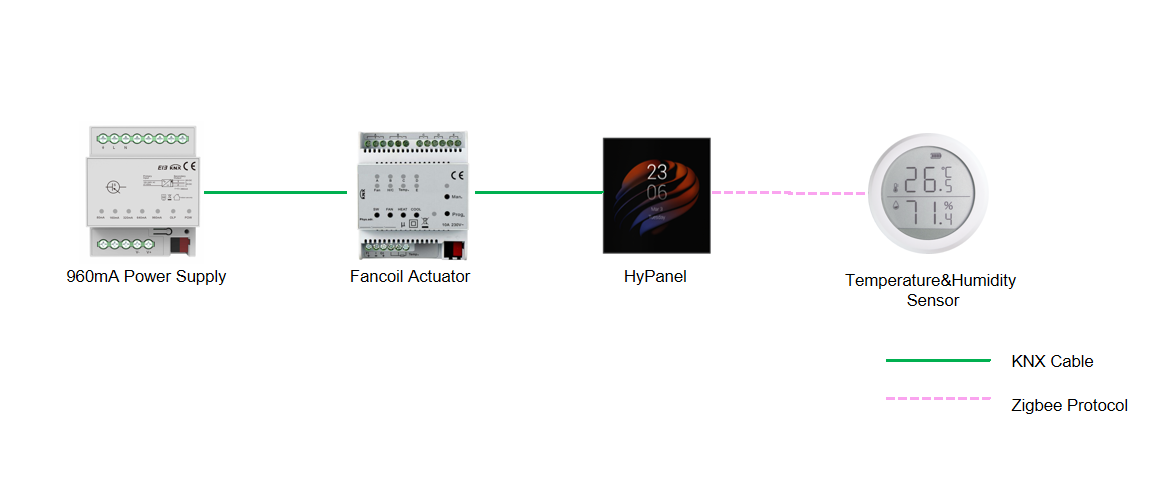
KNX Configuration
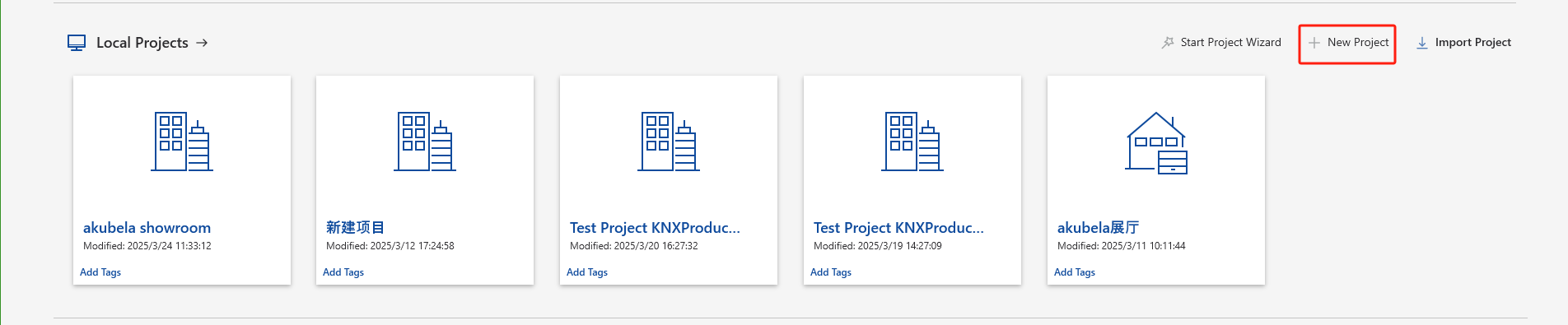
1.Create a New Project
Click New Project.
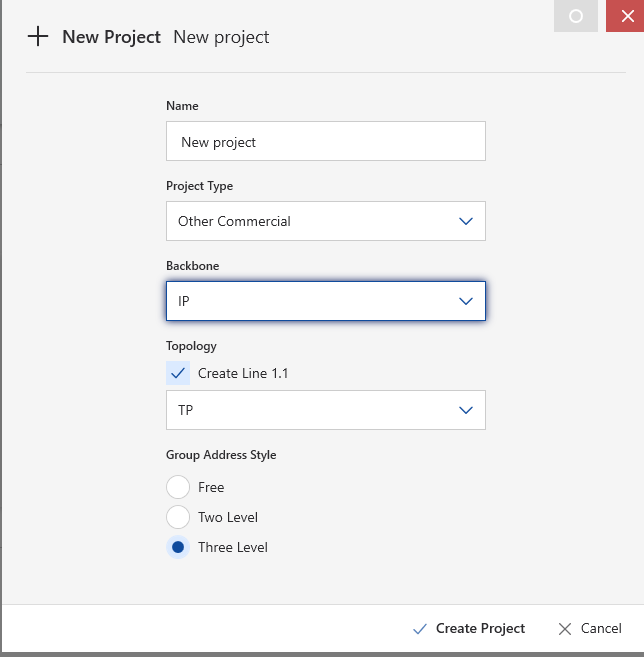
Define the project details and click OK.
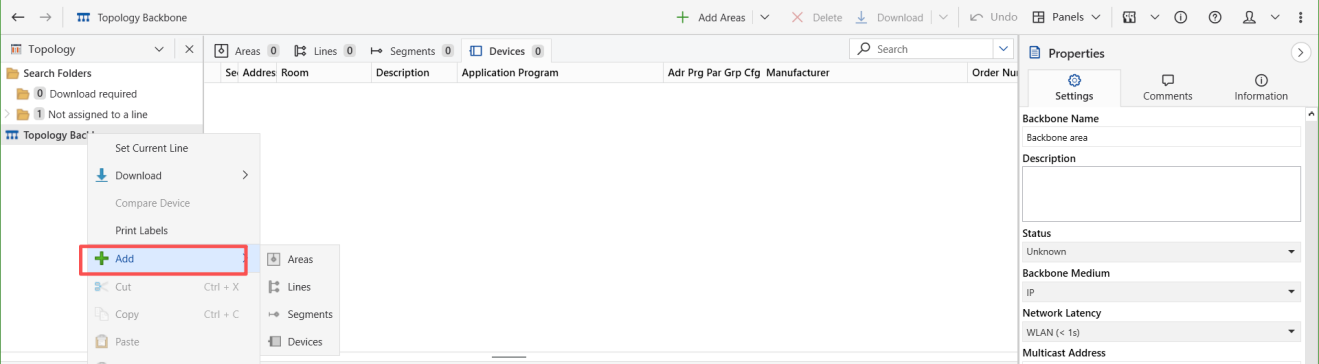
2.Create a Topology
Organize your line and area structure as required.
For more details on project setup, refer to Start a KNX Project with ETS.
3.Import Device Databases
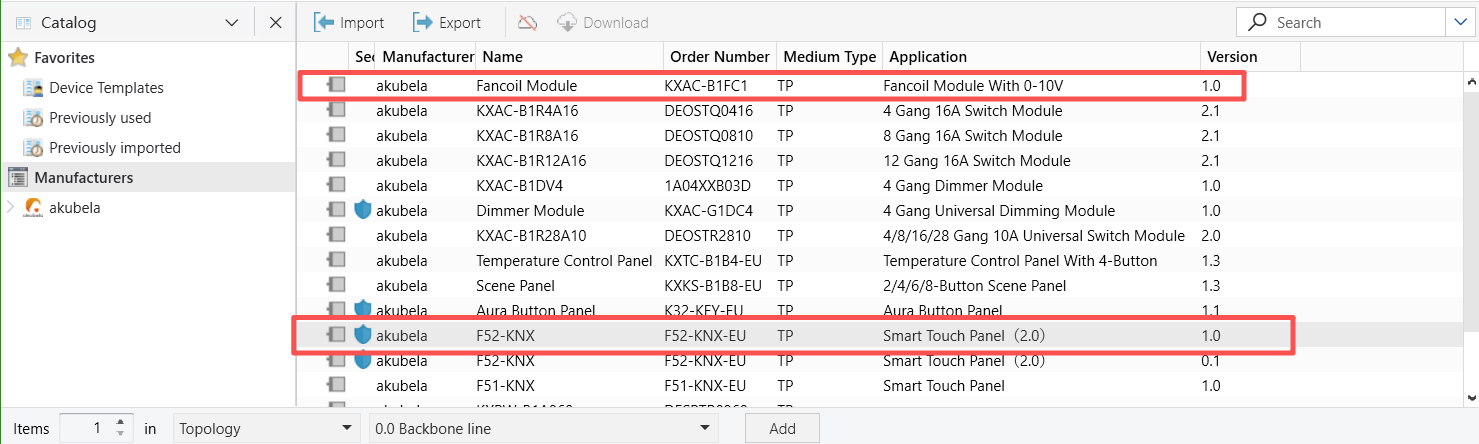
4.Configure HyPanel Database
Configure External Sensor Interface
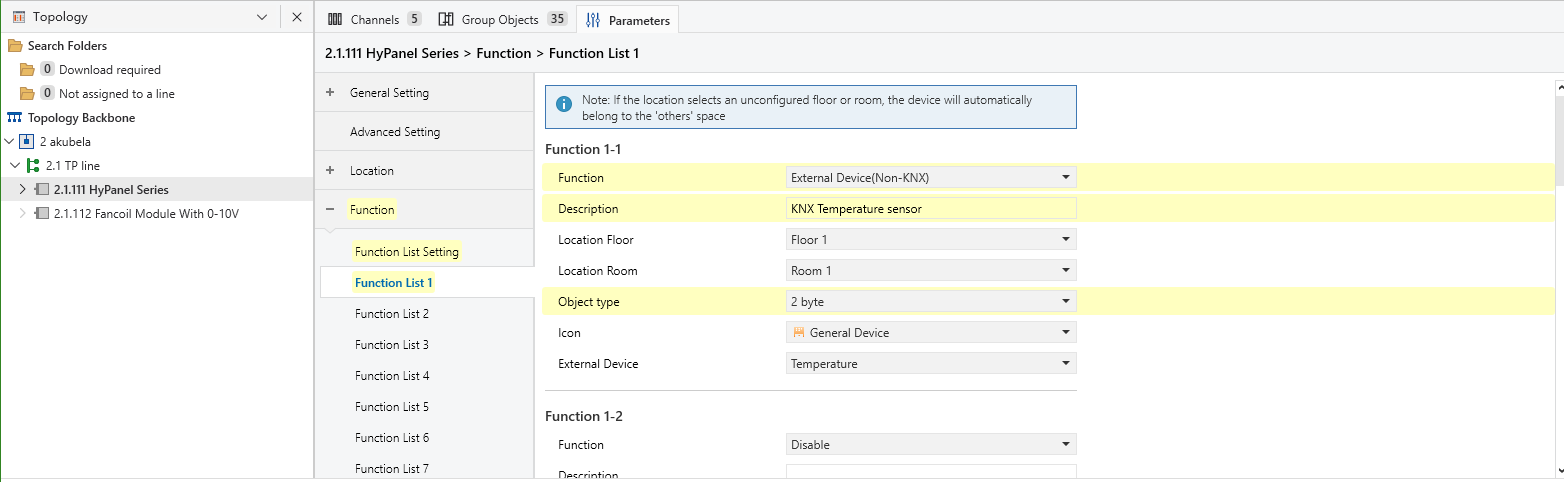
In the HyPanel’s Parameters page, preset a device as a Temperature Sensor.
TIP:
To avoid confusion during setup, name this device "KNX Temperature Sensor" to clearly distinguish it from the physical Zigbee sensor.
Once commissioned, a Temperature Sensor Card will appear in the home center device; this card is used to link the Zigbee sensor.
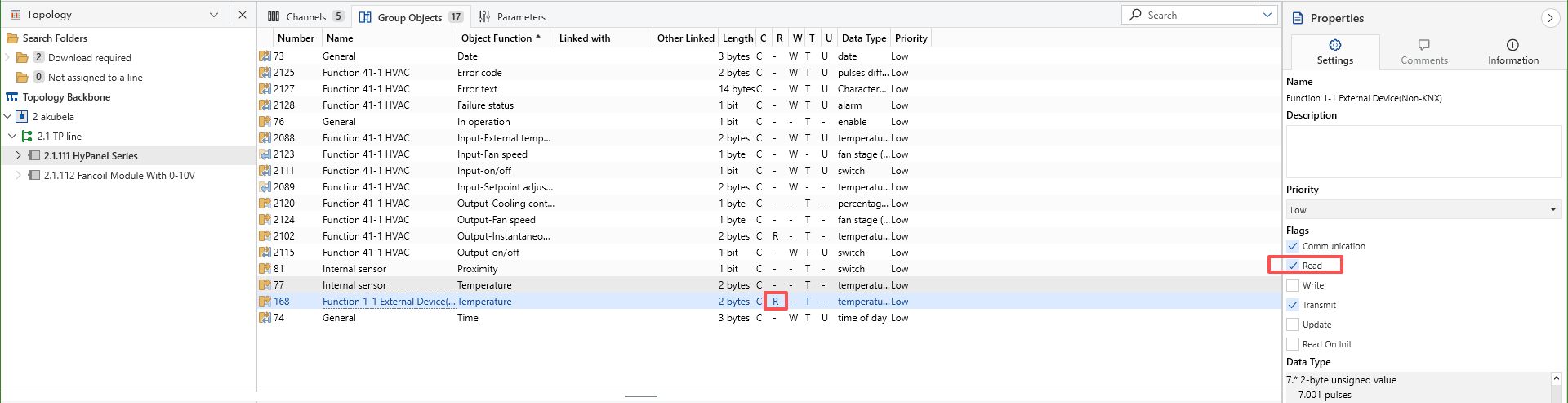
After configuring the parameters, ensure the "Read" flag is enabled for the corresponding Group Objects.
NOTE:
Configuring an External Device (Non-KNX) is only supported on the F52-KNX-EU flush mounted module. It is not compatible with the F51-KNX-EU model.
Configure HVAC Parameters
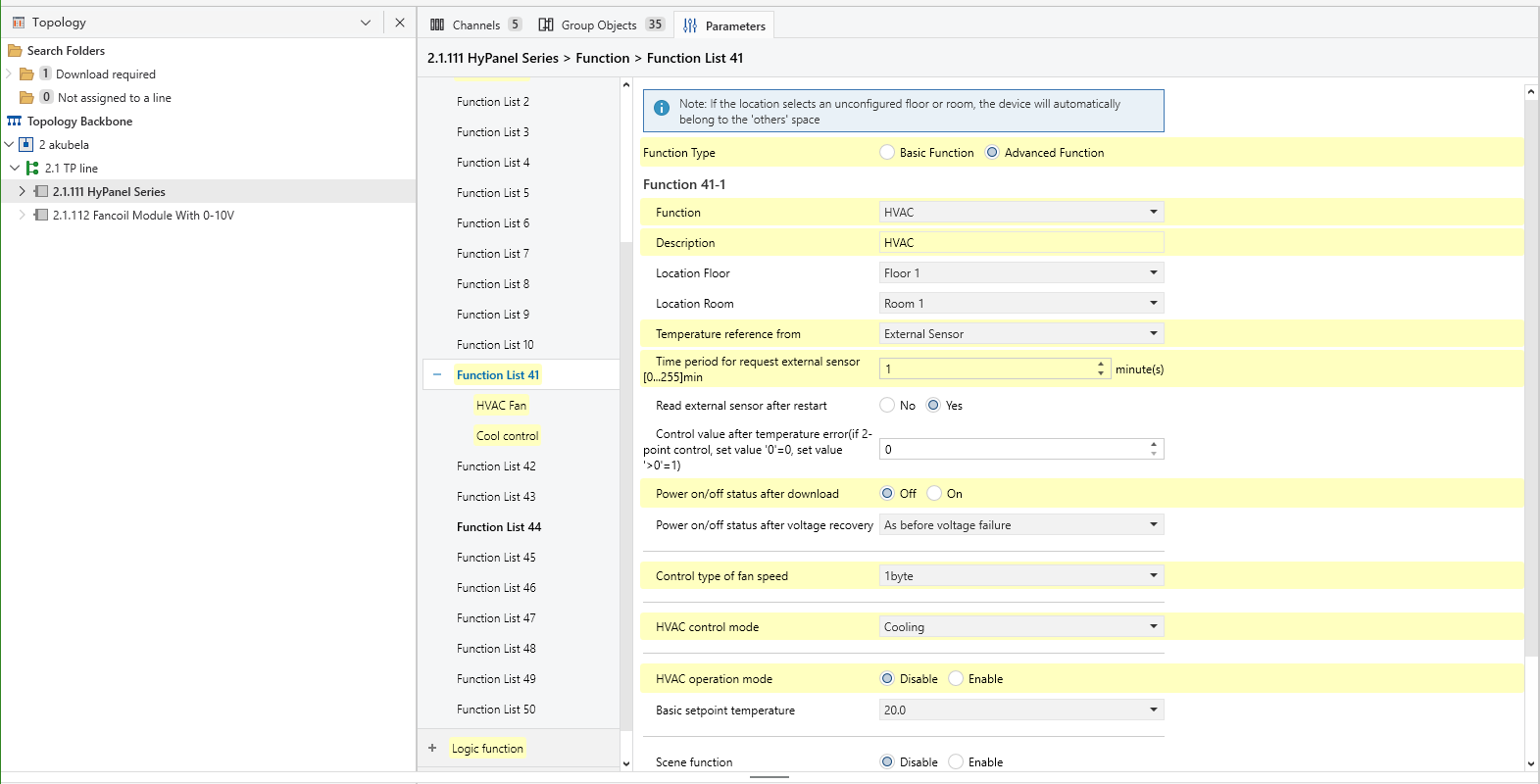
Example: Cooling Mode only, 2-pipe system, 3-speed fan.
Select the HVAC parameters.
Set HVAC Fan Control.
NOTE:
Ensure the fan speed values here match the fan speed settings of the HVAC system.
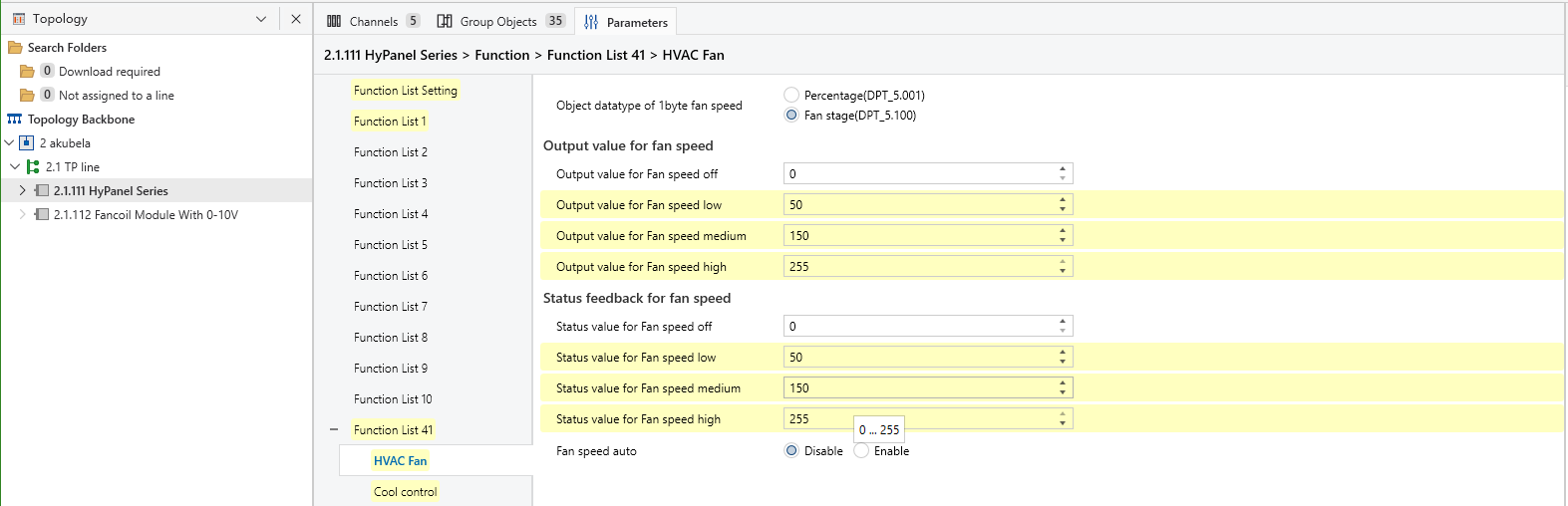
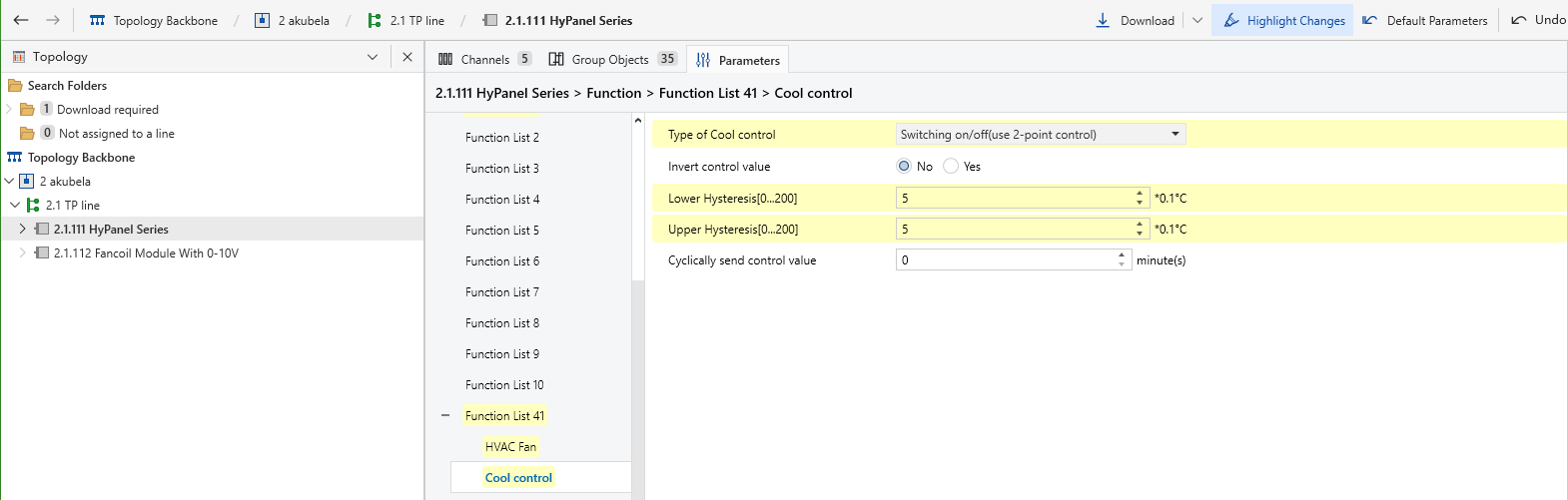
Set HVAC Cool Control.
NOTE:
The HVAC function can only be selected under Advanced Function (Function List 41–80).
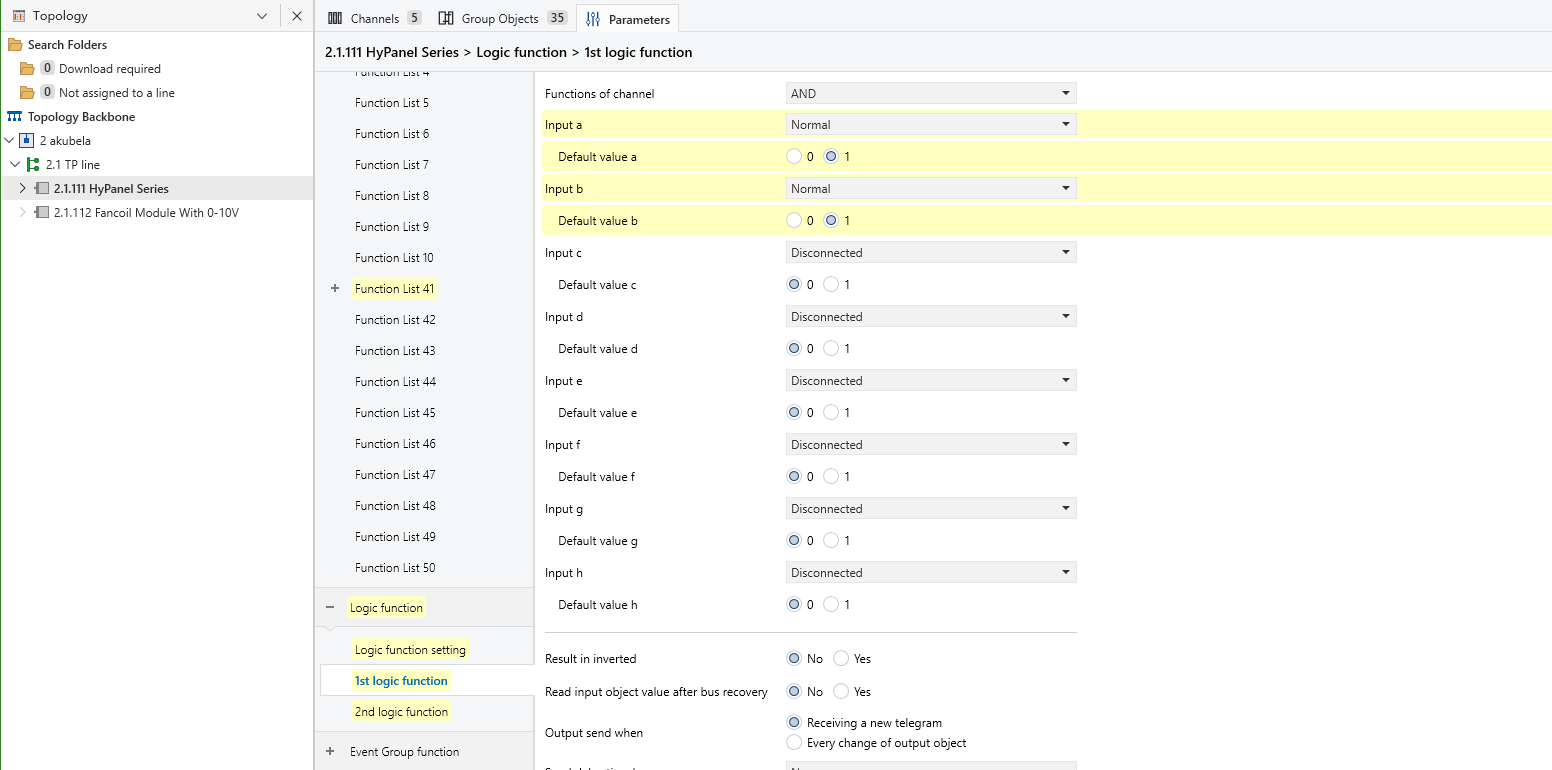
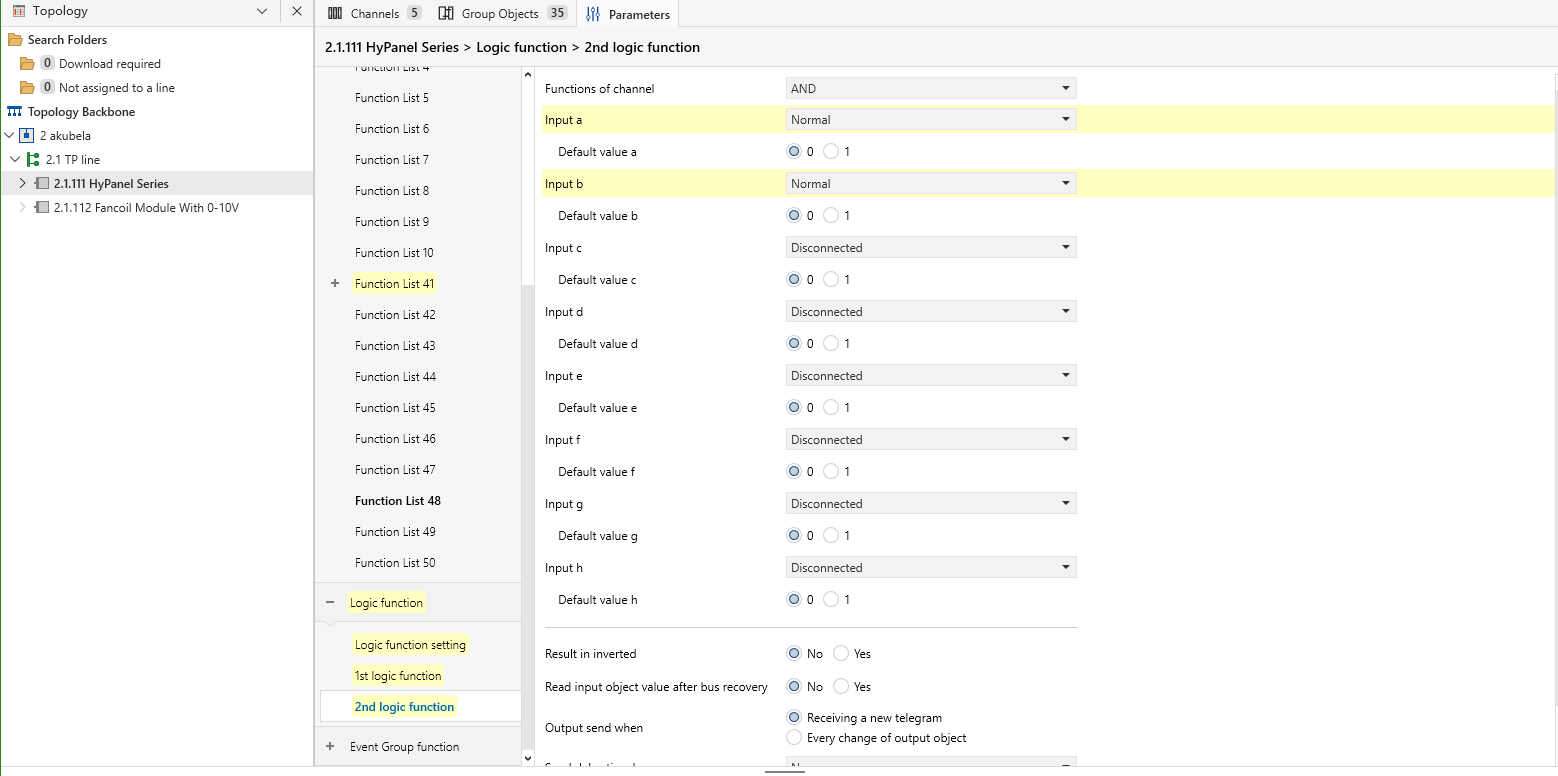
Logic Setup.
Configure a logical link so the fan speed automatically turns ON when the cooling valve opens and OFF when the valve closes.
Create group addresses.
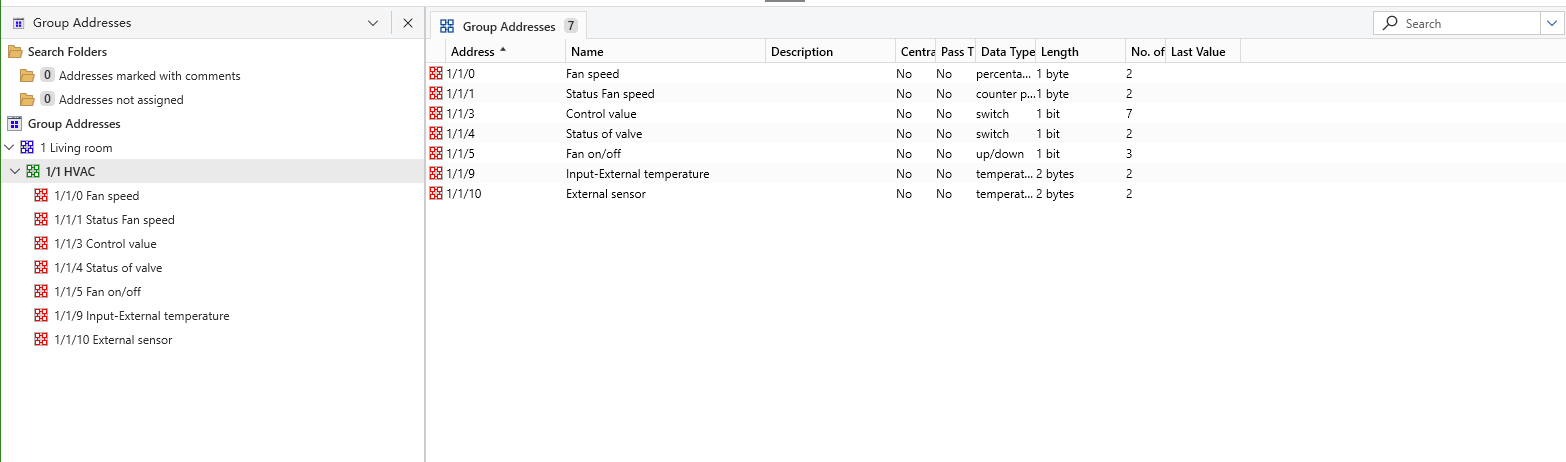
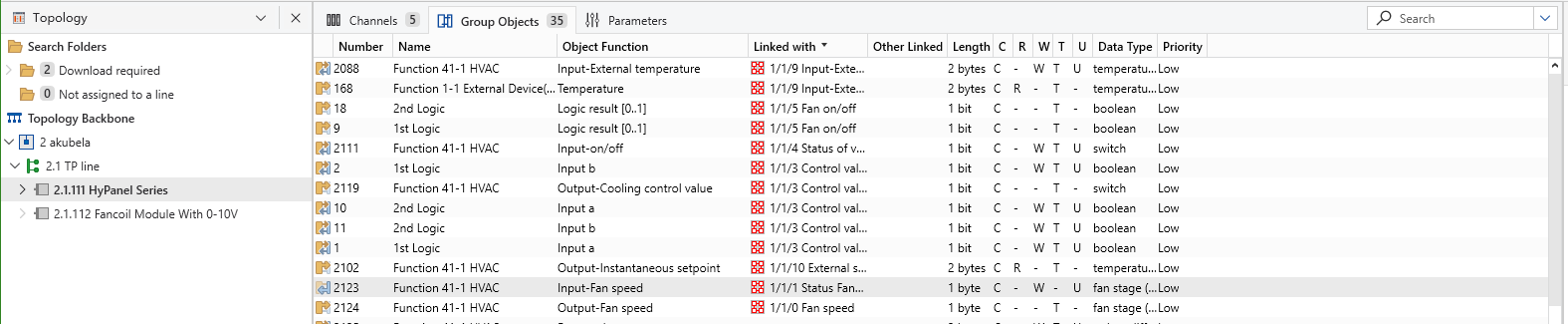
Link the Group Objects to the appropriate addresses.
TIP:
For more details, refer to ETS Parameter Settings.
Configure Fancoil Module
Select the appropriate interface for the fancoil module.
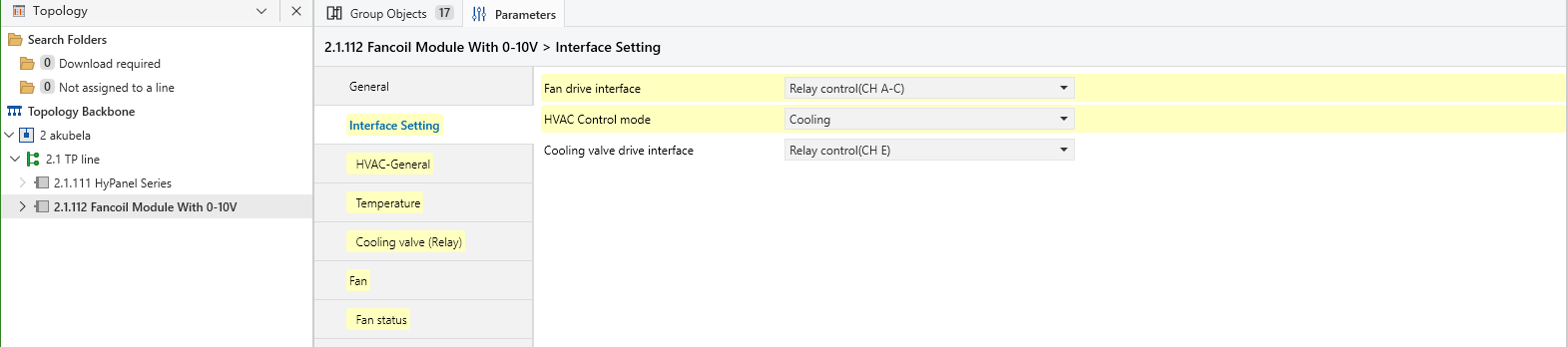
Set the operating mode.
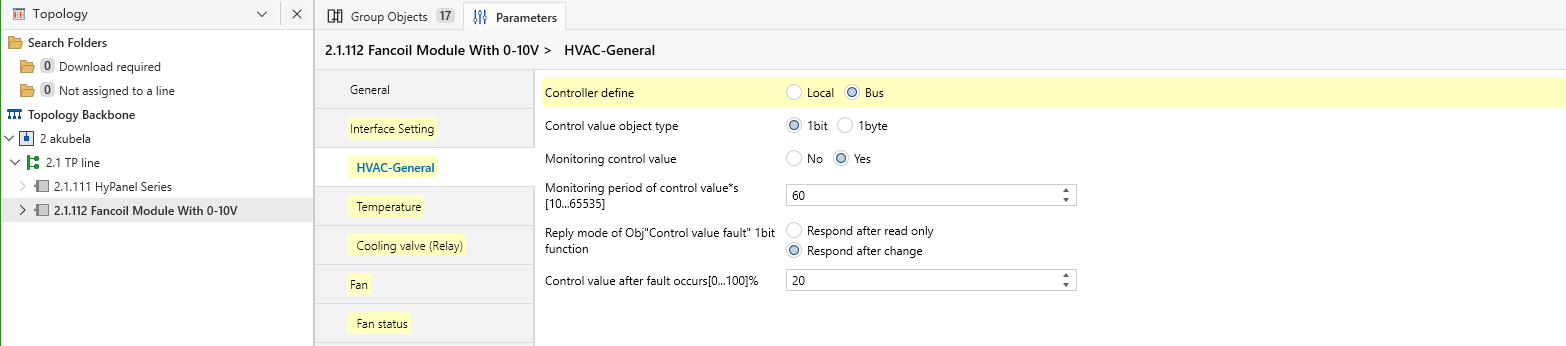
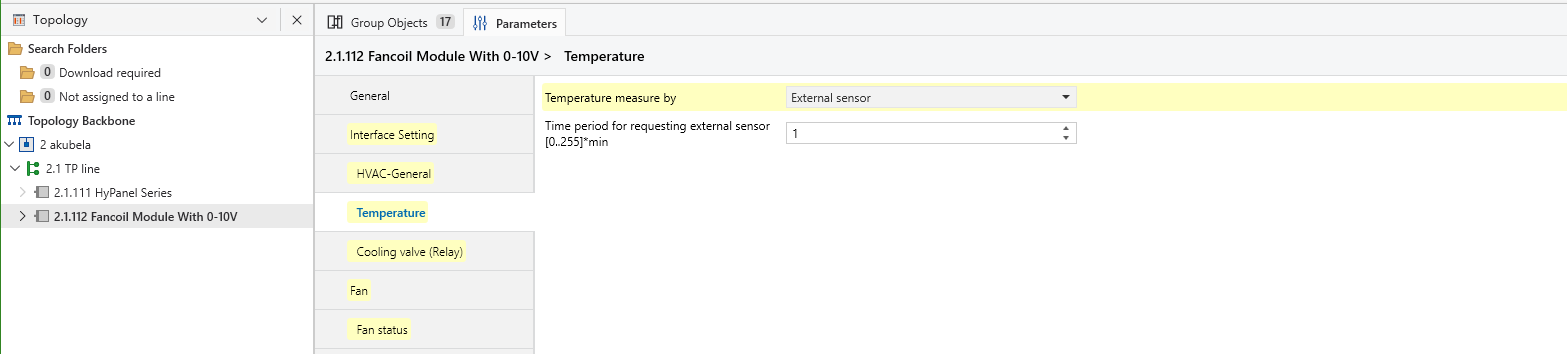
Select the external temperature source.
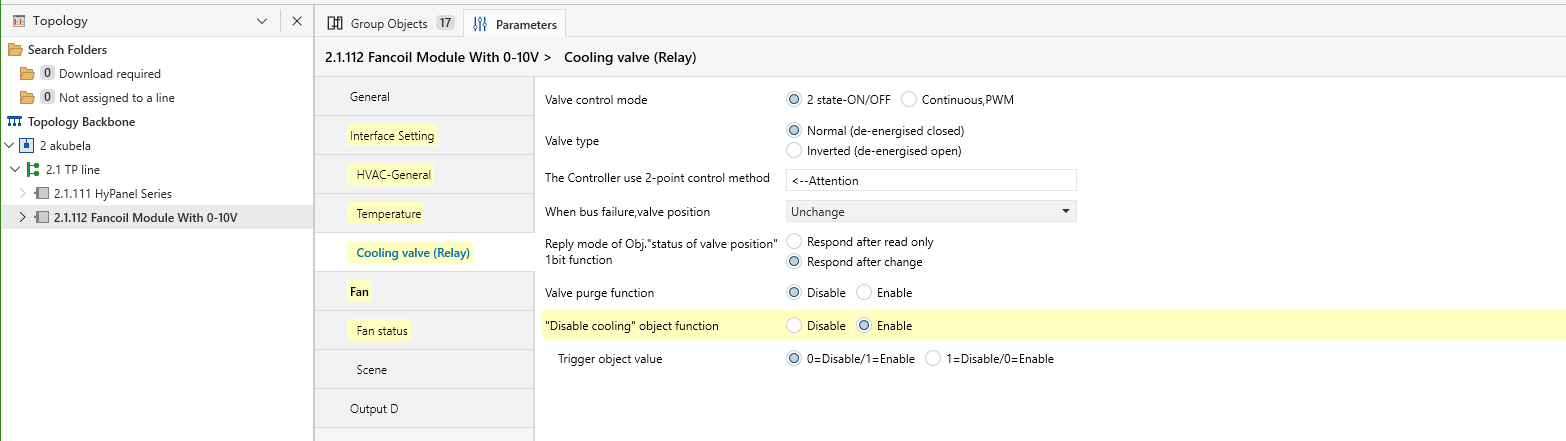
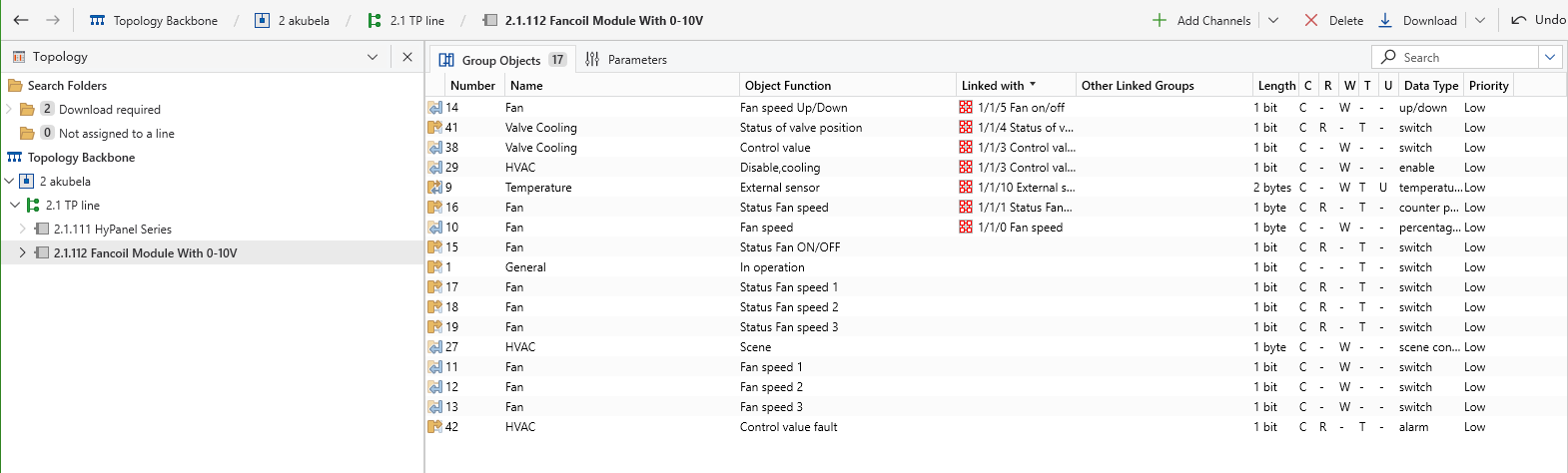
Enable the communication object for the cooling valve switch.
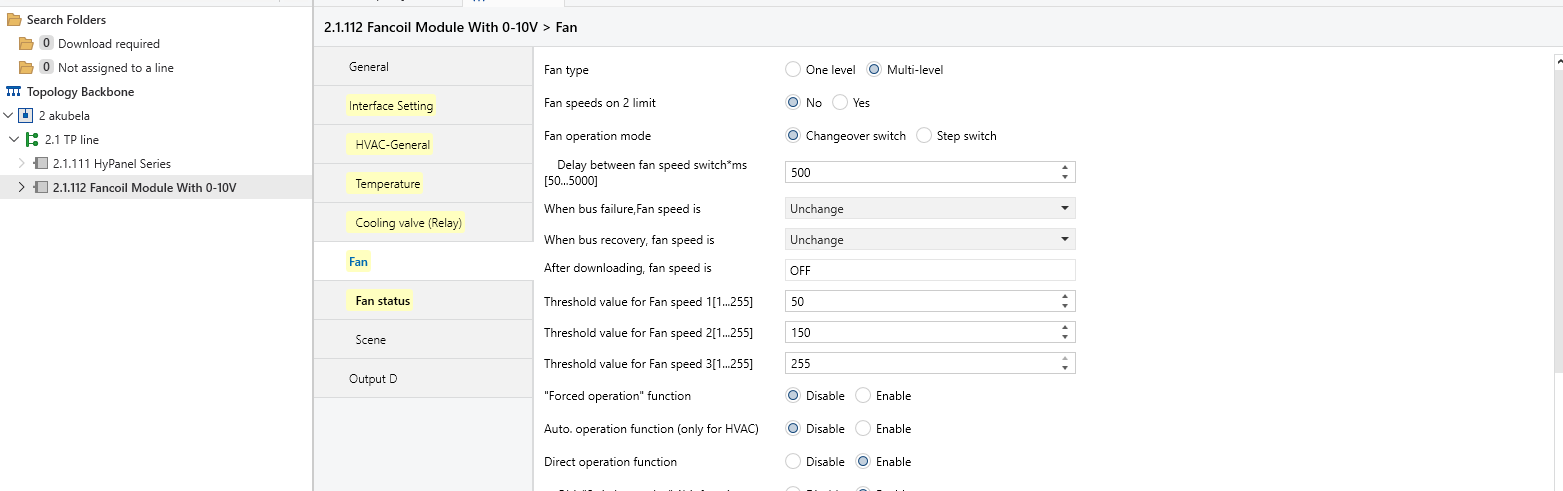
Set the Fan Speed type to Multi-level.
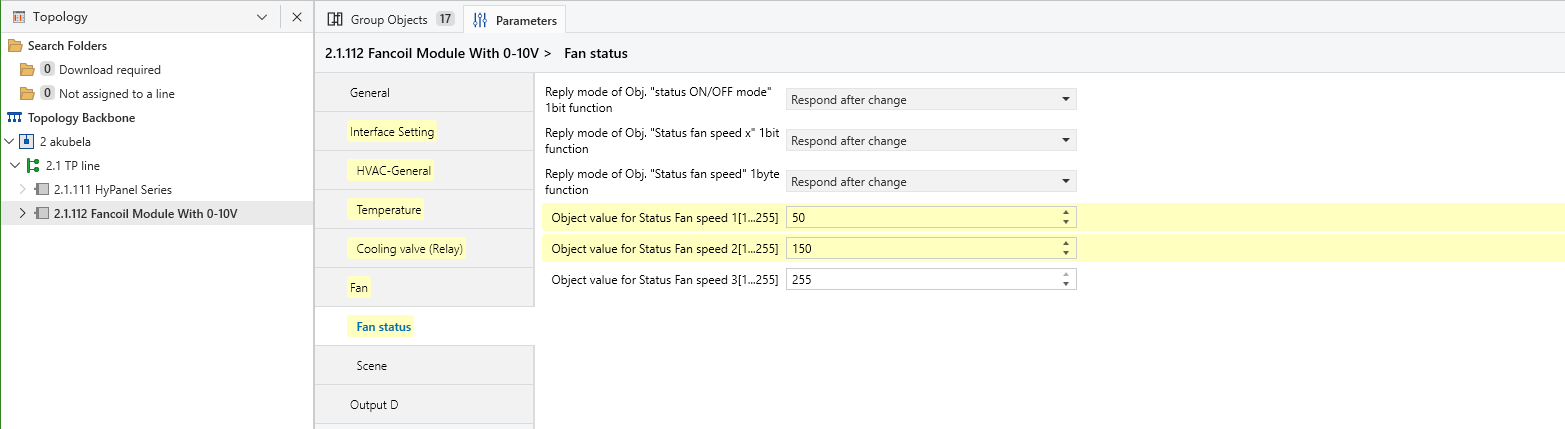
Configure the Fan Speed status feedback.
Assign all objects to the corresponding group addre
sses.
TIP:
For more details, refer to KNX Fan Coil Module Configuration Guide.
Download Database
Put the device into programming mode.
Device type | Programming Method |
Hypanel |
|
KNX Actuator |
Press the physical Programming Button on the device; the LED will light up to indicate programming mode. |
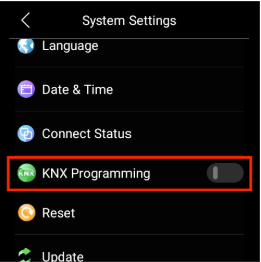
 > KNX Programming and toggle to ON.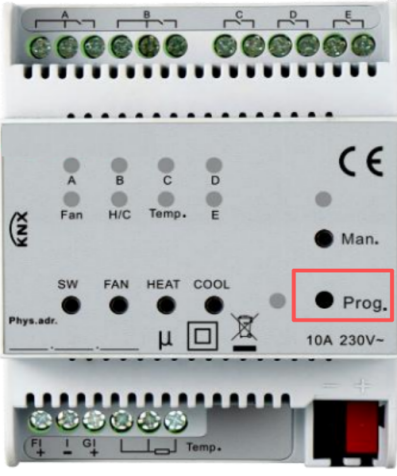
Connect your PC to the KNX bus via a USB Interface.
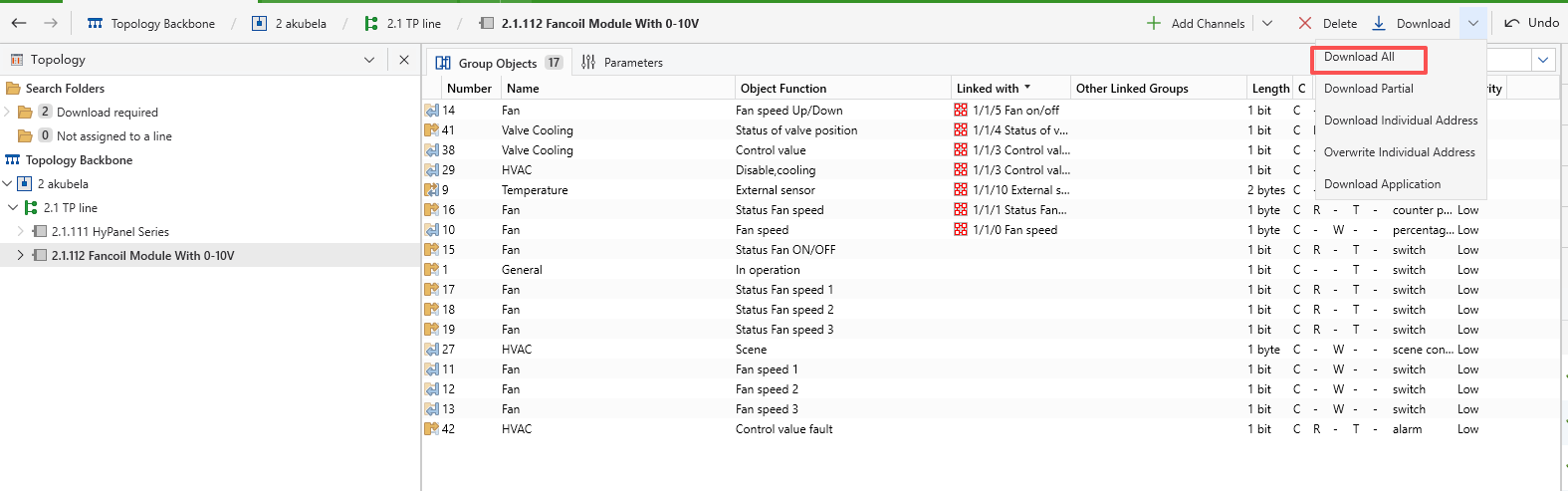
Perform a Full Download of the database to the device.
TIP:
For detailed instructions, refer to this guide.
5.Zigbee Temperature Sensor Setup
Add the sensor to the akubela system.
Remove the back cover and insert batteries to power the sensor.
Press and hold the Reset button for approximately 5 seconds until the LED flashes rapidly.
Use a HyPanel to search for and add the device to the system.
TIP:
Name is as Zigbee Temperature&Humidity Sensor to to clearly distinguish it from the preset KNX sensor.
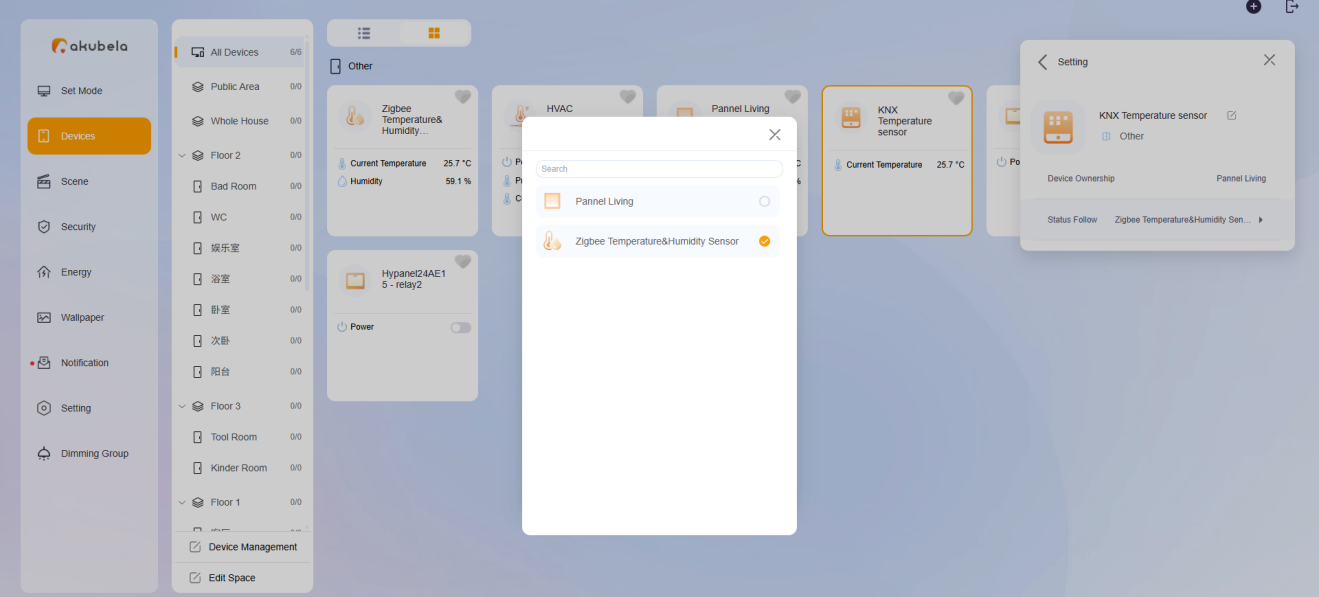
Mapping the sensor.
Enter the Home Center IP address into your web browser to access the device web portal.
Go to Devices > KNX Temperature Sensor card >
 > Status Follow to link the Zigbee temperature and humidity sensor.
NOTE:
If the current temperature does not display on the screen immediately, press the Pairing button on the physical Zigbee sensor to manually trigger a temperature update.