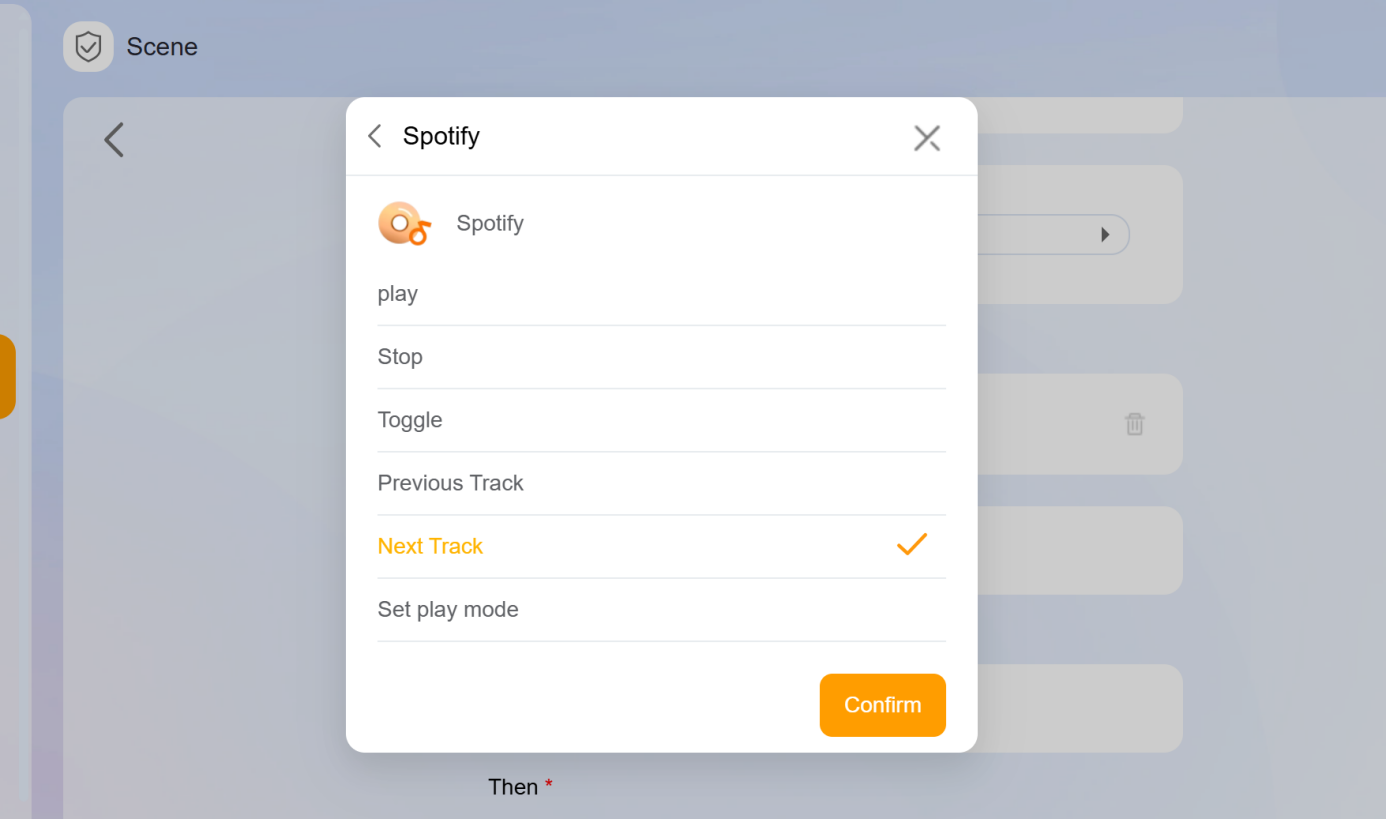
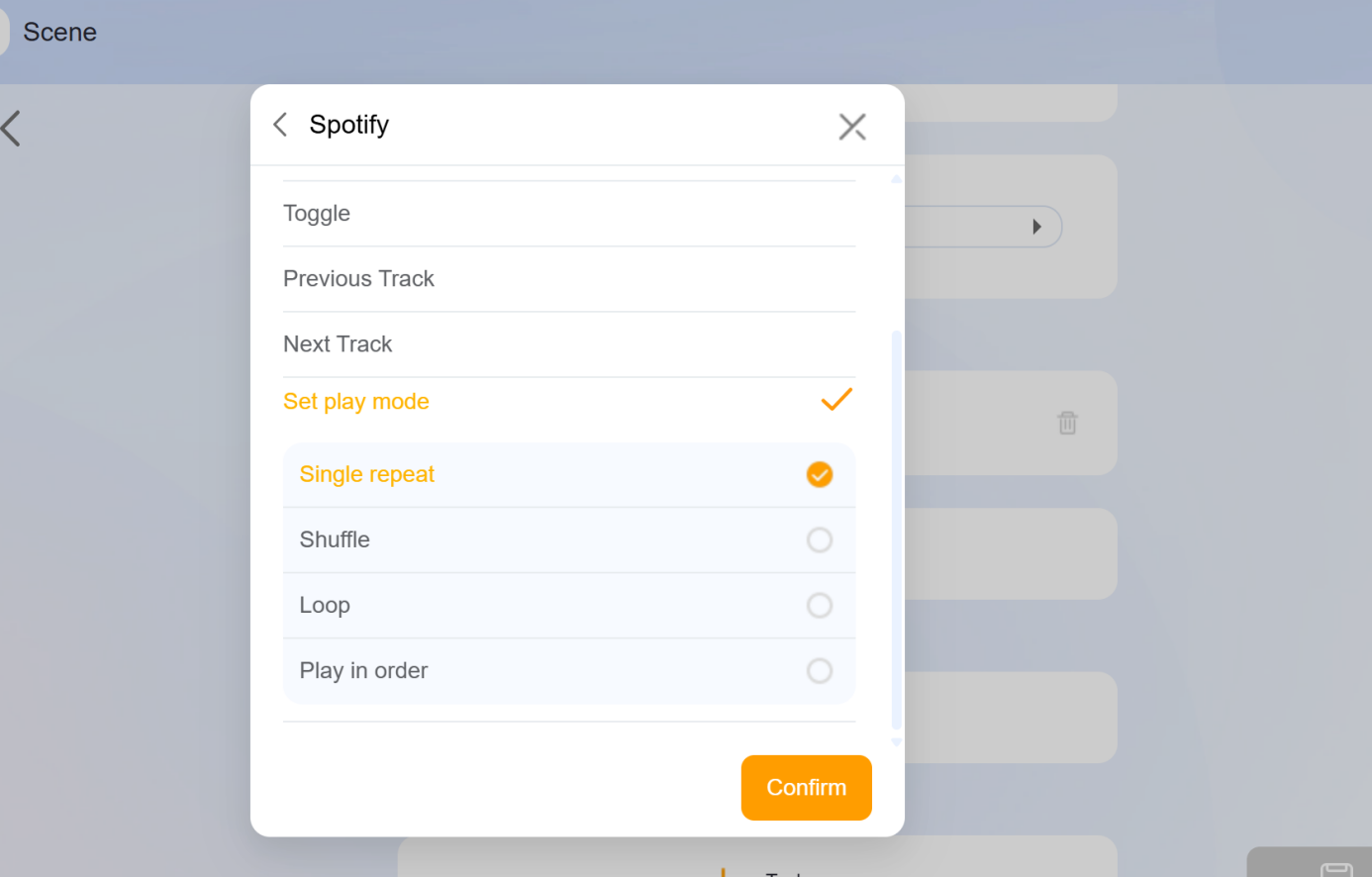
Large-screen HyPanels feature a built-in Spotify music player, allowing you to link your Spotify account and play music directly on the HyPanel or through Bluetooth speakers. You can also integrate basic Spotify controls, such as play and pause, into your smart home scenes.
What You Should Know
Supported devices and firmware:
Supported Device | Required Firmware |
HyPanel Pro | 71.1.37.39 and later |
HyPanel Ultra | 1001.1.38.113 and later |
HyPanel Supreme | 281.1.38.114 and later |
Build-in Spotify version: 8.9.60.560.
Configuration
Log in to Spotify
Go to Settings
 > Integration > Spotify.
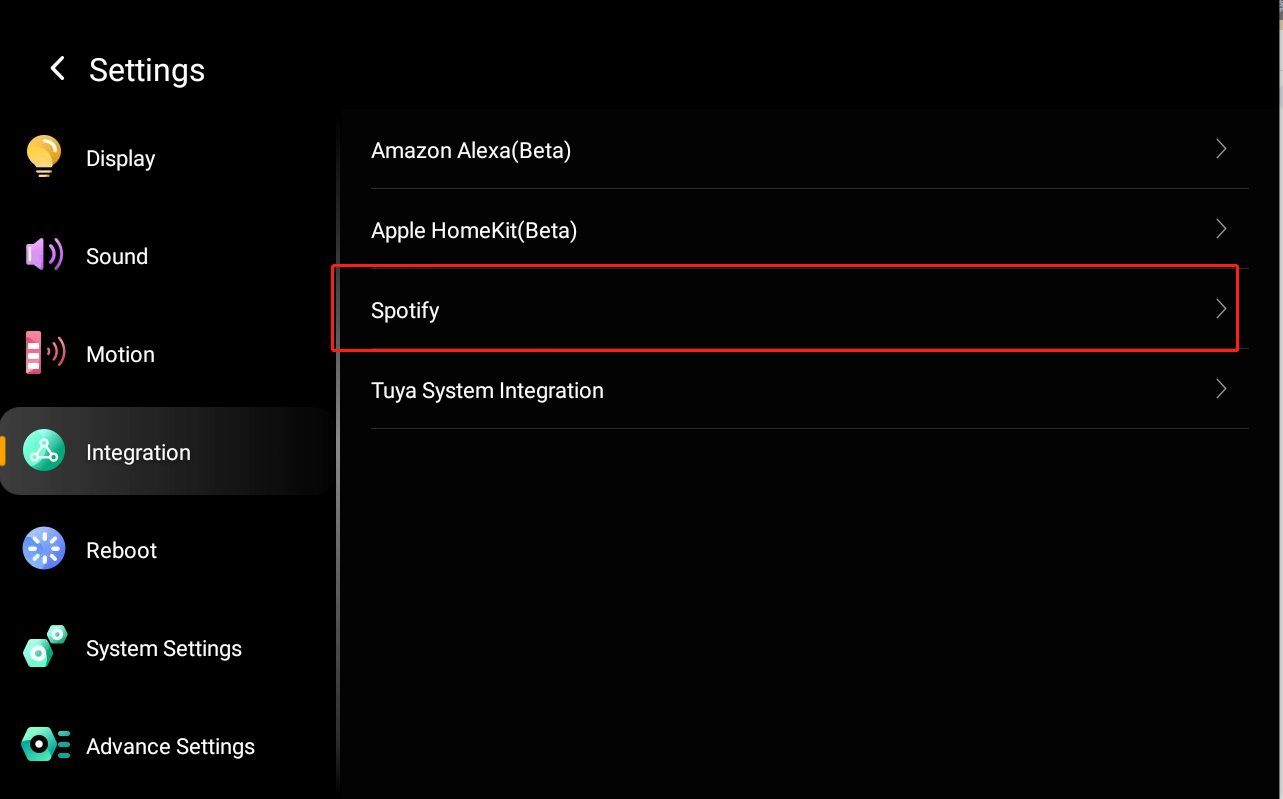
Log in with your Spotify account.
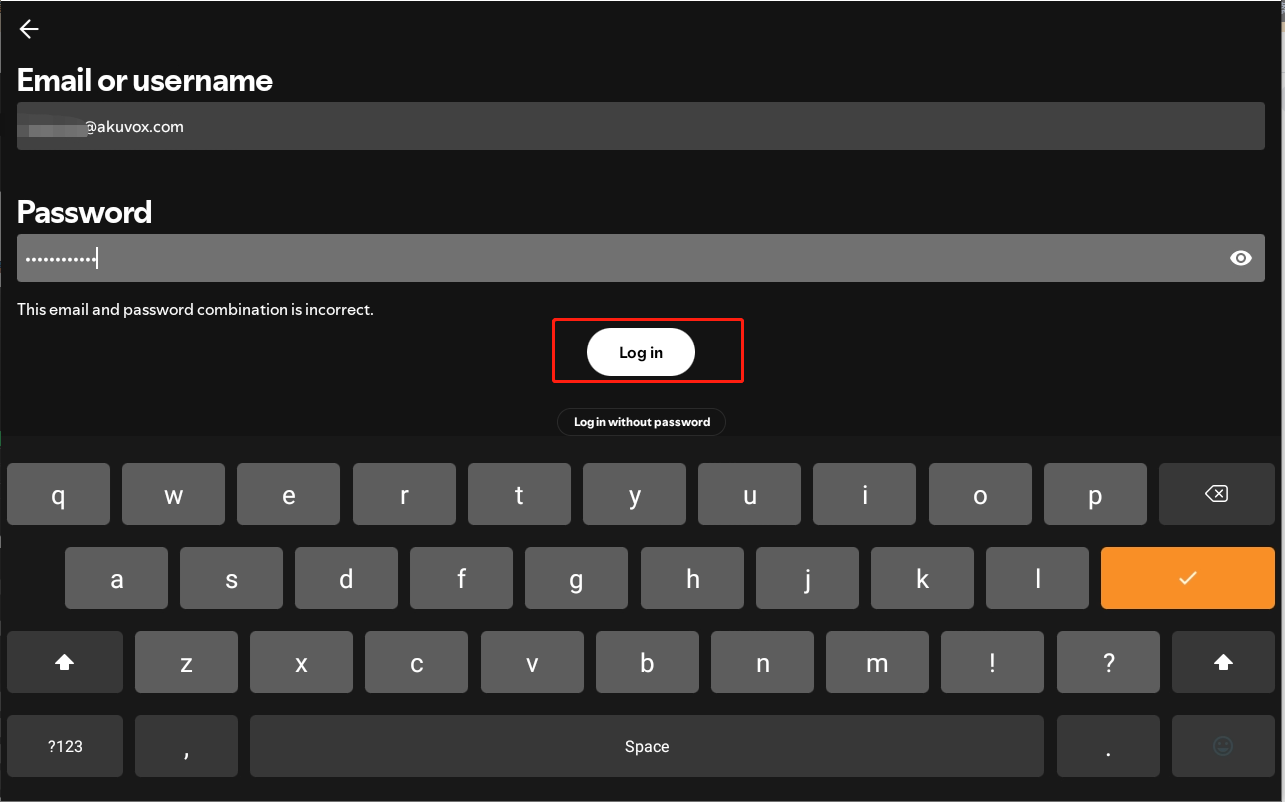
Existing account: Tap Log in and enter your username and password.
NOTE:
Your Spotify account country must match the HyPanel’s network location. Update this in your Spotify personal profile if needed.
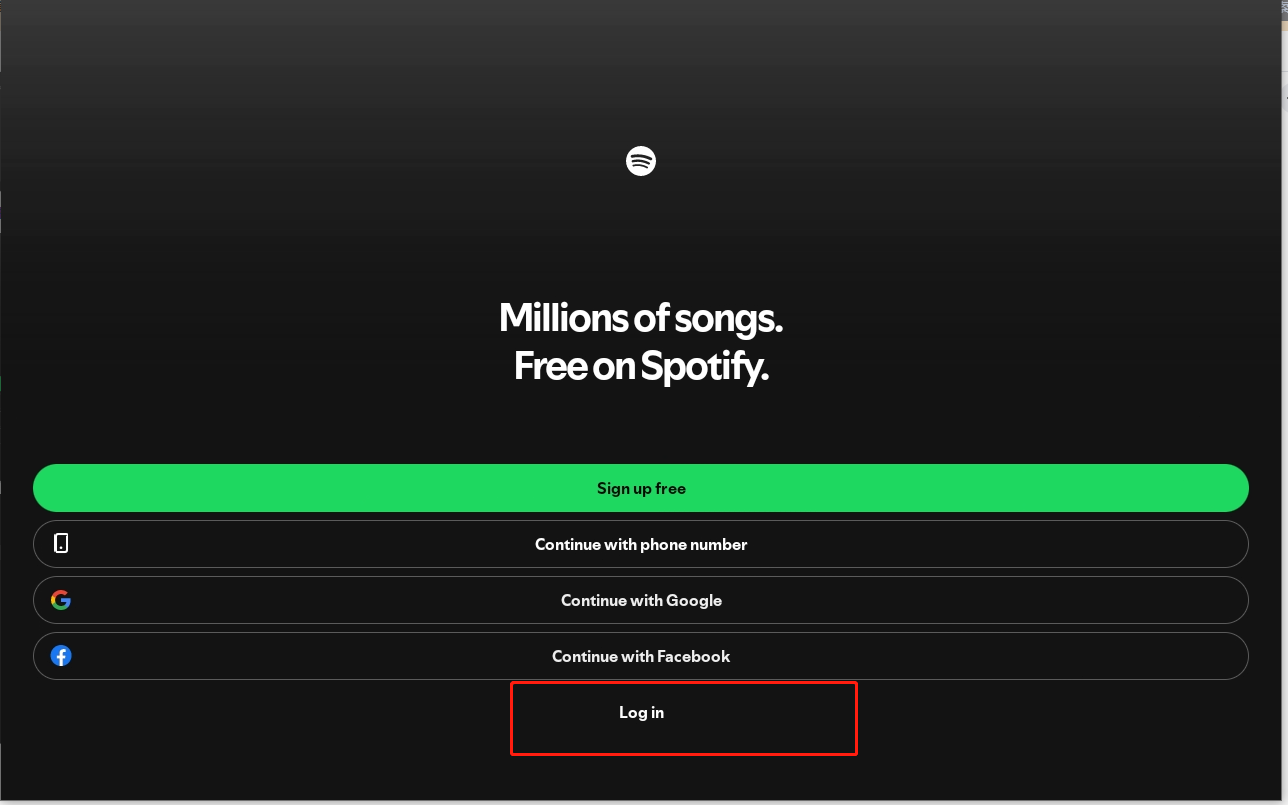
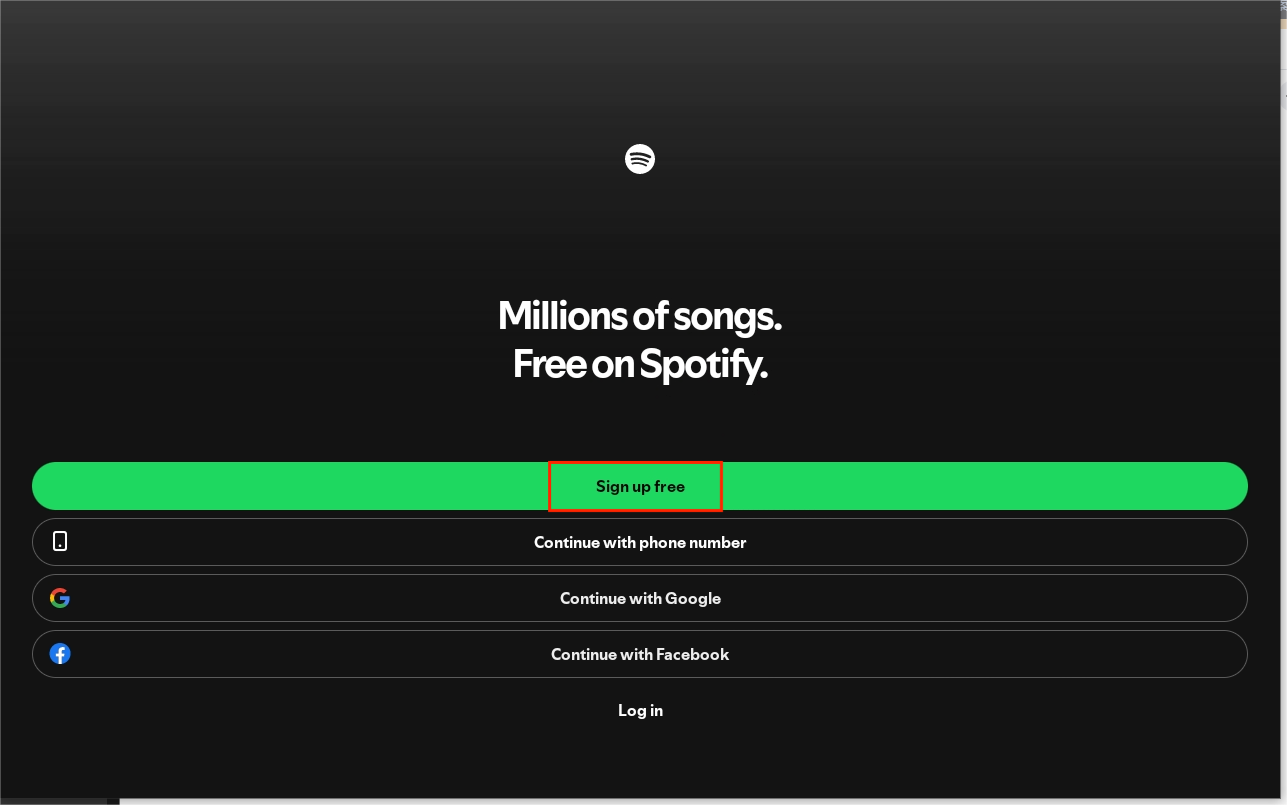
New account: Tap Sign up free to create an account, then log in.
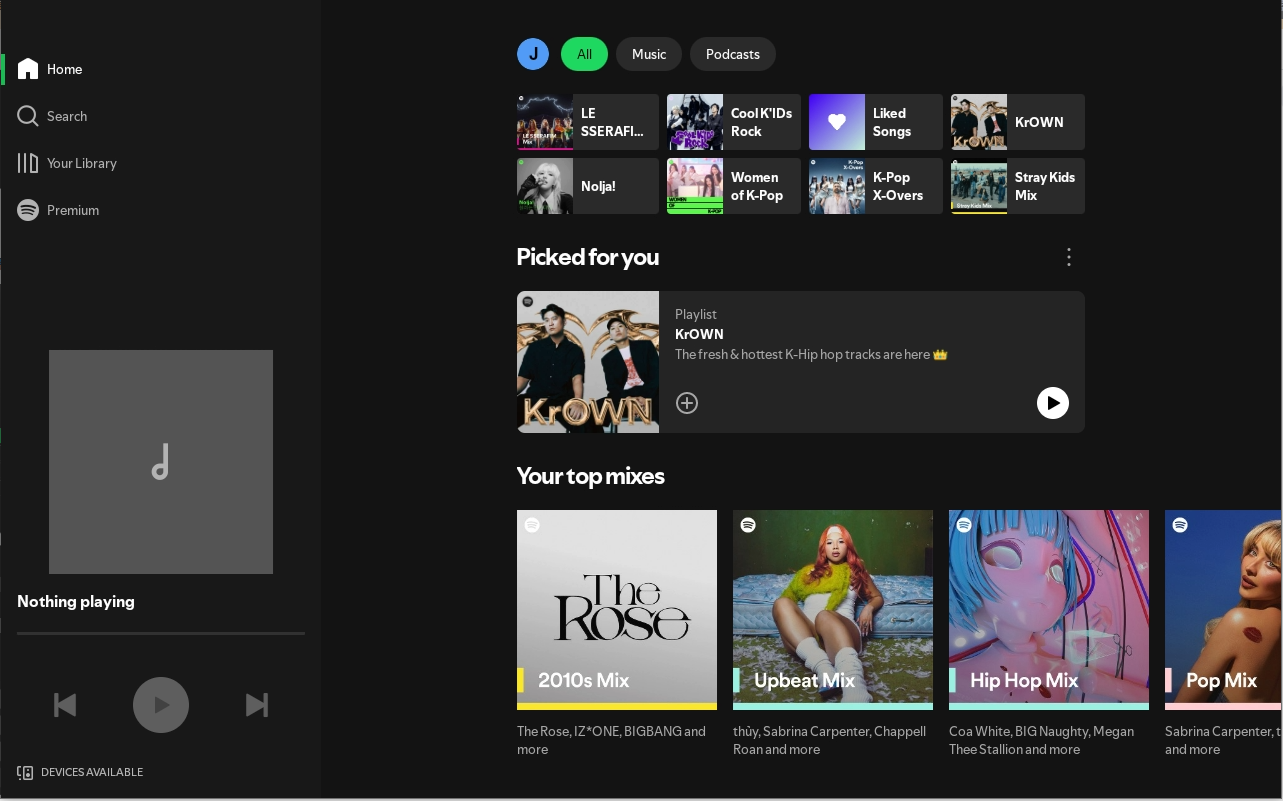
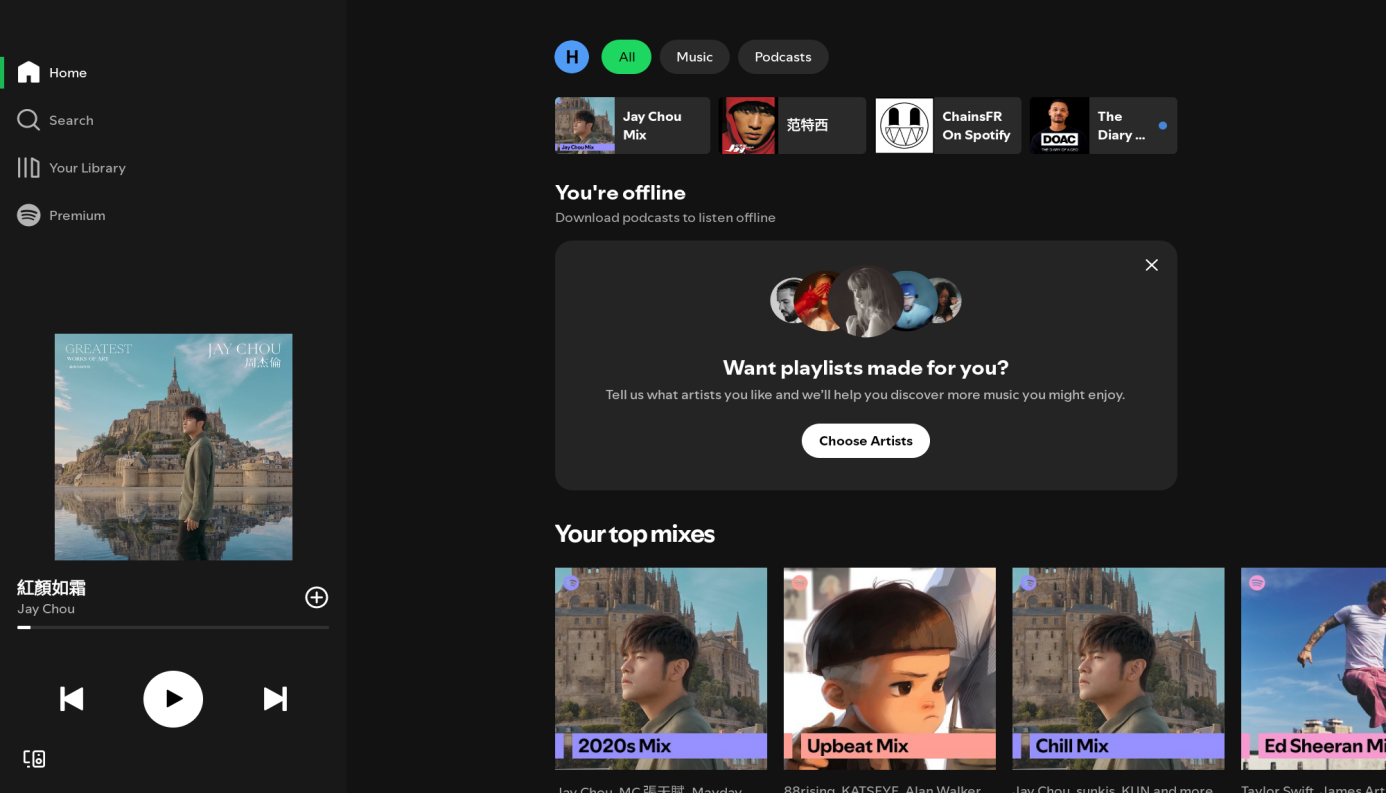
Once logged in, the Spotify home page will be displayed.
Add Spotify Shortcut to Home Page
On the HyPanel Home page, long press a blank area and click
 .
.
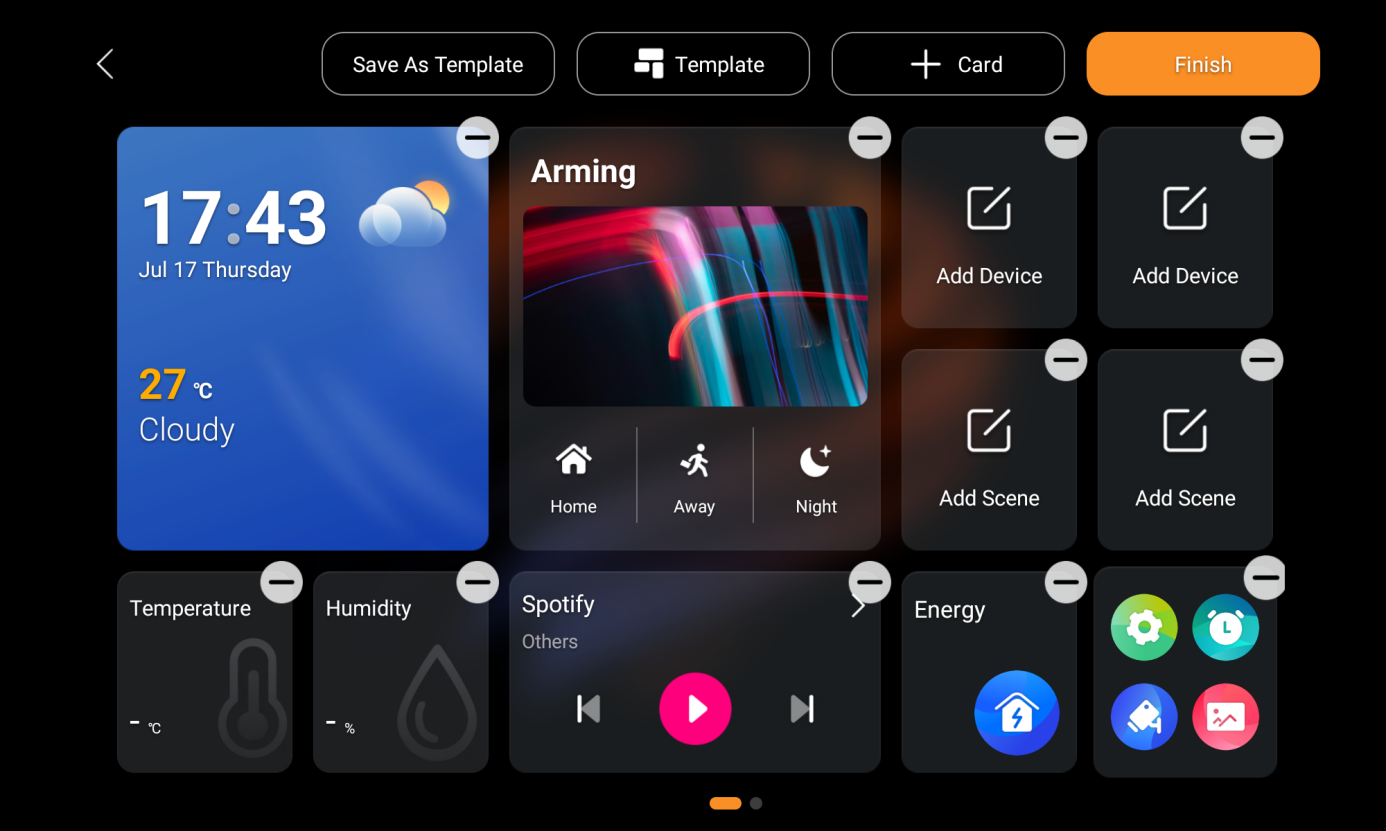
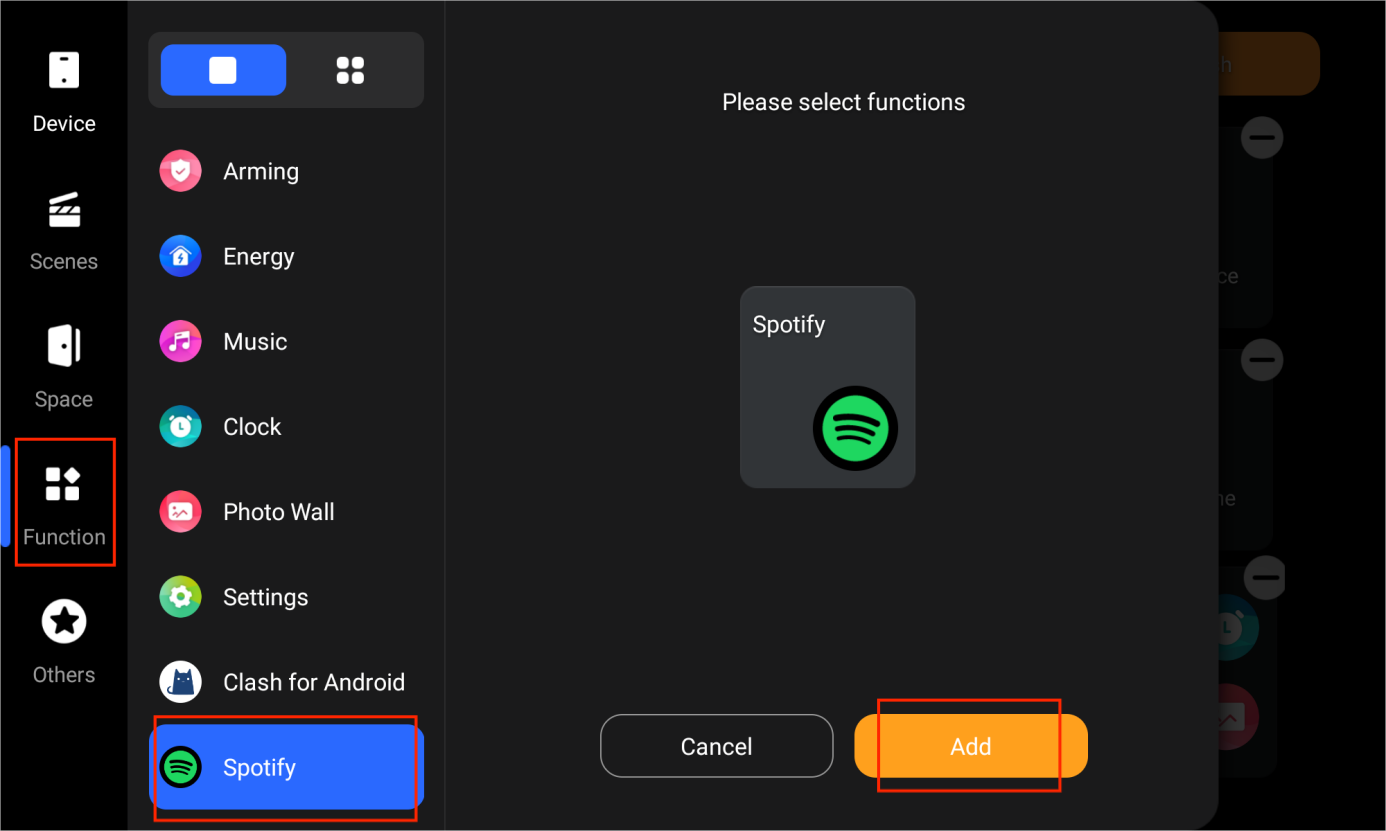
Select Spotify from the Function list and tap Add.
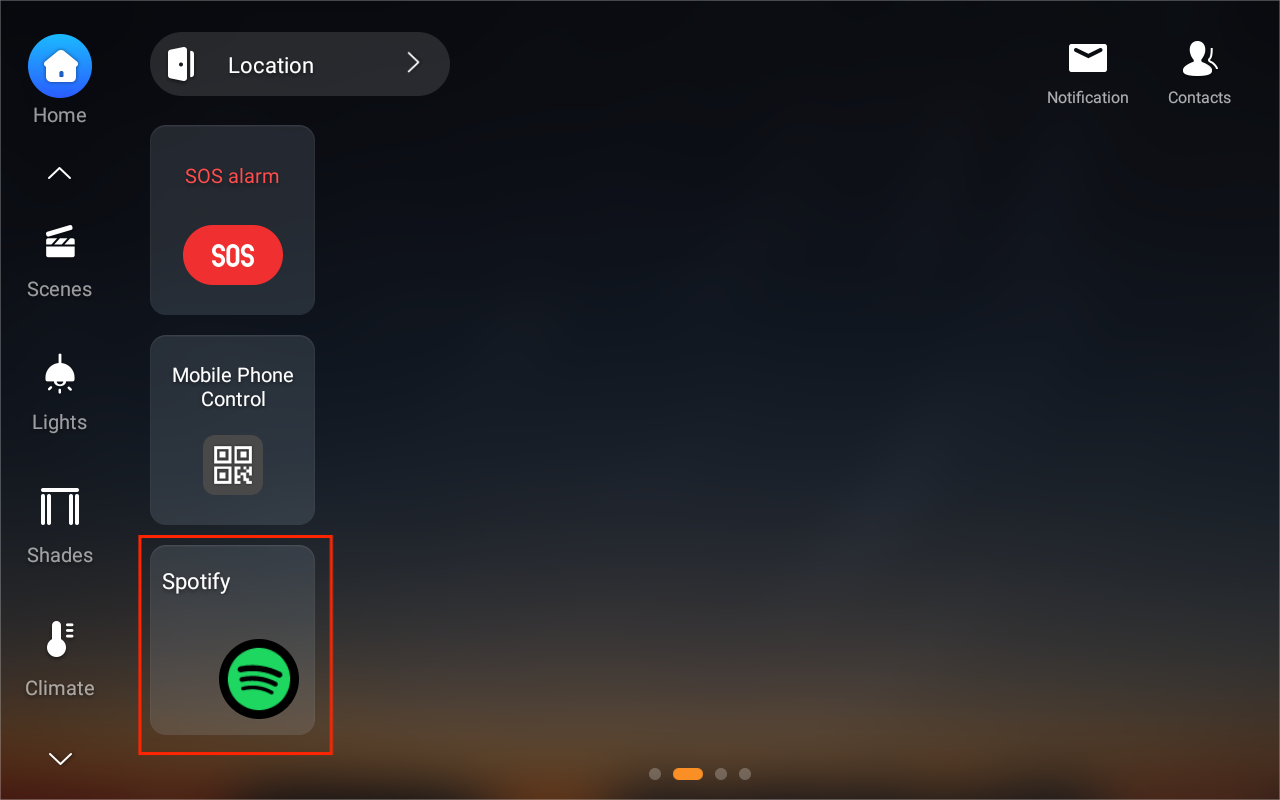
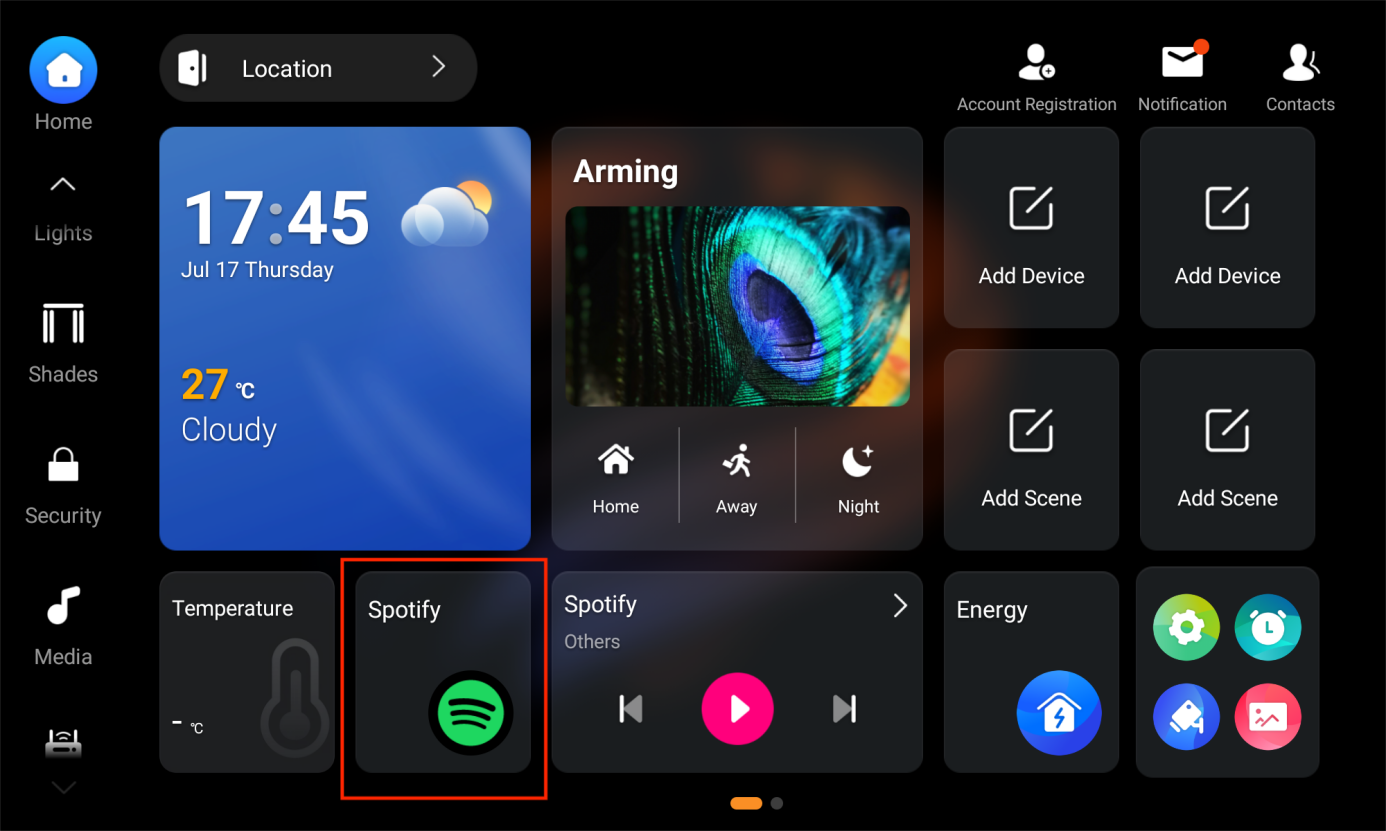
Once added, the Spotify app shortcut will appear. Tap it to open Spotify home page, or drag it to any location for convenient access.
Features and Functions
Spotify Home Page
Access the Spotify home page by tapping the Spotify app shortcut card.
Tap
 to find the desired music.
Tap
 to create and view playlists.
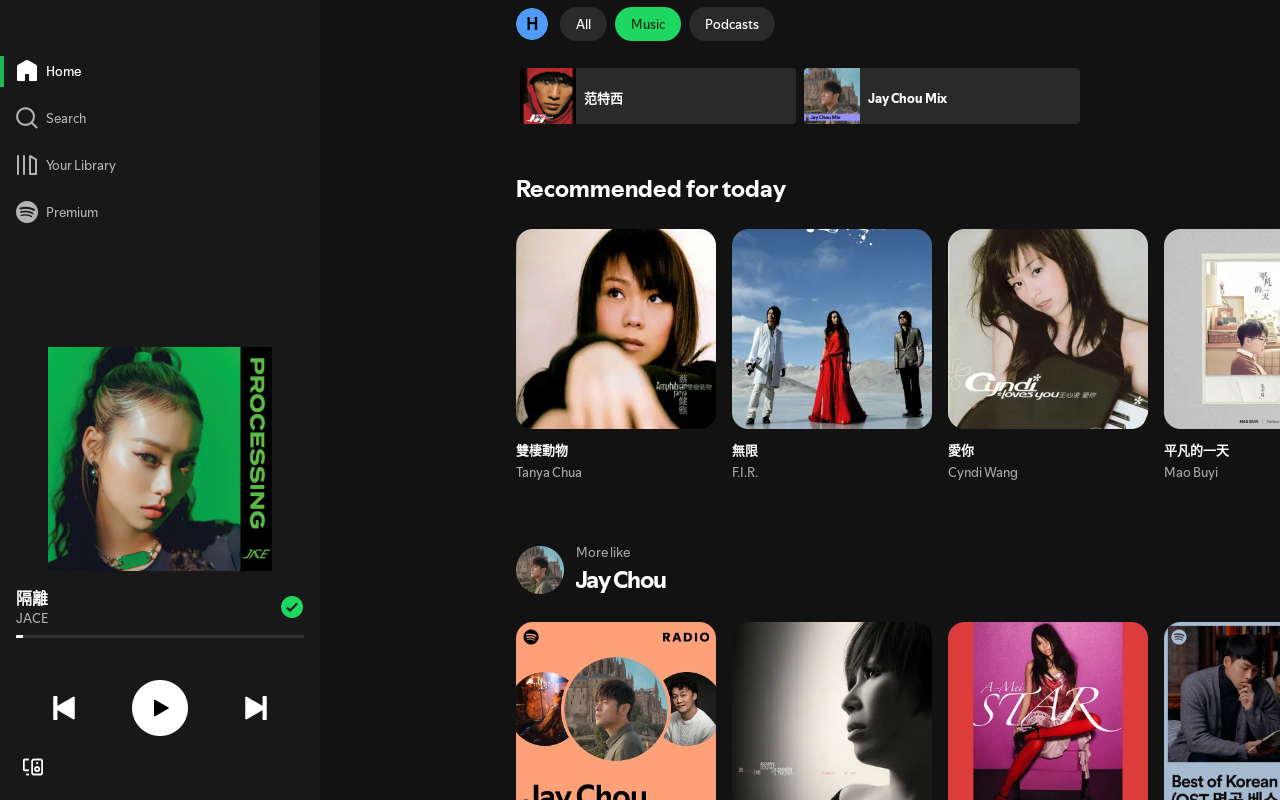
Swipe right to return to the previous page.
NOTE:
For more Spotify settings and usage guides, visit Spotify Support.
Spotify Player
Tap the Spotify player to open the playback screen.
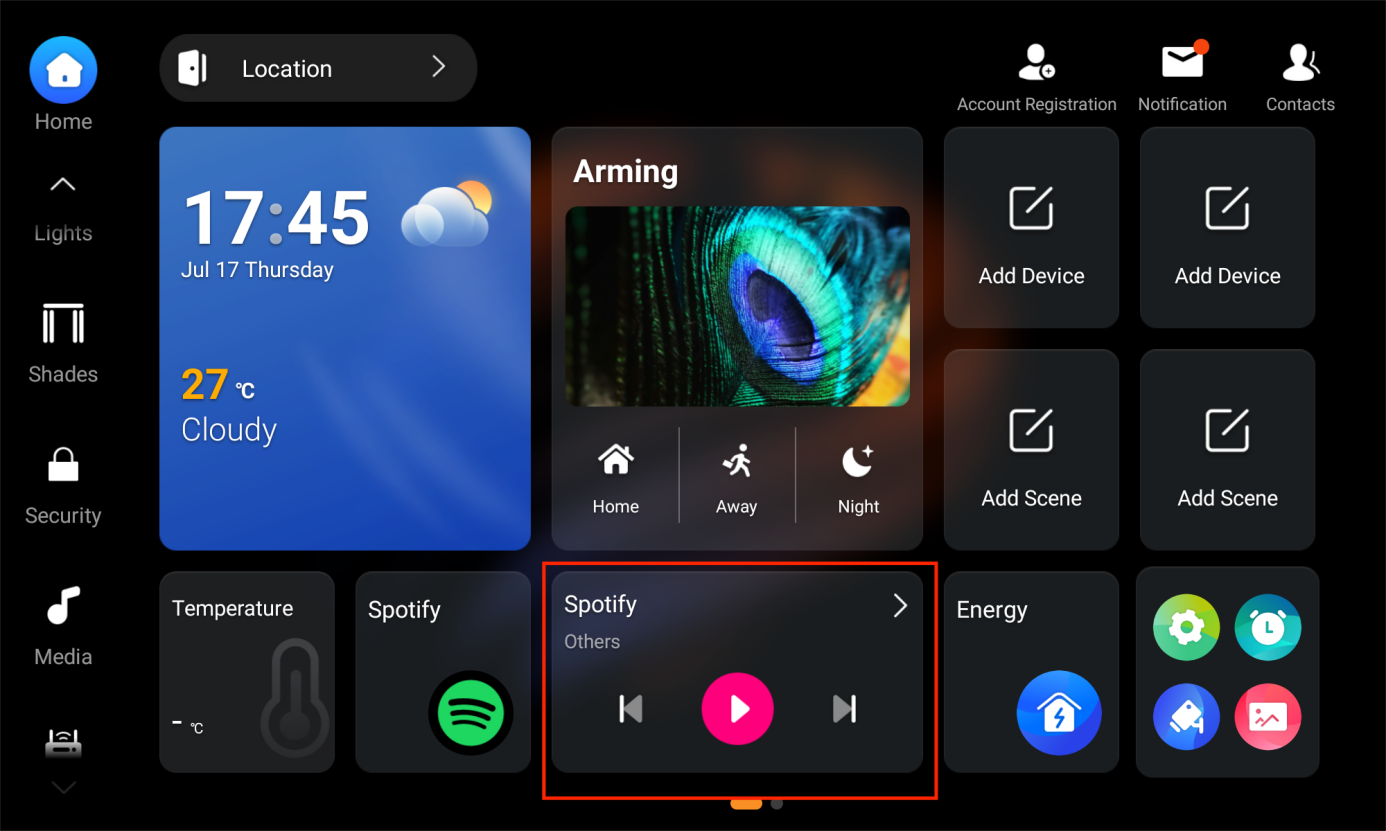
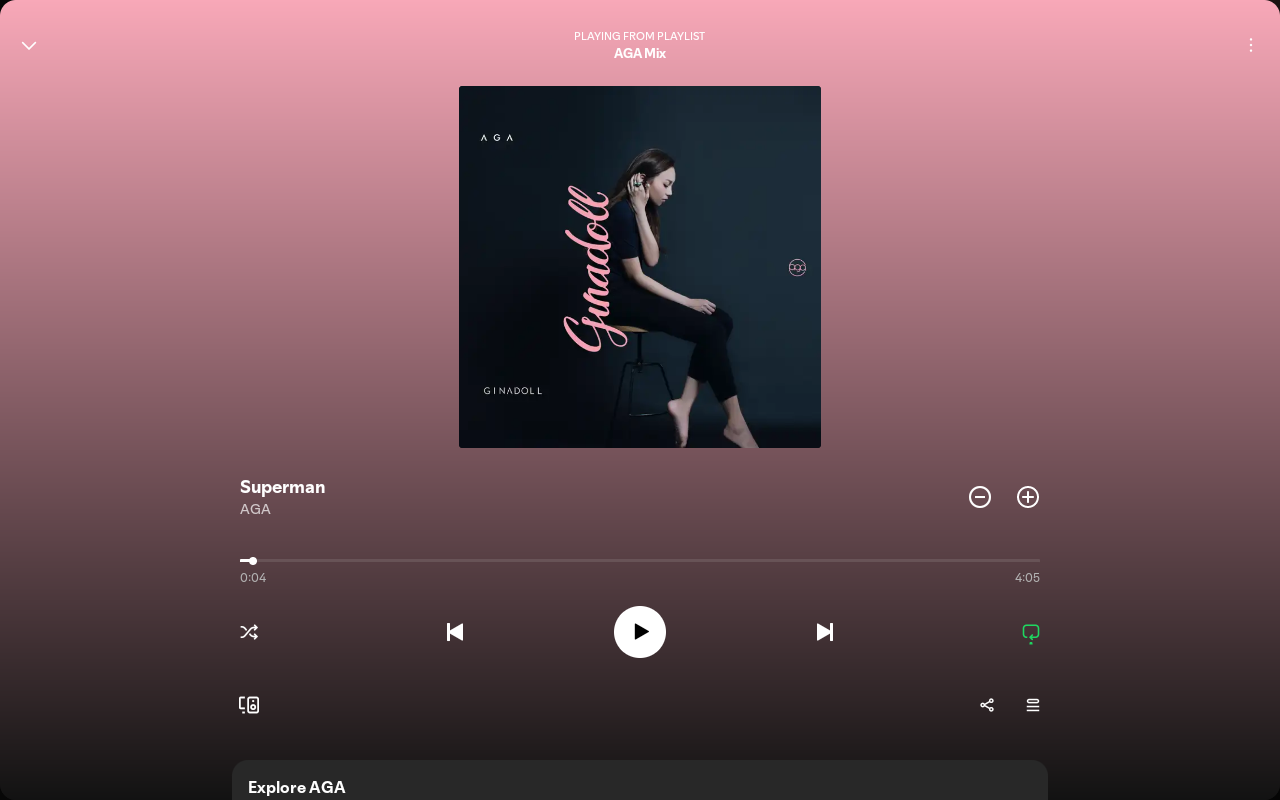
Here you can:
Tap
 to play/pause the current track.
Tap

 to switch tracks.
Tap
 to choose playback modes, including single repeat, shuffle, or sequential playback.
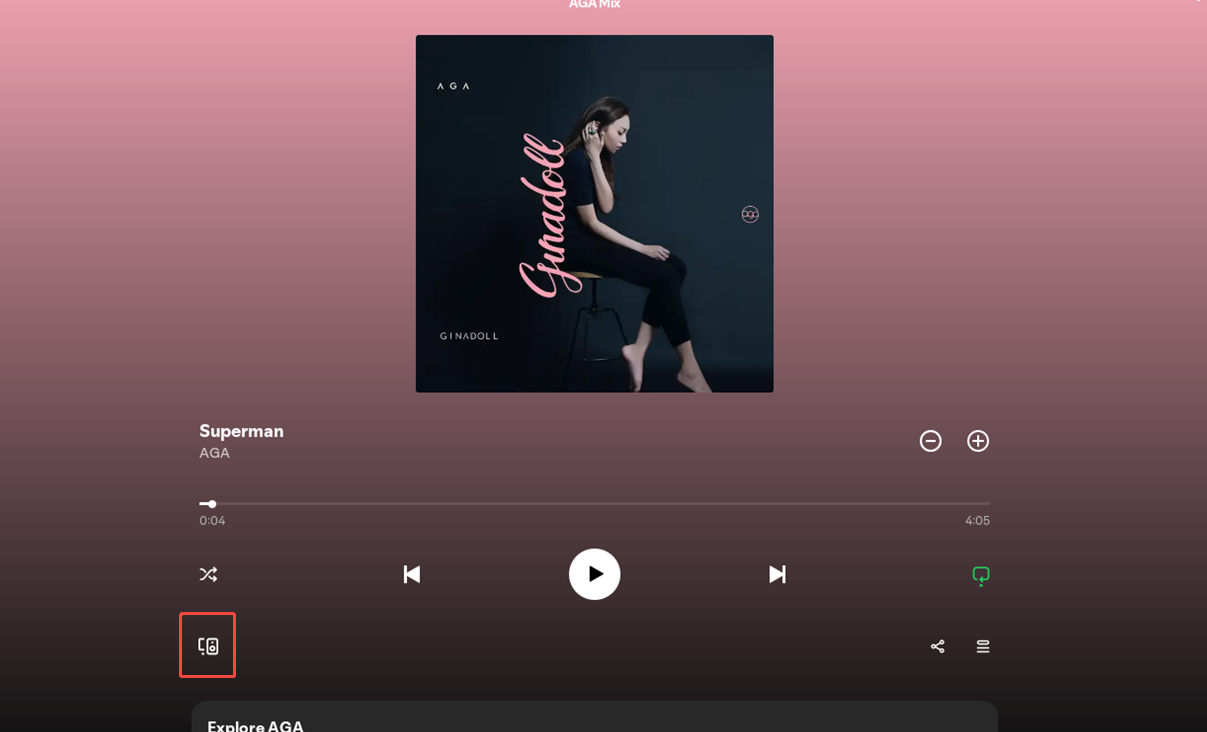
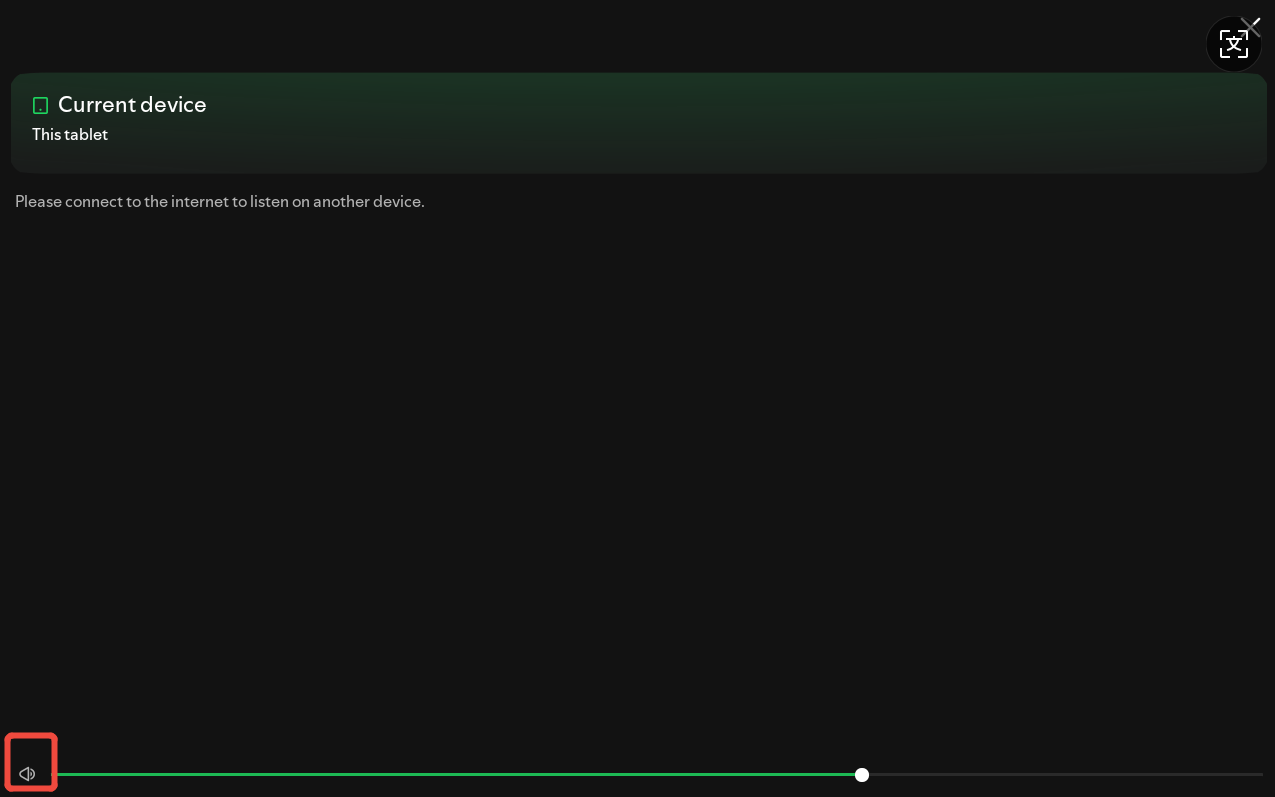
Tap
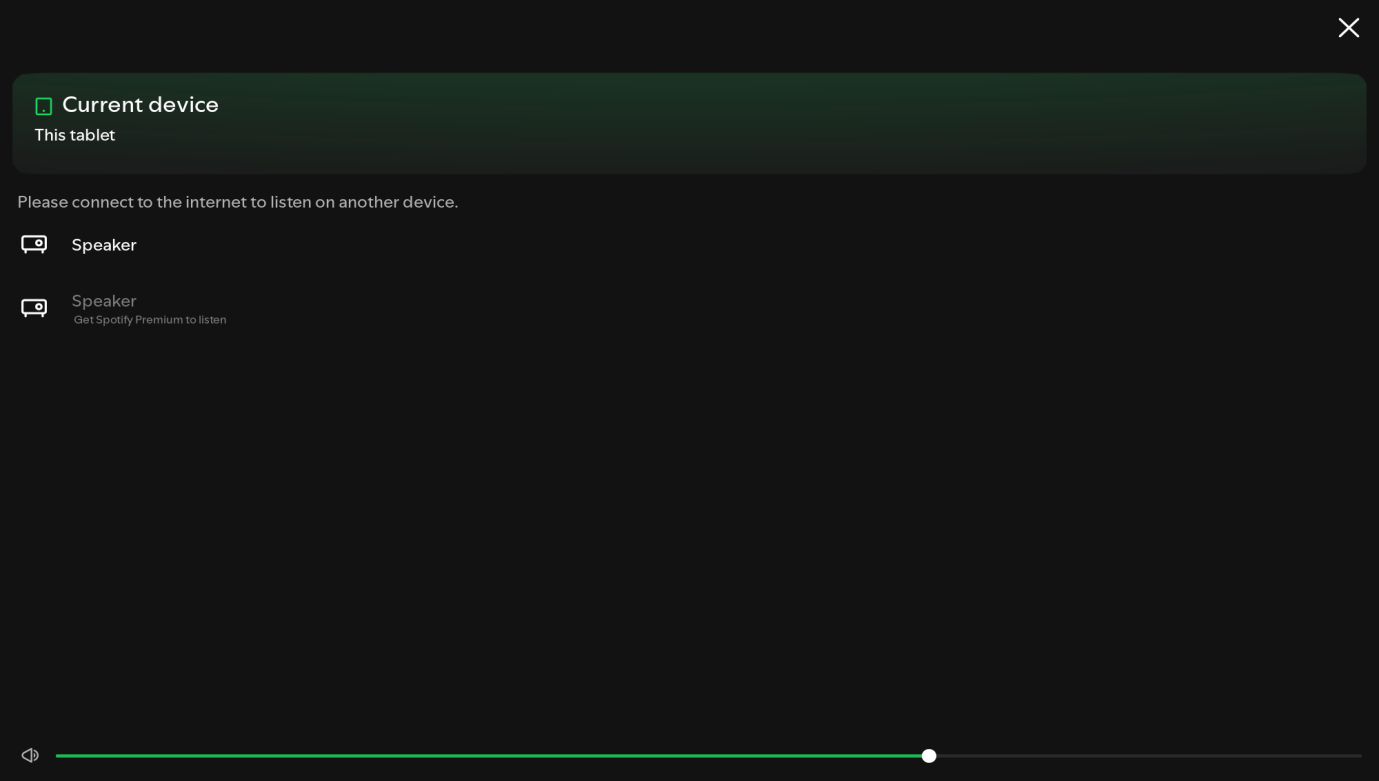
 to view the current playback device and adjust volume.
Change Playback Device
NOTE:
The speaker cannot be switched while music is playing.
On the HyPanel
If no external speaker is selected, music will play on the HyPanel by default.
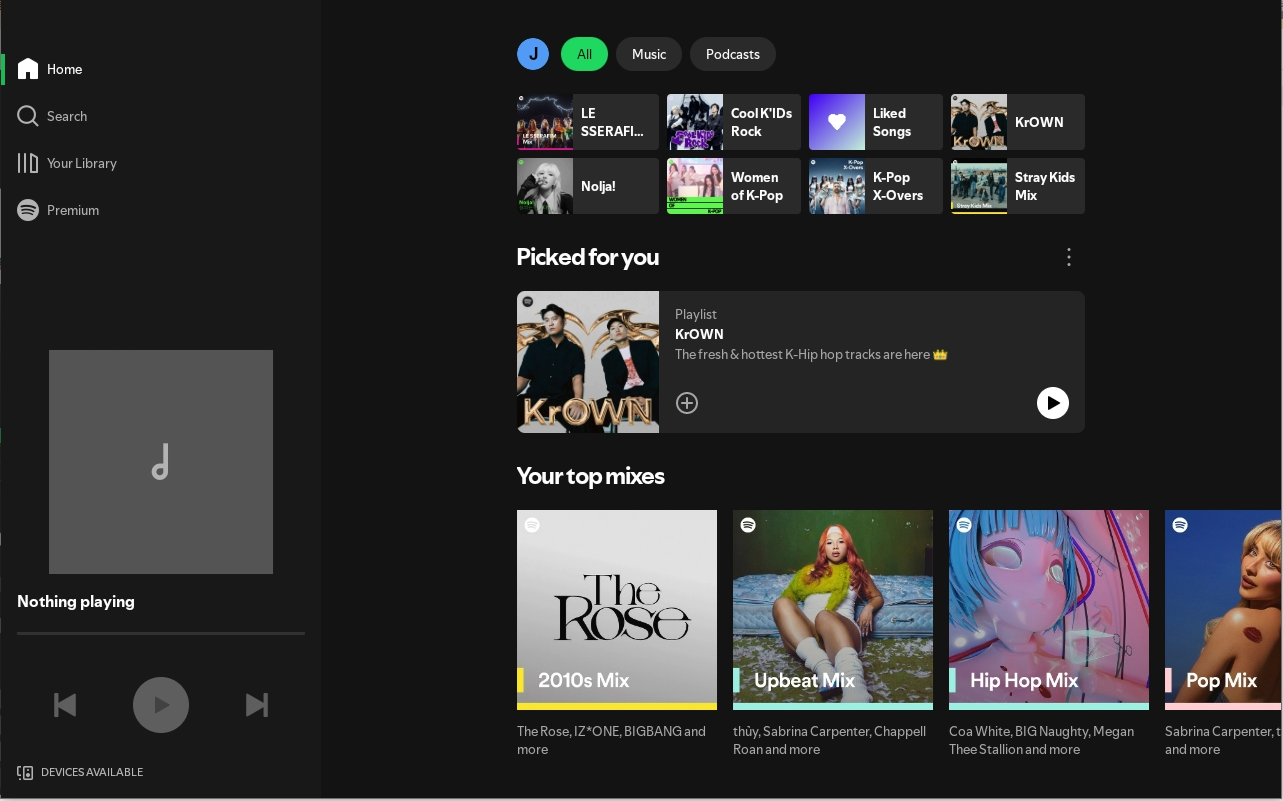
On External Speakers
Arylic /Sonos Speakers
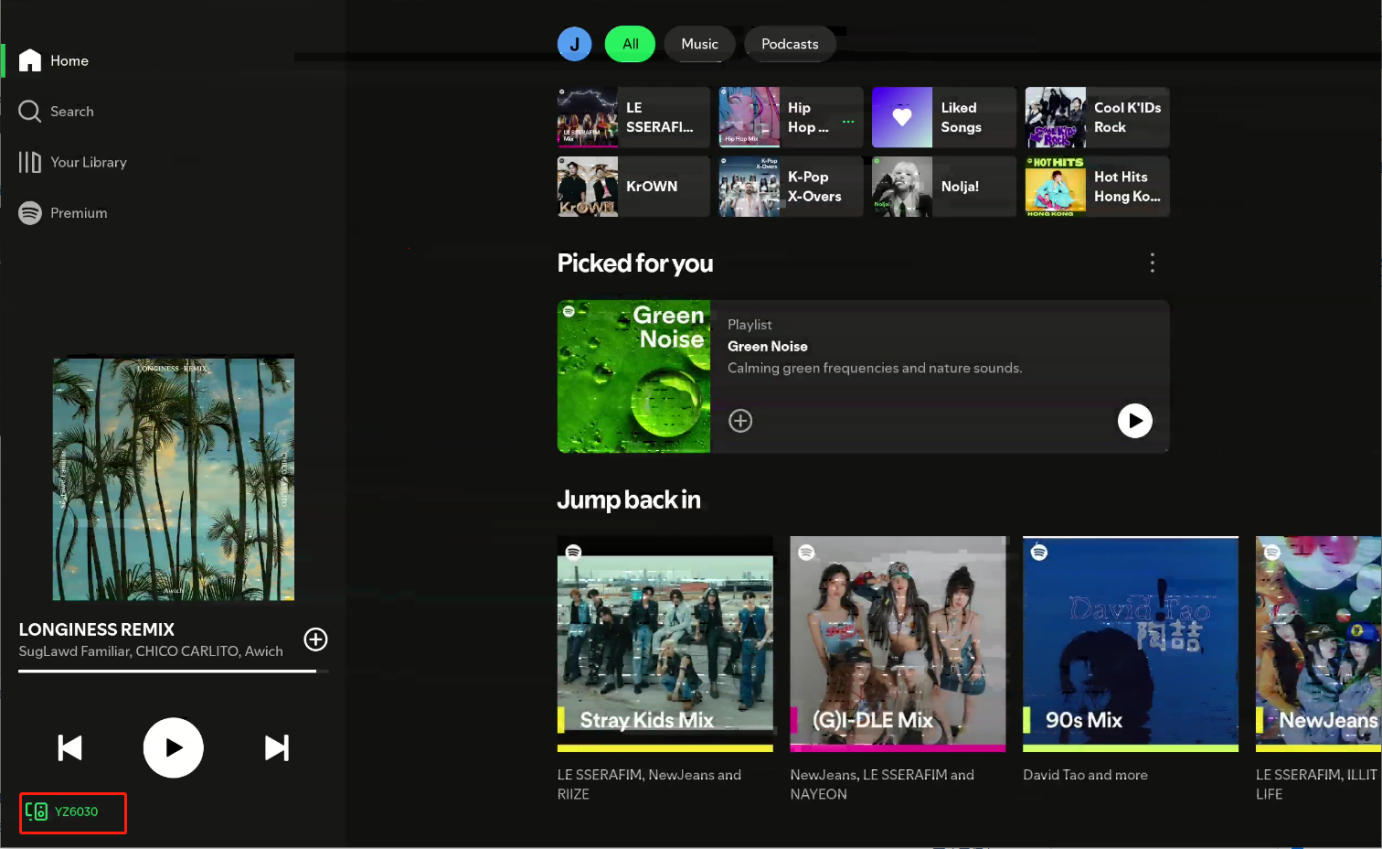
Tap the Spotify app shortcut card.
Tap
 at the bottom left corner.
Select the desired speaker from the list.
Bluetooth Speakers
On the HyPanel, go to Setting
 > Bluetooth > Pair New Device.
Select the desired speaker and connect to it.
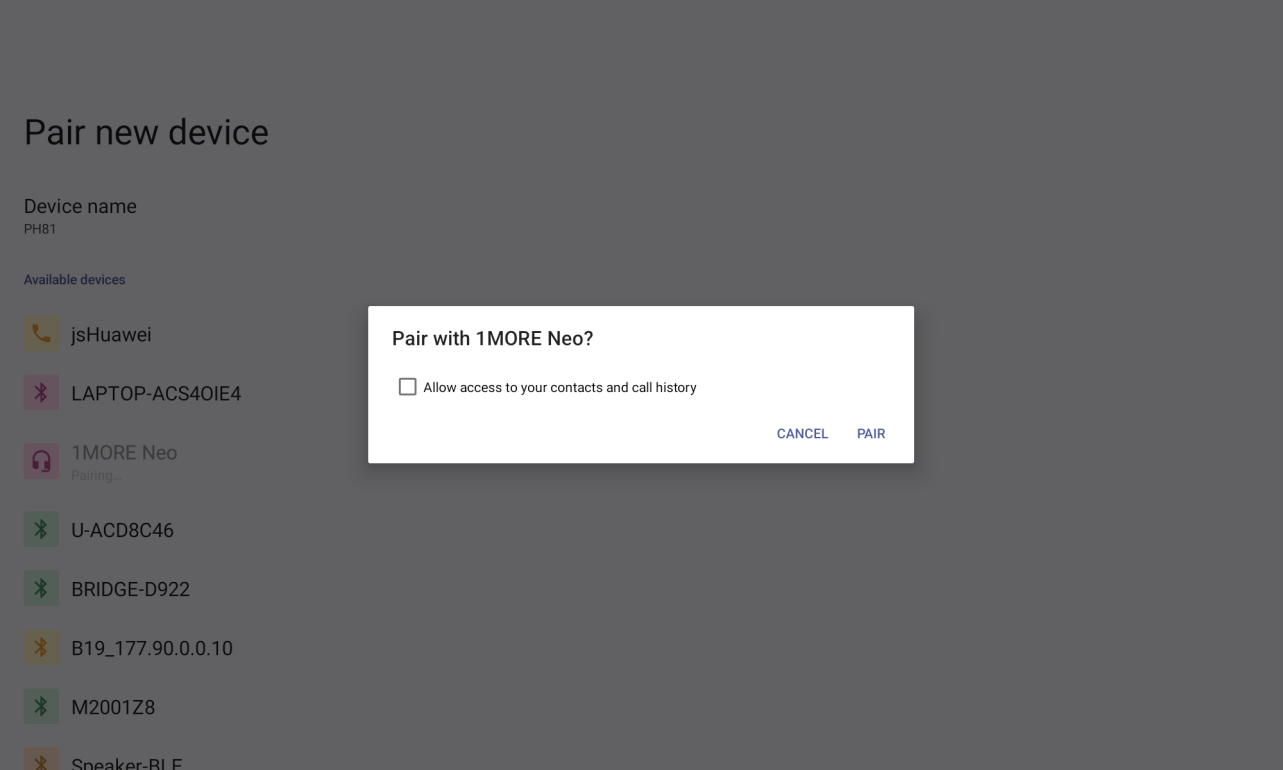
Once paired, the device will switch to the Bluetooth speaker. Or you can tap
 at the bottom left corner to select a Bluetooth speaker.
Use Spotify in Scenes
You can set Spotify as a task, trigger, or condition within a scene, and control play/pause.
NOTE:
Specific songs cannot be assigned for playback in scenes.