akubela integrates with the SONOS system, allowing you to play music on HyPanels, control multiple speakers, and include music playback in scenes.
Before Getting Started
Supported akubela models and firmware versions:
Model | Firmware |
HyPanel Supreme (PHX1) | 1001.1.35.12 and later |
HyPanel Ultra (PH81) | 281.1.35.12 and later |
HyPanel Pro (PG71) | 71.1.35.30 and later |
HyPanel (PS51) | 51.1.36.240 and later |
HyPanel V2(PS51(v2)) | 251.1.36.215 and later |
HyPanel Plus (PS52) | 52.1.36.220 and later |
HyPanel KeyPlus (KS53) | 53.1.36.226 and later |
HyPanel Lux Piano (RT61) | 61.1.30.54 and later |
HyPanel Lite (KS41) | 41.1.31.42 and later Only work as sub gateway |
HyPanel Elite 7 (PG42) | 42.1.36.15 and later Only work as sub gateway |
HyPanel Elite 10 (PH59) | 159.1.39.137 and later |
Supported SONOS models:
SONOS Roam SL
SONOS Beam Gen2
Before configuration, make sure that:
The SONOS app and SONOS account are ready.
The SONOS speaker has been powered on and configured according to the SONOS user guide.
The SONOS speaker and akubela HyPanels are connected to the same local network (LAN).
Add SONOS to HyPanels
Use the SONOS app to add and configure the network.
NOTE:
Make sure the SONOS speaker is connected to the same LAN as the HyPanel.
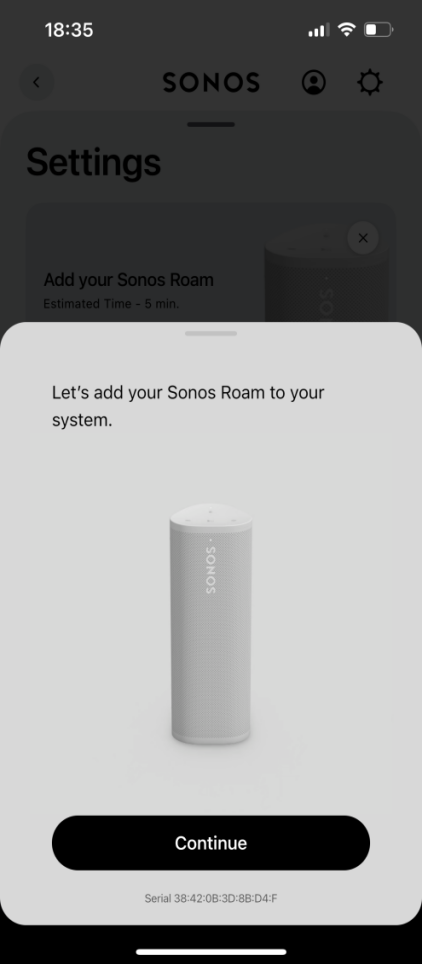
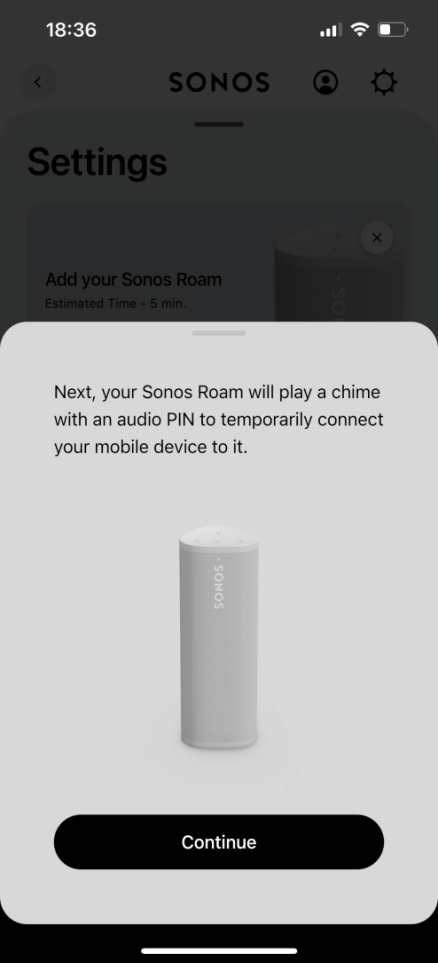
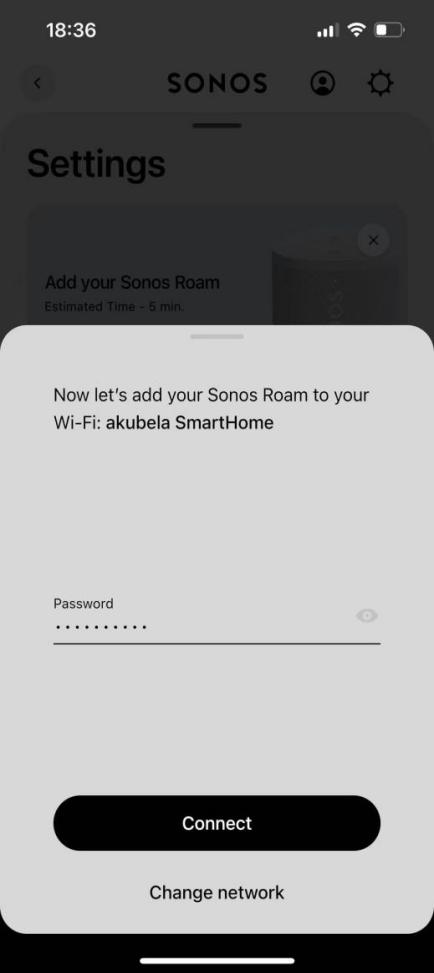
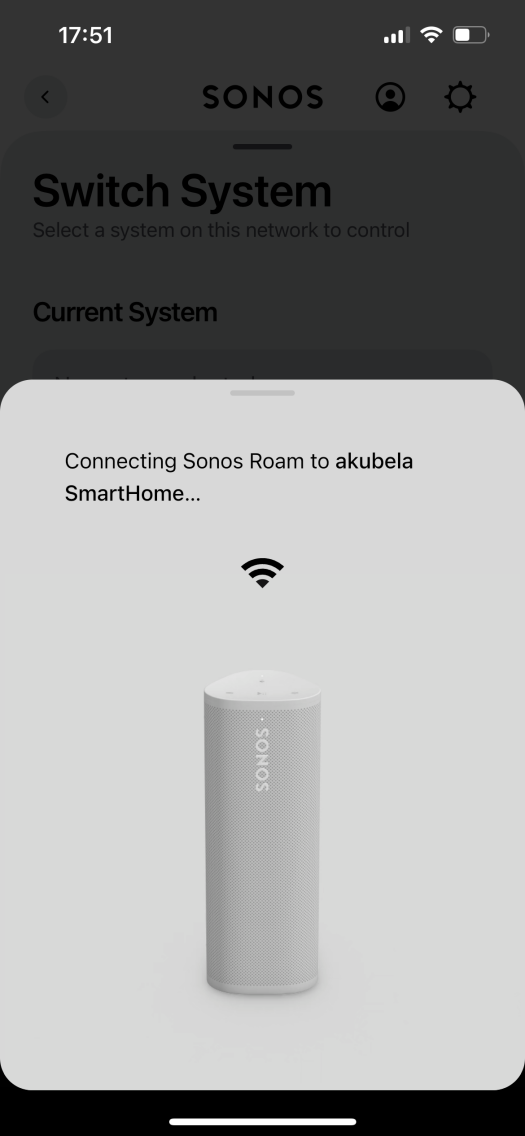
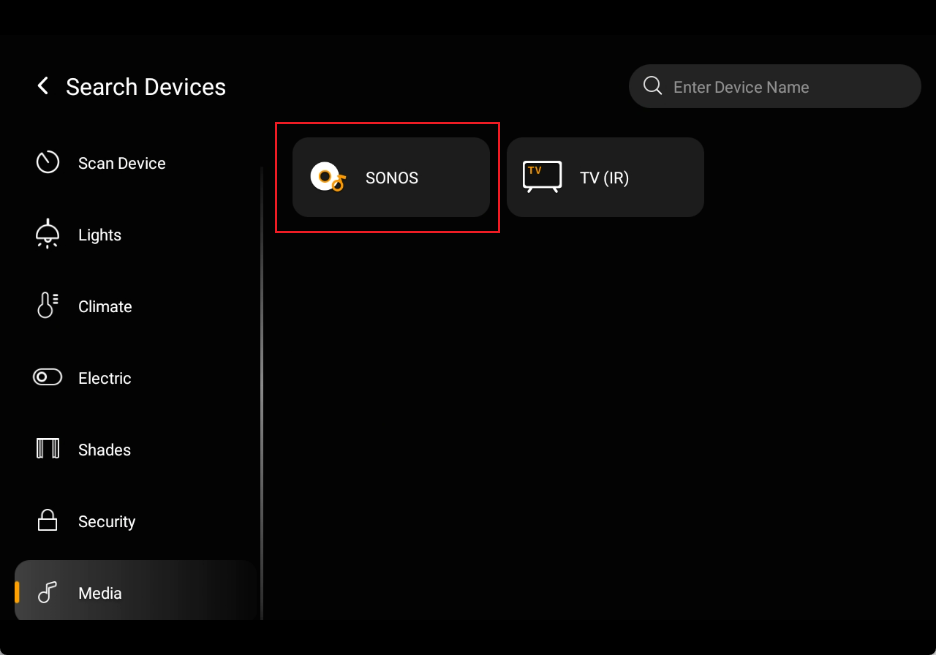
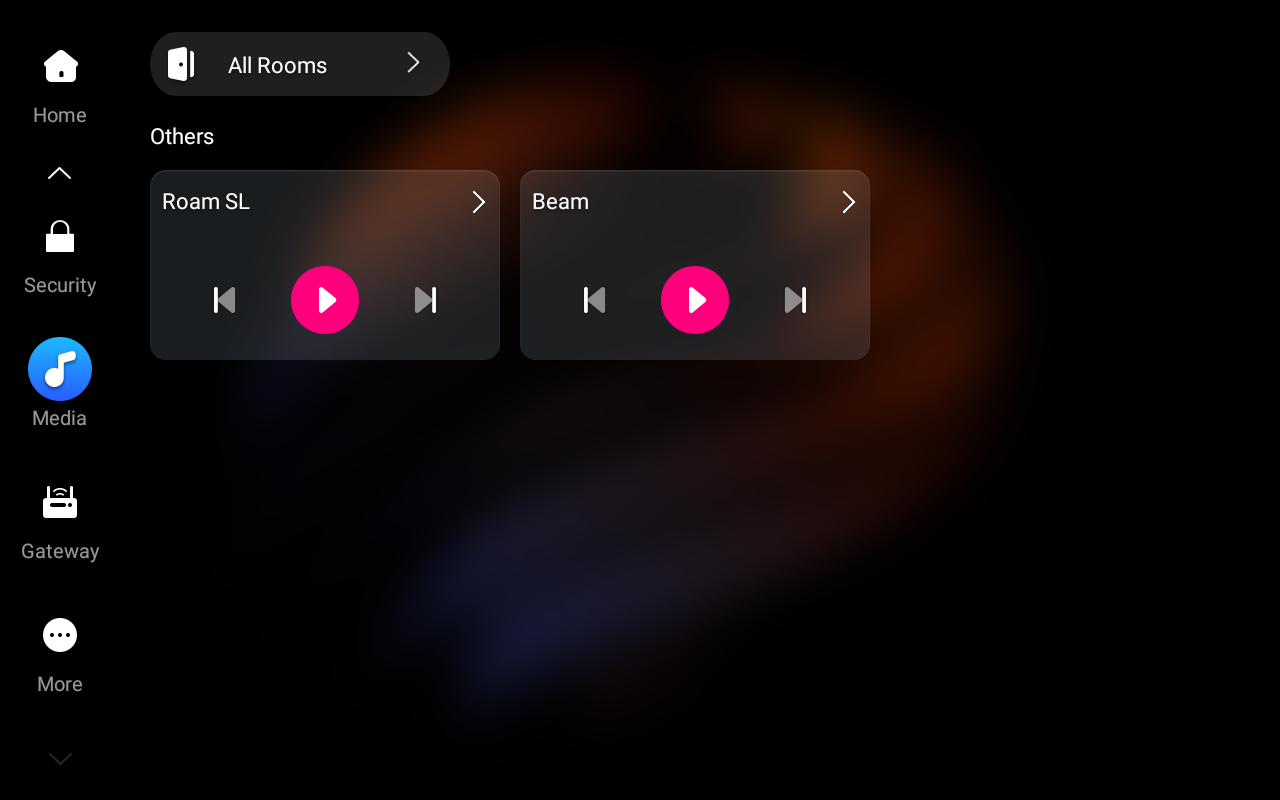
On the HyPanel, tap any room or location > Media > + to add a device. HyPanel will automatically search SONOS speakers on the same LAN.
NOTE:
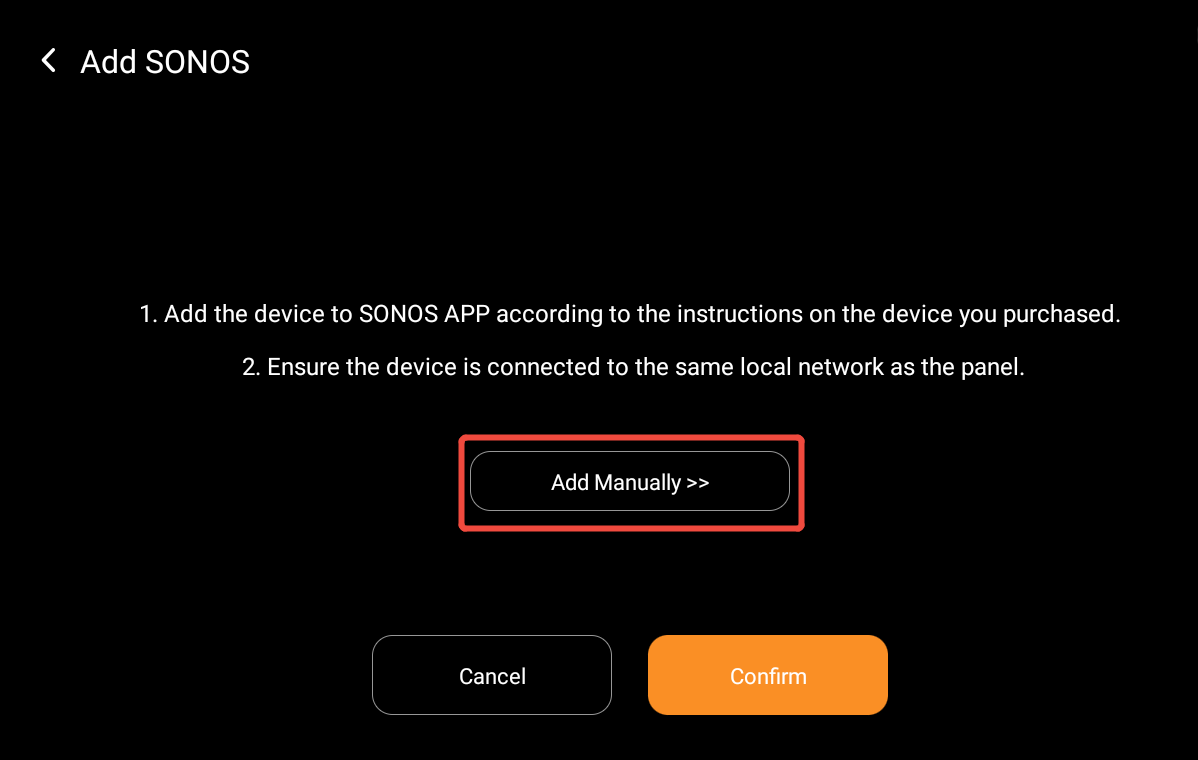
If the automatic scan fails to find your speaker, look up the speaker’s IP address within your local router dashboard. Tap Add Manually on the HyPanel and input the IP address directly.
TIP:
You can also add devices using the akubela web portal or the BelaHome app.
Operations & Controls
Music Playback
Select a music source from SONOS Services.
SONOS speakers can also play music from third-party music services. Add the music service in the SONOS app first.
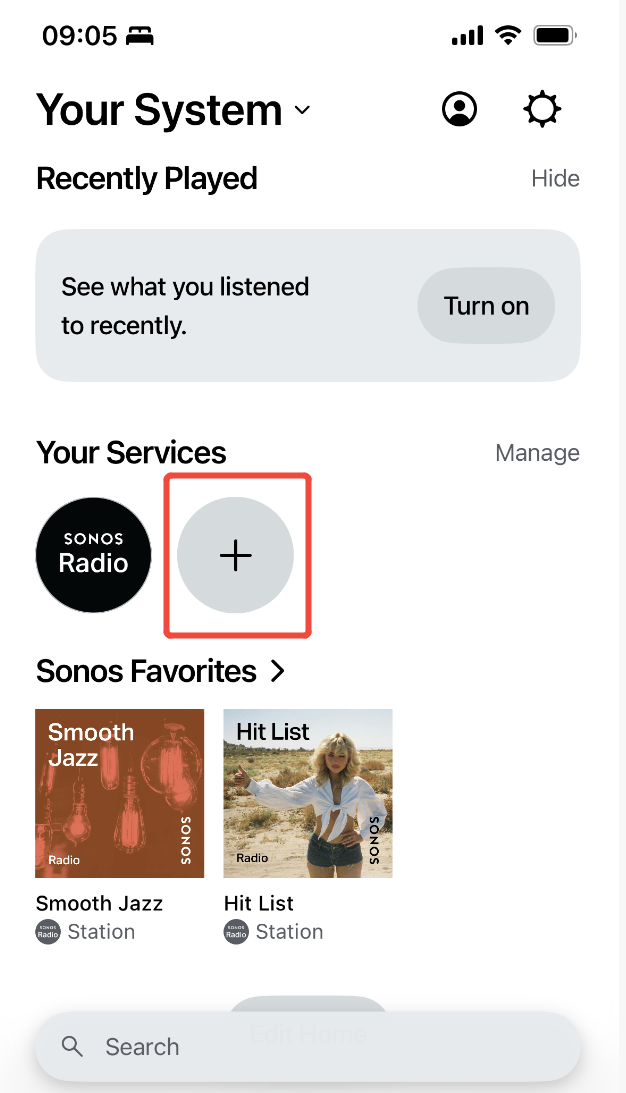
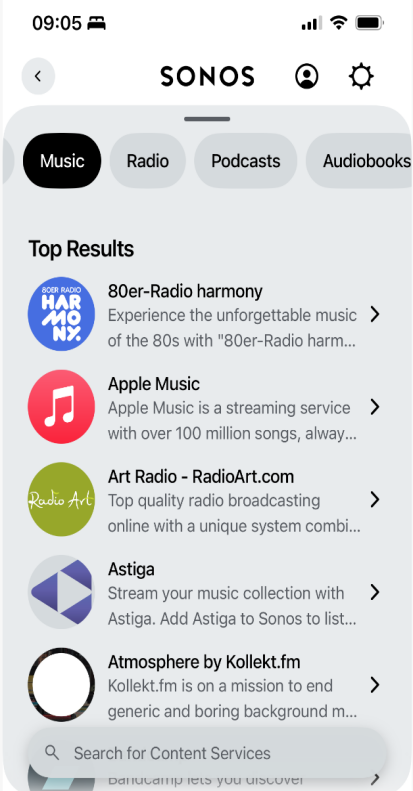
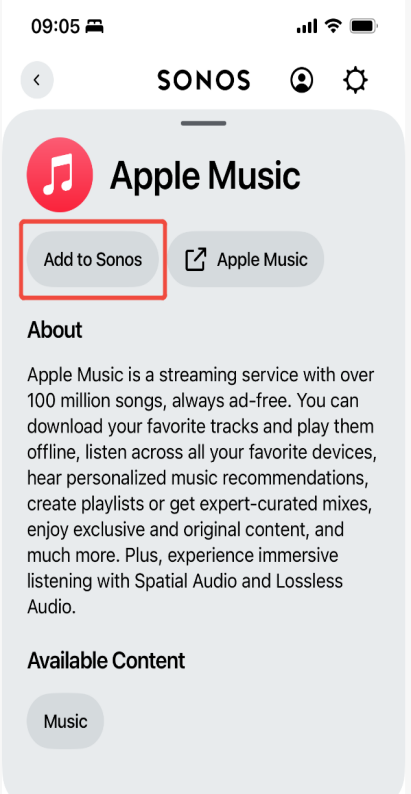
Add the music to the SONOS Favorites list. The music in the list is automatically synchronized to HyPanels.
NOTE:
Spotify music playback is supported through SONOS. However, Spotify playlists and track directories will not sync onto HyPanels.
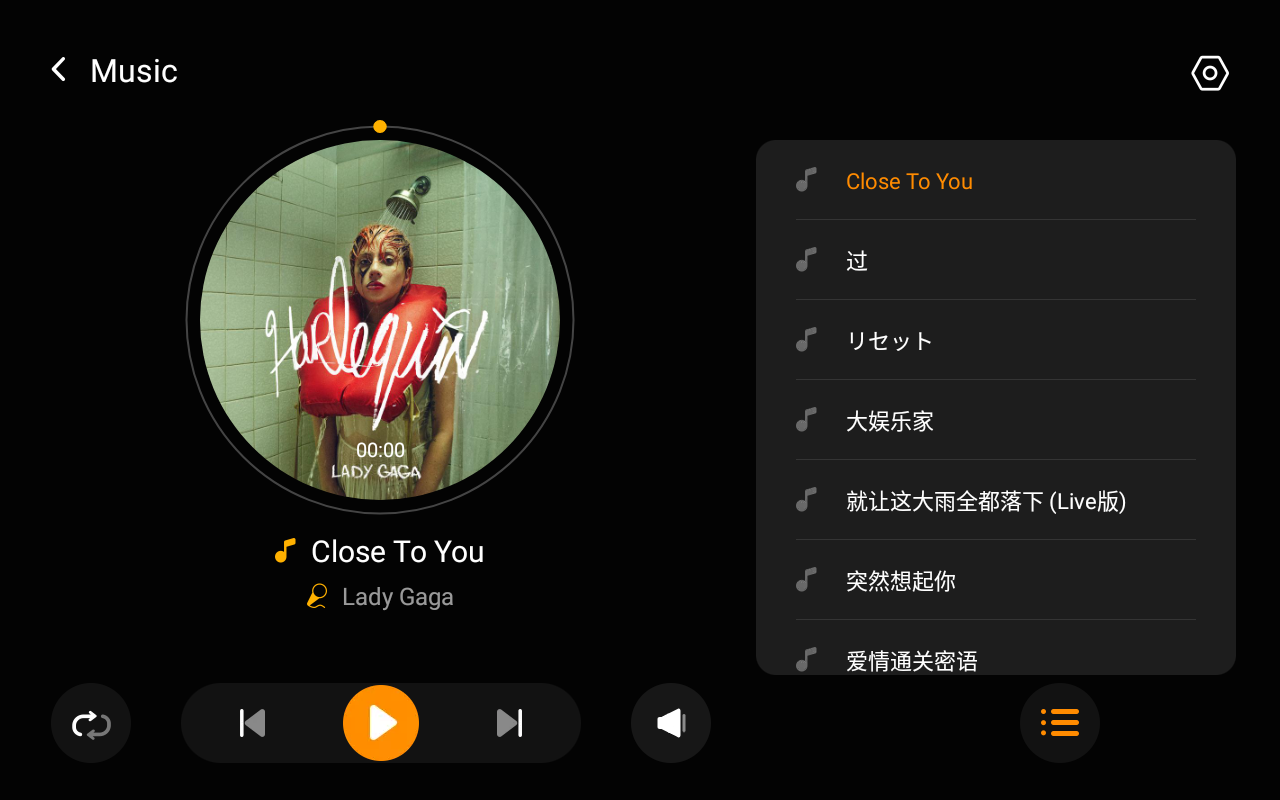
Use the playback controls on the HyPanel:
Tap
 to play or stop the music.
Tap
 or
or  to switch tracks.
Tap
 to change the playback mode.
Tap
 to adjust the speaker volume.
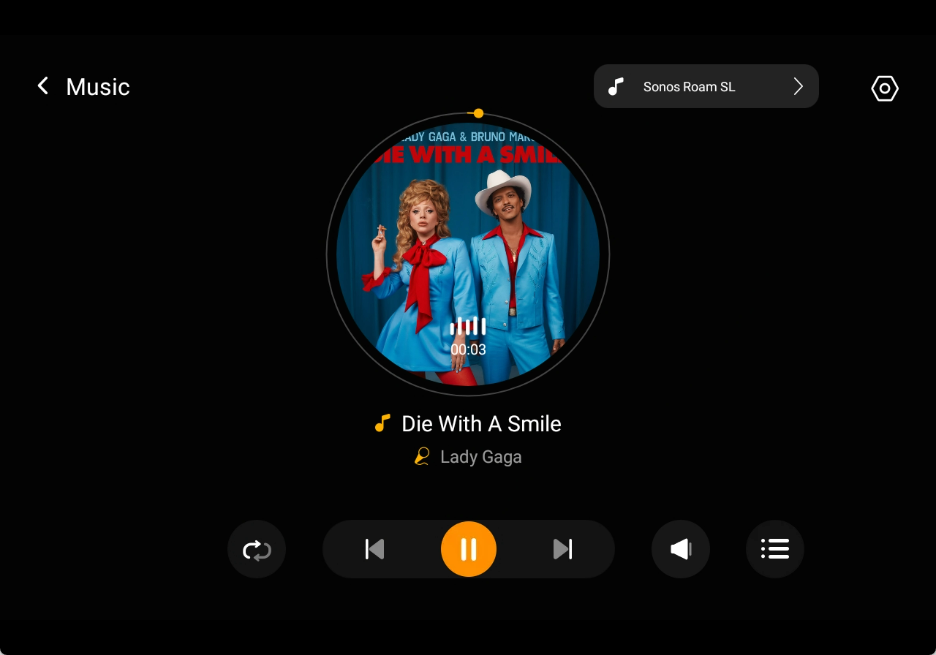
Speaker Groups
Speaker groups must be configured in the SONOS app.
Create and configure speaker groups in the SONOS app. For detailed instructions, refer to SONOS User Guide.
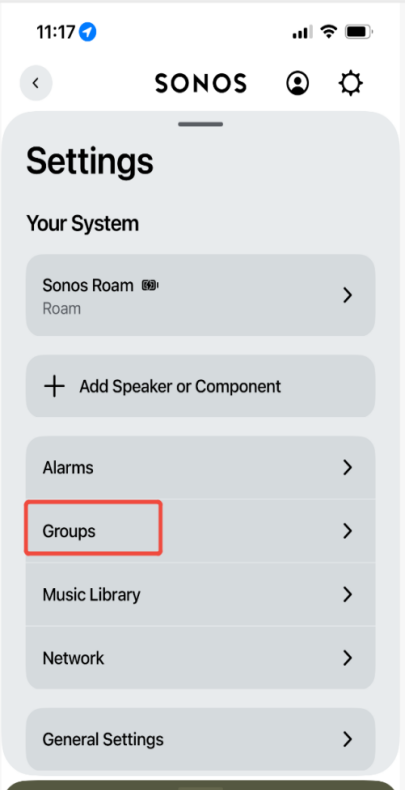
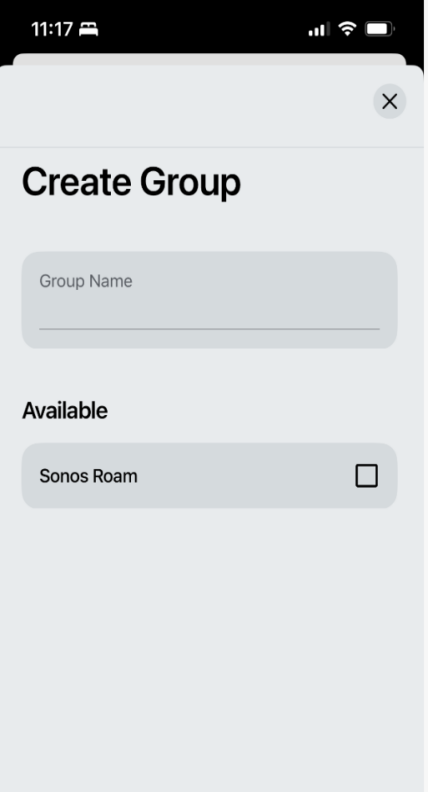
After configuration, the speaker groups will appear automatically on HyPanels and in the BelaHome app.
Use SONOS in Scenes
SONOS devices can be used as scene trigger conditions and tasks/actions.
You can also configure scenes to play specific music from the SONOS Favorites list.
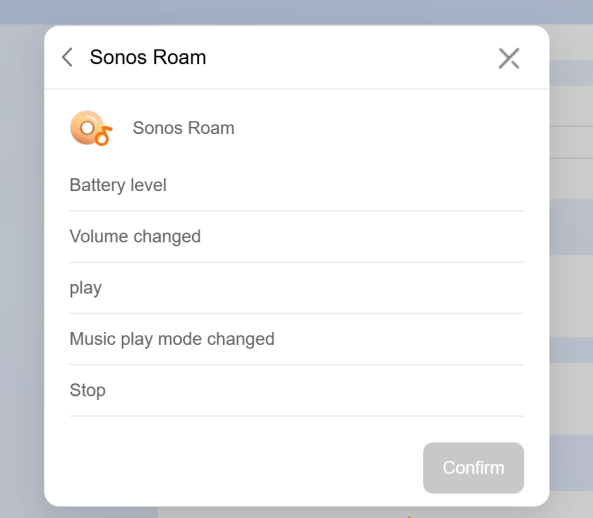
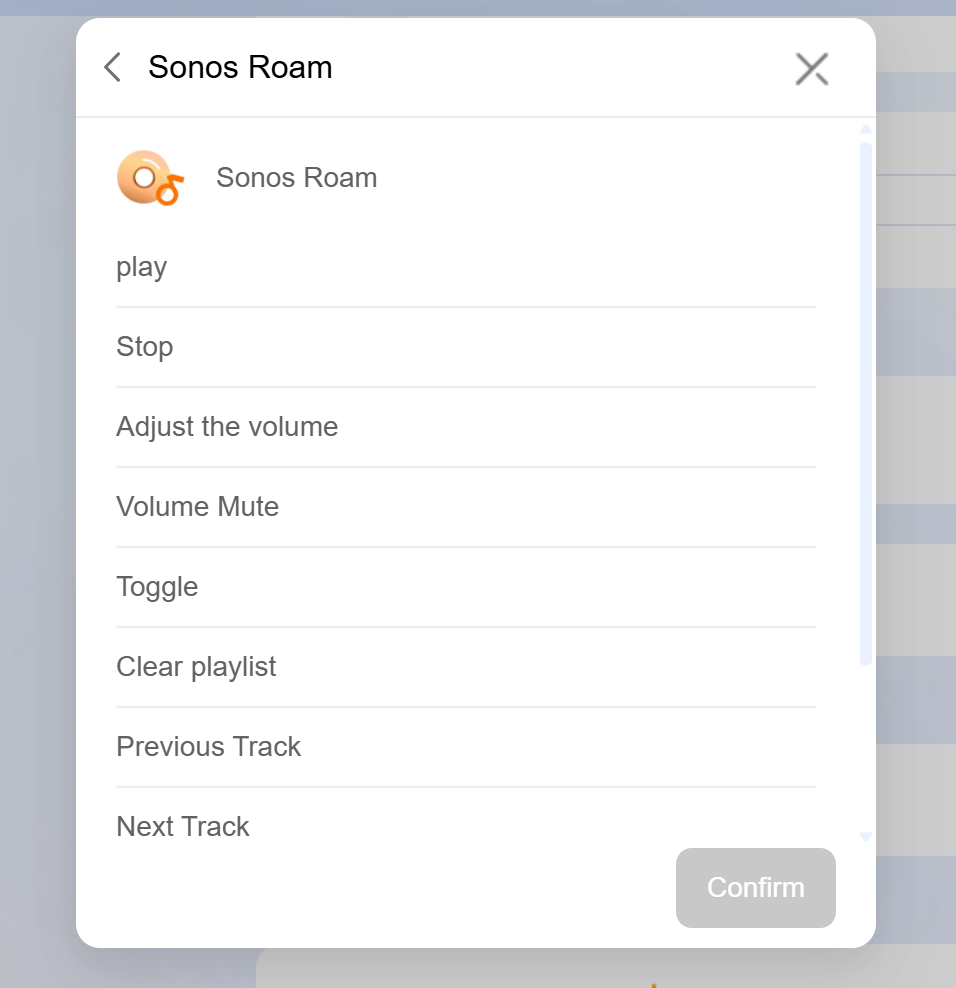
Example:
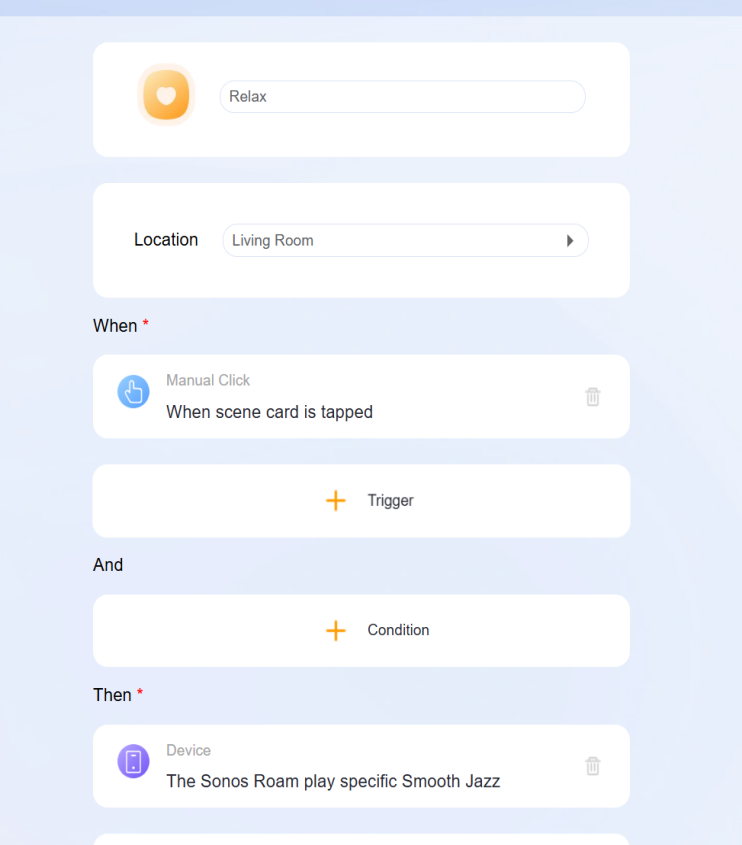
Create a manual scene named Relax:
Trigger: Manual activation
Task: Play selected SONOS music
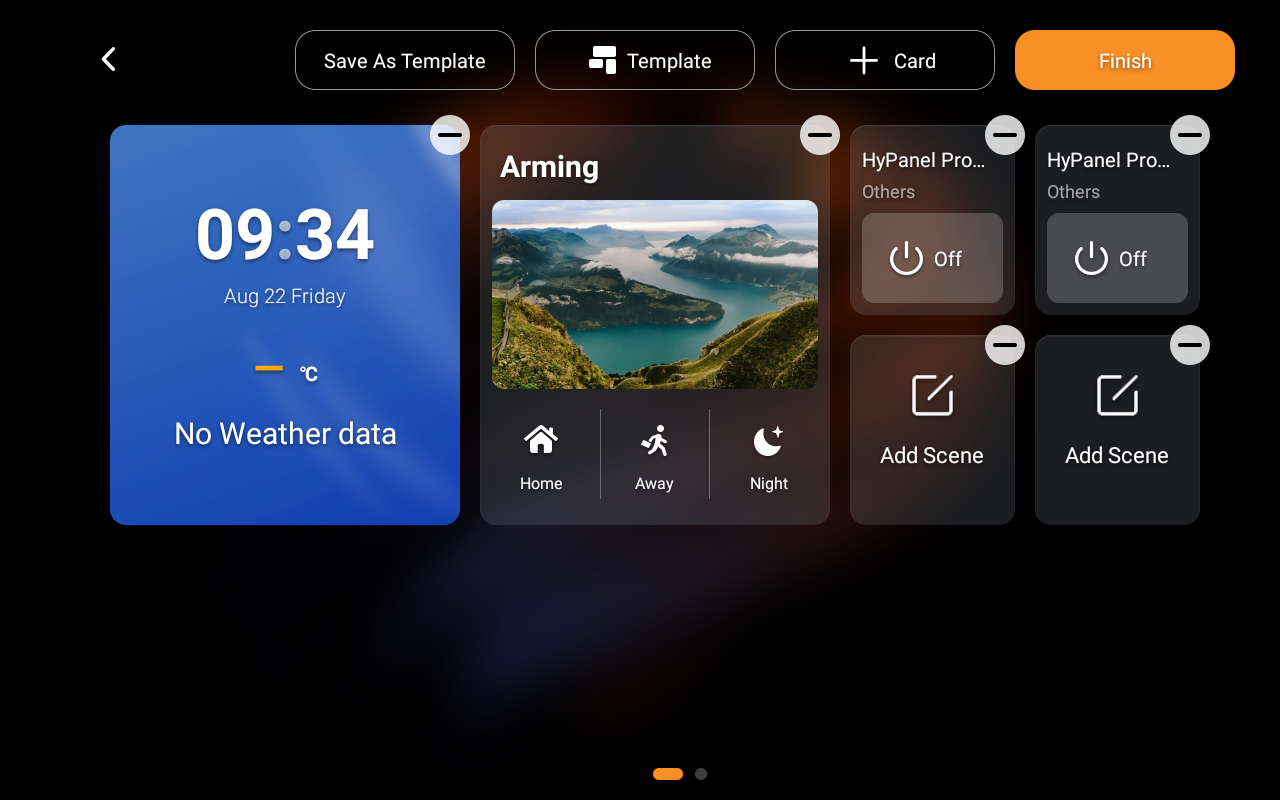
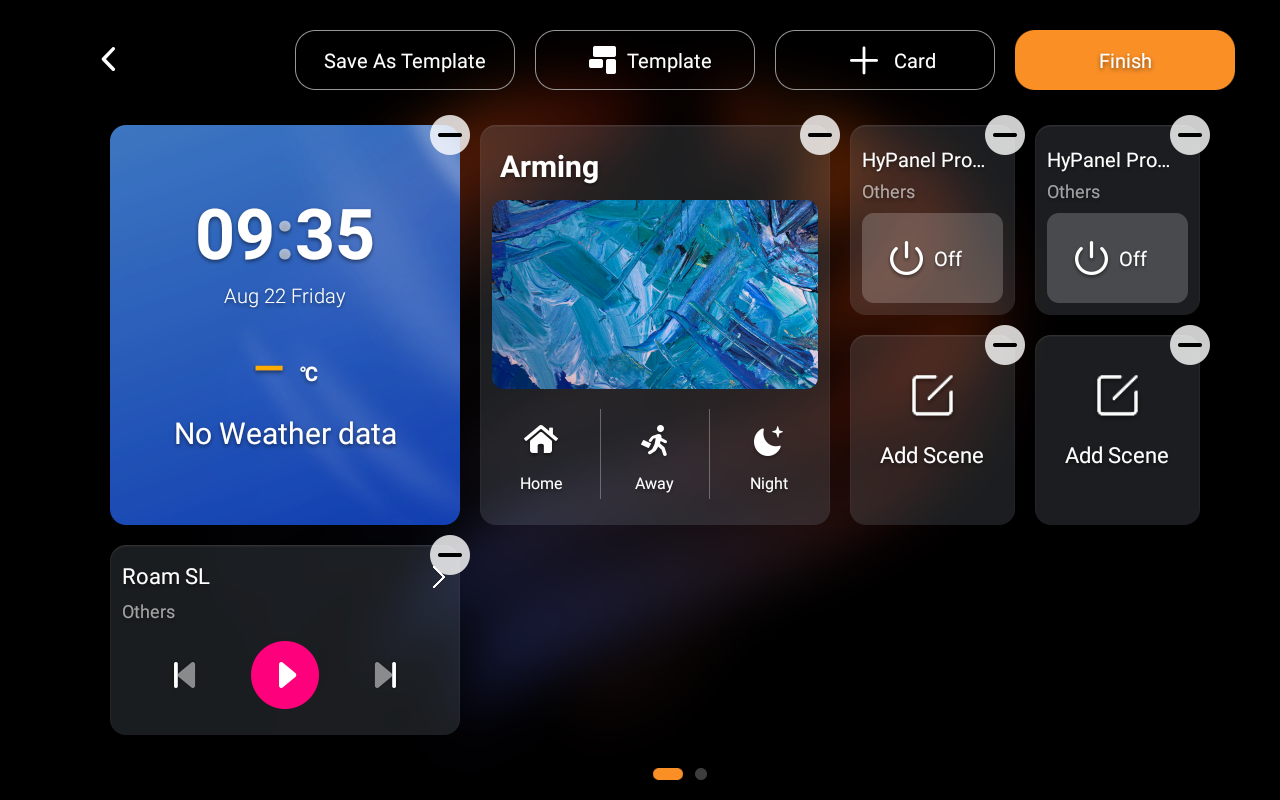
Display SONOS on the Home Page
Tap and hold any blank area on the Home page, and tap + Card.
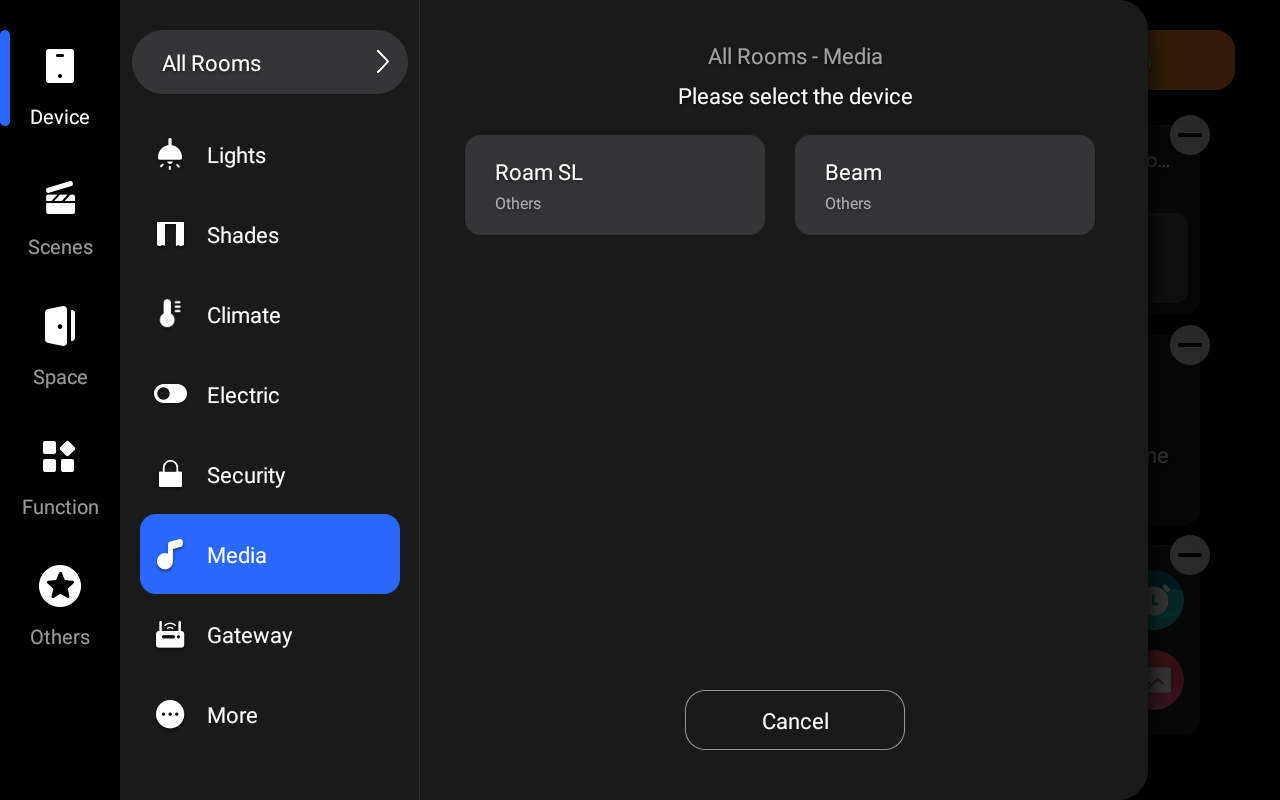
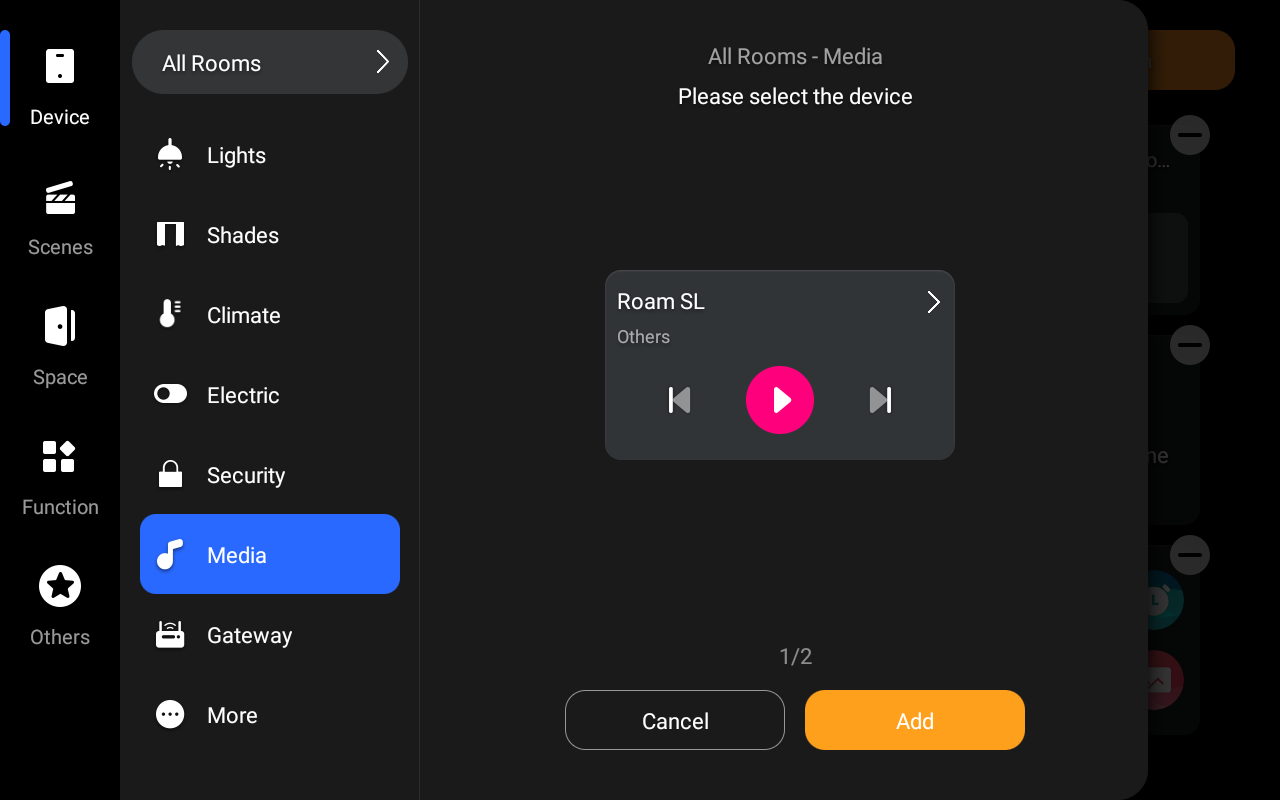
Select Media > the desired SONOS speaker > Add.
Tap Finish to save the settings.
Indicator Light Syncing
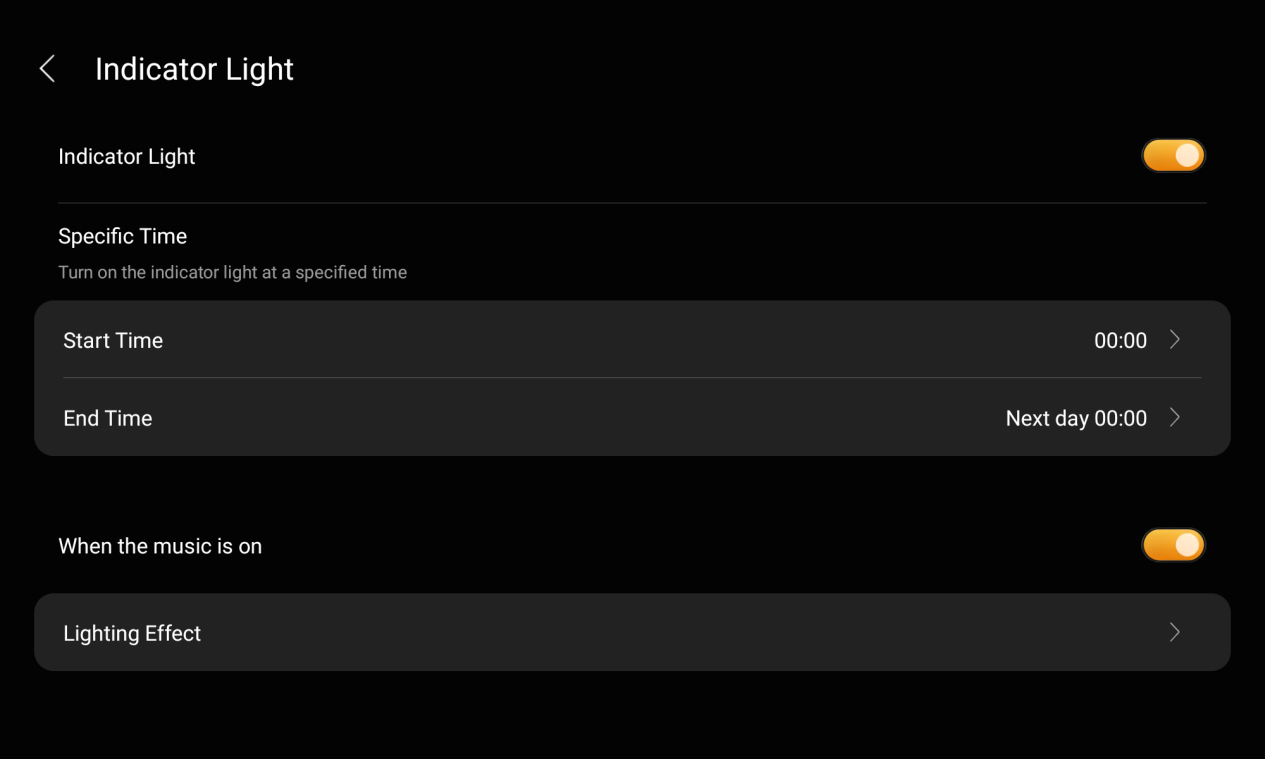
akubela HyPanel Ultral(PH81) and HyPanel Supreme(PHX1) feature an indicator light.
When music is playing, the indicator light can function as ambient lighting.
On the panel, you can go to  > Display > Indicator light to customize its color, lighting effects (static or dynamic), and active time.
Control SONOS with a Voice Assistant
Configure a voice assistant such as
Use voice commands to control music playback.