Easily add, control, and group amplifiers on HyPanel for Spotify, local playback, and smart home scenes.
What You Should Know
Supported devices and firmware:
Model | Firmware | Remark |
HyPanel Supreme (PHX1) | 1001.1.39.125 and later | |
HyPanel Ultra (PH81) | 281.1.39.128 and later | |
HyPanel Pro (PG71) | 71.1.39.137 and later | |
HyPanel KeyPlus (KS53) | 53.1.39.119 and later |
|
HyPanel Plus (PS52) | 52.1.39.116 and later | |
HyPanel (PS51) | 51.1.39.139 and later | |
HyPanel V2 (PS51(V2)) | 251.1.39.113 and later | |
HyPanel Elite 10 (PH59) | 159.1.39.137 and later | |
SmartPanel (X933H) | 933.1.39.103 and later | |
SmartPanel Elite 10 (C319H) | 319.1.39.104 and later |
Supported music formats: MP3, AAC, AAC+, ALAC, APE, and WAV.
Add Amplifier to akubela System
Before use, add the amplifier to the akubela system via large-screen HyPanel devices, BelaHome app, or the user web portal.
For detailed instructions, see Set Up Wireless Amplifier.
Play Music
Spotify
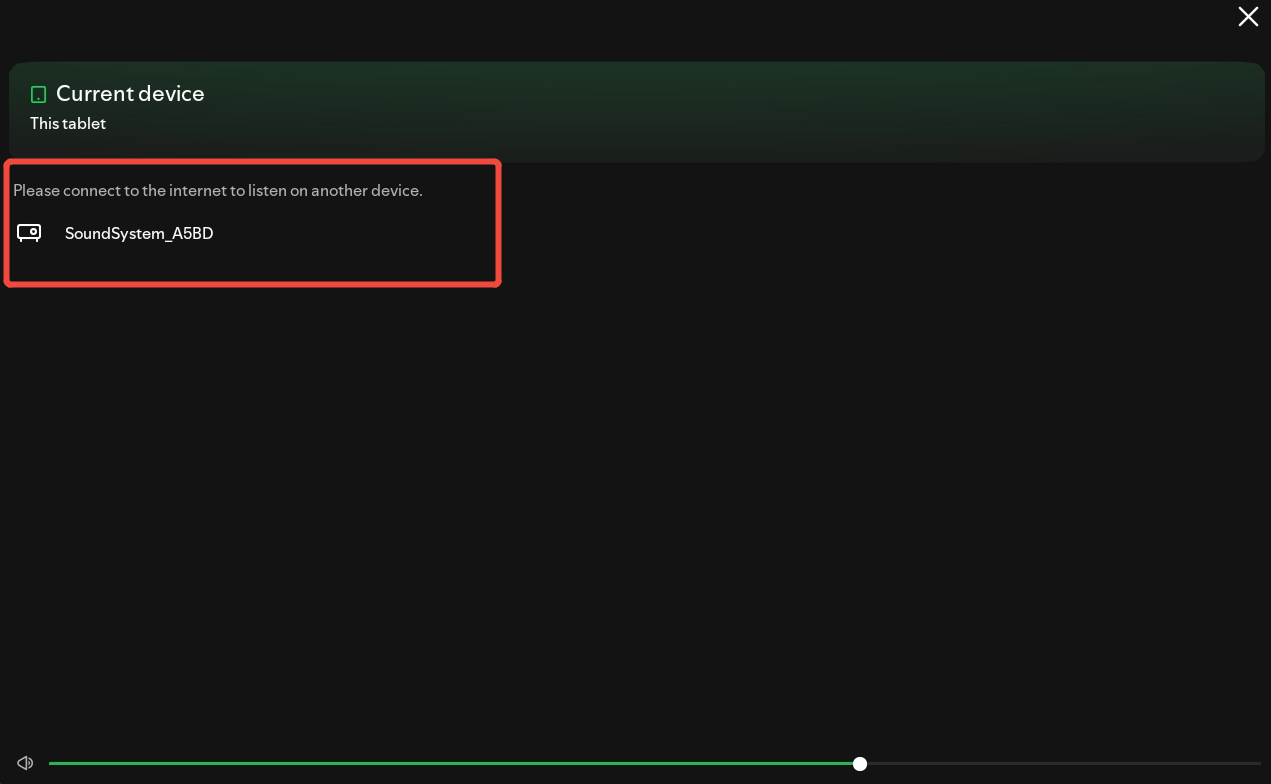
Log in to your Spotify account on the HyPanel device. See here for detailed instructions.
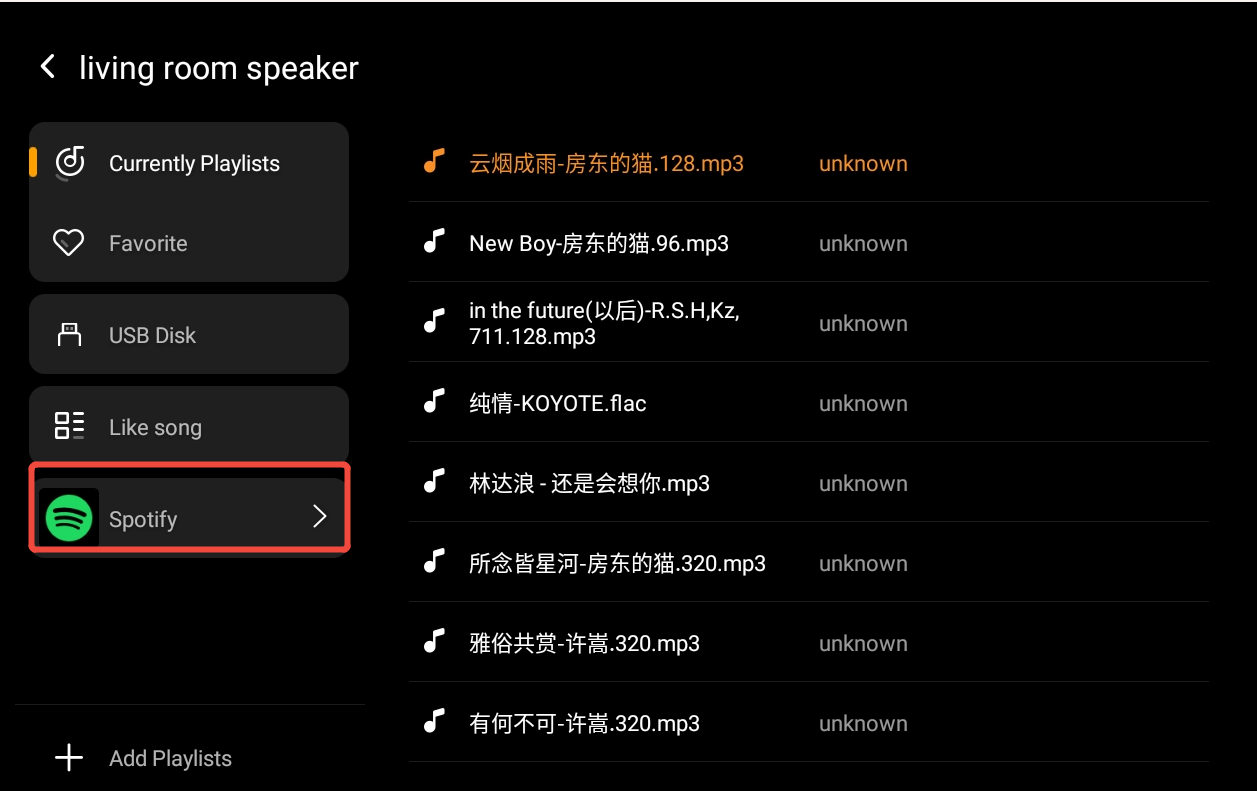
Open the amplifier player, then go to
 > Spotify to access the Sptify Home screen.
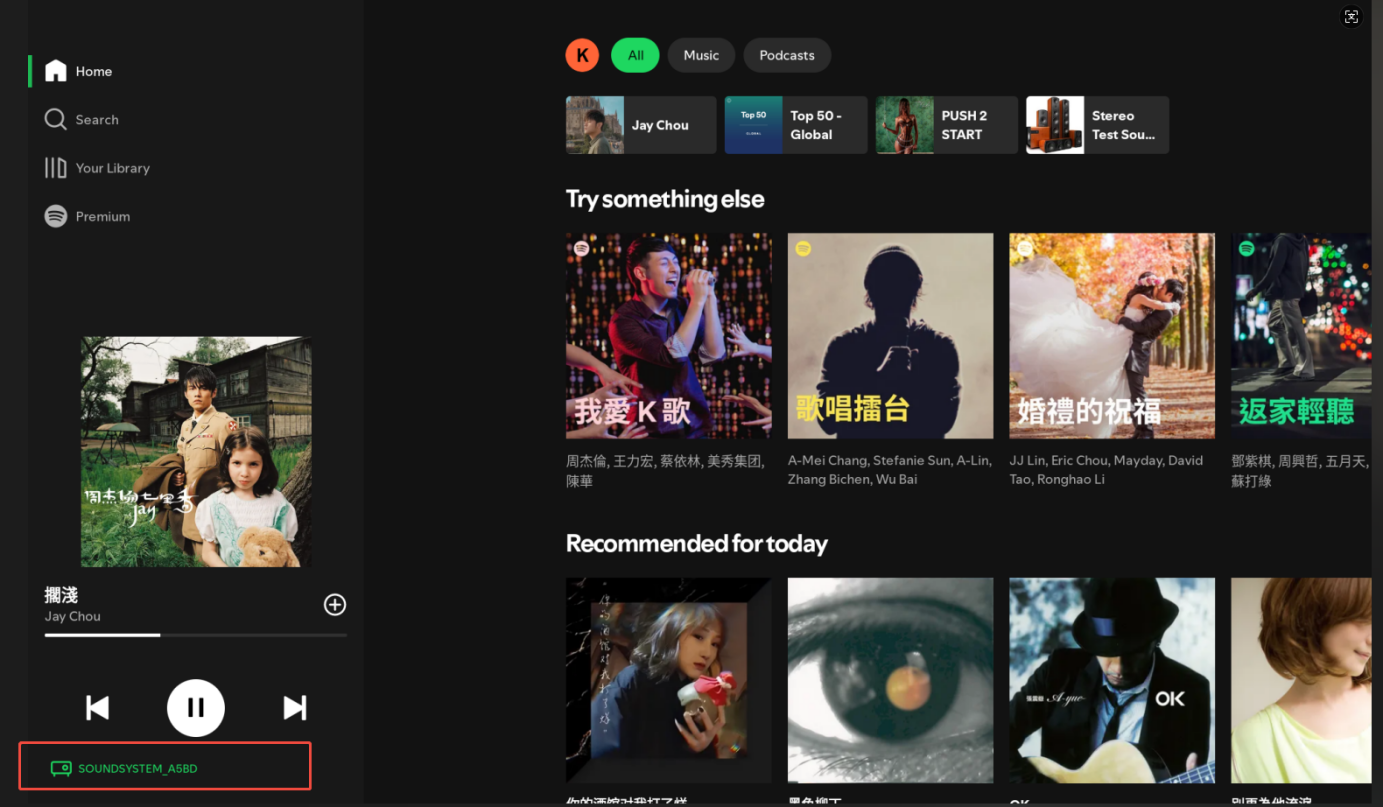
Tap
 to select the amplifier, then play your music.
Local Songs
Save your music files on a USB disk.
Insert the USB disk into the amplifier.
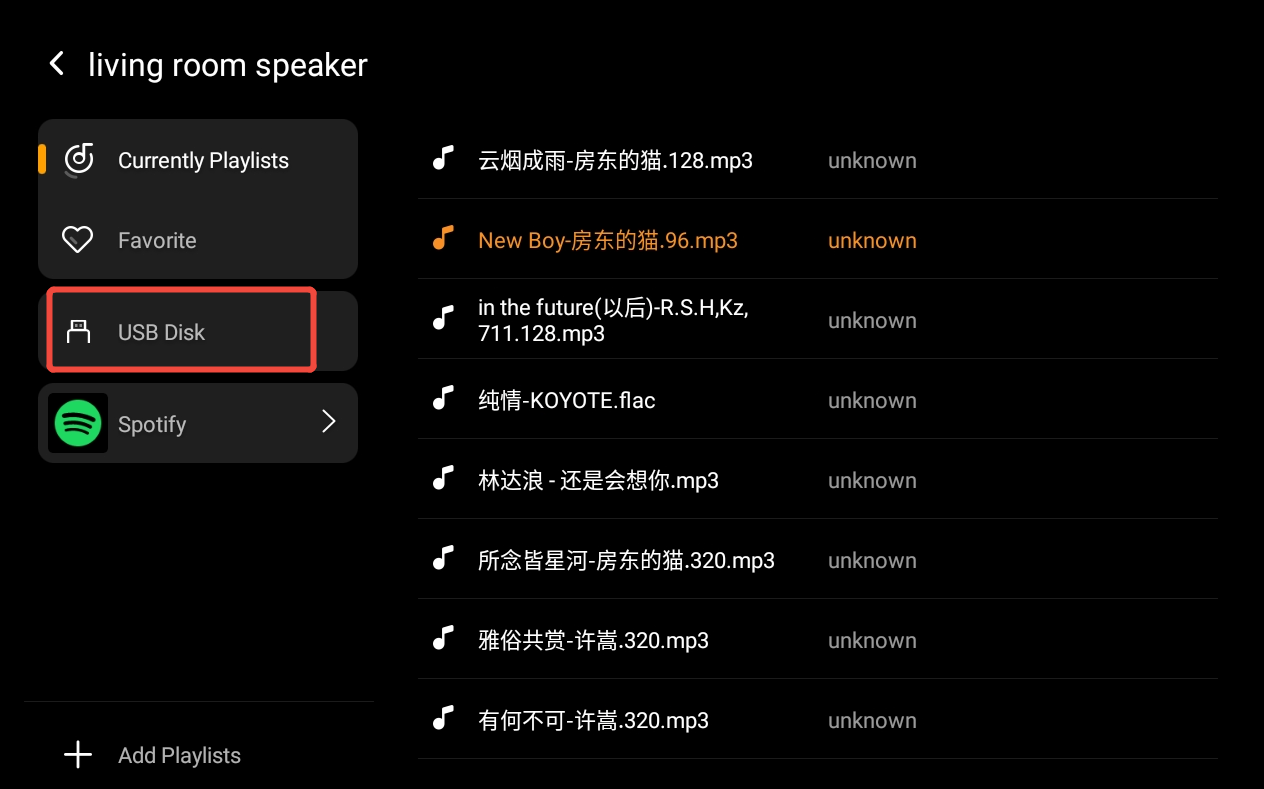
Open the amplifier player, go to
 > USB Disk, and select the music to play.
Features and Settings
Basic Control
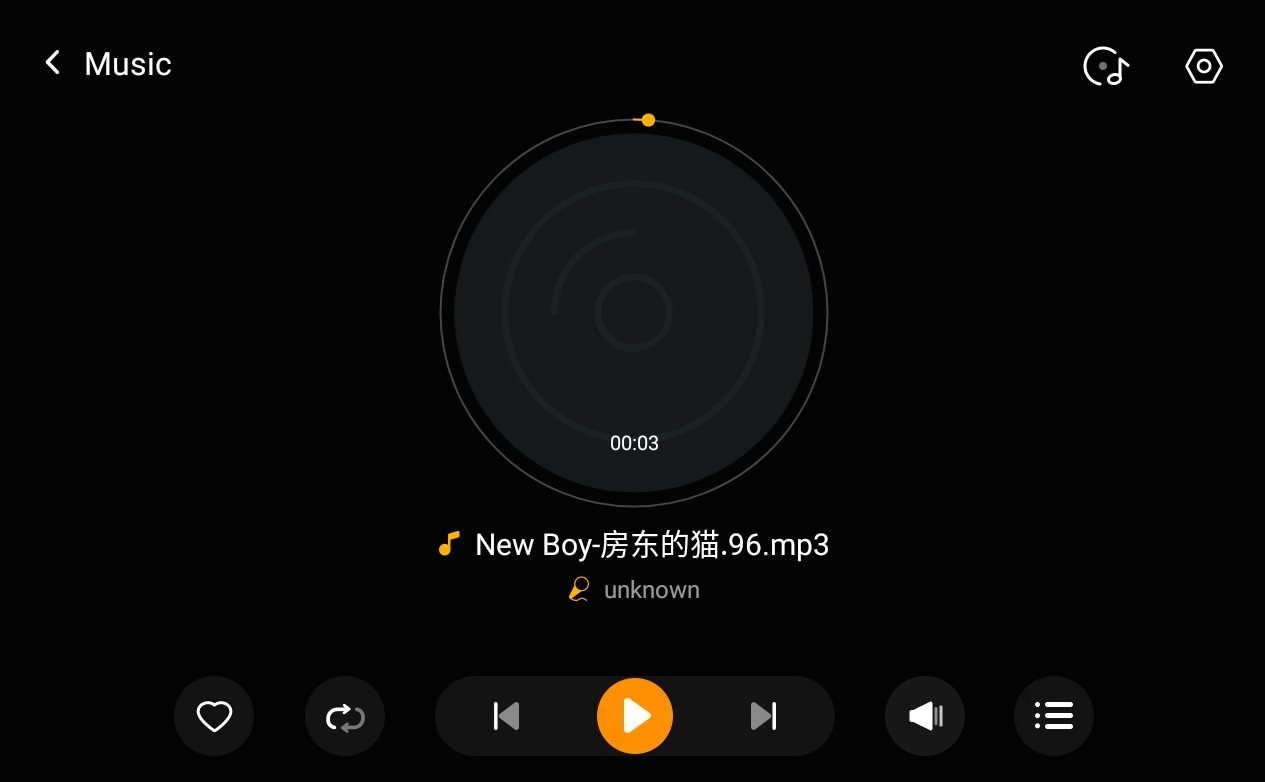
Play / Pause: Tap
 .
.Previous / Next: Tap
 or
or  to switch songs.
Playback Mode: Tap
 to switch repeat, shuffle, or sequential modes.
Favorite Songs: Tap
 to add songs to your favorites.
Manage Playlists
Local Playlist
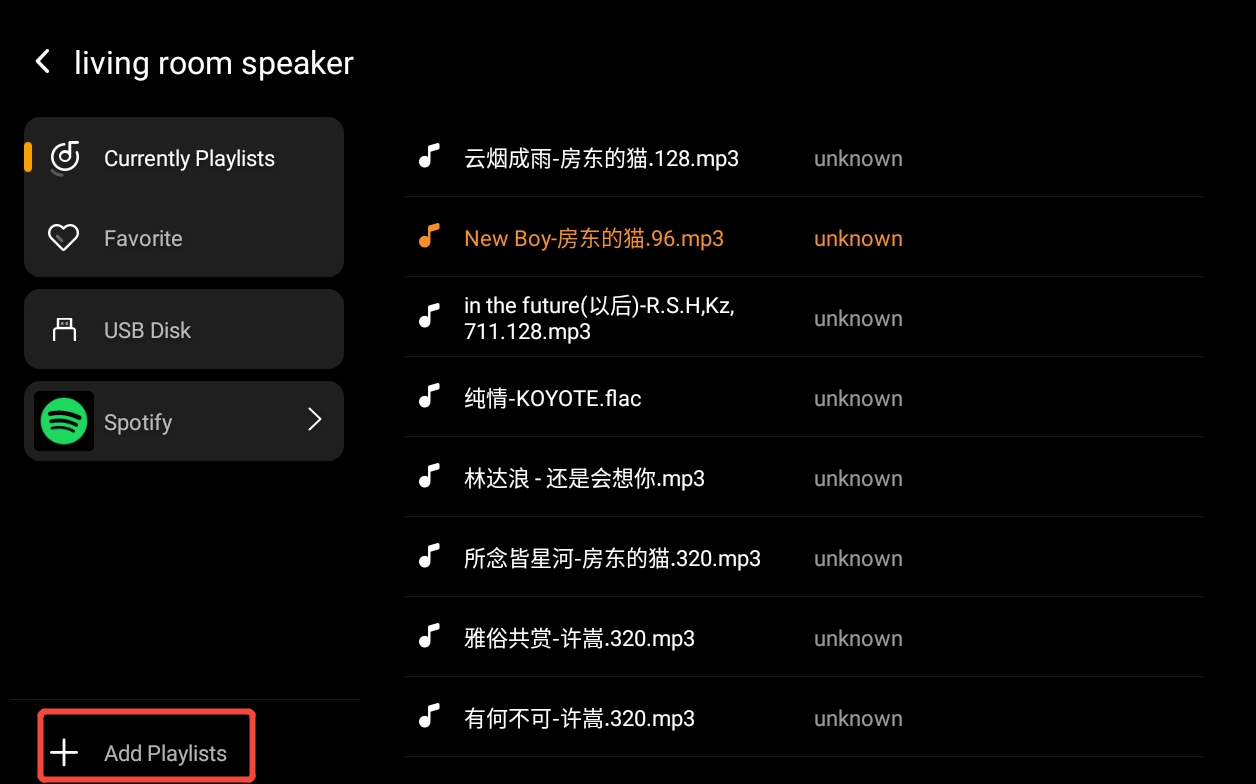
Tap
 > Add Playlists to create a new playlist.
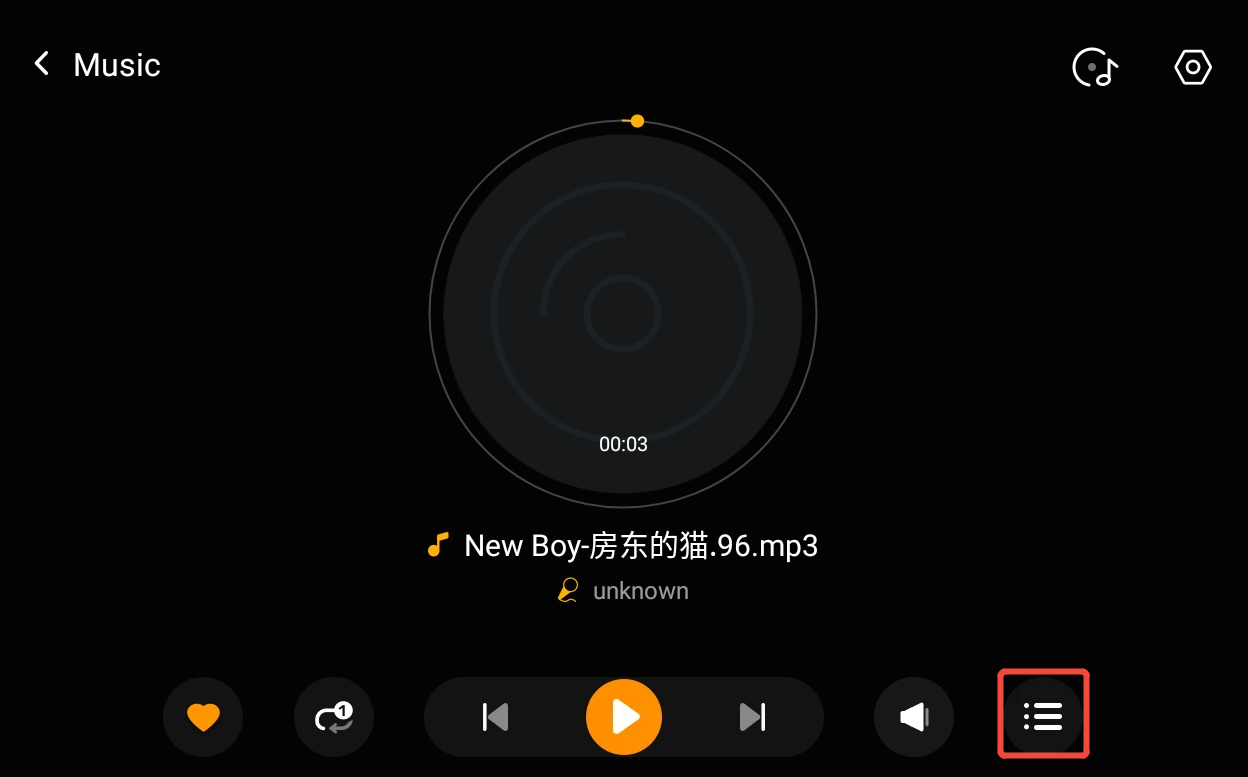
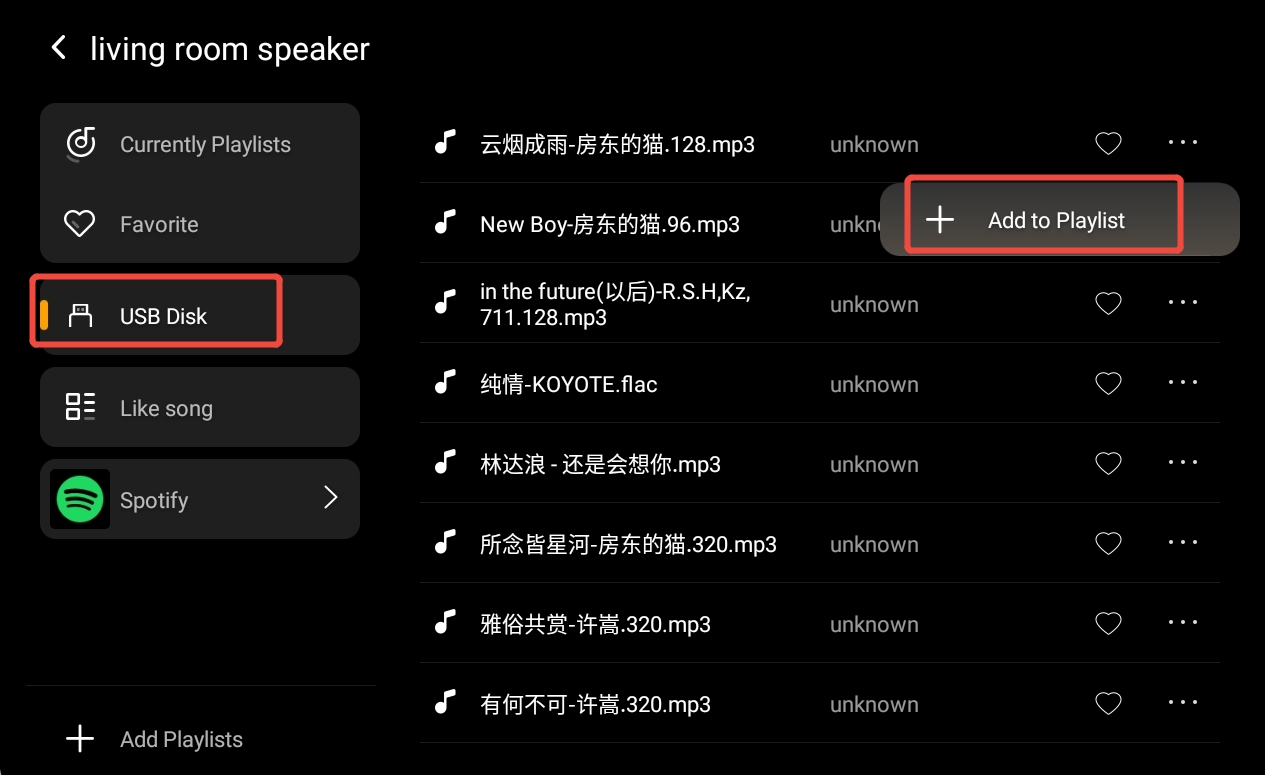
Open a song from USB Disk, then add it to the playlist.
NOTE:
Only songs in USB Disk list can be added to a personal play list.
Spotify Playlist
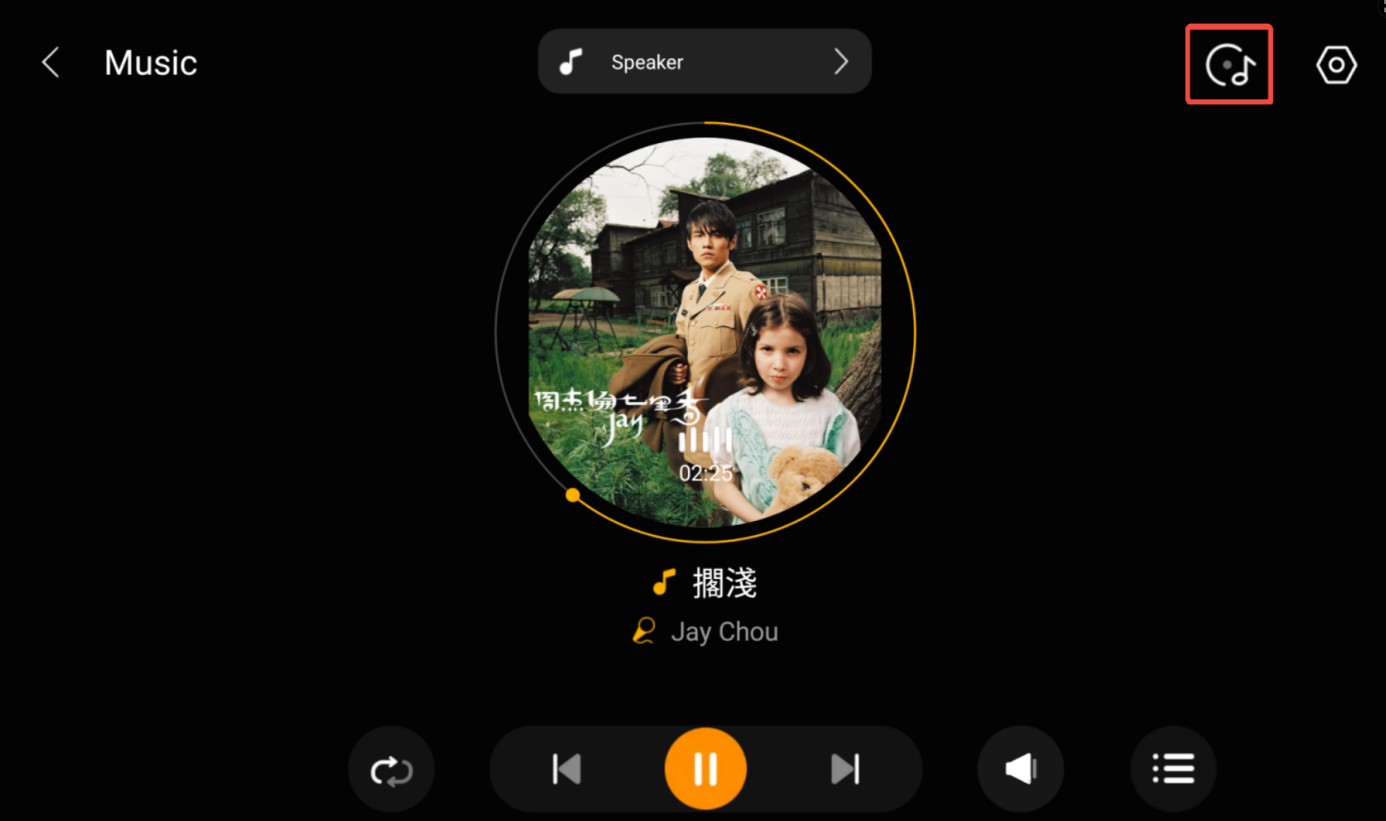
On the Spotify player screen, click
 at the top right corner.
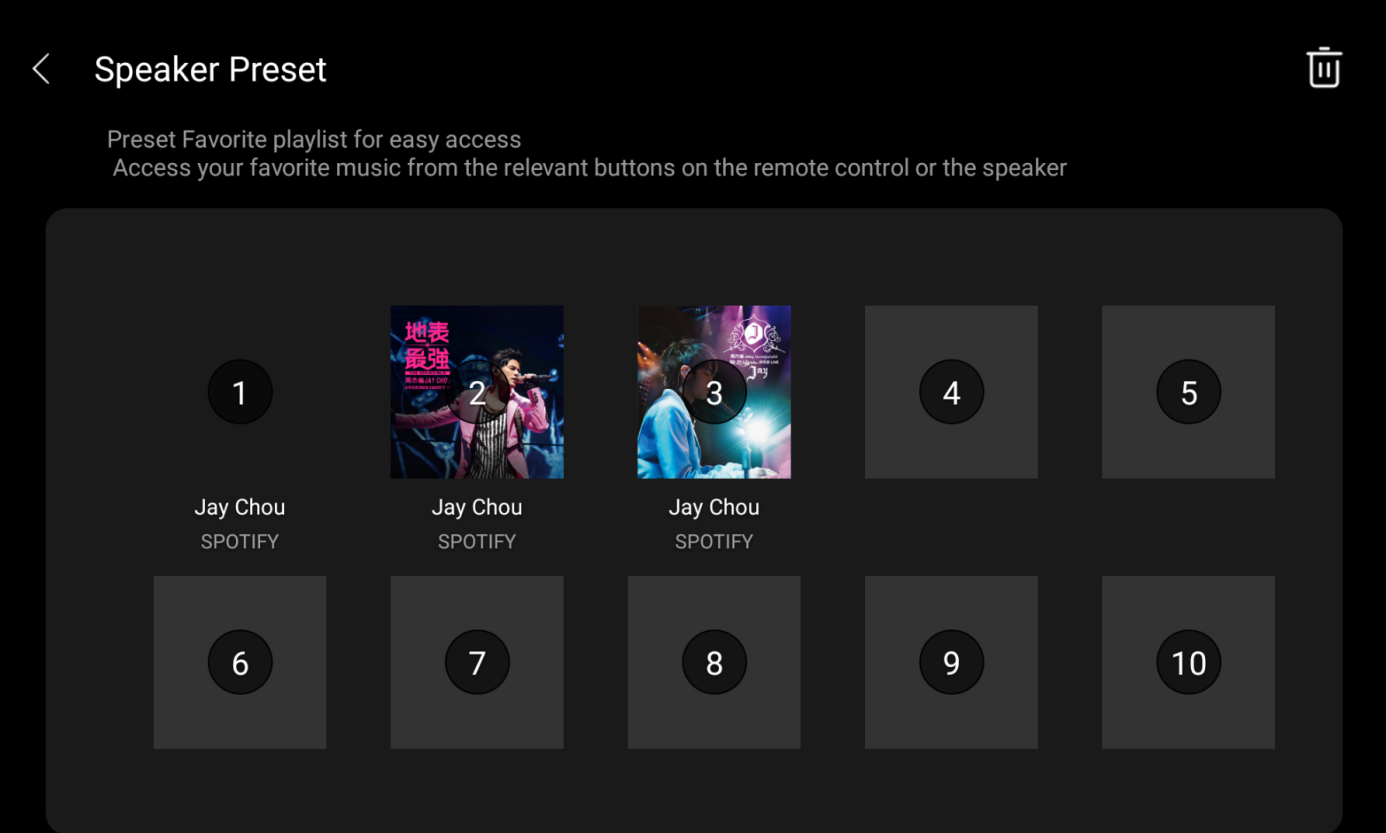
Select the blank playlist to add the song.
Create Device Groups
Open the amplifier player, go to
 > Device Group to group up to 8 speakers and sync playback.
NOTE:
The amplifier speakers must be in the same local network.
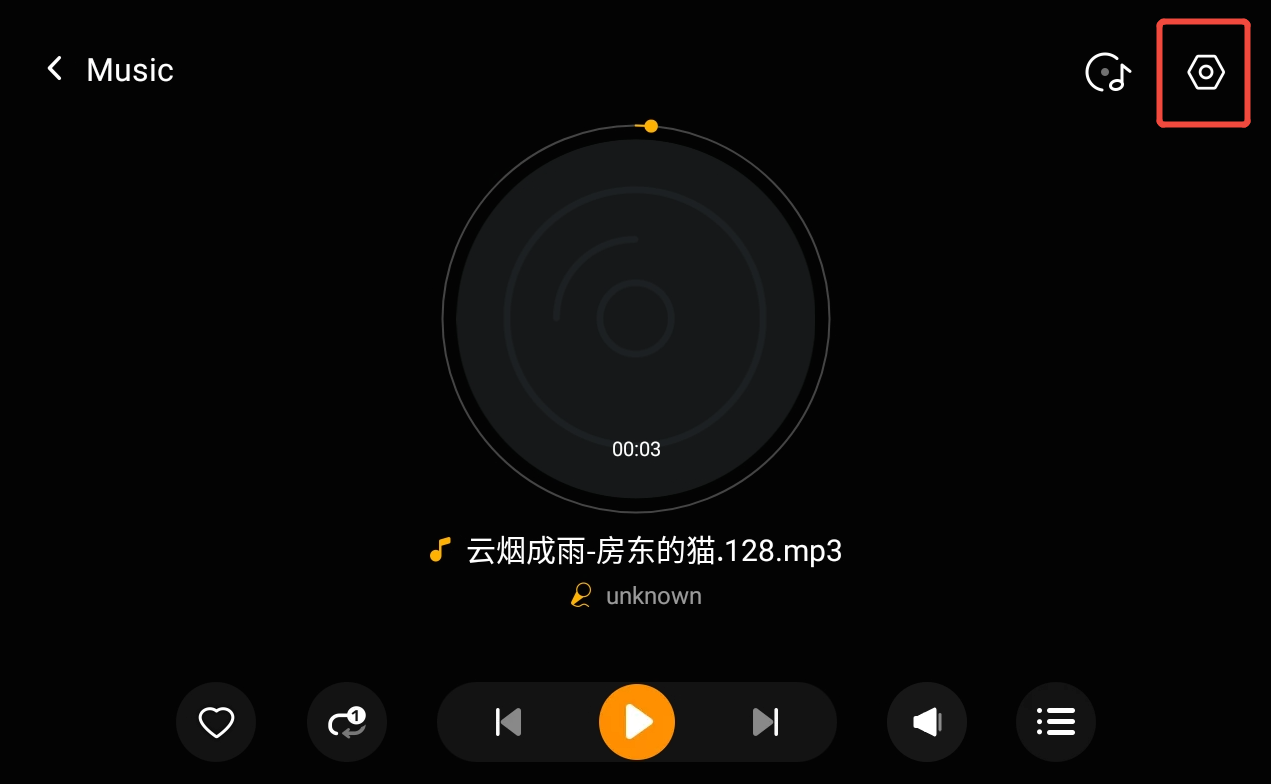
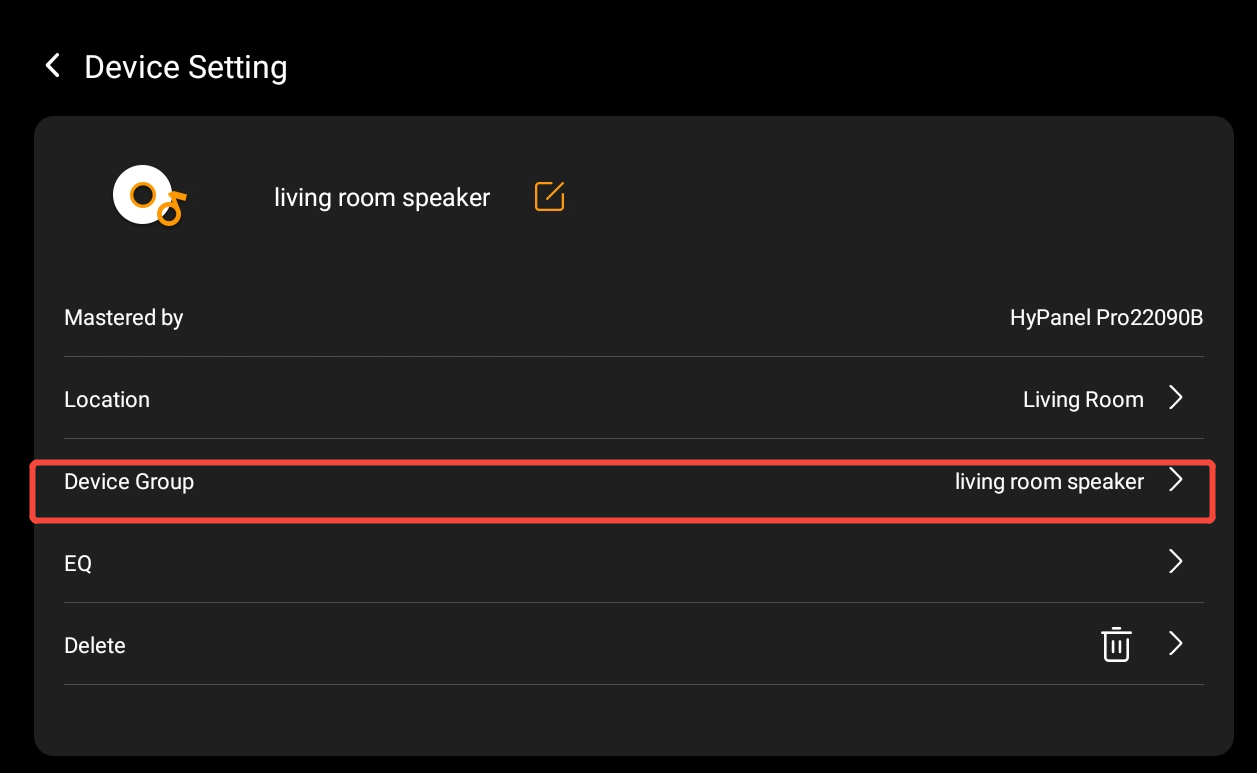
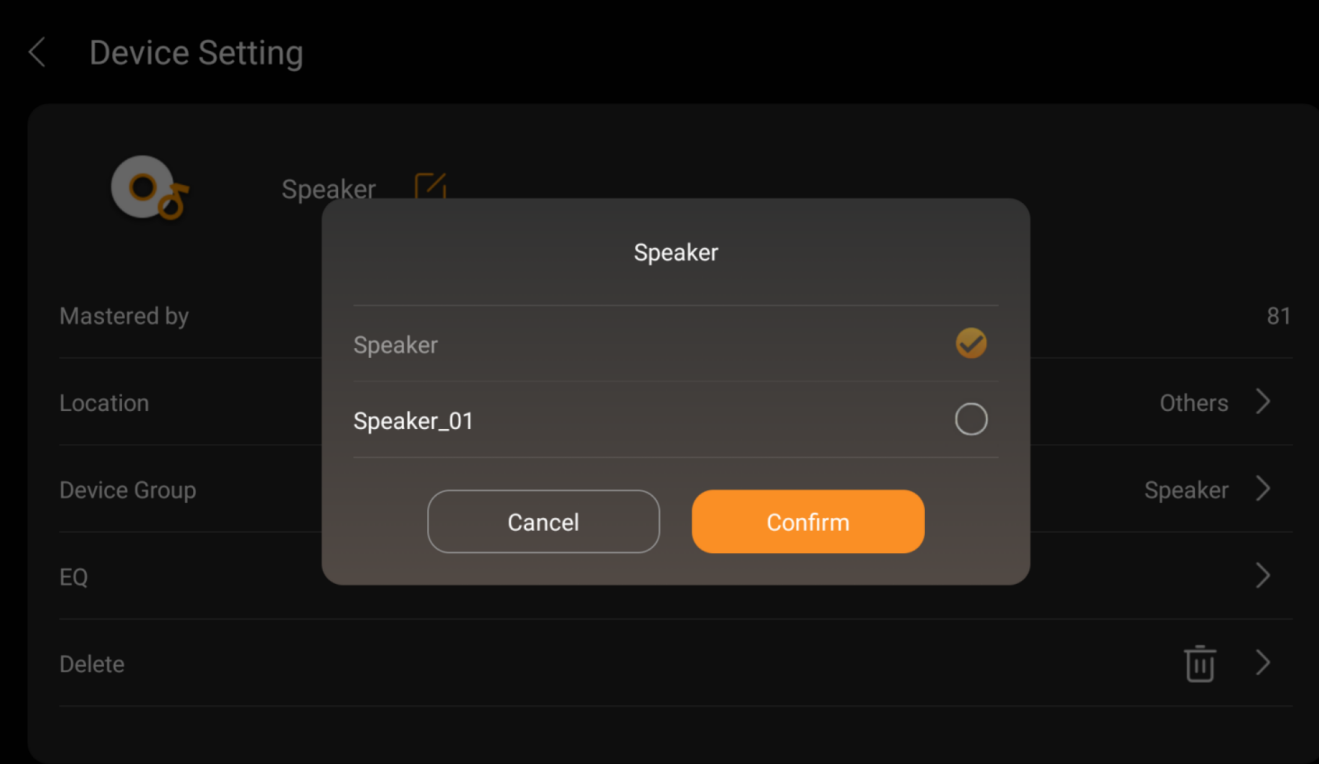
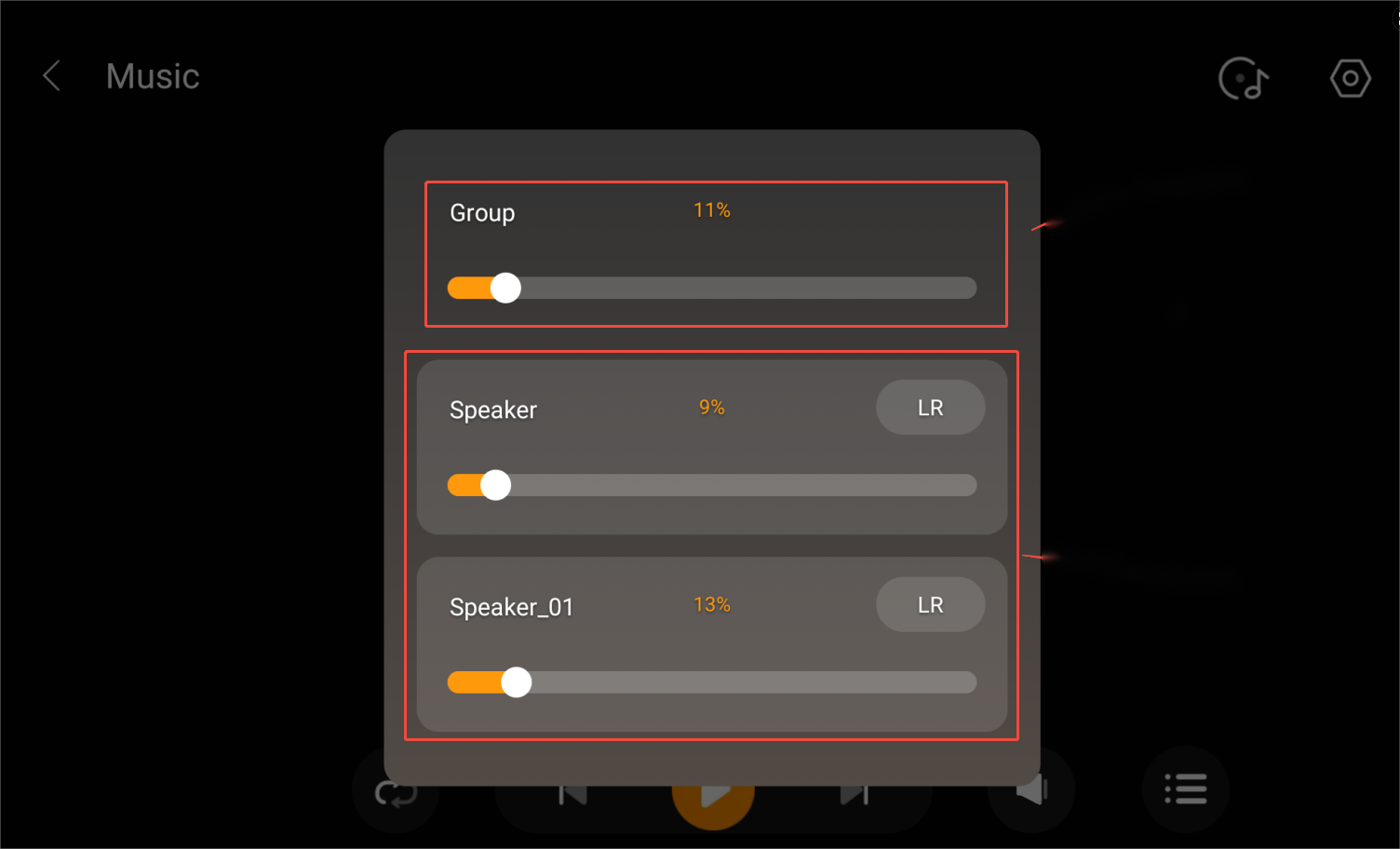
Tap the group card to adjust volumes for individual speakers or the whole group.
Adjust Treble and Bass
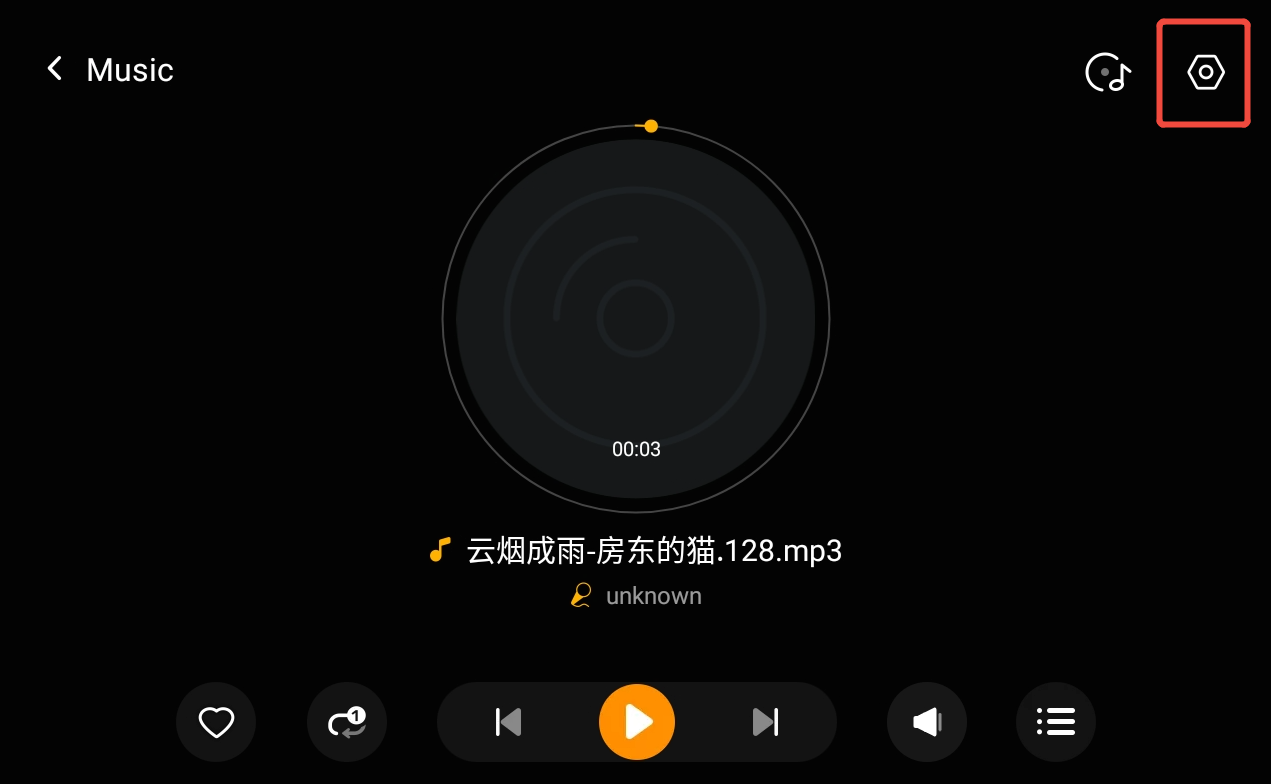
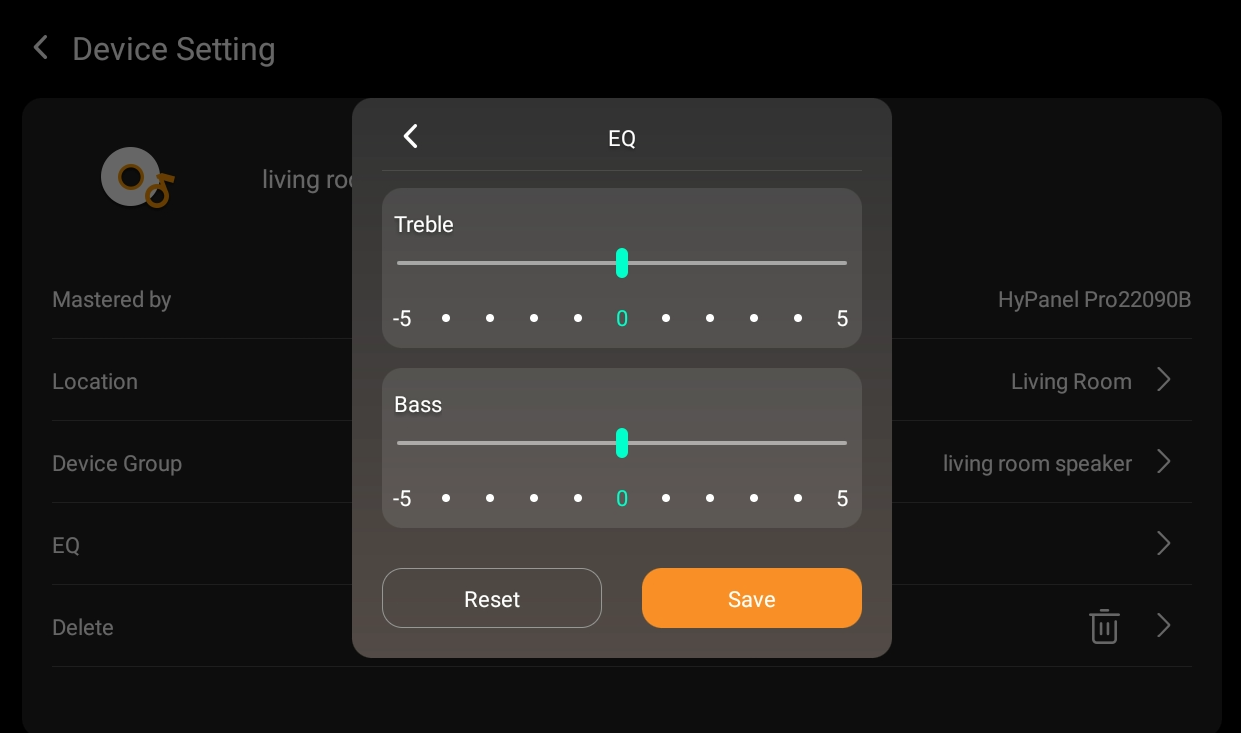
Open the amplifier player, then go to  > EQ to adjust the treble and bass for different music types.
Adjust Volumes
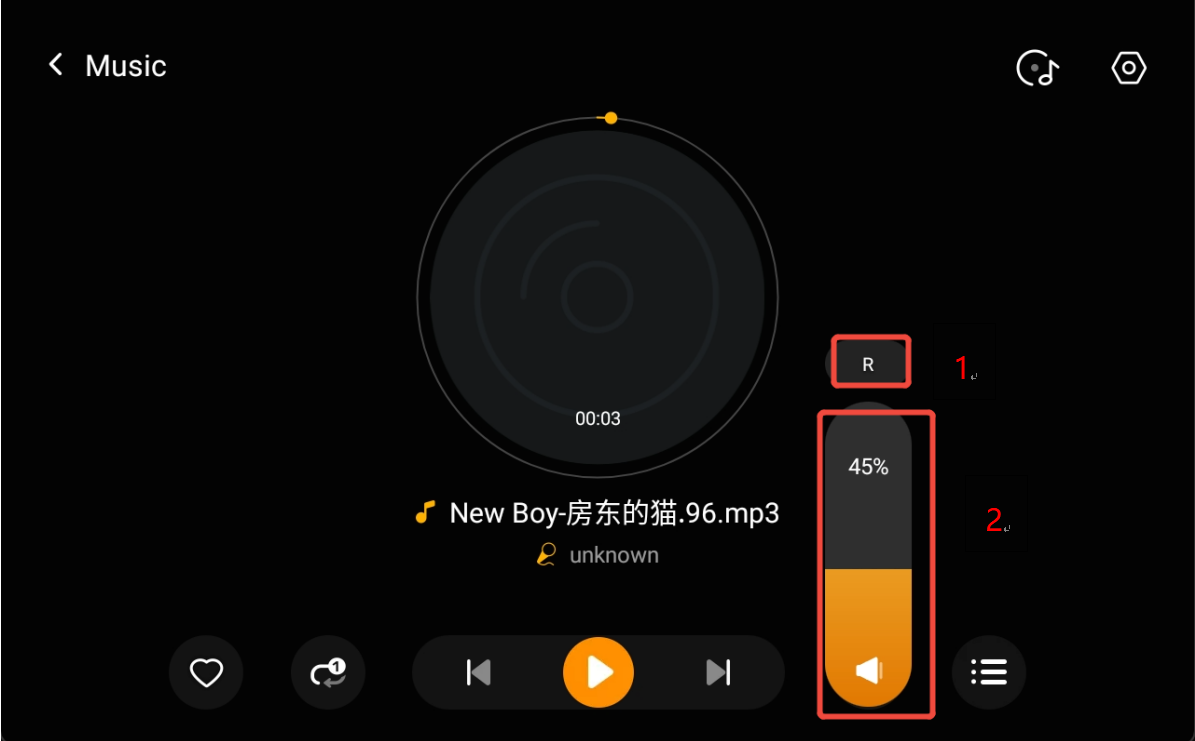
Open the amplifier player, tap  to adjust channel volumes.
Tap R/L to switch between right, left, or both channels.
Drag the slider to adjust the selected channel’s volume.
Rename and Relocate Amplifier
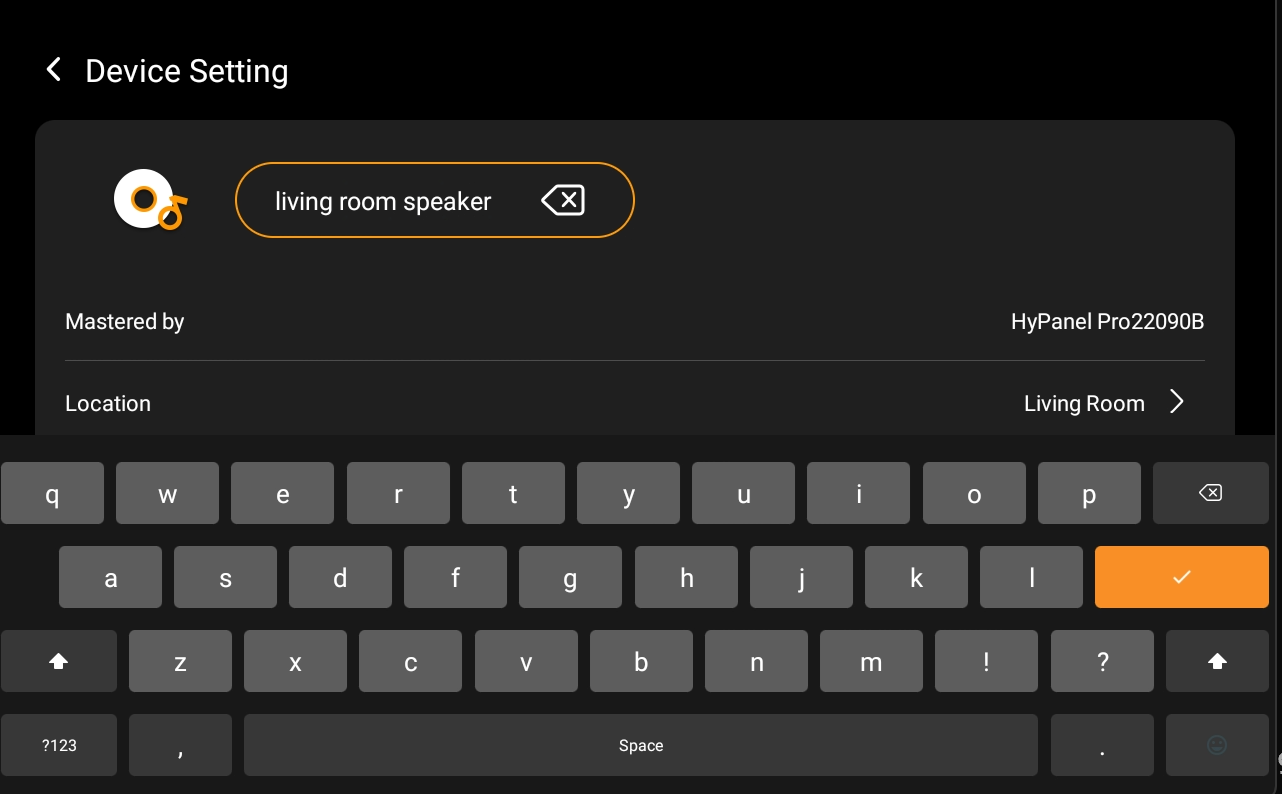
Open the amplifier player, then tap  to change the default name or location.
Use Music in Scenes
Use the amplifier’s status as a scene trigger.
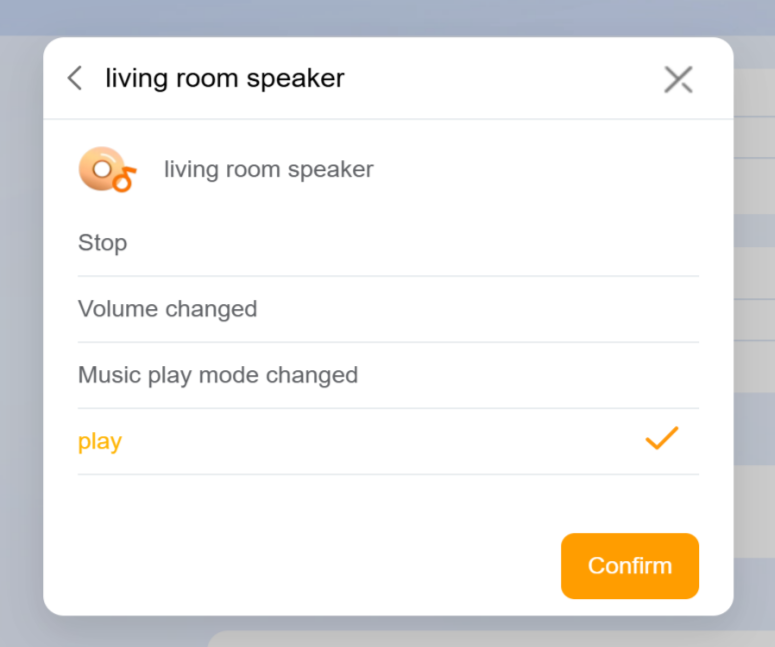
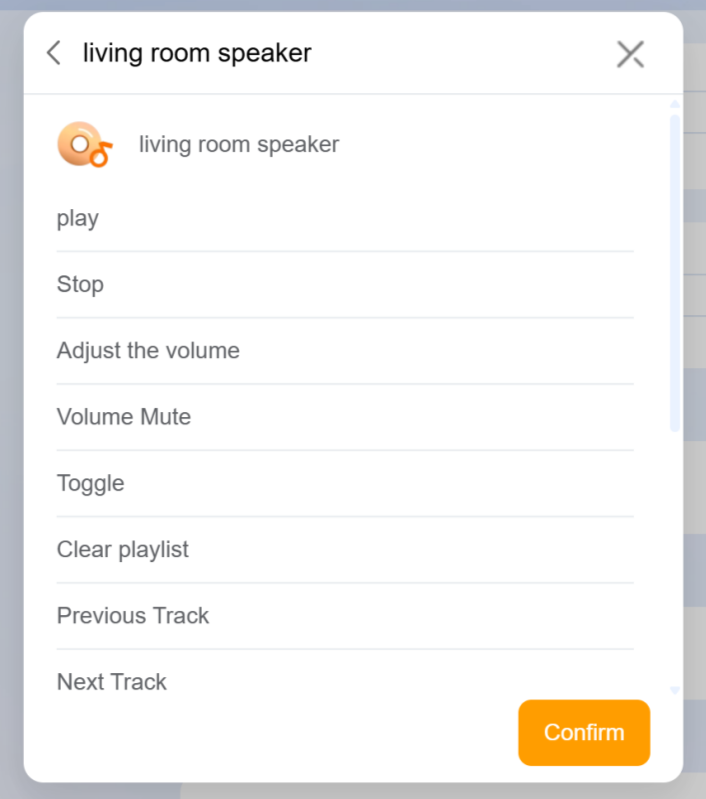
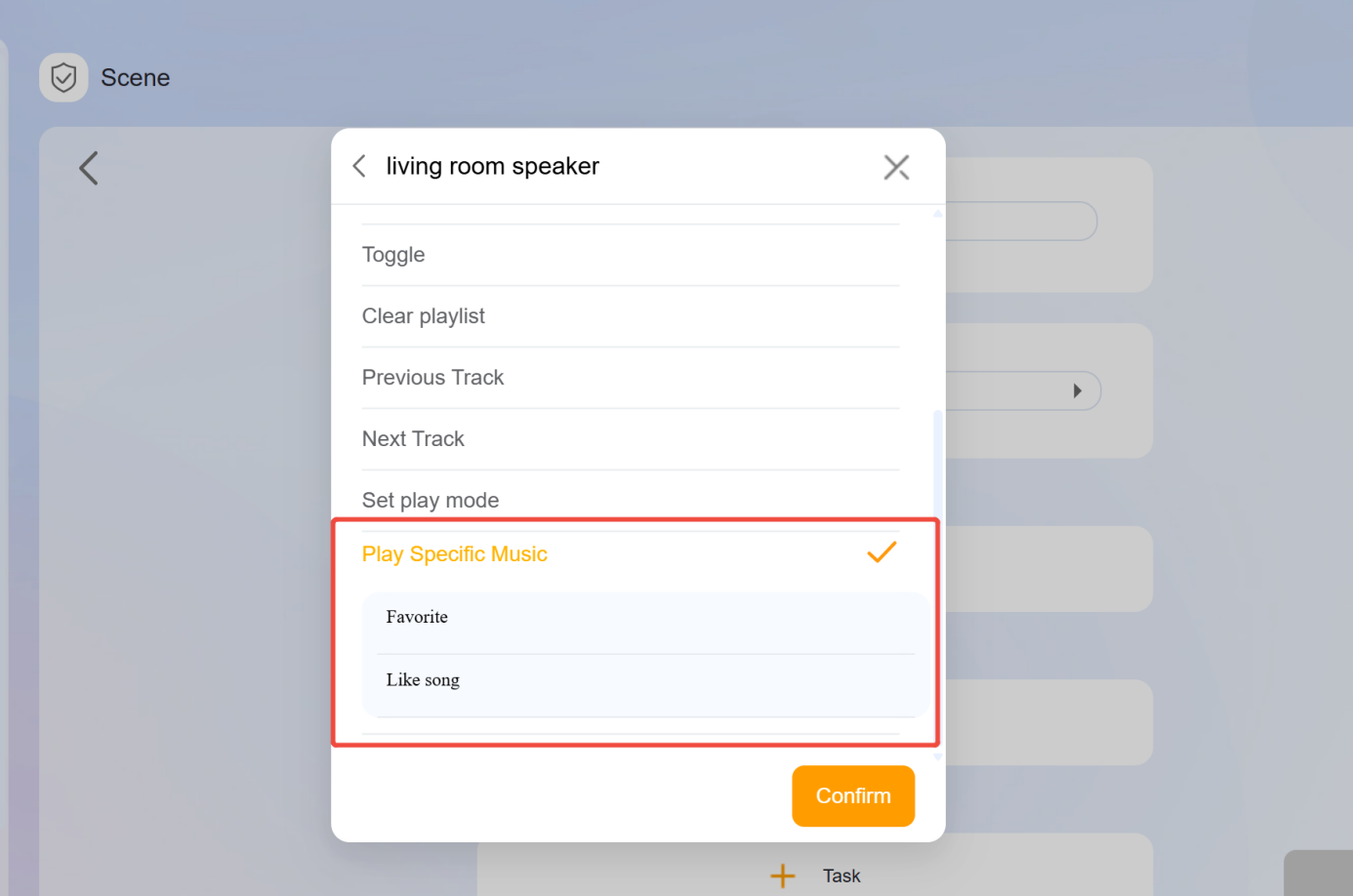
Use the amplifier’s status or a specific song as a scene task.
NOTE:
Only songs in personal playlists or favorites can be selected.