Volume and ringtone configurations include microphone volume, speaker volume, alarm volume, and more. In addition, you can upload door-opening tones to enrich the user's personalized experience.
Volume Configuration
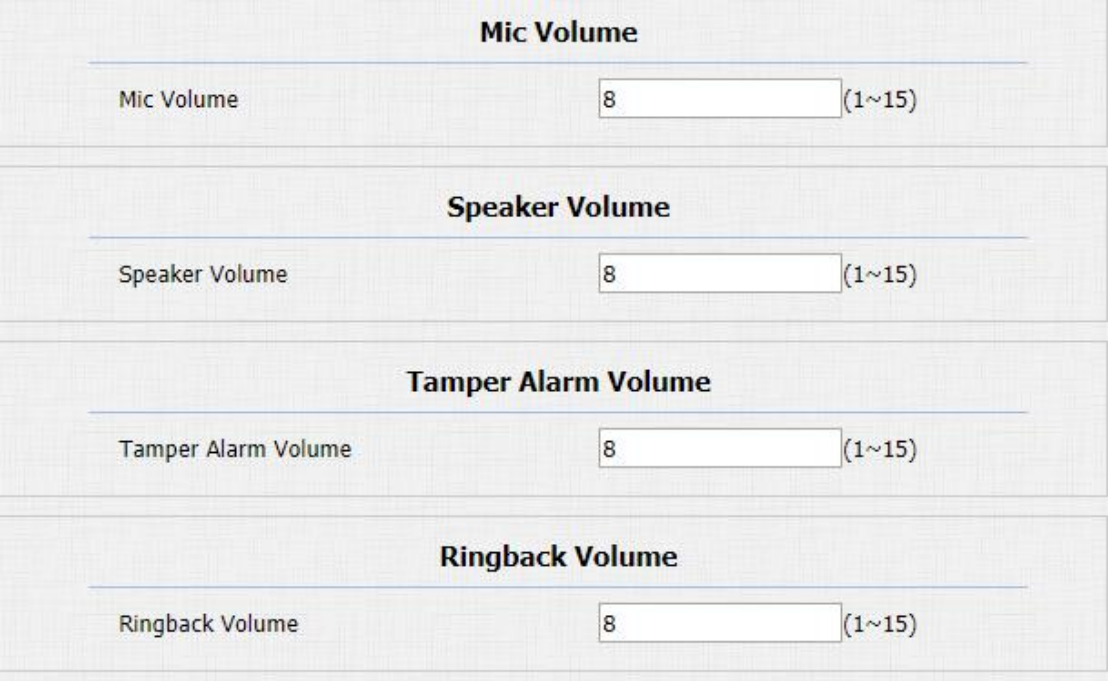
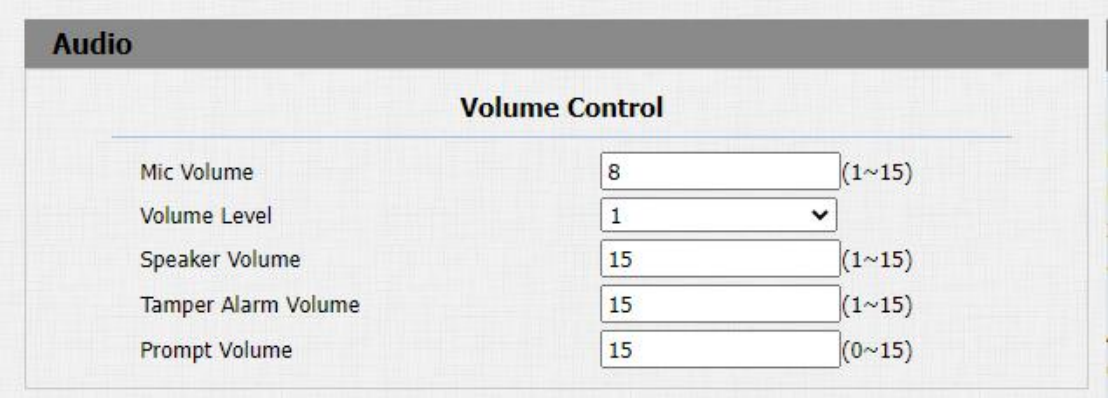
To set up the volumes, you can set up on device web Phone > Audio interface.

Parameters Set-up:
- Mic Volume: adjust the mic volume as needed.
- Volume level: adjust the volume level as needed.
- Speaker Volume: Adjust the speaker volume as needed.
- Tamp Alarm Volume: Adjust the volume for the tamper alarm.
- Prompt Volume: Adjust the volume for voice prompt.
IP Announcement
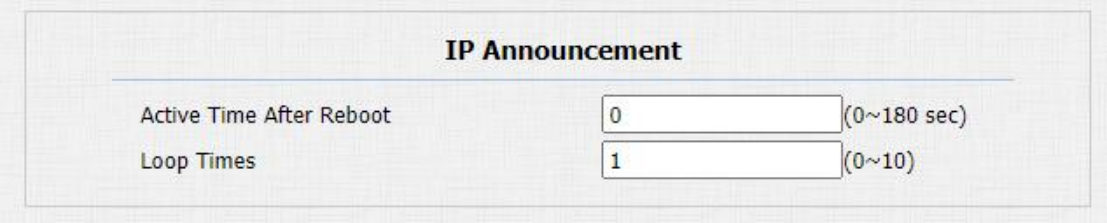
To set up device IP number announcement, navigate to Phone > Audio > IP announcement.
Parameter Set-up:
- Active Time After Reboot: select IP announcement time after the device reboot. For example, if you set it as 30 seconds, then you must press the call button within 30 seconds for the IP announcement after the device is rebooted, otherwise, the IP announcement will expire. If you set it as “0” seconds, then you can press the call button any time after the reboot for the IP announcement.
- Loop Times: set the IP announcement loop times.
Open Door Tone Configuration
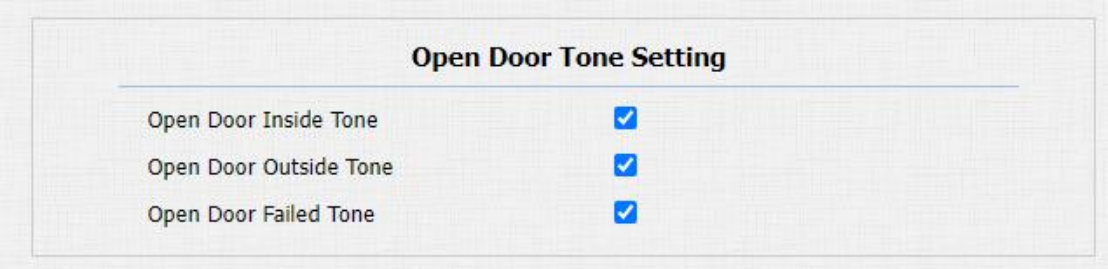
You can not only enable or disable the Open Door Tone but also control the prompt words that accompanies the tone on the web Phone > Audio > Open Door Tone Setting interface.
Parameters Set-up:
- Open Door Inside Tone: select the checkbox to enable the open door inside tone. Open door inside tone is what you can hear when you open the door by pressing the Exit button in side.
- Open Door Outside Tone: select the checkbox to enable the open door outside tone. Open door outside tone is what you can hear when you are granted door access via various access methods on the door phone.
- Open Door Failed Tone: enable the open door failure tone.
Upload Tone Files
Upload Ringback Tone
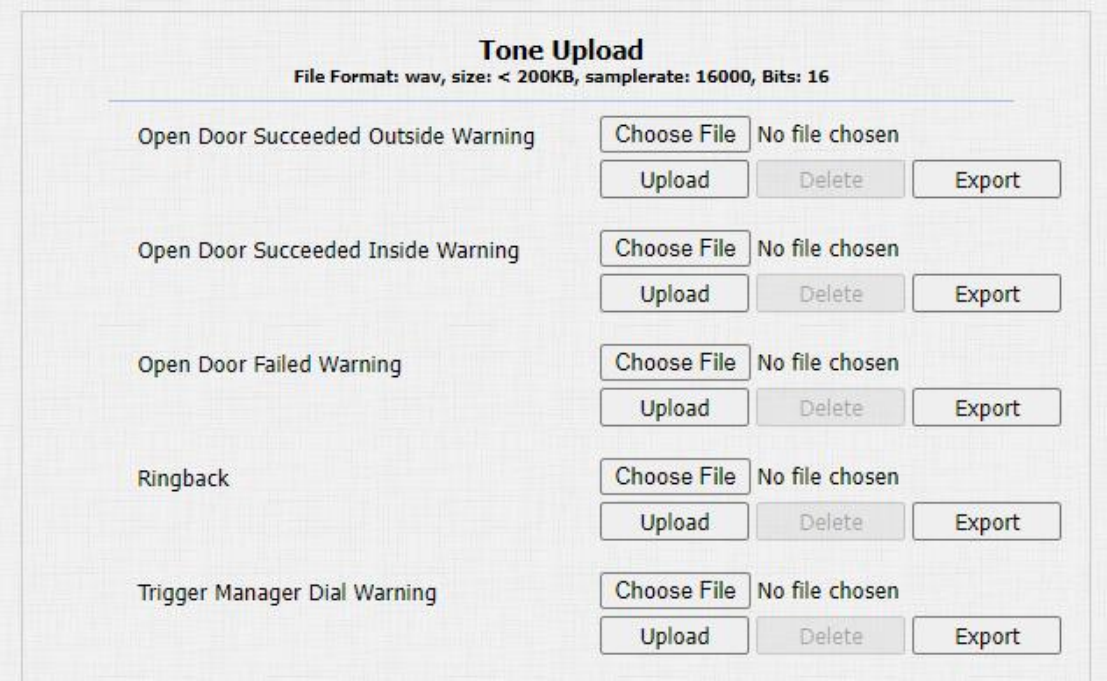
You can customize the ringback tone if you need. Please follow the prompt about the file size and format. Navigate to Phone > Audio > Tone Upload interface.
Upload Open Door Tone
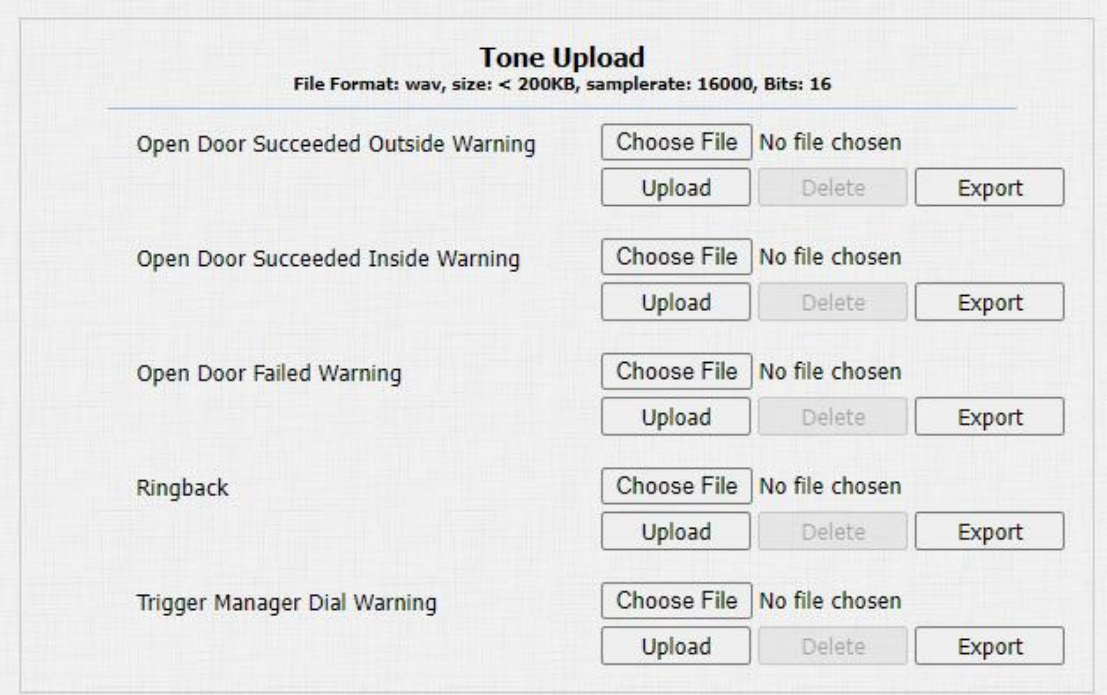
You can customize the door open tone if you need. The outside tone is used to open door via card or DTMF. The inside tone is used to open door via triggered input interface. Please follow the prompt about the file size and format. Path: Phone > Audio > Tone Upload.
Parameter Set-up:
- Open Door Succeeded outside Warning: warning tone that will go off when you opened the door from outside. Open door succeeded outside warning is what you can hear when you are granted door access via access methods on the door phone.
- Open Door Succeeded Inside Warning: warning tone that will go off when you opened the door from inside. Open door succeeded inside warning is what you can hear when you open the door by pressing the Exit button in side.
- Trigger Manager Dial Warning: warning tone that will go off when pressing the push-button to make manager dial call.