On the Device
You can configure a variety of features of the screen display in terms of brightness, screen saver and font size, etc.
Navigate to the device Settings > Display screen.
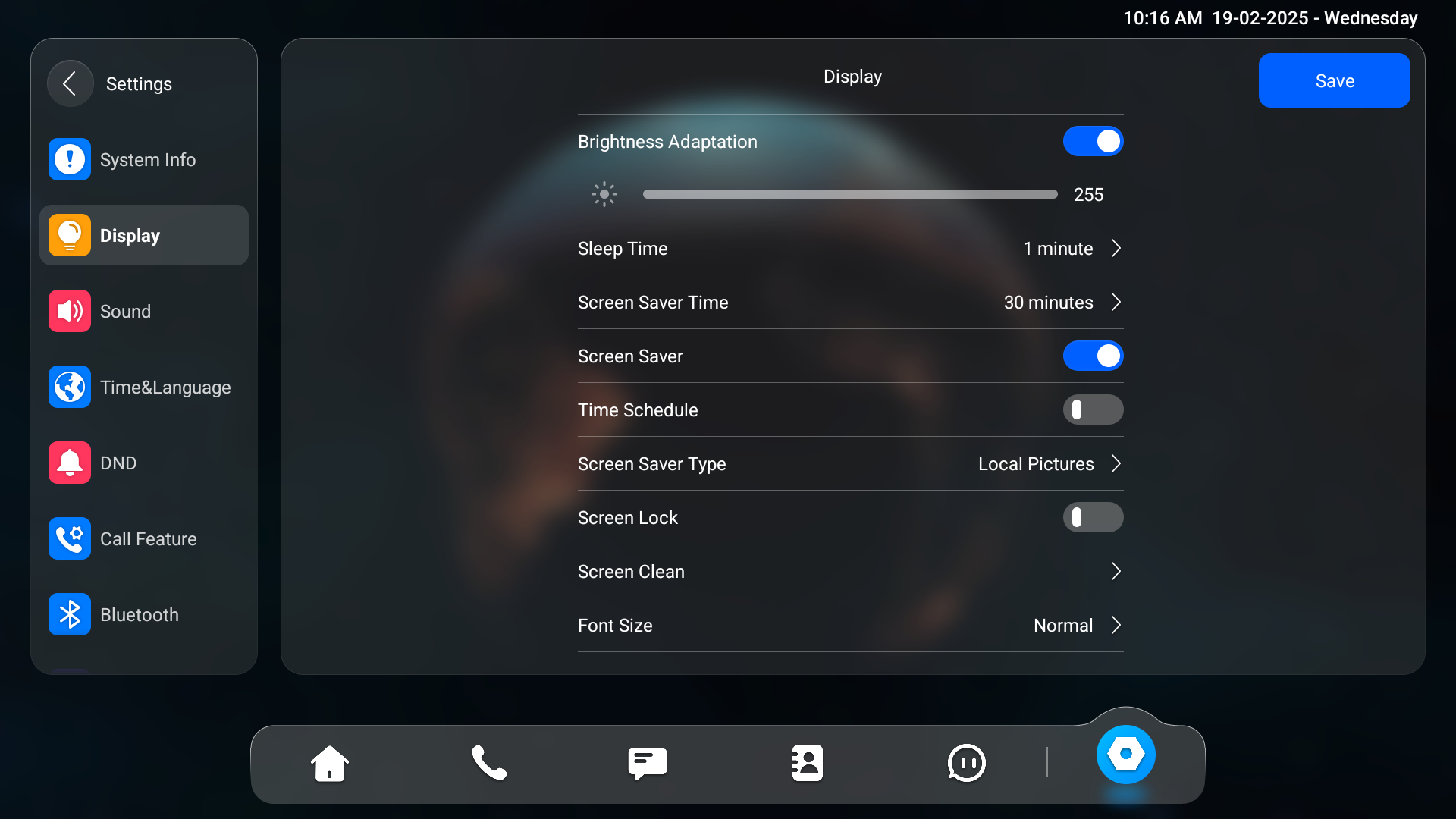
Brightness Adaptation: Enable the device to adjust automatically to natural light.
Brightness: Move the blue bar to adjust the screen brightness.
Note
You cannot adjust the screen brightness manually when the Brightness Adaptation is enabled.
Sleep Time: Set the sleep timing based on the screen saver (15 seconds to 30 minutes).
If the screen saver is enabled, the sleep time here is the screen saver start time. For example, if you set it to 1 minute, the screen saver will start automatically when the device has no operation for 1 minute.
If the screen saver is disabled, the sleep time here is the screen turn-off time. For example, if you set it to 1 minute, the screen will be turned off automatically when the device has no operation for 1 minute.
Screen Saver Time: The time for displaying the screensaver.
Screen Saver: Determine whether to display the screensaver when the device goes into sleep mode.
Time Schedule: Decide the specific time range to display the screen saver.
Screen Saver Type:
Local Pictures: Display pictures uploaded to the indoor monitor as the screen saver.
Local Videos: Display videos from the indoor monitor as the screen saver
Clock: Display the clock as the screen saver.
Screen Lock: Lock the screen after the screen is turned off(turn dark). You are required to enter the code to unlock the screen. The default code is 123456.
Screen Clean: Allow users to wipe the screen clean without triggering unwanted changes in the settings.
Font Size: Select the font size among four options: Small, Normal, Large, and Huge.
Wallpaper: It is for local wallpaper selection.
Wake Up Mode:
Manual: Touch the screen to wake up the device.
Auto: Approach the device to wake it up. It is the default option.
Wake Up Distance: Select the distance to wake up the device. The short distance is 50 cm, and the long distance is 80 cm.
On the Web Interface
You can configure the screen display on the Device > Display Setting > Screen Saver Setting interface.
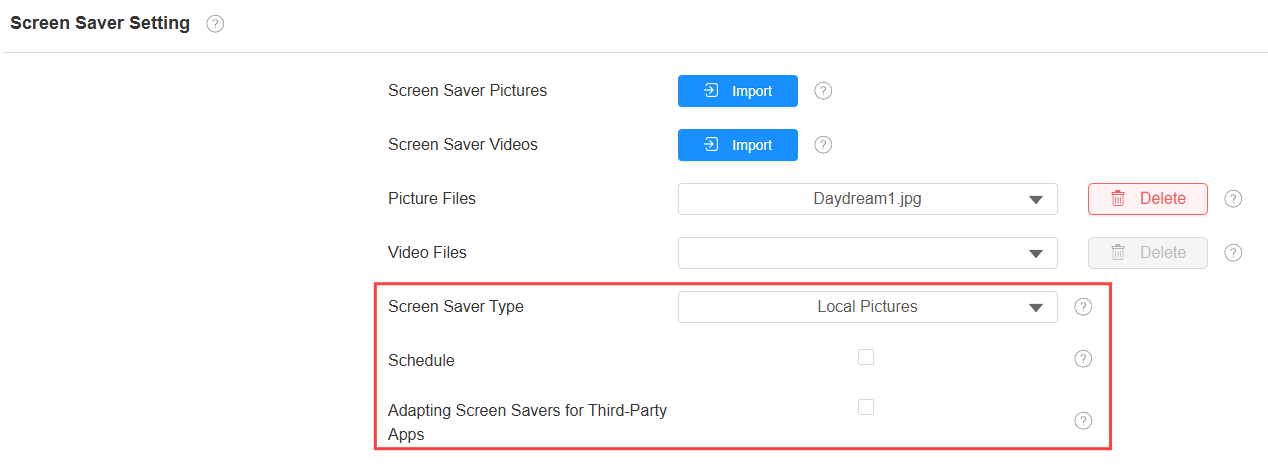
Screen Saver Type:
Local Pictures: Display pictures uploaded to the indoor monitor as the screen saver.
Local Videos: Display videos from the indoor monitor as the screen saver
Clock: Display the clock as the screen saver.
Schedule: Decide the specific time range to display the screen saver.
Adapting Screen Savers for Third-Party Apps: This feature keeps third-party apps running in the background. When enabled, the screen will turn off without a screensaver. The screen-saver parameters will be hidden on the web interface and the device.
To set up the screen sleep time, scroll to the Display Settings on the same interface. Besides, you can set whether to display the time on the home screen.
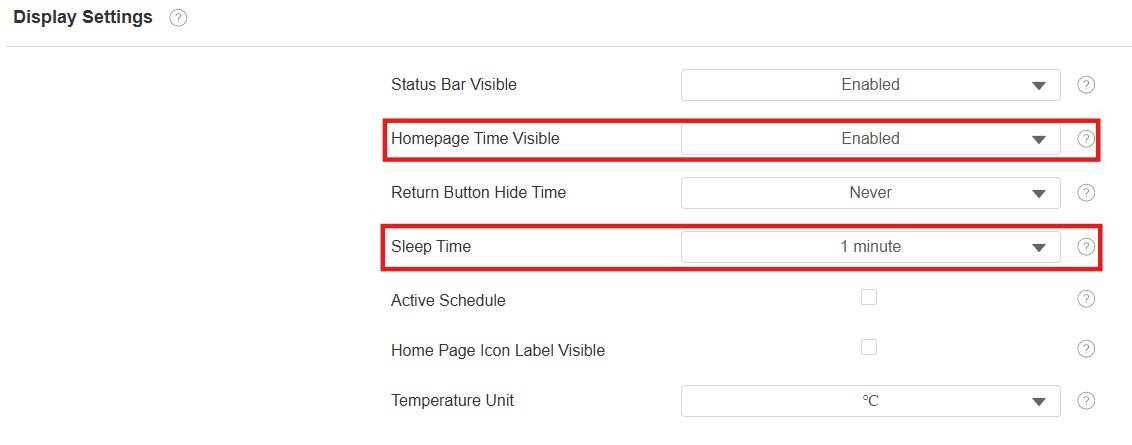
Homepage Time Visible: Enabled by default. If disabled, time will be hidden on the home screen.
Sleep Time: Set the sleep timing based on the screen saver (15 seconds to 30 minutes).
If the screen saver is enabled, the sleep time here is the screen saver start time. For example, if you set it to 1 minute, the screen saver will start automatically when the device has no operation for 1 minute.
If the screen saver is disabled, the sleep time here is the screen turn-off time. For example, if you set it to 1 minute, the screen will be turned off automatically when the device has no operation for 1 minute.
You can set up the brightness adaptation and wake-up mode on the Settings > Basic interface.
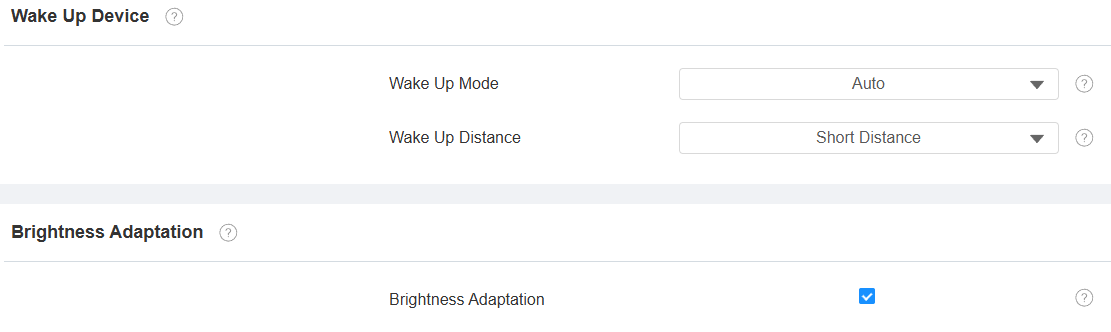
Wake Up Mode:
Manual: Touch the screen to wake up the device.
Auto: Approach the device to wake it up. It is the default option.
Wake Up Distance: Select the distance to wake up the device. The short distance is 50 cm and the long distance is 80 cm.
Brightness Adaptation: Enable the device to adjust automatically to natural light.
Upload Screen Saver
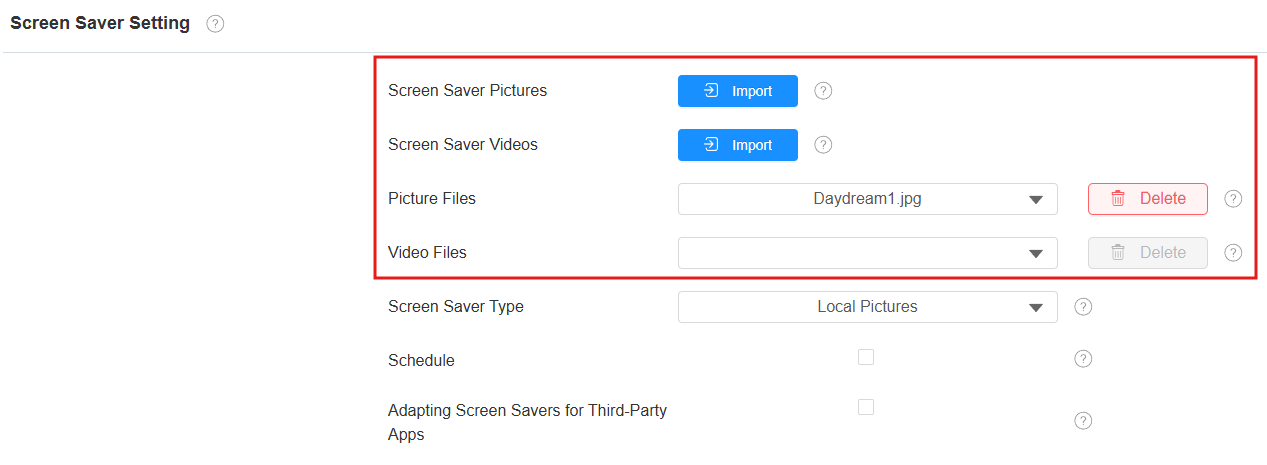
You can upload screen-saver pictures or videos to the device for a public purpose or a greater visual experience.
Navigate to the web Device > Display Setting > Screen Saver Setting interface.
You can click Delete to delete the existing files.
Note
The pictures uploaded should be in JPG, JPEG, or PNG format with a 2M maximum. The recommended resolution is 1920×1080.
Previous pictures with the same ID will be overwritten when they are reassigned.
The videos uploaded should be in MP4, WMV, or AVI format with a 500M maximum. The recommended resolution is 1080×720.
Upload Wallpaper
You can customize your screen background picture on the device web to achieve the visual effect and experience for users.
Navigate to Device > Display Setting > Wallpaper interface.

Note
The pictures uploaded should be in JPG, JPEG, PNG format with a 2M maximum.
The recommended resolution is 1920×1080.
Upload Device Booting Image
You can upload the booting image to be displayed during the device’s booting process.
Go to Device > Display Setting> Boot Logo interface.

Web Logo: The logo will appear in the upper left corner of the web interface. Supported formats: JPG and PNG; Max size: 252*76 PNG.
Web Homepage Logo: The logo will appear on the device’s web login interface. Supported formats: JPG and PNG; Max size: 182*55 PNG.
Status Bar Display Configuration
You can configure whether to display the status bar and return button when running a third-party app.
To set it up, go to the Device > Display Setting > Display Settings interface.
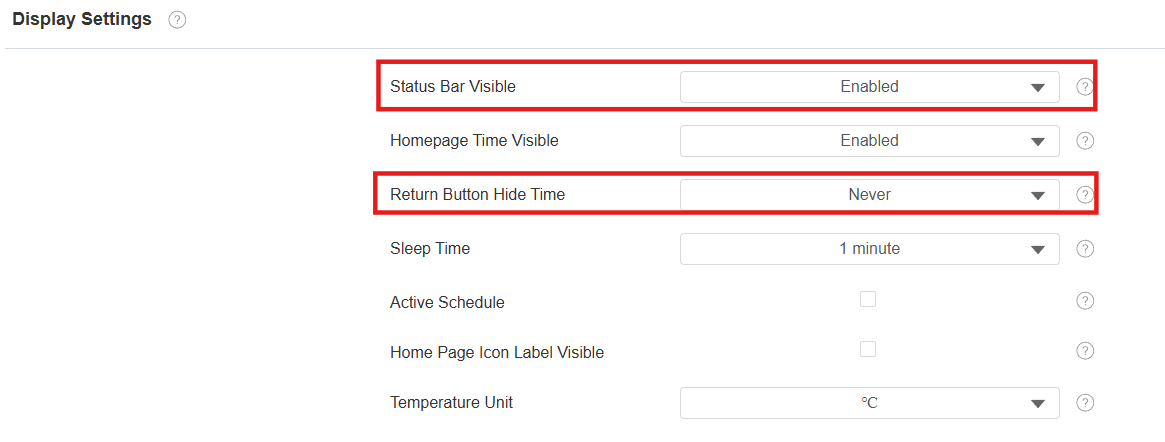
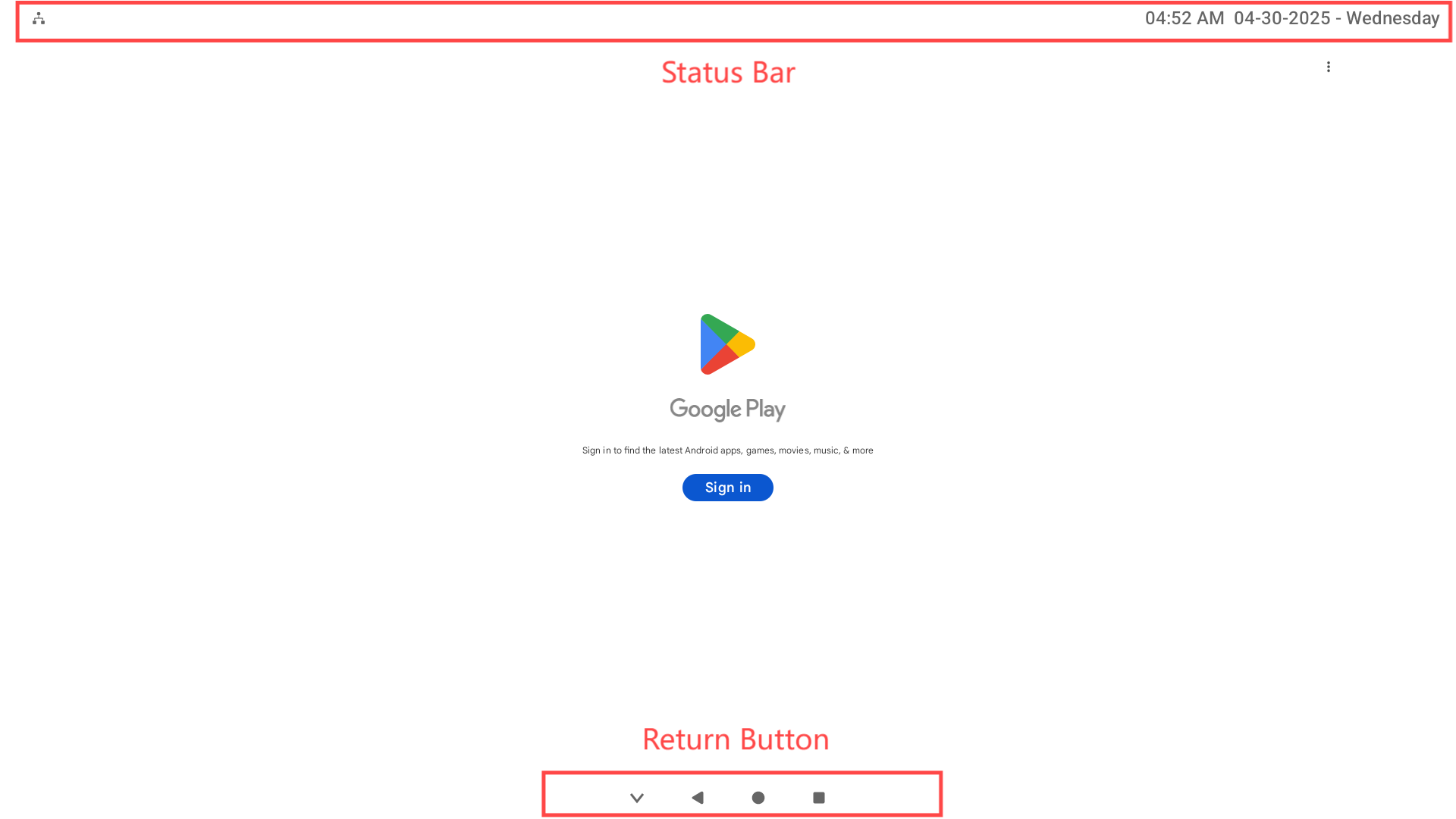
Status Bar Visible: Determine whether to display the status bar when running a third-party app.
Return Button Hide Time: Determine that the return button will be concealed for a certain seconds. If you select Never, the button will keep displaying. Users can swipe up on the screen to make the button appear.
Screen Active Schedule Configuration
You can set the device screen to stay on during scheduled times.
To set it up, go to the Device > Display Setting > Display Settings interface.
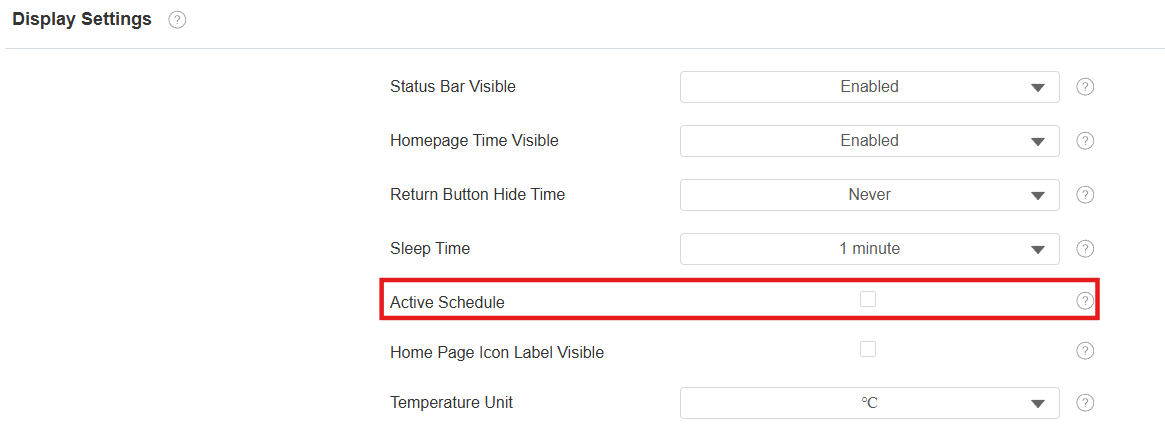
Active Schedule: Check the box to enable the feature and specify the start time and end time.
Note
Keeping the screen active for extended periods may reduce its lifespan.
Home Screen Tab Display
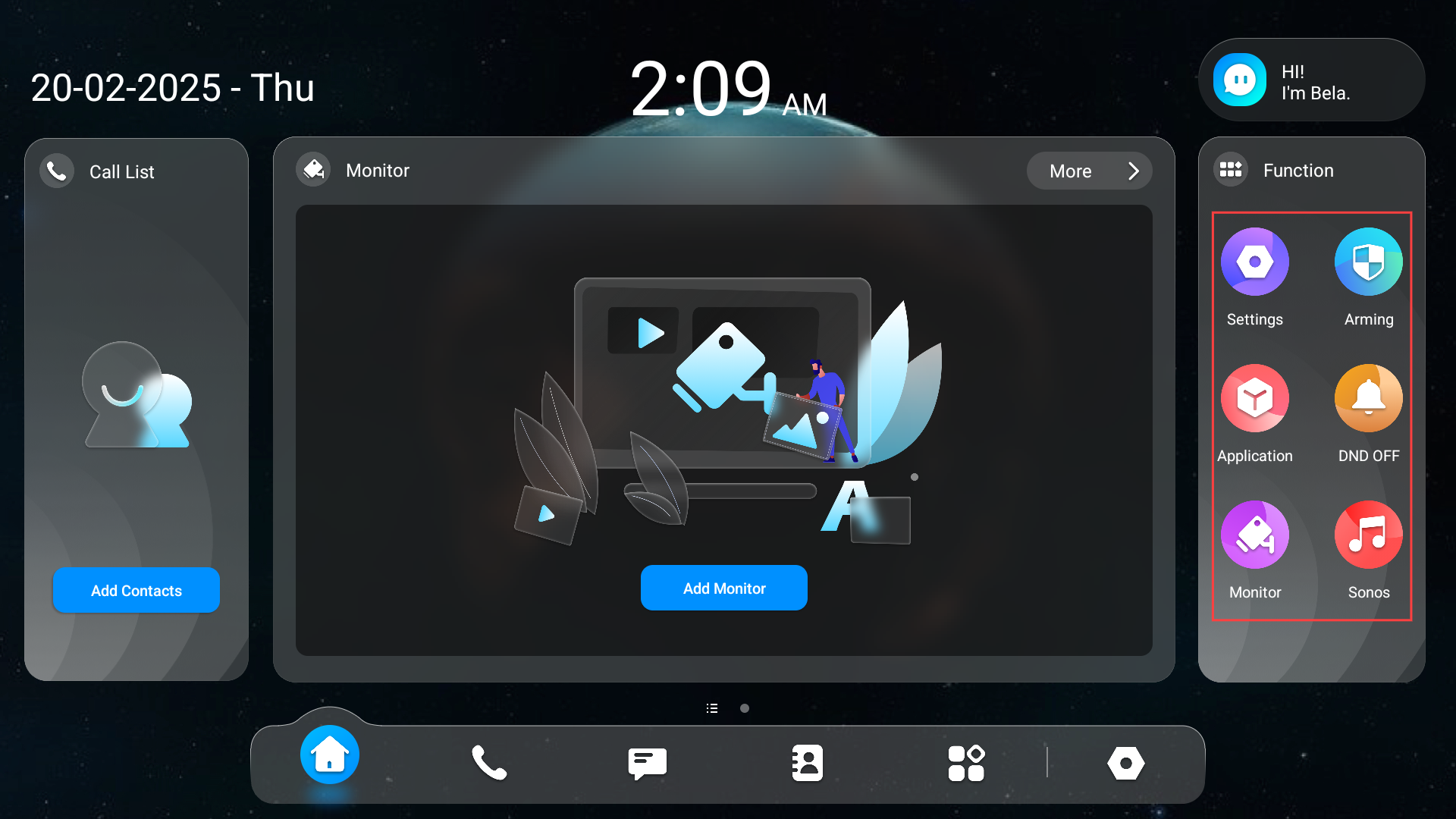
Akuvox indoor monitor allows you to customize icon display on the Home screen and More screen for the convenience of users' operation.
To set it up, navigate to Device > Display Setting interface.
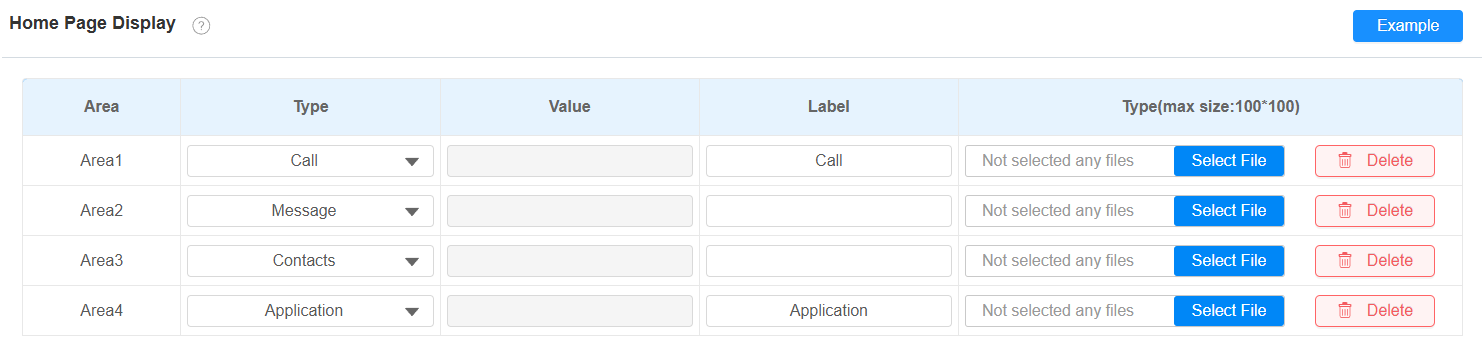
Type: Select the functional icon to be displayed on the home screen.
Smart Lock: This option is available when the indoor monitor and akubela SL50 are added to the same room in SmartPlus Cloud projects. Users can tap Smart Lock to open the lock.
Label: Name the tab. The DND tab cannot be renamed.
Icon: Click to upload the icon picture. The maximum icon size is 100*100. The picture format can be JPG, JPEG, or PNG.
You can click Example to see the icon layout.
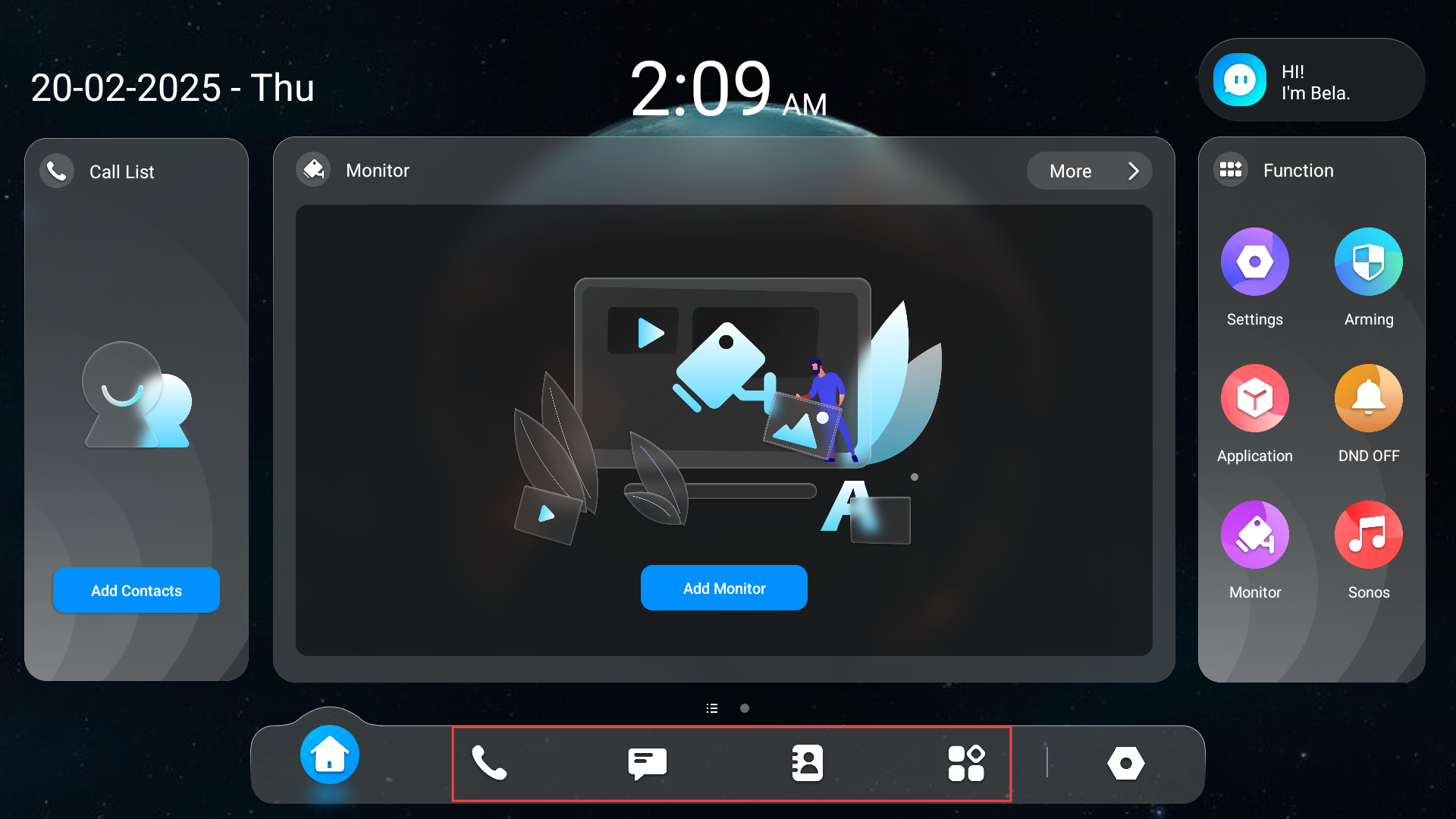
Furthermore, you can set whether to display the icon label on the Device > Display Setting > Display Settings interface.
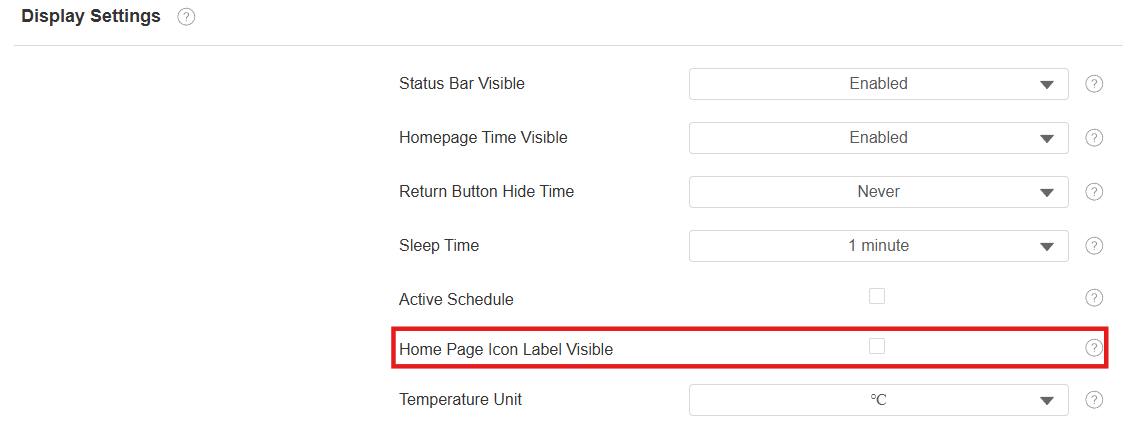
Homepage Icon Label Visible: Disabled by default. If enabled, the icons are shown as below.

Configure the icons displayed on More Page Display on the same interface.
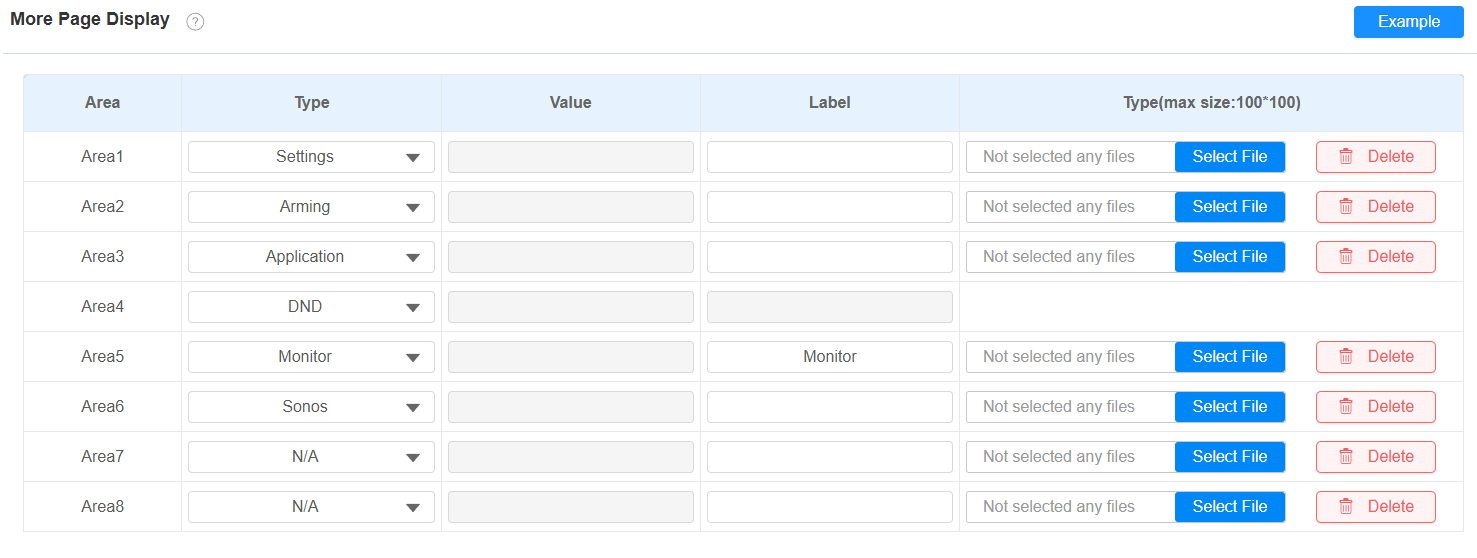
Setting Entries Display
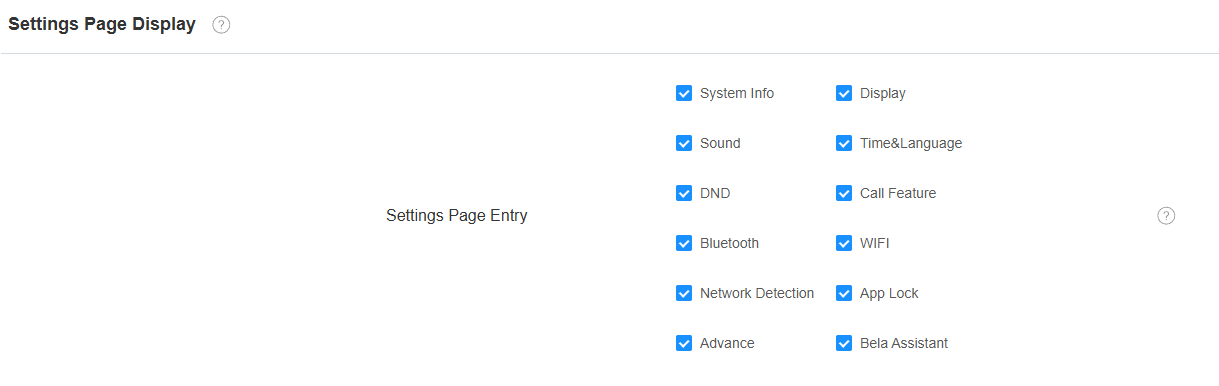
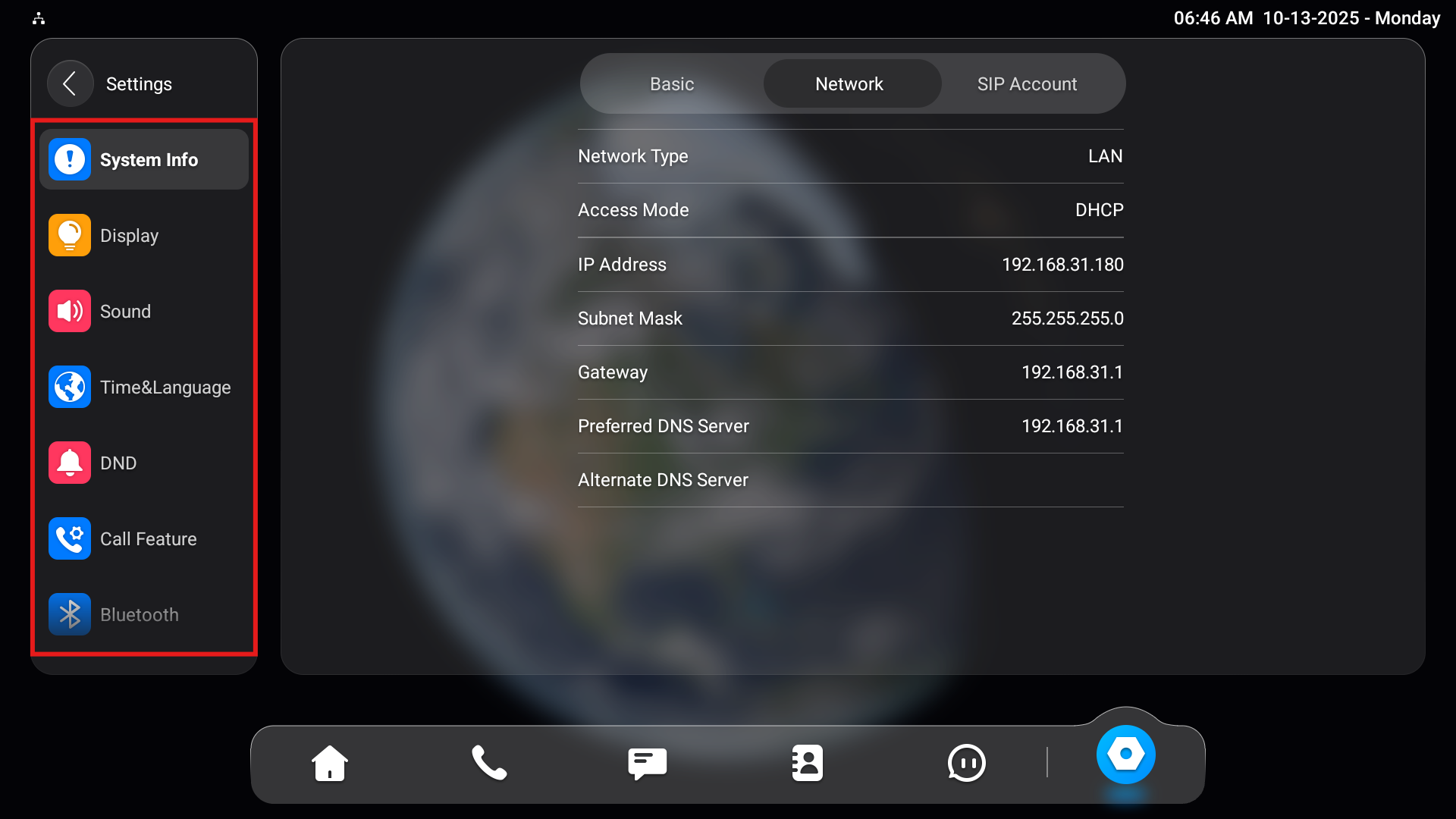
You can set the functions to be displayed on the Settings screen.
Set it up on the Device > Display Setting > Settings Page Display interface.
Function Tabs Configuration
You can set up the display of functional tabs on the talking, monitor, and call preview screens.
To set up tabs on the Talking screen, go to Device > Display Setting > Softkey in Talking Page interface.
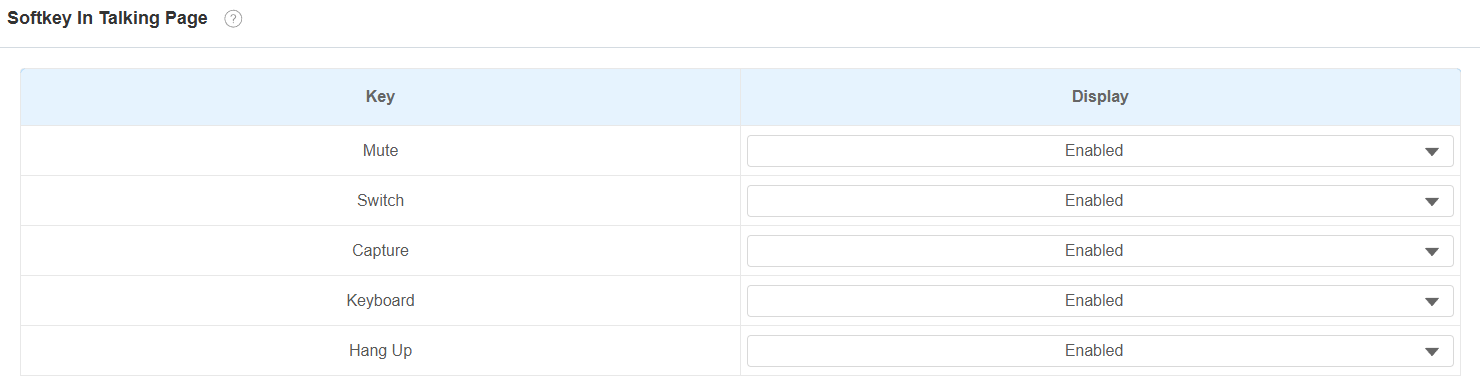
Mute: Tap to mute the talking.
Switch: Tap to switch between Video and Audio talking mode.
Capture: Tap to take a screenshot of the talking screen.
Keyboard: Tap to display the keyboard.
Hang up: Tap to end the call.
To set up tabs on the Call Preview screen, go to Device > Display Setting > Softkey in Call-Preview Page interface.

Capture: Tap to take a screenshot of the preview screen.
Answer: Tap to answer the incoming call.
Hang up: Tap to end the call.
To set up tabs on the Monitor screen, go to Device > Display Setting > Softkey in Monitor Page interface.

Capture: Tap to take a screenshot of the monitor screen.
Cancel: Tap to exit the monitor screen.
Unlock Tabs Configuration
You can customize the unlock tab and select the relay type on the talking, monitor, and call preview screen for the door opening.
To set up the unlock tab on the talking screen, go to Device > Relay > SoftKey In Talking Page interface.
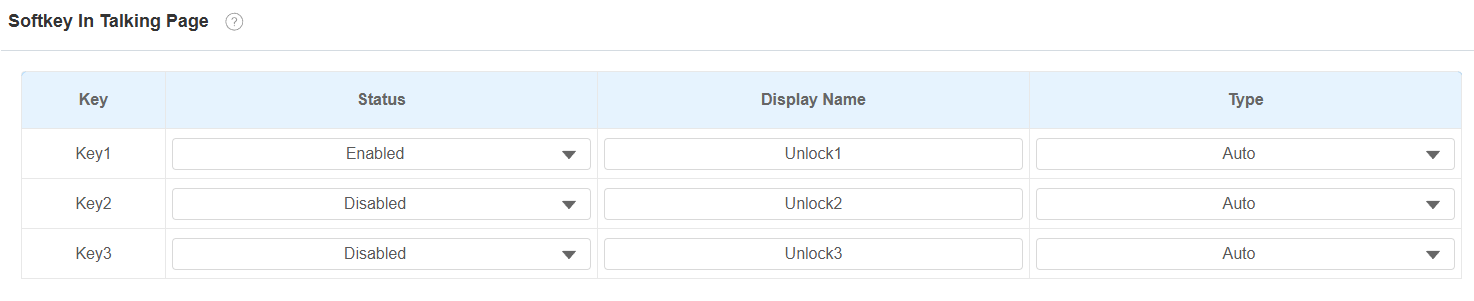
Status: With it enabled, the unlock tab will be displayed on the talking screen.
Display Name: Name the unlock tab.
Type: Select the relay trigger type according to the actual setup.
Scroll down to set up the unlock tab on the Monitor screen on the SoftKey In Monitor Page section.
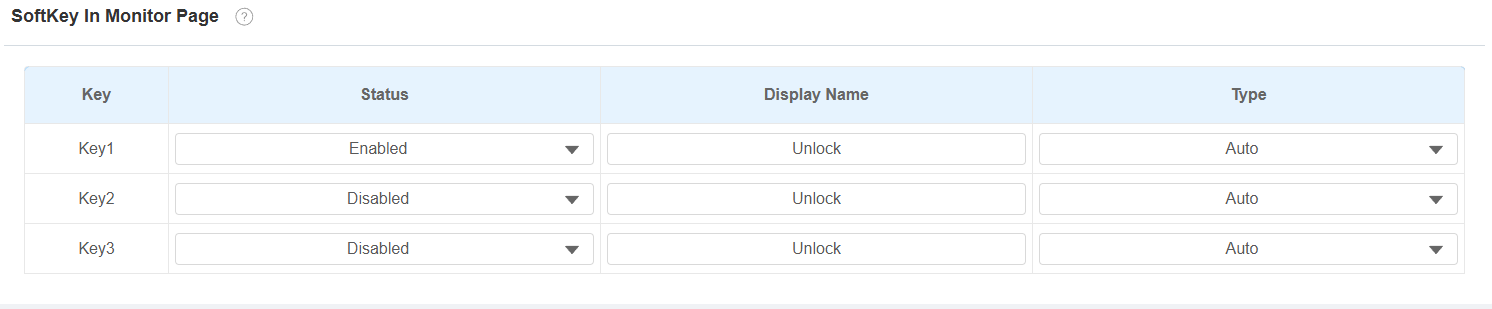
Status: With it enabled, the unlock tab will be displayed on the monitor screen.
Display Name: Name the unlock tab.
Type: Select the relay trigger type according to the actual setup.
Scroll down to set up the unlock tab on the Call Preview screen on the SoftKey In Call-Preview Page section.

Status: With it enabled, it will be displayed on the call preview screen.
Display Name: Name the unlock tab.
Type: Select the relay trigger type according to the actual setup.
Note
Please refer to the Access Control chapter for different unlock types setup.
Temperature Display Setting
When the device is connected to the SmartPlus Cloud, temperature information will be displayed on the device's Home screen.
You can switch the temperature unit between Fahrenheit and Celsius on the device.
To set it up, go to the Settings > Display screen.
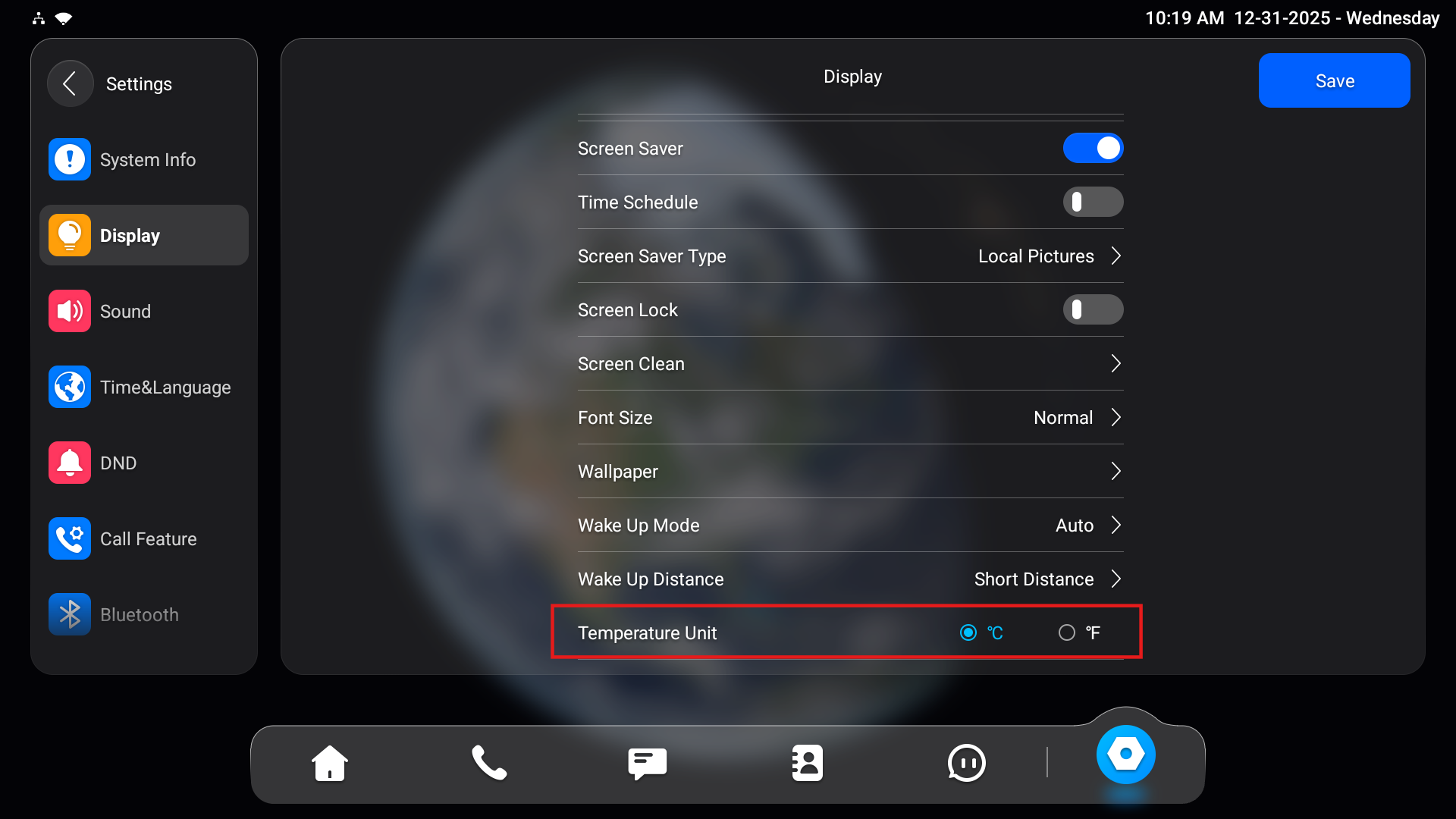
Or, configure it on the web Device > Display Setting > Display Settings interface.
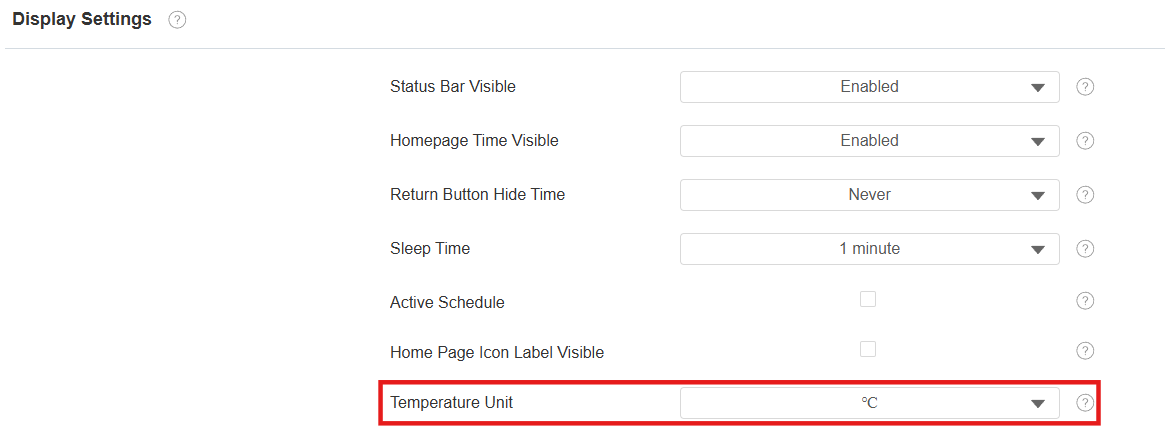
Note
Please refer to Configure Weather Display on Indoor Monitors for configuration details.