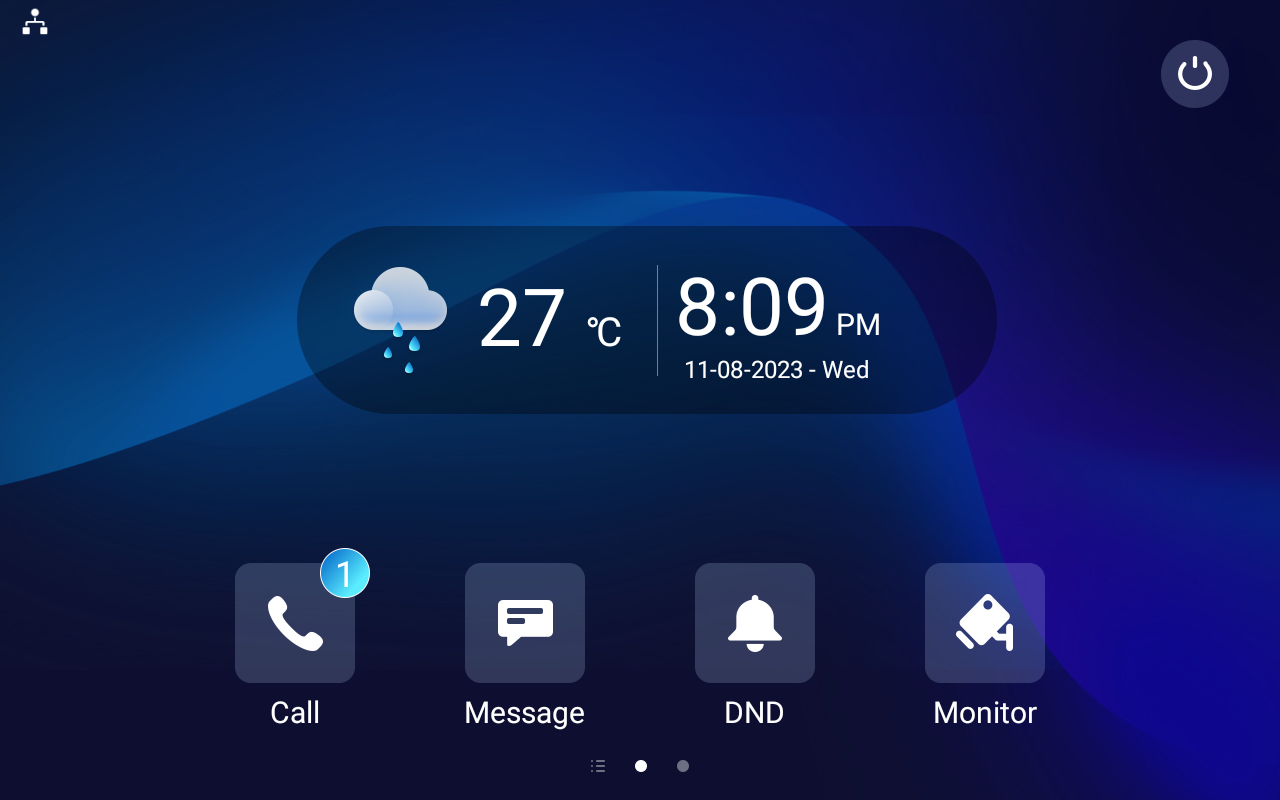
The weather conditions can be displayed on indoor monitors’ home screens when they are connected to the SmartPlus Cloud. Users can conveniently check local temperature and weather.
The weather displayed is affected by the address that is configured on the SmartPlus platform.
Note
The following devices with specific firmware versions or higher support the feature:
C319: 119.30.10.203;
C310: 310.30.15.25;
S567: 567.30.12.3;
S565:565.30.10.71;
S563: 563.30.12.104;
S562: 562.30.14.21;
S562-2: 5622.30.15.18;
IT88: 88.30.12.404;
X937: 937.30.13.122.
For Single-Family Projects
Log in to the SmartPlus Cloud platform with an installer account.
Navigate to the Single-Family Site.
Select the address based on which the indoor monitor can access the weather conditions when
creating a new project by clicking New;
modifying the existing project by clicking
 .
.
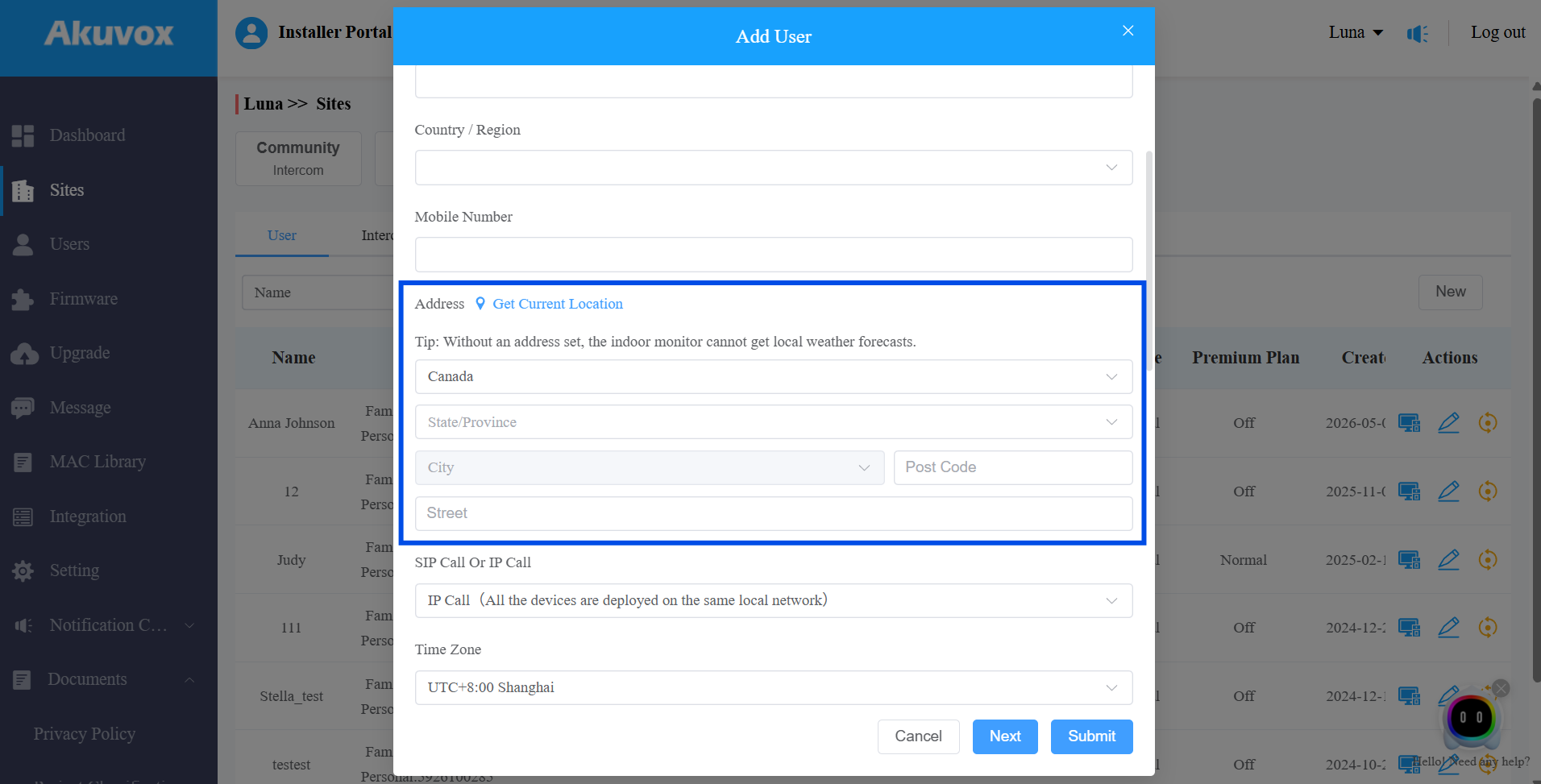
Submit the setting.
For Community Projects
Log in to the SmartPlus Cloud platform with an installer account.
Navigate to the Community site.
Select the address based on which the indoor monitor can access the weather conditions when
creating a new community by clicking +New;
modifying the existing community by clicking
.
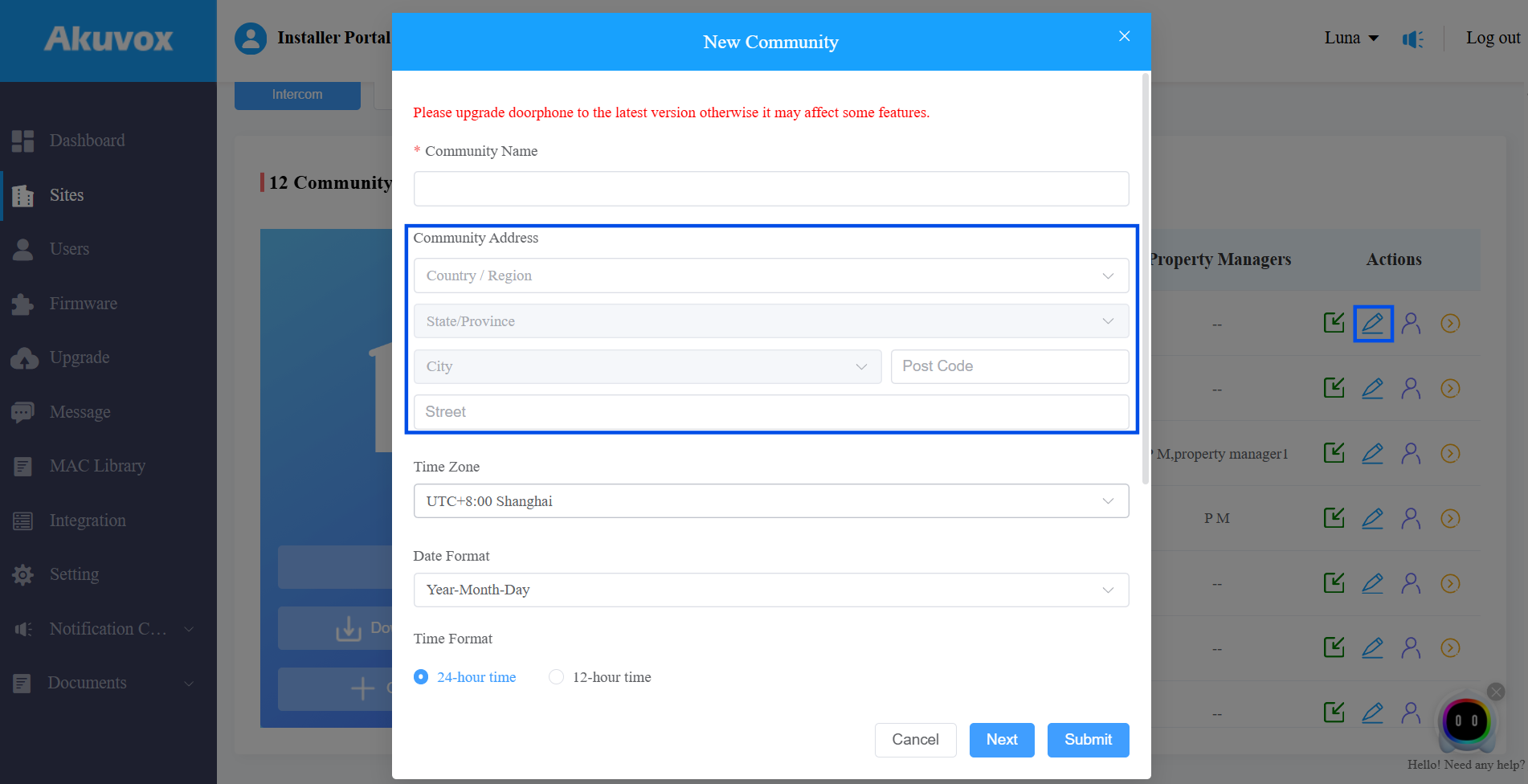
Submit the setting.
For Commercial Projects
Log in to the SmartPlus Cloud platform with an installer account.
Navigate to the Commercial project.
Select the address based on which the indoor monitor can access the weather conditions when
creating a new project by clicking +New;
modifying the existing one by clicking
.
You can click Get Current Location to automatically fill in the Country and State/Province, which requires the browser permission.
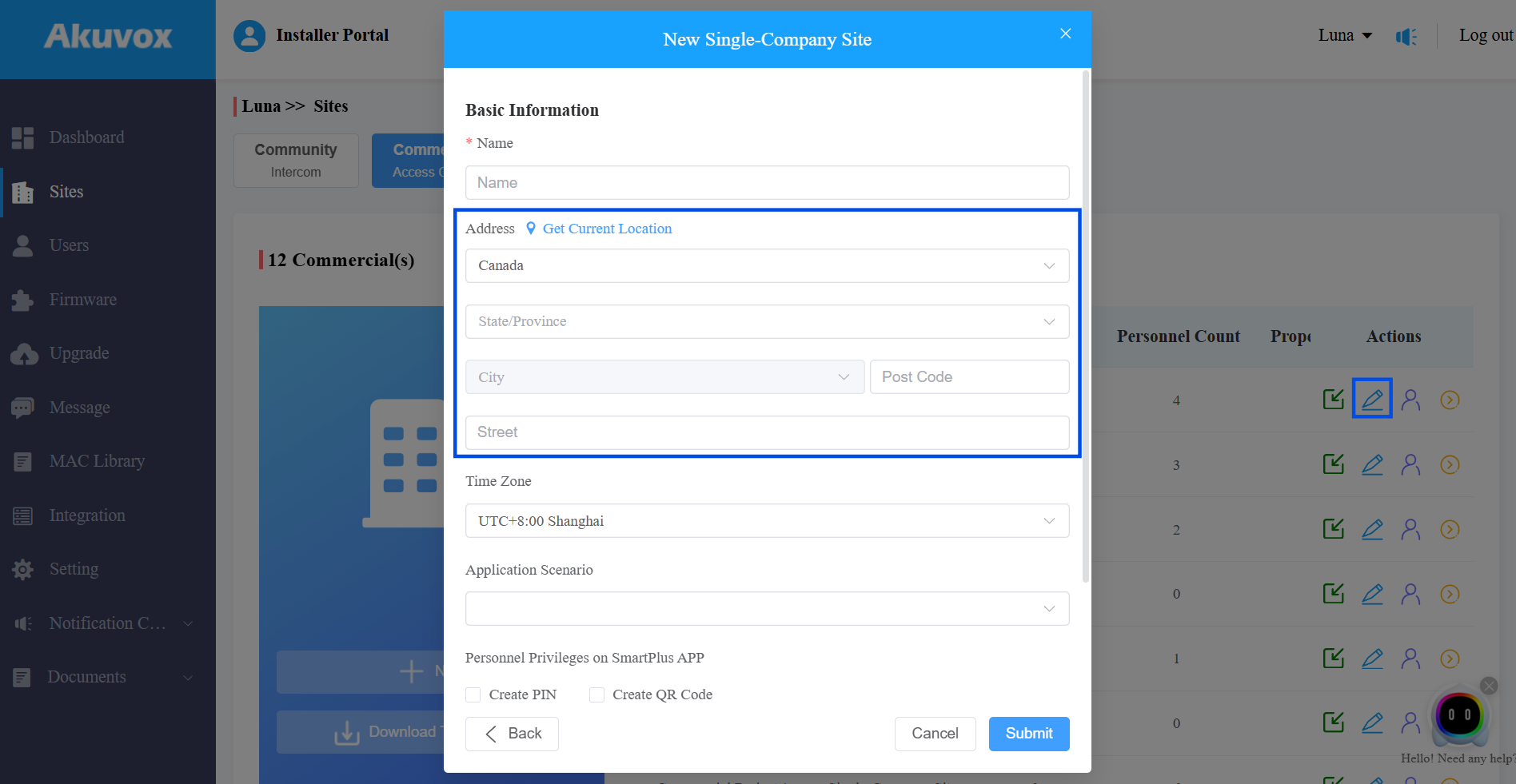
Submit the setting.
After adding the indoor monitor to the target area, reboot the device to make the setting effective.